Best Selling Products

Plugin Retouch4me
69 USD

Upgrade genuine Capture One account
120 USD

Upgrade Duolingo Super
29 USD

Copyright Adobe Lightroom Account
59 USD

Capcut Pro 1 Year
39 USD

Freepik Premium Account
59 USD

Windows 10 & 11 Pro Key
36 USD

Autodesk All App Account Copyright
120 USD

Adobe Premiere Pro Account
99 USD

ChatGPT Plus Account (GPT-4)
16 USD

Adobe Photoshop Copyright - Full App
120 USD

Upgrade Genuine Office 365
49 USD

Genuine Adobe Illustrator account
99 USD

MidJourney Account
29 USD

Genuine Cheap Canva Pro
39 USD
What is Canva Business? Discover its features and detailed usage instructions for beginners.
Nội dung
- 1. What is Canva Business?
- 2. Key features of Canva Business
- 2.1. Abundant design resources
- 2.2. Managing Brand Identity with a Brand Kit
- 2.3. Integrating intelligent AI tools
- 2.5. Track advertising effectiveness with Canva Grow
- 2.6. Ample storage space
- 3. What are the differences between Canva Business and Canva Pro?
- 4. Detailed instructions for using Canva Business
- 4.1. Register and access Canva Business
- 4.2. Creating a new design in Canva Business
- 4.3. Establishing a Brand Kit for the Brand
- 4.4. Invite members to join the group.
- 4.5. Using AI to support design
- 6. You should buy a Canva Business account from Sadesign.
- 7. Conclusion
In today''s business environment, a professional brand image plays a crucial role in attracting customers and building trust. However, not every individual or business has a dedicated design team to create content daily. Canva Business was created to address this issue with a system of design, brand management, and collaboration tools integrated into a single workspace. So, what is Canva Business? What are its outstanding features and how do you use it? Let''s explore the details in the article below!
1. What is Canva Business?
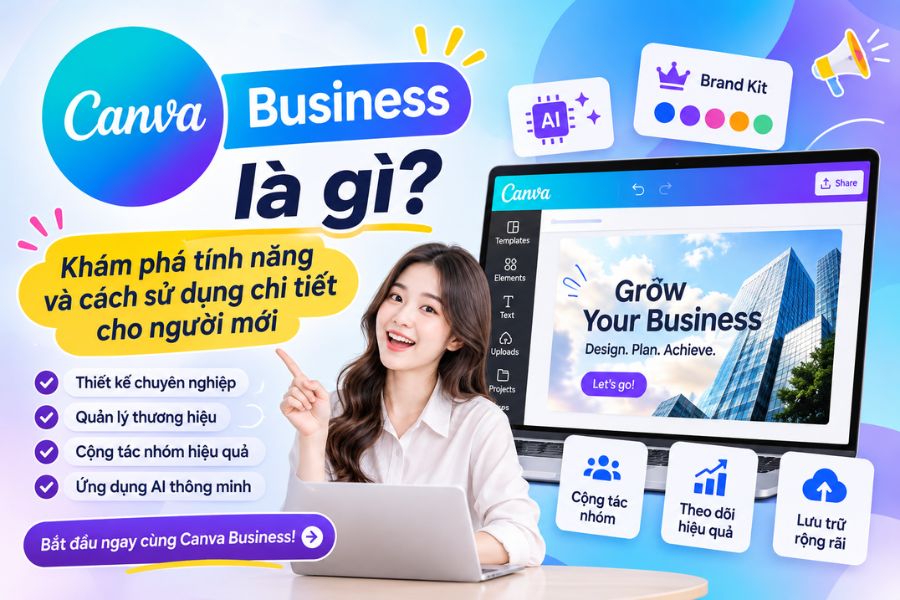
Canva Business is a content design and management service package for individual businesses, marketers, and teams looking to develop their brand. This package offers advanced tools that combine graphic design, artificial intelligence (AI), brand identity management, and team collaboration. Compared to traditional design needs, Canva Business aims to help users build a more integrated content creation process. Instead of using multiple separate tools, you can accomplish most of your work within a single account.
Some examples of suitable applications for Canva Business include:
-
Online shop owner: Designing banners, advertising images, social media posts, and product descriptions.
-
Marketing Staff: Develop communication campaigns, manage brand image, and monitor advertising effectiveness.
-
Content creator: Designs videos, images, thumbnails, and documents for work purposes.
-
Small businesses: Managing brand identity, assigning tasks, and overseeing design content.
-
Design team: Collaborative editing, idea exchange, and maintaining consistency across publications.
2. Key features of Canva Business
Canva Business offers numerous tools to support the creative process and operation of branding. Below are some notable features that users can utilize.
2.1. Abundant design resources
Canva Business provides access to a library of premium design templates, images, videos, audio, and graphics. This allows users to find the right resources for their specific needs without having to spend a lot of time designing from scratch.
Some possible actions include:
-
Design posters, advertising banners, and product images.
-
Create posts for Facebook, Instagram, and TikTok.
-
Create presentation slides and company brochures.
-
Edit short videos and create media content.
-
Designing catalogs, menus, and promotional materials.
2.2. Managing Brand Identity with a Brand Kit
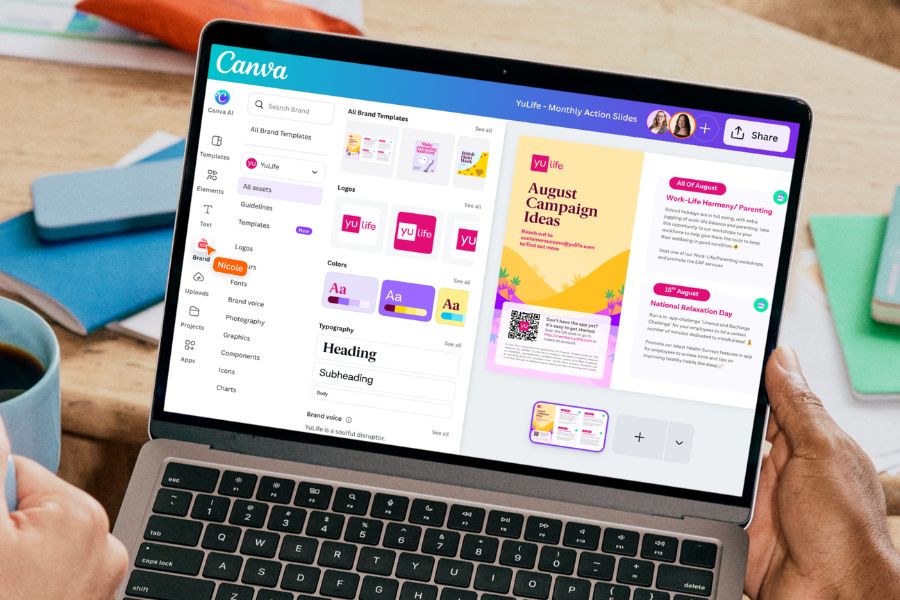
A Brand Kit is a tool that helps bring together brand identity elements in one place. Users can store logos, color palettes, fonts, images, and frequently used resources.
With Canva Business, this feature supports managing up to 100 Brand Kits based on the current package information. This is a significant advantage for businesses that own multiple brands or run various campaigns.
2.3. Integrating intelligent AI tools
Canva Business integrates AI features to shorten content creation and processing time. Users can leverage these tools to transform ideas into visuals or assist with design editing.
Some notable features:
-
Magic Write: Helps you write content, titles, and descriptions.
-
Magic Edit: Edit a specific area in an image.
-
Magic Eraser: Removes unwanted details.
-
Magic Expand: Expands the frame and adds missing parts of the image.
-
Magic Resize: Resize your design for various formats.
-
Canva AI: Supports idea generation and content creation using command lines.
2.4. Teamwork and delegation of authority
Canva Business empowers team members to participate in the content creation process. Managers can invite collaborators, assign roles, and oversee design activities within the team.
Notable amenities include:
-
Edit the design in real time.
-
Comment and exchange ideas directly on the design.
-
Assign tasks to team members.
-
Manage access permissions to documents.
-
Establish a design approval process before implementation.
2.5. Track advertising effectiveness with Canva Grow
One of the highlights of Canva Business is its ability to support marketing activities through Canva Grow. This tool provides effective advertising analytics, giving users more data to evaluate content and adjust campaigns. Instead of focusing solely on design, businesses can combine content creation with monitoring communication effectiveness, leading to more informed decisions.
2.6. Ample storage space
Canva Business offers 500GB of cloud storage according to the current plan. Users can store images, videos, documents, and design projects for convenient access when needed. This feature is especially useful for teams that frequently produce content or need to manage many work-related documents.
3. What are the differences between Canva Business and Canva Pro?
Canva Pro and Canva Business both offer a wide range of advanced design tools. However, each package caters to different needs. Canva Pro is suitable for individual content creators, while Canva Business is further developed with tools for brand management, collaboration, and marketing.
4. Detailed instructions for using Canva Business
If you're new to Canva Business, you can start with the basic steps below to quickly familiarize yourself with the design space.
4.1. Register and access Canva Business
First, users need to prepare a Canva account and choose a Business plan that suits their needs. You can do this on a computer browser for easier management of settings.
Steps to follow:
-
Visit the Canva website at canva.com.
-
Log in to your personal account or register a new account.
-
Open the service plan selection section.
-
Find Canva Business and view the registration information.
-
Please complete the payment as instructed.
-
Once completed, access your account to use the features you've been granted permission to.
4.2. Creating a new design in Canva Business
After logging in, you can start creating publications for your work and business.
Steps to follow:
-
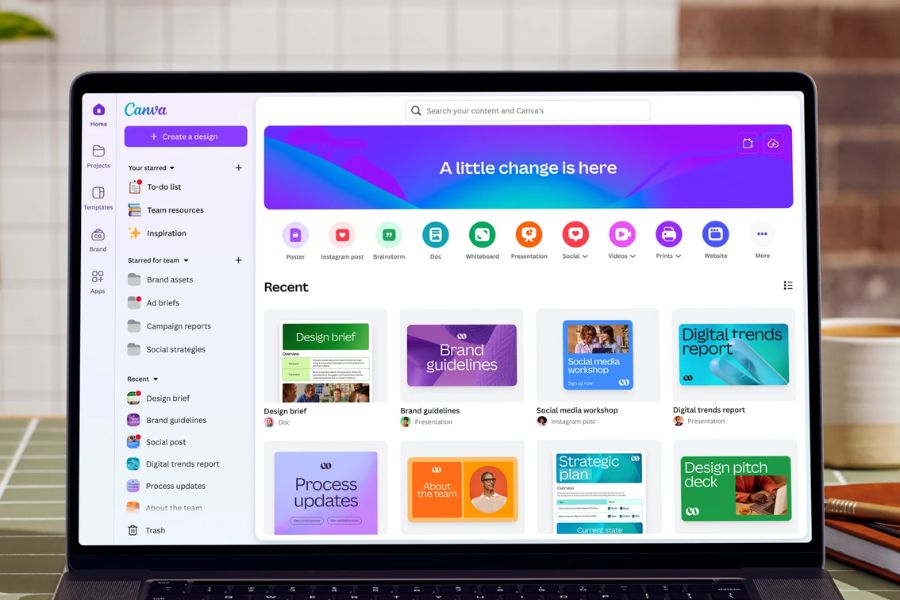
On the Canva homepage, select the Create Design option.
-
Enter the type of design you want to create, such as a poster, social media post, or video.
-
Choose the appropriate size.
-
Choose from available templates or start with a blank page.
-
Add images, text, colors, and other necessary elements.
-
Adjust the layout and then review the design.
-
Select Share or Download to save the finished product.
4.3. Establishing a Brand Kit for the Brand
To use a Brand Kit effectively, you should prepare your logo, color codes, and fonts that represent your brand.
Steps to follow:
-
On the Canva homepage, select the Brand section.
-
Open the Brand Kit section and select Create New Brand Identity.
-
Name the Brand Kit.
-
Upload your brand logo to the system.
-
Add color palettes by entering color codes or selecting suitable colors.
-
Upload or select your brand font.
-
Add images and other necessary resources.
-
Save this for use in future designs.
4.4. Invite members to join the group.
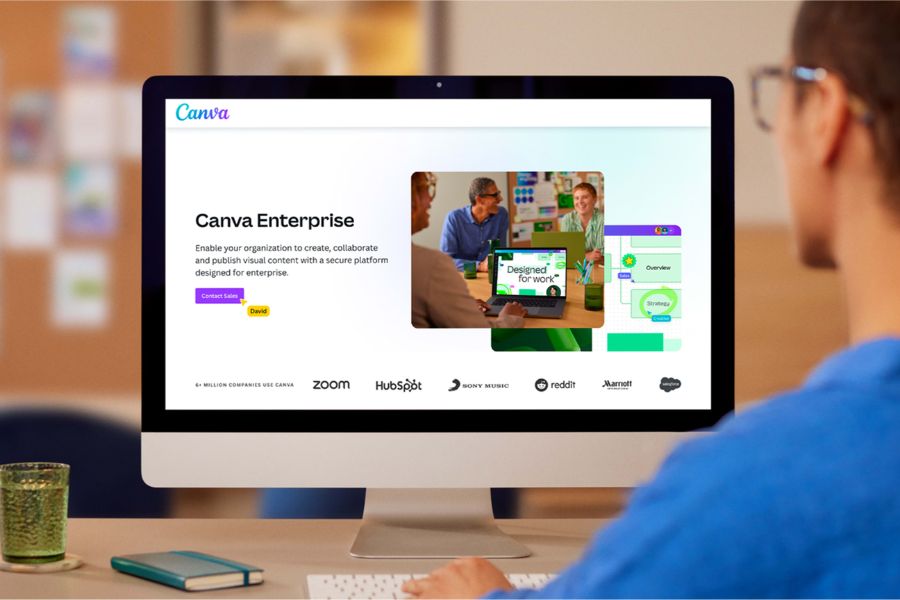
If you need to collaborate with multiple people, you can invite members to join a shared workspace.
Steps to follow:
-
Open the group settings or member management section.
-
Select the feature to invite members.
-
Enter the email address of the person who wants to participate.
-
Establish appropriate roles and access permissions.
-
Send out invitations.
-
Members accept the invitation and join the group to begin collaborating.
4.5. Using AI to support design
AI helps users save time when they need to implement new ideas. You can describe the content you want to create using natural language, and Canva will assist in processing it.
Steps to follow:
-
Access Canva and open the appropriate AI tool.
-
Enter your design requirements.
-
Add style, color, and purpose.
-
Wait for the system to generate the results.
-
Choose the appropriate option.
-
Continue editing the text, images, and layout.
-
Export the file after completion.
5. Some things to keep in mind when using Canva Business
To make the most of Canva Business's features, users should pay attention to the following points:
-
Choose the right package: Determine your individual or group needs before signing up to avoid wasting money.
-
Account security: Do not share your password and login information with untrustworthy individuals.
-
Access control: Grant editing permissions only to members who truly need them.
-
AI content review: Images and text generated by AI still need to be reviewed before use.
-
Organize your files efficiently: Divide your folders by project, client, or campaign for easy searching.
-
Check resource licenses: Carefully read the terms and conditions for using images, videos, and design elements when exploiting them for commercial purposes.
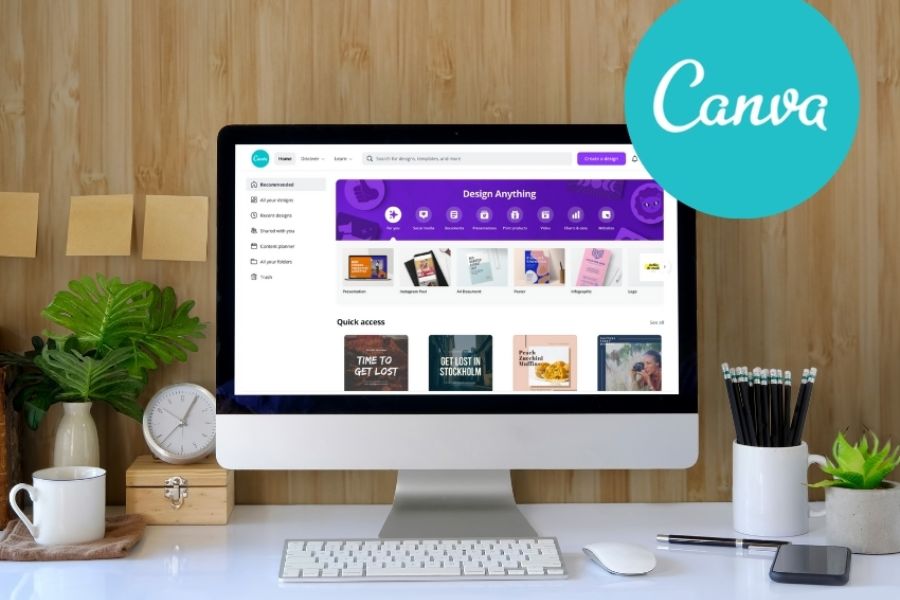
6. You should buy a Canva Business account from Sadesign.
If you're looking for a solution to upgrade Canva for your design and business needs, Sadesign is a place you can consider. Choosing the right service provider makes the registration and account usage process smoother, especially for those with little experience upgrading software. When choosing Canva services at Sadesign, you'll benefit from the following:
-
Reasonable cost: There are more upgrade options to suit your budget and needs.
-
Dedicated support: Receive guidance throughout the registration, upgrade, and account usage process.
-
Convenient payment: Simple exchange and payment process.
-
Customized consultation: You can discuss beforehand to choose a package that suits your personal or professional needs.

7. Conclusion
Canva Business is a useful solution for entrepreneurs, content creators, and businesses looking to improve design efficiency, brand management, and team collaboration. With its rich resource library, AI tools, Brand Kit, and team management capabilities, this service package makes the content creation process more convenient. For long-term use, you can explore Canva upgrade options at Sadesign to choose the solution that best suits your budget and business goals.





















VIP Products








Best Selling Products
Plugin Retouch4me
69 USD
Upgrade genuine Capture One account
120 USD
Upgrade Duolingo Super
29 USD
Copyright Adobe Lightroom Account
59 USD
Capcut Pro 1 Year
39 USD
Freepik Premium Account
59 USD
Windows 10 & 11 Pro Key
36 USD
Autodesk All App Account Copyright
120 USD
Adobe Premiere Pro Account
99 USD
ChatGPT Plus Account (GPT-4)
16 USD
Adobe Photoshop Copyright - Full App
120 USD
Upgrade Genuine Office 365
49 USD
Genuine Adobe Illustrator account
99 USD
MidJourney Account
29 USD
Genuine Cheap Canva Pro
39 USD