Best Selling Products

Upgrade Duolingo Super
29 USD

Freepik Premium Account
59 USD

Autodesk All App Account Copyright
120 USD

Plugin Retouch4me
69 USD

Capcut Pro 1 Year
39 USD

Upgrade Genuine Office 365
49 USD

ChatGPT Plus Account (GPT-4)
16 USD

Windows 10 & 11 Pro Key
36 USD

Genuine Cheap Canva Pro
39 USD

MidJourney Account
29 USD

Genuine Adobe Illustrator account
99 USD

Adobe Photoshop Copyright - Full App
120 USD

Adobe Premiere Pro Account
99 USD

Copyright Adobe Lightroom Account
59 USD

Upgrade genuine Capture One account
120 USD
What is Work in a Project in ChatGPT? A detailed guide for beginners.
Nội dung
- 1. What does "Work in a ChatGPT project" mean?
- 2. What are the key advantages of working in a project?
- 2.1. Maintaining context throughout the project
- 2.2. Performing tasks in multiple steps
- 2.3. Leveraging shared documents and data sources
- 2.4. Monitoring and adjusting the work process
- 3. Instructions for using Work in a Project on ChatGPT
- 3.1. Step 1: Access ChatGPT
- 3.2. Step 2: Create a new project
- 3.3. Step 3: Add documentation and instructions to the Project
- 3.4. Step 4: Switch to Work mode
- 3.5. Step 5: Assign specific tasks to ChatGPT
- 3.6. Step 6: Check and finalize the results
- 4. Things to note when using Work in a Project
- 5. Frequently Asked Questions about Work in a Project on ChatGPT
- 5.1. Is working on a project free?
- 5.2. Is it possible to use multiple chats within the same Project?
- 5.3. Does ChatGPT Work automatically complete all tasks?
- 6. Conclusion
When working with ChatGPT, constantly having to provide documents, information, and requests in multiple conversations can sometimes make the workflow time-consuming. To address this, the Work in a Project feature combines the in-depth collaboration capabilities of ChatGPT Work with a well-organized project space. This allows you to manage multiple conversations, share documents, maintain context, and seamlessly execute complex tasks. So how does Work in a Project work? Let''s explore how to use this feature with the guide below.
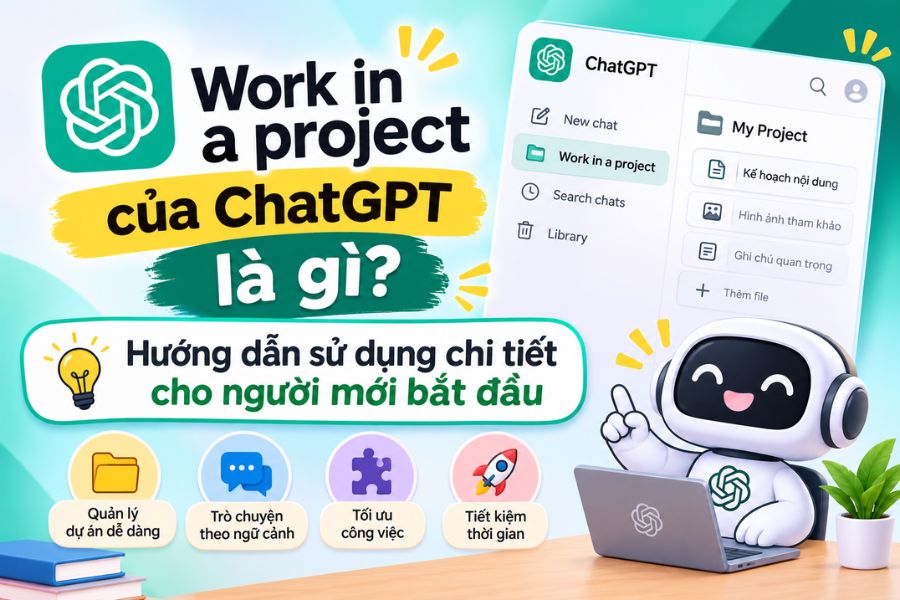
1. What does "Work in a ChatGPT project" mean?
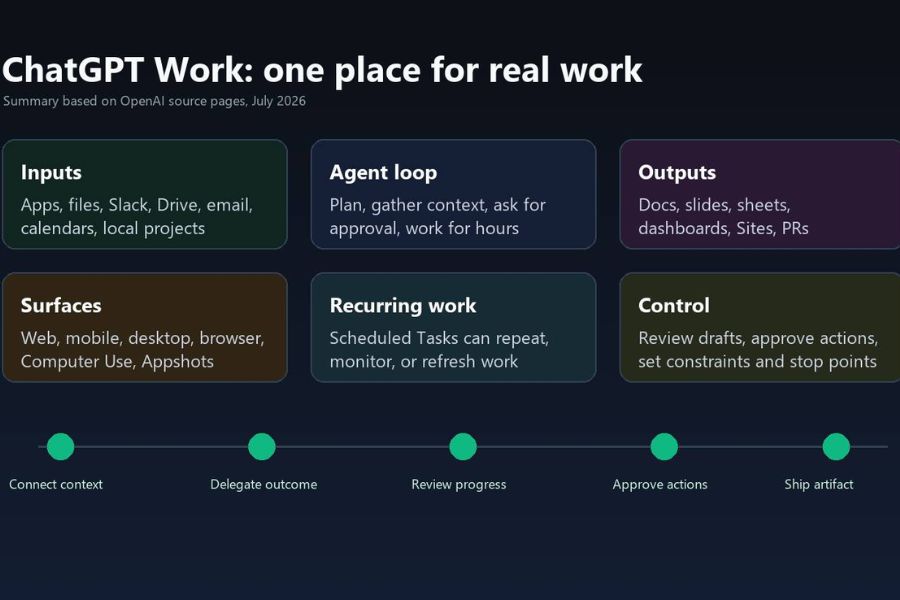
Work in a project is a way to use ChatGPT Work within an existing project, allowing AI to leverage the project's shared information, documents, and guidelines to perform in-depth tasks. Instead of simply answering individual questions, ChatGPT can receive requests, research information, analyze data, and generate complete results based on the provided context.
To better understand, users need to distinguish between two components:
-
Projects: A space for storing conversations, documents, references, and guides related to a specific topic or project.
-
ChatGPT Work: An intensive work mode capable of performing multi-step tasks, using tools, and creating complete documents.
By combining these two features, ChatGPT Work can leverage the shared context within the Project to process tasks without requiring users to provide all the information again in each conversation.

2. What are the key advantages of working in a project?
Working in a project offers a more flexible way of organizing and handling tasks, especially suitable for assignments that need to be completed over a long period of time.
2.1. Maintaining context throughout the project
One notable advantage is the ability to share information across conversations within the same Project. Uploaded documents and project guidelines can be used as a reference source for various tasks.
For example, when building a business plan, you can create separate conversations to research the market, analyze competitors, and develop a marketing plan. These conversations are still within the same project, so you can use the same resources and guidelines that have already been established.
2.2. Performing tasks in multiple steps
Instead of simply providing a short answer, ChatGPT Work can break down a large request into multiple processing steps. AI can research, synthesize, analyze, and build results according to the assigned objectives.
Some of the tasks that can be performed include:
-
Research and synthesize information from multiple sources.
-
Analyze documents, spreadsheets, and data.
-
Prepare reports, plans, and presentations.
-
Create documents for work and study.
-
Monitor progress and adjust requirements during implementation.
2.3. Leveraging shared documents and data sources
Users can upload documents to the Project for ChatGPT to refer to in related tasks. This helps to reduce the need to repeatedly send the same file in multiple conversations.
The types of documents that can be used include:
-
PDF, Word, and PowerPoint files.
-
Excel spreadsheet.
-
Images and references.
-
Instructions, notes, and project information.
Please note that the Project can only use uploaded or properly connected resources. Creating a Project does not mean ChatGPT will automatically access all folders on your computer.
2.4. Monitoring and adjusting the work process
While ChatGPT Work is performing its tasks, users can monitor progress, ask additional questions, and change the course of action as needed. For critical actions, the AI may require user review or approval before proceeding.
This way, you still have control over the results instead of having to wait until the entire job is completed before checking.
3. Instructions for using Work in a Project on ChatGPT
To begin, users need a Project containing information or documents related to the task. Then, you can switch to Work mode to assign tasks to the AI.
3.1. Step 1: Access ChatGPT
First, open your browser and go to ChatGPT, then log in to your personal account.
On the main interface, you can find the Projects section in the left-hand navigation bar. If you already have a project, select the Project you want to continue working on.
3.2. Step 2: Create a new project
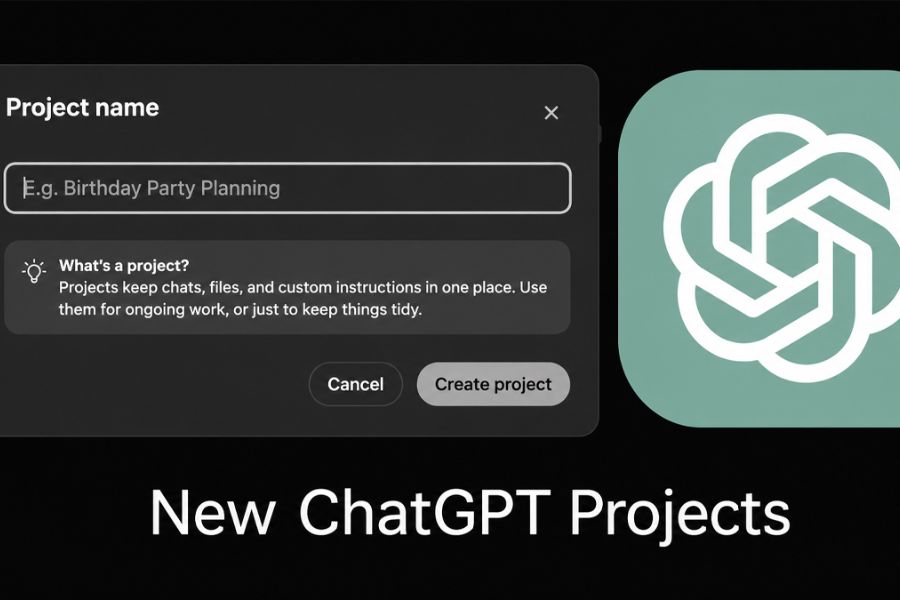
If you don't have a suitable project yet, you can create a new Project to organize related tasks.
Proceed as follows:
-
Select the Projects item from the sidebar.
-
Click "Create New Project".
-
Name the project based on its theme or objectives.
-
Set up custom guidelines if needed.
-
Add relevant documents and references.
You should give your project a short, easily recognizable name to make it easier to find when you have multiple projects.
3.3. Step 3: Add documentation and instructions to the Project
After creating the Project, add the necessary information so that ChatGPT understands the goals and scope of the work.
You can upload reference files, internal documents, or data tables that need to be analyzed. Additionally, the project guidelines can be used to define the writing style, presentation style, and requirements to be followed.
For example, if you're creating a project specifically for writing SEO content, you can set up rules like:
-
Use natural, easy-to-understand Vietnamese.
-
Prioritize short paragraphs and clear headings.
-
The content includes an introduction, sections H2, and a conclusion.
-
Avoid repetition and formulaic expressions.
-
Prioritize information that is based on facts, and avoid making assumptions.
These guidelines help maintain a more consistent workflow within project conversations.
3.4. Step 4: Switch to Work mode
Once the project is ready, open it and start a new conversation.
Next:
-
Select the project you want to work on.
-
In the chat creation area, select Work instead of Chat.
-
Check that you are working in the correct project.
-
Prepare the necessary documents and content for the task.
-
Enter your request so ChatGPT can begin processing it.
At this stage, you should clearly describe the desired outcome instead of just giving a general statement.
3.5. Step 5: Assign specific tasks to ChatGPT
After transferring to Work, describe the job, its objectives, expected outcomes, and the criteria that need to be met.
For example, with a market research project, you could enter:
"Analyze the provided documents to assess the fashion accessories market. Identify potential customer groups, shopping trends, competitors, and propose a 3-month development plan. Present the results in a report with a comparison table and specific recommendations."
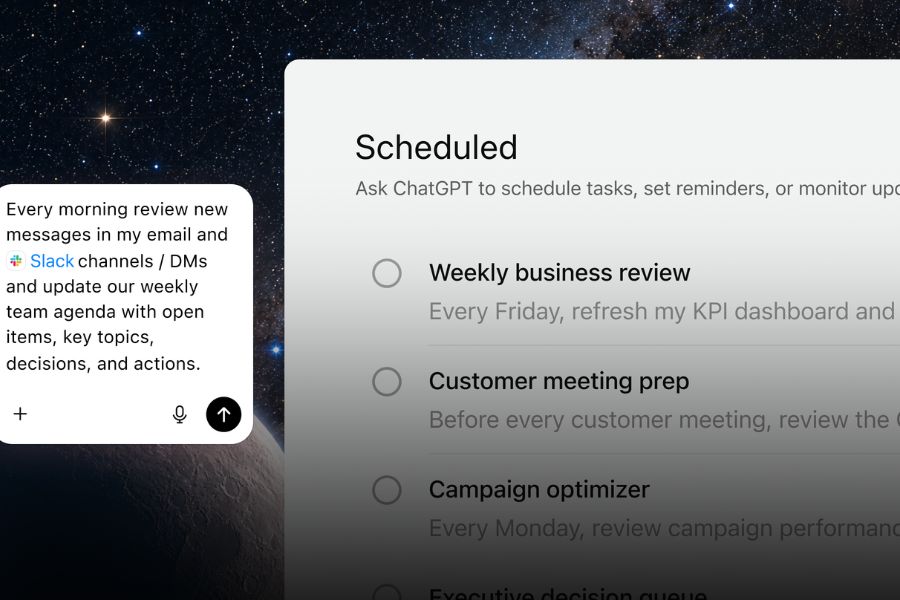
ChatGPT will build an implementation plan based on the project requirements and context. During this process, you can add information or adjust tasks if the results are not as expected.
3.6. Step 6: Check and finalize the results
After ChatGPT completes its task, don't rush to use the results. Take the time to review the content, data, and important information.
You can request AI:
-
Add the missing parts.
-
Review the logic of the report.
-
Condense the content and improve the presentation.
-
Convert the results into a spreadsheet or presentation.
-
Adjust the results to meet the new requirements.
When you need to work on a different task, you should create a separate conversation within the same Project to keep the content clearly divided, avoiding a conversation that becomes too long and difficult to follow.
4. Things to note when using Work in a Project
To make the most of this feature, users should pay attention to a few issues during project setup and management.
-
Give your project a clear name: It should be divided according to its objectives, such as market research, content management, or business planning.
-
Provide relevant materials: Only upload information that is truly relevant so that ChatGPT can focus on its main task.
-
Write a detailed request: Clearly state the objectives, scope, format, and criteria for evaluating results.
-
Break down the task: For a large task, break it down into smaller, goal-oriented conversations for easier management.
-
Verify the information: Pay particular attention to figures, citations, and important content before using it.
-
Access control management: Sensitive information should not be included in a project without a thorough understanding of access rights and related data policies.
Additionally, the availability of ChatGPT Work depends on the account plan and access rights of each user. This feature is currently rolled out to eligible paid plans, excluding Free and Go on web and mobile devices. Therefore, if you don't see the Work option, you should check the support available for your account and workspace.
5. Frequently Asked Questions about Work in a Project on ChatGPT
5.1. Is working on a project free?
Not all accounts can use ChatGPT Work. According to current rollout information, the Work feature on web and mobile devices is available only on eligible paid plans. Meanwhile, Projects and the ability to host chats may be offered depending on the account plan.
5.2. Is it possible to use multiple chats within the same Project?
Yes. A Project can contain multiple conversations serving different tasks. These conversations can share project guidelines and documentation, making it easy for users to divide work while maintaining relevant context.
5.3. Does ChatGPT Work automatically complete all tasks?
No. ChatGPT Work can proactively perform many tasks and produce complete results, but it still requires users to provide relevant information, review content, and approve important actions when requested. Its capabilities depend on the tool, access rights, and account limitations.
6. Conclusion
ChatGPT's Work in a Project feature is a useful combination of project management space and AI-powered task processing capabilities. This feature helps users maintain context, leverage shared resources, delegate tasks, and generate more interconnected results. If you frequently work on long-term projects such as research, content writing, planning, or data analysis, you can try setting up a Project and using Work mode to optimize your daily workflow.





















VIP Products








Best Selling Products
Upgrade Duolingo Super
29 USD
Freepik Premium Account
59 USD
Autodesk All App Account Copyright
120 USD
Plugin Retouch4me
69 USD
Capcut Pro 1 Year
39 USD
Upgrade Genuine Office 365
49 USD
ChatGPT Plus Account (GPT-4)
16 USD
Windows 10 & 11 Pro Key
36 USD
Genuine Cheap Canva Pro
39 USD
MidJourney Account
29 USD
Genuine Adobe Illustrator account
99 USD
Adobe Photoshop Copyright - Full App
120 USD
Adobe Premiere Pro Account
99 USD
Copyright Adobe Lightroom Account
59 USD
Upgrade genuine Capture One account
120 USD