Best Selling Products

MidJourney Account
29 USD

Genuine Cheap Canva Pro
39 USD

Adobe Photoshop Copyright - Full App
120 USD

Capcut Pro 1 Year
39 USD

Windows 10 & 11 Pro Key
36 USD

Upgrade genuine Capture One account
120 USD

Upgrade Genuine Office 365
49 USD

Freepik Premium Account
59 USD

ChatGPT Plus Account (GPT-4)
16 USD

Adobe Premiere Pro Account
99 USD

Plugin Retouch4me
69 USD

Genuine Adobe Illustrator account
99 USD

Autodesk All App Account Copyright
120 USD

Upgrade Duolingo Super
29 USD

Copyright Adobe Lightroom Account
59 USD
What is ChatGPT''s Scheduled feature? A detailed, step-by-step guide to using it.
Nội dung
- 1. What is the Scheduled feature of ChatGPT?
- 2. Key benefits of the Scheduled feature
- 3. What can you do with scheduled appointments on ChatGPT?
- 3.1. Create reminders for important tasks
- 3.2. Automatically compile news daily.
- 3.3. Support for learning and skill development
- 3.4. Monitor changes and new information.
- 3.5. Supporting work with connected applications
- 4. Instructions on how to use the Scheduled feature on ChatGPT
- 5. How to manage, edit, and delete Scheduled tasks
- 6. Some notes on using Scheduled on ChatGPT
- 7. ChatGPT should be upgraded at Sadesign to utilize AI more effectively.
- 8. Conclusion
ChatGPT is increasingly popular due to its ability to support content writing, information searching, and task processing quickly. However, instead of just responding when users ask questions, this AI tool can also proactively perform pre-set tasks. This is where the Scheduled feature comes in. With the ability to schedule, automatically remind, and track recurring tasks, Scheduled helps users save time, avoid missing important tasks, and manage their work more efficiently. So what is ChatGPT''s Scheduled feature, what are its advantages, and how do you use it? Let''s explore the details in the article below!

1. What is the Scheduled feature of ChatGPT?
Scheduled is a feature that allows users to set up tasks for ChatGPT to automatically execute at a specific time or repeatedly according to a chosen schedule. Instead of having to open the application and enter the same command every day, you simply describe the task, select the time, and let ChatGPT process it according to the established schedule. The interesting thing about Scheduled is its ability to support both one-time tasks, recurring tasks, and tracking of certain changes. When the appropriate time arrives, ChatGPT will execute the request and send a notification so the user can see the results.
Some of Scheduled's notable capabilities include:
-
Schedule reminders: Create notifications for meetings, birthdays, payment deadlines, or other important tasks.
-
Automate tasks: Request ChatGPT to aggregate news, generate reports, or prepare content according to a schedule.
-
Information monitoring: Set up tasks to monitor changes and receive notifications when relevant information becomes available.
-
Schedule management: Review, edit, pause, or delete created tasks.
-
Recurring task support: Fulfilling repetitive requests on a daily, weekly, or customized schedule.

2. Key benefits of the Scheduled feature
More than just a reminder tool, Scheduled helps users proactively organize various activities without constantly monitoring each task. When properly set up, this feature can offer many practical benefits.
-
Save time: No need to repeat the same commands every day. ChatGPT will automatically perform tasks according to a saved schedule.
-
Reduce the likelihood of forgetting tasks: Important tasks are reminded at the right time, helping you better manage your schedule.
-
Regular updates: You can ask ChatGPT to aggregate news, track topics, or check for notable changes.
-
Increased productivity: Repetitive tasks are automated, allowing you to dedicate more time to tasks that require focused attention.
-
Easy to adjust: When the schedule changes, users can edit the time, content, or pause the task.
In particular, Scheduled is suitable for people who frequently have to handle many tasks at once. Instead of memorizing everything, you can assign appropriate tasks to ChatGPT and track results directly within the app.
3. What can you do with scheduled appointments on ChatGPT?
To make the most of this feature, users need to understand the practical applications. Depending on your needs, you can set up Scheduled for various purposes.
3.1. Create reminders for important tasks
This is one of the simplest ways to use it. You can ask ChatGPT to remind you of meetings, project deadlines, payment schedules, or other tasks to be done during the day.
For example, you can enter:
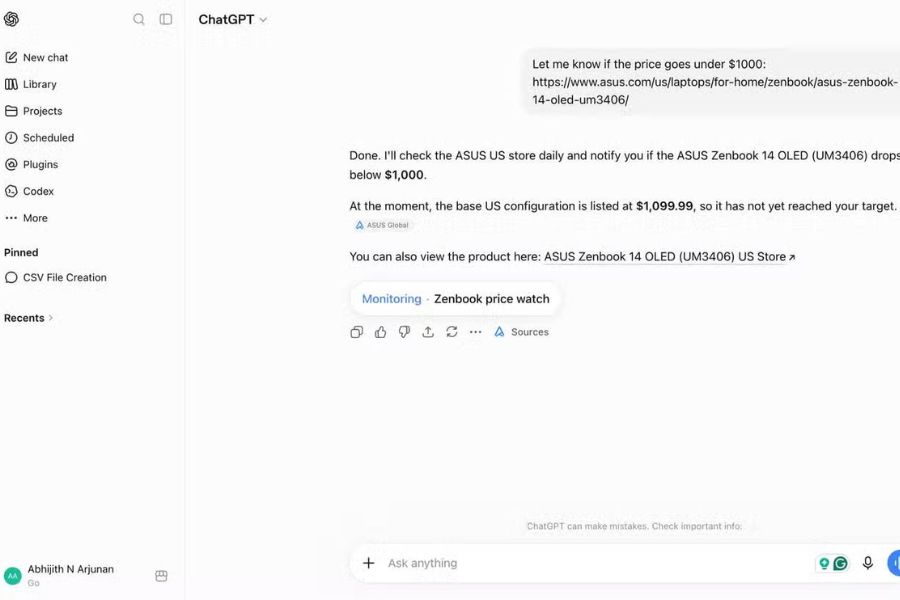
"Every day at 8 a.m., remind me to check my email and make a list of the three most important tasks to complete."
Once set up, ChatGPT will send notifications according to your chosen schedule. This allows you to start your day more planned without having to manually create reminders.
3.2. Automatically compile news daily.
If you frequently need to stay updated, you can use Scheduled to have ChatGPT compile noteworthy content by day or week.
Some examples:
-
Every morning at 7 AM, we'll summarize the top 5 most prominent technology news stories from the past 24 hours.
-
Every Monday, we'll update you on the latest noteworthy AI trends.
-
Every evening, I summarize the key changes in the field of marketing.
ChatGPT can process requests on a scheduled basis and provide summaries for you to track. However, the quality of the information still depends on the data source and the tool's accessibility at the time of execution.
3.3. Support for learning and skill development
Scheduled study sessions are also useful for students and anyone who wants to maintain a study routine. You can set up a schedule for learning a foreign language, practicing vocabulary, or reviewing knowledge on a daily basis.
For example, ask ChatGPT to send you 10 new English vocabulary words at 8 PM every evening, along with their Vietnamese meanings and usage examples. You can also set up a schedule for practicing conversational English or reviewing what you've learned on weekends.
This method helps maintain a consistent learning schedule, reducing interruptions in learning or forgetting what has been learned.
3.4. Monitor changes and new information.
One notable feature of Scheduled is its ability to create monitored tasks. Instead of running at a fixed time, several tasks can track information and send notifications when appropriate changes are detected.
For example:
-
Stay informed about upcoming events and receive notifications when updates are available.
-
Check for changes on the website every morning.
-
Monitor industry information to identify emerging trends.
For monitoring tasks, you should clearly describe the content to be checked and which conditions are considered noteworthy so that ChatGPT can provide more relevant results.
3.5. Supporting work with connected applications
In cases where accounts are supported, Scheduled can integrate with connected applications such as Gmail, Slack, or GitHub to perform tasks based on events that occur.
For example, you can set up requests for ChatGPT to check for new emails from a specific sender, monitor messages in a Slack channel, or receive updates related to Pull Request activity on GitHub.
This is an advanced feature that takes Scheduled further than just regular reminders. However, event-triggered features depend on your account plan, access permissions, and supported applications.

4. Instructions on how to use the Scheduled feature on ChatGPT
Creating tasks with Scheduled is quite simple. You just need to clearly describe the work to be done, the time frame, and the desired outcome.
Step 1: Access ChatGPT
Open ChatGPT in your browser or mobile app using your account. Depending on the version and access permissions, the Scheduled option may appear in the navigation interface.
Step 2: Enable the Scheduled feature
Access the Scheduled section to begin creating new tasks. Here, you can directly enter your requirements into the scheduling area.
Step 3: Enter the task details
Provide a detailed description of the task you want ChatGPT to perform. You should include complete information such as:
-
Content to be implemented.
-
Start time.
-
Frequency of repetition, if any.
-
Specify the desired output format.
-
Conditions that need to be announced or matters that require priority.
For example: "Every Monday morning at 8 a.m., summarize the five most prominent marketing trends of the past week, present them in Vietnamese, and provide a brief commentary on each trend."
Step 4: Check and confirm the schedule
After submitting your request, double-check the time, frequency, and task content. Confirm when ChatGPT displays the appropriate settings.
Step 5: Turn on notifications
Go to Settings > Notifications to choose how you want to receive notifications: via Push, Email, or both. If using a browser, you'll need to grant notification permissions to avoid missing results.
Step 6: Monitor the results
After the task is successfully created, you can return to Scheduled to check its status, view the results, or adjust the schedule as needed.
5. How to manage, edit, and delete Scheduled tasks
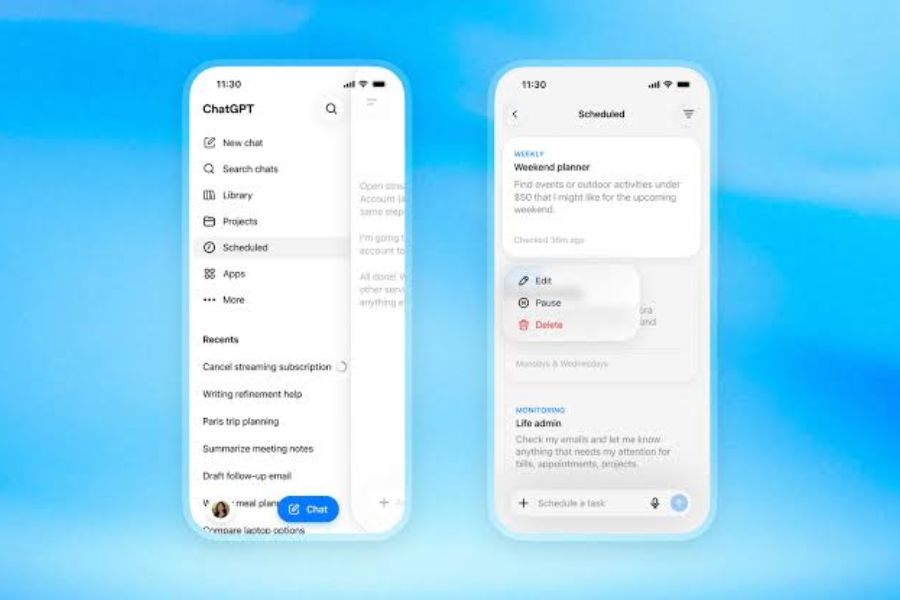
After creating multiple tasks, managing the schedule is also crucial. ChatGPT provides a Scheduled area where users can track and control the tasks they have set up.
You can perform the following actions:
-
View tasks: Open Scheduled to check the list of active tasks and those that have been paused.
-
Edit the schedule: Select the task you want to change to update the time, frequency, or content of the request.
-
Pause: Use the Pause option if you don't want ChatGPT to continue the task yet.
-
Continue: Select Resume to resume the paused task.
-
Delete task: Select Delete when you no longer need it.
Additionally, you can open the relevant chat, select the task name to access the management panel, and make the necessary changes.
Note that deleting a conversation associated with a Scheduled task may pause the task instead of automatically disappearing completely. Therefore, you should check your task list before deleting important conversations.
Upgrade ChatGPT at a low cost.
6. Some notes on using Scheduled on ChatGPT
Despite its many benefits, Scheduled has certain limitations. Understanding these will help you use the feature effectively and avoid becoming completely dependent on AI automation.
-
Check permissions: Access to Scheduled depends on your account, service plan, application version, and workspace settings.
-
Note task limits: The number of active tasks and their frequency may vary between plans. Free accounts are limited to a maximum of one repetition per day, while some paid plans support higher frequencies.
-
Write your request clearly: The more specific your command, the easier it is for ChatGPT to understand your goal and produce the desired results.
-
Check notifications: Make sure notification permissions are granted on your browser or phone.
-
Status monitoring: Some tasks may be paused if they are inactive, require further action, or are experiencing access issues.
-
Verify the results: Do not assume all information compiled by ChatGPT is accurate. Compare important content with reliable sources.
In particular, for tasks using connected applications, you should carefully check the access permissions and actions that ChatGPT is allowed to perform. Actions that affect external data may require user approval.

7. ChatGPT should be upgraded at Sadesign to utilize AI more effectively.
If you frequently use ChatGPT for studying, creating content, or handling work, choosing the right service package will give you more opportunities to exploit the advanced capabilities of this tool. Some paid packages offer higher Scheduled usage limits and more flexible usage frequency compared to free accounts.
Sadesign is a service provider offering account upgrades and licensed tools, suitable for users looking for a more convenient solution for using AI.
When choosing services at Sadesign, you can receive several benefits such as:
-
Reasonable cost: There are many service options to choose from depending on your needs.
-
Dedicated support: Receive advice when encountering difficulties during the upgrade and usage process.
-
Convenient payment: Simple registration and payment process.
-
Suitable package consultation: Assistance in selecting services based on your learning, work, or content creation goals.
8. Conclusion
ChatGPT's Scheduled feature is a useful solution for automating scheduled tasks, creating reminders, and tracking important changes. This allows users to reduce repetitive tasks, manage their time better, and proactively schedule their daily tasks. With clear task setup and regular progress checks, Scheduled can become a powerful AI assistant for both learning and work. Try this feature to better utilize the benefits ChatGPT offers!





















VIP Products








Best Selling Products
MidJourney Account
29 USD
Genuine Cheap Canva Pro
39 USD
Adobe Photoshop Copyright - Full App
120 USD
Capcut Pro 1 Year
39 USD
Windows 10 & 11 Pro Key
36 USD
Upgrade genuine Capture One account
120 USD
Upgrade Genuine Office 365
49 USD
Freepik Premium Account
59 USD
ChatGPT Plus Account (GPT-4)
16 USD
Adobe Premiere Pro Account
99 USD
Plugin Retouch4me
69 USD
Genuine Adobe Illustrator account
99 USD
Autodesk All App Account Copyright
120 USD
Upgrade Duolingo Super
29 USD
Copyright Adobe Lightroom Account
59 USD