Best Selling Products

Genuine Cheap Canva Pro
39 USD

ChatGPT Plus Account (GPT-4)
16 USD

Freepik Premium Account
59 USD

Genuine Adobe Illustrator account
99 USD

Adobe Premiere Pro Account
99 USD

Adobe Photoshop Copyright - Full App
120 USD

Capcut Pro 1 Year
39 USD

Plugin Retouch4me
69 USD

Upgrade Duolingo Super
29 USD

Upgrade Genuine Office 365
49 USD

Copyright Adobe Lightroom Account
59 USD

Windows 10 & 11 Pro Key
36 USD

Upgrade genuine Capture One account
120 USD

MidJourney Account
29 USD

Autodesk All App Account Copyright
120 USD
What are ChatGPT''s Maps features? How are they different from Google Maps?
Nội dung
- 1. What is the Maps feature of ChatGPT?
- 2. How does ChatGPT's Maps feature differ from Google Maps?
- 3. Benefits of using Maps on ChatGPT
- 5. How to use the map on ChatGPT to search for locations.
- 6. A compilation of effective commands for using Maps on ChatGPT.
- 7. Some notes when using Maps on ChatGPT
- 8. You should upgrade ChatGPT at Sadesign for a more effective AI experience.
- 9. Conclusion
ChatGPT is constantly being enhanced with useful features, helping users address their needs in learning, work, and daily life. Among these, Maps is a notable tool, supporting location searches, exploring interesting places, and choosing locations that suit individual needs. Instead of manually entering multiple keywords and viewing each result, you can chat directly with ChatGPT to receive suggestions and compare options. So, what is ChatGPT''''s Maps feature, how does it differ from Google Maps, and how do you use it? Let''''s explore the details in the article below!

1. What is the Maps feature of ChatGPT?
Maps is a map experience integrated into the ChatGPT application, helping users search and explore locations using natural language. Instead of manually typing keywords and reading the information, you can specifically describe your needs, and ChatGPT will assist in searching and compiling suitable options.
The highlight of this feature lies in its ability to combine AI conversation and location information. You can request to find a quiet cafe, a family-friendly restaurant, or entertainment venues near your living area. ChatGPT will use your request to provide suggestions, making the selection process more convenient.
Some notable features of Maps on ChatGPT include:
-
Location search: Discover restaurants, cafes, hotels, shops, and more within your desired area.
-
Filter results by needs: Specify criteria such as distance, price range, space, amenities, or intended use.
-
Information aggregation: Helps users grasp the noteworthy information about each location.
-
Compare options: Compare multiple locations based on specific criteria to make it easier to make a decision.
-
Contextual location suggestions: Find suitable places to work, meet friends, go on a date, or relax.
-
Planning assistance: Combine multiple locations into a convenient sightseeing or leisure plan.
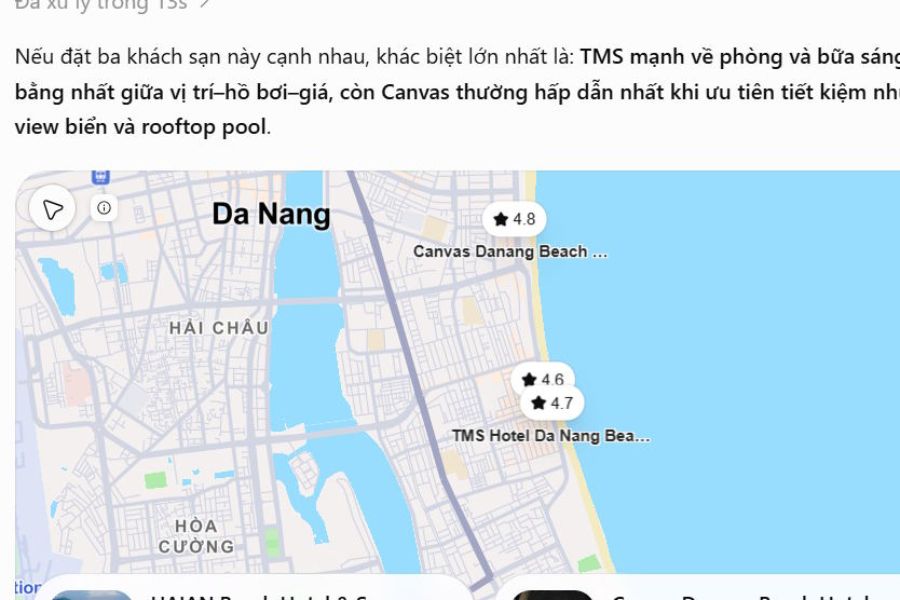
2. How does ChatGPT's Maps feature differ from Google Maps?
ChatGPT Maps and Google Maps both help users explore locations, but their approaches differ significantly. Google Maps focuses on mapping, location, and navigation, while Maps on ChatGPT is more geared towards searching, analyzing needs, and suggesting locations through conversation.
Here are some notable differences between the two tools:
As you can see, the two tools are not necessarily interchangeable. ChatGPT assists in the selection process, while Google Maps remains the familiar choice for practical location and navigation needs.
3. Benefits of using Maps on ChatGPT
Combining maps with artificial intelligence offers a convenient way to find locations. Instead of manually opening multiple information pages, you can describe your needs and let ChatGPT help compile suitable options.
Some of the notable benefits of this feature include:
-
Save time searching: Simply enter a command that fully expresses your needs, and you'll receive a list of recommended locations without having to search for each one individually.
-
Flexible search: ChatGPT can handle long and specific requests, such as finding a cafe with a quiet atmosphere, good Wi-Fi, and reasonably priced drinks.
-
Easy comparison: You can request a compilation of information from multiple locations to determine which one best suits your needs.
-
Quickly adjust results: If the initial list doesn't meet your expectations, simply add criteria for ChatGPT to re-search.
-
Planning assistance: Users can combine multiple locations into a single itinerary, making outings or trips easier.
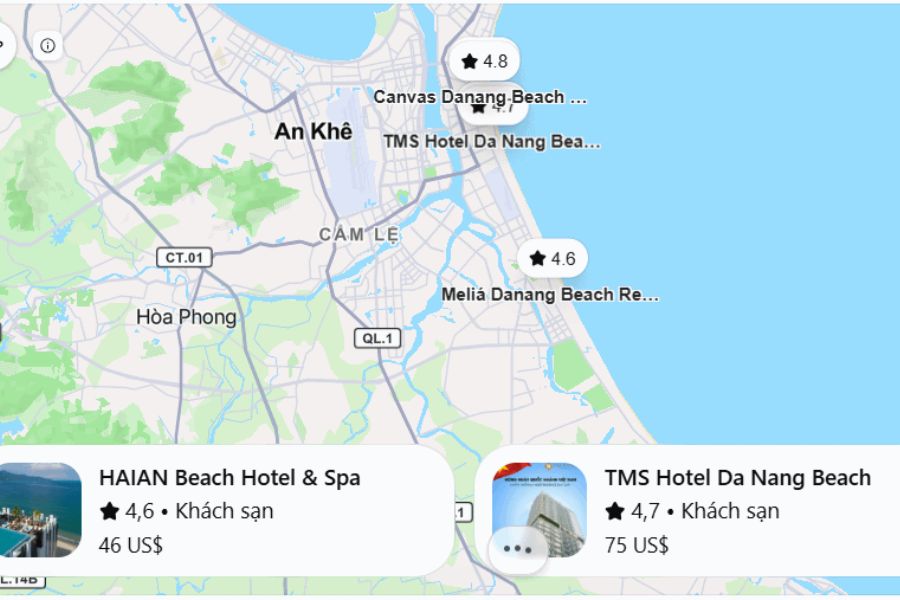
4. How to activate maps on ChatGPT
To use the Maps feature, you first need to access the map application listed in ChatGPT. Depending on your account, device, and region, the name or interface may vary.
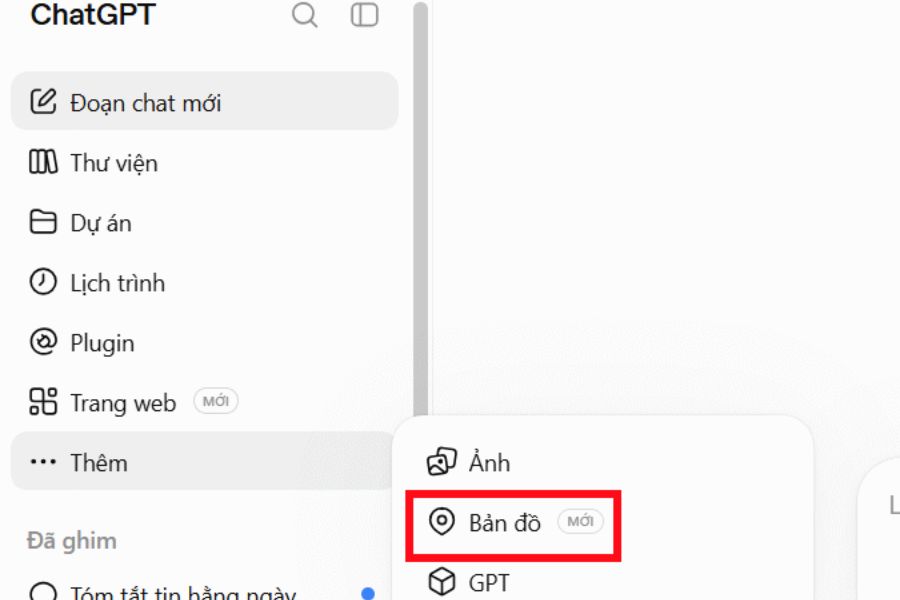
Step 1: Access the Maps app.
On the ChatGPT interface, follow these steps:
-
Open ChatGPT in your computer's browser.
-
Click on the Add option in the Tools area.
-
Select the Maps app from the list that appears.
-
When you switch to the new interface, press the Enable button to begin activating the feature.
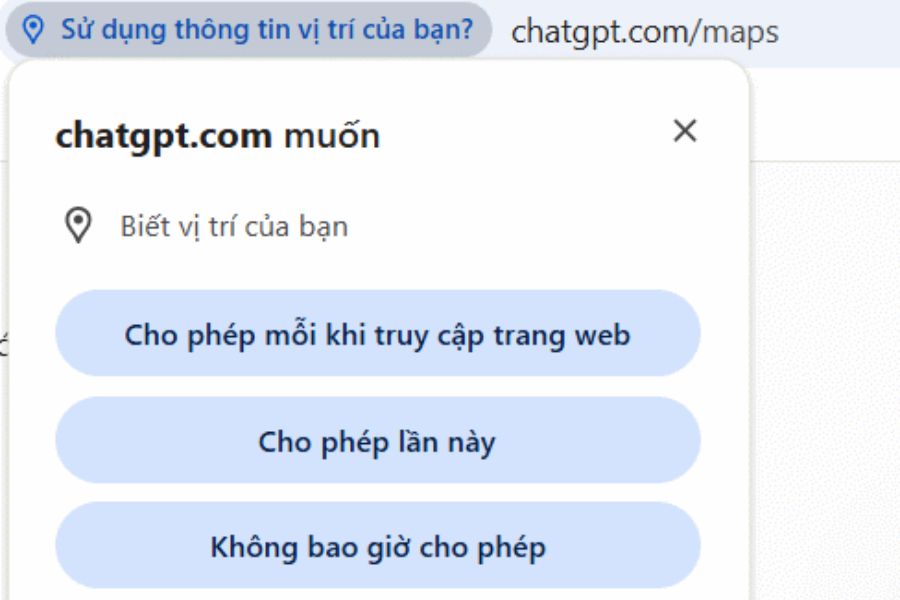
Step 2: Grant location access
After launching the app, ChatGPT may request location access to help find places near you.
-
In your browser, select Allow when a notification appears asking for location access.
-
Keep location services enabled on your computer if the feature is currently turned off.
-
Go back to ChatGPT and check if the app can now use location services.
If you previously denied access, open your browser's privacy settings, find the ChatGPT page, and change the Location permission to Allow. Then reload the page to try again.
5. How to use the map on ChatGPT to search for locations.
After successful activation, you can start searching for locations by entering your request directly into the chat box. To receive relevant results, clearly describe the type of location, area, and important criteria.
For example, if you want to find a quiet place to work in Hanoi, you can enter the command: Find me quiet cafes in Hanoi within a 10km radius, with good Wi-Fi, a comfortable atmosphere, and reasonable drink prices. Prioritize places suitable for working or studying.
ChatGPT will receive your request and assist in finding suitable locations. Depending on the map application you are using, the results may be displayed as a map, pinned locations, or a list of locations with relevant information. You can use this information to consider and choose a place that suits your needs.
Compare the locations found.
Beyond simply providing a list, you can also request ChatGPT to compare the locations you've found. For example, enter the command: Compare the 5 cafes above based on criteria including distance, price, space, Wi-Fi quality, and suitability for working. Please compile the results into a table so I can easily choose.
ChatGPT will help systematize the information obtained into comparison tables or summaries. This allows you to quickly identify which location best meets your criteria.
Continue searching based on new needs.
If you're not satisfied with the results, you don't need to re-enter the entire command. Continue the conversation to ask ChatGPT to narrow down the list or add other criteria.
For example, you could enter: Please filter the list above, keeping only those establishments with comfortable seating, power outlets, and prices under 60,000 VND.
This method is especially useful when you have many requests but haven't yet identified a specific location. Instead of searching for each place individually, you can adjust the results directly within the conversation.

6. A compilation of effective commands for using Maps on ChatGPT.
The quality of search results depends heavily on how you describe your request. The clearer your request is about the area, type of location, and purpose, the better ChatGPT can provide suggestions that closely match your needs.
Here are some sample commands you can use:
Group 1: Location Search
-
Find [type of location] in [area] that suits [needs/target audience].
-
Find [number] [type of location] near [location/area], prioritizing [criteria].
-
Find [type of place] within a radius of [distance] from [location].
-
Suggest suitable [locations] for [purpose] in [area].
Group 2: Filter and compare locations
-
Find and compare the number of [location types] based on [criteria].
-
Filter [location types] by [price range/distance/ratings/amenities].
-
Find similar places to [place name] in the [area].
-
Narrow down the list above according to criteria [criterion 1], [criterion 2] and [criterion 3].
Group 3: Planning and Scheduling
-
Schedule [time] in [area], incorporating [requested] locations.
-
Arrange the locations [list of locations] into an optimal itinerary based on [distance/time].
-
Suggest a sightseeing itinerary for [area] within [number of hours/days], prioritizing locations that are close together.
-
Find suitable places to eat and have fun along the route from [location A] to [location B].
You can replace the information in square brackets with actual information for various purposes. After receiving the results, continue to add requests so ChatGPT can adjust the list as desired.
7. Some notes when using Maps on ChatGPT
Despite its many benefits, Maps on ChatGPT still has certain limitations that users need to be aware of. To avoid selecting the wrong location or experiencing inconvenience while traveling, you should pay attention to the following issues:
-
Verify accuracy: Compare the address and location information with official sources before arriving.
-
Not entirely dependent on AI: Information such as opening hours, service prices, and availability can change over time.
-
Location permission management: Grant access only when necessary and proactively review privacy settings.
-
Check the navigation capabilities: If you need to travel in person, use Google Maps or a suitable navigation app to check the route.
-
Please note regarding accessibility: Some map applications may not be available on all accounts, devices, or regions.
These tips will help you make the most of ChatGPT's search capabilities while still maintaining control over the information before making a decision.
8. You should upgrade ChatGPT at Sadesign for a more effective AI experience.
Besides exploring mapping tools, upgrading your ChatGPT account is also a worthwhile option if you frequently use AI for learning, work, and personal activities. Suitable service packages can offer higher usage limits and access to advanced features depending on the package. If you are looking for support for AI account upgrades, you can check out Sadesign . This company provides upgrade services for various tools and software to meet diverse needs.
When choosing to upgrade at Sadesign, you can consider some of the benefits such as:
-
Affordable prices: There are many service options to choose from to suit your budget.
-
Dedicated support: Receive advice and answers when encountering problems during use.
-
Convenient payment: Simple registration and payment process.
-
Post-upgrade support: You can contact us for guidance or assistance with service-related issues.
9. Conclusion
ChatGPT's Maps feature offers a fresh way to explore locations by combining maps with artificial intelligence. Users can search for locations using natural voice commands, filter results by needs, and request comparisons of multiple options directly within the chat. Compared to Google Maps, this tool has the advantage of understanding context and providing suggestions, while Google Maps remains more suitable for location and navigation needs. Hopefully, the above instructions will help you easily activate and utilize Maps on ChatGPT in your daily life!





















VIP Products








Best Selling Products
Genuine Cheap Canva Pro
39 USD
ChatGPT Plus Account (GPT-4)
16 USD
Freepik Premium Account
59 USD
Genuine Adobe Illustrator account
99 USD
Adobe Premiere Pro Account
99 USD
Adobe Photoshop Copyright - Full App
120 USD
Capcut Pro 1 Year
39 USD
Plugin Retouch4me
69 USD
Upgrade Duolingo Super
29 USD
Upgrade Genuine Office 365
49 USD
Copyright Adobe Lightroom Account
59 USD
Windows 10 & 11 Pro Key
36 USD
Upgrade genuine Capture One account
120 USD
MidJourney Account
29 USD
Autodesk All App Account Copyright
120 USD