Best Selling Products

Upgrade genuine Capture One account
120 USD

Plugin Retouch4me
69 USD

Genuine Cheap Canva Pro
39 USD

Copyright Adobe Lightroom Account
59 USD

Adobe Photoshop Copyright - Full App
120 USD

Freepik Premium Account
59 USD

Upgrade Genuine Office 365
49 USD

Windows 10 & 11 Pro Key
36 USD

MidJourney Account
29 USD

Capcut Pro 1 Year
39 USD

Adobe Premiere Pro Account
99 USD

Autodesk All App Account Copyright
120 USD

Genuine Adobe Illustrator account
99 USD

ChatGPT Plus Account (GPT-4)
16 USD

Upgrade Duolingo Super
29 USD
A detailed, step-by-step guide to using the Box Plugin on ChatGPT.
Nội dung
- 1. What is the Box plugin on ChatGPT?
- 2. Key features of Plugins Box on ChatGPT
- 3. Guide to connecting and using the Box Plugin on ChatGPT in 5 steps
- Step 1: Log in to your ChatGPT account.
- Step 2: Find the Box widget in the Plugins category.
- Step 3: Install and connect your Box account
- Step 4: Start using Box in your chat.
- Step 5: Check results and manage access rights.
- 4. Some useful commands when using Plugins Box
- 5. Important notes when using Plugins Box
- 6. Conclusion
ChatGPT is constantly expanding with many intelligent support tools, helping users handle tasks more quickly and conveniently. Among these, Plugins Box is a topic of great interest for those wanting to learn how to connect external utilities to enhance AI capabilities. So how does Plugins Box work, what features does it have, and how do you use it? Let''s explore the details in the guide below to better utilize the ChatGPT ecosystem.
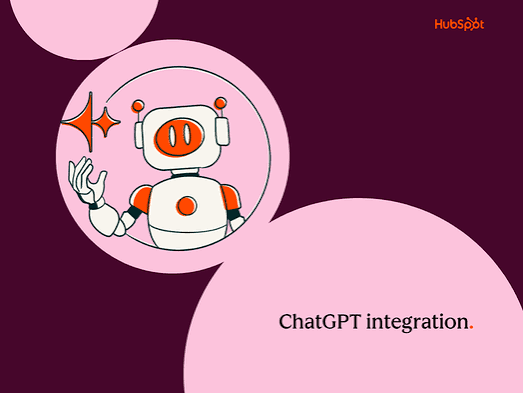
1. What is the Box plugin on ChatGPT?
The term "Box plugin" is commonly used when referring to the Box utility connected to ChatGPT. Box is an online data storage and management service that allows users to store documents, images, spreadsheets, and many other file types in the cloud. When connecting Box to ChatGPT, you can leverage AI to search for documents, read content, summarize text, or compare multiple files without manually opening each document. A useful aspect of this combination is that ChatGPT can support data retrieval from the Box account you've granted permission to. For example, when searching for an old project plan, you simply describe the project name or content you're looking for, and the AI will help retrieve the relevant information.
Some notable benefits of using Box with ChatGPT:
-
Fast document search: Supports searching for files by name, folder, project, or related topic.
-
Summary: Condensing lengthy documents into easily understandable main points.
-
Data comparison: Comparing two or more documents to identify similarities and differences.
-
Work support: Utilizing information from documents to prepare reports, plans, or communication materials.
-
Save time: Reduce manual searching and reading when processing multiple files simultaneously.
2. Key features of Plugins Box on ChatGPT
Once Box is successfully connected, users can explore various document processing capabilities directly within the ChatGPT conversation. Depending on access permissions, account configuration, and supported functions, the user experience may vary.
-
Search for files by request: You can ask ChatGPT to find documents related to a specific project, topic, or folder name.
-
Reading and summarizing documents: AI assists in synthesizing key content, helping you quickly grasp information without having to read the entire text.
-
Analyze multiple documents: This may require comparing plans, reports, or instruction manuals to identify discrepancies.
-
Find the information you need: Instead of searching through each page, you can ask questions directly about the content in the files you've been granted access to.
-
Task processing support: Some operations with Box data may be supported depending on the features and permissions provided by the application.
3. Guide to connecting and using the Box Plugin on ChatGPT in 5 steps
To use Box conveniently, you need to connect your account to ChatGPT and grant the necessary access permissions. Below is the basic procedure on the ChatGPT interface.
Upgrade ChatGPT at a low cost.
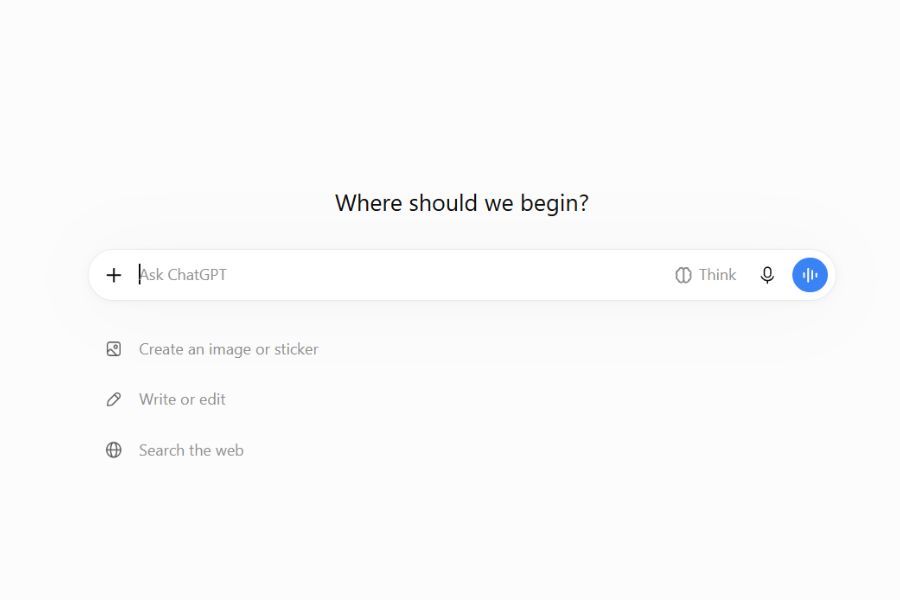
Step 1: Log in to your ChatGPT account.
First, access ChatGPT using your computer's browser or a supported application. Log in to your account and check if there is a Plugins section in the interface. This is where you can search for, install, and manage the available extensions.
If using an account belonging to an organization or business, some utilities may require administrator permission before connecting. Therefore, check the access permissions if Box is not found in the catalog.
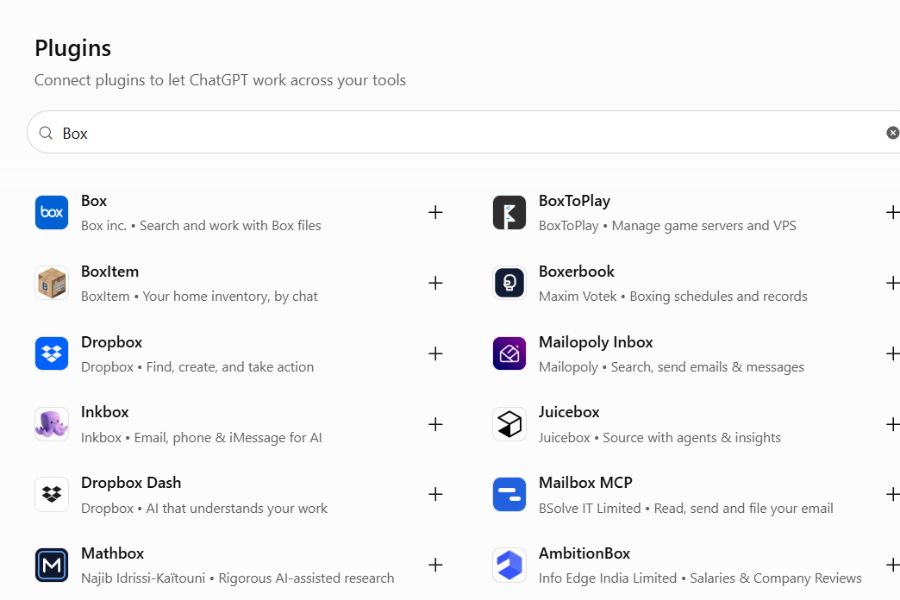
Step 2: Find the Box widget in the Plugins category.
After logging in, open the Plugins section in the ChatGPT navigation bar. Next, use the search bar and enter the keyword "Box" to find the corresponding extension. When the results appear, select "Box" to view its introduction, supported functions, and connection requirements.
At this step, you should carefully check the extension name and the permissions the application requests. If the Box display account is an application integrated into a plugin, open the details section to view the corresponding installation instructions.
Step 3: Install and connect your Box account
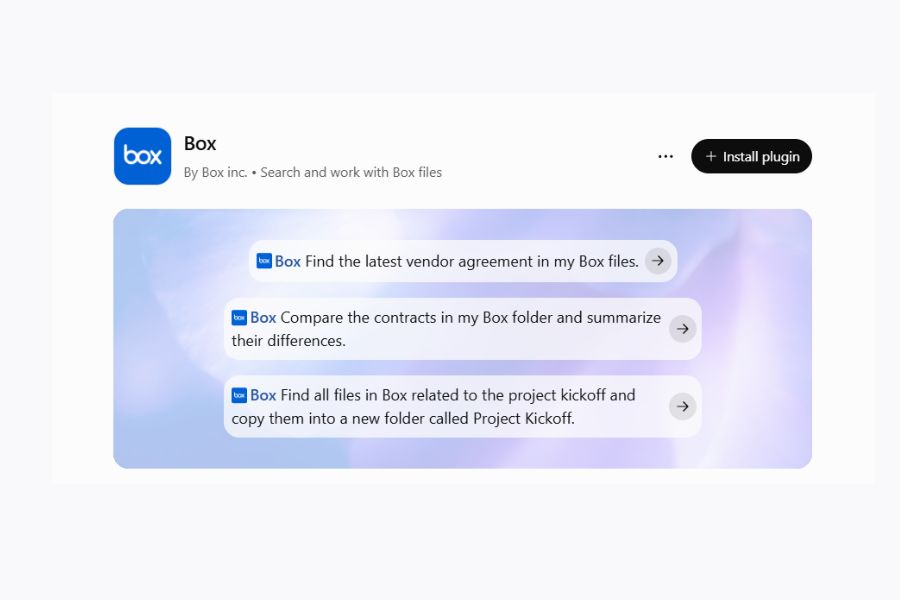
Once you've identified the correct plugin, select "Install plugin" if the interface displays this option. Next, click "Connect" to begin the process of linking your Box account with ChatGPT. The system may redirect you to the Box login page to verify your account.
Use the Box account that's storing the documents you want to access. Then, carefully read the requested access permissions and confirm if you agree. Once the authentication process is complete, return to ChatGPT to check the connection status.
Step 4: Start using Box in your chat.
After successfully connecting, you can open a new chat and submit a document-related request in the Box. Please specify the file name, folder, project, or topic you are looking for so that ChatGPT can correctly identify the data.
For example, you can use the following statements:
-
Find documents related to the Q4 business plan in my Box account.
-
Summarize the key points in the sales manual.
-
Compare the two marketing plans and identify the differences.
-
Find the most recent documentation on the product launch project and list any missing tasks.
Alternatively, you can directly mention the plugin name using the @ symbol if the interface supports it. This helps select the correct extension when multiple tools are connected.
Step 5: Check results and manage access rights.
After ChatGPT returns the information, you should compare the results with the original document in Box, especially when using the data for reports, contracts, or important tasks. If the content is inaccurate, add file names, folders, or more specific requests so the AI can search again.
You should also regularly check the connection status and access permissions of the application. If you no longer need to use it, go to Settings, select Plugins, open the Box, and use the disconnect option if available. This helps you proactively control the accounts linked to ChatGPT.
4. Some useful commands when using Plugins Box
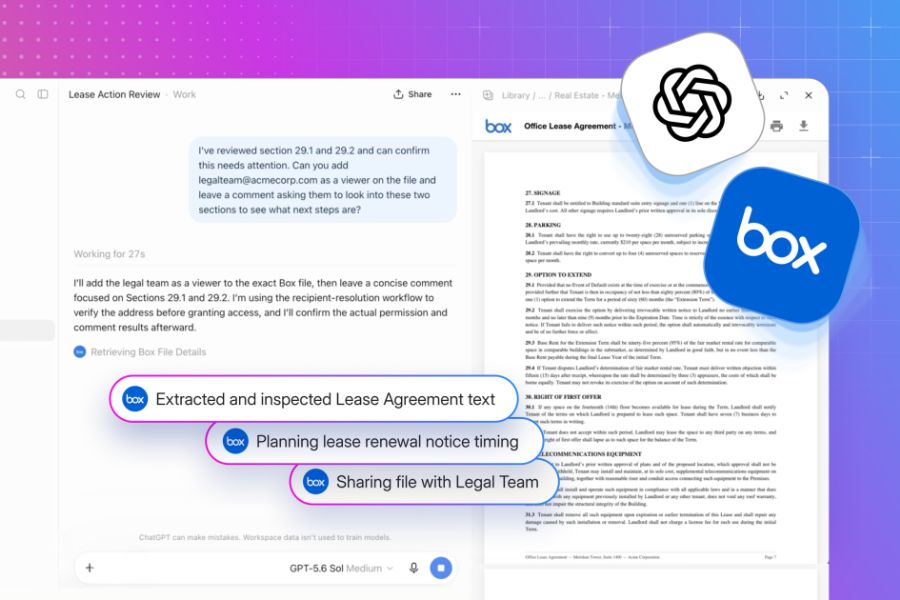
To make the most of Box's capabilities on ChatGPT, you should use clear, targeted commands. Instead of simply asking the AI to find a document, describe the content you need to find and the desired result. This speeds up the information processing and reduces confusion between files with similar content.
Here are some commands you can use as a reference:
You can also ask ChatGPT to present results in tables, lists, or by content group. For more in-depth analysis, add specific criteria so the AI focuses on the right information.
Upgrade ChatGPT at a low cost.
5. Important notes when using Plugins Box
While connecting Box with ChatGPT offers many benefits, users still need to pay attention to privacy, data accuracy, and compatibility. Not all accounts have the same functionality, as access rights depend on the ChatGPT package, region, workspace settings, and Box account permissions.
Here are some things you should know:
-
Access control check: ChatGPT can only access files that the Box account is authorized to view. The connection does not automatically grant access to restricted data.
-
Protecting personal information: Consider carefully before granting permission to documents containing customer data, financial information, or internal content.
-
Verify the results: Do not immediately use AI-provided information for important decisions without checking the original documents.
-
Verify your account connection: Make sure you are logged in with the correct Box account, especially if you are using both a personal and a work account simultaneously.
-
Connection management: Disconnect when no longer needed or when you want to change the linked account.
6. Conclusion
The Box plugin on ChatGPT is a useful solution for those who frequently work with online documents. Thanks to its ability to connect the Box data repository with AI, users can search, summarize, compare, and extract information more conveniently right within the chat. Simply follow the correct installation, authentication, and permission steps, and you can leverage this tool to save time and improve work efficiency. Try connecting Box to ChatGPT to experience a more flexible way to manage and process documents.





















VIP Products








Best Selling Products
Upgrade genuine Capture One account
120 USD
Plugin Retouch4me
69 USD
Genuine Cheap Canva Pro
39 USD
Copyright Adobe Lightroom Account
59 USD
Adobe Photoshop Copyright - Full App
120 USD
Freepik Premium Account
59 USD
Upgrade Genuine Office 365
49 USD
Windows 10 & 11 Pro Key
36 USD
MidJourney Account
29 USD
Capcut Pro 1 Year
39 USD
Adobe Premiere Pro Account
99 USD
Autodesk All App Account Copyright
120 USD
Genuine Adobe Illustrator account
99 USD
ChatGPT Plus Account (GPT-4)
16 USD
Upgrade Duolingo Super
29 USD
Articles on the same topic