Best Selling Products

Upgrade genuine Capture One account
120 USD

Adobe Photoshop Copyright - Full App
120 USD

Copyright Adobe Lightroom Account
59 USD

Autodesk All App Account Copyright
120 USD

MidJourney Account
29 USD

Upgrade Genuine Office 365
49 USD

Windows 10 & 11 Pro Key
36 USD

Upgrade Duolingo Super
29 USD

Genuine Adobe Illustrator account
99 USD

Adobe Premiere Pro Account
99 USD

Freepik Premium Account
59 USD

Capcut Pro 1 Year
39 USD

Genuine Cheap Canva Pro
39 USD

Plugin Retouch4me
69 USD

ChatGPT Plus Account (GPT-4)
16 USD
What is CR3 image? Things you need to know before shooting RAW photos with Canon.
Nội dung
Anyone using a newer Canon camera has likely encountered files with the .CR3 extension when copying photos from a memory card to a computer. Many people only know that these are "original images" without fully understanding what''s inside, why they''re much larger than JPEGs, or why sometimes the computer can''t open them. This article provides a comprehensive explanation of the CR3 format, how to open and convert it, the differences compared to JPEG, compatible software, and habits to help you manage your RAW photo library neatly and securely.
1. Understanding CR3 files
CR3 is Canon's current RAW image format. This file stores unprocessed data, recorded directly from the camera's sensor, rather than compressed and pre-processed data like in JPEG. Canon introduced CR3 in 2018, at the same time as the EOS M50 with its DIGIC 8 image processor. Since then, CR3 has become the standard RAW format for the EOS R mirrorless system and many other new models from the company.
The biggest difference between the CR3 and its predecessor, the CR2, lies in its internal structure. The CR2 was based on the TIFF platform, a long-established and rather rigid architecture. The CR3 switches to using the ISO-Based Media File Format, the same container family used for MP4 video files. This gives Canon more space to store metadata, lens information, focusing data, and makes it easier to add new features in the future without redesigning the format.
This flexible structure also paved the way for the C RAW compression option. With CR2, files could only use one lossless compression algorithm, leaving no room for a second compression method. CR3 allows photographers to choose between full RAW and C RAW, where C RAW reduces file size by about 40% through lossy compression while retaining almost all post-processing capabilities in practice.
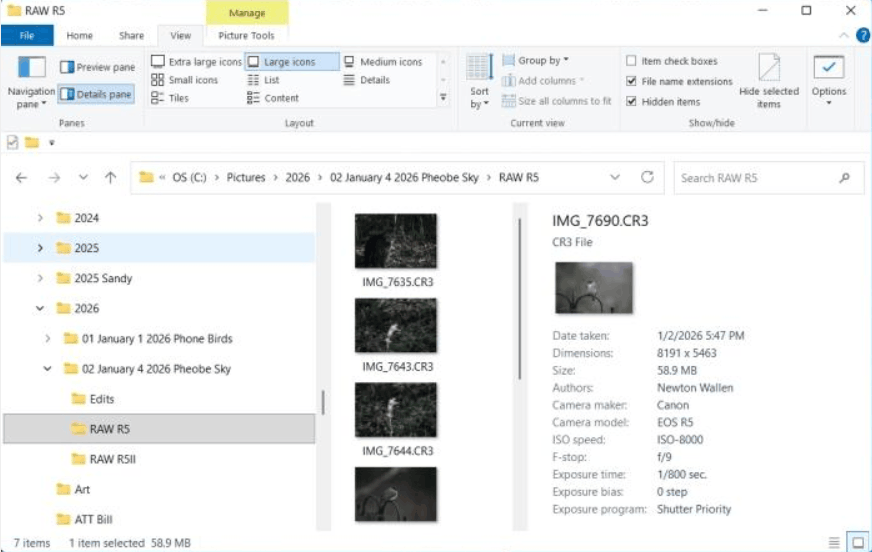
A small but very convenient detail is that each CR3 file includes a built-in JPEG preview. The camera screen or computer file manager can display the thumbnail almost instantly without decoding the entire RAW data. That's why when opening a folder containing hundreds of unprocessed CR3 files, you still see easily recognizable thumbnails right away, saving considerable time in selecting images.
2. How to open a CR3 file
Because CR3 is a relatively new format, programs designed only for CR2 or versions released before 2018 often cannot read this file. When this happens, the error message usually just says that the format is not supported, and the simplest solution is to update the software.
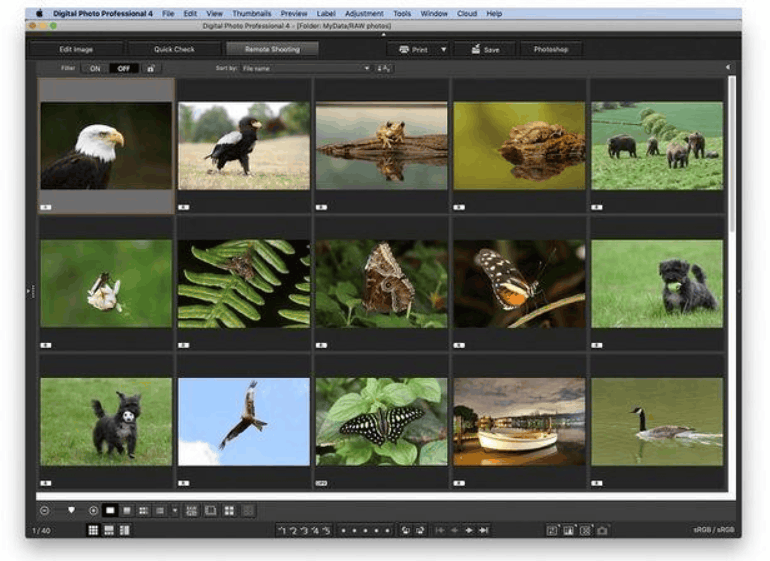
The first option to consider is Canon's own Digital Photo Professional. This software directly supports CR3 and is offered free to users of EOS cameras that shoot in this format. It displays colors accurately as the camera interprets them, making it very useful when you want to see images that are as close as possible to the original intention of the Canon system. In addition, Adobe Lightroom Classic from version 8.0 onwards, the current version of Lightroom, and Adobe Camera Raw all read CR3 without additional steps.
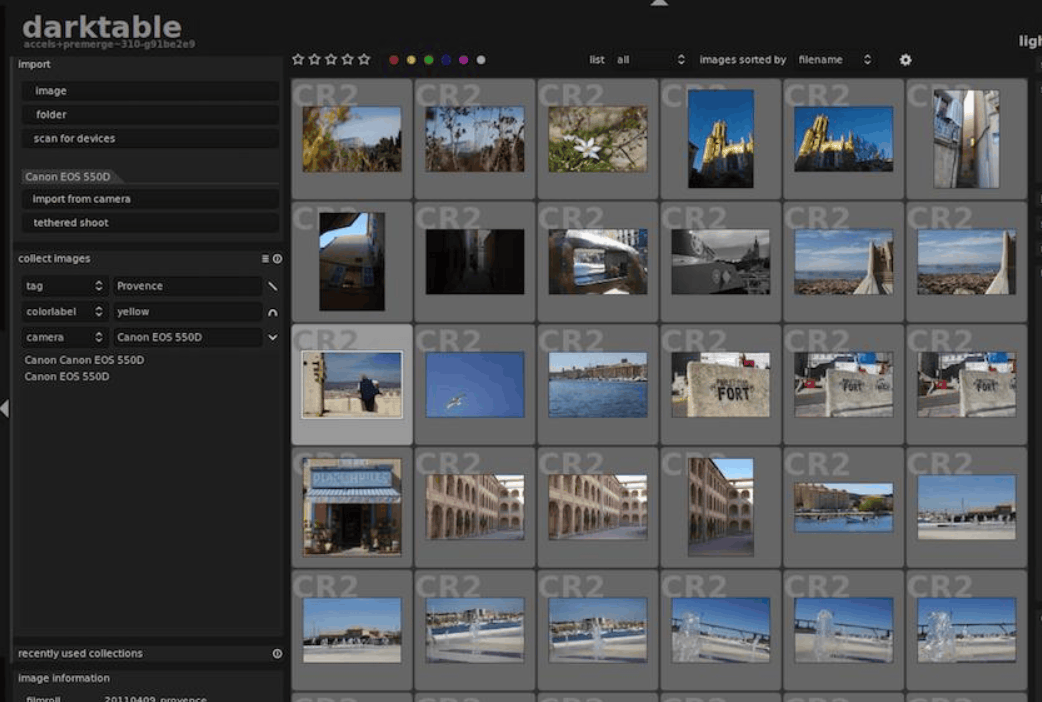
On newer versions of Windows and macOS, additional extensions or codecs are often needed to display thumbnails and quickly view CR3 files directly in the file manager. If you only see a blank icon, check for system updates or install Canon's RAW codec or Microsoft's RAW utility. Alternatively, some open-source software like DarkTable and RawTherapee can also read CR3 files and are worth considering if you're looking for a free solution.
Once successfully opened, editing CR3 files is no different from working with other RAW files. For those who need to process an entire folder of photos after a long shoot, batch editing tools like Luminar Neo allow applying the same adjustments to multiple photos at once, instead of processing each file manually.
3. Methods for converting CR3 files
Converting CR3 to a more common format helps resolve compatibility issues when sharing, printing, or working with Canon's software that doesn't support RAW. There are three main approaches, depending on the intended use.
- The first option is to convert to DNG, an open RAW format developed by Adobe. Adobe DNG Converter does this for free, preserving the original RAW data and allowing the file to be read in more programs. This is a useful option if you are using older software that hasn't been updated to support CR3, or if you want to store files long-term in a format that isn't dependent on a single manufacturer.
The second option is to export to JPEG, TIFF, or PNG after basic editing. Lightroom, Camera Raw in Photoshop, Digital Photo Professional, and Luminar Neo all offer this functionality. JPEG is suitable for sending to clients, posting on social media, or uploading to websites. TIFF is suitable when you need high quality for printing or further editing in other software. PNG is useful when you need a transparent background or images with a lot of graphic detail.
- The third option is to use online conversion tools. This is convenient for a few individual files, but you should consider privacy and upload size, as CR3 files are often quite large. For commercially valuable images or sensitive personal photos, software installed on your computer is still a safer choice.
A quick note for those interested in the Skylum ecosystem: Luminar AI was discontinued in October 2022 and completely replaced by Luminar Neo. If you encounter older guides mentioning Luminar AI, understand that similar operations are now performed in Luminar Neo, where the same correction settings can be applied and images exported to an entire folder in a single go.
4. Comparing RAW and JPEG formats
RAW and JPEG serve two different purposes. JPEG is processed and compressed by the camera at the moment the shutter is pressed, in which process some data from the sensor is permanently discarded. The camera automatically decides on white balance, contrast, saturation, noise reduction, and sharpness, then saves the result as a complete, ready-to-use file. Conversely, a CR3 file retains the full amount of information the sensor has captured, so those decisions are left to post-processing, where you have complete control.
The difference is most evident in color depth and contrast range. JPEGs only have 8 bits per color channel, equivalent to 256 levels of brightness, while RAW files from Canon cameras typically record at 14 bits, or tens of thousands of levels. This ample range allows you to adjust overexposed areas, enhance detail in dark areas, or change white balance with less color banding, streaking, or noise. Editing on RAW also doesn't destroy the original data, as changes are saved as a set of processing instructions, and you can always revert to the original state.
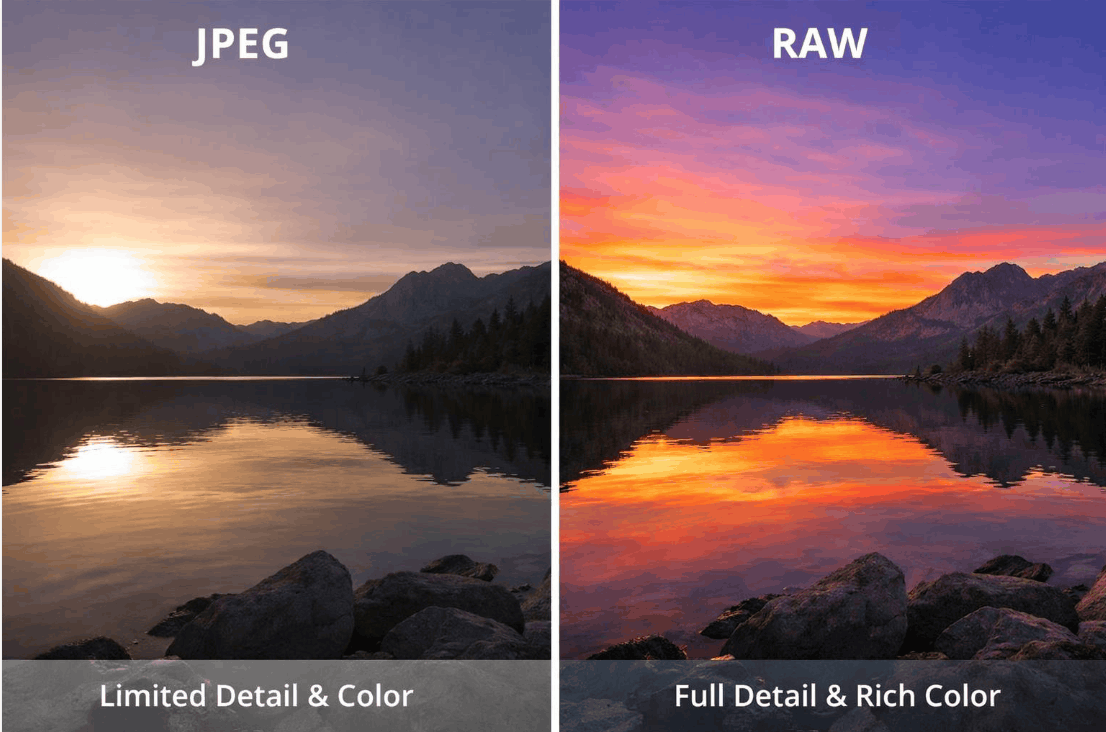
The trade-off is storage space. A CR3 file is typically 20 to 40 MB, while a JPEG image from the same camera is only a few MB. Larger files mean faster memory card filling, potentially impacting continuous shooting speeds, and requiring faster hard drive expansion. The C RAW option is a compromise, reducing file size by about 40% while retaining most editing flexibility. Many Canon cameras also allow simultaneous RAW and JPEG recording, giving you photos readily available for quick viewing or sharing while keeping the original for later processing.
JPEG isn't always the worse choice. For press photos that need to be sent urgently, large series of sports photos, or family photos just for keeping as memories, JPEG is much more compact and convenient. The important thing is to understand the purpose of each set of photos to choose the appropriate format.
5. Common applications of CR3 files
Photographers working with heavy post-processing often prefer RAW files. In wedding and commercial photography, lighting changes constantly, and clients expect consistent skin tones, clothing colors, and overall atmosphere. RAW data allows photographers to make synchronized adjustments across hundreds of images, correcting exposure discrepancies without sacrificing quality.

Travel and landscape photography are well-suited to and compatible with a wide dynamic range. Scenes with bright skies and dark foregrounds, such as mountain sunrises or beach sunsets, are difficult to fully capture if you rely solely on the camera's automatic resolution. With the CR3, you can balance both bright and dark areas during editing, instead of having to accept the detail the camera retains.
Product and studio photography often opts for CR3, even with well-controlled lighting. When accurate color reproduction is needed for e-commerce, cosmetics, fashion, or jewelry images, the ability to fine-tune white balance and exposure after the shoot eliminates the pressure of achieving perfect settings on the camera. Once the file is ready for editing, a dedicated RAW editor, capable of handling large CR3 files, typically produces cleaner and more consistent results.

6. Software compatible with CR3
Those using both older and newer Canon cameras need software that supports both CR2 and CR3 formats. The table below summarizes the main differences between the two formats.
| Criteria | CR2 | CR3 |
|---|---|---|
| Container structure | Based on TIFF | ISO Base Media File Format |
| File size | Larger with the same amount of data | Smaller by about 30 to 50%, especially when using C RAW. |
| Compression options | Compression without data loss | Lossless or lossy compression (C RAW) |
| Release date | Early 2000s | In 2018, along with the EOS M50 |
| Software support | Common in both old and new tools | Software version from 2018 onwards is required. |
Choosing between CR2 and CR3 largely depends on the camera model you own. Before upgrading your camera, check if your current RAW processing software supports the new model. This will help you avoid surprises when you bring home your new camera and discover after shooting that your familiar software can't open the files. If you need to buy or upgrade editing tools, you should also compare the prices of software like Luminar Neo and other options to balance your budget.
In addition to Adobe and Canon's tools, many third-party RAW processors have added CR3 support within one to two years of the format's launch. Capture One, DxO PhotoLab, and ON1 Photo RAW are among them. So, if you prefer an ecosystem other than Adobe, working with newer Canon cameras is not a problem at all. Each software has its own strengths; for example, Capture One excels in color processing and PC-connected shooting, DxO PhotoLab is strong in noise reduction and lens correction, and Luminar Neo focuses on AI-powered tools and a fast editing workflow.
7. Tips for managing CR3 files
A RAW photo library grows very quickly, and without a system in place from the start, finding a photo after a few months can become tedious. The following habits will help you keep everything organized.
- Update your RAW processing software immediately after purchasing a new camera, as the newest models sometimes require an update for CR3 files to open correctly.
- Convert the finished images to JPEG or TIFF for sharing, and keep the original CR3 file in a separate archive, instead of sending unnecessarily large RAW files.
- Back up your CR3 files in at least two different places, such as an external hard drive and a cloud storage service, because corrupted or lost RAW files cannot be recovered like a re-exportable JPEG.
- Using C RAW instead of full CR3 for everyday shooting sessions that don't require maximum editing capabilities significantly frees up memory card and hard drive space without any loss of quality.
- Rename and organize files by shooting date or client immediately after importing photos, instead of waiting months to sift through a folder full of unnamed files.
- Check your free space before each long shoot, as CR3 files fill up the memory card faster than JPEGs, especially during continuous shooting.
- Maintain a consistent folder structure for all projects, for example, hierarchical by year, month, and event name, so you can find the correct CR3 file even after many years.
You should also consider using library management software that supports tagging, star ratings, and keywords. These tools allow you to filter out the best photos in seconds, instead of having to open each file to check. Don't forget to periodically check your storage drives, as hard drives also have a lifespan, and proactively backing up data to a new device before a problem occurs is always much cheaper than losing photos.
8. Conclusion
CR3 replaced CR2 as Canon's standard RAW format in 2018. Thanks to its modern container structure, this format supports smaller files, better metadata management, and offers a C RAW option, saving approximately 40% of storage space while still meeting editing needs. To open or convert CR3, you only need sufficiently updated software, whether it's Canon's Digital Photo Professional, a dedicated RAW editor, or Adobe's DNG converter. Although CR3 files take up more space and require pre-processing before uploading, they offer photographers the ability to salvage detail and adjust exposure far beyond what a pre-compressed JPEG file can achieve.





















VIP Products








Best Selling Products
Upgrade genuine Capture One account
120 USD
Adobe Photoshop Copyright - Full App
120 USD
Copyright Adobe Lightroom Account
59 USD
Autodesk All App Account Copyright
120 USD
MidJourney Account
29 USD
Upgrade Genuine Office 365
49 USD
Windows 10 & 11 Pro Key
36 USD
Upgrade Duolingo Super
29 USD
Genuine Adobe Illustrator account
99 USD
Adobe Premiere Pro Account
99 USD
Freepik Premium Account
59 USD
Capcut Pro 1 Year
39 USD
Genuine Cheap Canva Pro
39 USD
Plugin Retouch4me
69 USD
ChatGPT Plus Account (GPT-4)
16 USD