Best Selling Products

Upgrade Duolingo Super
29 USD

Genuine Cheap Canva Pro
39 USD

Genuine Adobe Illustrator account
99 USD

Autodesk All App Account Copyright
120 USD

Adobe Photoshop Copyright - Full App
120 USD

Plugin Retouch4me
69 USD

Upgrade genuine Capture One account
120 USD

ChatGPT Plus Account (GPT-4)
16 USD

Upgrade Genuine Office 365
49 USD

Adobe Premiere Pro Account
99 USD

Copyright Adobe Lightroom Account
59 USD

Freepik Premium Account
59 USD

MidJourney Account
29 USD

Capcut Pro 1 Year
39 USD

Windows 10 & 11 Pro Key
36 USD
The secret to editing photos naturally using ChatGPT, without Photoshop.
Nội dung
- 1. What's special about editing photos using ChatGPT?
- 2. How to edit photos using ChatGPT for a natural and simple look.
- 2.1. Step 1: Open ChatGPT and upload the image you want to edit.
- 2.2. Step 2: Provide a detailed description of the changes you wish to make.
- 2.3. Step 3: Use the area selection feature to edit details.
- 2.4. Step 4: Review the image and request revisions if necessary.
- 3. Beautiful photo editing styles that can be done using ChatGPT
- 3.1. Remove unwanted people and objects from the image.
- 3.2. Change the background professionally.
- 3.3. Change your outfit and accessories.
- 3.4. Adjusting color and natural light
- 4. Secrets to writing prompts that help ChatGPT edit images beautifully and accurately.
- 5. Image editing prompts using ChatGPT are ready to use.
- 6. Notes on editing images using ChatGPT to avoid a fake-looking image.
- 7. Conclusion
You''''ve got a pretty good photo but are still not satisfied with a few small details? It could be a stranger in the background, an unflattering background, inappropriate clothing, or insufficient lighting. Instead of using Photoshop with its many complex tools, you can easily use ChatGPT to edit your photos with simple commands. Just upload your photo, describe what you want to change, and the AI can help you remove objects, replace the background, adjust colors, or add new details. In this article, let''''s explore the secrets to naturally beautiful photo editing with ChatGPT, how to write effective prompts, and tips for achieving the perfect result.
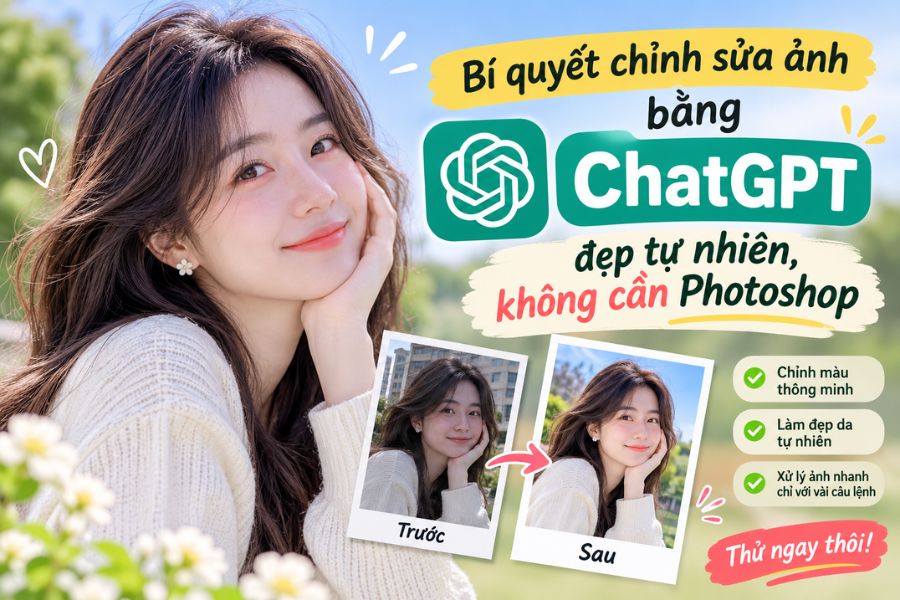
1. What's special about editing photos using ChatGPT?
Instead of manually manipulating multiple layers of images, masks, or filters like traditional editing software, ChatGPT allows you to communicate directly with the AI to make the desired changes. You simply upload the image and express your request in natural language. The AI will then use that content to create a new version of the image.
The interesting thing is that you don't necessarily have to re-edit the entire photo. If you only want to change a small detail, you can ask the AI to focus on that specific area and leave the rest unchanged.
Some notable photo editing capabilities include:
-
Remove unwanted objects: Get rid of strangers, extraneous items, wires, or distracting details.
-
Change the background: Transform a simple background into a studio, cafe, beach, or luxurious space.
-
Outfit editing: Try out different clothing styles without having to retake photos.
-
Improve lighting: Make the image brighter, balance colors, and create a harmonious feel.
-
Add new details: Supplement the layout with accessories, flowers, decorations, or other objects that complement the overall design.
-
Style adjustments: Transform ordinary photos into cinematic, vintage, minimalist, or professional portrait styles.
2. How to edit photos using ChatGPT for a natural and simple look.
To get the desired image, you don't need to know how to use professional design software. ChatGPT can assist with editing through uploaded images and specific commands. Below is a step-by-step guide for beginners.
2.1. Step 1: Open ChatGPT and upload the image you want to edit.
First, access ChatGPT on your computer or phone and log in to your account. In the chat interface, select the plus icon or the attach button to upload images from your device.
You should choose images with good resolution, clear subjects, and not too much obscuring. This helps the AI easily identify important details, thereby providing more appropriate editing results.
Some things to keep in mind when choosing photos:
-
Prioritize photos that are well-lit and free from blur or pixelation.
-
Choose an original image with a relatively complete composition.
-
Make sure the details you want to edit are clearly visible.
-
Use high-quality photos to minimize the risk of the edited image looking unnatural.
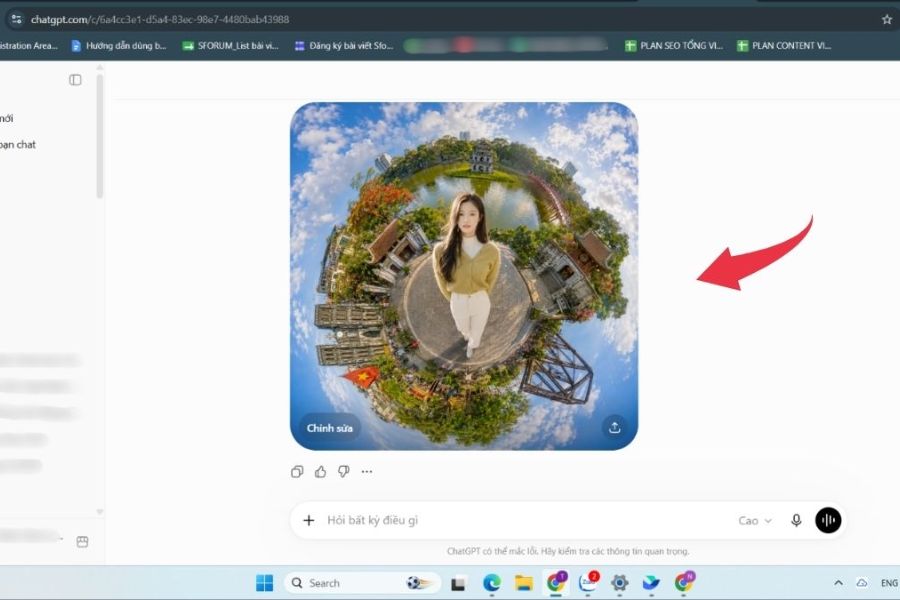
2.2. Step 2: Provide a detailed description of the changes you wish to make.
After successfully uploading the image, enter your request in the chat box. This is a crucial step because the way you phrase it will directly affect the results the AI produces.
Instead of writing vague statements like "please make the photo look better," you should specify the location, content, and style you want to change.
For example, if you want to change the background, you can enter:
"Change the background behind the character to a minimalist, dark cream-colored studio with natural light coming from the left. Keep the character's face, hairstyle, expression, clothing, and pose unchanged. Adjust the shadows to make the image look realistic."
If you want to remove an object, clearly describe the object to be removed and ask the AI to recreate the space behind it seamlessly.
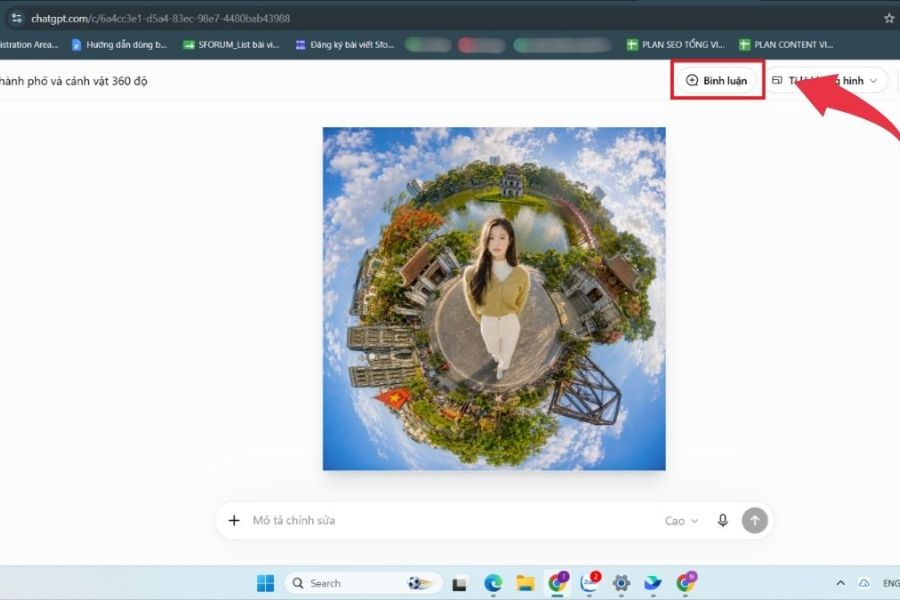
2.3. Step 3: Use the area selection feature to edit details.
If your image editing interface supports a selection tool, you can use this feature to mark the area that needs changing. This helps the AI better understand where to process the changes instead of having to guess based on the entire image.
You can apply this method whenever you want:
-
Remove an object located in the corner of the image.
-
Change the color of an item.
-
Modify a part of the outfit.
-
Add accessories to the character.
-
Adjust a specific background area.
After selecting the area, combine it with a statement that clearly describes the changes to be made. Note that the selection only helps to orient the editing area; it doesn't always absolutely limit the scope of AI changes.
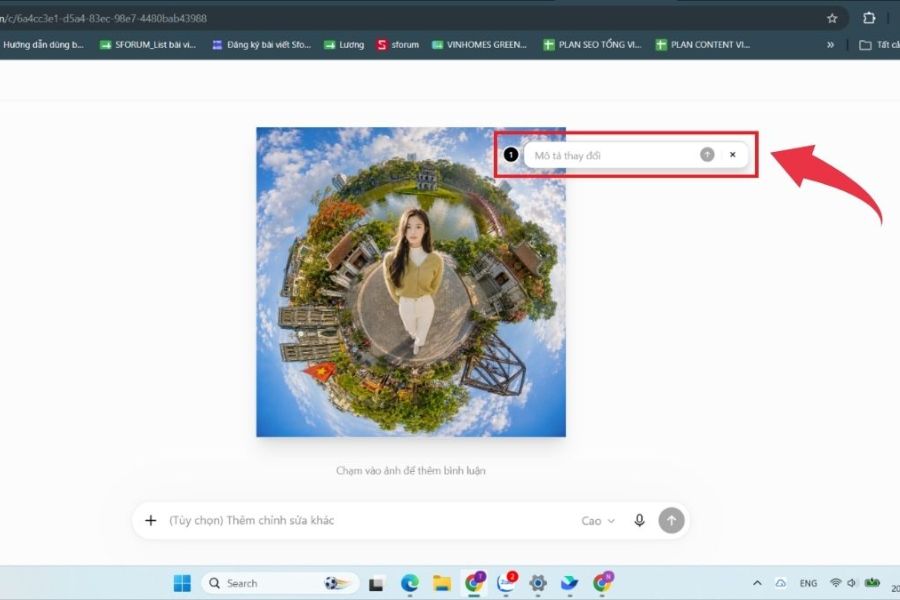
2.4. Step 4: Review the image and request revisions if necessary.
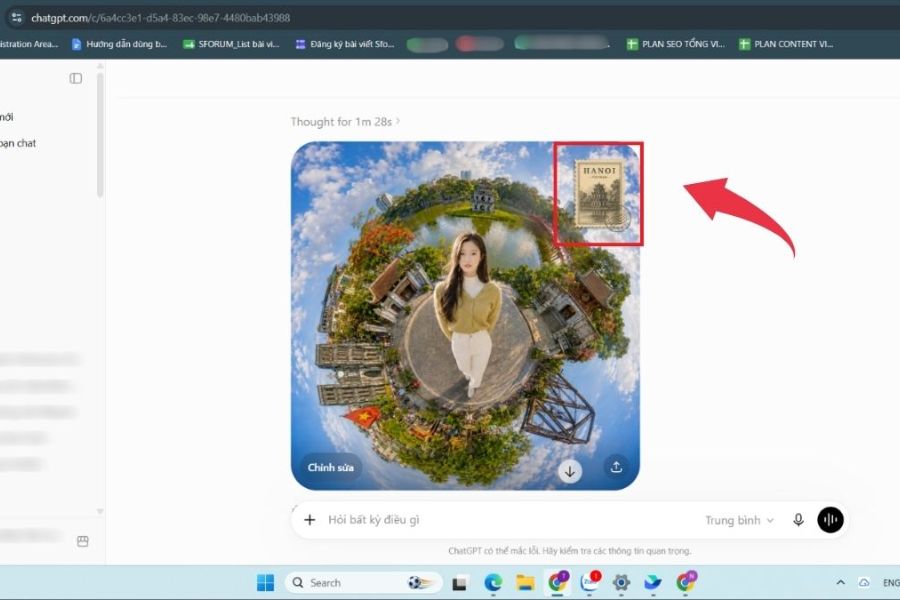
Once ChatGPT has finished processing, test the new version instead of saving immediately. Pay attention to the face, hands, clothing outlines, lighting, and details near the area you just edited.
If the results aren't what you expected, you can continue entering your requests for the AI to refine them. For example:
-
"Keep the original face, only adjust the background color."
-
"Make the shadows more natural, without changing the lighting on the character."
-
"Remove unnecessary details in the background and restore a seamless background."
-
"Reducing color saturation creates a softer and more realistic feel."
Editing step-by-step will give you better control over the final product and minimize unwanted changes.
3. Beautiful photo editing styles that can be done using ChatGPT
Without needing multiple software programs, you can experiment with various image styles right within ChatGPT. Depending on your purpose, choose the appropriate editing style to ensure your photos are both visually appealing and natural.
3.1. Remove unwanted people and objects from the image.
This is one of the most common editing needs. When taking photos in crowded places, sometimes strangers accidentally appear in the frame, or objects appear that make the photo look messy.
You can ask ChatGPT to remove people in the background, trash cans, power lines, or other unnecessary objects. The AI will try to recreate the obscured background to make the photo look more natural.
Reference prompt:
"Remove the person standing behind the main character. Restore the background by continuing the surrounding scenery, keeping the character, colors, lighting, and original composition unchanged. Do not alter other details."
3.2. Change the background professionally.
If you feel the initial background is too plain, you can change the setting to make the photo stand out more. This is a suitable option when creating portraits, profile pictures, or images for social media.
Here are some backgrounds you can try:
-
White studio: Suitable for portraits, profile pictures, and professional photos.
-
Korean-style cafes: Creating a youthful and relaxed atmosphere.
-
Flower gardens: Bring a romantic, natural feel.
-
Luxurious hotel space: Perfect for fashion photography and elegant styles.
-
The beach: Creates a feeling of spaciousness and brightness.
Reference prompt:
"Replace the current background with a Korean-style cafe featuring large glass windows and natural light. Keep the character's face, hair, clothing, and pose the same. Adjust the overall lighting so the subject blends seamlessly into the new space."
3.3. Change your outfit and accessories.
You can also use ChatGPT to experiment with different fashion styles. For example, transform a simple t-shirt into an elegant shirt or change accessories to make the photo look more striking.
Here are some editing ideas:
-
Replace the T-shirt with a shirt or blazer.
-
Change your attire to a business casual style.
-
Add a handbag, sunglasses, or jewelry.
-
Change the color of your clothes according to your preference.
-
Try vintage, minimalist, or elegant styles.
Reference prompt:
"Change your current outfit to a white blazer paired with a beige top. Keep your face, hairstyle, figure, and posture the same. The clothing material should have a natural drape, and the colors should harmonize with the lighting in the photo."
3.4. Adjusting color and natural light
A well-composed photo may still lack appeal if the lighting is too dark or the colors are not harmonious. Instead of applying harsh filters, you can ask ChatGPT to gently adjust the color tone to make the image look more pleasing.
You can try some styles:
-
Warm tones with a soft yellow light.
-
Cool tones give a modern feel.
-
Vintage style with muted colors in the photos.
-
Soft pastel colors.
-
Studio lighting is soft, minimizing harsh shadows.
Reference prompt:
"Adjust the photo's colors to a Korean style, using light, bright tones, natural skin tones, soft lighting, and moderate contrast. Avoid excessive skin whitening and maintain facial features."
4. Secrets to writing prompts that help ChatGPT edit images beautifully and accurately.
One of the key factors determining image quality is how you describe your request. The clearer the prompt, the better the AI can understand your needs and minimize inaccurate editing.
Here are some tips you should apply:
-
Provide a precise description of what needs adjusting: Instead of writing "delete object," specify whether it's the chair in the right corner or the bag on the table.
-
Clearly state which elements need to be preserved: If you do not want the AI to change the character's face, specify that you want to retain the character's features, expressions, hairstyle, and identifying characteristics.
-
Use specific adjectives: Words like soft light, pastel colors, subtle contrast, and realistic textures will help the AI understand the desired style.
-
Don't require too many changes at once: Break it down into smaller steps, such as changing the background first, adjusting the costumes, and then balancing the lighting.
-
Add details that are not allowed: You can request that no new text, logos, watermarks, or characters be added if they are not necessary.
-
Specify the desired level of editing: If you only want to slightly brighten the image, be clear to avoid the AI drastically altering the colors.
5. Image editing prompts using ChatGPT are ready to use.
If you're unsure where to start, you can refer to the commands below. Simply upload the image, copy the appropriate prompt, and change a few details as needed.
You should consider the above commands as initial suggestions. When using them, add details such as location, color, and other elements you want to keep so that ChatGPT produces results that are closer to your expectations.
6. Notes on editing images using ChatGPT to avoid a fake-looking image.
Although AI can perform many operations quickly, it sometimes produces details that aren't entirely accurate. Therefore, you shouldn't skip the final product review step, especially when using images for work or commercial purposes.
Some important points to note include:
-
Use high-quality original images: Clear, well-lit images help the AI recognize subjects and details more easily.
-
Avoid excessive revisions: Constantly requesting changes can distort some of the original features. Save a good version before continuing.
-
Check the face and hands: These are areas that need attention because AI can sometimes create fingers, features, or expressions that look unnatural.
-
Ensure consistent lighting: When changing the background or adding objects, check the light direction, shadows, and colors so that the elements blend together harmoniously.
-
Check text and logos: If the image contains brand names, phone numbers, or important information, double-check because AI can create incorrect characters.
-
Pay attention to image usage rights: When editing other people's photos or using them for advertising purposes, you should ensure you have the appropriate usage rights.
-
Choose the correct aspect ratio: Photos for Facebook, Instagram, TikTok, or banners have different size requirements. Determine this beforehand to avoid losing detail when cropping the image.
Additionally, you should note that ChatGPT doesn't always perfectly preserve every pixel of the original image. Some areas surrounding the edited region may change during the AI image creation process. For designs requiring high precision, you should thoroughly check before using it officially.
7. Conclusion
Editing photos using ChatGPT is a convenient solution for those who want to create visually appealing images without needing Photoshop skills. From removing objects and changing backgrounds to adjusting clothing and balancing lighting, you can do it all with simple commands. The key is to choose high-quality original images, clearly describe each requirement, and carefully check the results after each edit. Hopefully, the instructions and prompts in this article will help you confidently create natural, professional photos with your own unique style.





















VIP Products








Best Selling Products
Upgrade Duolingo Super
29 USD
Genuine Cheap Canva Pro
39 USD
Genuine Adobe Illustrator account
99 USD
Autodesk All App Account Copyright
120 USD
Adobe Photoshop Copyright - Full App
120 USD
Plugin Retouch4me
69 USD
Upgrade genuine Capture One account
120 USD
ChatGPT Plus Account (GPT-4)
16 USD
Upgrade Genuine Office 365
49 USD
Adobe Premiere Pro Account
99 USD
Copyright Adobe Lightroom Account
59 USD
Freepik Premium Account
59 USD
MidJourney Account
29 USD
Capcut Pro 1 Year
39 USD
Windows 10 & 11 Pro Key
36 USD