Best Selling Products
Upgrade genuine Capture One account
120 USD

MidJourney Account
29 USD

Genuine Cheap Canva Pro
39 USD

Adobe Photoshop Copyright - Full App
120 USD

ChatGPT Plus Account (GPT-4)
16 USD

Capcut Pro 1 Year
39 USD

Plugin Retouch4me
69 USD

Genuine Adobe Illustrator account
99 USD
Autodesk All App Account Copyright
120 USD

Upgrade Genuine Office 365
49 USD

Copyright Adobe Lightroom Account
59 USD

Adobe Premiere Pro Account
99 USD

Windows 10 & 11 Pro Key
36 USD

Freepik Premium Account
59 USD
Upgrade Duolingo Super
29 USD
What is ChatGPT Voice? How to enable and use voice on ChatGPT.
Nội dung
- 1. What is ChatGPT Voice? How does it work?
- 2. Current voice modes on ChatGPT
- 2.1. Live Voice Mode with natural conversational capabilities
- 2.2. Standard Voice Mode with turn-based interaction
- 2.3. Advanced Voice Mode and Audio Processing Capabilities
- 3. Key features of ChatGPT Voice
- 3.1. Direct conversation, natural feedback
- 3.2. Multi-language support
- 3.3. Choose from a variety of different voices
- 3.4. Support for chatting while viewing content.
- 3.5. Supports a wide range of learning and work needs.
- 4. Instructions on enabling and using ChatGPT Voice on your phone and computer.
- 4.1. How to enable ChatGPT Voice on Android and iPhone
- 4.2. How to use ChatGPT Voice on a computer
- 4.3. How to set up ChatGPT Voice using Vietnamese
- 4.4. How to change your voice on ChatGPT Voice
- 5. Tips for using ChatGPT Voice more effectively
- 6. Conclusion
With the rapid development of artificial intelligence, ChatGPT is increasingly offering users smarter and more convenient ways to interact. Instead of typing each question manually, you can now chat directly with AI through ChatGPT Voice and receive answers in natural-sounding voice. This feature is especially useful when looking up information, practicing a foreign language, studying, or exchanging ideas while your hands are busy. So what is ChatGPT Voice, what are its outstanding features, and how do you activate it on your phone or computer? Let''s find out in detail in the article below!
1. What is ChatGPT Voice? How does it work?
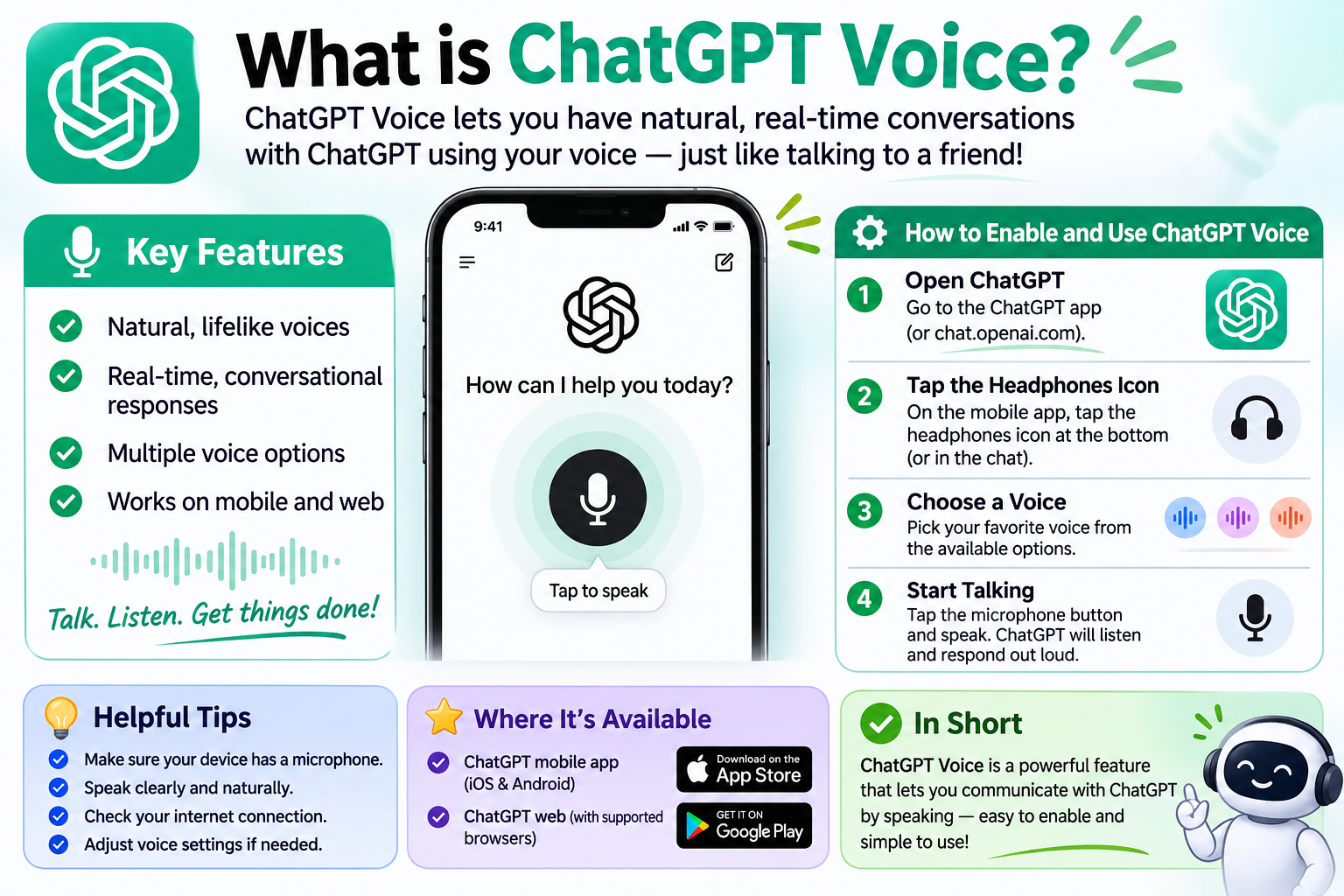
ChatGPT Voice (or ChatGPT Voice Mode) is a voice chat feature integrated directly into ChatGPT, allowing users to communicate with artificial intelligence via audio instead of just text input. You can ask questions verbally, request explanations, or discuss any topic. ChatGPT will then receive the information, process the request, and respond with a corresponding voice message.
The interesting aspect of this feature is that the interactive experience is increasingly closer to a real conversation. Users don't need to read and type every line of content; they can simply speak naturally with the AI. Especially in the current Live mode, ChatGPT can both listen and respond, allowing you to interrupt, add information, or redirect the conversation while the AI is speaking. In terms of operation, ChatGPT Voice uses artificial intelligence technology to process audio, recognize speech, understand context, and generate voice responses. Conversation content can also be displayed as text directly within the chat window, making it easy to follow and review information after the conversation ends.
2. Current voice modes on ChatGPT
ChatGPT offers various voice experiences depending on the app version, account, and user settings. Live is the preferred, modern voice experience, while the older Standard and Advanced modes may still be available during the transition period.
2.1. Live Voice Mode with natural conversational capabilities
Live Voice Mode is a new voice mode developed to provide a more seamless and flexible communication experience. Its highlight is the ability to listen and speak simultaneously, eliminating rigid question-and-answer sessions. You can interrupt ChatGPT while it's responding, request further explanation, or change the topic without waiting for the AI to finish its sentence. The system can also respond with natural-sounding confirmations, making the conversation feel more personal.
Additionally, Live supports combining voice with text and images within a single conversation. Depending on the features provided to the account, users can take advantage of web search, information retrieval, and other supporting tools while communicating via voice.
2.2. Standard Voice Mode with turn-based interaction
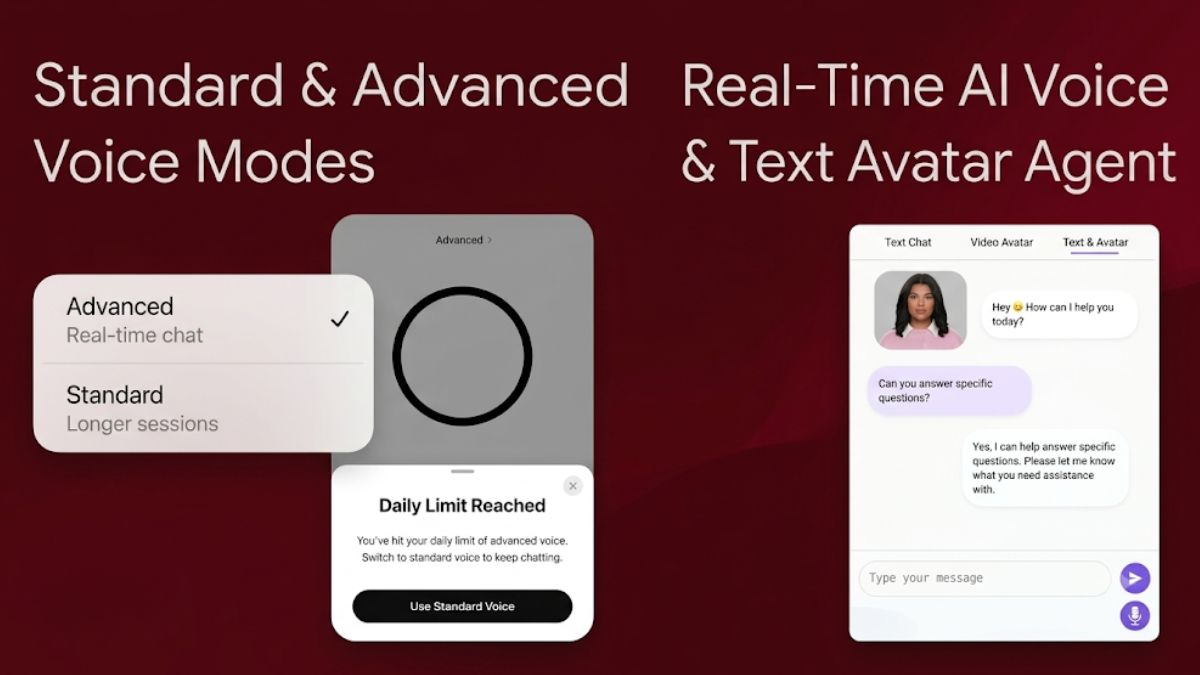
Standard Voice Mode is ChatGPT's standard voice mode, which works by converting speech to text, processing the content, and then converting the response back into audio.
When using the system, the user speaks their question into the microphone, the system recognizes the content and generates a response after processing is complete. Because it operates on a turn-by-turn basis, there may be a certain delay compared to a live conversation. This mode is suitable for those who want to ask questions, look up information, or hear ChatGPT read the answers without much input.
2.3. Advanced Voice Mode and Audio Processing Capabilities
Advanced Voice Mode is a next-generation real-time voice experience developed to improve audio communication. This mode supports live voice recognition and generation, resulting in more natural responses compared to sequential voice conversion.
Users can chat, interrupt, and request ChatGPT to change its wording during interactions. On certain eligible mobile devices, Advanced also supports live video and screen sharing for the AI to observe and analyze content.
3. Key features of ChatGPT Voice
3.1. Direct conversation, natural feedback
The most obvious advantage of ChatGPT Voice is its ability to communicate verbally. You can ask questions continuously, exchange ideas, or ask the AI to explain difficult content without typing each sentence. In particular, Live allows users to interrupt and add information while ChatGPT is responding, creating a more natural interactive experience.
3.2. Multi-language support
ChatGPT Voice is capable of recognizing and processing many different languages, including Vietnamese. Users can chat in their familiar language or use this feature to practice listening and speaking in a foreign language. If the recognition system is not accurate, you can set the preferred language in the settings to improve speech comprehension.
3.3. Choose from a variety of different voices
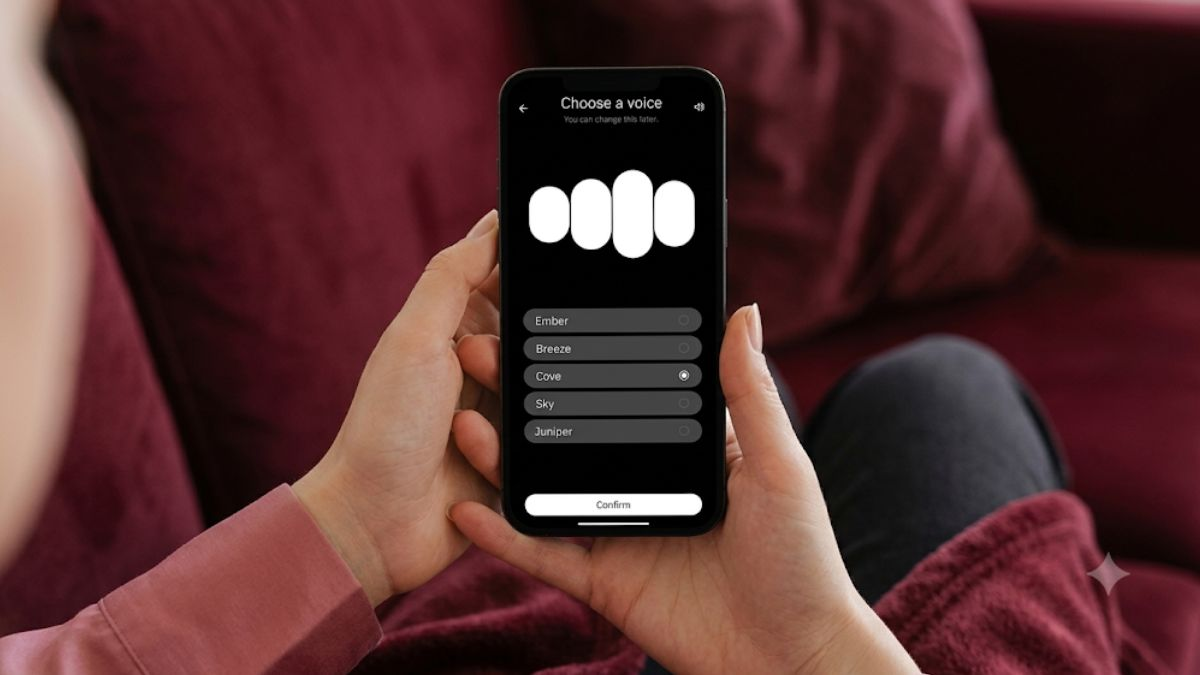
ChatGPT offers a variety of voice options with distinct nuances and styles. Some popular voices include Arbor, Breeze, Cove, Ember, Juniper, Maple, Sol, Spruce, and Vale. Each option provides a different feel, ranging from gentle and playful to calm and confident.
You can listen to sample voices and choose one that suits your personal preference. Changing the voice also makes the chat experience less boring, especially when you frequently use ChatGPT for studying or working.
3.4. Support for chatting while viewing content.
With Live mode, voice responses can be displayed simultaneously as text within the conversation. This allows users to listen and follow the content at the same time, making it convenient for remembering information or reviewing important responses.
Additionally, you can combine text input and image sending within the same conversation if your account supports it. This makes information exchange more flexible instead of having to start a new conversation.
3.5. Supports a wide range of learning and work needs.
ChatGPT Voice can be a helpful assistant in many everyday situations. You can use this feature to practice English communication, find content writing ideas, learn new things, prepare presentations, or get answers to work-related questions.
In particular, voice chat capabilities help you make the most of your free time while cooking, doing housework, or commuting. However, be mindful of your surroundings and only use it when conditions permit.
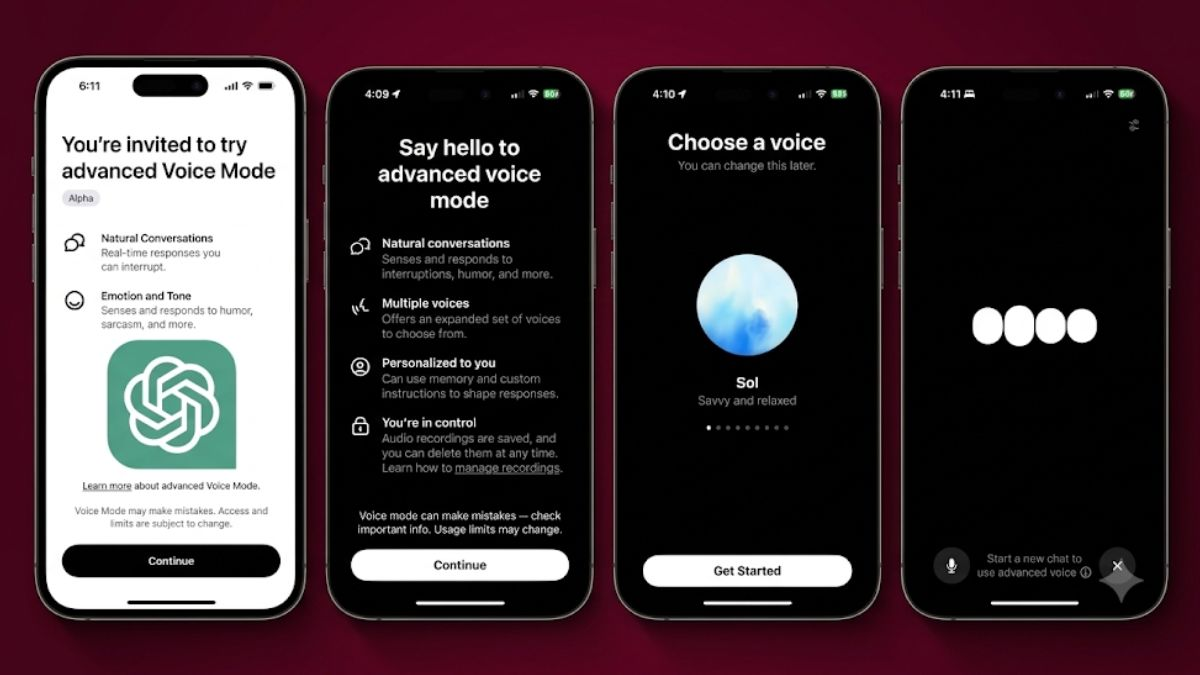
4. Instructions on enabling and using ChatGPT Voice on your phone and computer.
To experience ChatGPT Voice, you need a ChatGPT account, a stable internet connection, and permission to access the microphone for the application or browser. Below are detailed instructions for each device.
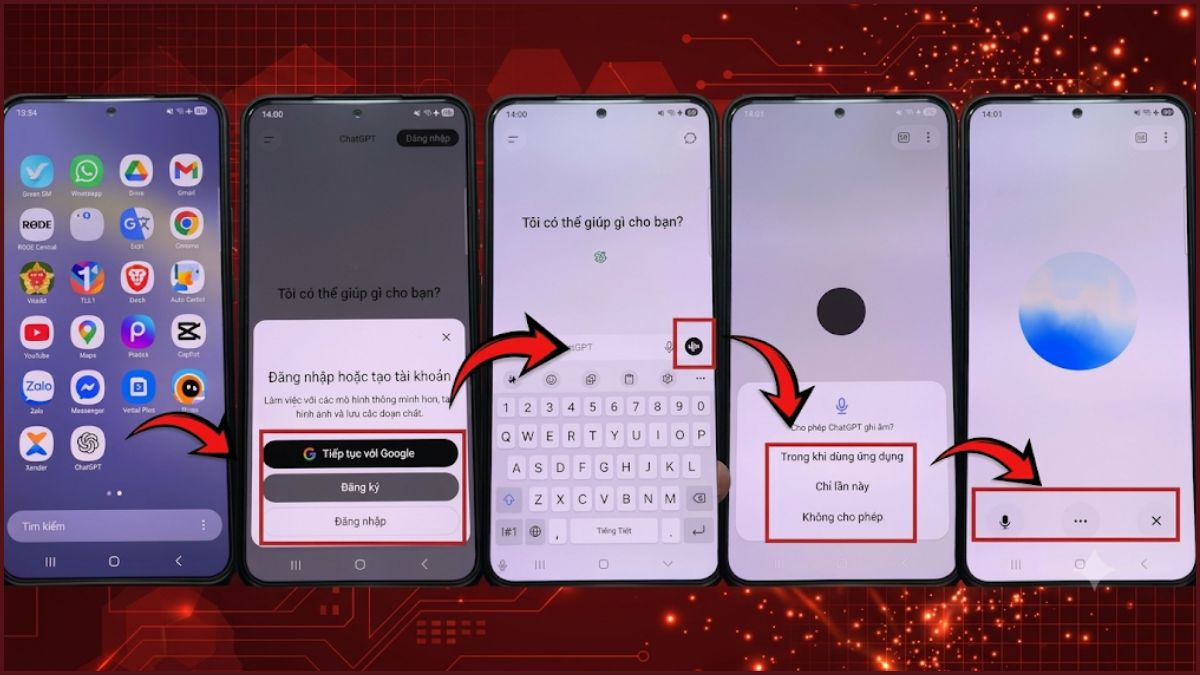
4.1. How to enable ChatGPT Voice on Android and iPhone
The voice feature is integrated directly into the ChatGPT app for Android and iOS. The steps are quite simple:
-
Step 1: Open the ChatGPT app on your phone and log in to your account.
-
Step 2: In the message input box, tap the Voice icon to start a chat.
-
Step 3: Allow ChatGPT access to your microphone if your phone displays a notification requesting permission.
-
Step 4: Choose your favorite voice if this is your first time using it.
-
Step 5: Begin speaking your question or request so that ChatGPT can respond with audio.
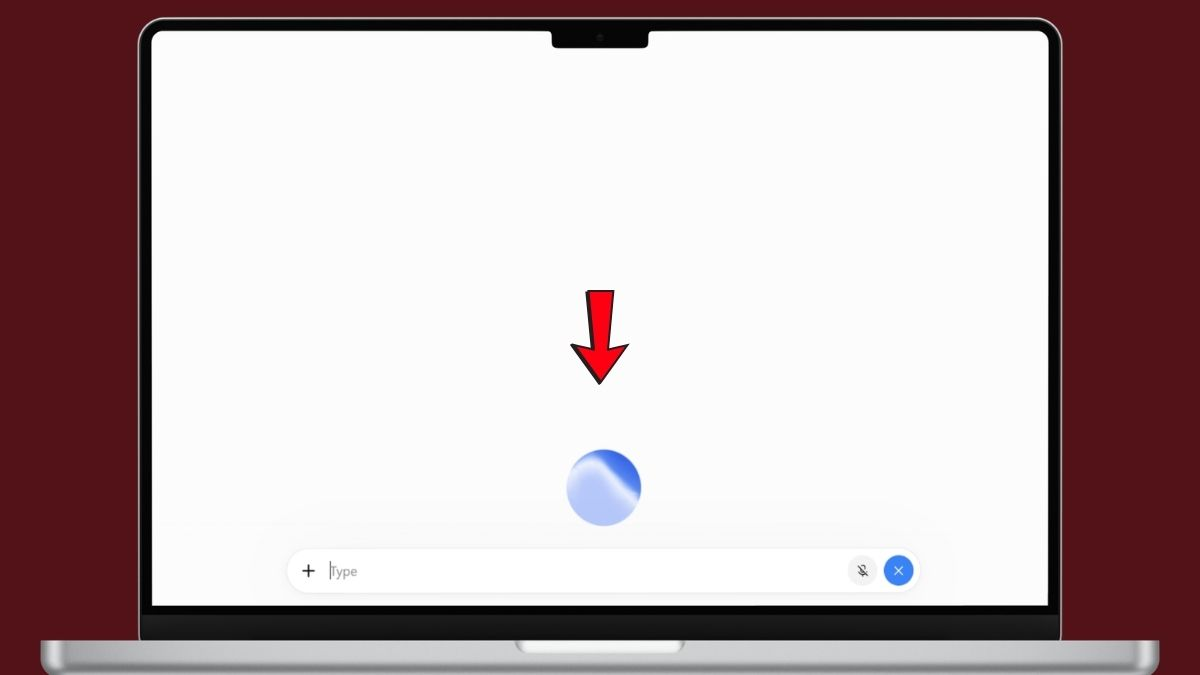
4.2. How to use ChatGPT Voice on a computer
In addition to your phone, you can also use voice commands directly in your computer browser or supported desktop applications.
-
Step 1: Access ChatGPT.com or open the ChatGPT application on your computer.
-
Step 2: Log in to your personal account to open the chat interface.
-
Step 3: Tap the Start Voice icon located in the message input area.
-
Step 4: Select Allow when the browser requests microphone access.
-
Step 5: Speak directly into the microphone to ask your question and listen to ChatGPT's response.
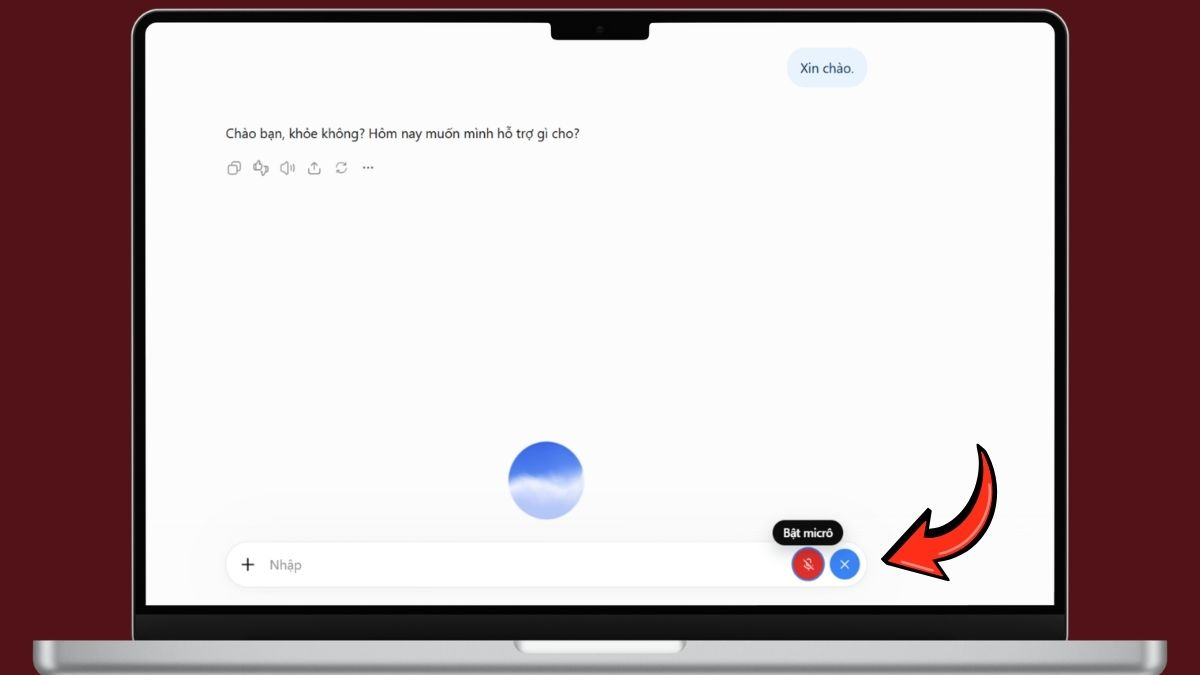
4.3. How to set up ChatGPT Voice using Vietnamese
If you want ChatGPT to recognize Vietnamese speech more accurately, you can set the preferred language in the settings. Here's how:
-
Step 1: Open ChatGPT and tap on your profile picture to access the Settings section.
-
Step 2: Find and select the Voice option.
-
Step 3: Click on Language to open the list of options.
-
Step 4: Select Vietnamese as your preferred language.
-
Step 5: Return to the chat interface and turn on Voice to start using it.
4.4. How to change your voice on ChatGPT Voice
If you want to change your virtual assistant's voice, you can select a different voice in the settings.
-
Step 1: Open ChatGPT and access Settings.
-
Step 2: Select the Voice option to view the available voice options.
-
Step 3: Click on each voice to listen to the pronunciation and intonation.
-
Step 4: Choose a voice that suits your personal preference.
-
Step 5: Return to the conversation and start using it.
5. Tips for using ChatGPT Voice more effectively
To ensure the conversation goes smoothly and you get the right answers, you can apply some of the following tips:
-
Speak clearly and to the point: Avoid speaking too quickly or with unclear pronunciation, as this can cause the system to misinterpret your message.
-
Ask specific questions: Instead of general questions, provide more context and purpose so ChatGPT can understand your request correctly.
-
Choose a quiet environment: Surrounding noise can affect the ability to recognize speech.
-
Use headphones with a microphone: This is a helpful way to reduce external noise and improve call quality.
-
Request a change in response style: You can suggest that ChatGPT speak more slowly, provide concise explanations, or use clearer language.
-
Double-check important information: AI can sometimes misidentify speech or provide inaccurate answers, so cross-check information when using it for work.

6. Conclusion
ChatGPT Voice is a useful feature that makes interacting with artificial intelligence more convenient and natural. Through its voice recognition capabilities, audio responses, and multi-language support, users can easily apply this tool to their studies, work, and daily activities. Hopefully, with the above guide, you now understand what ChatGPT Voice is, how to enable and use the voice feature on your phone and computer. Try it out to discover how to chat smarter, more flexibly, and save time with ChatGPT!



















VIP Products







Best Selling Products
Upgrade genuine Capture One account
120 USD
MidJourney Account
29 USD
Genuine Cheap Canva Pro
39 USD
Adobe Photoshop Copyright - Full App
120 USD
ChatGPT Plus Account (GPT-4)
16 USD
Capcut Pro 1 Year
39 USD
Plugin Retouch4me
69 USD
Genuine Adobe Illustrator account
99 USD
Autodesk All App Account Copyright
120 USD
Upgrade Genuine Office 365
49 USD
Copyright Adobe Lightroom Account
59 USD
Adobe Premiere Pro Account
99 USD
Windows 10 & 11 Pro Key
36 USD
Freepik Premium Account
59 USD
Upgrade Duolingo Super
29 USD