
Best Selling Products

ChatGPT Plus Account (GPT-4)
16 USD

Copyright Adobe Lightroom Account
59 USD

Freepik Premium Account
59 USD

Windows 10 & 11 Pro Key
36 USD

Plugin Retouch4me
69 USD
Genuine Cheap Canva Pro
39 USD

Genuine Adobe Illustrator account
99 USD
Adobe Photoshop Copyright - Full App
120 USD

Adobe Premiere Pro Account
99 USD

Upgrade Duolingo Super
29 USD
Upgrade genuine Capture One account
120 USD
Upgrade Genuine Office 365
49 USD

MidJourney Account
29 USD
Autodesk All App Account Copyright
120 USD

Capcut Pro 1 Year
39 USD
What Is Content-Aware Fill in Photoshop? A Simple Guide to Removing Unwanted Objects
Nội dung
Content-Aware Fill in Photoshop is a tool that helps remove unwanted objects, eliminate unwanted details, and recreate natural-looking areas of an image. Join SaDesign to explore its standout features, detailed usage instructions, and effective photo editing tips.

1. Understanding Content-Aware Fill in Photoshop
Content-Aware Fill is a feature in Adobe Photoshop that removes unwanted objects by using image information from the surrounding areas to recreate the obscured background.
When the user outlines an object to be removed, Photoshop analyzes the colors, textures, and existing details in the sampling area. The software then uses this data to fill the selected area, producing a result that is consistent with the surrounding environment.
For example, if a pedestrian appears in the middle of a lawn in a landscape photo, you can outline that person and use Content-Aware Fill. Photoshop will take grass details from suitable areas to replace the part of the image that was occupied. When the result is handled well, viewers may find it hard to tell that the photo has been edited.
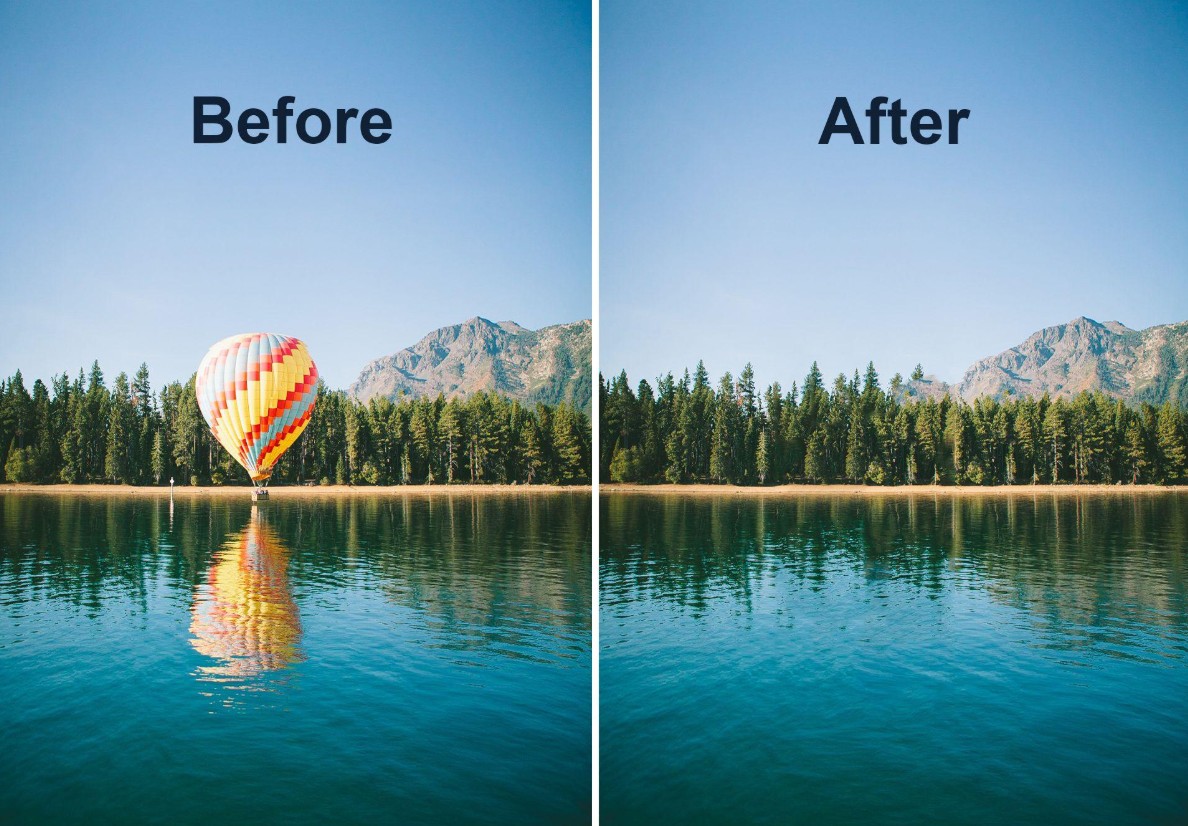
This feature is especially useful when dealing with objects on backgrounds that have relatively uniform colors or textures, such as the sky, sand, grass, walls, or road surfaces.
However, Content-Aware Fill cannot accurately restore the real details that were hidden by the object. The result it produces is an image reconstruction based on existing data, so users still need to check and make additional adjustments if errors in texture, lines, or lighting appear.
2. Features of Content-Aware Fill
Automatically removing unwanted objects
One of the most noticeable advantages of Content-Aware Fill is its ability to help remove objects without requiring users to redraw the entire background by hand.
You can use the tool to remove people who appear unintentionally, extra details in travel photos, power lines, trash, or other distracting objects. In many cases, the process only needs a reasonable selection and a few adjustments before applying the result.
Flexible control of the sampling area
Content-Aware Fill provides options for defining the areas Photoshop is allowed to use as a reference source. Users can choose automatic mode, a rectangular sampling area, or define their own sampling area using the Sampling Brush tool.
This is very important when there are many other objects around the object to be removed. For example, if you want to remove a person standing on a beach but there are many other tourists nearby, letting Photoshop sample from those people may cause unsuitable details to appear in the result.
Adjusting how the image is blended and reconstructed
In the Content-Aware Fill workspace, Photoshop provides settings to help adjust the result. Color Adaptation adapts colors and contrast; Rotation Adaptation helps handle textures with a rotational direction; Scale allows the proportions of the sampled content to be changed, and Mirror helps flip content horizontally when appropriate.
These options are especially useful for images with repeating textures, uneven surfaces, or certain differences in perspective. Users should observe the preview to choose suitable settings instead of applying all options at once.
Supporting non-destructive editing of the original image
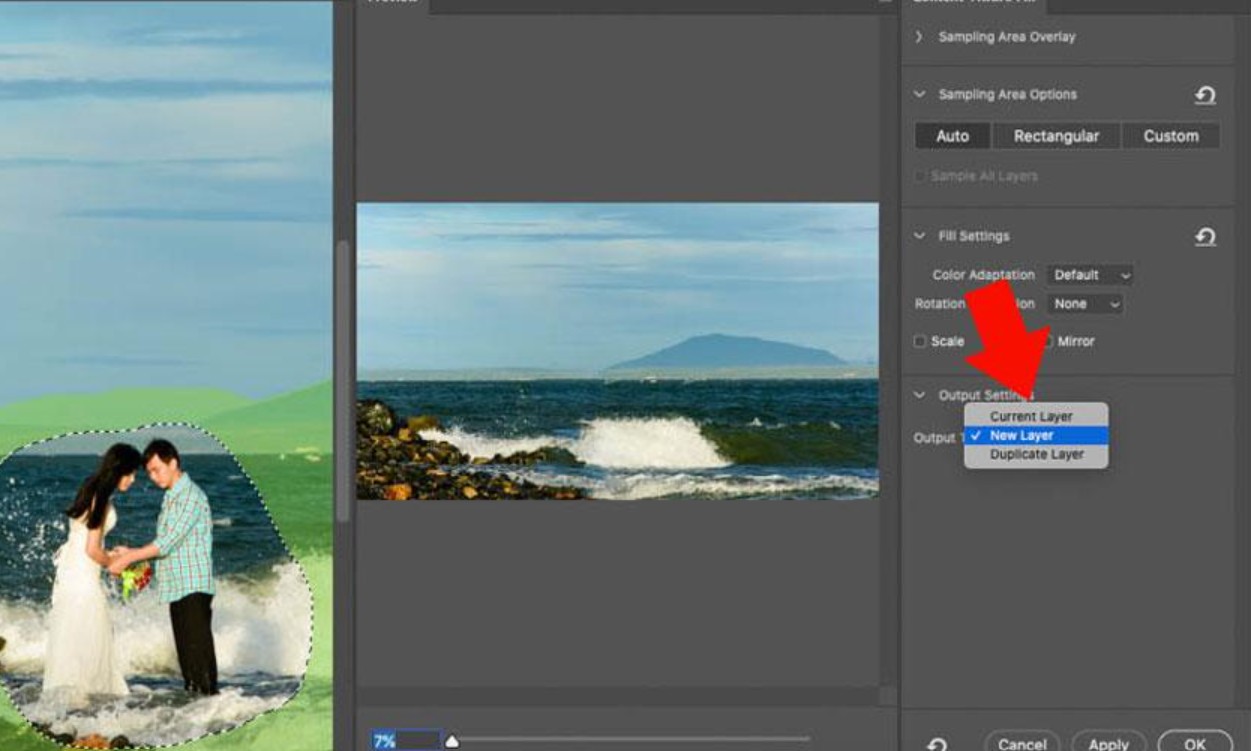
Content-Aware Fill allows the result to be output to a new layer through the Output To option. This is a useful approach when you want to keep the original image intact and be able to adjust the result later.
When the content is placed on a separate layer, you can turn the layer on or off to compare before and after editing, use a layer mask, or combine additional retouching tools without having to redo the entire process.
3. How to use Content-Aware Fill in Photoshop
To achieve good results, users need to go through the steps in order, from creating a selection and setting up the sampling area to checking and finishing the image.
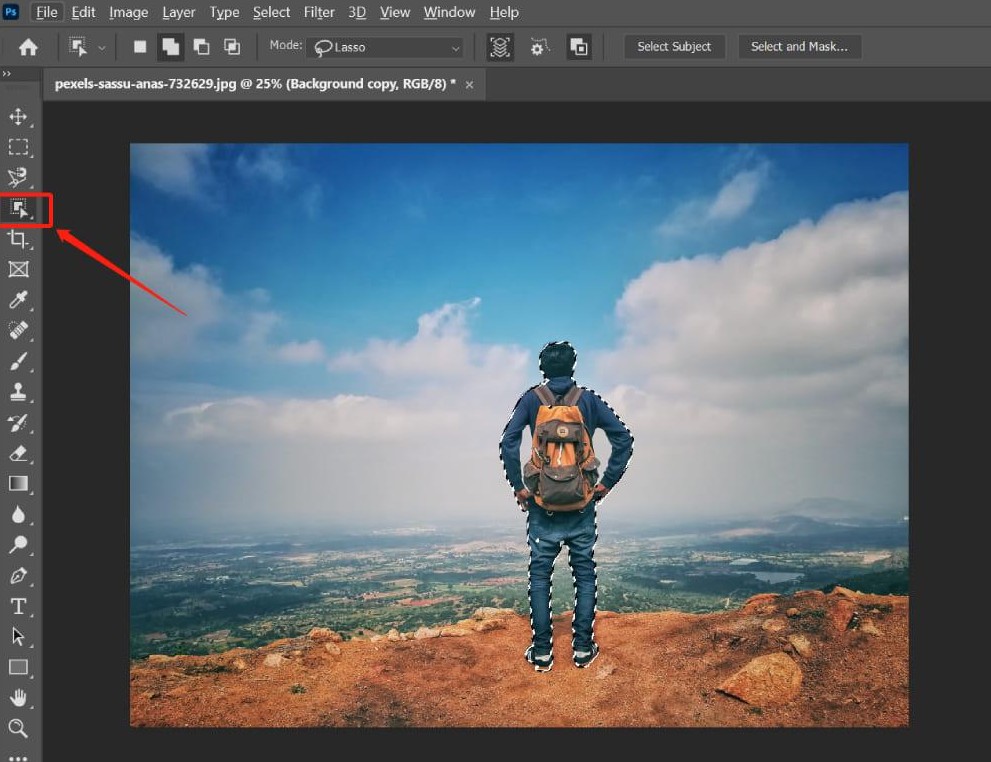
Step 1: Select the object to remove: Open the image in Photoshop and use Object Selection, Lasso, or another suitable selection tool to outline the object. You should also include a small part of the background around the object so that Photoshop has data to reconstruct from.
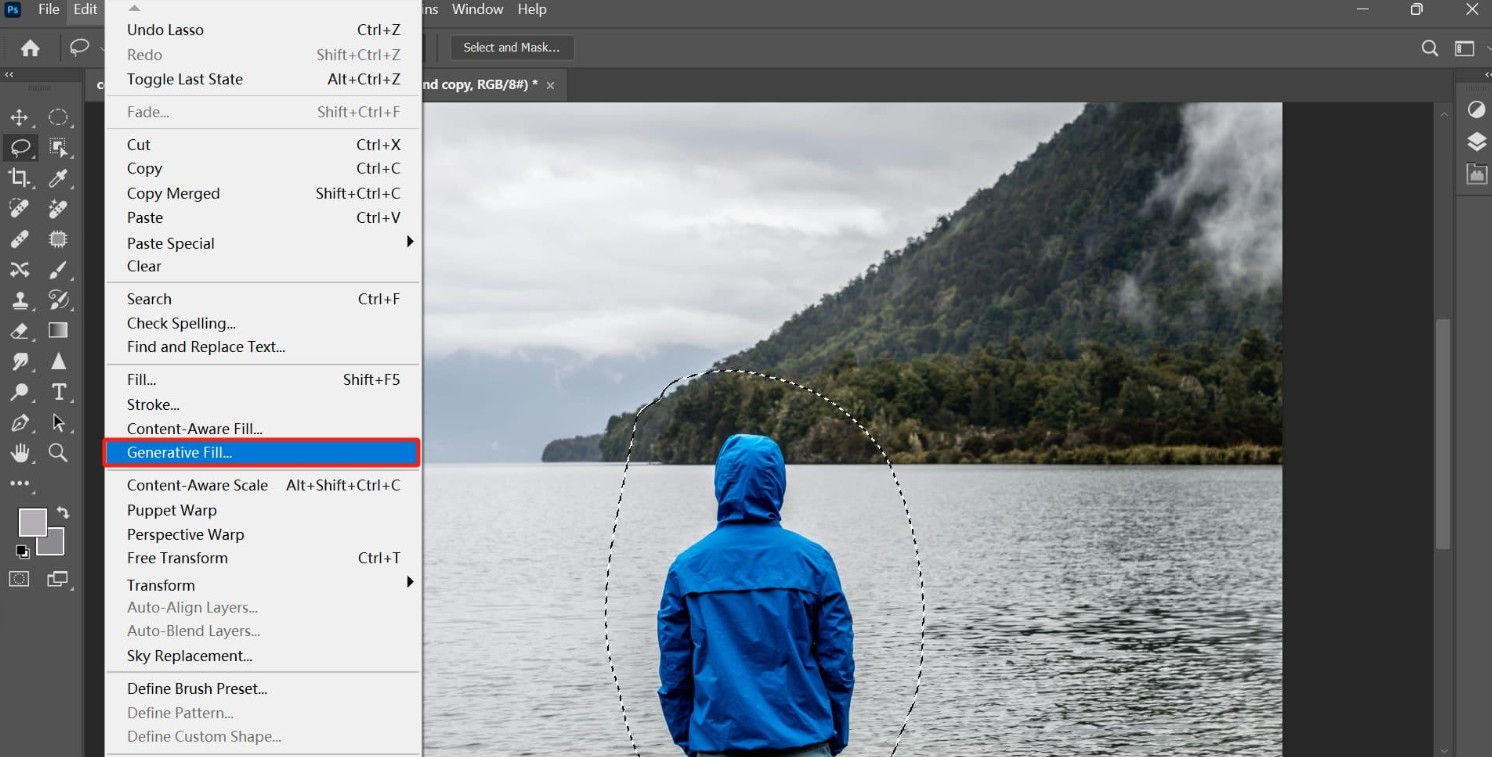
Step 2: Open Content-Aware Fill: Right-click the selection and choose Content-Aware Fill, or go to Edit → Fill and choose Content-Aware in the corresponding dialog box.
Step 3: Adjust the sampling area: In the Content-Aware Fill workspace, use the Sampling Brush to add or remove the areas that Photoshop uses as reference sources. Observe the preview to choose a suitable result.
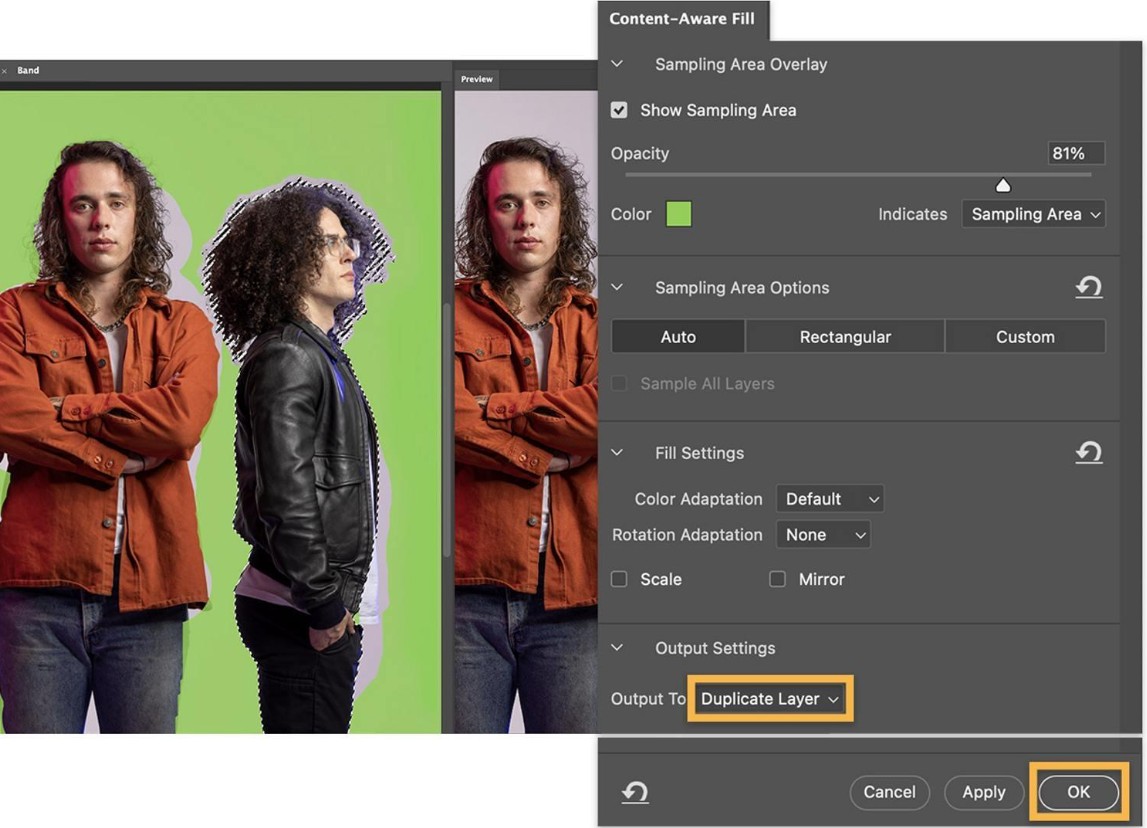
Step 4: Choose where to output the result: Set Output To to New Layer or Duplicate Layer to keep the original image and make it easy to edit again when needed.
Step 5: Check and finish: Confirm the result, deselect, then check details such as edges, textures, and colors. If there are still blurry areas or stitching errors, you can use the Spot Healing Brush or Clone Stamp to fix them.
4. Practical applications of Content-Aware Fill
Content-Aware Fill can be used in many tasks related to photography and graphic design.
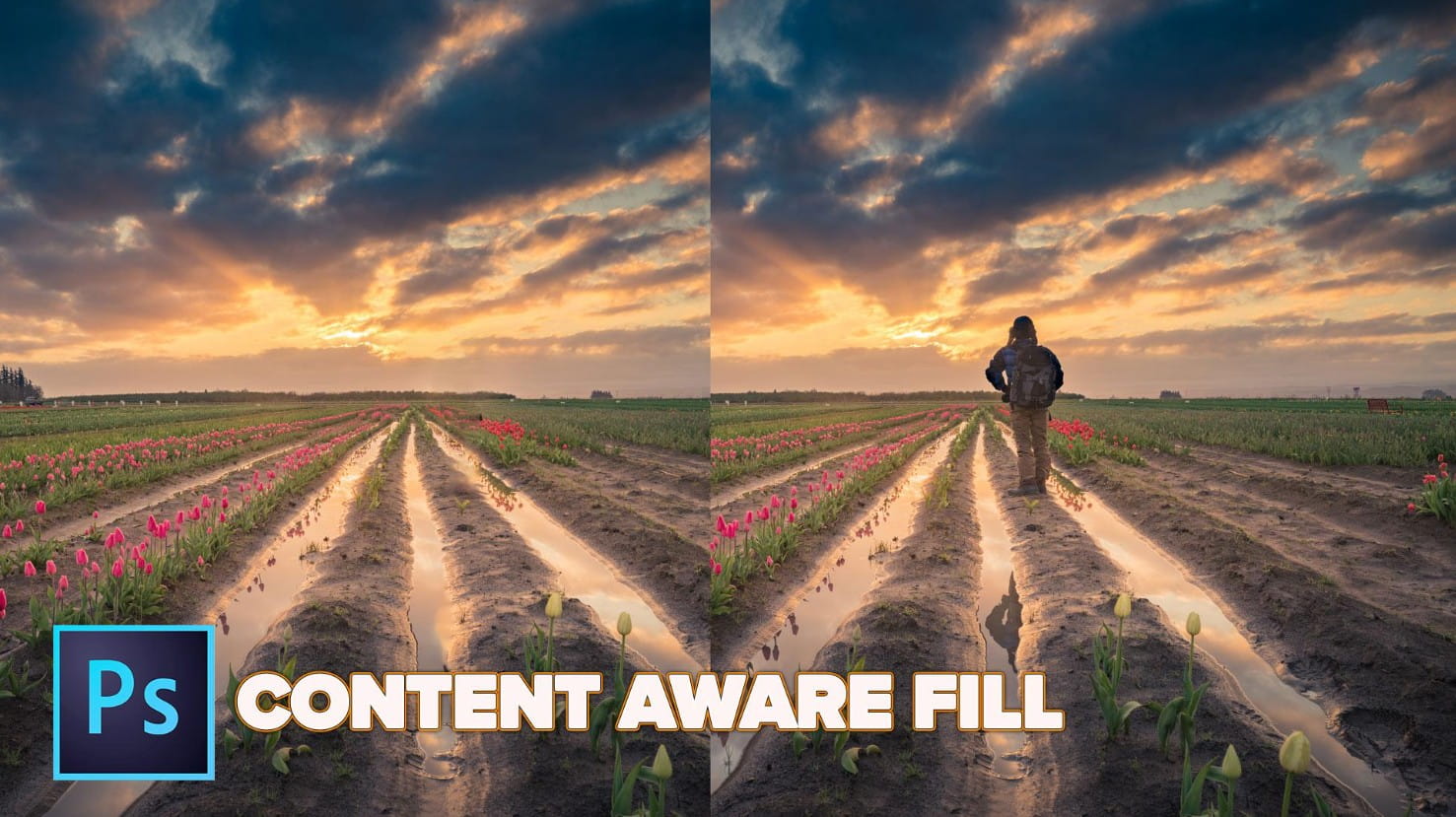
Editing travel and landscape photos: The tool helps remove passersby, trash, or other unwanted details from the frame. This is especially useful when you cannot retake the photo under less crowded conditions.
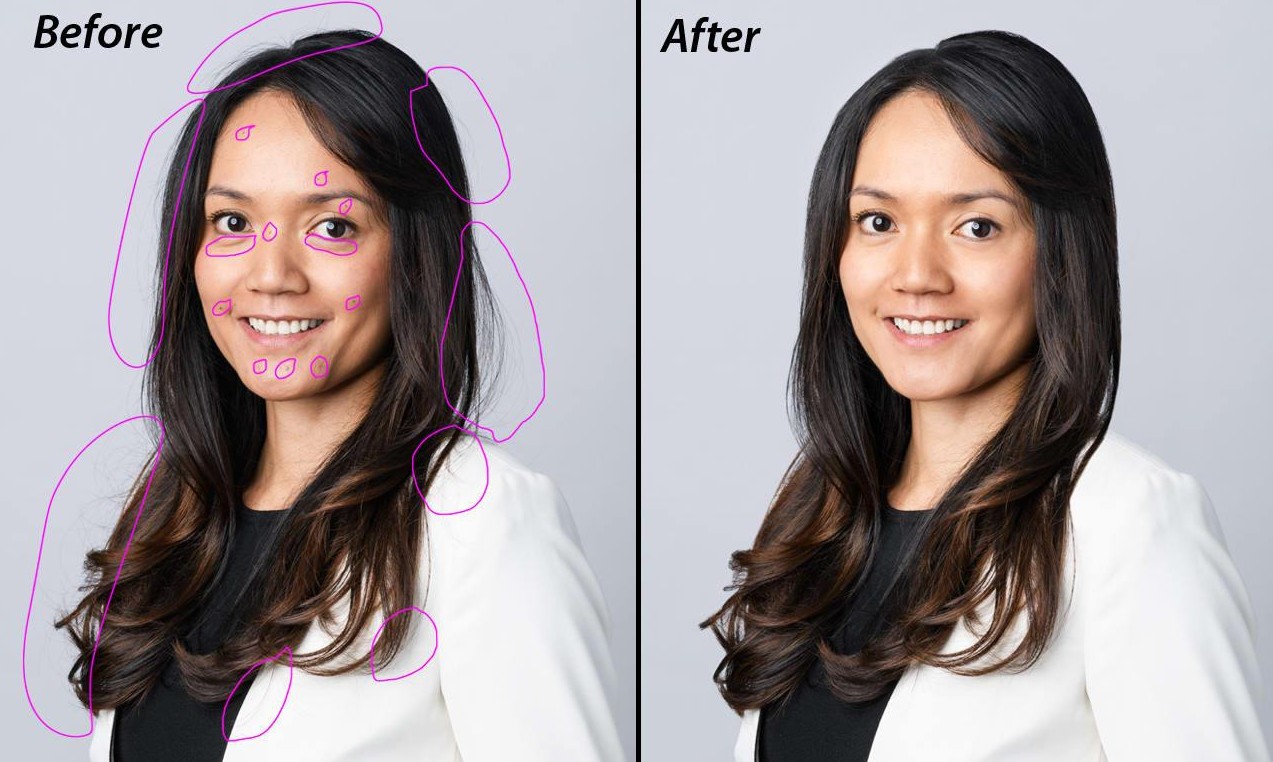
Portrait retouching: When distracting details appear in the background, users can use Content-Aware Fill to clean up certain areas without having to re-edit the entire photo.
Designing advertising images: For product photos, banners, or media images, the tool can help remove extra objects on the background, making the layout tidier and creating more space for design content.
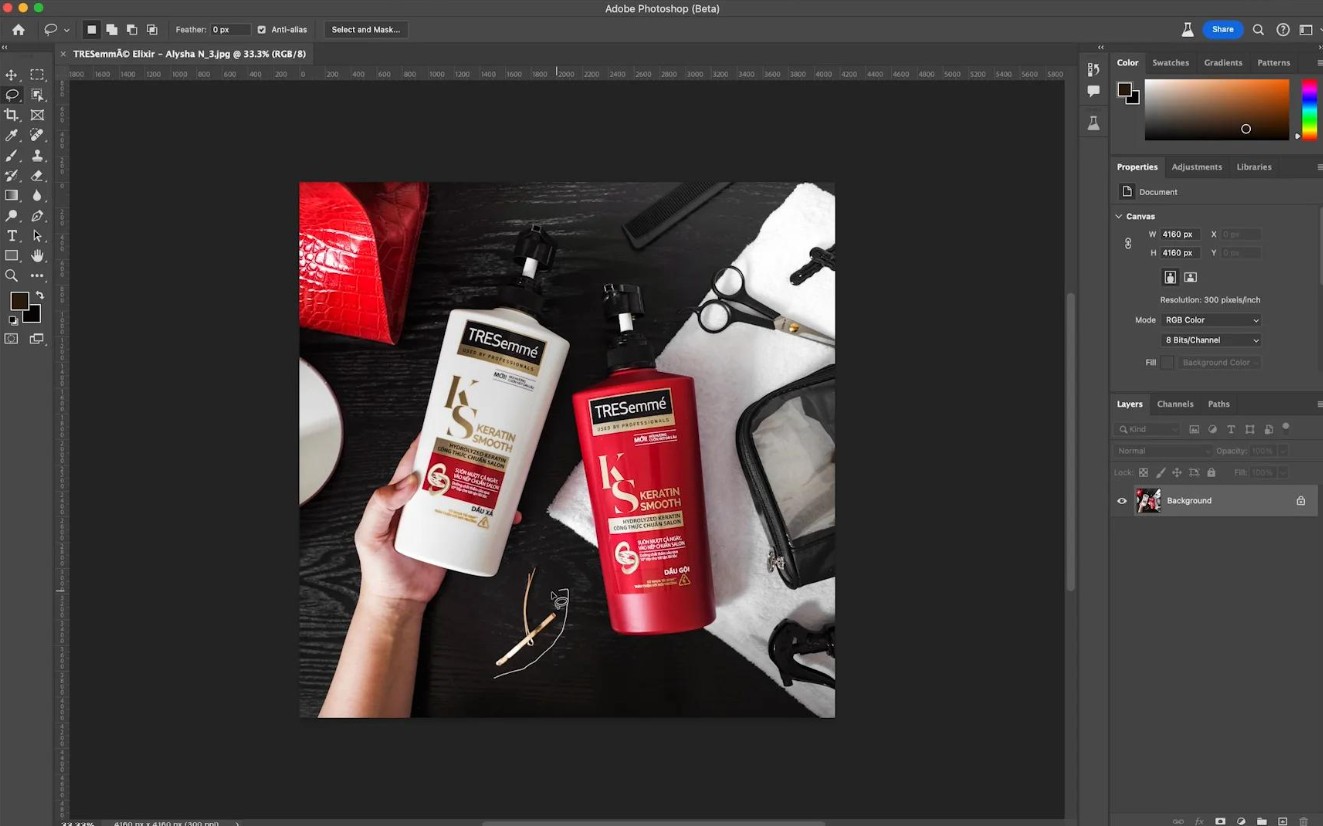
Preparing images for websites and social media: When images need to be reused in many different formats, Content-Aware Fill can help clean up the background or fill in some empty areas while adjusting the layout. However, if you need to extend an image beyond its original boundary, users should consider the Content-Aware Crop feature or other suitable image extension tools.
5. Tips for using Content-Aware Fill to achieve natural results
To make good use of this tool, you should pay attention to the following principles:
Create a reasonable selection: Include a small part of the background around the object, but avoid selecting too wide an area.
Prioritize backgrounds with similar textures: Choose sampling areas whose colors, lighting, and details are close to the area that needs to be restored.
Remove unsuitable sampling sources: Do not let other objects or different background areas affect the reconstruction process.
Check the preview often: Change each setting one at a time to make it easier to evaluate the effect and control the result.
Work on a separate layer: Use New Layer to keep the original image and edit flexibly when needed.
Combine tools when necessary: Content-Aware Fill is not a perfect solution for every situation. Use Clone Stamp or Spot Healing Brush as well to deal with any remaining flaws.
An important note is that the tool usually gives better results with relatively uniform backgrounds. If the object to be removed is in front of straight lines, complex patterns, architecture, or many overlapping objects, you should spend more time checking to avoid distorting the original details.
We hope the above sharing from SaDesign helps you better understand Content-Aware Fill and know how to apply this tool in real work. Practice on many different types of images to improve your editing skills, and explore other Photoshop tools to build a more efficient and flexible workflow.

















VIP Products





Best Selling Products
ChatGPT Plus Account (GPT-4)
16 USD
Copyright Adobe Lightroom Account
59 USD
Freepik Premium Account
59 USD
Windows 10 & 11 Pro Key
36 USD
Plugin Retouch4me
69 USD
Genuine Cheap Canva Pro
39 USD
Genuine Adobe Illustrator account
99 USD
Adobe Photoshop Copyright - Full App
120 USD
Adobe Premiere Pro Account
99 USD
Upgrade Duolingo Super
29 USD
Upgrade genuine Capture One account
120 USD
Upgrade Genuine Office 365
49 USD
MidJourney Account
29 USD
Autodesk All App Account Copyright
120 USD
Capcut Pro 1 Year
39 USD