Best Selling Products
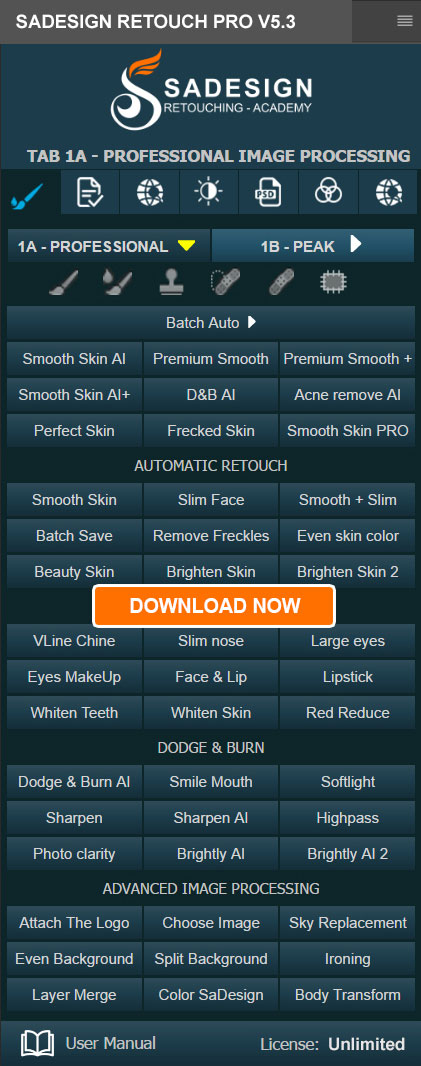
Plugin Retouch4me
69 USD
Copyright Adobe Lightroom Account
59 USD

Freepik Premium Account
59 USD
Upgrade Duolingo Super
29 USD

MidJourney Account
29 USD
Upgrade Genuine Office 365
49 USD
Adobe Photoshop Copyright - Full App
120 USD
Adobe Premiere Pro Account
99 USD
Capcut Pro 1 Year
39 USD

ChatGPT Plus Account (GPT-4)
16 USD
Windows 10 & 11 Pro Key
36 USD
Upgrade genuine Capture One account
120 USD
Genuine Cheap Canva Pro
39 USD
Genuine Adobe Illustrator account
99 USD
Autodesk All App Account Copyright
120 USD
Top 6 AI Plugins in Photoshop for Effective Photo Editing
Nội dung
Discover 6 outstanding AI tools and plugins that automate photo editing, background removal, noise reduction, and unleash your creativity in Photoshop.

1. Boris FX Optics – Mask ML
Boris FX Optics is professional photo editing and effects software that integrates with Photoshop in supported workflows. Its Mask ML technology uses machine learning to assist in object recognition and rapid mask creation, reducing the need for manual selection.
One of the advantages of this tool is its ability to support separating areas in an image for independent editing. Users can create masks for subjects, faces, or areas that need specific effects applied. In addition, facial recognition and depth-sensing technologies within the Optics ecosystem make processing images with multiple layers of space more convenient.
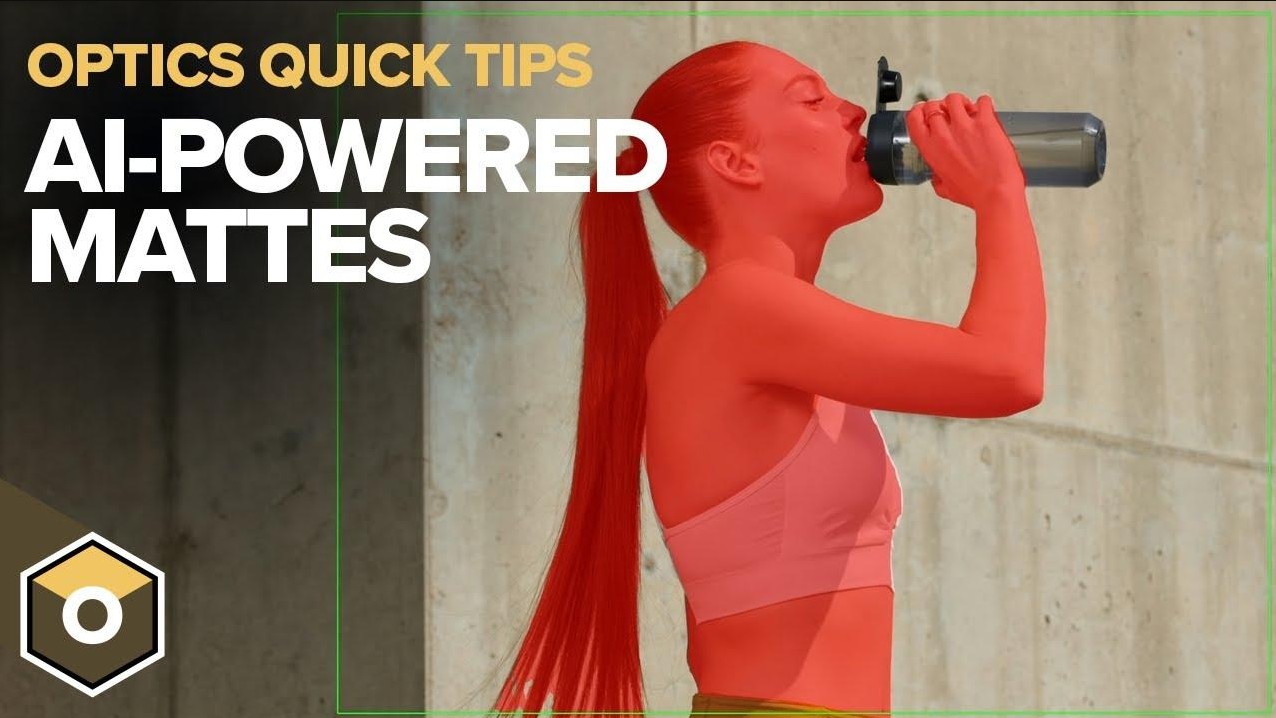
In practice, Boris FX Optics is well-suited for color grading portrait photos, creating lighting effects, processing landscape images, and building cinematic image styles. For example, when editing portraits, users can create masks for faces to adjust brightness or color without significantly altering the background.
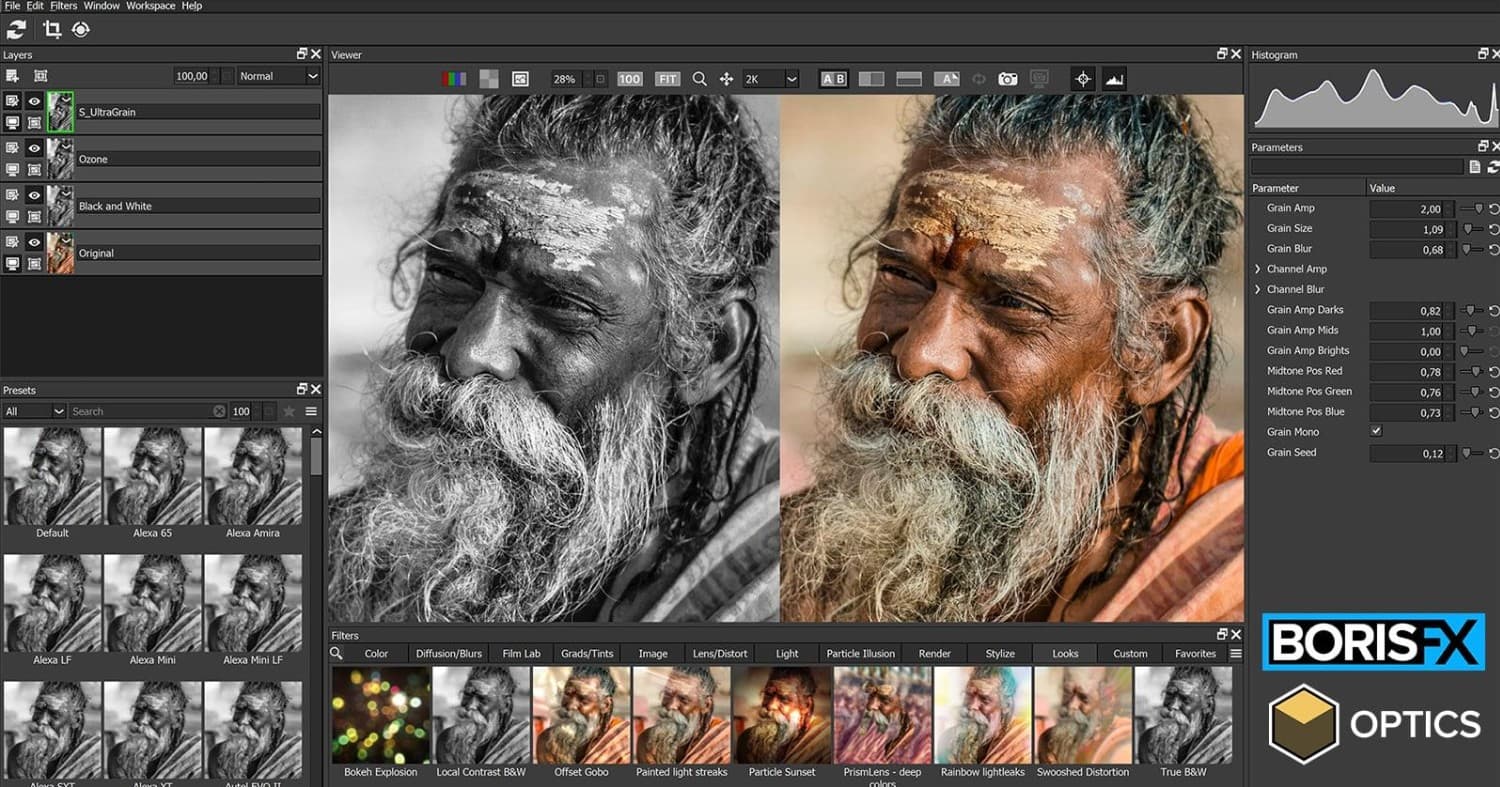
Boris FX Optics' advantage lies in its combination of masking tools with a diverse system of visual effects. However, the software has many advanced functions, so beginners may need some time to get used to it. Complex areas such as hair, fur, or contours lacking contrast also need to be re-examined after AI processing.
2. Adobe Generative Fill
Adobe Generative Fill is an AI-generated feature built directly into Photoshop. The tool allows users to add, remove, or replace image content through selections and text descriptions, depending on the version and AI model supported.
Instead of manually drawing each detail or combining multiple images in the traditional way, users can select an area and then enter commands for Photoshop to create the appropriate content. The tool can also generate multiple different options, making it easy for users to compare and choose the best result.
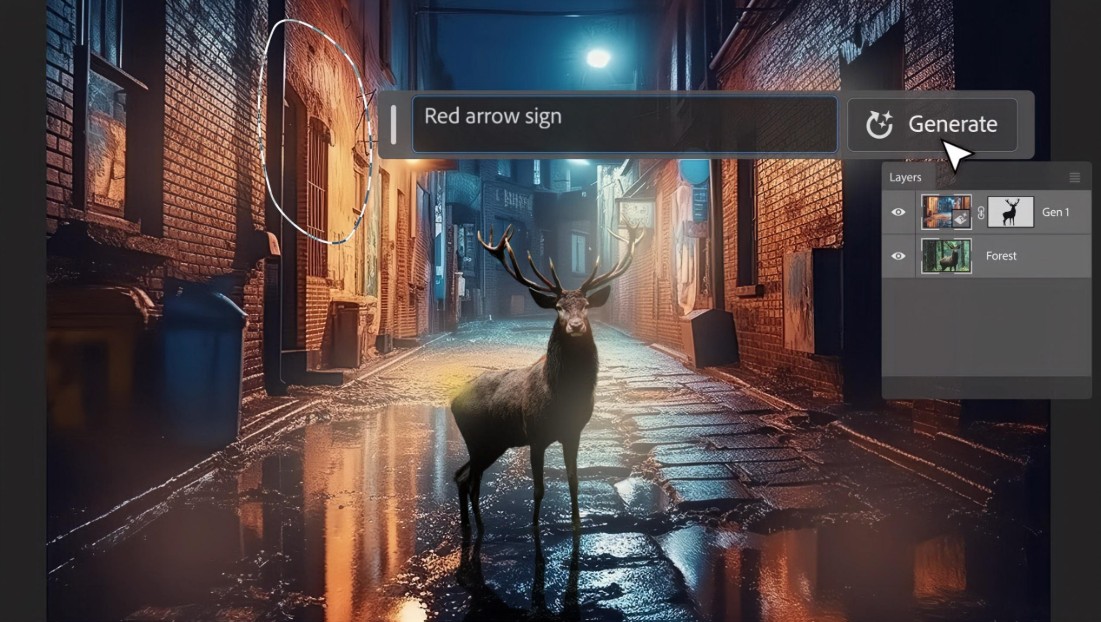
Some notable applications of Generative Fill include:
-
Remove unwanted objects: Eliminate people, wires, trash, or other distracting details from the photo.
-
Add content: Add accessories, objects, or decorative details to the selected area.
-
Background modification: Supports editing the background to better suit the intended use.
-
Expanding the frame: Adding content to expanded image areas to accommodate different aspect ratios.
For advertising design, Generative Fill helps designers experiment with various product contexts without needing to prepare a large amount of visual resources. When designing banners or social media posts, the tool also helps create extra space for headlines and marketing messages.
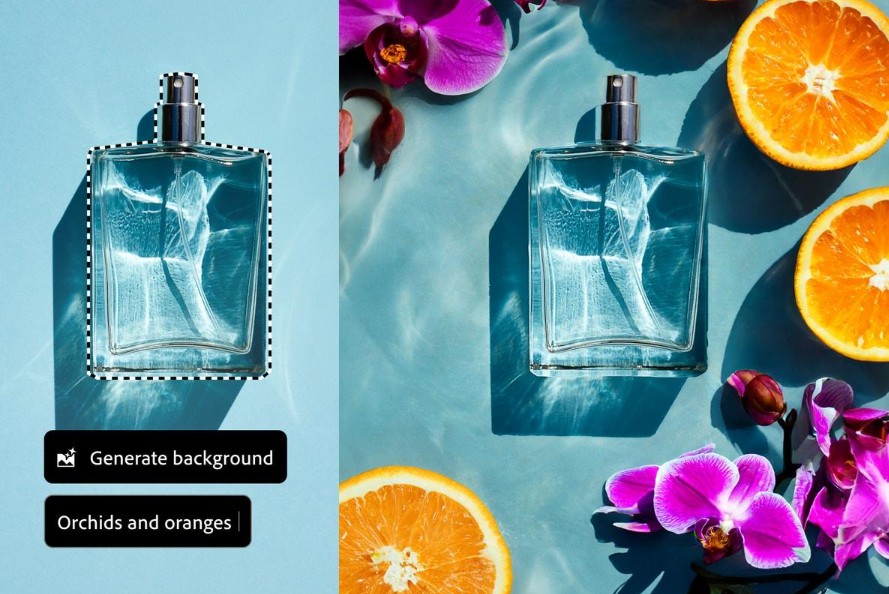
The strength of Generative Fill lies in its convenience and the ability to create new content directly within Photoshop. However, AI results can sometimes show inaccurate details, especially in complex objects or areas with overlapping elements. Therefore, users still need to carefully check images before publishing.
3. Retouch4me
Retouch4me is an AI-powered toolkit specializing in editing and enhancing portrait photos, aimed at photographers, wedding studios, fashion photographers, and professional retouchers.
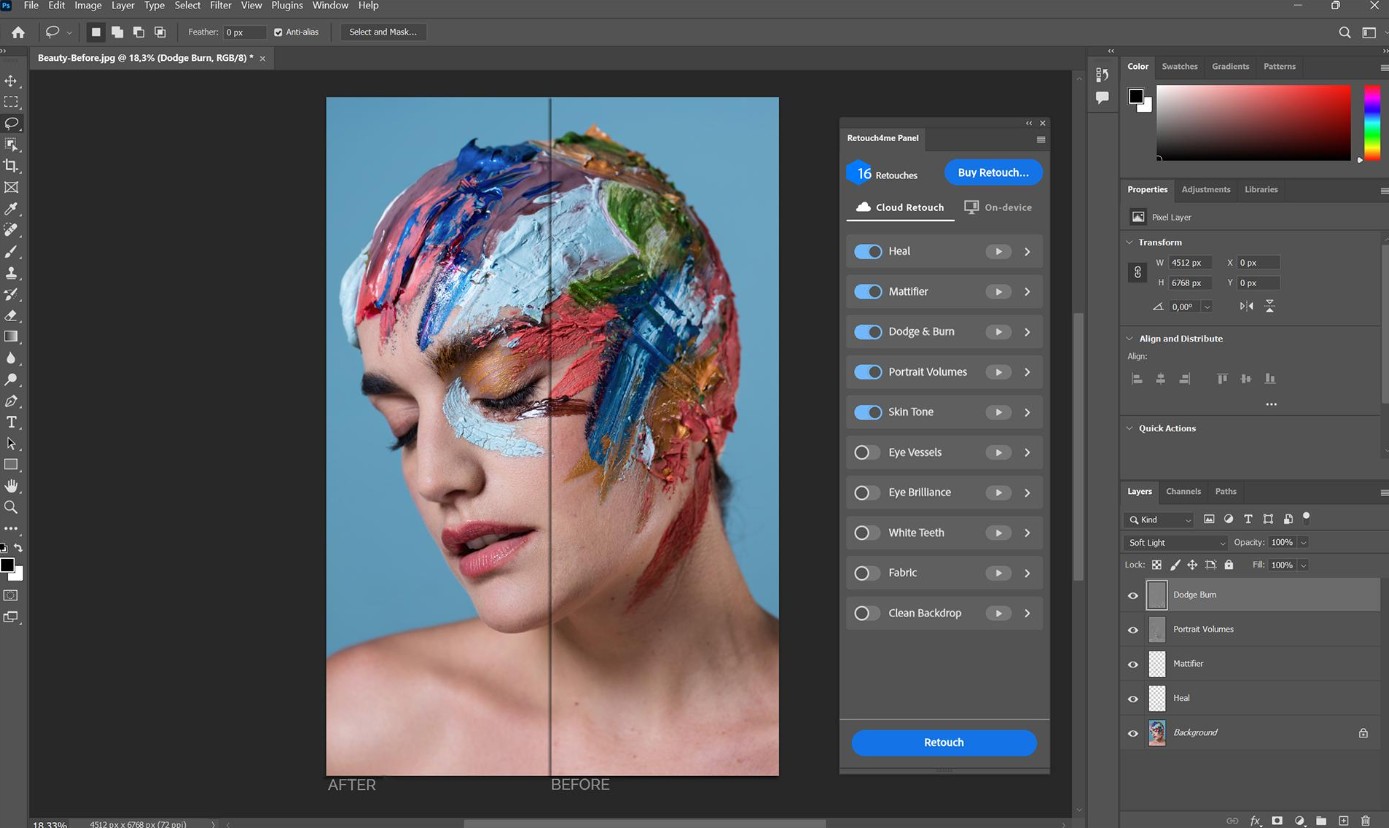
Unlike Generative Fill, which focuses on creating or changing content, Retouch4me primarily helps improve existing details in an image. Depending on the product used, the toolset can help address skin imperfections, adjust lighting, and enhance the uniformity of portrait photos.
Some notable features include Heal for addressing minor imperfections, Dodge & Burn for lightening or darkening specific areas, and other specialized tools for the retouching process. When combined effectively, these tools significantly reduce manual editing time.
Retouch4me is particularly useful when processing large quantities of wedding photos, graduation photos, beauty photos, or product photos with models. Instead of repeating each step on each photo, users can leverage AI for initial processing and then fine-tune important details.
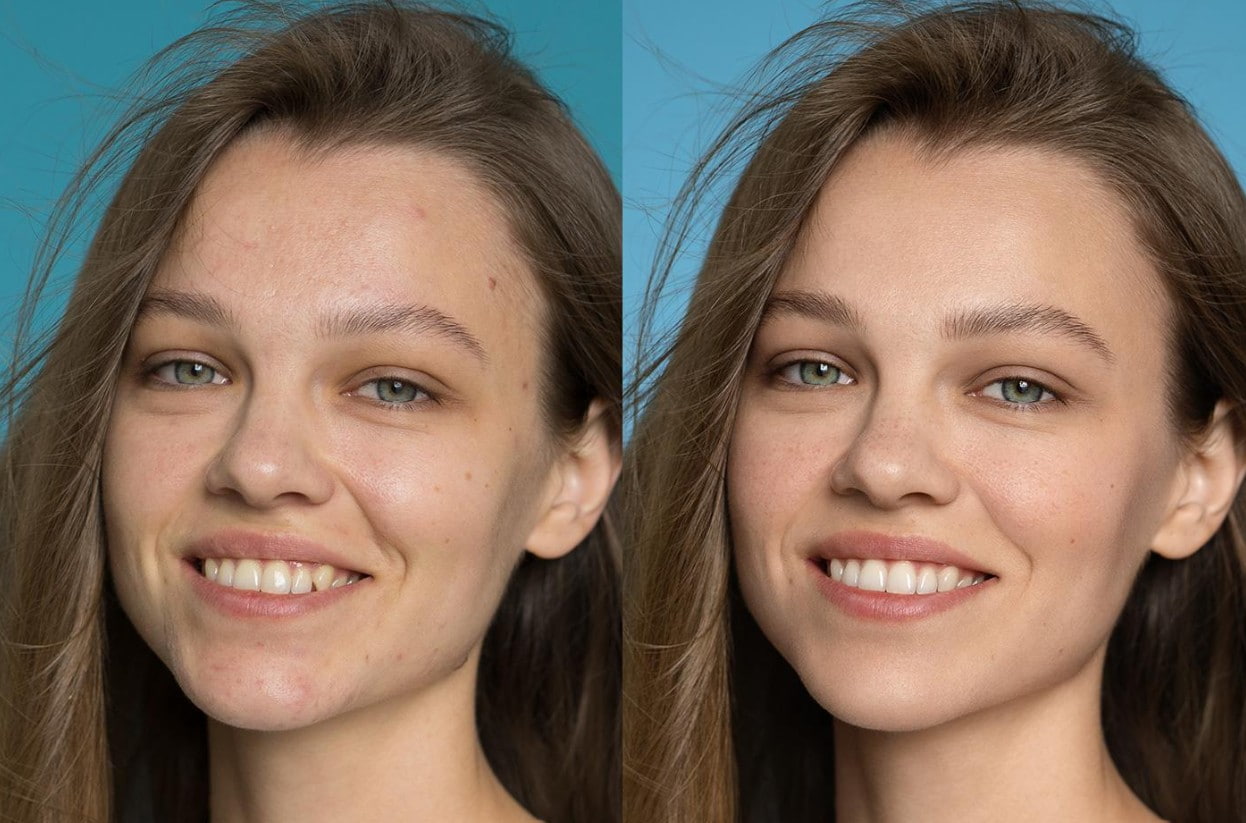
The advantage of Retouch4me is its focus on common retouching tasks, helping to maintain a consistent workflow. However, the AI doesn't always accurately understand the style the editor desires. Over-smoothing or unnatural lighting can still occur if the results aren't checked.
4. Topaz Photo AI
Topaz Photo AI is a tool specializing in improving image quality using AI. The software addresses issues such as noisy, blurry, or low-resolution images, and can integrate seamlessly with Photoshop workflows.
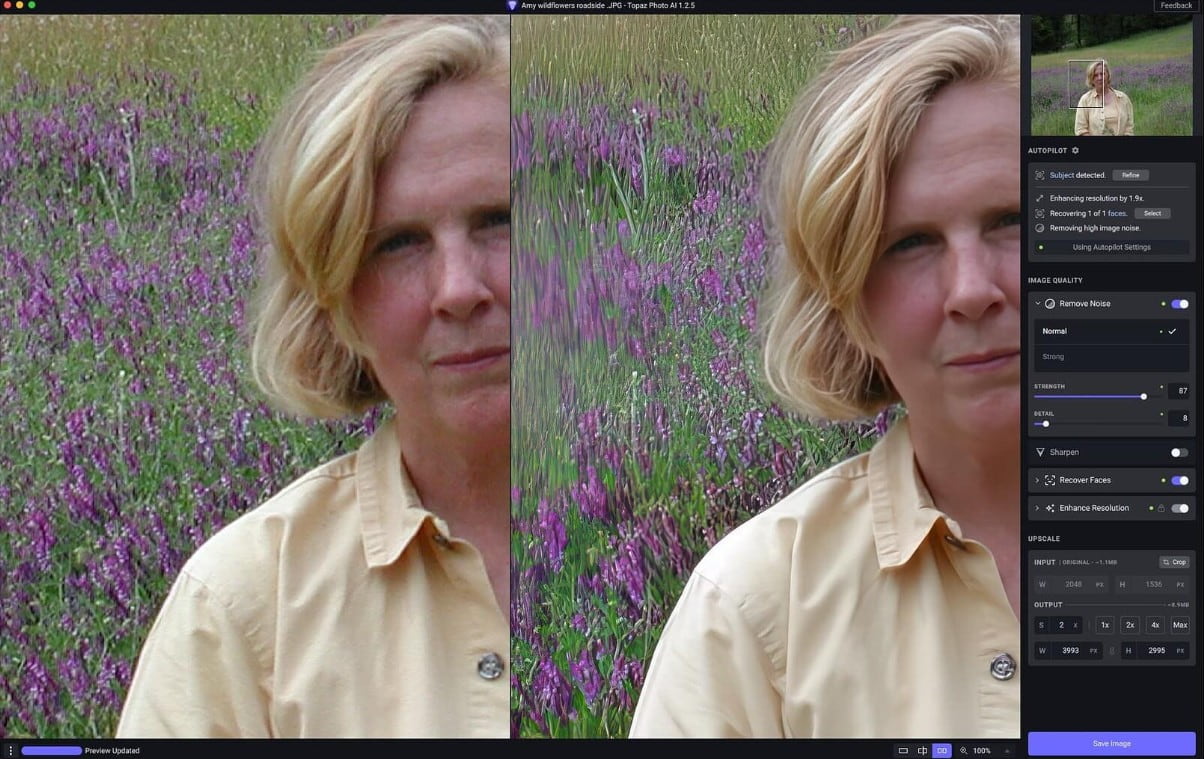
The tool stands out with three main functional groups. First, noise reduction helps minimize noise particles that often appear in low-light photos or those taken with high ISO. Second, sharpening helps improve subject clarity in some cases where the image is slightly blurry. Third, resolution upscaling increases image size and reproduces detail using AI modeling.
In practice, Topaz Photo AI is suitable for landscape photographers, night photographers, product designers, and anyone who frequently works with images that are not of satisfactory quality. The tool is also useful when preparing images for printing or displaying them at larger sizes.
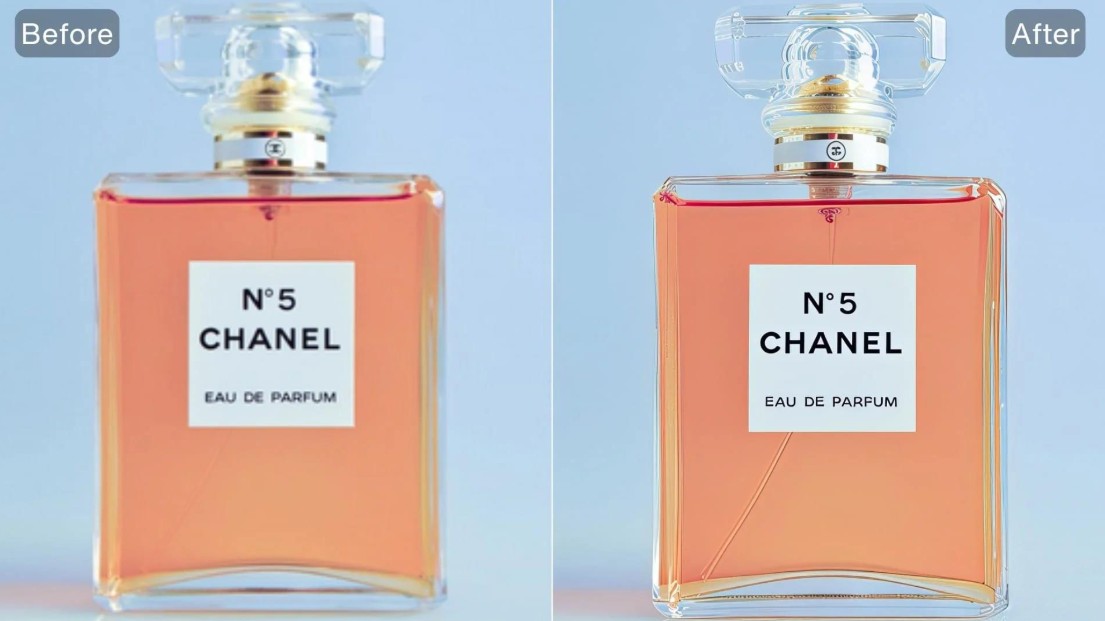
The advantage of Topaz Photo AI is its focus on image quality, helping users address issues that are difficult to resolve effectively with conventional editing methods. However, AI cannot guarantee the exact restoration of all lost information. If sharpening or increasing resolution too much, the image may exhibit artificial detail, halos, or unnatural textures.
5. Photoshop Neural Filters
Photoshop Neural Filters are a collection of filters that utilize AI and machine learning technology, integrated directly into Photoshop. Therefore, they are not standalone plugins but rather a group of features available within the software.
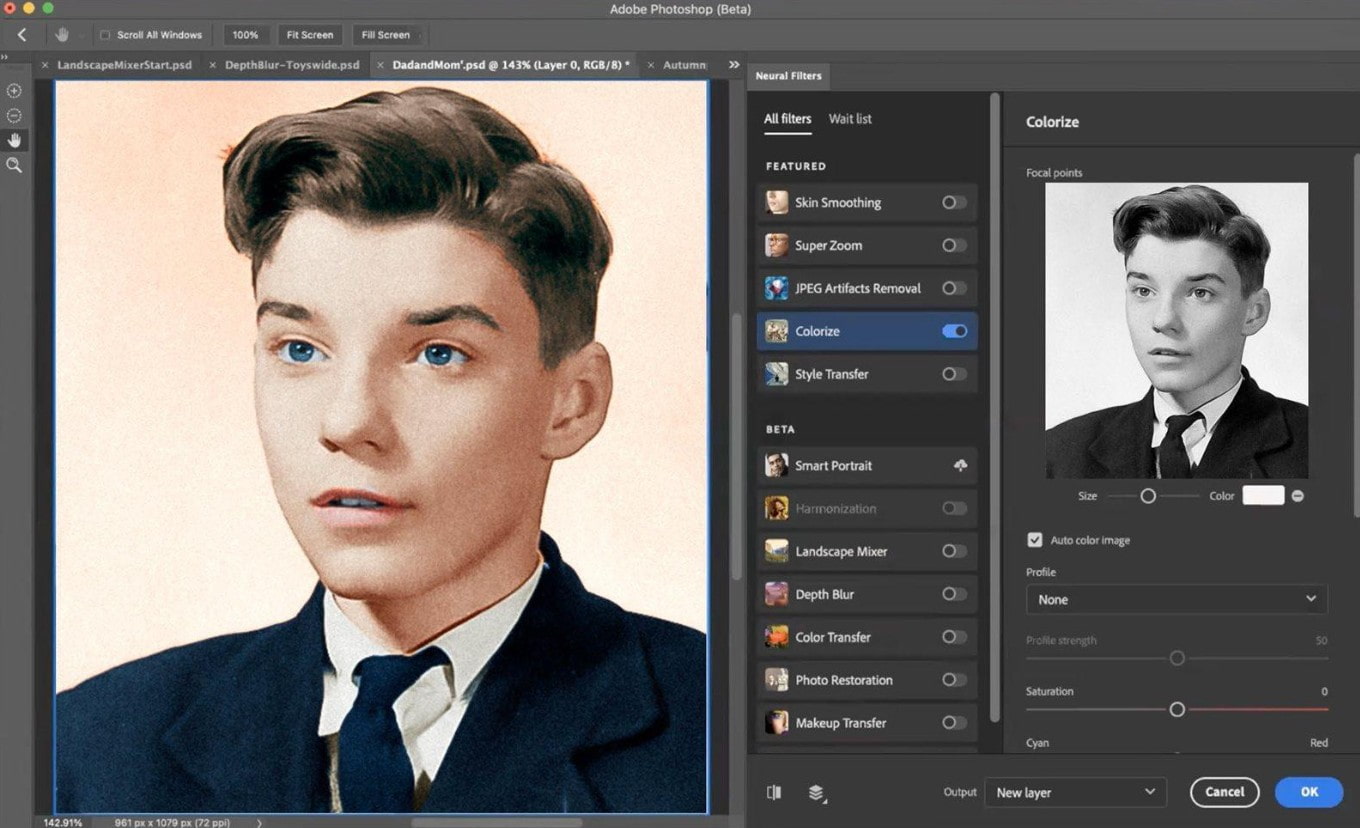
Neural Filters support a variety of image editing tasks, depending on the version and release status of each filter. Some notable functions include skin smoothing, black and white color grading, adjusting certain portrait features, and creating artistic effects.
For older photos, AI-powered color grading can offer color options for users to further refine. Meanwhile, portrait filters help shorten some common editing steps. Users can also experiment with creative effects before finalizing the photo using traditional Photoshop tools.
The biggest advantage of Neural Filters is their ability to be used directly in Photoshop without needing to install separate retouching software. However, not all filters are available in every version. Some functions require data downloads, an internet connection, or may not be supported on your current setup.
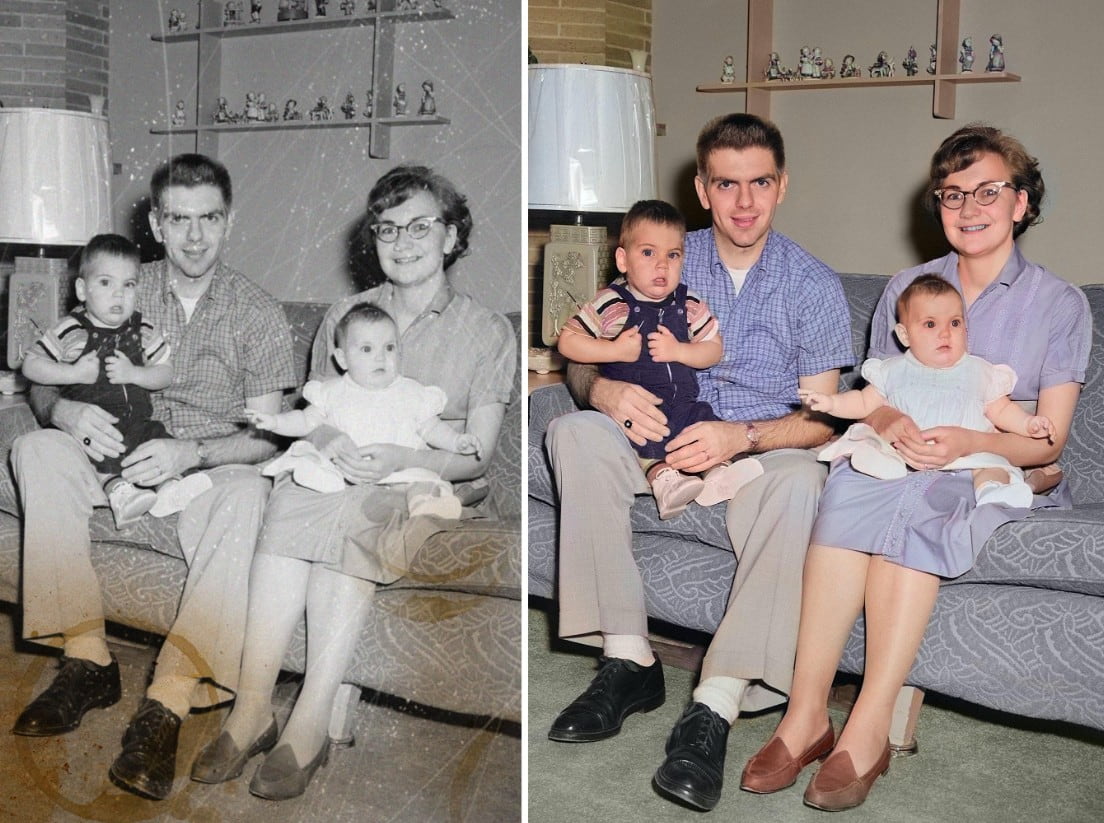
To experiment, open the image in Photoshop, select Filter, then select Neural Filters. Next, choose the filter you want to use, adjust the parameters, and preview the result. If there is an option to export a new layer, you should consider using it for easier editing later.
6. ON1 Photo RAW MAX
ON1 Photo RAW MAX is a photo editing solution for photographers, combining RAW image processing tools with numerous AI features. The MAX version is aimed at those who want to integrate the software into their workflow with Photoshop and Lightroom, in addition to its standalone editing capabilities.
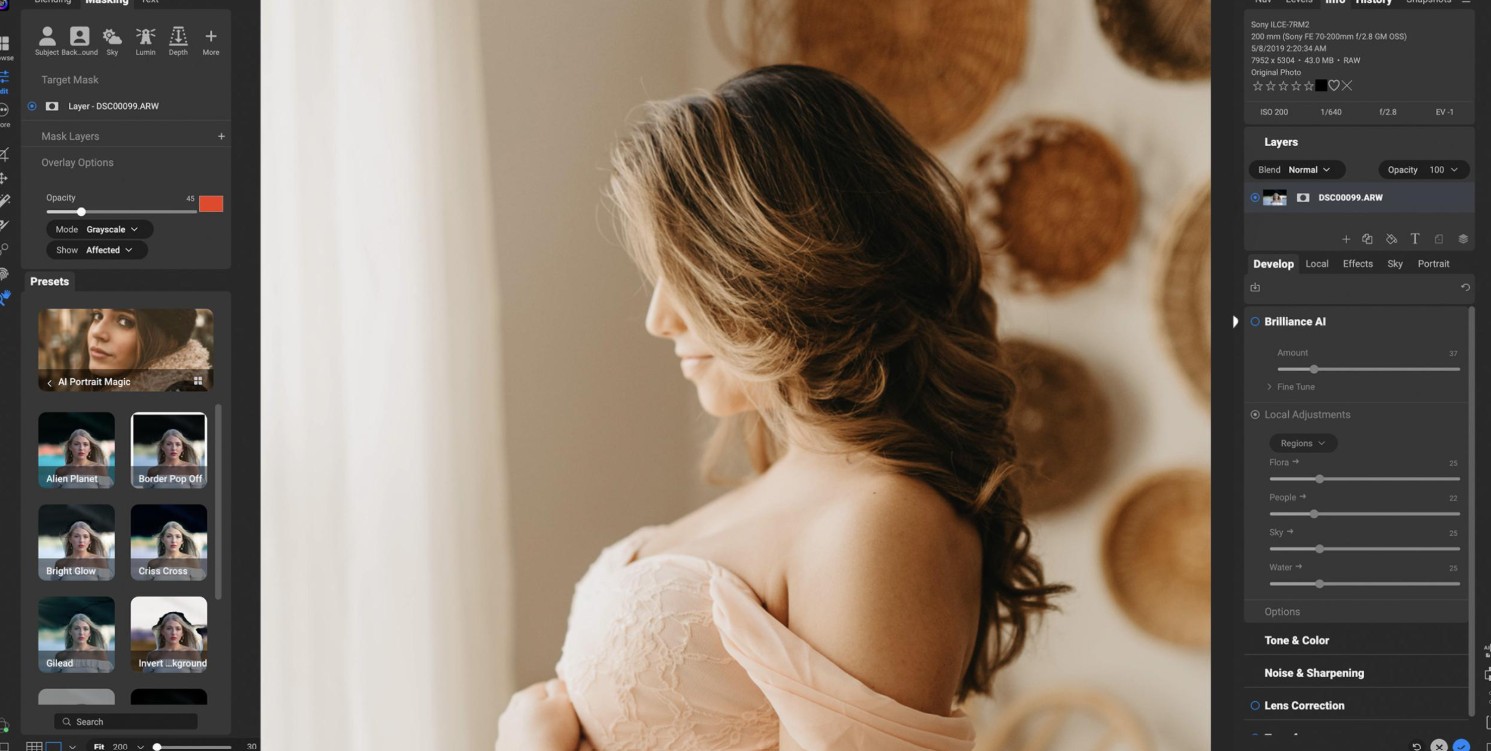
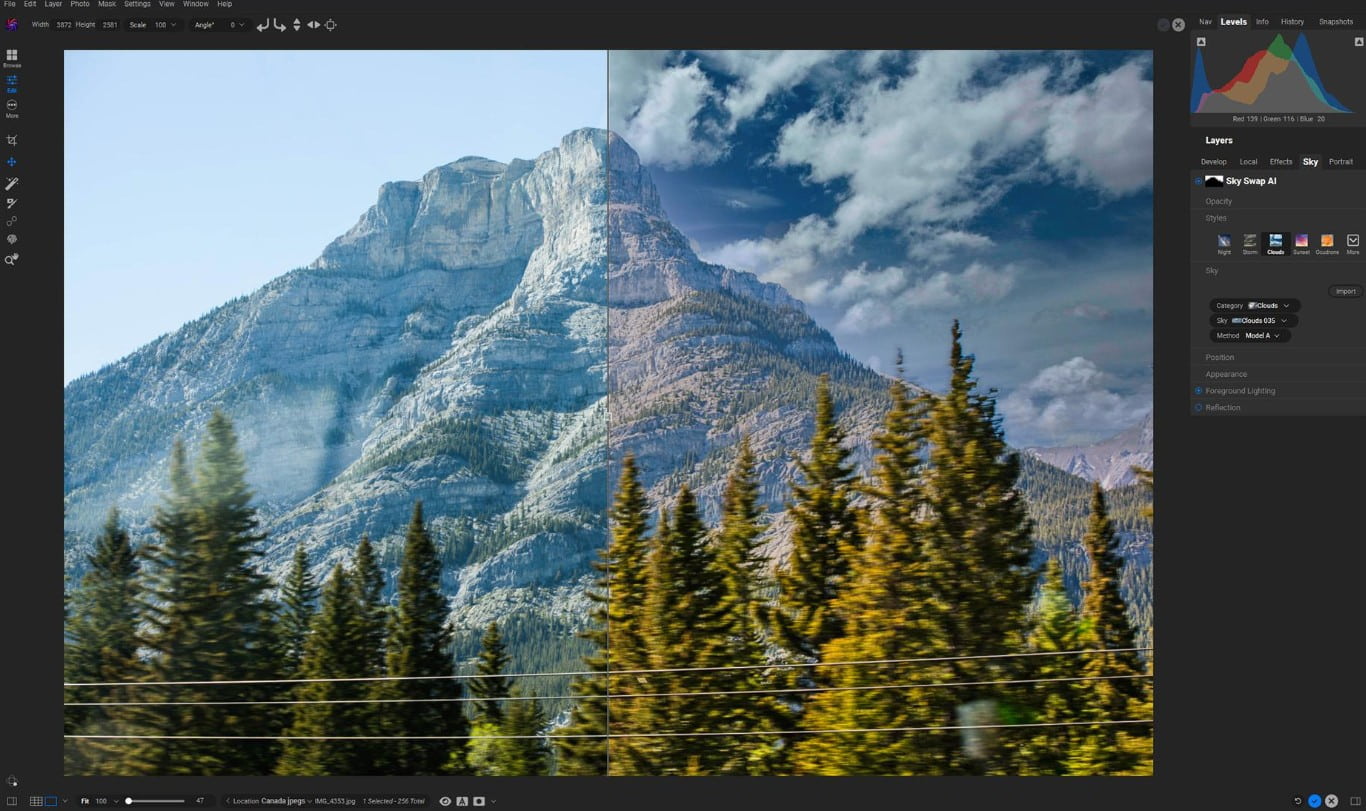
Depending on the version, ON1 Photo RAW MAX can offer functions such as subject and background recognition for masking, AI-powered noise reduction, image resizing, sky replacement, and object removal. These tools allow users to perform multiple editing steps without constantly switching between too many software programs.
For example, when processing landscape photos, users can change the sky, adjust the colors, and apply specific adjustments to the foreground. With underexposed photos, noise reduction tools help improve quality before proceeding with color correction or design steps.
The advantage of ON1 Photo RAW MAX is that it provides a relatively comprehensive set of tools for image processing. However, the software has many features, so beginners need time to learn it. Additionally, it's necessary to carefully check the version, license, and compatibility before choosing it.
SaDesign hopes this article helps you better understand the notable AI tools in the Photoshop ecosystem and choose the right solution to optimize your creative process.






VIP Products

Best Selling Products
Plugin Retouch4me
69 USD
Copyright Adobe Lightroom Account
59 USD
Freepik Premium Account
59 USD
Upgrade Duolingo Super
29 USD
MidJourney Account
29 USD
Upgrade Genuine Office 365
49 USD
Adobe Photoshop Copyright - Full App
120 USD
Adobe Premiere Pro Account
99 USD
Capcut Pro 1 Year
39 USD
ChatGPT Plus Account (GPT-4)
16 USD
Windows 10 & 11 Pro Key
36 USD
Upgrade genuine Capture One account
120 USD
Genuine Cheap Canva Pro
39 USD
Genuine Adobe Illustrator account
99 USD
Autodesk All App Account Copyright
120 USD