Best Selling Products

Freepik Premium Account
59 USD

Adobe Photoshop Copyright - Full App
120 USD

ChatGPT Plus Account (GPT-4)
16 USD
Genuine Cheap Canva Pro
39 USD
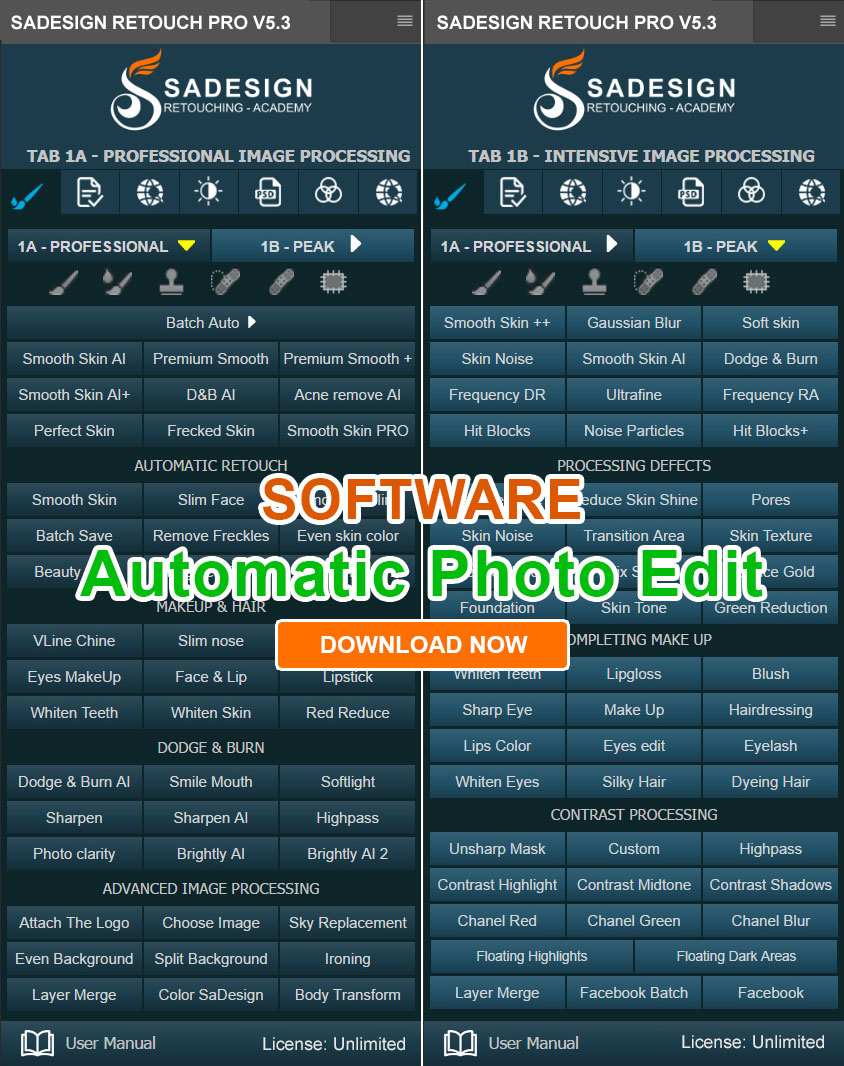
Plugin Retouch4me
69 USD

Capcut Pro 1 Year
39 USD

Copyright Adobe Lightroom Account
59 USD

Upgrade Duolingo Super
29 USD
Upgrade Genuine Office 365
49 USD
Windows 10 & 11 Pro Key
36 USD

Autodesk All App Account Copyright
120 USD
Upgrade genuine Capture One account
120 USD

Adobe Premiere Pro Account
99 USD

MidJourney Account
29 USD

Genuine Adobe Illustrator account
99 USD
5 Microsoft 365 security settings businesses should review to eliminate potential risks.
Nội dung
- 1. Control sharing permissions on SharePoint and OneDrive.
- 2. Discover the rules for forwarding emails externally.
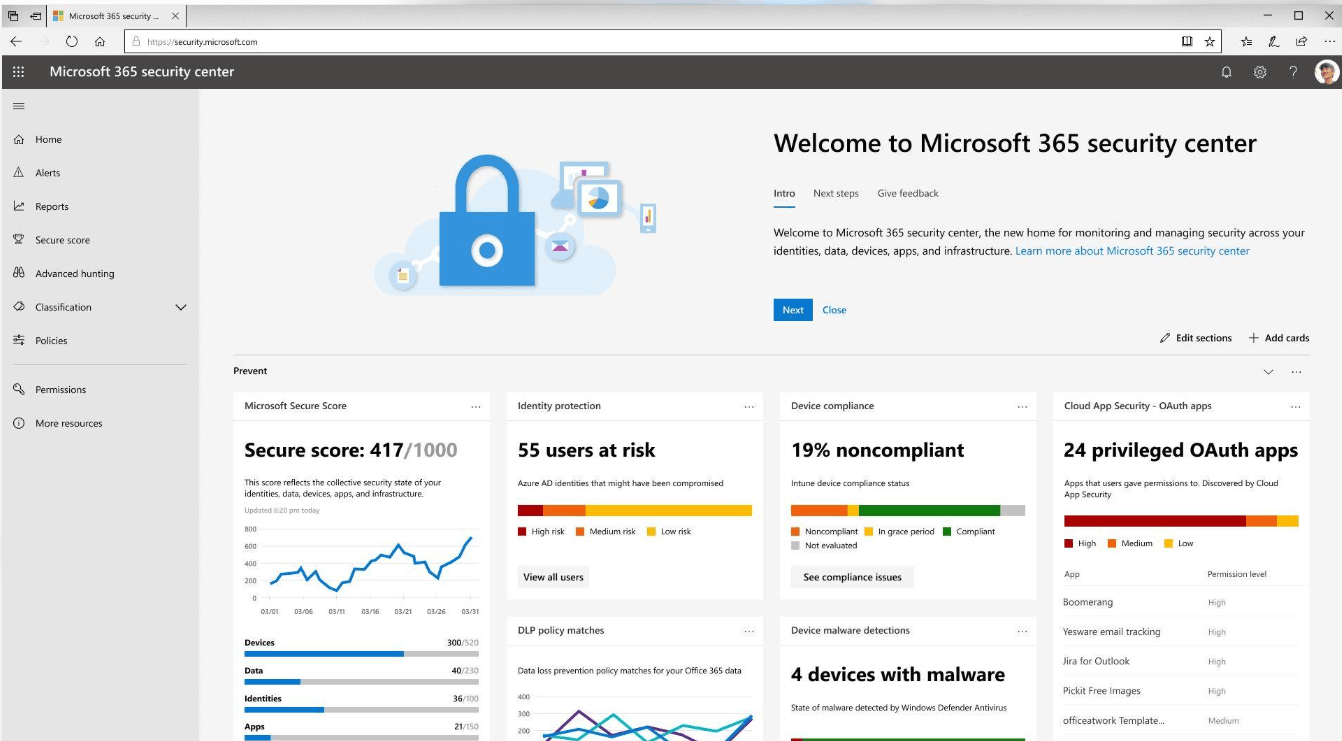
- 3. Review third-party applications that have been granted access to Microsoft 365.
- 4. Review the audit log retention period.
- 5. Verify MFA and Conditional Access protection.
- 6. A practical roadmap for updating Microsoft 365 security settings.
- 7. Proactively review today to avoid problems tomorrow.
Microsoft 365 has become the core operating platform for many businesses, from email and file storage to online meetings and team collaboration. However, using Microsoft 365 doesn''t automatically mean your business data is fully protected. Microsoft constantly upgrades default settings to provide better protection for newly created tenants, but these improvements often don''t automatically apply to tenants that have been around for years. As a result, many organizations are still operating on outdated configurations without realizing it. A shared link created years ago might still be active, a third-party application previously granted permission for a short-term project might still be able to read company data, or an old email forwarding rule might still be silently leaking information. These are all risks that are difficult to see in daily work, but are common starting points for many information security incidents. Below are five groups of settings that businesses should review periodically.
1. Control sharing permissions on SharePoint and OneDrive.
Rapid file sharing is one of the biggest benefits of SharePoint and OneDrive, but it's also where oversharing is most likely to occur. In many older tenants, the default linking option remains "Anyone with the link," meaning anyone who gets the link can open the file without logging in. The worrying thing is that these links often don't expire, so they remain active long after the initial sharing need has ended.
Imagine a salesperson sending a price list to a partner months ago. If that partner forwards the link to someone else, or stores it in an uncontrolled system, the business will no longer know exactly who has access to this document.
The review should begin in the SharePoint admin center, where administrators check external sharing levels at the tenant level and at the site level, as site settings cannot be broader than tenant settings. Businesses should also set expiration dates for "Anyone" links, limit permissions to view only when possible, and change the default link type to "Specific people" or "Only people in your organization." This forces recipients to authenticate their identity before accessing files.
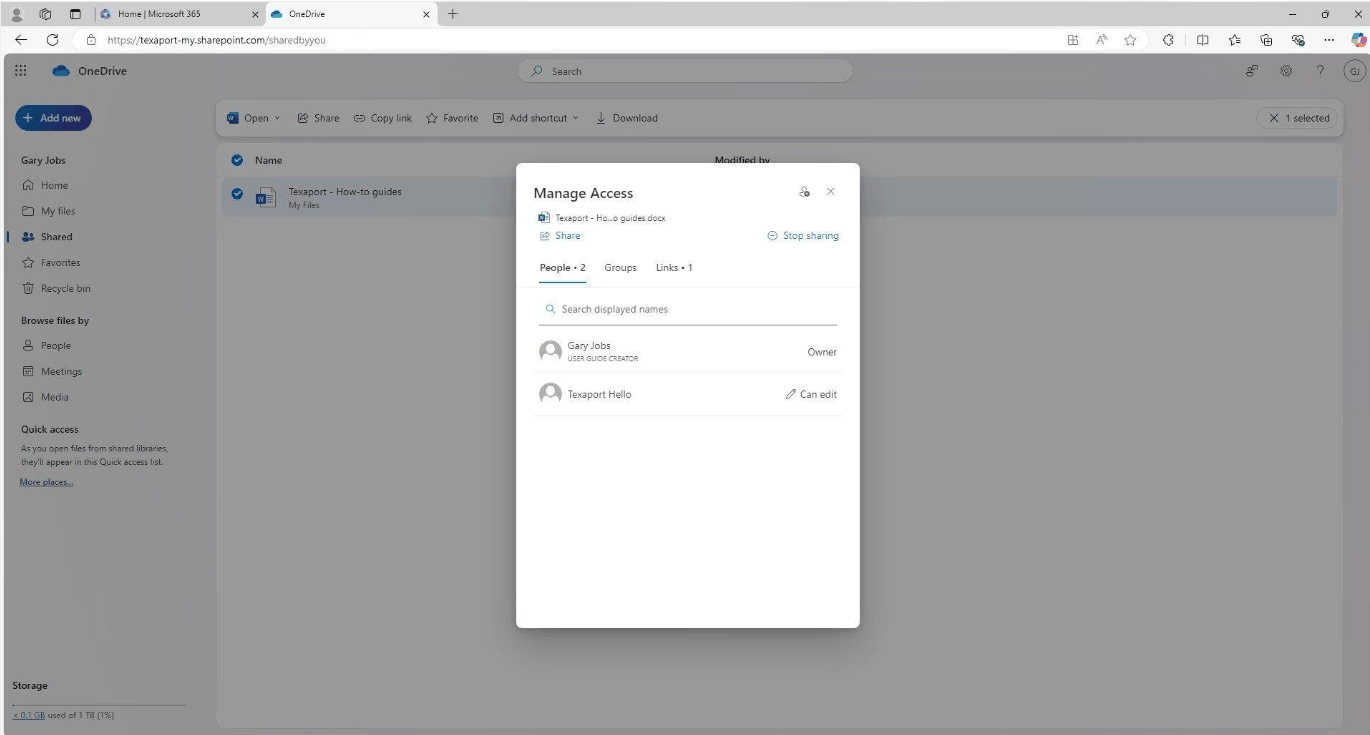
One notable new feature is that Microsoft now allows you to set expiration dates for "People in your organization" links. This is especially useful for businesses preparing to deploy Copilot, as files shared too widely internally can be detected much more easily by search engines and AI assistants than before. Combining this with a Data Loss Prevention (DLP) policy to block the public sharing of files containing sensitive information will make this layer of protection even stronger.
2. Discover the rules for forwarding emails externally.
Email remains the most frequently targeted attack, as inboxes contain contracts, quotes, customer information, and even password reset emails for various systems. Automatic external email forwarding is a common technique used by attackers after gaining access to an account, as a simple rule allows all incoming emails to be copied to their controlled address, while the user is largely unaware of any anomaly.
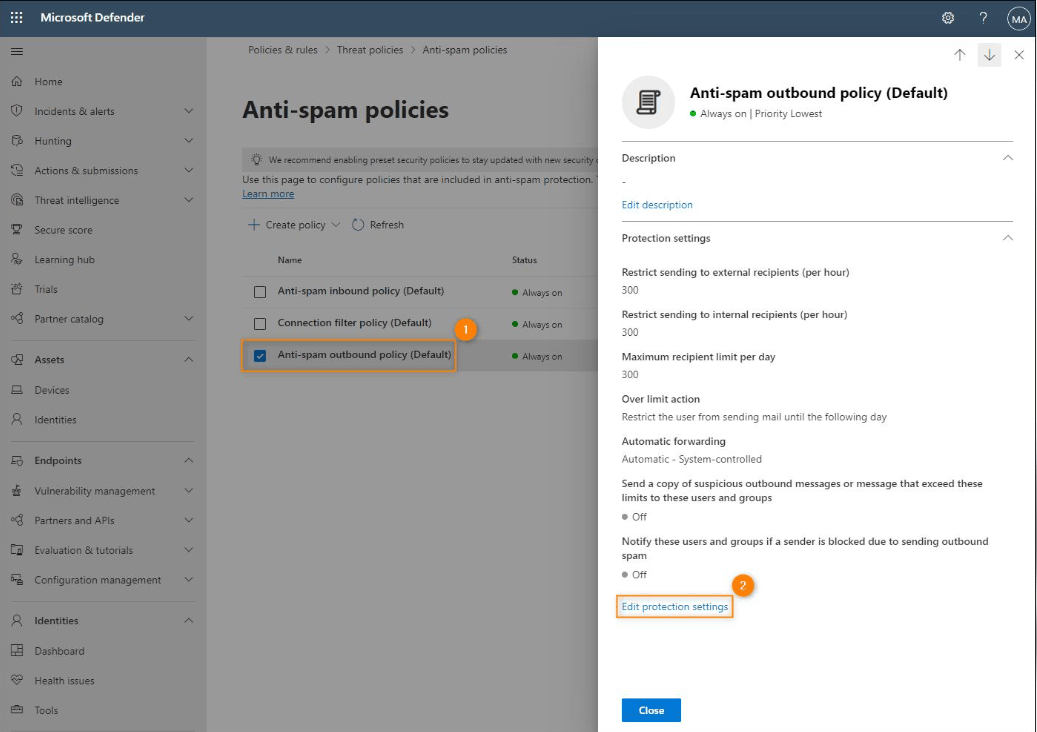
Since 2020, Microsoft has tightened its grip on this issue by setting its outbound spam policy to block automatic external forwarding by default. The default value "Automatic, System controlled" now effectively disables this feature entirely, and users will receive error message 5.7.520 when attempting to forward externally.
However, businesses shouldn't be complacent. Many organizations have previously enabled forwarding for specific user groups, or created separate policies allowing exceptions, and those exceptions may persist to this day without anyone remembering. Additionally, inbox rules created years ago may still be in the inbox, waiting to be triggered if policies are relaxed.
Administrators should open Microsoft Defender, check the default outbound spam policy and any custom policies, review the list of existing forwarding rules in mailboxes, and examine audit logs for suspicious rule creation or modification activity. This should also become a regular step in the employee termination process, as the mailboxes of former employees are the most easily overlooked. The cost of implementation is very low, but the effectiveness in preventing data loss is significant.
3. Review third-party applications that have been granted access to Microsoft 365.
Modern businesses use many applications connected to Microsoft 365, such as project management tools, automation platforms, note-taking applications, or meeting software. When installed, these applications often request permission to read emails, calendars, files, or user information, and that permission is granted with just one click.
The problem is that this access doesn't automatically expire when the project ends. An employee might have approved an application for a short-term deployment two years ago, but that application still retains access to company data. If the application provider is compromised, an attacker could gain access to Microsoft 365 through the validly granted authorization, without needing anyone's password. Another type of attack is an "illicit consent grant," where a malicious actor creates a fake application and tricks users into agreeing.
The review should be performed in the Microsoft Enterprise admin center, under Enterprise applications. Administrators need to review the list of applications that have been granted permissions, prioritizing those with access to email, files, or calendar, and removing applications that are no longer in use or whose origin is unknown.
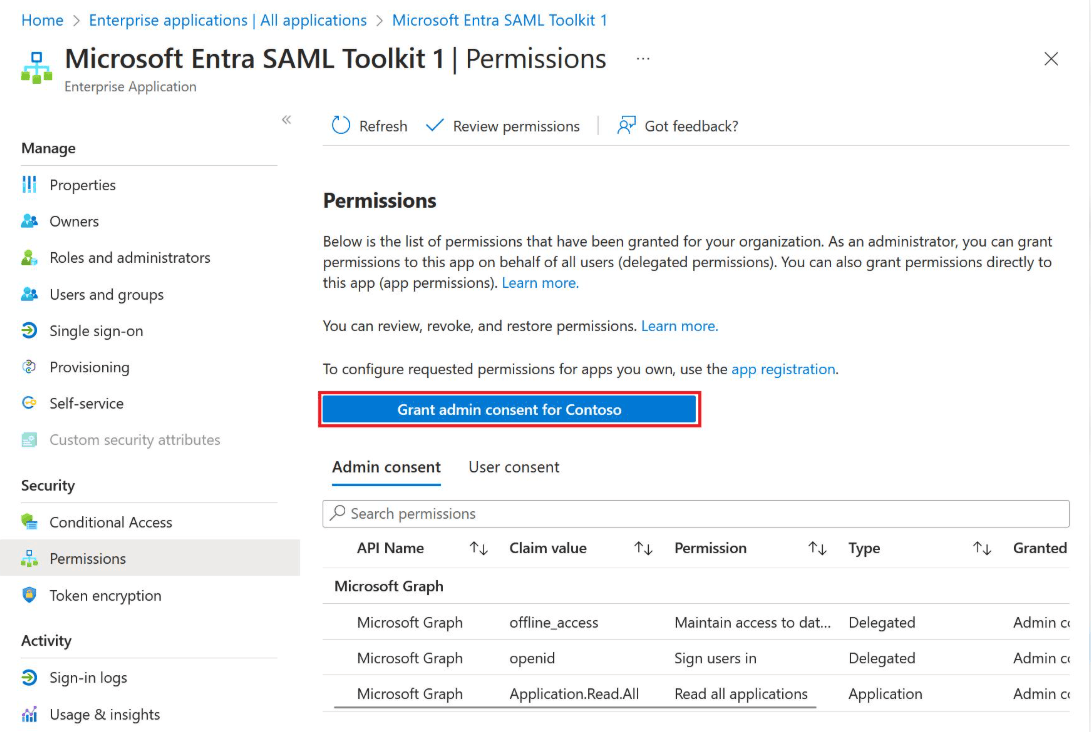
More importantly, the problem needs to be prevented from recurring. Microsoft recommends allowing users to only grant permissions to applications from verified publishers and only for low-risk permissions selected by the administrator. For all other requests, businesses should enable the admin consent workflow, allowing employees to submit requests with justification for IT review. This approach maintains flexibility while ensuring no applications are granted broad permissions without oversight.
4. Review the audit log retention period.
When an incident occurs, the first question is always "what happened, when did it start, and what does it affect?" Microsoft 365 audit logs are the primary source of evidence for answering these questions, from who logged in and who downloaded files to who changed permissions or created forwarding rules.
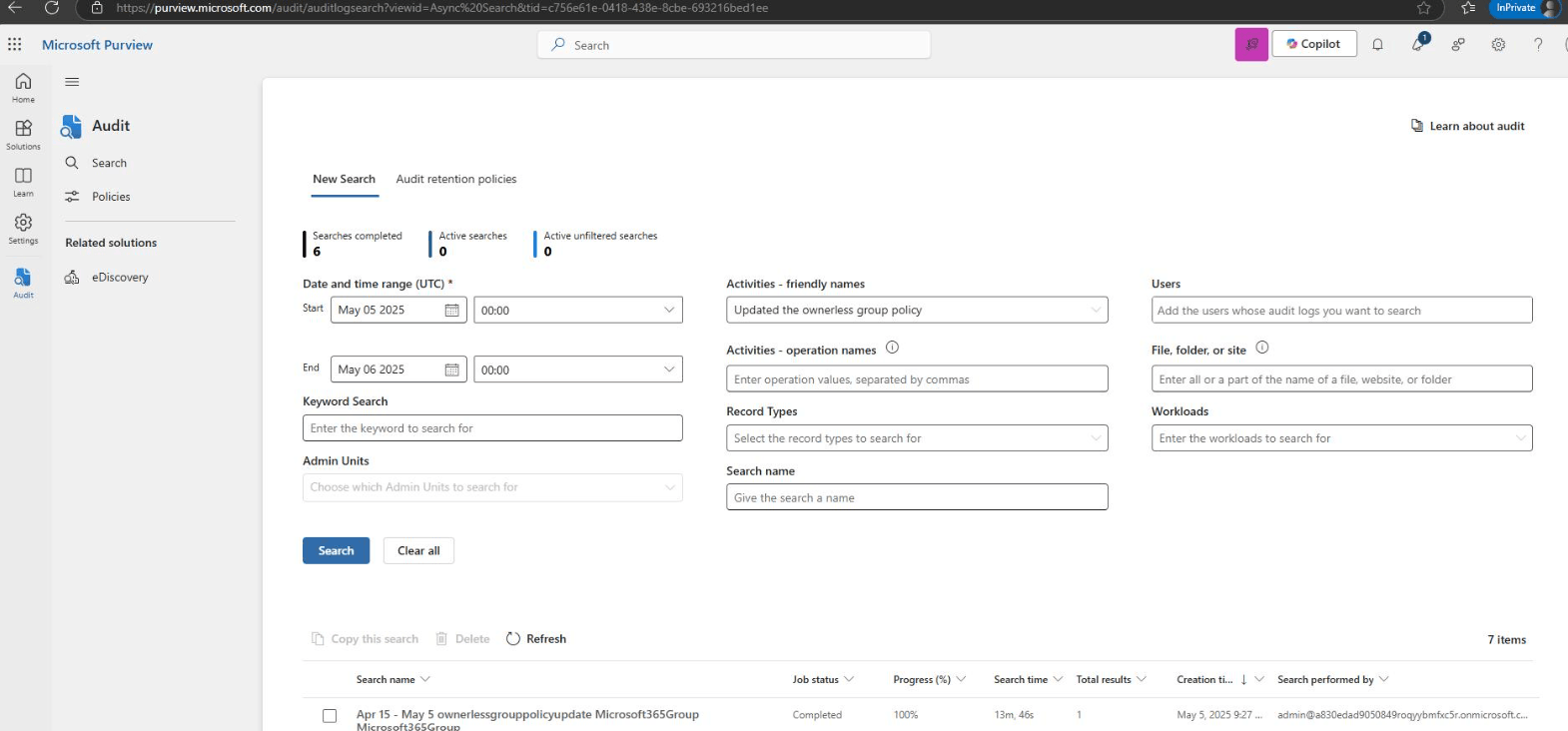
It's important to note that retention time depends on the licensing package. With Microsoft Purview Audit (Standard), logs are retained for 180 days for records created from October 17, 2023 onwards, while records created before this date are retained for only 90 days. With Audit (Premium), records from Exchange, SharePoint, OneDrive, and Microsoft Entra are retained for one year by default, and businesses can create custom retention policies. For longer retention, additional licenses can be purchased for up to ten years. Remember that this policy is not backward applicable, meaning records created before the policy takes effect will not be retained.
In reality, many incidents are only discovered months later, for example, when customers report receiving phishing emails from the company's account, or when auditors request evidence. If logs have been deleted by the default timeframe, businesses will be unable to reliably determine the extent of the impact.
Therefore, administrators should check if the audit feature is enabled, identify the existing log history, compare it to industry storage requirements and compliance regulations, and then assess whether the current license is sufficient. Sectors such as finance, healthcare, and professional services often have stricter requirements than the default. Exporting logs to a SIEM system or private archive is also a worthwhile option for organizations that are not yet ready to upgrade their license.
5. Verify MFA and Conditional Access protection.
Multi-factor authentication (MFA) is one of the most effective measures to protect Microsoft 365 accounts. Passwords alone are no longer secure enough, as they can be stolen through phishing emails, leaked from data breaches, or guessed by automated attacks. With MFA, an attacker, even if they know the password, cannot log in without the second authentication factor.
New tenants often have Security Defaults enabled, allowing for fairly comprehensive MFA requests for users. With existing tenants, the picture is usually more complex. A common scenario is that businesses disable Security Defaults in favor of the more flexible Conditional Access, but then fail to configure sufficient replacement policies. As a result, some users, including administrator accounts, are not protected as expected. Additionally, legacy authentication protocols that don't support MFA also need to be blocked with separate policies.
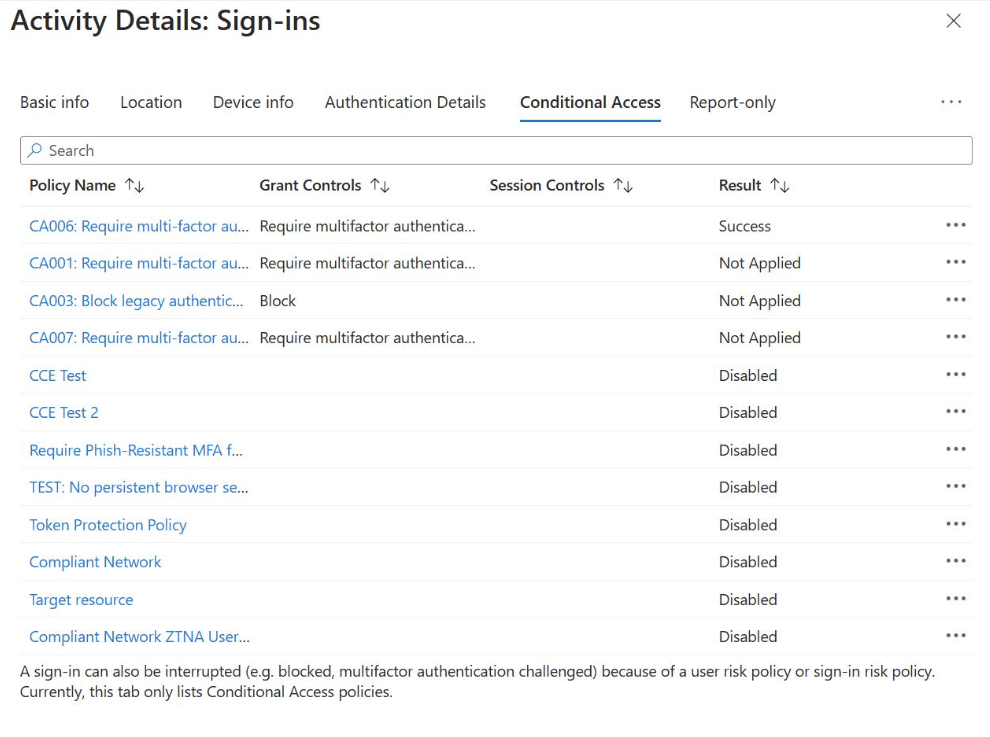
It's important to note that Microsoft has been implementing mandatory MFA in phases for its administration tools, starting with the Azure portal, Microsoft Entra admin center, and Intune admin center in October 2024, and then expanding to tools like Azure CLI and PowerShell. This means that administrator accounts not registered for MFA may be blocked from accessing the system at crucial moments when troubleshooting is needed.
Businesses should check whether Security Defaults are enabled or disabled, whether Conditional Access policies actually apply MFA to all users, the level of protection for privileged accounts, and guest accounts. For administrator accounts, anti-phishing methods such as FIDO2 keys or passkeys should be prioritized over SMS.
Finally, there are emergency access accounts (breakglass). Microsoft recommends maintaining at least two cloud-only accounts that are heavily protected and have alerts when used. Because the mandatory MFA requirement for the admin portal is now in place without exception, these accounts should be linked to FIDO2 keys or authenticated with certificates to ensure both security and prevent them from being locked out in emergency situations.
6. A practical roadmap for updating Microsoft 365 security settings.
Not all security improvements need to be implemented at once. Changing too many things in a short period can disrupt work and lead to negative employee reactions to security measures. A more effective approach is to prioritize based on the level of security improvement and the impact on users.
The initial phase should involve tasks that have minimal impact on daily operations, such as checking log retention times, reviewing third-party application permissions, and revising email forwarding rules. These are primarily observational and cleanup tasks; users will barely notice the changes, but the business can quickly reduce many potential risks.
The next phase involves adjusting file sharing permissions. These changes can impact work habits, especially for teams that frequently interact with external partners. Businesses should notify employees in advance, explain the reasons, and provide guidance on how to share files with the right people. They may also consider testing the changes in a few departments before expanding.
The final phase, and the most critical one, involves changing MFA and Conditional Access. Incorrect configuration can prevent both users and administrators from logging in. Before deployment, review existing policies, test with a small group of accounts, use report-only mode to observe the impact, and ensure emergency access accounts are ready. After each phase, businesses should document the changes made for easier evaluation in subsequent phases.
In terms of frequency, many organizations choose to conduct reviews quarterly, and additional reviews should be done after major changes such as personnel changes, switching IT service providers, or integrating new applications.
7. Proactively review today to avoid problems tomorrow.
Microsoft 365 boasts many robust security features, but their effectiveness depends on proper configuration and regular maintenance. Businesses shouldn't assume that outdated settings are still compliant with current security standards. Reviewing sharing permissions, email forwarding rules, third-party app permissions, log retention periods, and MFA policies will help detect gaps early, before they become real problems.
It's also important to remember that no single configuration can prevent all threats. Proper settings significantly reduce the risk of unauthorized access, data breaches, and account hijacking, but the best results are achieved when combined with increased employee awareness, continuous monitoring, and a comprehensive cybersecurity strategy. If your business isn't sure its Microsoft 365 environment is adequately protected, a professional assessment from an experienced consulting firm is a sensible starting point to identify gaps and recommend appropriate improvements.
















VIP Products







Best Selling Products
Freepik Premium Account
59 USD
Adobe Photoshop Copyright - Full App
120 USD
ChatGPT Plus Account (GPT-4)
16 USD
Genuine Cheap Canva Pro
39 USD
Plugin Retouch4me
69 USD
Capcut Pro 1 Year
39 USD
Copyright Adobe Lightroom Account
59 USD
Upgrade Duolingo Super
29 USD
Upgrade Genuine Office 365
49 USD
Windows 10 & 11 Pro Key
36 USD
Autodesk All App Account Copyright
120 USD
Upgrade genuine Capture One account
120 USD
Adobe Premiere Pro Account
99 USD
MidJourney Account
29 USD
Genuine Adobe Illustrator account
99 USD