Best Selling Products
Windows 10 & 11 Pro Key
36 USD
Upgrade Genuine Office 365
49 USD

Freepik Premium Account
59 USD
Copyright Adobe Lightroom Account
59 USD

Upgrade Duolingo Super
29 USD
Genuine Adobe Illustrator account
99 USD

Capcut Pro 1 Year
39 USD
Adobe Photoshop Copyright - Full App
120 USD

MidJourney Account
29 USD
Plugin Retouch4me
69 USD
Adobe Premiere Pro Account
99 USD

Genuine Cheap Canva Pro
39 USD

ChatGPT Plus Account (GPT-4)
16 USD
Upgrade genuine Capture One account
120 USD
Autodesk All App Account Copyright
120 USD
Extend the lifespan of your old computer with 4 practical solutions.
Nội dung
Extending the lifespan of your laptop or desktop computer offers many clear benefits. You save a significant amount of money in the long run, while also contributing to reducing the rapidly increasing amount of electronic waste globally. The good news is that there''s a middle ground between enduring a slow machine and spending money on a new one. This article introduces four practical approaches, ranging from simple, free modifications to completely transforming the role of your old machine.
1. Clean up to lighten the load on the machine.
The first and easiest way is to reduce the load on your system. An old computer is often slow not necessarily because the hardware is broken, but because it's burdened with too many things that have accumulated over the years. Start by uninstalling applications you no longer use. On Windows, you can do this in Settings, under Apps. On macOS, you can simply drag the application to the Recycle Bin or use the developer's own uninstallation tool if available. Don't forget to check your browser extensions and add-ons as well, as each consumes a portion of memory when running.
The next step is to limit the number of programs that start automatically with the system. Many applications silently register to run as soon as you turn on your computer, causing long startup times and consuming memory even when you're not using them. On Windows, you can disable them in Task Manager, Startup apps tab, or in Settings, Apps section, Startup. On macOS, go to System Settings, select General, then Login Items. By keeping only the truly necessary programs such as antivirus software or data synchronization tools, you'll notice a significant improvement in startup speed.
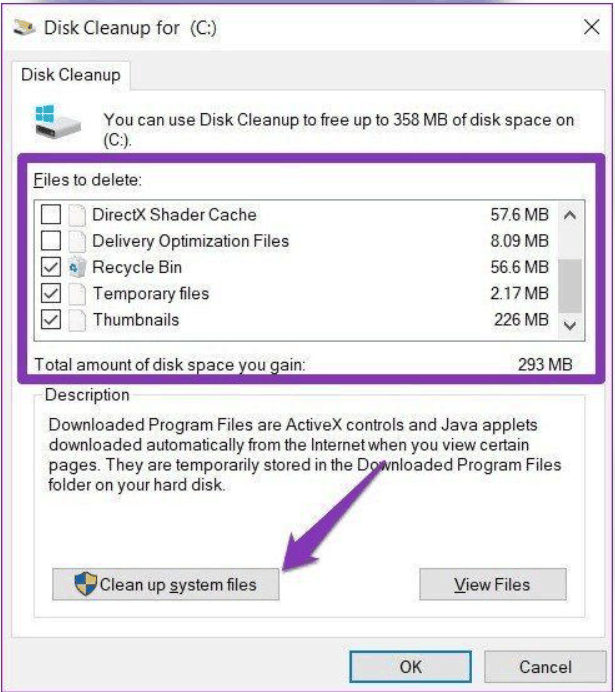
Finally, pay attention to storage space. An overfilled hard drive will leave the operating system with insufficient space to create temporary files, manage virtual memory, and install updates, thus reducing overall performance. Delete unnecessary files, clean up your downloads folder, and move photos, videos, and documents to an external hard drive or cloud storage service. A regular monthly cleanup routine will help keep your computer tidy and stable.
2. Choose upgrades that offer good value for money.
If a cleanup isn't enough, a few carefully selected hardware upgrades can breathe new life into your device. While it may cost money, it's usually much less than buying a new machine, and in return, you can use it for several more years. What upgrades you should consider depends on your current configuration, budget, ease of disassembly, and your confidence in opening the case. Generally, these upgrades are best suited for desktops and Windows machines, while laptops only allow for a limited number of component upgrades, and many modern models have memory soldered directly to the motherboard.
The two most cost-effective upgrades are typically RAM and storage. If your computer only has 4 GB of RAM, upgrading to 8 GB or 16 GB will allow you to open multiple browser tabs and applications simultaneously without lag. If your computer still uses a mechanical hard drive, replacing it with an SSD is one of the most impressive upgrades, as boot times and application launch times can be significantly reduced. Before buying, check the type of RAM and drive standard your computer supports to avoid purchasing incompatible components.
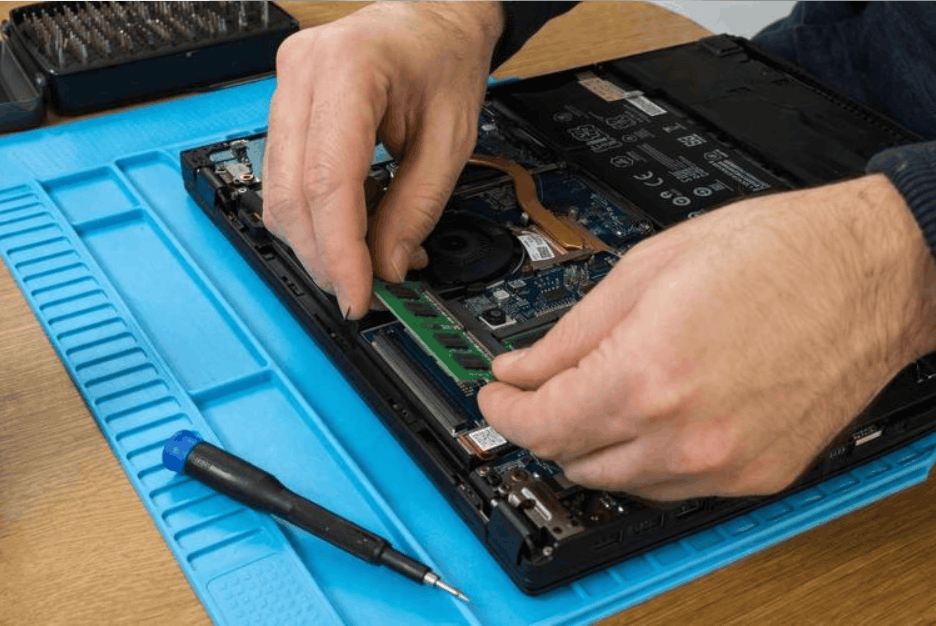
Even if you don't want to open up your computer, there are simpler options. Buying an external hard drive to transfer some data to is a quick way to free up space on your main drive. For those unfamiliar with disassembly and assembly, this is a safe starting point that doesn't require special skills and still provides a real improvement. If you find it difficult, you can also have a reputable repair shop do it for you; the labor cost is usually not significant compared to the value the upgrade provides.
3. Replace the old hardware with a lighter operating system.
Sometimes the problem isn't with the hardware but with the operating system demanding too many resources. In that case, you can install a new, lighter operating system to replace Windows or macOS. Note that this process will erase all data on your computer, so be sure to back up all important files and folders before you begin.
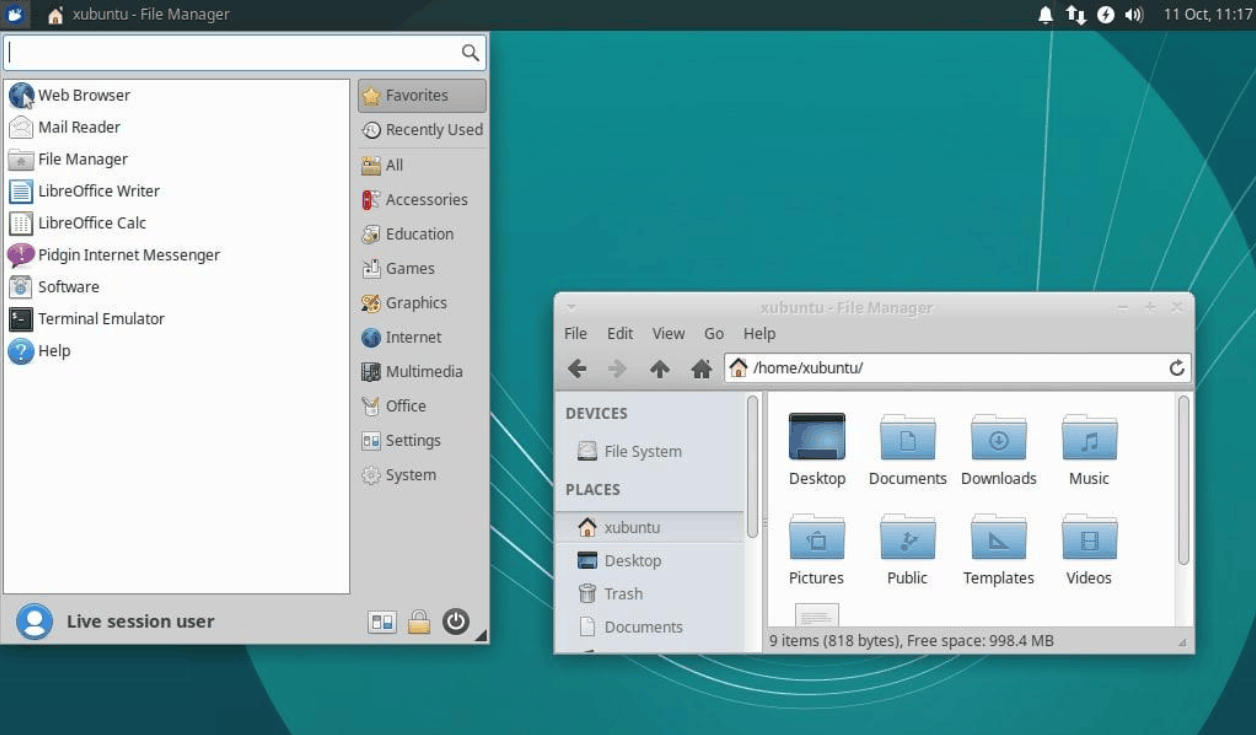
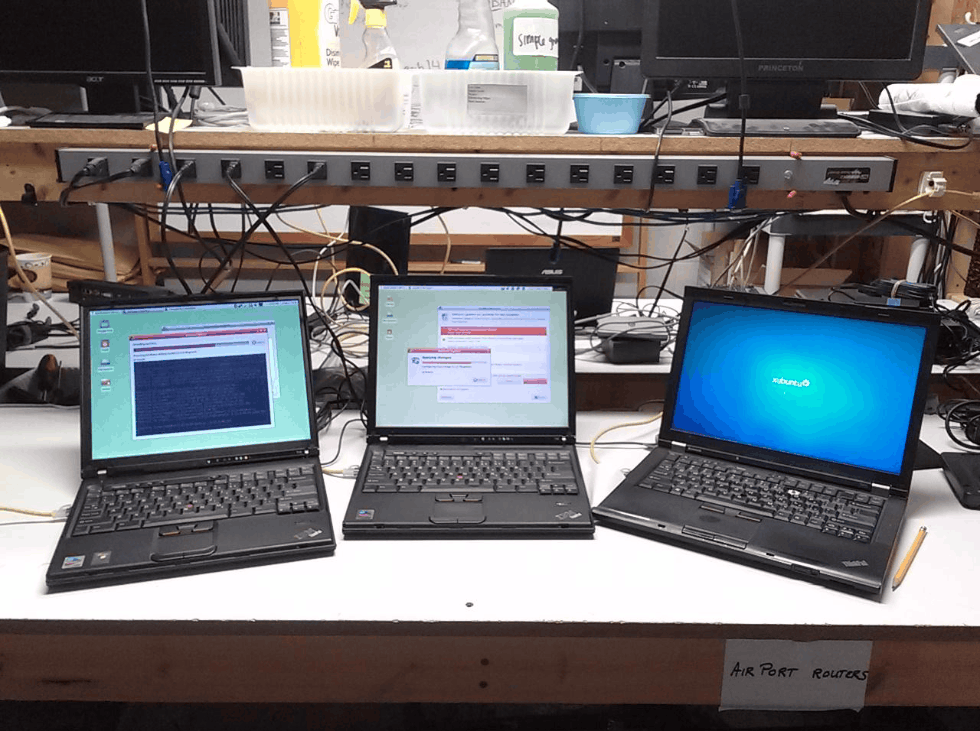
Linux is a popular, completely free option with many versions, known as distributions. Some versions are specifically designed to be streamlined for older machines, such as Lubuntu, and Linux Mint is also a highly regarded choice thanks to its user-friendly interface for Windows users. These versions usually come pre-installed with a browser, office suite, and many other popular tools. Many detailed online guides are available, allowing even beginners to confidently make the switch.
Another option is Google's ChromeOS Flex, which transforms older Windows or Mac computers into Chromebook-like devices. This operating system essentially runs a browser along with some additional utilities, so older machines are perfectly capable of running it. Like Linux, ChromeOS Flex is free and ideal if you spend most of your time browsing, such as reading emails, writing online documents, watching videos, or participating in online meetings. Google only guarantees full functionality on certified models, so you should check the compatibility list before installing.
This solution is particularly worth considering for Windows 10 machines that are not eligible for an upgrade to Windows 11. Microsoft ended free support for Windows 10 on October 14, 2025, meaning the machine will no longer receive regular security patches. Switching to an operating system that is still regularly updated is a safer option than continuing to use a system that has stopped being supported while still connected to the internet.
4. Give the old machine a new role.
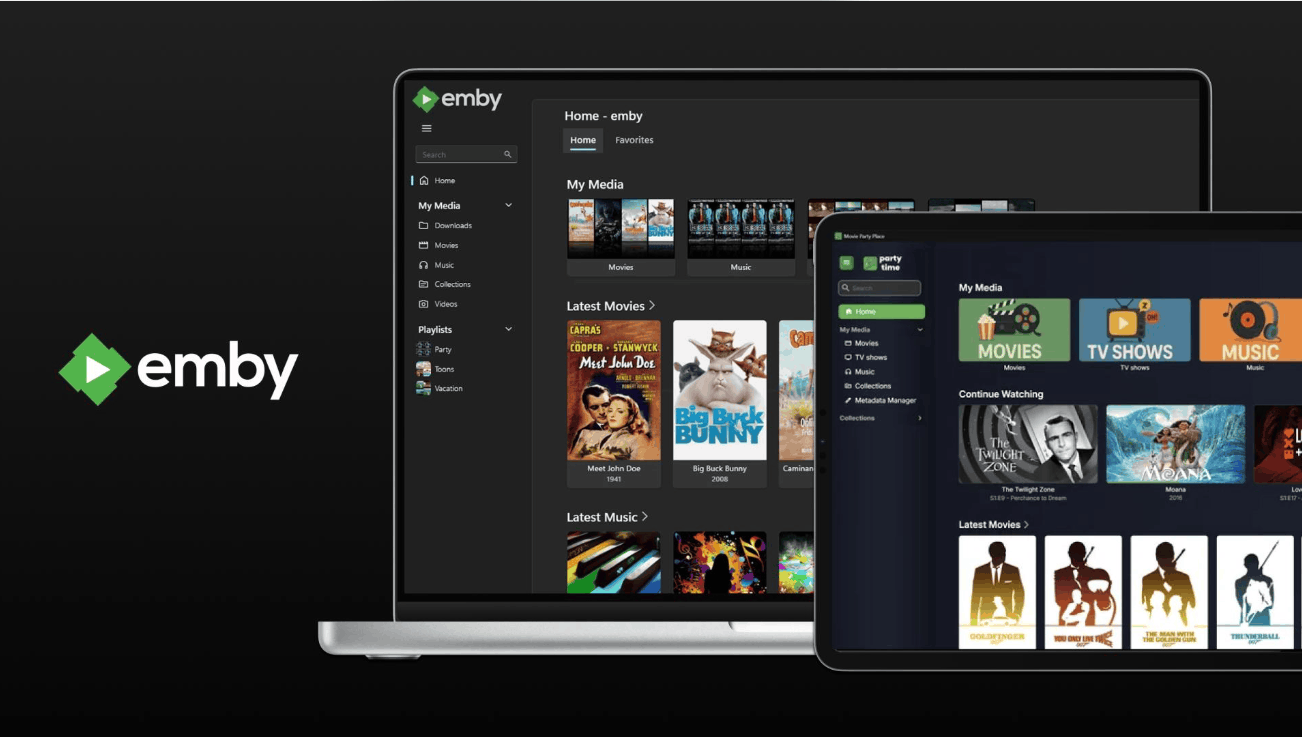
If your computer is no longer suitable for general use, you can still find another task for it. A popular idea is to turn it into a multimedia server. Then, it doesn't need to do anything other than store and stream music and movies to devices on the same home network, such as TVs, phones, or tablets. Plex and Emby are two software programs that help you do this quite easily, and their system requirements aren't too high.
Another interesting option is to turn the computer into a dedicated writing device. This is especially suitable for older computers that no longer receive security updates and therefore shouldn't be connected to the internet. Simply install a text editor and disconnect from the network, creating a quiet workspace with minimal distractions from notifications or social media. You can use a USB drive to transfer your writing to another device. Additionally, older computers can be used as internal data backup devices, software testing machines, or learning systems for those interested in networking and servers. However, avoid using them for sensitive tasks such as online banking, password management, or storing important personal documents.
Admittedly, reusing a device won't save you the cost of buying a new one, as you'll still need a primary device for daily work. However, this method reduces electronic waste and keeps the hardware useful for longer. When it's time to part ways with the device, handle it responsibly by donating it, reselling it, or taking it to an official electronics collection and recycling center, and remember to wipe all personal data before handing it over.
5. Conclusion
An old computer doesn't necessarily have to be discarded the moment it starts to slow down. By cleaning up the system, making necessary upgrades, choosing the right operating system, or assigning it a new role, you can extend its lifespan by many years, saving money and protecting the environment. Start with the simplest and least expensive steps, then consider more complex options. It's quite possible that the computer you thought was obsolete will still be able to accompany you for a long time to come.















VIP Products



Best Selling Products
Windows 10 & 11 Pro Key
36 USD
Upgrade Genuine Office 365
49 USD
Freepik Premium Account
59 USD
Copyright Adobe Lightroom Account
59 USD
Upgrade Duolingo Super
29 USD
Genuine Adobe Illustrator account
99 USD
Capcut Pro 1 Year
39 USD
Adobe Photoshop Copyright - Full App
120 USD
MidJourney Account
29 USD
Plugin Retouch4me
69 USD
Adobe Premiere Pro Account
99 USD
Genuine Cheap Canva Pro
39 USD
ChatGPT Plus Account (GPT-4)
16 USD
Upgrade genuine Capture One account
120 USD
Autodesk All App Account Copyright
120 USD