Best Selling Products

Upgrade Duolingo Super
29 USD

Autodesk All App Account Copyright
120 USD

Capcut Pro 1 Year
39 USD

Freepik Premium Account
59 USD

ChatGPT Plus Account (GPT-4)
16 USD

Adobe Photoshop Copyright - Full App
120 USD

Upgrade genuine Capture One account
120 USD

MidJourney Account
29 USD

Copyright Adobe Lightroom Account
59 USD

Plugin Retouch4me
69 USD

Adobe Premiere Pro Account
99 USD

Genuine Cheap Canva Pro
39 USD

Upgrade Genuine Office 365
49 USD

Windows 10 & 11 Pro Key
36 USD

Genuine Adobe Illustrator account
99 USD
What is Pixlr? A guide to using the online photo editor Pixlr.
Nội dung
- 1. What is Pixlr?
- 2. Why is Pixlr so outstanding?
- 2.1. Access directly through the browser
- 2.2. Simple editing process
- 2.3. Supports multiple formats
- 2.4. Creative Filters and Effects
- 2.5. AI Tools
- 2.6. Template Library
- 2.7. Save and export quickly
- 3. How do Pixlr X and Pixlr E differ?
- 4. How to use Pixlr for free
- Step 1: Open Pixlr and upload your image.
- Step 2: Edit the image
- Step 3: Save and load the image
- 5. Tips for effective photo editing with Pixlr
- 5.1. Adjusting basic parameters
- 5.2. Cropping and Rotating Images
- 5.3. Test the automatic feature.
- 5.4. Treating Red Eyes
- 5.5. Creating a Double Exposure Effect
- 5.6. Highlighting Colors
- 5.7. Add personal touches
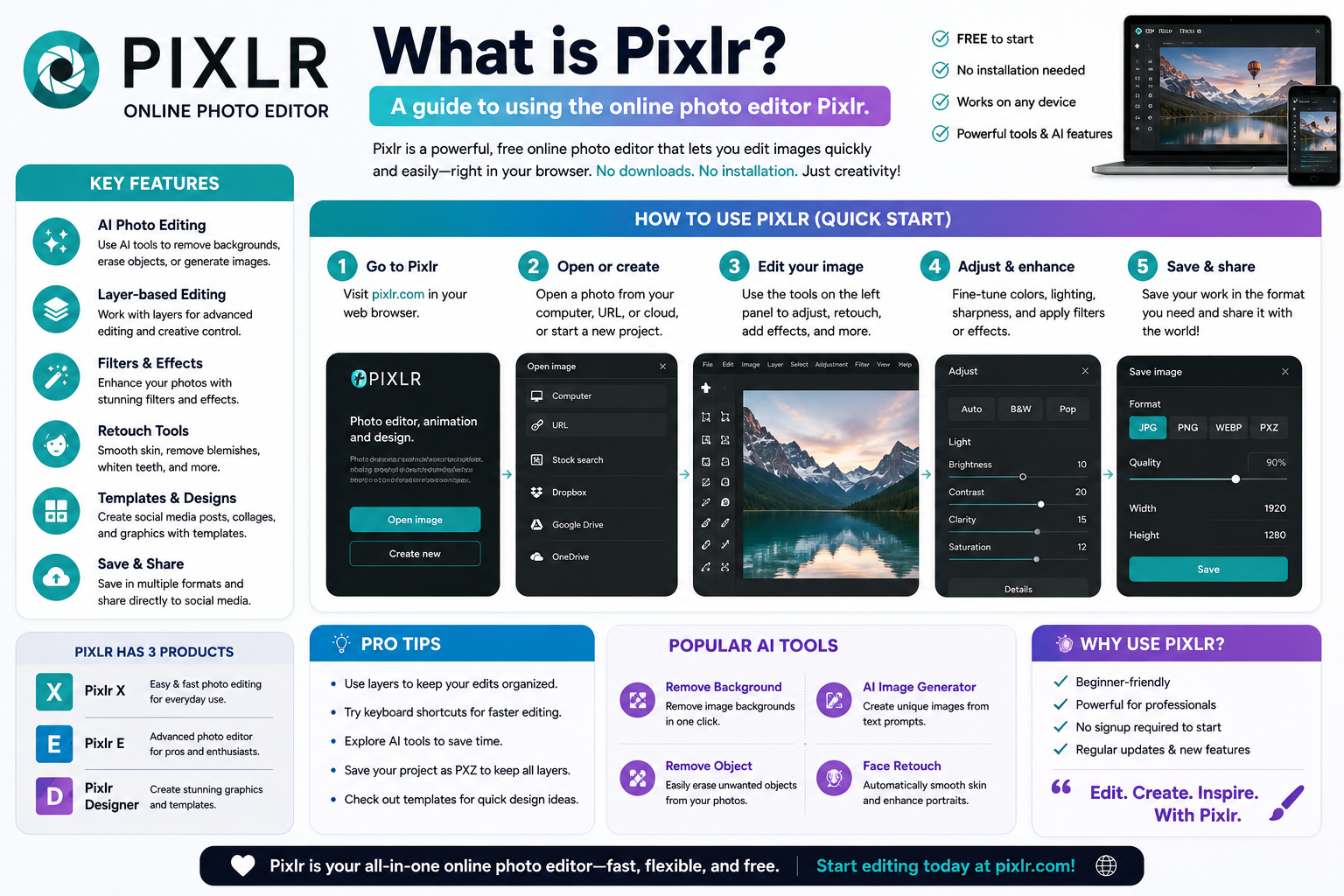
Pixlr Online Photo Editor is a convenient online photo editing tool that allows users to crop, resize, adjust colors, add filters, and apply AI features directly in their browser.
1. What is Pixlr?
Pixlr is an online photo editor that runs directly in your browser. Users don't need to install any specialized software; they simply access the tool, upload their photos, and start editing.
Pixlr offers basic features such as cropping, resizing, color adjustment, adding text, and applying filters and effects. Thanks to its intuitive layout, beginners can quickly become familiar with common operations without spending too much time studying.
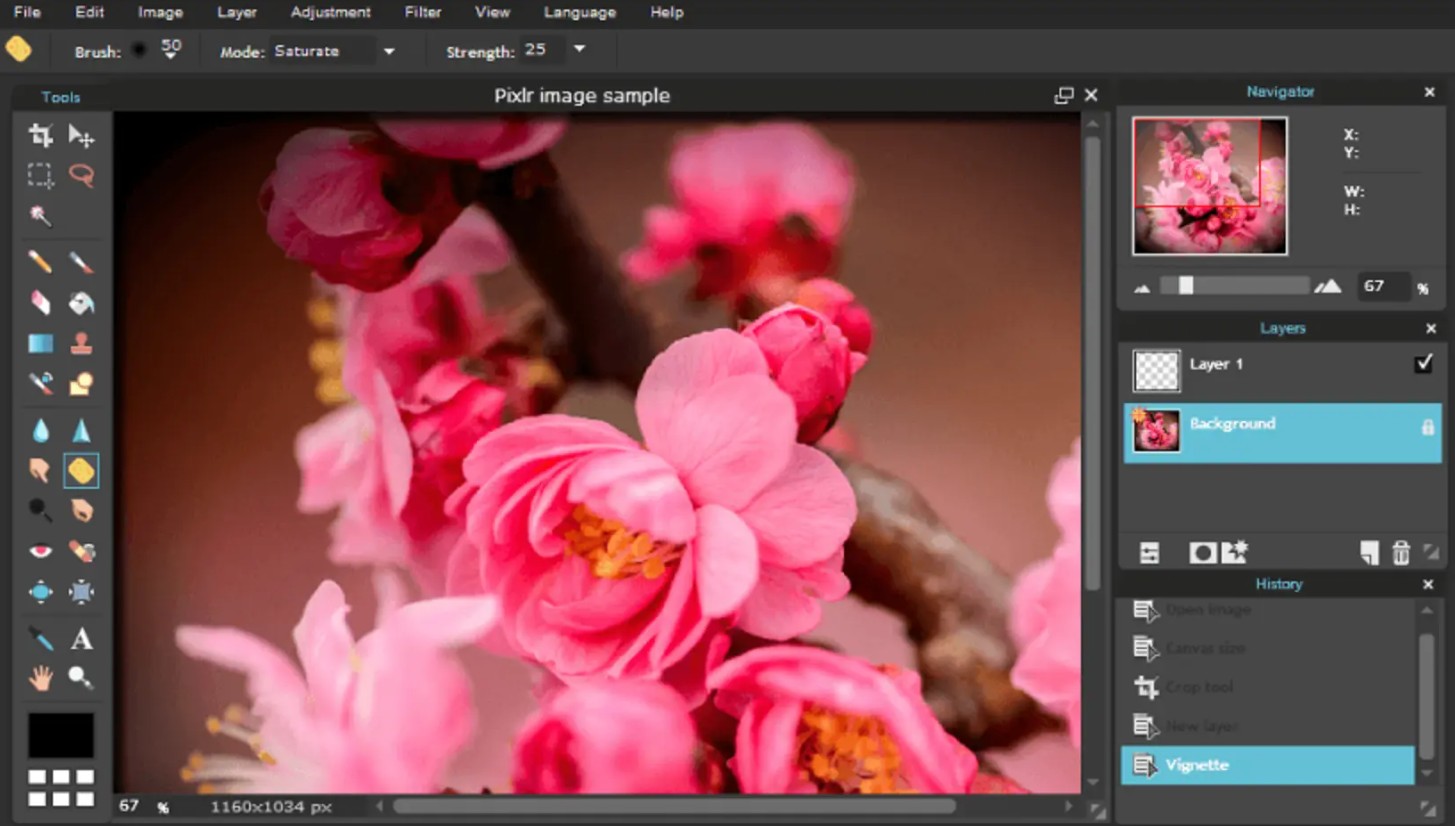
One notable advantage is that Pixlr can support a wide range of needs, from personal photo editing to online content design. Users can process a photo before posting it on social media, create banners, design promotional images, or edit product photos.
Operating through a browser also saves storage space and reduces installation requirements. This is a convenient option when users need to quickly edit photos on a computer or device with an internet connection.
2. Why is Pixlr so outstanding?
The appeal of Pixlr lies not just in the fact that it's an online tool. More importantly, it's a platform that combines simple accessibility, basic editing tools, creative effects, and smart features.
2.1. Access directly through the browser
Pixlr runs directly in the browser, so users don't have to download a large installation package. Simply open the tool and upload images, and the editing process can begin immediately.
This is especially useful for people who frequently work on multiple computers or need to process images while on the go. Instead of having to install software on each device, users only need a browser and a suitable internet connection.
2.2. Simple editing process
Pixlr's interface is designed to be intuitive, with editing tools arranged for easy user access. Common operations such as cropping, resizing, color adjustment, or adding filters can be performed quickly.
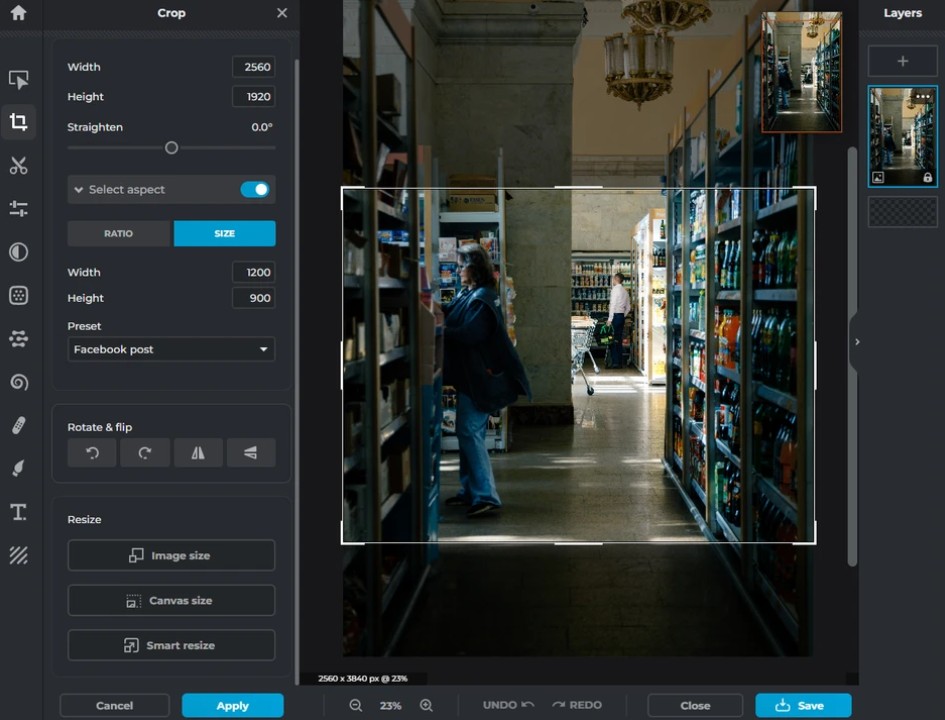
For beginners, this is a huge advantage. Users don't necessarily need a deep understanding of photo editing to get started. Meanwhile, experienced users can still utilize advanced tools to further control the results.
2.3. Supports multiple formats
Pixlr supports many popular image formats such as JPEG, PNG, and TIFF. Its ability to work with multiple file types reduces the need for format conversion before editing begins.
This is especially useful in projects with multiple image sources. Individual users can handle still images, while designers or content creators can work with a variety of graphic resources.
2.4. Creative Filters and Effects
Pixlr offers a wide range of filters and effects that allow for quick image style changes. Instead of manually adjusting each parameter, users can experiment with different effects to find the perfect style.
Filters can be used to change the atmosphere of a photo, enhance its artistic appeal, or create uniformity within a group of images. This feature is particularly useful when designing social media content, promotional images, or other media products.
2.5. AI Tools
One notable aspect of Pixlr is its integration of AI tools into the photo editing process. Features such as background removal, object selection, and intelligent processing can significantly reduce workflow time.
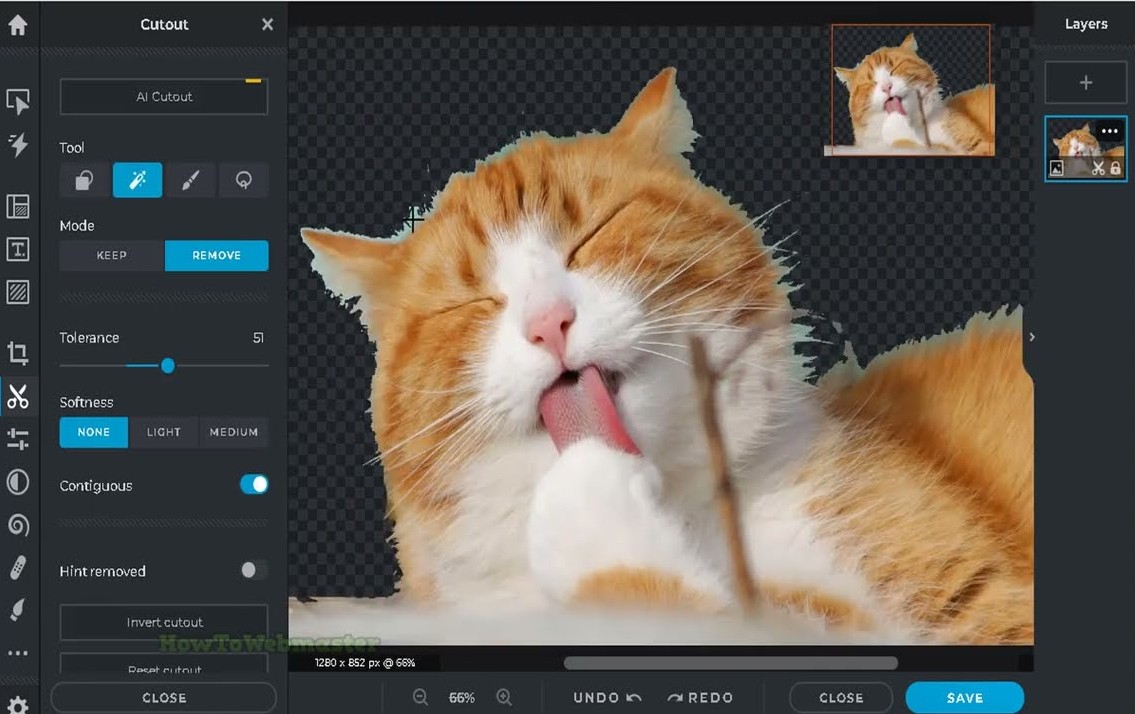
For example, instead of having to manually create complex selections to separate the subject from the background, users can use AI tools to assist in faster recognition and processing.
AI is especially helpful for beginners because many tasks that previously required advanced editing skills can now be performed with fewer steps.
2.6. Template Library
In addition to photo editing, Pixlr also offers design templates for various purposes. Users can start with a pre-made layout and then change images, text, and other elements as needed.
This method is suitable for those who need to create social media posts, banners, or promotional content but don't want to build the entire design from scratch.
2.7. Save and export quickly
After completing the editing, users can save the image in the desired format and quality and then download it to their device. The fast image export process shortens the time from editing to publishing.
For frequent content creators, this speed is significantly important. A simple process from uploading images, editing, to exporting files reduces intermediate steps and increases workflow efficiency.
3. How do Pixlr X and Pixlr E differ?
Pixlr offers two prominent editing modes, Pixlr X and Pixlr E , catering to different needs.
Pixlr X focuses on simplicity and speed. It's a suitable choice for beginners, social media users, or anyone who only needs to perform basic tasks like cropping, resizing, color correction, adding text, and effects.
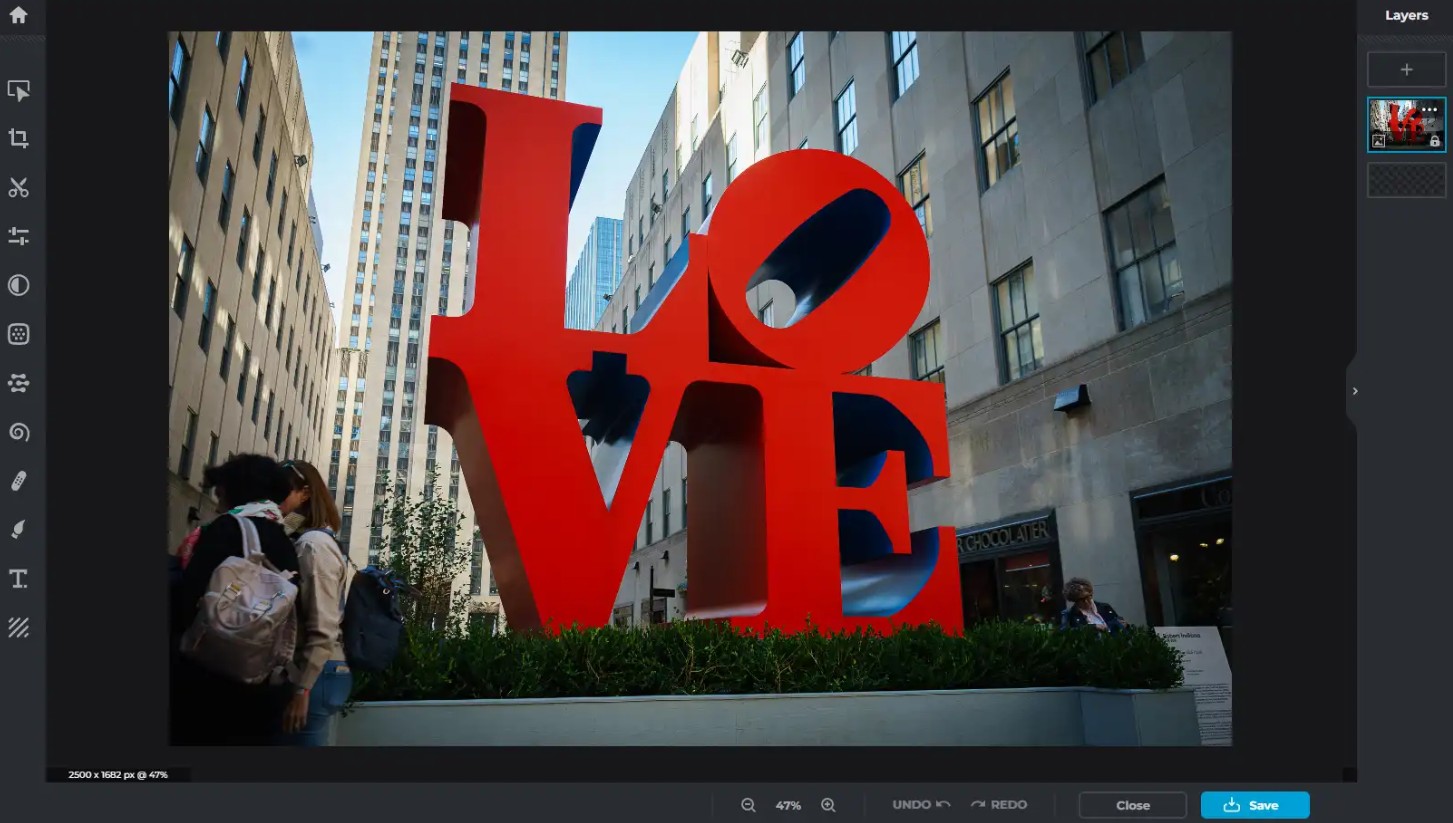
Meanwhile, Pixlr E is aimed at users who want more control over the editing process. This tool is suitable for projects requiring advanced manipulation and more detailed editing capabilities.
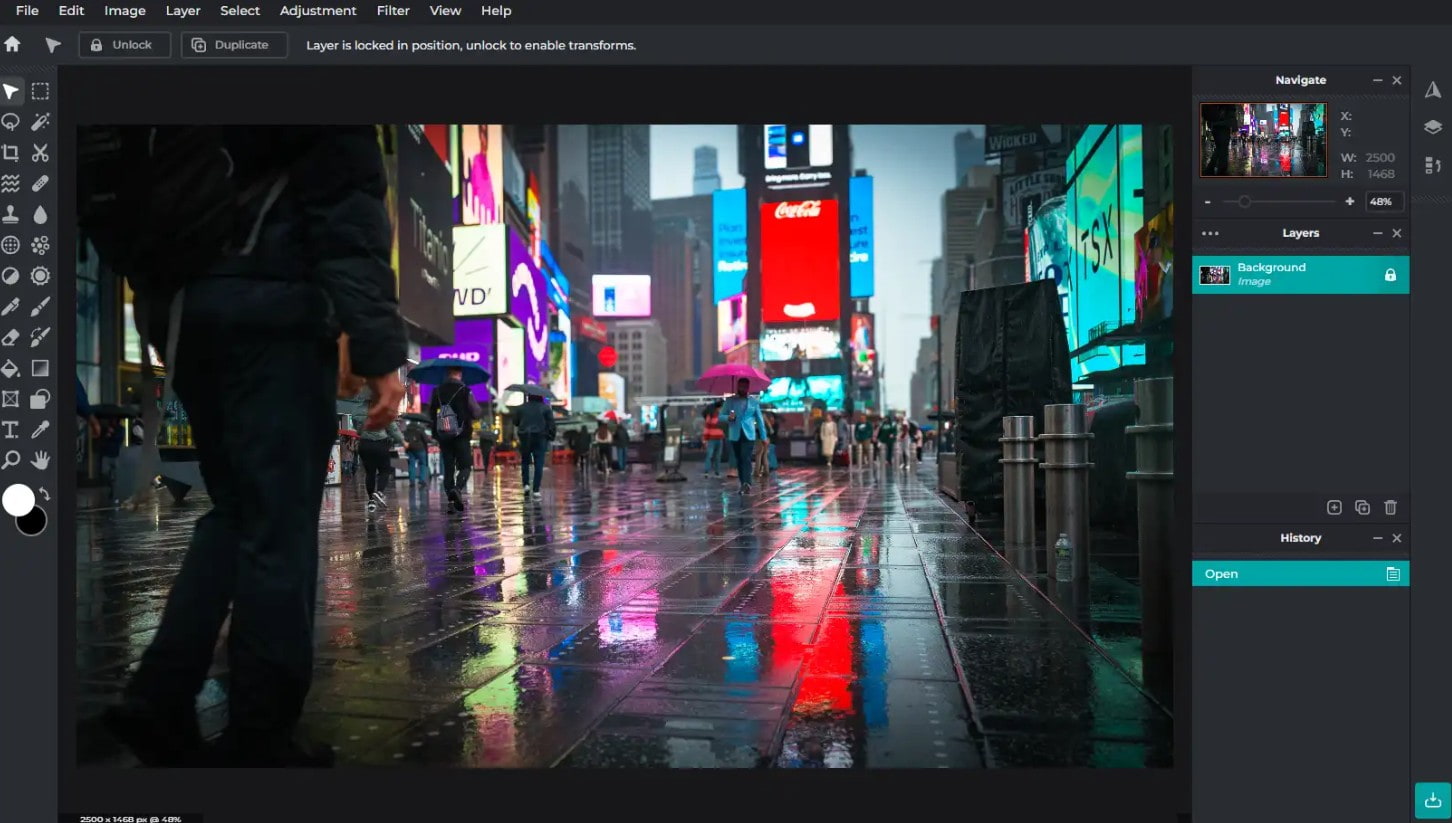
Simply put, Pixlr X is suitable for quick edits , while Pixlr E is better suited for projects requiring more control . The choice of which tool to use depends on your skill level and the complexity of the project.
4. How to use Pixlr for free
One of Pixlr's advantages is that users can start editing directly without installing any software. The basic process includes the following steps.
Step 1: Open Pixlr and upload your image.
Access Pixlr and choose Pixlr X if you're a beginner or Pixlr E if you need advanced editing.
Then select “Open Image” to upload an image from your computer or a supported storage source.
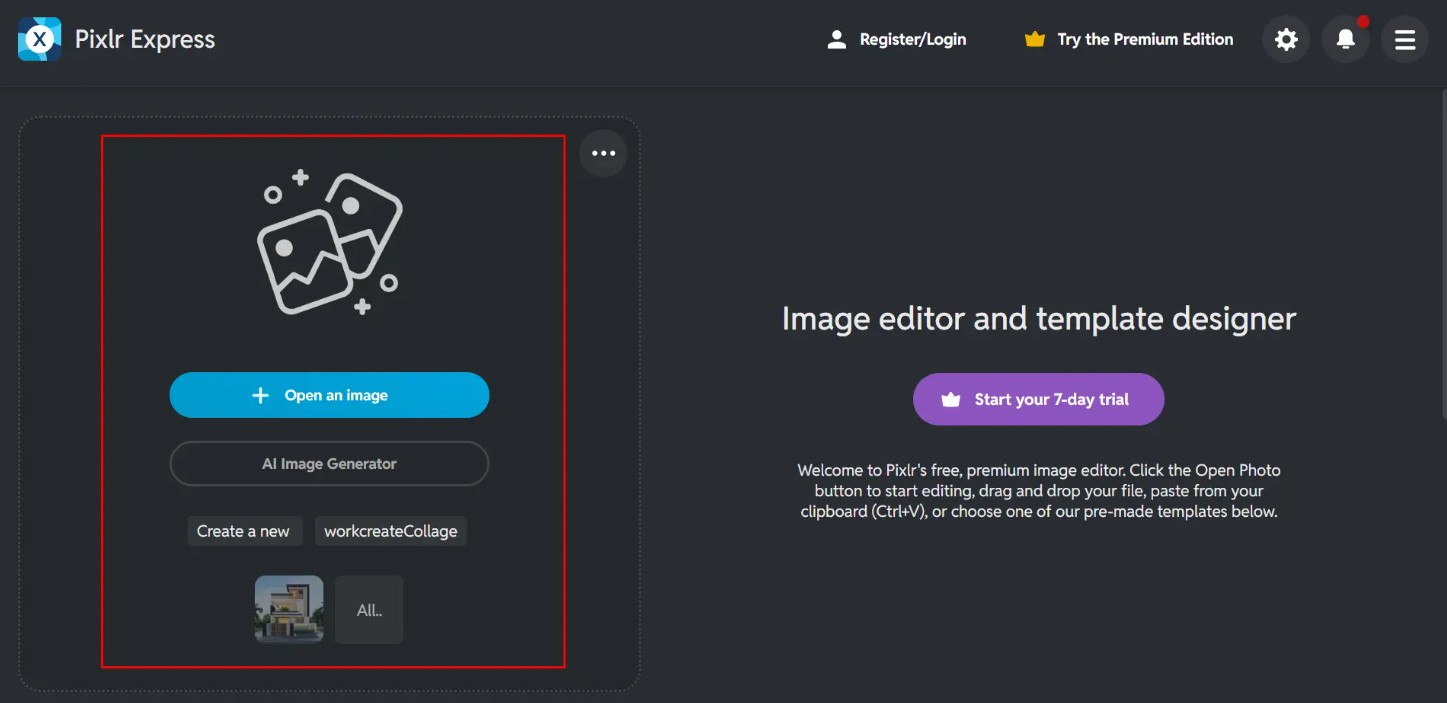
Before editing, check the image to determine your main goal. For example, if the image is to be posted on social media, you should determine the desired aspect ratio and dimensions beforehand.
Step 2: Edit the image
After uploading the image, use the toolbar to perform the necessary operations. You can start by cropping, resizing, or rotating the image.
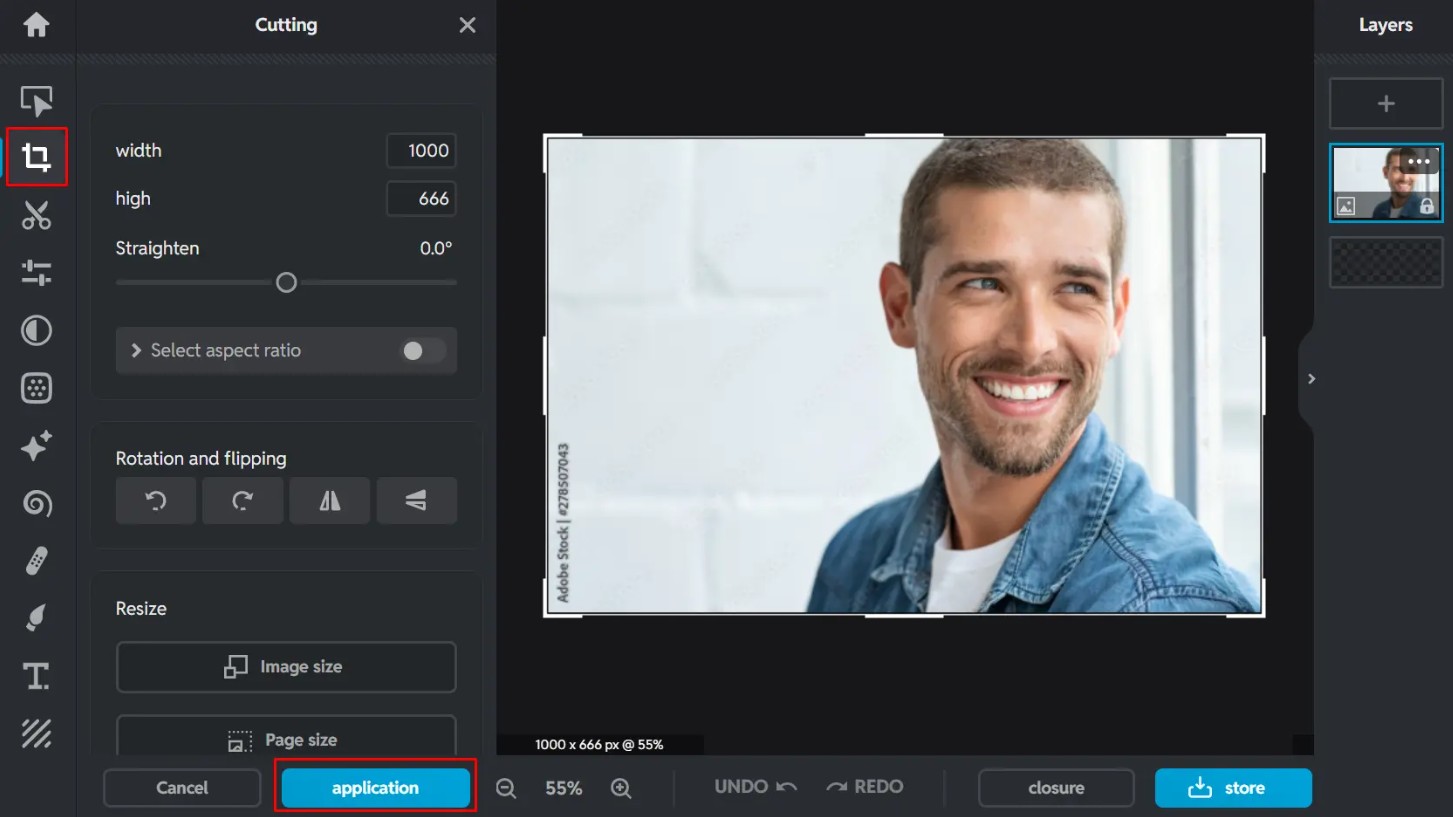
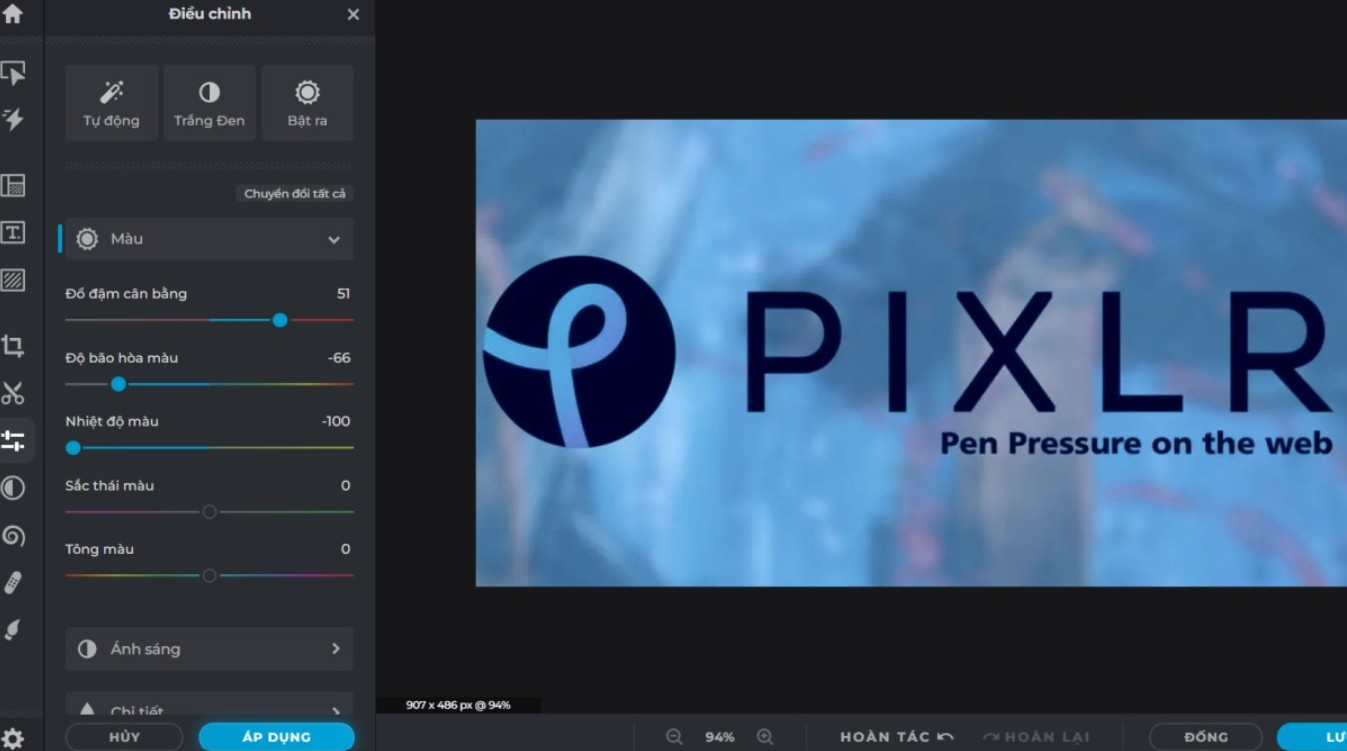
Next, adjust the brightness, contrast, saturation, and color parameters. If you want to create your own style, try filters or effects.
Pixlr also allows you to add text, shapes, and graphic elements. For more complex tasks, you can try AI tools like background removal or object selection.
Step 3: Save and load the image
Once finished, use the Save option to select the appropriate format, quality, and size.
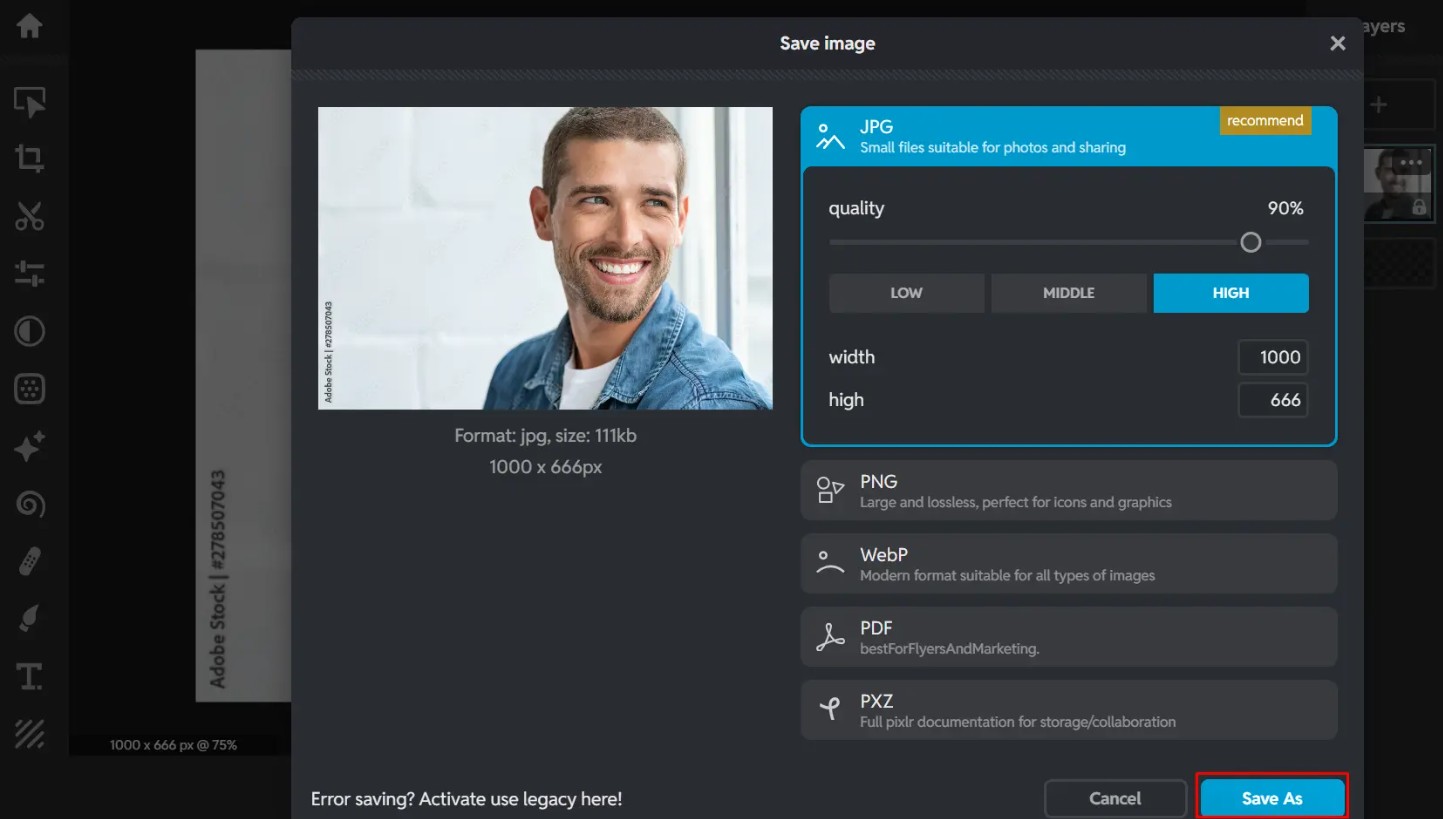
Then download the image to your device or use it for your desired purpose. Before exporting the image, you should check the resolution, aspect ratio, and quality to ensure the image meets your needs.
5. Tips for effective photo editing with Pixlr
Knowing how to use the basic tools will save you a lot of time. It's not necessary to apply too many effects; a few small adjustments can make a noticeable difference.
5.1. Adjusting basic parameters
Let's start with brightness, contrast, saturation, and sharpness. These parameters directly affect the overall perception of the image.
Instead of drastically increasing one parameter, try making small changes and then comparing the before and after results. This will help create a more natural image and avoid overly harsh colors.
5.2. Cropping and Rotating Images
Cropping is one of the simplest operations, yet it has a significant impact on composition. Remove unnecessary areas and focus attention on the main subject.
If the image is tilted, the rotate tool can help balance the composition. A properly adjusted shooting angle can sometimes improve an image without adding any effects.
5.3. Test the automatic feature.
When you need to quickly edit photos, try automatic or AI features. These tools can help adjust color, lighting, and other elements without manual settings.
After applying the changes, check the results and make adjustments if necessary. Automated tools should be considered a starting point, not necessarily the final step.
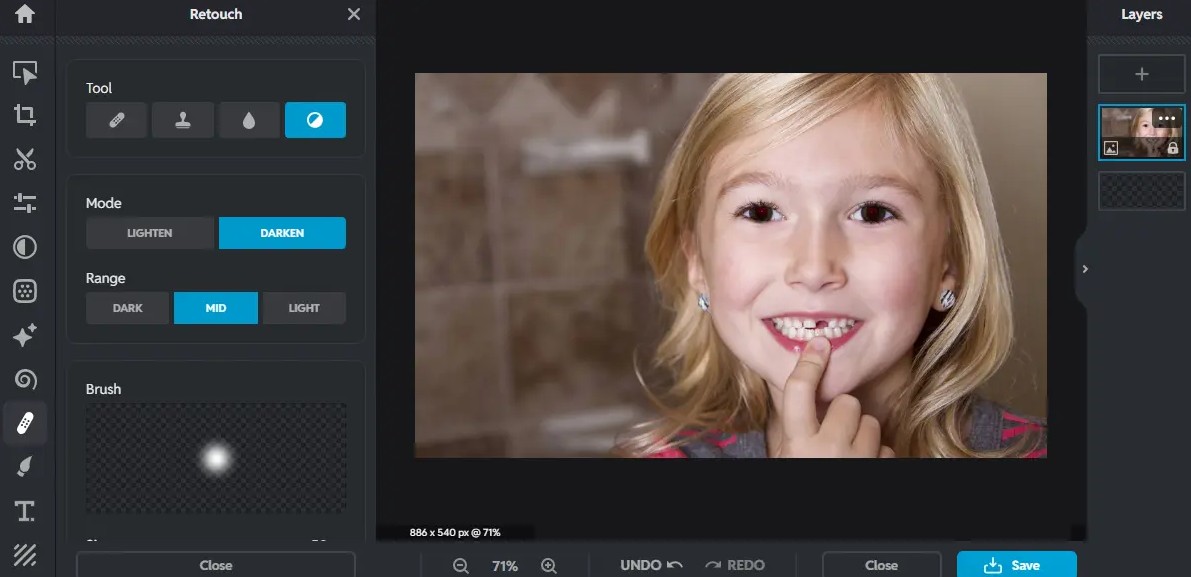
5.4. Treating Red Eyes
Portrait photos taken with flash can sometimes exhibit red-eye. Pixlr provides tools to help correct this issue, making faces look more natural.
Simply identify the area around the eyes that needs correction and apply the appropriate tool. Then, check to ensure the corrected area isn't too bright or unnatural.
5.5. Creating a Double Exposure Effect
Double exposure is a technique that combines two images to create an artistic piece. Pixlr can be used to create this effect by blending images together.
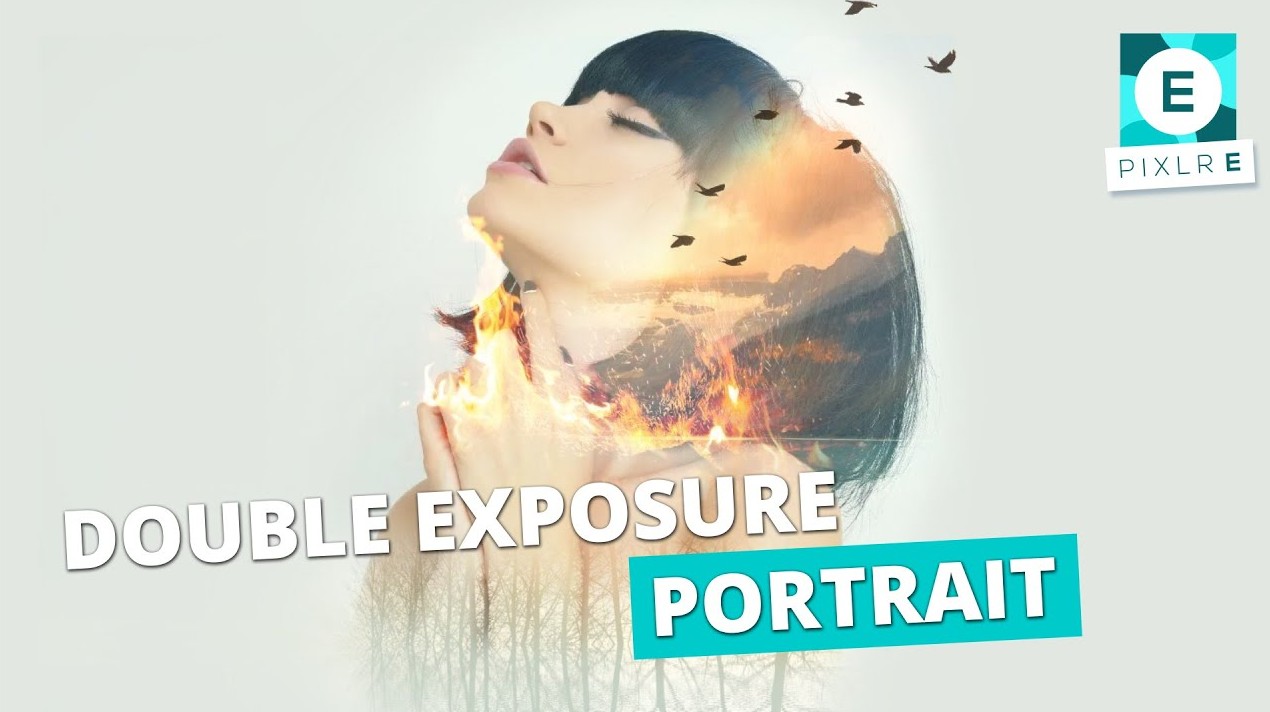
For example, you can combine a portrait with a nature scene or a cityscape. By adjusting the transparency and color appropriately, the two images can create a new and highly creative composition.
5.6. Highlighting Colors
Instead of increasing the saturation of the entire image, consider highlighting certain key colors. For example, if the main subject is red, increasing the prominence of that color can help draw attention to the subject.
This technique is particularly useful for product photography, fashion photography, and social media content.
5.7. Add personal touches
Pixlr also allows users to add drawings, logos, shapes, or decorative elements. This is a simple way to transform an ordinary photo into a personalized design.
When using it for social media, you can add your brand logo or small graphic details to create recognition. However, you should limit the number of decorative elements to avoid distracting from the main subject.
Pixlr online photo editor stands out for its balance of easy accessibility, editing speed, and diverse tools. Users can start directly in their browser, perform basic operations such as cropping, resizing, color correction, and adding filters, and then explore AI features and advanced creative tools.
Pixlr X is suitable for beginners and those needing quick edits, while Pixlr E is geared towards projects requiring more control. Additionally, AI tools, template libraries, effects, and fast image export capabilities make the editing-to-publishing process more convenient.





















VIP Products








Best Selling Products
Upgrade Duolingo Super
29 USD
Autodesk All App Account Copyright
120 USD
Capcut Pro 1 Year
39 USD
Freepik Premium Account
59 USD
ChatGPT Plus Account (GPT-4)
16 USD
Adobe Photoshop Copyright - Full App
120 USD
Upgrade genuine Capture One account
120 USD
MidJourney Account
29 USD
Copyright Adobe Lightroom Account
59 USD
Plugin Retouch4me
69 USD
Adobe Premiere Pro Account
99 USD
Genuine Cheap Canva Pro
39 USD
Upgrade Genuine Office 365
49 USD
Windows 10 & 11 Pro Key
36 USD
Genuine Adobe Illustrator account
99 USD