Best Selling Products

Adobe Premiere Pro Account
99 USD

Plugin Retouch4me
69 USD

Autodesk All App Account Copyright
120 USD

MidJourney Account
29 USD

Windows 10 & 11 Pro Key
36 USD

Genuine Cheap Canva Pro
39 USD

Genuine Adobe Illustrator account
99 USD

Upgrade genuine Capture One account
120 USD

Adobe Photoshop Copyright - Full App
120 USD

Upgrade Duolingo Super
29 USD

ChatGPT Plus Account (GPT-4)
16 USD

Freepik Premium Account
59 USD

Upgrade Genuine Office 365
49 USD

Capcut Pro 1 Year
39 USD

Copyright Adobe Lightroom Account
59 USD
How to customize or disable background playback on YouTube Premium
Nội dung
- 1. What is background playback mode?
- 2. Who can use this feature?
- 3. Play in the background on YouTube
- 4. Play in the background on YouTube Music
- 5. Play in the background on YouTube Kids
- 6. Default mode: Always on
- 7. How to open the settings
- 8. Select “Always on”
- 9. Select “Off”
- 10. Select “Headphones or external speakers”
- 11. When should I turn off background playback?
- 12. Things to note
- 13. How to choose the appropriate mode
Learn how to customize or disable background playback on YouTube Premium.
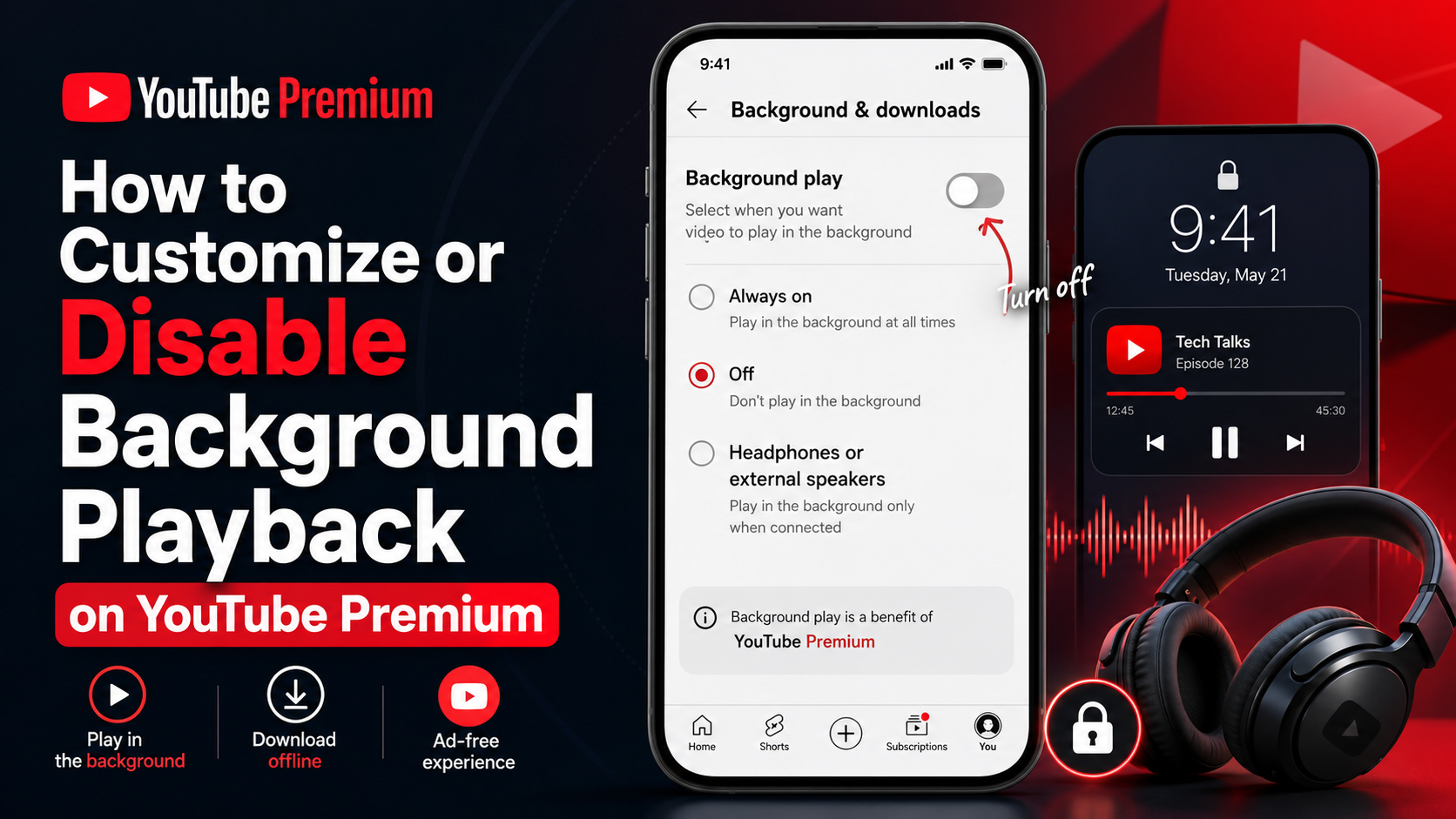
1. What is background playback mode?
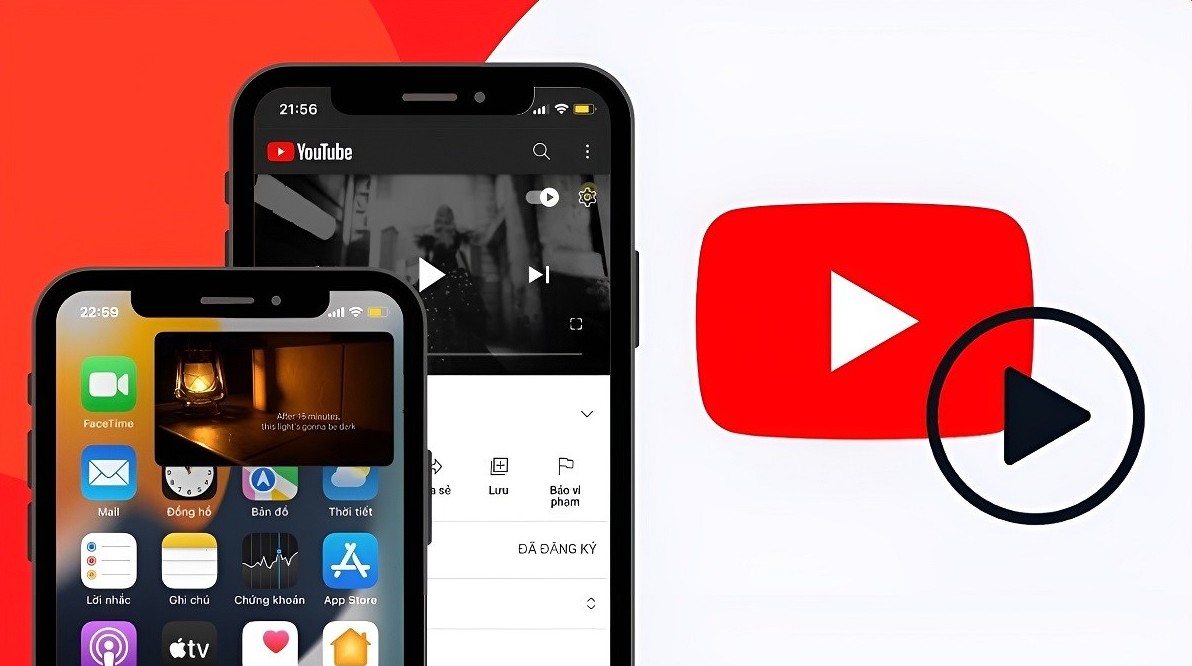
Background playback is a feature that allows videos to continue playing even when the YouTube app is no longer open on the device's home screen.
Normally, when watching a video on your phone and switching to another app or locking the screen, the video playback may stop. With a YouTube Premium membership, users can continue listening to content in the background without keeping the YouTube screen constantly displayed.
For example, you're watching a music video on YouTube. Once it starts playing, you can turn off your phone screen and continue listening. Similarly, you can switch to a messaging app, a browser, or another app and the content will continue playing.
This makes YouTube more convenient in situations where users are primarily interested in the audio rather than the visuals.
2. Who can use this feature?
Background playback on mobile devices is a benefit for YouTube Premium users .
To use it, you need to sign in to the YouTube mobile app with an account that has a YouTube Premium membership. Once your account is verified, the background playback feature can be used according to the app's settings.
This feature also works on mobile apps including YouTube, YouTube Music, and YouTube Kids , if those apps are available in your location.
It's important that your Premium account is logged in on the device you're using. If you switch to an account without Premium membership privileges, your ability to use background playback will depend on that account's benefits.
Therefore, when a feature isn't working as expected, the first step should be to check which account is logged into the app.
3. Play in the background on YouTube
On the YouTube mobile app, background playback allows users to continue listening to videos while switching to other activities.
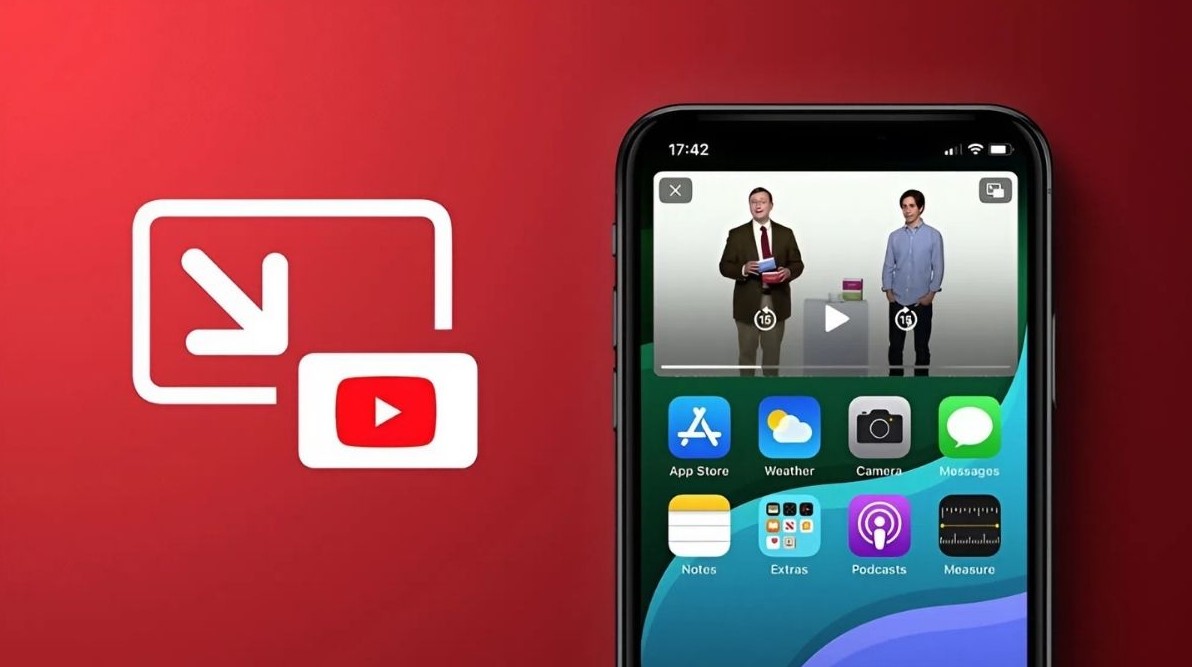
This feature is suitable for many types of content. If you're listening to a music video, you can turn off the screen to save battery while still listening. For podcasts or videos with spoken content, not needing to look at the screen also makes using your phone more convenient.
For example, you can start a tutorial video and then switch to the notes app to record important information. The audio from the video will continue playing in the background according to your settings.
By default, background playback is set to Always On for eligible accounts. However, YouTube allows you to change this setting at any time.
4. Play in the background on YouTube Music
YouTube Music also supports background playback with a YouTube Premium account. This is a particularly useful feature for those who frequently use YouTube to listen to music.
You can start a song or audio content on YouTube Music, then switch to another app and the playback will continue.
This feature makes YouTube Music function more like a dedicated music streaming app. Users don't need to keep the YouTube Music screen constantly on while enjoying content.
If you frequently listen to music while working, studying, commuting, or performing other tasks on your phone, playing it in the background makes the experience more convenient.
5. Play in the background on YouTube Kids
In regions where YouTube Kids is available, background playback may also work within the app when users are signed in with a YouTube Premium membership account.
This extends the use of background playback to the YouTube ecosystem for children. However, the availability of the feature and app will depend on the location of use.
Users should ensure the YouTube Kids app is supported in their region and that their Premium account is properly signed in.
6. Default mode: Always on
By default, videos will always play in the background if the account has YouTube Premium and the feature is supported.
This means users don't need to manually configure settings every time they want to turn off the screen or switch to another app. Once a video starts playing, the content can continue playing in the background by default.
This setting is suitable for those who frequently use YouTube to listen to content. You don't need to perform any additional steps to activate the feature each time you open a video.
However, if you don't want the video to continue playing after you leave the app, YouTube also offers the option to turn it off completely.
7. How to open the settings
To change the background playback mode, first open the YouTube app on your mobile device and make sure you're signed in with an account that has a YouTube Premium membership.
Then follow these steps:
Step 1: Go to Settings .
Step 2: Find and select "Play in background" in the "Play in background and downloaded content" section .
After opening these settings, you will see options for background playback mode. Depending on your needs, you can keep the default settings or change to a different mode.
The key is to access the correct " Play in Background" option instead of searching for another option in the device's general settings.
8. Select “Always on”
The first option is Always On .
When this mode is selected, the video will always play in the background. This is also the default setting for background playback.
You should select “Always On” if you frequently use YouTube to listen to content when not looking at the screen. For example, listeners of music, podcasts, audiobooks, or tutorials can take advantage of this mode to keep playback going when switching to another app.
This is also the most convenient option if you don't want to manually turn the feature on or off in each case.
After selecting "Always On," switching to another app or turning off the screen will not cause the video to stop in situations supported by the feature.
9. Select “Off”
If you don't want the video to continue playing when you leave the app, you can select Off .
When this mode is activated, videos will never play in the background .
This option is suitable for those who want tight control over content playback on their device. For example, you might only want videos to play while directly using the YouTube app and want playback to stop when switching to another app.
Turning off background playback can also help prevent videos from continuing to play without you noticing. This is especially useful if you frequently switch between apps or accidentally lock your screen after watching a video.
The setup process is very simple:
Step 1: Open Settings in the YouTube app.
Step 2: Select "Play in background" in the "Play in background and downloaded content" section .
Step 3: Select Off .
Once complete, the video will no longer play in the background according to the new settings.
10. Select “Headphones or external speakers”
The third option is Headphones or Speakerphone . This is an intermediate mode between "Always On" and "Off".
When this mode is selected, the video will only play in the background if the device is connected to headphones, speakers, or an external audio source .
The setup process is similar:
Step 1: Go to Settings .
Step 2: Select "Play in background" in the "Play in background and downloaded content" section .
Step 3: Select Headphones or Speakers .
Once set up, YouTube will only continue playing videos in the background when it detects a compatible external audio device.
This is a useful option for people who usually listen to YouTube using headphones or Bluetooth speakers but don't want the video to continue playing when only using their phone's speaker.
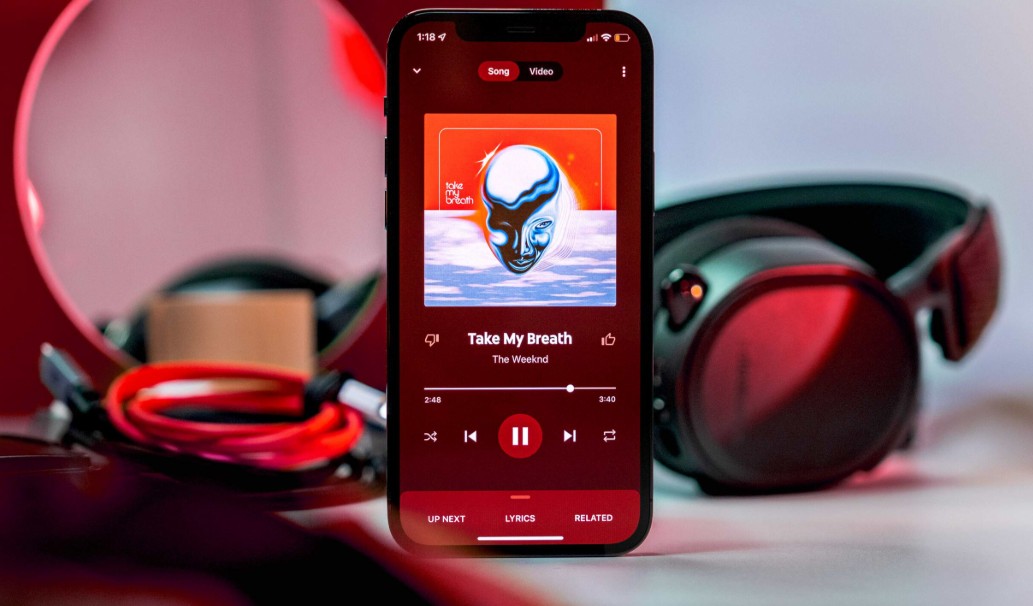
11. When should I turn off background playback?
Not all users need background playback running continuously. If YouTube is primarily used for watching visual content, you may not need videos to continue playing after you leave the app.
In that case, the "Off" option will help the app's behavior better align with your usage habits.
If you want to be able to watch videos and listen simultaneously when connected to headphones or external speakers, the Headphones or External Speakers option might be more suitable.
Conversely, if you frequently listen to music, podcasts, or audio content, Always On will provide the most convenient experience.
12. Things to note
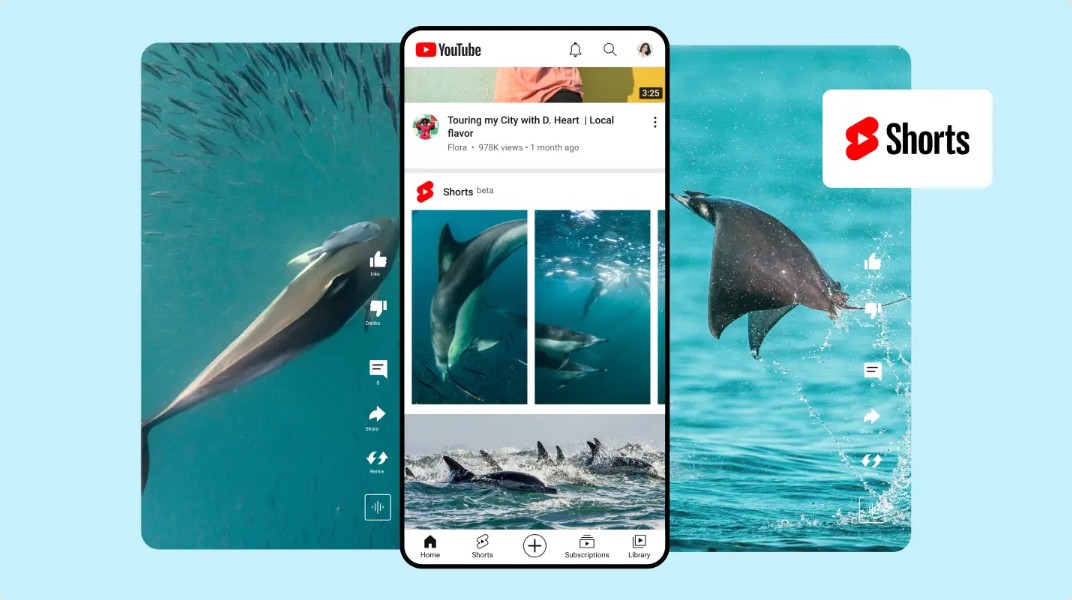
An important point to remember is that background playback doesn't work on the YouTube Shorts player . So, if you're watching Shorts, don't expect the content to continue playing in the background like regular videos.
Additionally, the background playback feature on mobile devices requires a YouTube Premium subscription. If your account doesn't have Premium or the app is using a different account, the feature may not be available.
YouTube, YouTube Music, and YouTube Kids also have varying availability depending on location. Therefore, if an app or feature isn't available, users should check support availability in their region.
13. How to choose the appropriate mode
The three options —Always On, Off, and Headphones or Speakerphone— meet three different usage needs.
If you frequently listen to content with the screen off or when switching to another app, select Always On . This is the default and most suitable option for continuous listening.
If you only want YouTube to play while the app is open, select Off . Videos will not continue playing in the background.
If you want to take advantage of the feature when using headphones or external speakers but don't want background playback in other situations, select Headphones or external speakers .
Thanks to these three options, users can adjust video playback behavior without changing other device settings.





















VIP Products








Best Selling Products
Adobe Premiere Pro Account
99 USD
Plugin Retouch4me
69 USD
Autodesk All App Account Copyright
120 USD
MidJourney Account
29 USD
Windows 10 & 11 Pro Key
36 USD
Genuine Cheap Canva Pro
39 USD
Genuine Adobe Illustrator account
99 USD
Upgrade genuine Capture One account
120 USD
Adobe Photoshop Copyright - Full App
120 USD
Upgrade Duolingo Super
29 USD
ChatGPT Plus Account (GPT-4)
16 USD
Freepik Premium Account
59 USD
Upgrade Genuine Office 365
49 USD
Capcut Pro 1 Year
39 USD
Copyright Adobe Lightroom Account
59 USD