Best Selling Products

Adobe Premiere Pro Account
99 USD

Adobe Photoshop Copyright - Full App
120 USD

Copyright Adobe Lightroom Account
59 USD

MidJourney Account
29 USD

Upgrade Genuine Office 365
49 USD

Freepik Premium Account
59 USD

Upgrade genuine Capture One account
120 USD

Upgrade Duolingo Super
29 USD

Windows 10 & 11 Pro Key
36 USD

Genuine Cheap Canva Pro
39 USD

Capcut Pro 1 Year
39 USD

Genuine Adobe Illustrator account
99 USD

Plugin Retouch4me
69 USD

Autodesk All App Account Copyright
120 USD

ChatGPT Plus Account (GPT-4)
16 USD
How to remove the background using Pixlr: A guide to using AI Background Removal.
Nội dung
- 1. What is Pixlr?
- 2. How to remove the background using Pixlr
- Method 1: Remove the background using Pixlr E Editor
- Method 2: Remove the background using the Background Removal tool.
- 3. Advantages and disadvantages of removing the background with Pixlr
- 3.1. Advantages
- 3.2. Disadvantages
- 4. When should you use Pixlr to remove the background?
This guide shows you how to use Pixlr to remove the background, allowing you to quickly separate the subject from your photos using AI technology without needing to install professional software.
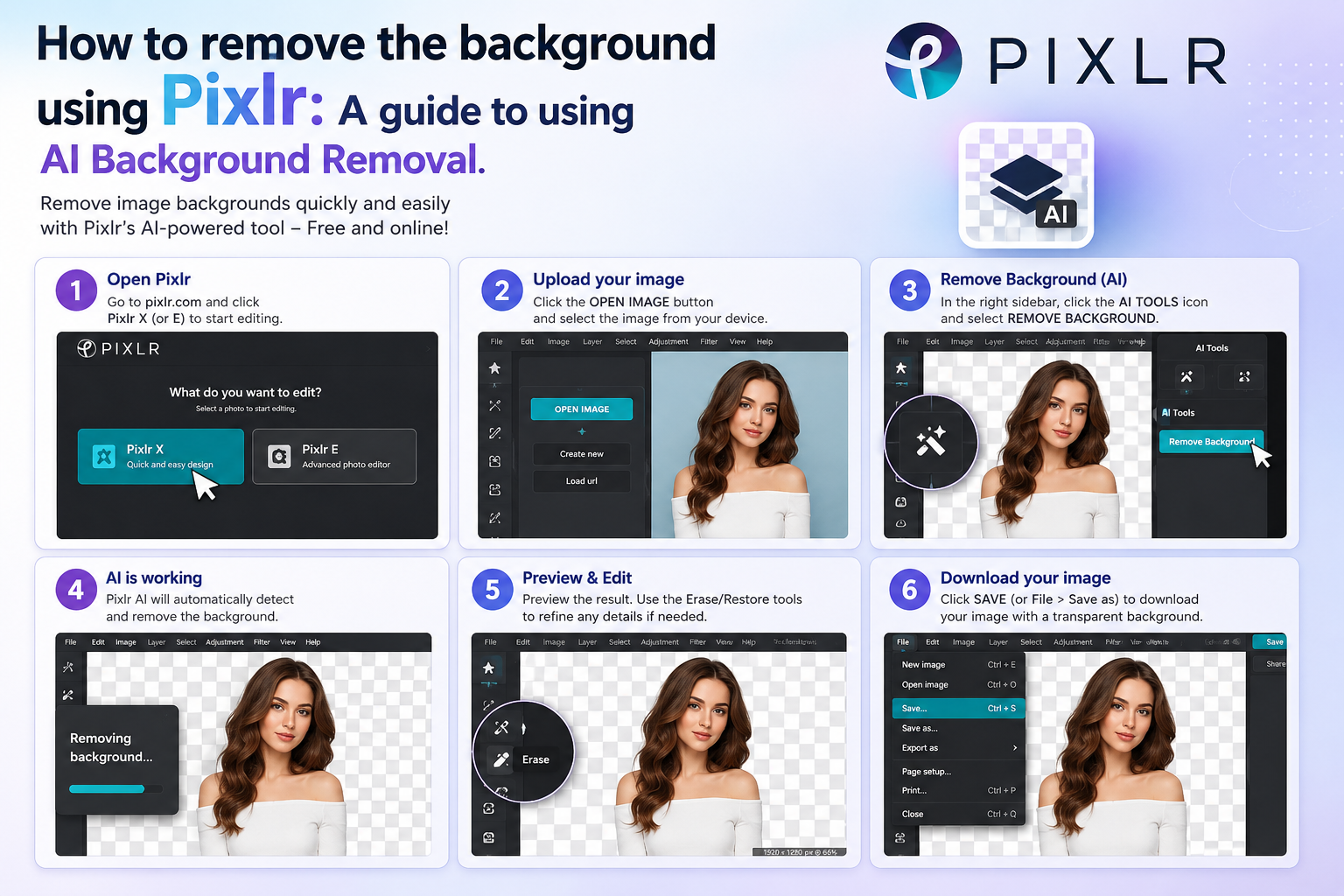
1. What is Pixlr?
Pixlr is an online photo editing platform designed to meet a wide range of needs, from basic to advanced. Instead of installing heavy software on their computers, users can access Pixlr through their browser and perform editing operations directly on the web platform.
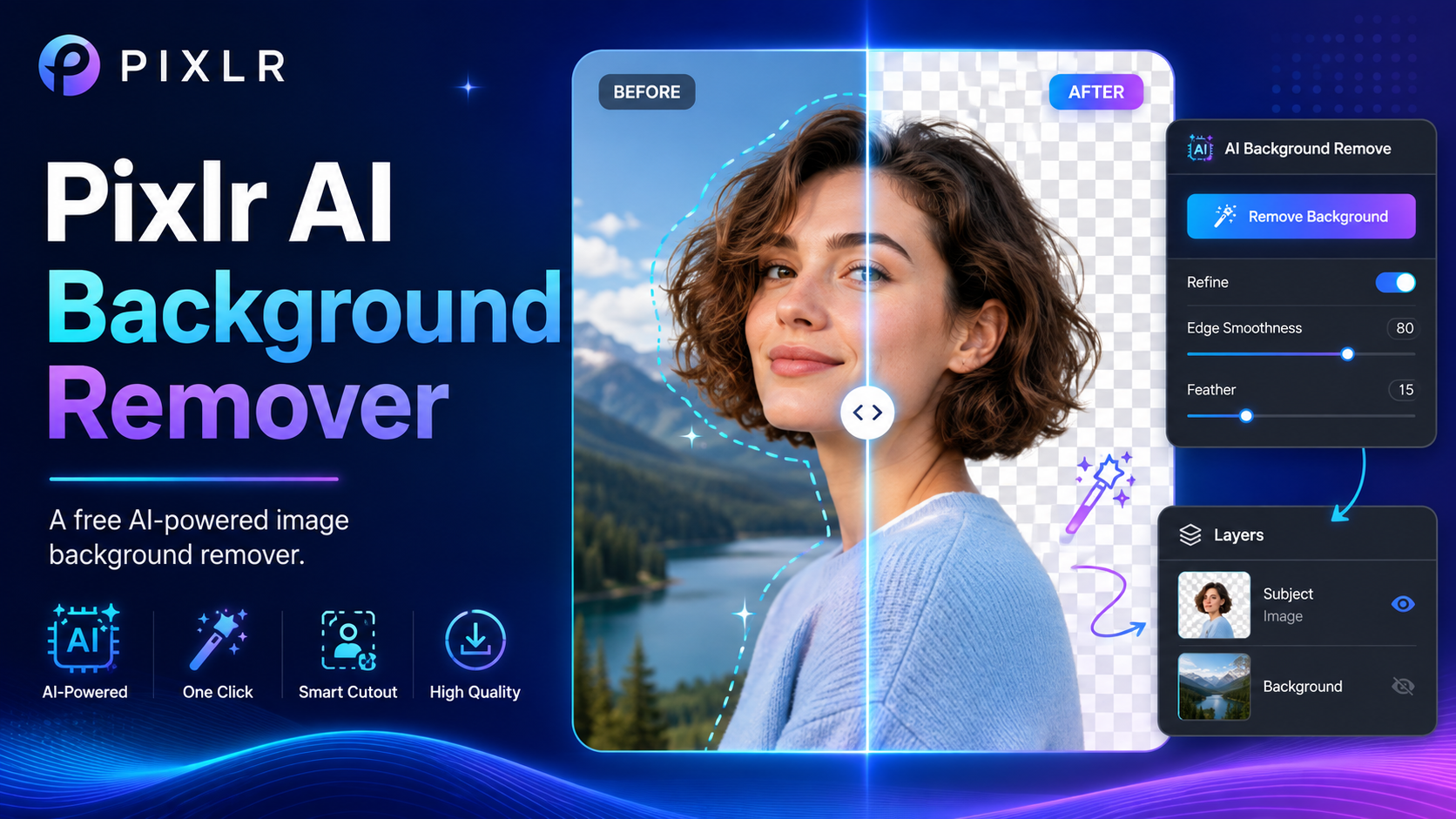
Pixlr offers a variety of tools for editing, designing, and processing images. Among them, the AI-powered background removal feature is one of the useful utilities for users who want to quickly separate the subject from the original image.
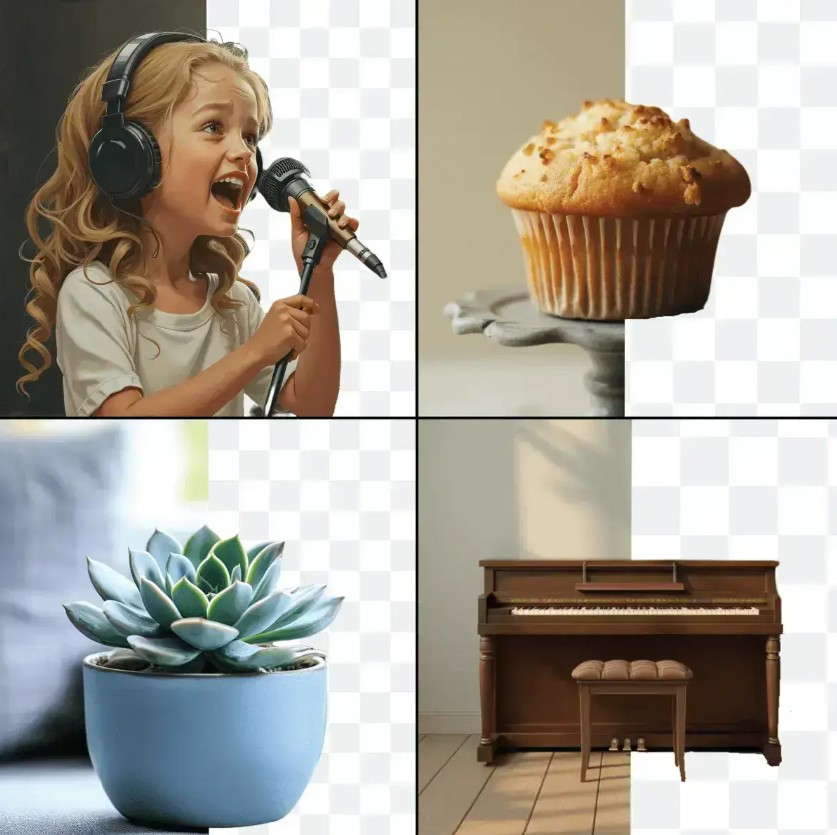
AI technology can analyze the content of a photo, identify the main subject, and remove the surrounding background. After the background is removed, users can keep the subject with a transparent background for continued use in other designs.
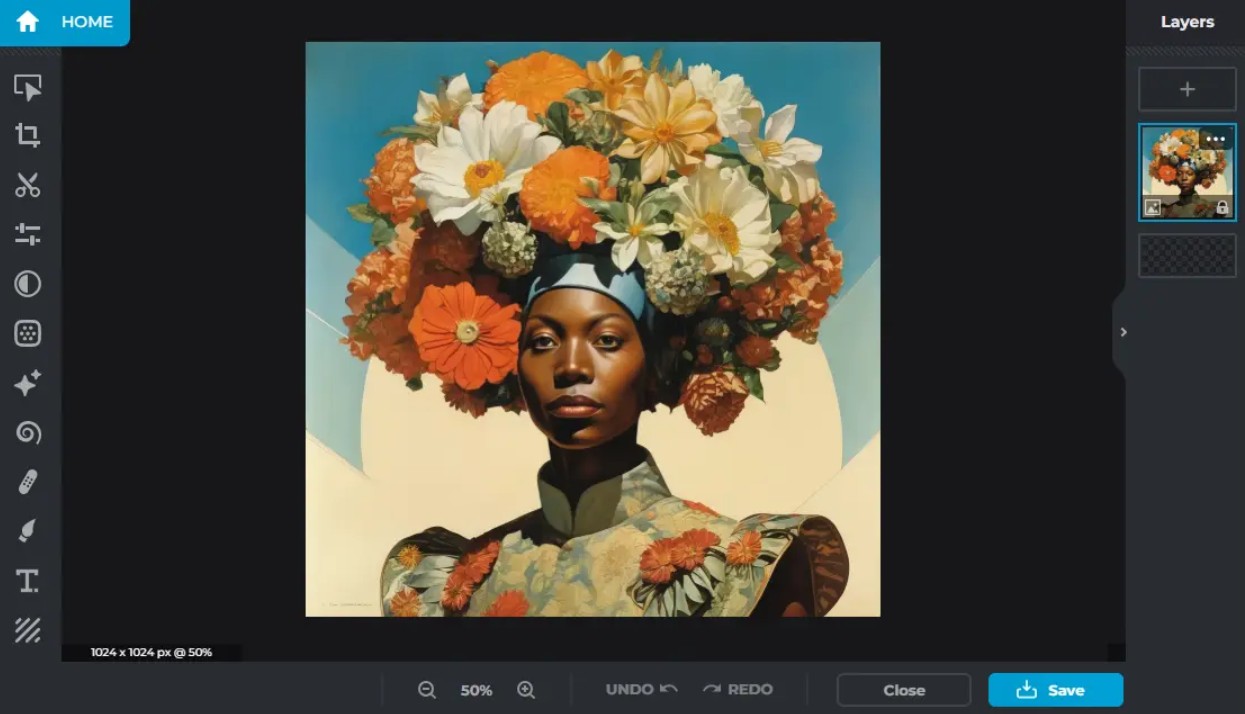
This feature is particularly useful when processing product images. For example, an online store can photograph a product against a plain background, then use Pixlr to separate the product and place it on a white background, a colored background, or a custom advertising design.
Besides product photos, background removal is also used to create avatars, stickers, profile pictures, social media posts, marketing banners, or graphic designs that require separating an object from the original image.
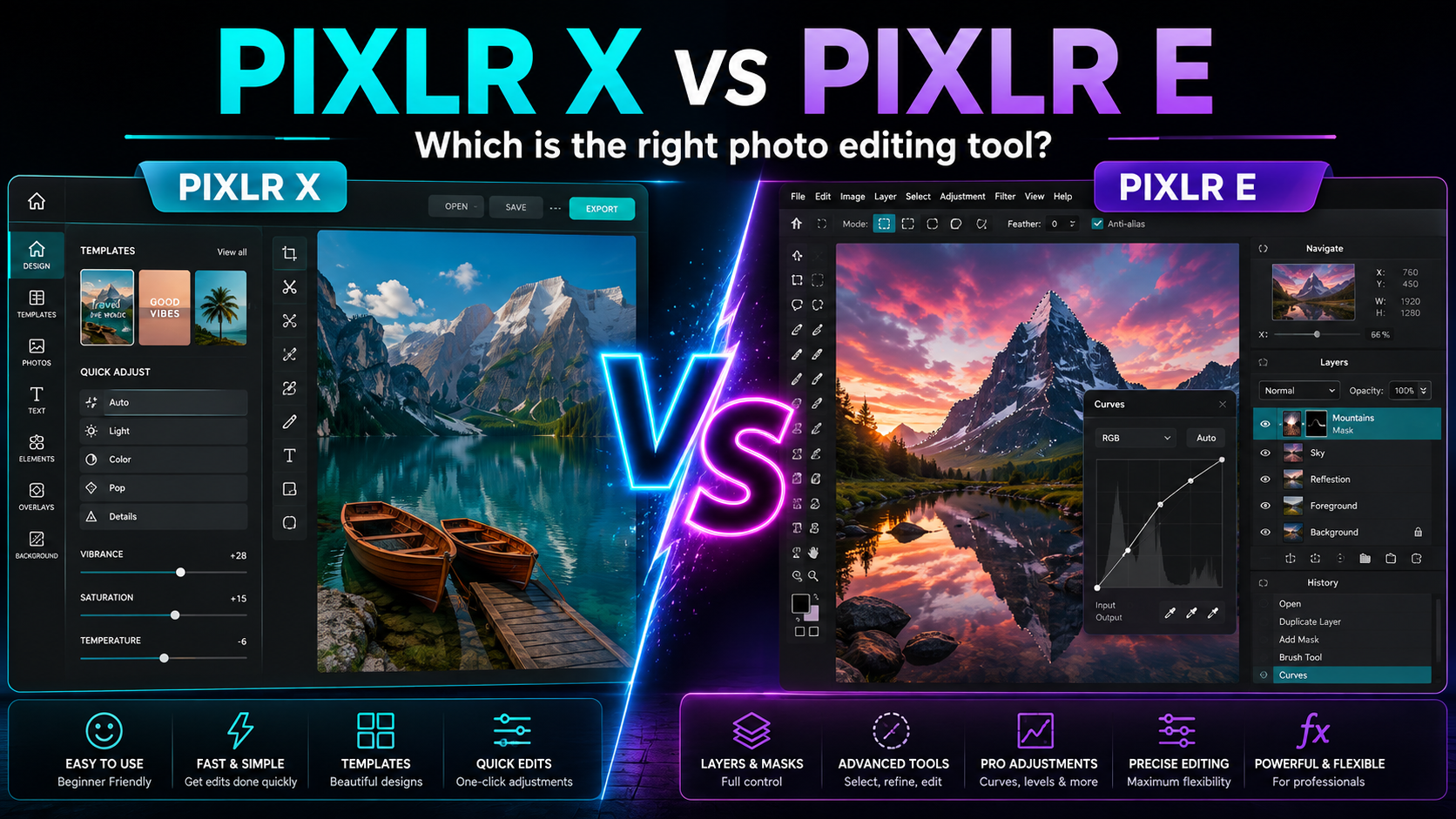
Pixlr offers two main ways to perform this operation. Users can use the Pixlr E editor if they want to remove the background while continuing to edit the image, or use the AI Background Removal tool if they only need to quickly remove the background.
2. How to remove the background using Pixlr
In practice, there are two common methods for removing backgrounds using Pixlr: using Pixlr E Editor and using a dedicated Background Removal tool.
Method 1: Remove the background using Pixlr E Editor
Pixlr E is suitable for those who want more control over the editing process. After removing the background using AI, users can fine-tune missing or accidentally removed areas using the Add and Subtract tools.
Step 1: Open Pixlr and upload your image.
First, go to Pixlr.com and select Pixlr E. Log in to your Pixlr account if prompted.
In the Pixlr E interface, click "Open AI Photo Editor" . Next, select "Open Image" to open the image you want to edit from your computer.
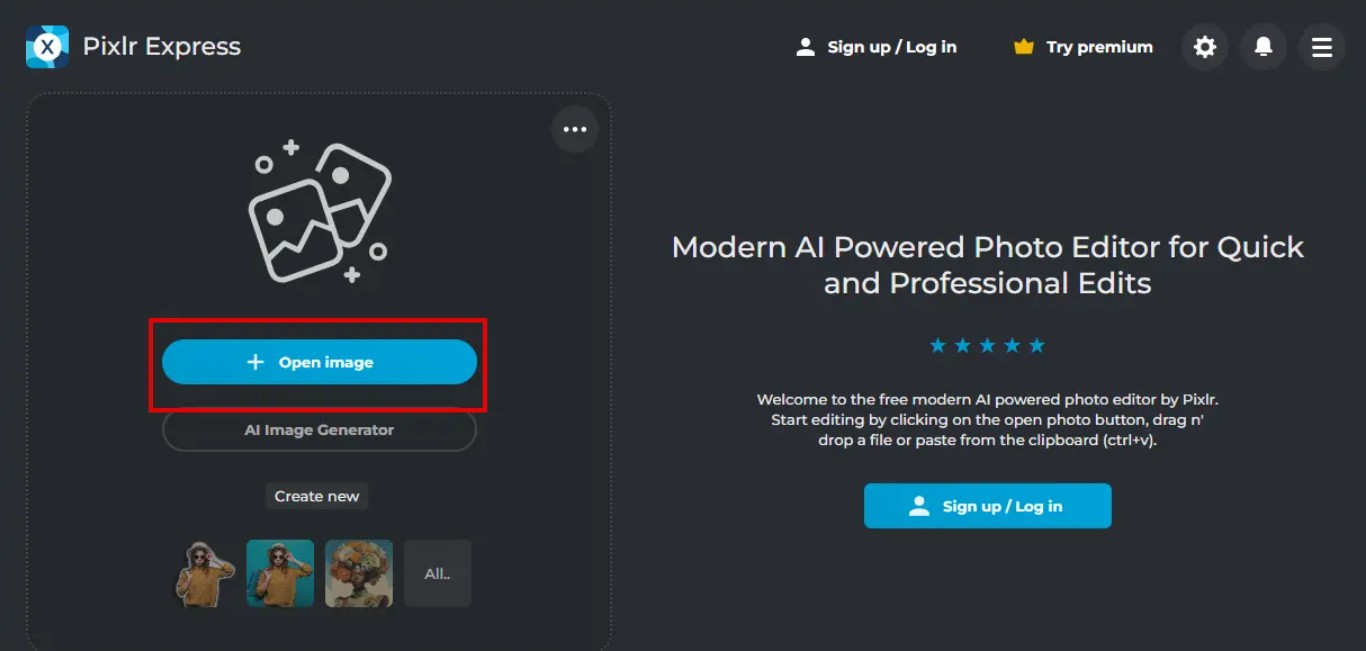
Choose a photo with a relatively clear subject. The quality and contrast between the subject and the background can also affect the AI's ability to recognize it.
After the image has been successfully uploaded, it will appear in the Pixlr E workspace, and you can begin the background removal process.
Step 2: Remove and refine the background.
In the tools panel on the left side of the interface, click "AI Tools" . In the list of tools that appears, select "Background Removal" .
Next, click "Background Removal" again and wait for the AI to analyze the image. Pixlr will automatically detect the subject and remove the surrounding background.
Depending on the complexity of the image, the processing may take a short amount of time. Once complete, the background will be separated from the subject.
However, AI results aren't always perfect. Small areas, complex outlines, or details with colors similar to the background may not be accurately identified.
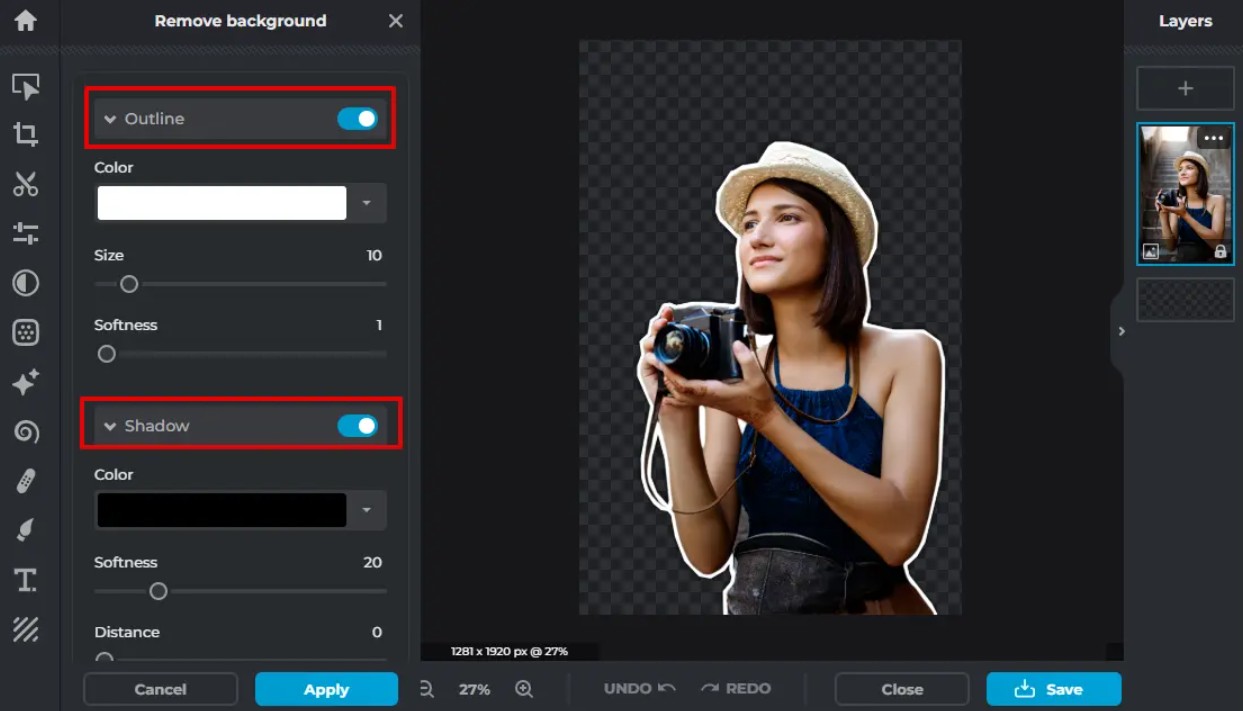
In that case, use the "Add" tool to restore the accidentally deleted subject areas. Conversely, use "Subtract" to continue removing any remaining background areas.
You should zoom in on the image when processing small edges for more precise manipulation. For photos of people, carefully check the hair, shoulders, hands, and small details surrounding the subject.
Pixlr also offers Outline or Shadow options . You can enable these effects if you want to create a border or shadow for the subject after background removal. These effects can help the subject stand out more when placed on a new background.
Step 3: Save the image
After completing the background removal and refinement process, preview the results to ensure there are no unwanted background elements remaining.
Click "Apply" to apply the changes. Pixlr will process and save the background removal results.
Next, click "Save" . If you want to keep the background transparent, choose the PNG format and then select "Save As" to save the image.
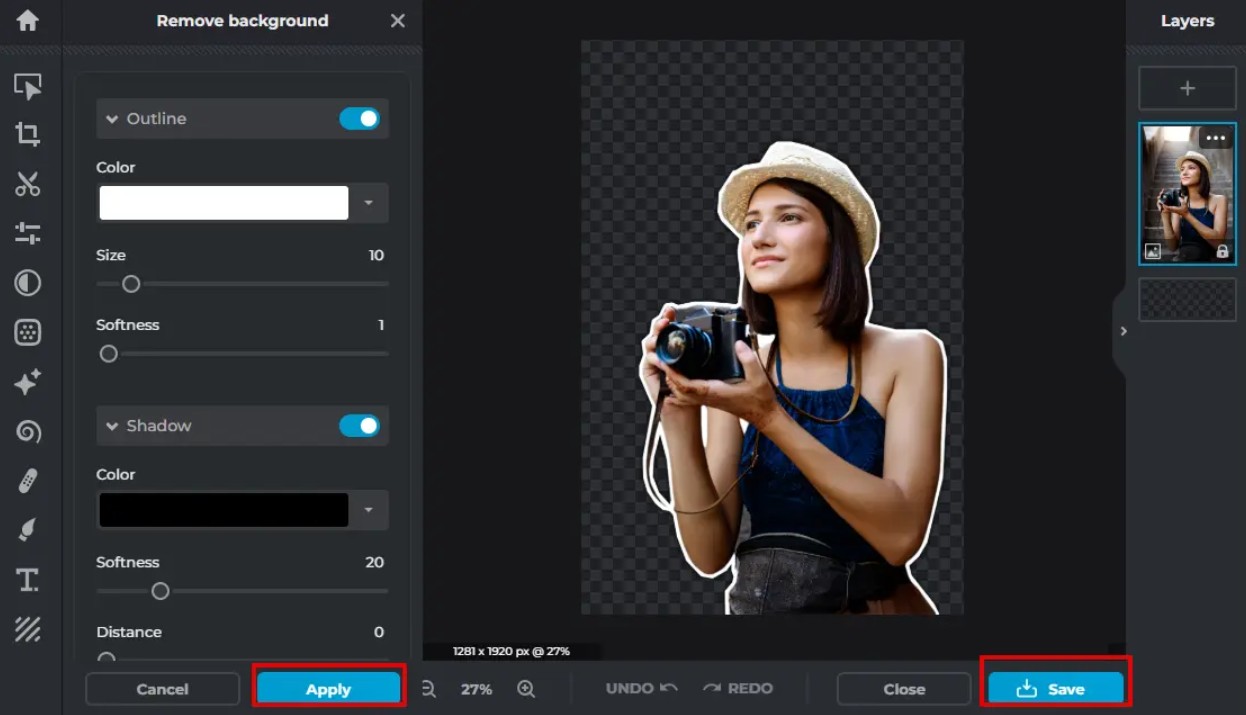
PNG is a suitable format when you need to use a separated subject against multiple different backgrounds. The transparent background will be preserved instead of turning white or a fixed color.
If a transparent background isn't needed, you can also choose the JPEG format and adjust the image quality settings to your requirements.
Method 2: Remove the background using the Background Removal tool.
If the main goal is simply to quickly remove the background without using the full editing system of Pixlr E, the AI Background Removal tool is a more convenient option.
Step 1: Download the image
Access Pixlr and register or log in to an account if needed. Then click on "AI Background Removal" .
Next, select "Select Image" to upload the image you want to remove the background from to Pixlr.
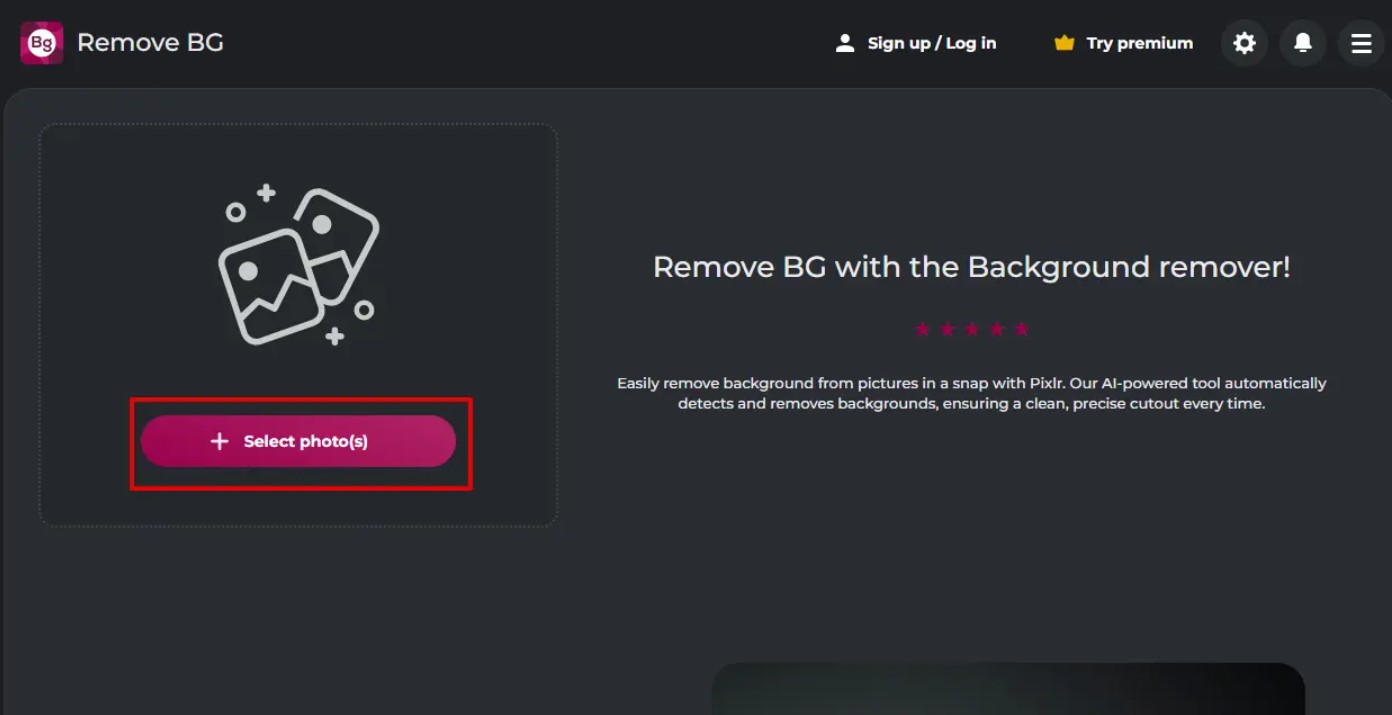
After the image is uploaded, the AI will automatically analyze the content and identify the subject. The background will be removed without the user having to manually create a selection.
This method is suitable when you need to quickly process one or more images for purposes such as designing stickers, avatars, or social media content.
Step 2: Refine the cutting area
In some cases, the automatic results may not be accurate. Pixlr allows users to edit the cropping area using the "Fine Tune" tool .
After selecting "Fine Tune," you can use the "Draw , " "Magic," or "Lasso" tools to correct minor errors during the background removal process.
The Draw tool is suitable when you want to manually mark areas to be restored or removed. Magic can support quick processing of areas with similar characteristics, while Lasso allows for more detailed selection to control the area to be edited.
Carefully check the edges of the subject before applying any changes. Once you have finished editing, click "Apply" .
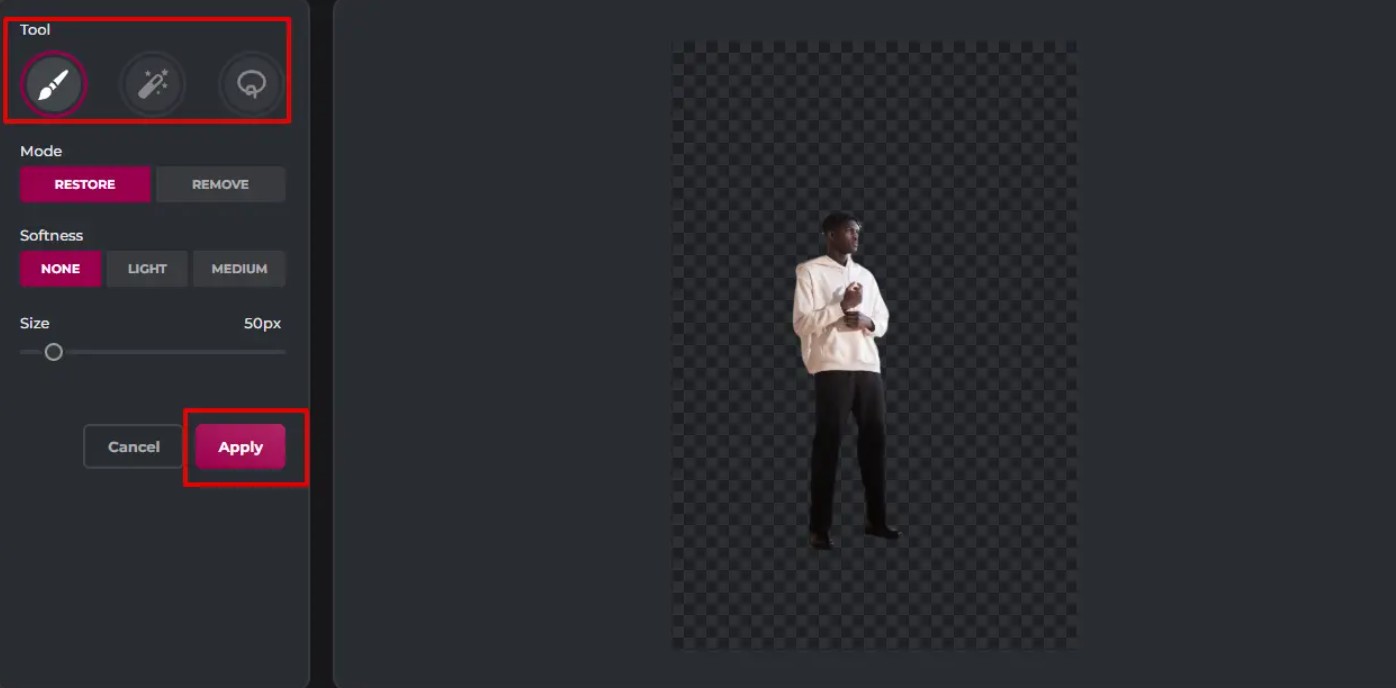
This refinement step is especially important for images with many fine details. If skipped, any missing background elements or details of the subject can be easily noticeable when incorporating the image into a new design.
Step 3: Upload images
Once completed, Pixlr allows you to choose a suitable background for the image. You can select a transparent , black , or white background depending on your purpose.
If you want to export multiple images at once, click "Save All Zip" to download all images as a ZIP file.
If you only want to save a single image, move your mouse cursor over the edited image and click "Save" to download it.
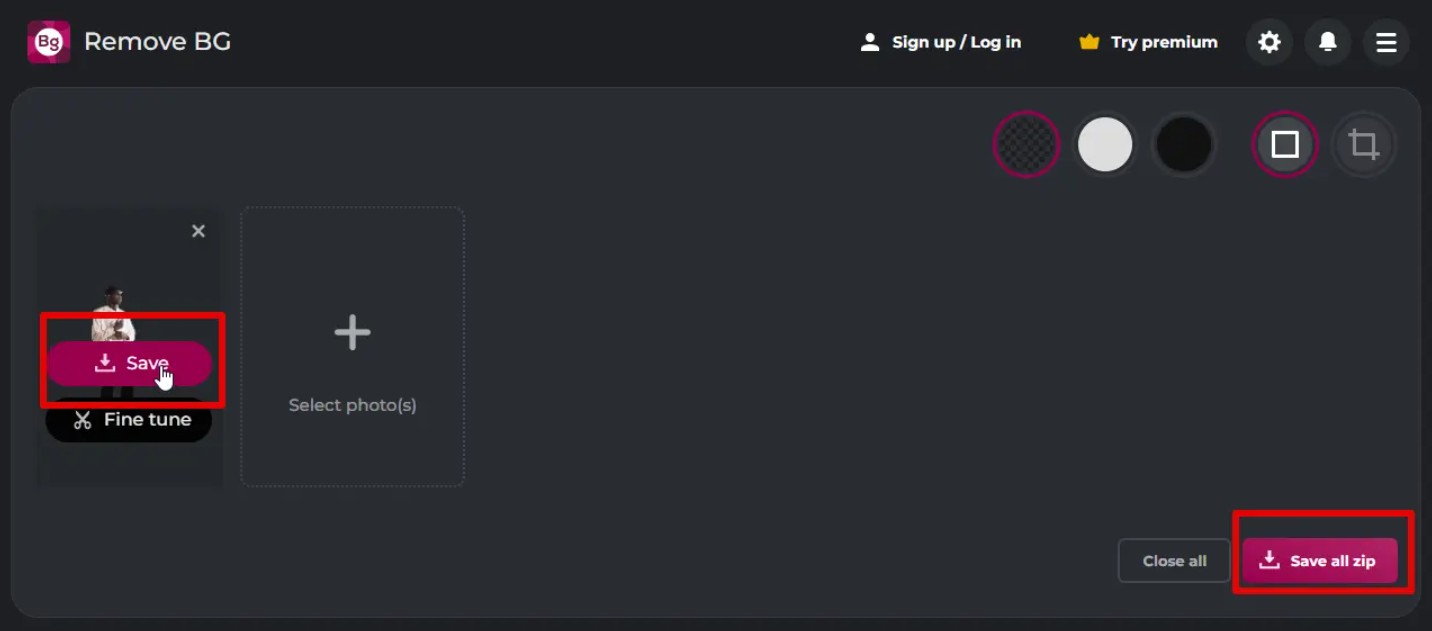
Images with the background removed can be used to create stickers, avatars, social media posts, product images, or marketing materials.
3. Advantages and disadvantages of removing the background with Pixlr
Pixlr has a major advantage in its ability to combine AI with an online editing interface. For beginners, the background removal process doesn't require extensive Photoshop knowledge or complex selection techniques.
3.1. Advantages
The first notable feature is its relatively simple interface. Beginners can quickly familiarize themselves with the tools and perform background removal operations without needing a lengthy learning process.
Pixlr also uses AI to automatically recognize subjects and remove backgrounds. With images that have a clear composition, the results can usually adequately meet basic and semi-detail editing needs.
Another advantage is that Pixlr works online. Users don't need to install complex photo editing software on their computers. With just a browser and an internet connection, you can access the tool and start processing images.
Pixlr also offers a free basic background removal feature, allowing users to experiment with the tool before deciding to use it regularly.
Notably, images with the free plan that remove the background do not have watermarks added to the results. This is an advantage for those who need to quickly process images for personal projects or online content.
3.2. Disadvantages
Despite its advantages, Pixlr still has some limitations. In complex images, the AI may not be completely accurate, and users need to use Add or Subtract to manually fine-tune the image.
Small details such as hair, fabric fibers, fine outlines, or intricate designs can also make automatic background removal difficult. Therefore, processed images should still be carefully checked before use.
Another limitation lies in the image quality or resolution when using the free version. This can become an issue if you need high-resolution images for professional projects, printing, or designs that require strict output quality.
4. When should you use Pixlr to remove the background?
Pixlr is best suited for users who need a fast, accessible tool and don't want to install professional software. For simple product photos, portraits, avatars, stickers, or social media content, the AI Background Removal feature can significantly save time.
If you need to both remove the background and edit the image, Pixlr E is a better choice thanks to its integrated editing tools. Meanwhile, if you only need to quickly remove the background, the AI Background Removal tool is a simpler option.
However, for projects requiring intensive processing such as extremely detailed hair separation, images with many overlapping objects, or professional designs demanding pixel-by-pixel control, users may need more professional photo editing software.
Pixlr simplifies the process of removing image backgrounds thanks to its AI technology and accessible online interface. Users can choose Pixlr E Editor to both remove backgrounds and fine-tune images, or use AI Background Removal to quickly separate the subject from the background.





















VIP Products








Best Selling Products
Adobe Premiere Pro Account
99 USD
Adobe Photoshop Copyright - Full App
120 USD
Copyright Adobe Lightroom Account
59 USD
MidJourney Account
29 USD
Upgrade Genuine Office 365
49 USD
Freepik Premium Account
59 USD
Upgrade genuine Capture One account
120 USD
Upgrade Duolingo Super
29 USD
Windows 10 & 11 Pro Key
36 USD
Genuine Cheap Canva Pro
39 USD
Capcut Pro 1 Year
39 USD
Genuine Adobe Illustrator account
99 USD
Plugin Retouch4me
69 USD
Autodesk All App Account Copyright
120 USD
ChatGPT Plus Account (GPT-4)
16 USD