Best Selling Products

Copyright Adobe Lightroom Account
59 USD

Plugin Retouch4me
69 USD

Freepik Premium Account
59 USD

Upgrade Duolingo Super
29 USD

Adobe Premiere Pro Account
99 USD

Upgrade Genuine Office 365
49 USD

ChatGPT Plus Account (GPT-4)
16 USD

Upgrade genuine Capture One account
120 USD

Genuine Adobe Illustrator account
99 USD

Genuine Cheap Canva Pro
39 USD

Adobe Photoshop Copyright - Full App
120 USD

Autodesk All App Account Copyright
120 USD

Windows 10 & 11 Pro Key
36 USD

Capcut Pro 1 Year
39 USD

MidJourney Account
29 USD
Pixlr AI Background Remover: A free AI-powered image background remover.
Nội dung
- 1. What is Pixlr's AI Background Remover?
- 2. How to remove the background using Pixlr AI
- Step 1: Open the Remove Background tool.
- Step 2: Upload the image
- Step 3: Choose a background and adjust the size.
- Step 4: Refine the results
- Step 5: Save the image
- 3. Other uses of Pixlr's AI Background Remover
- 3.1. Remove the background in seconds.
- 3.2. Multiple background options
- 3.3. Precision Adjustment Tools
- 3.4. Flexible result customization
- 3.5. Bulk Background Removal
- 3.6. Remove the background on mobile devices
- 3.7. Supports multiple output formats
- 4. Applications with transparent background PNGs
- 4.1. Creating a watermark
- 4.2. Designing UI Components
- 4.3. Improve product image quality
- 4.4. Creating resources for animation
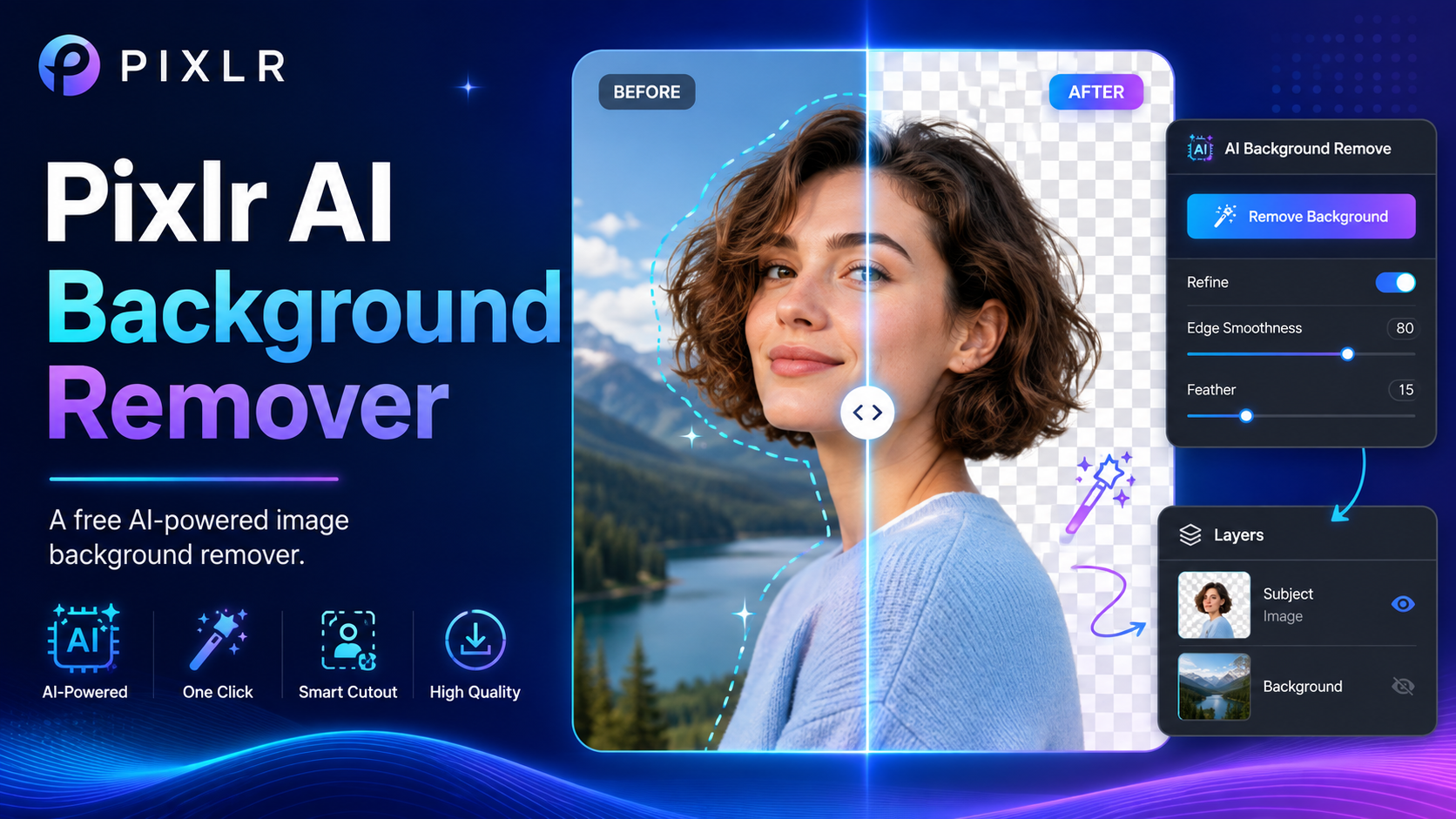
Pixlr AI Background Remover is an online AI-powered background removal tool that quickly separates the subject from a photo without the need for professional software.
1. What is Pixlr's AI Background Remover?
Pixlr's AI Background Remover is a free online image background removal tool powered by artificial intelligence. The tool can automatically identify the subject in an image, separate the subject from the background, and create an image with a transparent background.
Instead of having to use selection tools or manually use brushes to erase individual areas, users simply upload the image. The AI will analyze the image, identify the main subject, and automatically remove the background.
The result can be saved as a PNG with a transparent background. This is a very useful format when you want to incorporate the subject into another design without being limited by the original background.

Pixlr doesn't just stop at automatically removing backgrounds. If the AI mishandles certain small areas, users can utilize the built-in editing tools.
Draw allows you to paint over the area to be restored or erased. Magic supports quick processing with just one click, while Lasso allows you to select specific areas to control the editing process.
Thanks to its combination of AI and manual editing tools, Pixlr is suitable for both quick image processing needs and situations requiring more detailed adjustments.
2. How to remove the background using Pixlr AI
The process of removing the background using Pixlr is designed to be relatively simple. Users can perform the entire process online without needing to install complex photo editing software.
Step 1: Open the Remove Background tool.
Access the Pixlr website and open the "Remove BG" tool .
This is a dedicated area for AI-powered background removal. The interface focuses on the image loading, background processing, and result output, so even beginners can quickly get used to it.
Step 2: Upload the image
Next, upload one or more images to the tool. Pixlr allows you to select images from your device to begin the processing.
After the image is uploaded, the AI will automatically analyze the image and remove the background. You don't need to create a selection beforehand.
If you need to process a large number of images, you can upload multiple images at once to take advantage of Pixlr's batch processing capabilities.

Step 3: Choose a background and adjust the size.
After the AI finishes removing the background, you can choose a suitable background style.
Choose a transparent background if you want to keep the subject and use it in other designs. You can also switch to a white or black background if you want to create a complete image immediately after removing the background.
Pixlr also offers an Auto Crop feature to adjust image size. This tool helps to better align the subject within the frame, which is especially useful when preparing product photos or content for online platforms.
Step 4: Refine the results
If the background removal result isn't entirely accurate, click "Fine Tune" .
Here, you can use the Draw Tool , Magic Tool , or Lasso Tool to correct areas that the AI has processed incorrectly.
With the Draw Tool , you can choose between "Restore" or "Remove" modes . Restore mode helps recover accidentally deleted parts of the subject, while Remove continues to remove any remaining background elements.
You can adjust the brush size before you begin. For large areas, using a larger brush size allows for faster application. For smaller contours, a smaller brush size provides better control.
The Magic Tool is ideal for quick edits. With just one click, you can remove or restore an area. The tool also has a Tolerance setting , allowing you to adjust the range of colors or tones that the AI will affect.
If you need more precise control, use the Lasso Tool to select the area you want to edit. The AI will then automatically adjust the selected area.
Step 5: Save the image
After you have finished editing, click "Save" to save the image.
You can save each image individually as a PNG . This is a suitable option when you want to keep the background transparent.
If you've processed multiple images at once, click "Save all zip" to download all the edited images as a ZIP file.
3. Other uses of Pixlr's AI Background Remover
Pixlr's AI Background Remover doesn't just serve the basic need of background removal. The tool also has many features that allow for more flexible image processing.
3.1. Remove the background in seconds.
Manually removing backgrounds can be very time-consuming, especially when dealing with a large number of images.
Pixlr solves this problem with AI. Simply upload an image, and the system will automatically detect the subject, remove the background, and create a background-separated result in a short time.

This is especially useful for designers, marketing staff, or e-commerce salespeople. Tasks that previously required a lot of manual work can now be done much faster.
3.2. Multiple background options
After the background is removed, Pixlr allows users to customize the result to their needs.
Transparent backgrounds are suitable for graphic design and projects that require overlaying images onto another background. White backgrounds create a clean, minimalist feel and are often used for product photos. Meanwhile, black backgrounds can create strong contrast and help the subject stand out.

The Auto Crop feature also helps adjust the image size so that the subject is centered and has a better composition.
3.3. Precision Adjustment Tools
Not all images can be perfectly processed by AI. Details such as hair, small objects, or complex outlines may require further editing.
Pixlr offers a Draw Tool with two modes , Restore and Remove , allowing users to restore or resume the deletion of specific areas.
The Magic Tool supports quick, one-click editing and allows you to adjust Tolerance to control the color range.

Meanwhile, the Lasso Tool is suitable for areas requiring specific targeting. The combination of the three tools allows users to control the results after the AI processes the data.
3.4. Flexible result customization
Pixlr offers many options to control the final result. One of them is Softness Adjustment , which helps to soften the edges between the subject and the background.

Users can choose the softness level, including none , light , or medium, depending on the image and intended use.
Additionally, you can switch between Restore Mode and Remove Mode to recover accidentally deleted sections or clean up any remaining background data.
Brush Size and Tolerance Sliders also allow for adjustment of tool size and sensitivity during processing, giving users more control over individual details.
3.5. Bulk Background Removal
For online sellers, photographers, or businesses with large photo libraries, editing each individual image can be extremely time-consuming.

Pixlr supports batch processing using AI. Users can upload more than 100 images at once , then let the system automatically process them in the background.
This feature is especially useful when you need to standardize product images for an e-commerce store. Instead of having to open and edit each image individually, you can process multiple images at once.
3.6. Remove the background on mobile devices
Pixlr also offers high flexibility thanks to its Remove BG mobile app . Users can upload photos directly from their mobile devices and perform the background removal process using AI.

This feature is useful when you need to prepare images directly on your phone, such as creating images for presentations, slideshows, webinars, or stickers for messaging apps like WhatsApp and Telegram.
After processing, the image can be saved as a PNG or shared directly from the device.
3.7. Supports multiple output formats
Pixlr makes saving and sharing photos relatively convenient. Users can upload individual images as PNGs to maintain quality and transparent backgrounds.

If you're working with multiple images, the "Save all zip" option packages all the results into a single ZIP file.
As a result, the processed images can be quickly incorporated into websites, printed documents, or other editing software.
4. Applications with transparent background PNGs
One of the biggest benefits of removing the background is the creation of transparent PNG files. These images can be used in a wide variety of different design projects.
4.1. Creating a watermark
You can use Pixlr to extract a logo or text from the background and save it as a transparent PNG.

The image can then be placed on photos, videos, or documents without a fixed background. The transparent watermark helps with brand recognition while maintaining a professional look for the content.
4.2. Designing UI Components
Icons, buttons, or graphic elements can also be processed using AI Background Remover.
After removing the background and saving them as transparent PNGs, these elements can be incorporated into websites, applications, or software interfaces.
Transparent backgrounds help graphic resources blend seamlessly with the overall layout instead of creating unwanted background areas.

4.3. Improve product image quality
Product photos are one of the most common use cases for the background removal tool.
Sellers can remove distracting backgrounds and then use a transparent, white, or black background depending on the store's requirements.
Combined with Auto Crop , products can be properly aligned and framed before being uploaded to catalogs, websites, or e-commerce platforms.

4.4. Creating resources for animation
Images with transparent backgrounds are also very useful in motion design.
You can extract a character, object, or feature from an image and save it as a PNG. This resource can then be used in motion graphics, video overlays, or animation projects.

Separating the subject beforehand makes the process of combining multiple image layers easier and facilitates the creation of creative motion effects.
If you need a fast, easy-to-use, AI-powered online background remover, Pixlr's AI Background Remover is a worthwhile option for both personal and professional creative needs.





















VIP Products








Best Selling Products
Copyright Adobe Lightroom Account
59 USD
Plugin Retouch4me
69 USD
Freepik Premium Account
59 USD
Upgrade Duolingo Super
29 USD
Adobe Premiere Pro Account
99 USD
Upgrade Genuine Office 365
49 USD
ChatGPT Plus Account (GPT-4)
16 USD
Upgrade genuine Capture One account
120 USD
Genuine Adobe Illustrator account
99 USD
Genuine Cheap Canva Pro
39 USD
Adobe Photoshop Copyright - Full App
120 USD
Autodesk All App Account Copyright
120 USD
Windows 10 & 11 Pro Key
36 USD
Capcut Pro 1 Year
39 USD
MidJourney Account
29 USD