Best Selling Products

Adobe Premiere Pro Account
99 USD

Plugin Retouch4me
69 USD

Adobe Photoshop Copyright - Full App
120 USD

Copyright Adobe Lightroom Account
59 USD

Upgrade Genuine Office 365
49 USD

Capcut Pro 1 Year
39 USD

ChatGPT Plus Account (GPT-4)
16 USD

Genuine Adobe Illustrator account
99 USD

Windows 10 & 11 Pro Key
36 USD

Upgrade genuine Capture One account
120 USD

MidJourney Account
29 USD

Upgrade Duolingo Super
29 USD

Freepik Premium Account
59 USD

Genuine Cheap Canva Pro
39 USD

Autodesk All App Account Copyright
120 USD
A beginner''s guide to editing free templates on CapCut from A to Z.
Nội dung
- 1. Free template editing feature on CapCut
- 1.1. Edit videos quickly with AI technology.
- 1.2. Diverse free template library
- 1.3. Flexible editing across multiple devices
- 1.4. Teamwork is easy.
- 2. Benefits of editing videos using free templates on CapCut
- 3. Situations where you should use the CapCut template
- 4. Instructions for editing templates for free on CapCut
- Step 1: Start the project with a template.
- Step 2: Edit the template to your liking.
- Step 3: Export and share the video
- 5. Tips to make your CapCut template look more beautiful and professional.
- 6. Conclusion
CapCut offers a diverse library of free templates along with many intelligent AI tools to help you create professional videos in just minutes.
1. Free template editing feature on CapCut
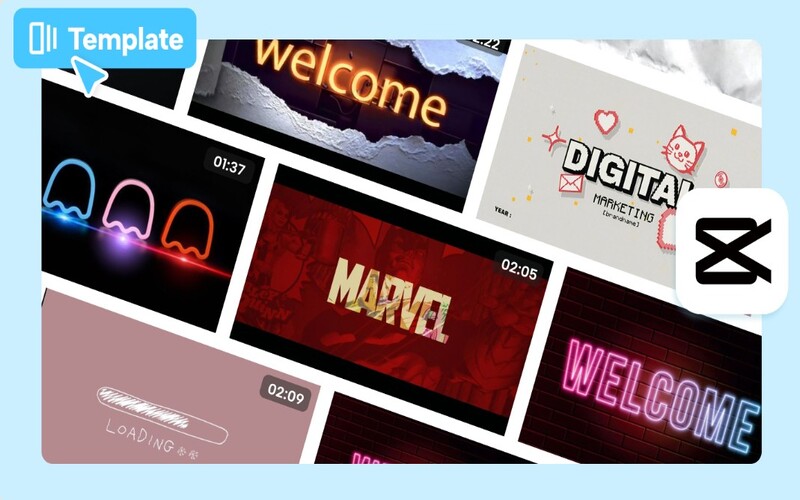
CapCut offers a rich system of templates for various needs such as advertising videos, sales videos, vlogs, travel videos, birthday videos, fashion videos, educational videos, or entertainment content on social media. Instead of having to create videos from scratch, users simply choose a suitable template and replace the content with their own images or videos.
The highlight of CapCut's template editor is its ability to combine pre-built templates with advanced AI technology. The system can automatically recognize video elements, arrange clips according to the template layout, and quickly synchronize effects. This allows even beginners to create professional-quality videos without needing editing experience.
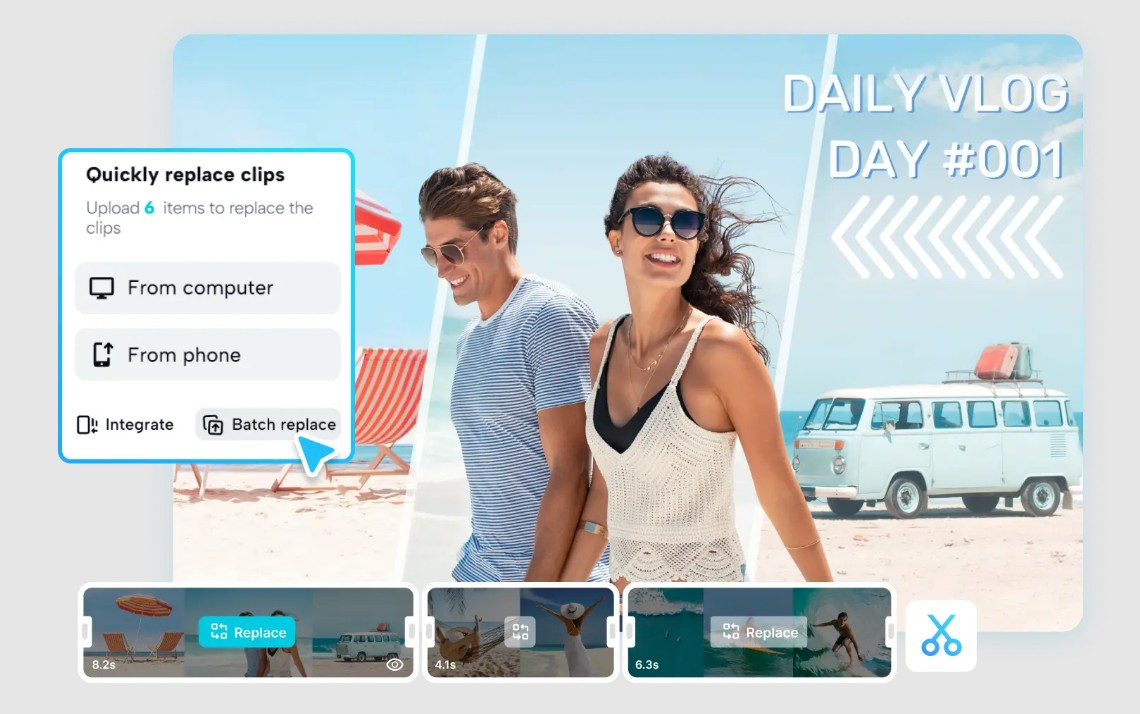
CapCut's template library is constantly updated to reflect the latest trends on TikTok, Instagram, and YouTube Shorts. This ensures users always have the opportunity to create trending videos with popular transition effects, typography, color filters, and background music.
CapCut not only supports video replacement, but also allows editing almost all content within the template. Users can change text, fonts, colors, scene duration, trim and merge videos, change background music, adjust volume, or add effects to create a personal touch.
For those who frequently produce content, this is a tool that significantly shortens post-production time while still ensuring creativity.
1.1. Edit videos quickly with AI technology.
One of CapCut's strengths is its integration of a range of AI tools that support automatic video editing.
Users can utilize AI to identify subjects in videos, remove backgrounds without a green screen, stabilize shaky videos, create slow motion, enhance facial features, automatically generate subtitles, and convert text to speech or speech to text.
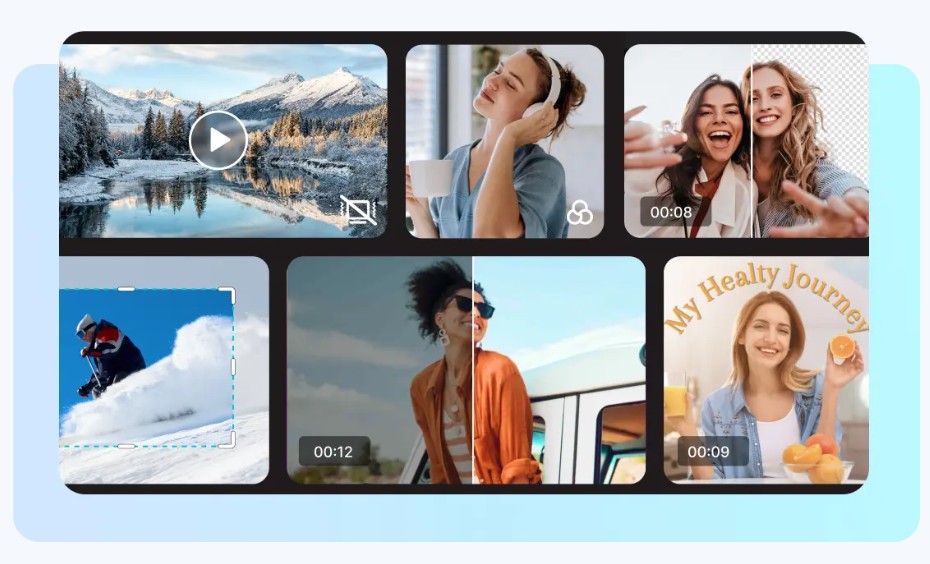
These features work directly during the template editing process, saving users a significant amount of time compared to manual processing.
1.2. Diverse free template library
CapCut offers thousands of free video templates categorized by specific topics.
Users can easily find templates for:
-
Video TikTok.
-
Instagram Reels.
-
YouTube Shorts.
-
Video advertisement.
-
Sales video.
-
Introducing the product.
-
Event video.
-
Birthday video.
-
Tourism.
-
Fashion.
-
Education.
-
Podcast.
-
Personal vlog.
Each template is designed with a professional layout, beautiful transition effects, and appropriate sound. Simply replace the content and you'll have a complete video.
1.3. Flexible editing across multiple devices
CapCut supports editing on web browsers, computers, and mobile phones. Projects are hosted on a cloud platform, so users can continue editing on any device without having to copy the data.
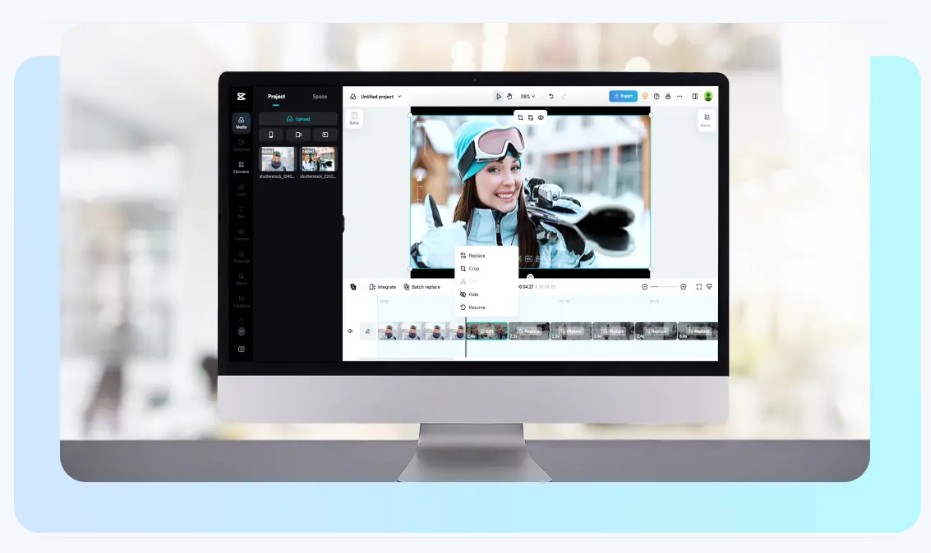
This is especially helpful for content creators who frequently work on multiple devices.
1.4. Teamwork is easy.
In addition to individual editing, CapCut also supports Teamspace, allowing multiple team members to collaborate on a project.

All videos are stored in the cloud, allowing team members to easily view, edit, or provide feedback without having to send files across multiple platforms. This feature is ideal for businesses, marketing teams, agencies, or content production groups.
2. Benefits of editing videos using free templates on CapCut
Using pre-made templates offers many advantages, especially for beginners or those who need to create videos quickly.
First of all, the extensive template library makes it easy to find a design suitable for various purposes such as sales, advertising, education, events, or personal videos. With just a few steps to replace the content, you can create videos with beautiful layouts and professional effects.
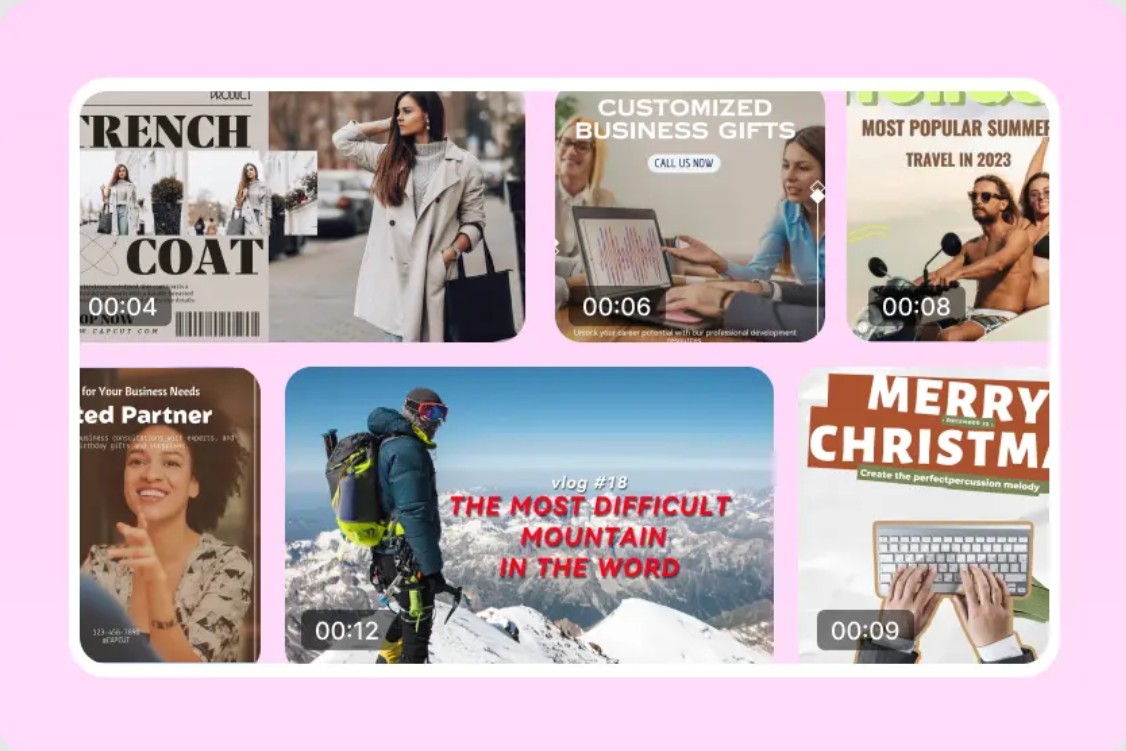
Using templates also saves a significant amount of editing time. Instead of designing effects, adjusting transitions, or synchronizing audio yourself, CapCut has everything pre-set. You just need to focus on the content and personalize the video in your own style.

Additionally, CapCut supports creating video thumbnails, allowing users to easily design eye-catching thumbnails to increase click-through rates on YouTube or other social media platforms.

3. Situations where you should use the CapCut template
CapCut's templates are suitable for a wide variety of content creation needs.
For content creators on TikTok, Facebook, or Instagram, templates help them quickly keep up with trends without spending a lot of time creating videos. The templates are regularly updated to reflect new trends, making videos more engaging and professional.

In the business and marketing field, templates are an effective solution for creating promotional videos, product introductions, promotional announcements, or building brand identity. Businesses can maintain a consistent design style while saving on production costs.

In addition, CapCut is also a suitable tool for personal projects such as travel videos, birthday videos, wedding videos, family anniversaries, or life diaries. By simply replacing images and editing a few details, you can create impressive videos to preserve memories.

4. Instructions for editing templates for free on CapCut
Step 1: Start the project with a template.
Log in to your CapCut account to use cloud storage and synchronize projects across devices.
On the main interface, access the Templates section and search for a video template that suits the topic you want to create. CapCut offers many categories such as business, marketing, education, travel, vlog, birthday, or social media videos.
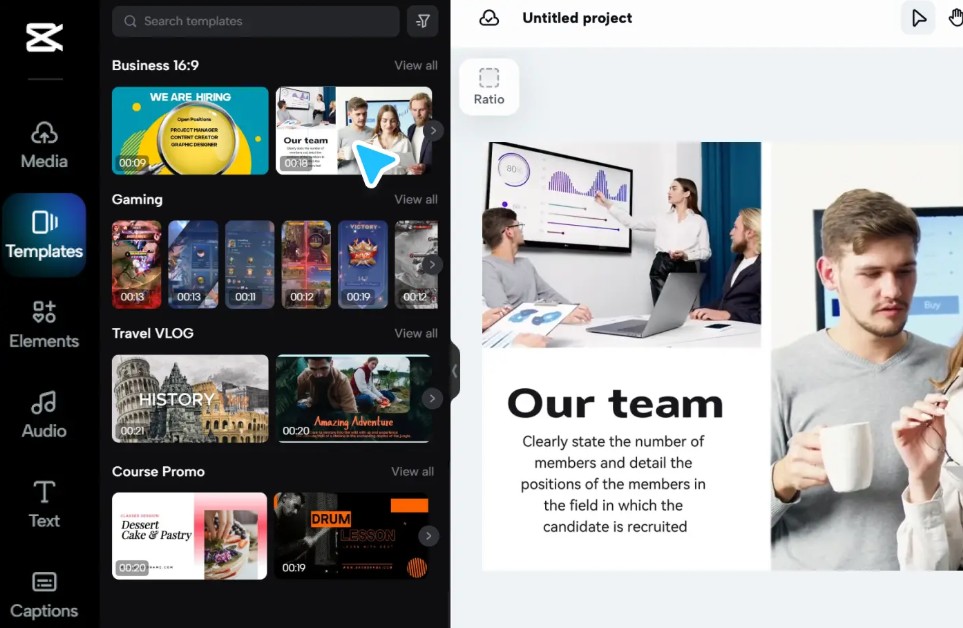
After selecting a template, click Use Template to begin editing. Replace the sample images or videos with your content following the on-screen instructions.
Step 2: Edit the template to your liking.
After adding the content, you can customize the entire template to your needs.
CapCut allows you to cut, merge, and replace multiple clips at once, adjust the aspect ratio, change text, font, color, background music, and transition effects. If needed, you can also mute the original audio, add voiceovers, or insert new music from the free library.
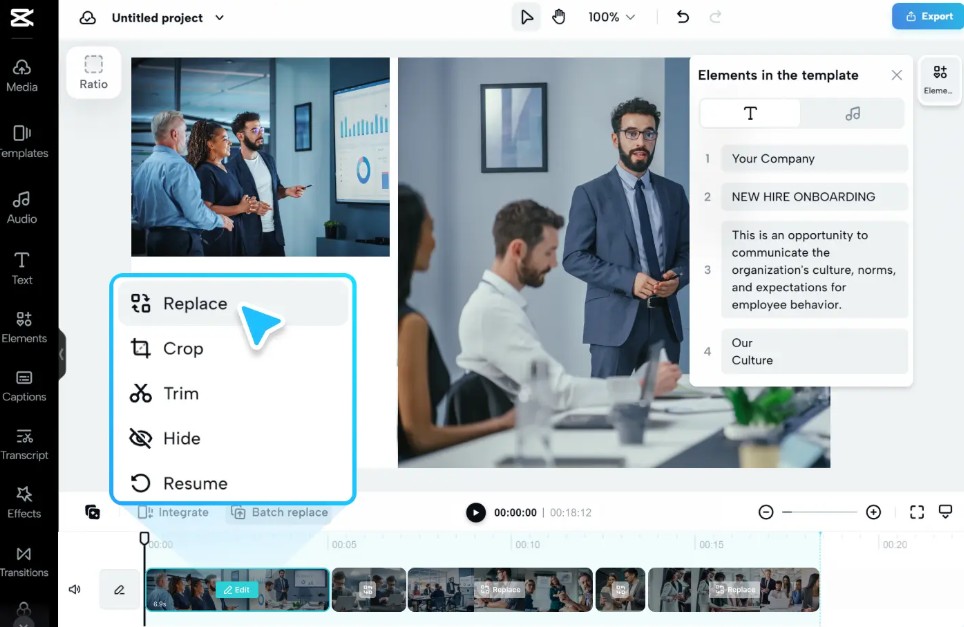
Additionally, take advantage of AI tools such as background removal, image beautification, video stabilization, or quality enhancement to make your videos more professional. CapCut also regularly updates its templates to reflect current trends, making it easy for you to create content that keeps up with social media platforms.
Step 3: Export and share the video
After you have finished editing, click Export to export the video.
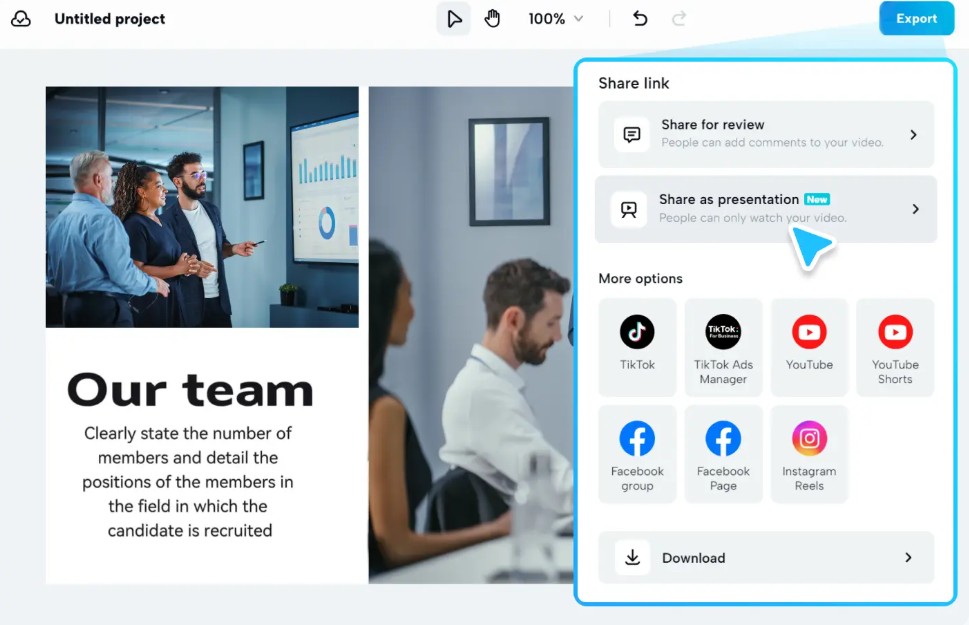
Choose the resolution, frame rate, and quality that best suits your needs. If uploading to TikTok, YouTube, or Facebook, you should export in Full HD or 4K resolution to ensure sharp images.
Finally, download the video to your computer or share it directly to social media platforms. You can also send the project to colleagues or clients via the sharing link for them to review and edit as needed.
5. Tips to make your CapCut template look more beautiful and professional.
To make the most of CapCut's templates, you should choose a template that suits your purpose rather than just following current trends. A template with beautiful effects but unsuitable for the content will struggle to convey the message and diminish the video's appeal.
When editing, replace all images, videos, and text with high-quality content to create a unique impression. Also, maintain consistency in color, font, and design style, especially if the video is used for branding or product promotion.
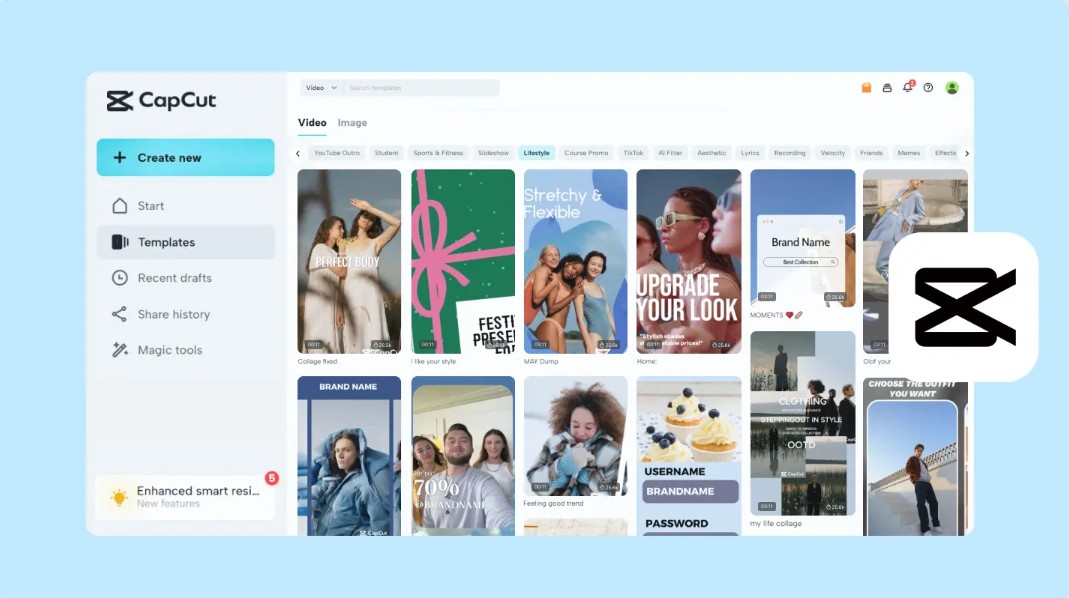
You should also take advantage of CapCut's AI tools such as automatic subtitle generation, background removal, video stabilization, or lighting adjustments to enhance video quality without spending too much time editing. However, avoid overusing effects or transitions within the same video, as this can make the content visually cluttered and distract viewers.
Before publishing, review the entire video to check for spelling errors, ensure synchronization between image and sound, and choose an appropriate resolution such as Full HD or 4K to guarantee display quality on social media platforms.
6. Conclusion
CapCut's free template editing feature is the ideal solution for users to create visually appealing videos without needing extensive editing experience. With its rich template library, powerful editing tools, and numerous intelligent AI features, CapCut significantly shortens content production time while maintaining professional quality.
Whether you're a beginner, a content creator, or a business, leveraging CapCut's free templates will make the video creation process simpler, faster, and more efficient. Simply choose a suitable template, personalize your content, and export your video, and you can create impressive content to share on TikTok, YouTube, Facebook, and many other platforms.





















VIP Products








Best Selling Products
Adobe Premiere Pro Account
99 USD
Plugin Retouch4me
69 USD
Adobe Photoshop Copyright - Full App
120 USD
Copyright Adobe Lightroom Account
59 USD
Upgrade Genuine Office 365
49 USD
Capcut Pro 1 Year
39 USD
ChatGPT Plus Account (GPT-4)
16 USD
Genuine Adobe Illustrator account
99 USD
Windows 10 & 11 Pro Key
36 USD
Upgrade genuine Capture One account
120 USD
MidJourney Account
29 USD
Upgrade Duolingo Super
29 USD
Freepik Premium Account
59 USD
Genuine Cheap Canva Pro
39 USD
Autodesk All App Account Copyright
120 USD