Best Selling Products

Capcut Pro 1 Year
39 USD

MidJourney Account
29 USD

Adobe Photoshop Copyright - Full App
120 USD

Upgrade Genuine Office 365
49 USD

Copyright Adobe Lightroom Account
59 USD

Windows 10 & 11 Pro Key
36 USD

Freepik Premium Account
59 USD

Genuine Adobe Illustrator account
99 USD

Autodesk All App Account Copyright
120 USD

Plugin Retouch4me
69 USD

Adobe Premiere Pro Account
99 USD

Upgrade genuine Capture One account
120 USD

ChatGPT Plus Account (GPT-4)
16 USD

Genuine Cheap Canva Pro
39 USD

Upgrade Duolingo Super
29 USD
Detailed Windows 11 Review: The AI Operating System Worth Upgrading To for Everyone
Nội dung
- 1. Modern design and intuitive user experience
- 2. Copilot and the intelligent AI ecosystem
- 3. System upgrades and requirements
- 4. Integrated tools to increase work productivity.
- 5. Gaming and entertainment experience
- 6. Security and Performance
- 7. Comparing Windows 11 with other platforms
- 8. Who is Windows 11 suitable for?
- 9. Conclusion
Windows 11 is Microsoft''s latest operating system, developed with the goal of providing a more modern, intuitive, and intelligent experience compared to Windows 10.
1. Modern design and intuitive user experience
From the very first boot, Windows 11 feels completely different from Windows 10. Microsoft has pursued a minimalist design philosophy while maintaining a professional feel, helping users focus more on their work instead of being distracted by too many details on the screen.
The most noticeable change is the centrally aligned Taskbar, a style similar to modern operating systems. This layout ensures that icons are always easily visible, especially on large or high-resolution screens.
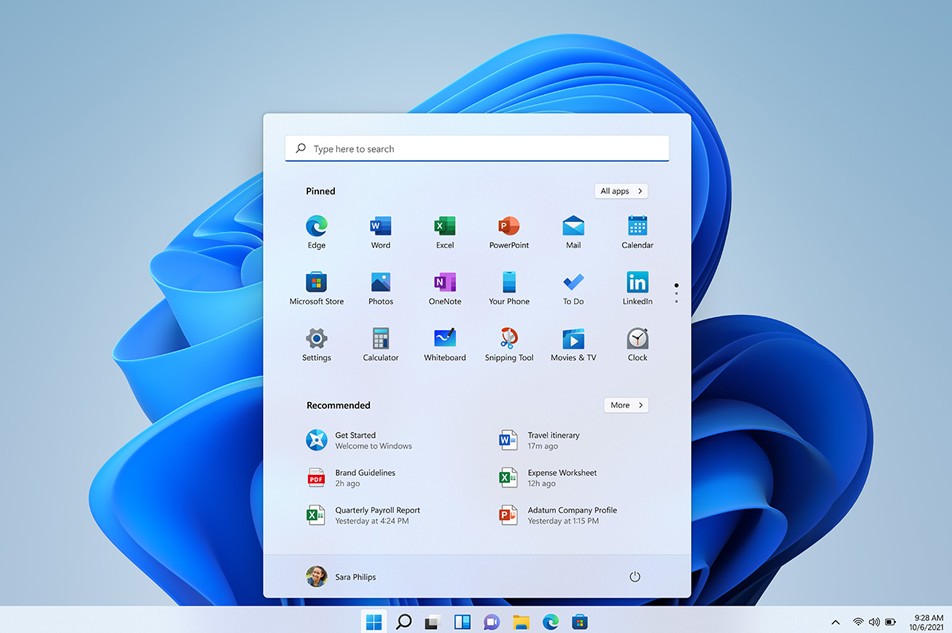
In addition, the entire application window is softly rounded, combined with a Mica effect to create a gentle depth to the interface. The transparency effect is used appropriately, providing a premium feel without affecting the ability to view the content.
The Start Menu has also been completely redesigned. Microsoft has removed the controversial Live Tiles from Windows 10 and replaced them with two main areas: a list of pinned applications and suggestions for recently used documents, applications, or files. The new layout makes the interface cleaner and significantly reduces clutter.
For touchscreen users, Windows 11 also optimizes the spacing between icons, the size of the touch area, and swipe gestures. As a result, using it on 2-in-1 laptops or tablets becomes significantly more convenient.
One highly appreciated improvement is Snap Layouts. When you hover your mouse over the window's maximize button, the system suggests several different split-screen layouts. Users can quickly arrange two, three, or four working windows without having to manually drag and drop as before.
If you frequently use multiple monitors, Windows 11 also handles window positions better. When you detach an external monitor, applications will automatically minimize to the home screen. When you reconnect them, the previous layout is restored almost entirely.
File Explorer also received a valuable upgrade. The simplified toolbar allows for faster operation, while the tab feature lets you open multiple folders in the same window, similar to a web browser. Additionally, Windows 11 now supports extracting RAR, 7Z, and TAR formats directly within the system without needing to install additional software.
2. Copilot and the intelligent AI ecosystem
One of the biggest differentiating factors when evaluating Windows 11 is the inclusion of Copilot.
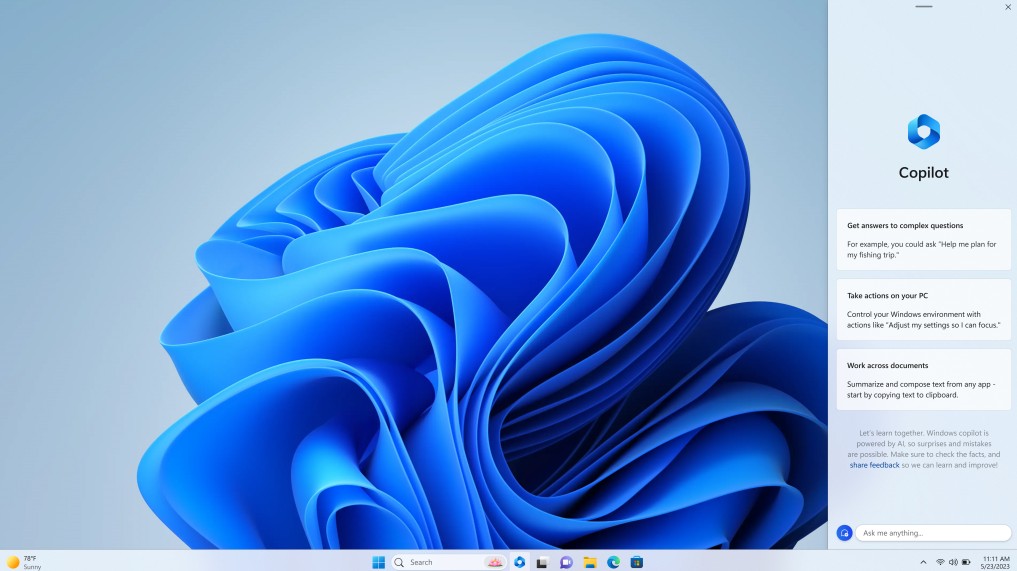
Unlike previous virtual assistants, Copilot is not a standalone application but is deeply integrated into the operating system. This allows the AI to assist users in a wide variety of situations, from searching for information and summarizing content to writing documents and controlling certain computer functions using natural language.
During the process, users can request Copilot:
-
Summary of a long document.
-
Draft the email or report content.
-
Suggest ideas.
-
Explain the complex content.
-
Search for related information.
-
Instructions for performing this operation on Windows.
As a result, many tasks that used to take tens of minutes can now be completed in just a few minutes.
For Copilot+ PCs equipped with a dedicated NPU, AI processing is done directly on the device instead of relying entirely on cloud computing. This results in faster response times, reduced latency, improved battery life, and enhanced data security.
In addition to Copilot, Microsoft has integrated many other AI features such as Live Captions for real-time subtitle translation, Studio Effects for background blurring, eye alignment, and image quality enhancement during online meetings. Paint has been enhanced with AI-powered image creation capabilities, while Photos can remove objects, blur backgrounds, and intelligently edit photos with just a few taps.
For content creators, these tools can significantly shorten the time spent editing and producing content.
3. System upgrades and requirements
Unlike previous versions of Windows, Windows 11 places higher hardware demands to ensure both performance and security.
The operating system requires a compatible 64-bit processor, a minimum of 4GB of RAM, 64GB of storage, TPM 2.0, and Secure Boot. Most computers manufactured in recent years meet these standards.
If you are using Windows 10 and your device is eligible, you can upgrade for free through Windows Update without needing to purchase an additional license.
When building a new computer or assembling a PC, users can choose between Windows 11 Home and Windows 11 Pro. The Home version suits personal needs, while the Pro version adds administrative, security, and business connectivity features.
Before upgrading, it's advisable to check the compatibility of critical software, especially accounting software, CAD software, ERP systems, or peripherals using outdated drivers. For businesses, deploying in groups of machines can help reduce risks and minimize work disruptions.
Synchronizing your data through OneDrive before upgrading is also a safe solution to avoid data loss during the installation process.
4. Integrated tools to increase work productivity.
Windows 11 not only changes the interface but also upgrades a range of tools to support daily work.
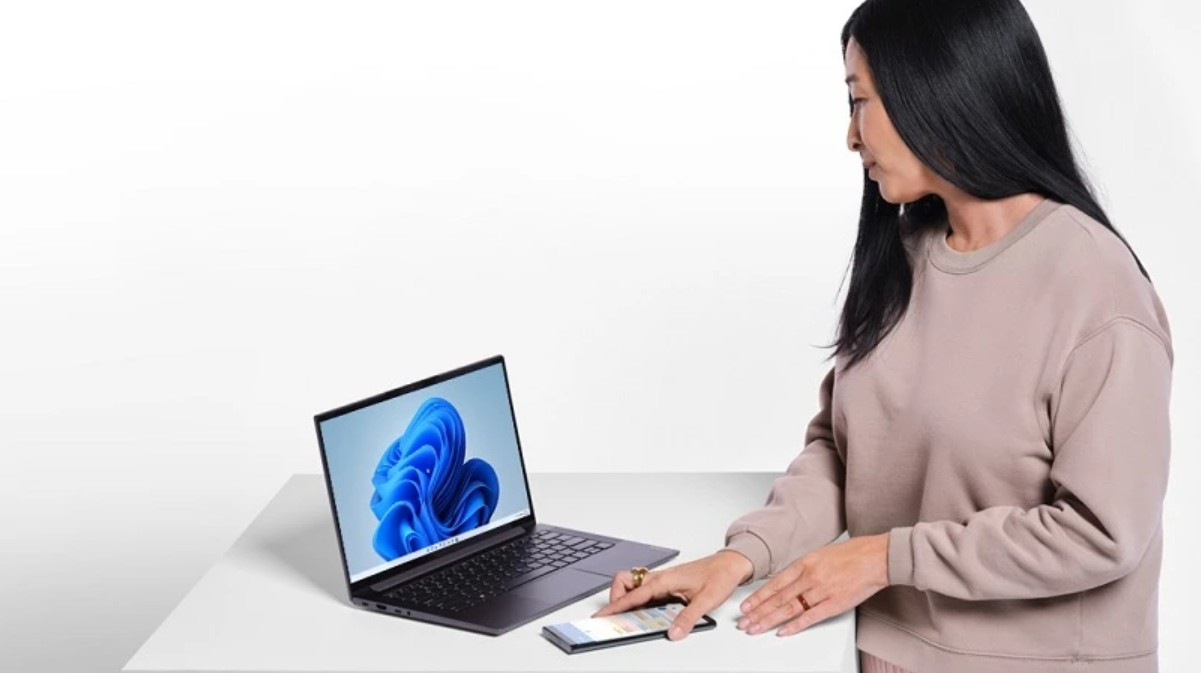
Phone Link is one of its most highly-rated features. Users can receive calls, read messages, view notifications, and access photos on their phone directly from their computer without switching between devices.
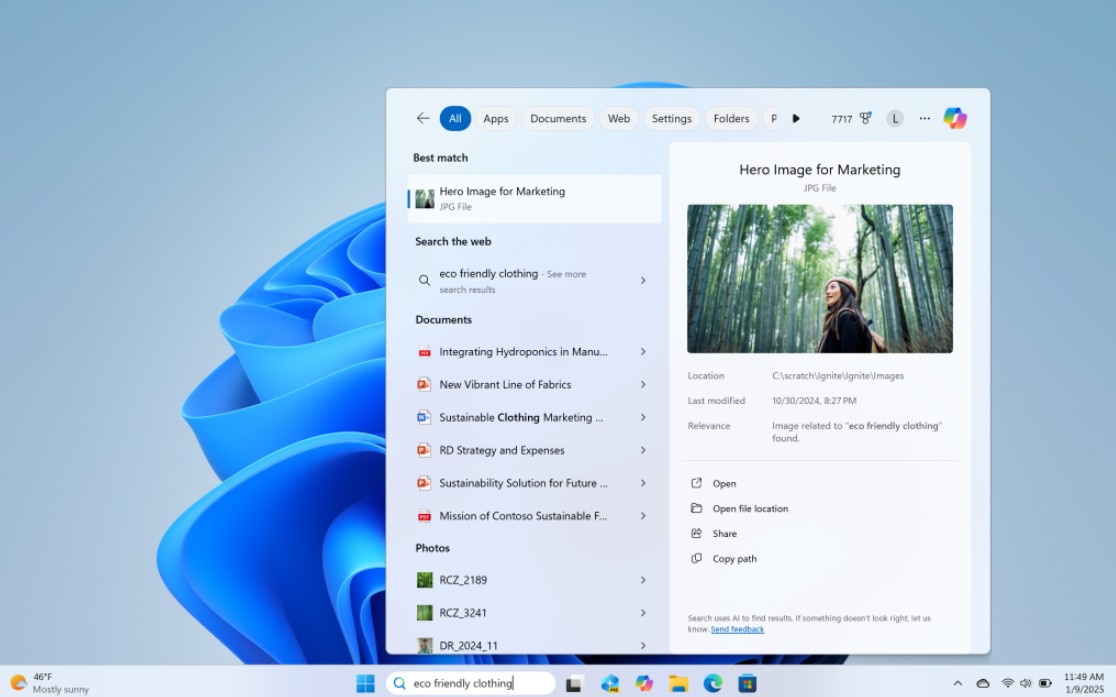
Windows Search has also been improved with faster search capabilities and support for semantic search on some newer devices. Instead of having to remember the exact file name, users can simply describe the content or purpose of the document.
Widgets provide personalized information panels about the weather, work schedule, stocks, sports, and news right on the screen.
Many familiar applications have also been revamped.
Photos supports AI-powered photo editing.
Paint now includes smart image creation and editing tools.
Clipchamp has become the default video editor with its user-friendly interface.
Notepad has been updated with features such as auto-save, Dark Mode support, and numerous improvements to its word processing capabilities.
Snipping Tool also becomes a comprehensive screen capture and recording hub. Users can take screenshots, record videos, highlight content, set capture times, and automatically blur sensitive information such as phone numbers or email addresses.
This is a particularly useful tool for office workers, instructors, technicians, and anyone who frequently creates instruction manuals.
5. Gaming and entertainment experience
Microsoft continues to solidify Windows' position as the leading gaming platform on personal computers.
Windows 11 supports Auto HDR, which improves color and contrast even in games that don't natively support HDR. This results in more vibrant images without the need for manual adjustments.
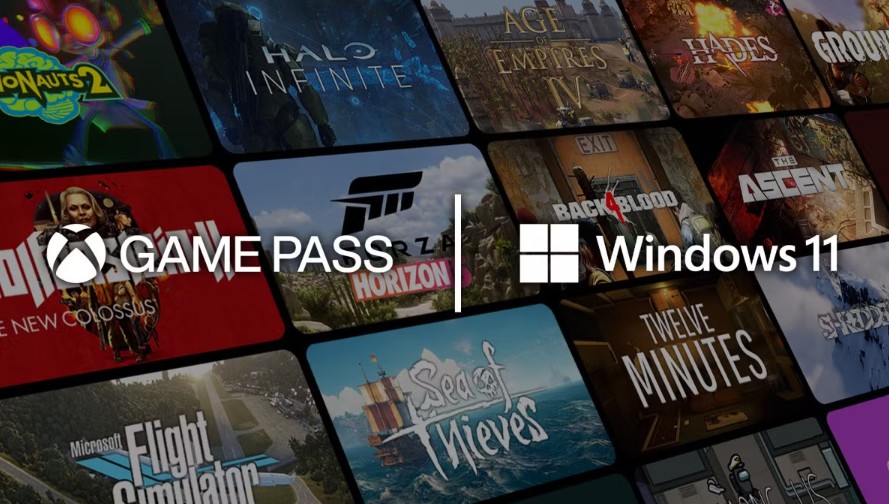
DirectStorage is another important technology that helps reduce game load times by transferring data directly from NVMe SSDs to the GPU. When combined with high-speed SSDs, game loading times are significantly shortened.
For Copilot+ PC devices, Auto Super Resolution uses AI to enhance image quality and improve frame rates, especially on high-resolution displays.
The Xbox app includes built-in Game Pass and Cloud Gaming, allowing users easy access to hundreds of games without needing high-end hardware. Gameplay progress is also synchronized across multiple devices within the Microsoft ecosystem.
Beyond gaming, Windows 11 also optimizes entertainment with better audio and video quality and improved HDR display support compared to previous versions.
6. Security and Performance
Microsoft prioritized security when developing Windows 11.
Mandatory support for TPM 2.0 and Secure Boot is not simply a requirement for installation, but also a foundation for deploying many modern layers of protection such as BitLocker encryption, hardware authentication, and anti-attack measures right from the boot process.
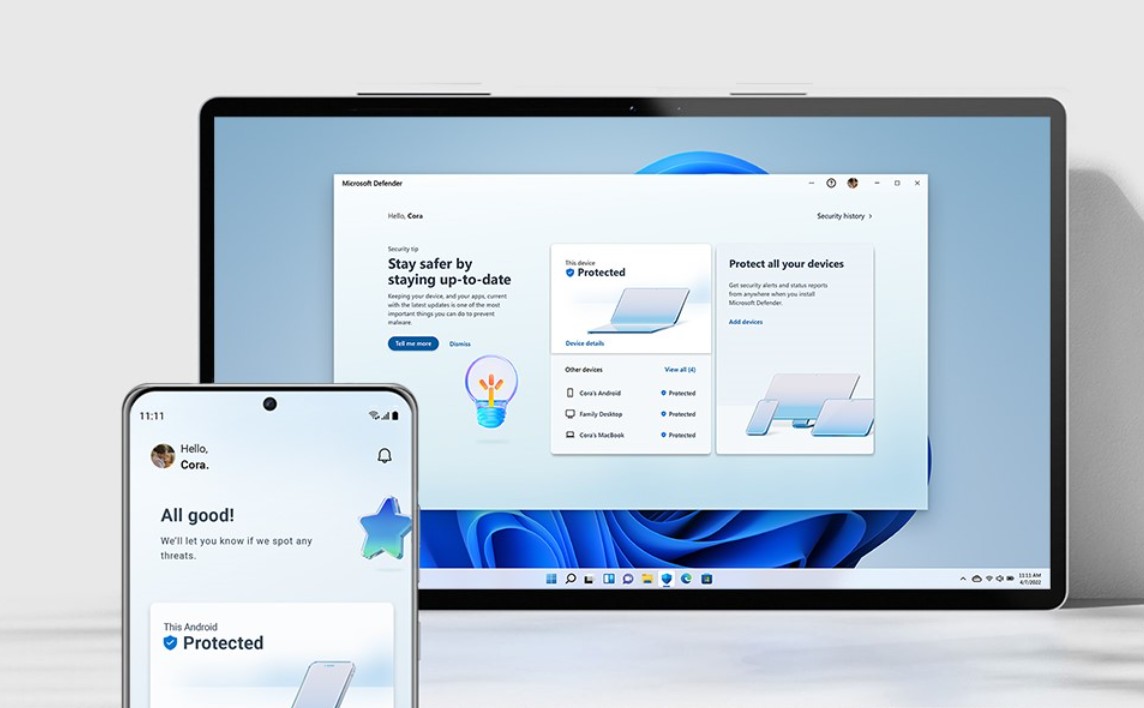
Microsoft Defender has matured considerably. With continuous updates, real-time malware detection, and deep integration into the operating system, Defender adequately meets the protection needs of most individual users without requiring additional antivirus software.
In terms of performance, Windows 11 offers a fairly good balance between processing speed and power consumption. Office tasks, studying, light photo editing, and online work all run smoothly.
Microsoft also optimized background process management, adjusted dynamic refresh rates, and leveraged hardware acceleration in multimedia tasks. This helps laptops run cooler and extends battery life in many real-world usage scenarios.
7. Comparing Windows 11 with other platforms
Compared to macOS, Windows 11 has a significant advantage in terms of traditional software compatibility, a wide variety of hardware, and system customization. Users can choose from hundreds of laptop and PC models at various price points while still using the same operating system.
Compared to ChromeOS, Windows 11 excels at running professional desktop software such as Adobe Photoshop, AutoCAD, Visual Studio, and many business applications. ChromeOS has advantages in simplicity and device management in an educational environment, but struggles to meet the demands of intensive work.
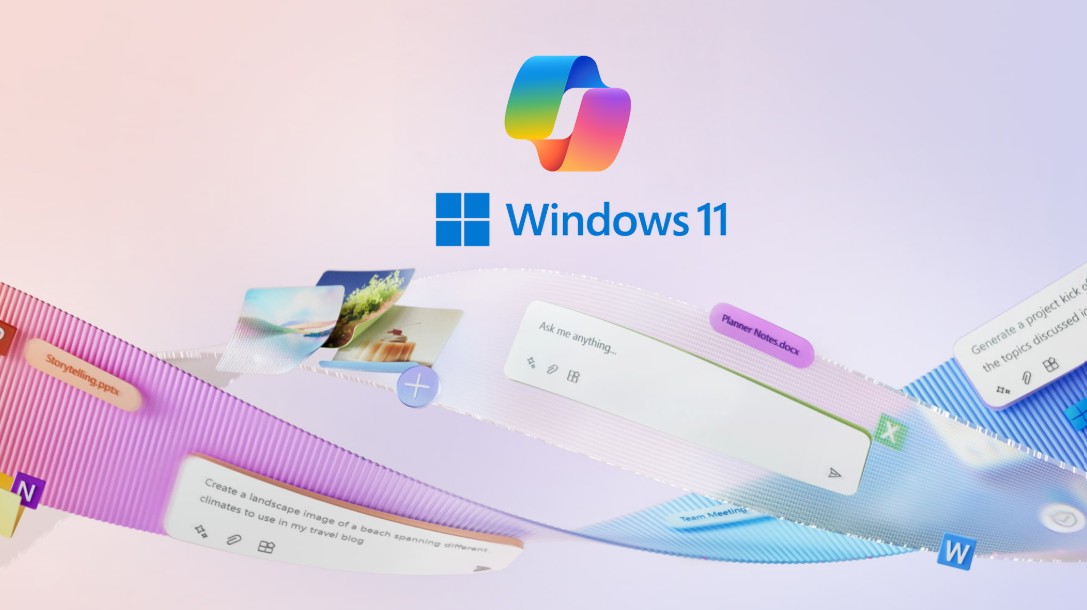
In the field of AI, Windows 11 is creating a significant gap thanks to its integration of Copilot and its ability to handle processing directly on the device when combined with NPU-enabled hardware. This reduces reliance on internet connectivity while improving performance for AI tasks.
8. Who is Windows 11 suitable for?
Windows 11 targets a wide range of user groups.
For office workers, the operating system provides a modern work environment with efficient multitasking capabilities, intelligent search tools, and numerous work-related applications.
Students can leverage Copilot, Clipchamp, Photos, and AI features to learn, create presentations, and generate content faster.
Designers, marketers, and content creators also benefit from Microsoft's increasingly sophisticated AI ecosystem, which helps shorten task processing times.
Gamers will appreciate DirectStorage, Auto HDR, Xbox Game Pass, and the ability to optimize next-generation hardware.
However, for older computers that don't support TPM 2.0 or still rely on peripherals using legacy drivers, users should consider the cost of hardware upgrades before switching to Windows 11.
For businesses, the rollout should begin with a trial phase on a group of devices, testing the compatibility of core applications and providing short training for employees to ensure a smooth transition.
9. Conclusion
If you own a device that meets the hardware requirements, upgrading to Windows 11 is a sensible choice to take advantage of new features, improve productivity, and prepare for the AI trend on personal computers in the coming years. For individual users, students, office workers, content creators, or gamers, Windows 11 is currently one of the most comprehensive and worthwhile operating systems on the PC platform.





















VIP Products








Best Selling Products
Capcut Pro 1 Year
39 USD
MidJourney Account
29 USD
Adobe Photoshop Copyright - Full App
120 USD
Upgrade Genuine Office 365
49 USD
Copyright Adobe Lightroom Account
59 USD
Windows 10 & 11 Pro Key
36 USD
Freepik Premium Account
59 USD
Genuine Adobe Illustrator account
99 USD
Autodesk All App Account Copyright
120 USD
Plugin Retouch4me
69 USD
Adobe Premiere Pro Account
99 USD
Upgrade genuine Capture One account
120 USD
ChatGPT Plus Account (GPT-4)
16 USD
Genuine Cheap Canva Pro
39 USD
Upgrade Duolingo Super
29 USD