Best Selling Products

Capcut Pro 1 Year
39 USD

Autodesk All App Account Copyright
120 USD

Windows 10 & 11 Pro Key
36 USD

Copyright Adobe Lightroom Account
59 USD

Adobe Photoshop Copyright - Full App
120 USD

Plugin Retouch4me
69 USD

Genuine Cheap Canva Pro
39 USD

Freepik Premium Account
59 USD

MidJourney Account
29 USD

Genuine Adobe Illustrator account
99 USD

ChatGPT Plus Account (GPT-4)
16 USD

Upgrade Duolingo Super
29 USD

Upgrade Genuine Office 365
49 USD

Upgrade genuine Capture One account
120 USD

Adobe Premiere Pro Account
99 USD
A Comprehensive A-to-Z Guide on How to Edit Video on Canva Professionally
Nội dung
- 1. Reasons to choose Canva for video editing in your creative work.
- 1.1. Intuitive interface suitable for beginners
- 1.2. A huge and diverse resource library of templates.
- 1.3. Cross-platform compatibility and cloud storage
- 2. A guide to the basic steps to start editing videos on Canva.
- 2.1. Step 1: Create the project and select the standard size.
- 2.2. Step 2: Upload personal documents and organize them into a timeline.
- 2.3. Step 3: Use the cutting and scene splitting tool.
- 3. Advanced video editing techniques in Canva to enhance appeal.
- 3.1. Setting up smooth transition effects
- 3.2. Editing and synchronizing audio and background music
- 3.3. Adding text and creating artistic animated text effects
- 4. Optimize design performance with the Appvip.ai platform.
- 5. Important notes to ensure consistently sharp video output quality.
- 5.1. Check audio copyright before uploading to social media.
- 5.2. Controlling the density of graphic elements on the screen
- 5.3. Choosing the optimal file output format for each need
- 6. Conclusion
Discover an extremely simple and professional roadmap for editing video on Canva. This article provides detailed guidance on cutting and splicing, adding effects, sound, and exporting high-quality video for free.
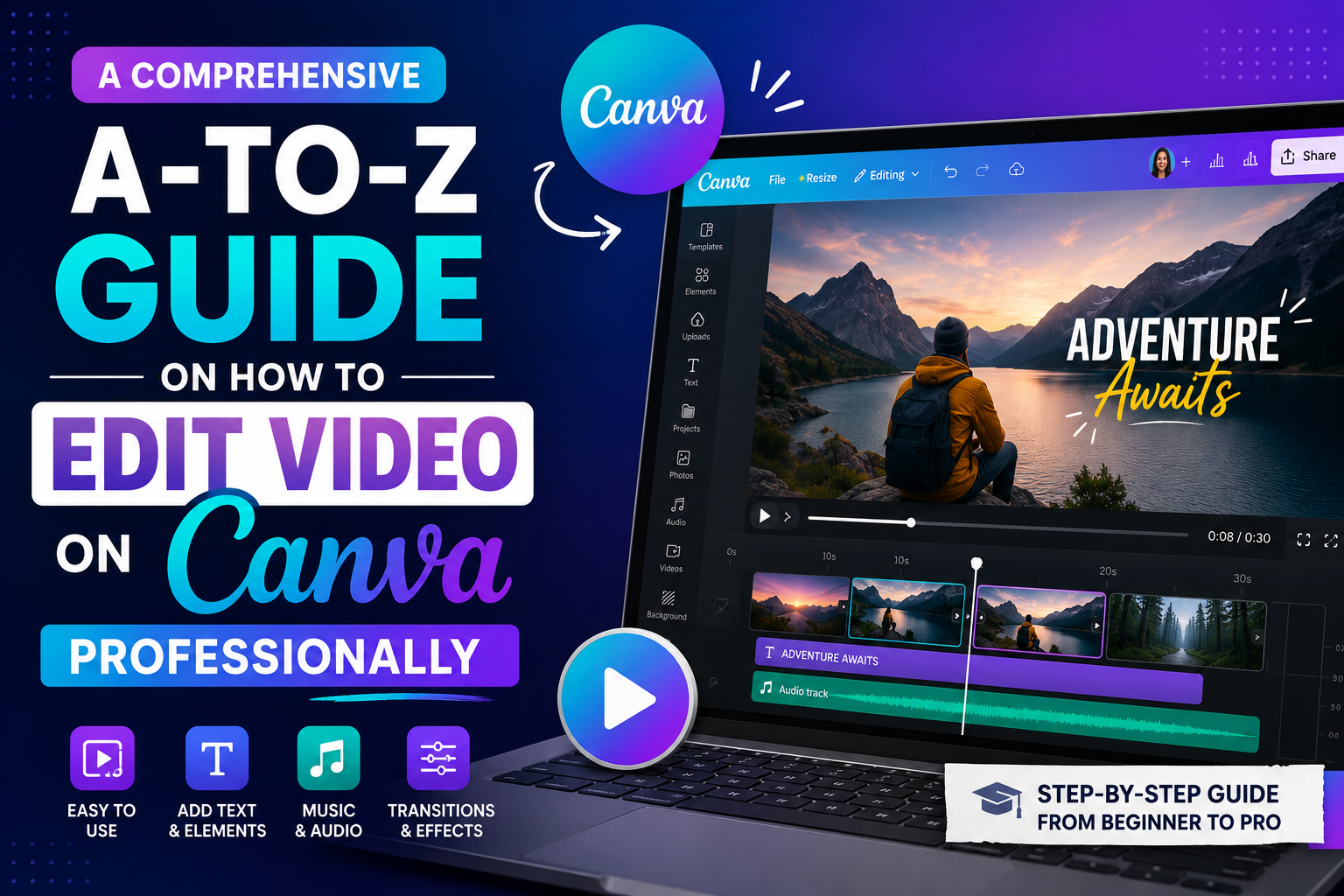
1. Reasons to choose Canva for video editing in your creative work.
Canva is a powerful and easy-to-use online video editing tool designed to provide maximum support for creative work.
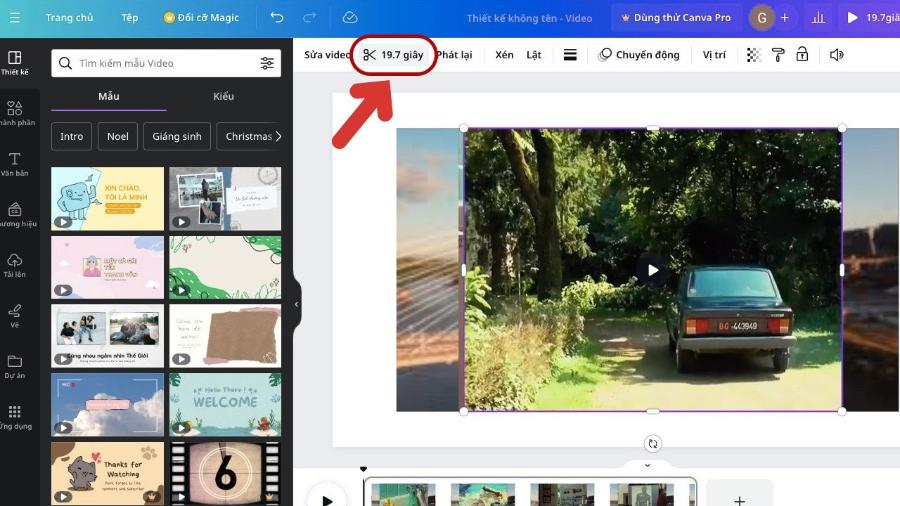
1.1. Intuitive interface suitable for beginners
This platform is designed with the philosophy of simplifying all complex technical operations. The timeline editor is clearly displayed, making it easy for users to observe scenes. Drag-and-drop functionality completely replaces the cumbersome commands and keyboard shortcuts of traditional software. As a result, the time to learn and master the tool is minimized, facilitating a continuous flow of creative content.
1.2. A huge and diverse resource library of templates.
The biggest competitive advantage of editing videos on Canva is its extensive library of ready-made templates. Users have access to thousands of professional design layouts categorized by industry and purpose, such as advertising, travel vlogs, lectures, or short TikTok videos. These templates are pre-designed in terms of layout; all you have to do is replace the content and customize the colors to match your personal brand identity.
1.3. Cross-platform compatibility and cloud storage
The entire workflow is automatically saved in real time to the cloud system. You can start editing a project on your office computer and continue refining it on your mobile phone while on the go. This feature completely eliminates the worry of losing data due to hardware failures or forgetting to save your work.
Furthermore, the ability to synchronize and collaborate on this platform enhances efficiency and saves time. This makes it the ideal choice for quickly and effectively turning your creative ideas into reality.
2. A guide to the basic steps to start editing videos on Canva.
To begin editing videos on Canva, you need to master the basics to make the most of the tools and features the platform offers. The specific steps are as follows:
2.1. Step 1: Create the project and select the standard size.
First, go to the homepage and select "Video" from the main toolbar. The system will suggest a range of standard video sizes for each platform, such as YouTube video (15:9), TikTok/Reels video (9:15), or square video for Facebook (1:1). Choosing the correct aspect ratio from the start ensures that the content is displayed completely, avoiding issues like missing corners or blurriness when uploaded.
2.2. Step 2: Upload personal documents and organize them into a timeline.
Users select "Upload" from the left-hand menu to import original video clips, images, and audio files from their device into the system. Once the upload is complete, simply drag and drop these files into the main workspace. The segments will automatically arrange themselves sequentially on the timeline at the bottom of the screen, allowing you to change their order by sliding them.
2.3. Step 3: Use the cutting and scene splitting tool.
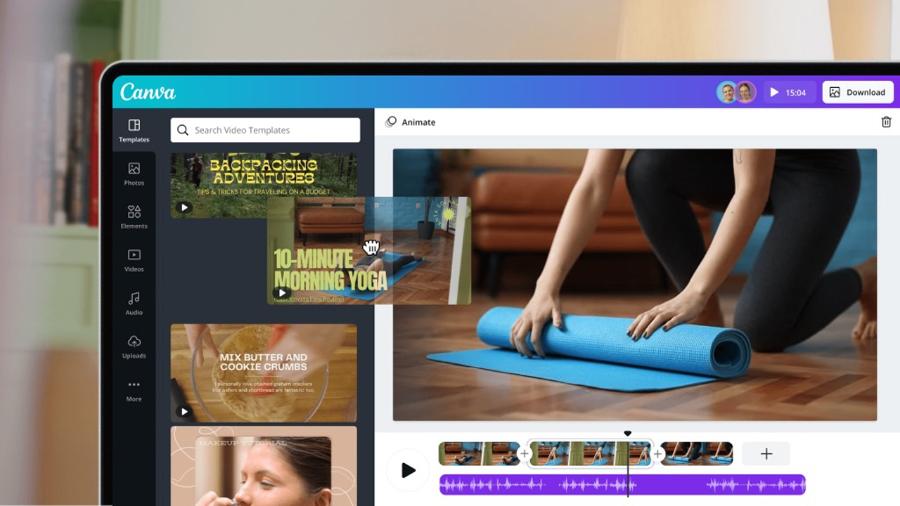
To remove unnecessary or flawed sections from the original video, click on that section in the timeline. The scissors icon that appears on the toolbar above will activate the cutout feature. Alternatively, the keyboard shortcut "S" allows you to split a large clip into two separate parts at the cursor's position, making it easier to insert effects or interleaved images more precisely.
3. Advanced video editing techniques in Canva to enhance appeal.
Explore advanced video editing techniques on Canva to create impressive and professional-looking videos. From using smooth transition effects and adjusting video speed to integrating audio and adding creative graphic elements, these tools will help you improve video quality, capture viewers' attention, and convey your message more effectively.
3.1. Setting up smooth transition effects
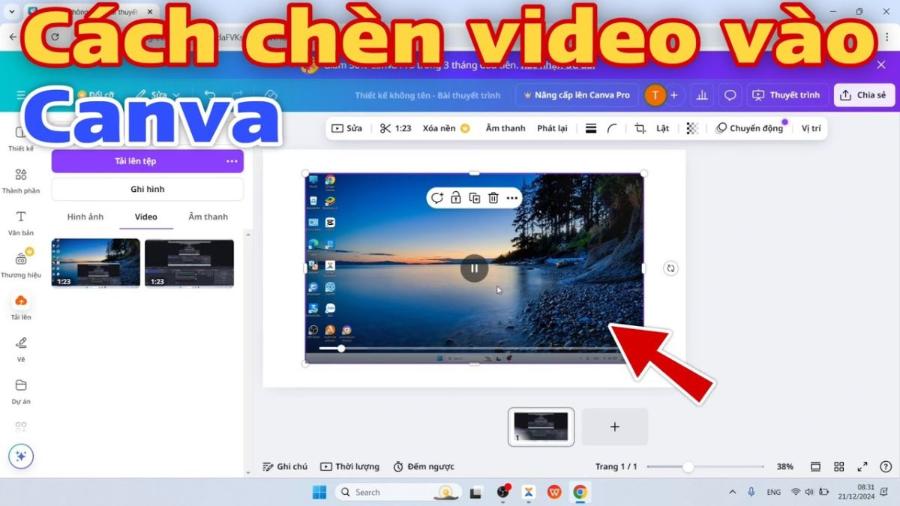
A sudden transition between two different scenes can easily create a sense of emotional disconnect for the viewer. Click the plus sign (+) between the two clips on the timeline and select "Add transition." Canva offers various transition styles such as Dissolve, Slide, Zoom, or Blur. Adjusting the duration of the transition effect (in seconds) helps to create a harmonious and natural rhythm for the entire video.
3.2. Editing and synchronizing audio and background music
Music is the soul that evokes emotions and keeps viewers engaged longer. You can use the system's free music library or upload your own voiceover recordings. When adding audio to the timeline, users can adjust the volume separately for each segment, using the "Fade in" feature at the beginning and "Fade out" feature at the end to prevent abrupt interruptions.
3.3. Adding text and creating artistic animated text effects
Text helps convey a clear message, which is especially important for knowledge-sharing videos or product advertisements. The "Text" section offers hundreds of beautiful Vietnamese fonts. After typing your content, click the "Animate" button to create text appearance effects such as Typewriter, Bounce, or Fade.
4. Optimize design performance with the Appvip.ai platform.
In the digital age, integrating multiple smart online tools is key to enhancing the productivity of content creators. The website appvip.ai was created as a specialized technology space, providing optimal solutions for software users. Here, you can find guides on upgrading to premium accounts, tips on applying artificial intelligence to automate the design and editing process of images and videos. The website boasts a streamlined interface and is constantly updated with the latest technological trends, helping users access powerful tools to transform raw ideas into highly aesthetic and polished media products.
5. Important notes to ensure consistently sharp video output quality.
To ensure consistently sharp video output, you need to pay attention to several important factors such as setting the appropriate resolution, using good lighting during filming, choosing high-quality recording equipment, and optimizing technical settings such as frame rate and bitrate.
5.1. Check audio copyright before uploading to social media.
Although the system provides a large selection of songs, users should still pay attention to the crown icon (for Pro accounts). Using commercially copyrighted songs without permission can result in videos being muted or removed from major platforms like YouTube or TikTok. Therefore, prioritize choosing music labeled as completely free or using audio sources you create yourself.
5.2. Controlling the density of graphic elements on the screen
The temptation to cram too many animated stickers, icons, and layers of text at once can be counterproductive. The reduced display space overwhelms the viewer, distracting them from the main subject of the video. Minimalist design principles always deliver elegance and effectively convey the core message.
5.3. Choosing the optimal file output format for each need
After completing the editing process, click the "Share" button in the upper right corner of the screen and select "Download". The recommended standard format is always MP4 with the highest possible quality (usually 1080p). Avoid exporting the video in GIF format unless it's a short animated clip without sound, as this format will significantly reduce the sharpness and color range of the product.
Furthermore, careful post-production editing with professional software also plays a crucial role in improving image quality. Always check and test before exporting videos to ensure the final product meets the desired standards.
6. Conclusion
Canva's video editing methods have proven to be exceptionally effective in saving time and optimizing costs for individuals and small businesses. The combination of logical layout thinking and intelligent platform-supported features completely eliminates technical barriers. Consistent practice and experimentation with different design styles will help you quickly produce high-quality, unique videos that reflect your personal style.





















VIP Products








Best Selling Products
Capcut Pro 1 Year
39 USD
Autodesk All App Account Copyright
120 USD
Windows 10 & 11 Pro Key
36 USD
Copyright Adobe Lightroom Account
59 USD
Adobe Photoshop Copyright - Full App
120 USD
Plugin Retouch4me
69 USD
Genuine Cheap Canva Pro
39 USD
Freepik Premium Account
59 USD
MidJourney Account
29 USD
Genuine Adobe Illustrator account
99 USD
ChatGPT Plus Account (GPT-4)
16 USD
Upgrade Duolingo Super
29 USD
Upgrade Genuine Office 365
49 USD
Upgrade genuine Capture One account
120 USD
Adobe Premiere Pro Account
99 USD