Best Selling Products

MidJourney Account
29 USD

Windows 10 & 11 Pro Key
36 USD

Plugin Retouch4me
69 USD

Upgrade Duolingo Super
29 USD

Adobe Photoshop Copyright - Full App
120 USD

Autodesk All App Account Copyright
120 USD

Capcut Pro 1 Year
39 USD

ChatGPT Plus Account (GPT-4)
16 USD

Genuine Adobe Illustrator account
99 USD

Copyright Adobe Lightroom Account
59 USD

Adobe Premiere Pro Account
99 USD

Genuine Cheap Canva Pro
39 USD

Upgrade Genuine Office 365
49 USD

Freepik Premium Account
59 USD

Upgrade genuine Capture One account
120 USD
A detailed guide on how to install Dropbox on Windows and Mac computers, from A to Z.
Nội dung
- 1. Detailed instructions on how to download Dropbox to your computer.
- 1.1. Download Dropbox to your Windows computer.
- 1.2. Download Dropbox to your macOS computer.
- 2. Why should you download Dropbox to your computer instead of just using the web version?
- 3. Is it safe to download Dropbox to my computer?
Installing Dropbox isn't just for storage; it's also for real-time data synchronization. This article will help you understand how to install, configure, and maximize the power of Dropbox on your personal computer.
1. Detailed instructions on how to download Dropbox to your computer.
To start using Dropbox most effectively, installing the software on your computer is the crucial first step. Unlike many other complex applications, Dropbox is designed for a quick and user-friendly installation process, suitable for both casual users and technical professionals. However, to avoid errors and ensure a smooth experience, you should follow the installation steps in the correct order.
1.1. Download Dropbox to your Windows computer.
Windows remains the most popular operating system in the world, especially in office and educational environments. Dropbox also prioritizes optimization for Windows to ensure stability, high compatibility, and ease of use, even for those who are not tech-savvy.
Before you start downloading Dropbox, you should take a few minutes to check your system's configuration. This is a step many people skip, but it's very important to avoid situations where the software runs slowly, has synchronization errors, or doesn't work as expected after installation.
1.1.1. Configuration requirements for installing Dropbox on Windows
Dropbox isn't a "heavy" software application, but for stable operation over the long term, your computer needs to meet some basic requirements. The operating system should be Windows 10 or Windows 11 64-bit, as older versions of Windows often no longer receive full security updates. A minimum of 2GB of RAM is required; however, for smooth operation with many large files or folders, 4GB or more of RAM is a safer choice.
In terms of storage, Dropbox itself only requires a few hundred MB to install. However, you should note that the data synchronized to your computer will occupy actual hard drive space, unless you use features like Smart Sync. Therefore, make sure your hard drive has enough free space for your actual needs. Finally, a stable internet connection is essential, especially during the first data synchronization.
1.1.2. Steps to download and install Dropbox on Windows
Once you've confirmed your computer meets the requirements, you can begin installing Dropbox. First, open any web browser and go to the official Dropbox website at dropbox.com/downloading. This is the most legitimate and secure download source, helping you avoid the risks of fake or malware-containing software.
The Dropbox website will automatically detect that you are using Windows and download an installation file with a .exe extension. Once the download is complete, simply double-click the DropboxInstaller.exe file to launch the installer. Windows may display a permission confirmation dialog; simply select Run or Yes to allow the program to continue.
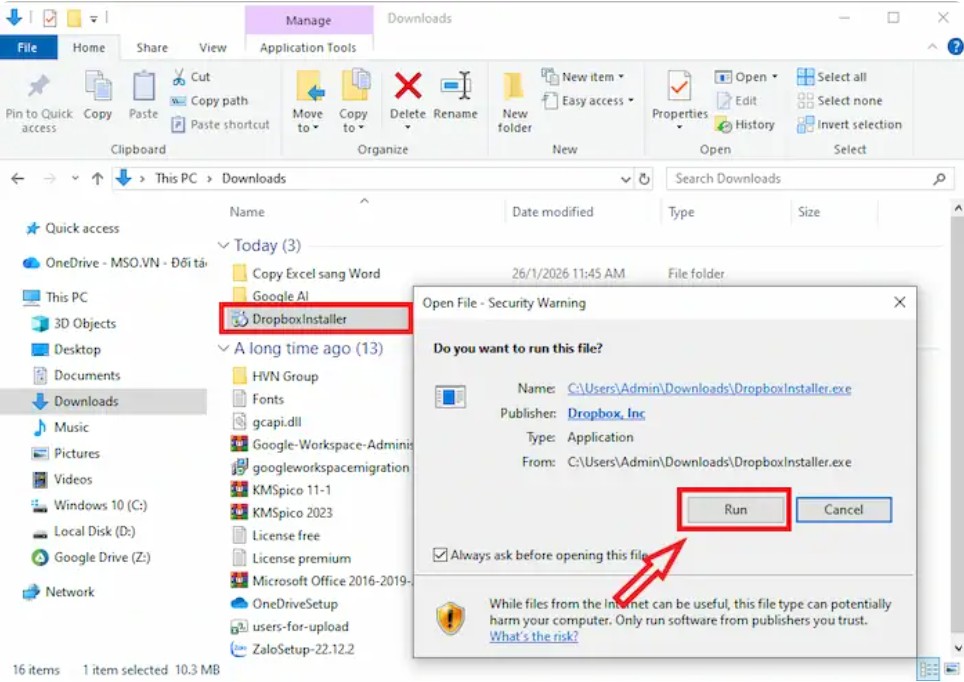
The installation process is very quick and requires virtually no complex customization. Once complete, the Dropbox app will automatically open and prompt you to log in. If you already have an account, simply enter your email and password. If not, you can create a new account directly here in just a few minutes.
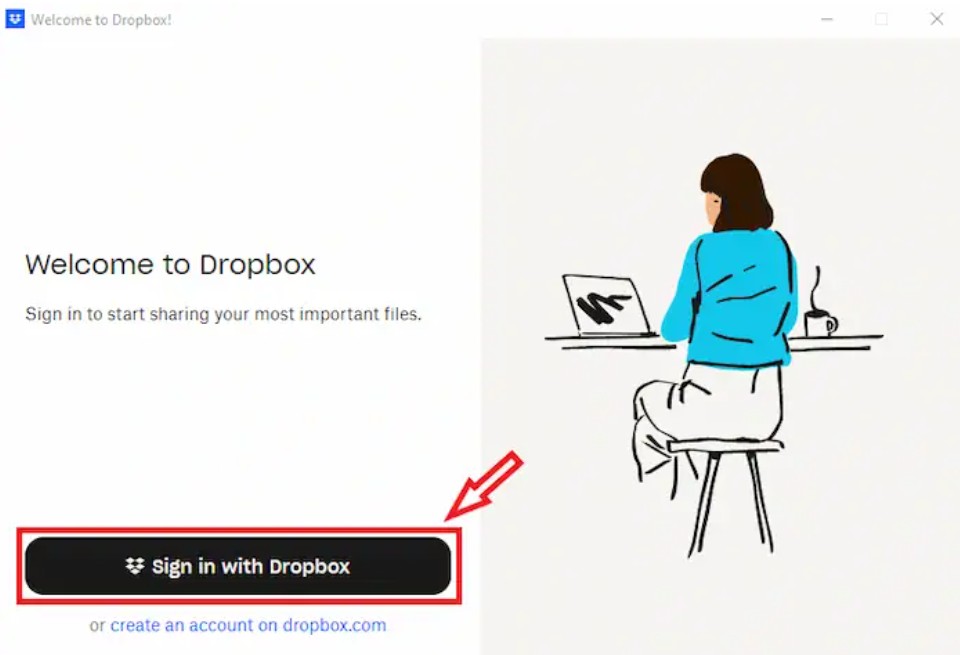
Once you've successfully logged in, Dropbox will create a separate folder in File Explorer. From this point on, you can drag and drop any files or folders into it, and the system will automatically sync the data to the cloud as well as to other devices you're using.
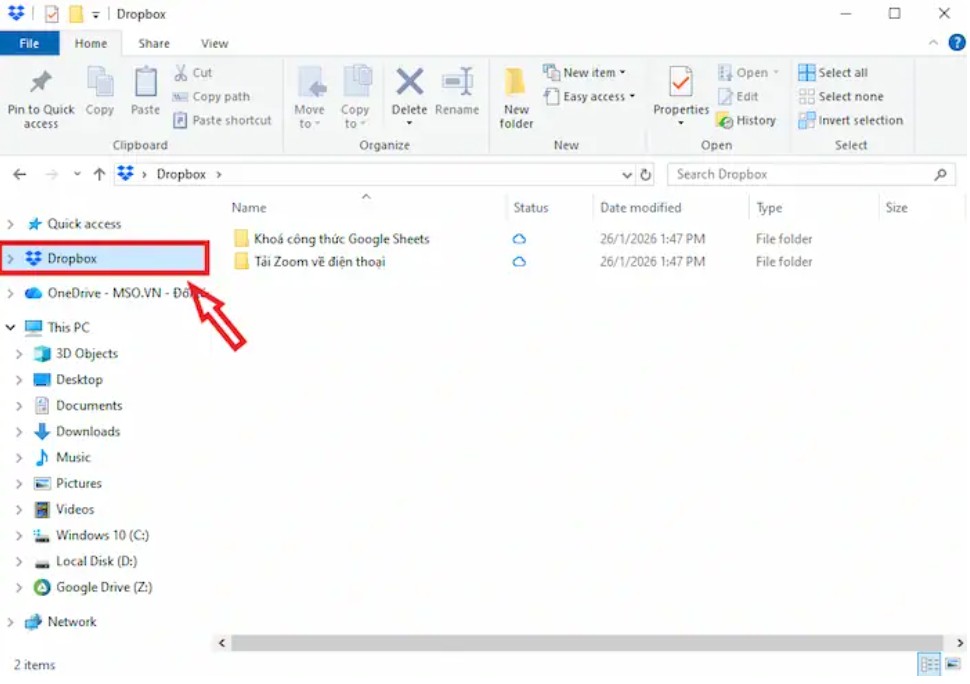
1.2. Download Dropbox to your macOS computer.
For MacBook or iMac users, Dropbox offers a very different experience compared to Windows, especially thanks to its deep integration with Finder. If you're familiar with the Apple ecosystem, installing Dropbox will make cloud data "invisible," blending seamlessly into your daily workflow.
1.2.1. Configuration requirements for installing Dropbox on macOS
Apple frequently updates macOS with major changes to security and system management. Therefore, Dropbox also requires relatively recent macOS versions to function stably. The minimum supported version currently is macOS 10.15 (Catalina). Newer versions like Sonoma or Sequoia will provide the best experience, especially with the File Provider feature.
In terms of hardware, Dropbox fully supports both Intel and Apple Silicon chips (M1, M2, M3, M4), requiring no complicated setup steps. However, you need to ensure you have administrator privileges on your machine, as macOS requires fairly strict authentication when an application wants to access the file system.
1.2.2. Steps to download and install Dropbox on macOS
Similar to Windows, you start by accessing the official Dropbox download page. Your Safari or Chrome browser will download a .dmg file, usually located in your Downloads folder. When you open this file, you will see a window displaying the Dropbox icon.
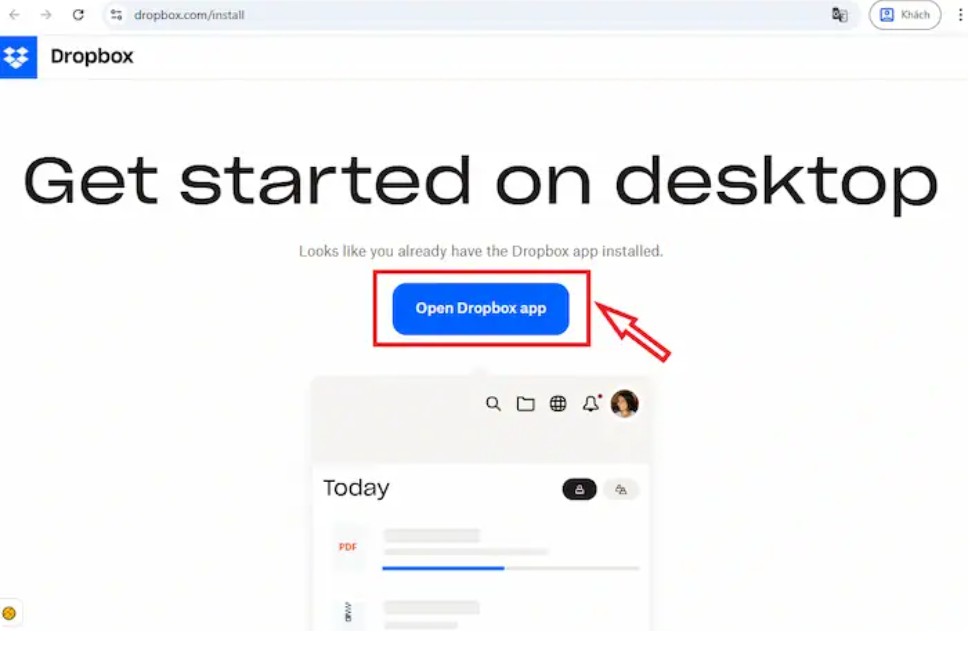
Simply double-click the icon, and the system will extract the files and guide you to place the application in the Applications folder. This is a standard step in the software installation process on macOS.
The most significant difference compared to Windows lies in the permission granting process. macOS will display a message requesting Dropbox permission to access your personal folders. You should select Allow to avoid synchronization errors later. In some cases, you need to go to System Settings, select Privacy & Security, and grant Dropbox Full Disk Access permission.
After successfully logging in, you will see the Dropbox icon appear in the menu bar at the top of the screen, and your Dropbox folder will be integrated into Finder. From this point on, you can manage your cloud data just like you manage local files, with a very seamless and intuitive experience.
1.2.3. Understanding Dropbox Status Icons
After successful installation on Windows or macOS, you'll see small icons appear next to the file or folder name. This is how Dropbox helps users quickly understand the data status. A green checkmark indicates that the file has been synced and is available on your computer. A cloud icon shows that the file is only in the cloud and is not yet taking up hard drive space. A swirling icon indicates that the upload or download process is in progress.
Understanding these symbols helps you better manage your data and avoid unnecessary confusion while working.
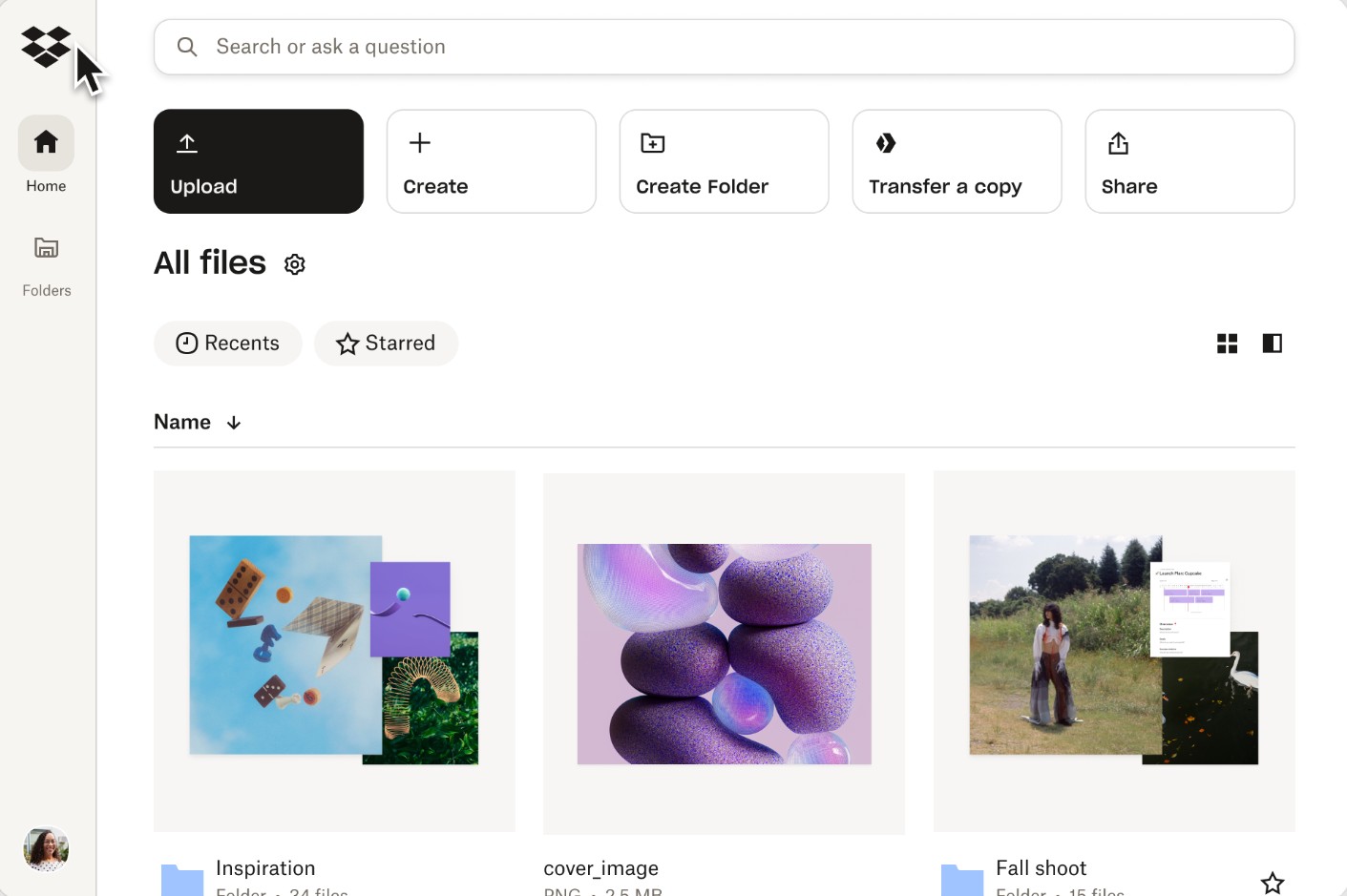
2. Why should you download Dropbox to your computer instead of just using the web version?
While the web version of Dropbox is like an online storage service that you have to actively access, the desktop version makes the cloud an integral part of the operating system. This difference significantly impacts daily work efficiency.
First and foremost is the ability to automatically synchronize data. When using Dropbox on a browser, you have to manually upload each file you edit or add. In contrast, with the desktop version, all changes are synchronized as soon as you save the file. This experience is especially useful for frequently used files, eliminating the worry of forgetting to upload the latest version.
Offline functionality is also a major advantage. With Dropbox Desktop, you can open and edit files even without an internet connection, as long as the file has been downloaded to your computer beforehand. When the internet connection is restored, the system will automatically synchronize all changes without any manual intervention.
Additionally, the Smart Sync feature significantly saves hard drive space. You can see all your Dropbox data on your computer, but only the necessary files actually take up space. This is an ideal solution for laptop users with limited hard drive space who still need access to large amounts of data.
Finally, deep integration with File Explorer or Finder makes working with Dropbox feel as natural as working with a physical hard drive. You don't need to open a browser, you don't need to log in every time; everything happens seamlessly and quickly.
3. Is it safe to download Dropbox to my computer?
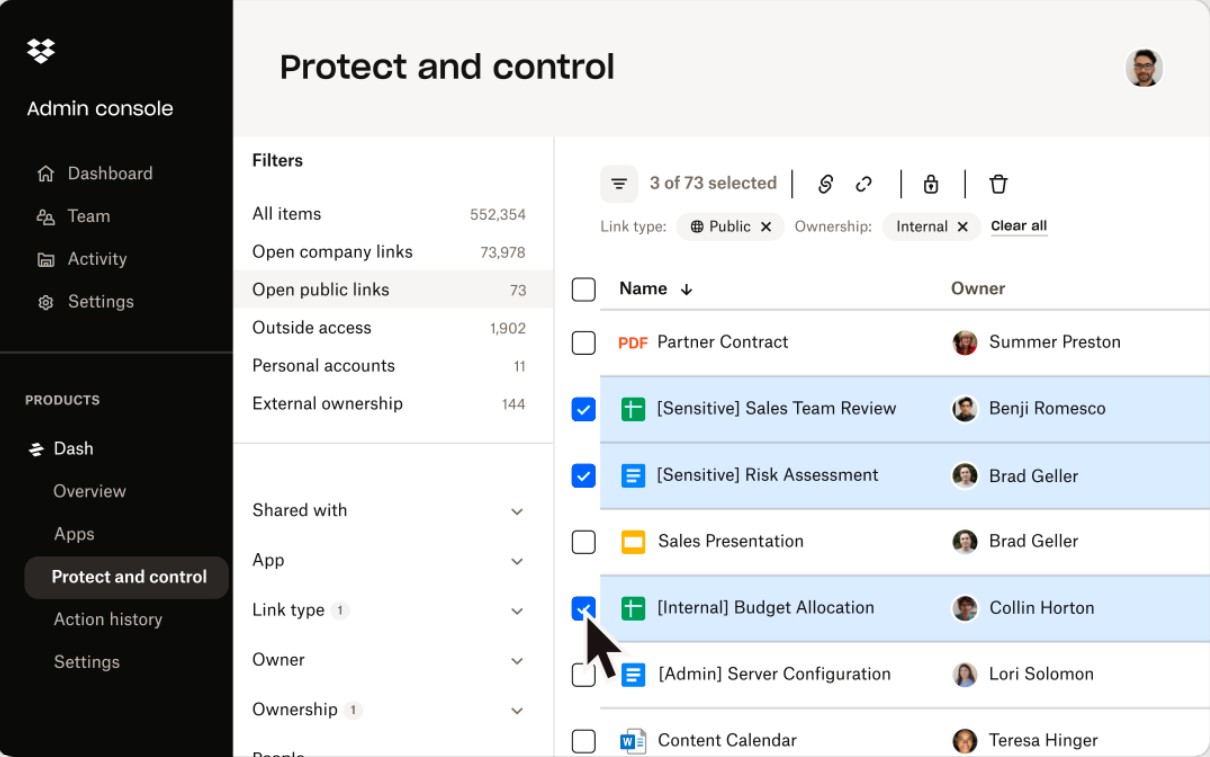
One of the most common questions is whether installing Dropbox on a computer increases the risk of data insecurity. Based on practical experience and Dropbox's security standards, the answer is yes, it is safe , as long as you download from a legitimate source and adhere to basic security principles.
Dropbox uses a robust encryption system for both data in transit and data in storage. When a file is sent from your computer to the server, it is protected by the SSL/TLS protocol. Once on Dropbox's system, the data is further encrypted using the AES 256-bit standard.
Furthermore, Dropbox Desktop provides protection against incidents such as malware or ransomware. Thanks to its version history feature, you can restore older versions if a file is encrypted or accidentally modified. Even if you accidentally delete a file on your computer, Dropbox will keep a copy for a certain period of time so you can recover it.
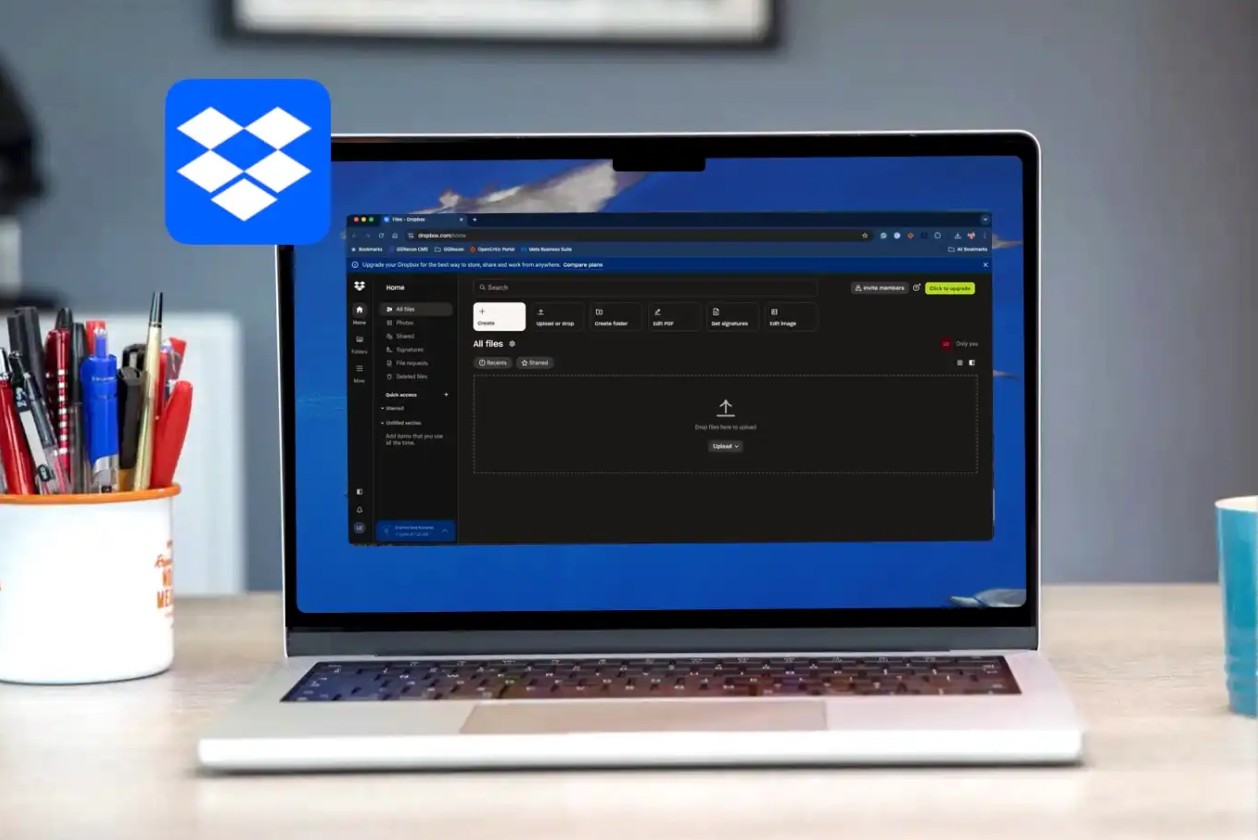
The ability to control the device is also a big plus. If the computer is lost or stolen, you can log into your Dropbox account from another device and remotely erase data. Additionally, enabling two-factor authentication (2FA) adds an extra layer of security, ensuring that only you can access your data even if your password is compromised.
Downloading Dropbox to your computer isn't just about installing another software program; it's about changing the way you manage and interact with your data. When integrated directly into your operating system, Dropbox makes work much more seamless, flexible, and secure compared to using only the web version.





















VIP Products








Best Selling Products
MidJourney Account
29 USD
Windows 10 & 11 Pro Key
36 USD
Plugin Retouch4me
69 USD
Upgrade Duolingo Super
29 USD
Adobe Photoshop Copyright - Full App
120 USD
Autodesk All App Account Copyright
120 USD
Capcut Pro 1 Year
39 USD
ChatGPT Plus Account (GPT-4)
16 USD
Genuine Adobe Illustrator account
99 USD
Copyright Adobe Lightroom Account
59 USD
Adobe Premiere Pro Account
99 USD
Genuine Cheap Canva Pro
39 USD
Upgrade Genuine Office 365
49 USD
Freepik Premium Account
59 USD
Upgrade genuine Capture One account
120 USD