Best Selling Products
Upgrade Genuine Office 365
49 USD

Capcut Pro 1 Year
39 USD

Genuine Adobe Illustrator account
99 USD

Copyright Adobe Lightroom Account
59 USD

Windows 10 & 11 Pro Key
36 USD
Adobe Photoshop Copyright - Full App
120 USD

Freepik Premium Account
59 USD
Plugin Retouch4me
69 USD
Upgrade genuine Capture One account
120 USD

ChatGPT Plus Account (GPT-4)
16 USD
Autodesk All App Account Copyright
120 USD

MidJourney Account
29 USD

Adobe Premiere Pro Account
99 USD
Genuine Cheap Canva Pro
39 USD
Upgrade Duolingo Super
29 USD
A detailed guide to using VoiceGPT for beginners.
Nội dung
- 1. What is VoiceGPT?
- 2. Key features of VoiceGPT
- 3. Instructions for using VoiceGPT on a computer
- 3.1. Step 1: Access VoiceGPT
- 3.2. Step 2: Grant microphone access
- 3.3. Step 3: Enter the question or use your voice.
- 3.4. Step 4: Submit your request and wait for a response.
- 3.5. Step 5: Listen to the answer aloud.
- 4. Instructions for using VoiceGPT on your phone
- 5. How to use VoiceGPT effectively in work and study.
- 5.1. Creating voice content
- 5.2. Learning a foreign language and practicing communication skills
- 5.3. Information retrieval and knowledge explanation
- 5.4. Ideation and Planning
- 6. Conclusion
VoiceGPT simplifies conversations with artificial intelligence thanks to its voice interaction capabilities. Instead of typing out each question, you can directly speak what you want to know and receive feedback from the AI. This method is especially useful for quick information lookups, language practice, content brainstorming, or handling tasks while busy. So how does VoiceGPT work, what features does it have, and how can you use it effectively? Let''s explore the detailed guide below with Sadesign.
1. What is VoiceGPT?
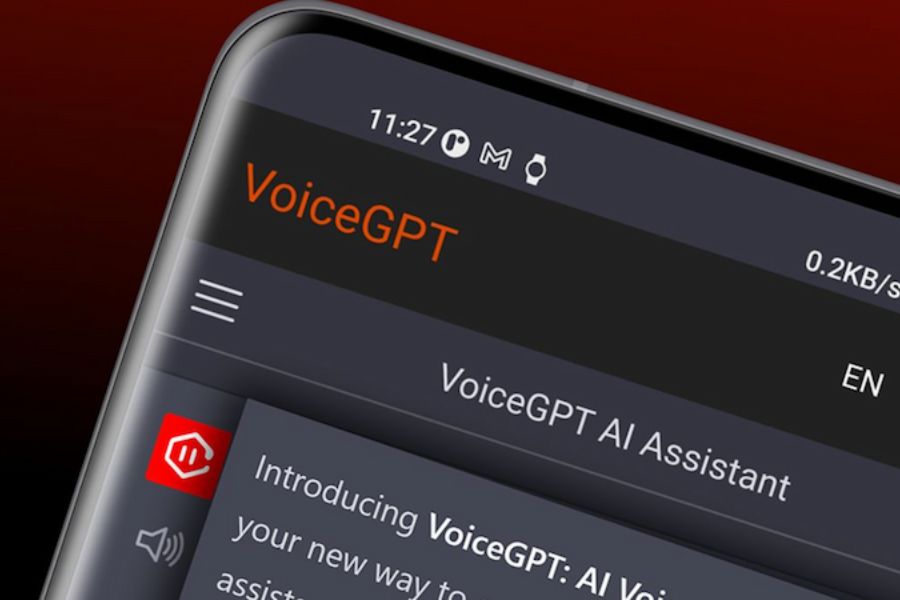
VoiceGPT is the name used for tools that support voice interaction with ChatGPT. Depending on the application or version, users can read questions through the microphone, convert speech to text, and receive answers in text or audio format. Speech recognition technology combined with AI models makes conversations more natural, suitable even for those new to artificial intelligence.
Instead of typing each request on the keyboard, you simply speak clearly what you need. For example, you can ask the AI to explain a confusing concept, suggest a menu for the week, write advertising copy, or practice English communication. However, the specific features, number of supported languages, and image creation capabilities will depend on the VoiceGPT app you use. Therefore, be sure to check the version information before you begin.
2. Key features of VoiceGPT
VoiceGPT aims for a convenient interactive experience, allowing users to access AI without excessive manipulation. Depending on the version, the tool may offer several notable features:
-
Speech recognition: Converts spoken questions into text for AI to process. Accuracy may vary depending on microphone quality, ambient environment, and pronunciation.
-
Voice response: Some versions can read the response aloud, allowing you to hear the information instead of constantly looking at the screen.
-
Multilingual support: Allows chatting in the languages supported by the application, useful when learning a foreign language or researching international information.
-
Content writing support: You can provide instructions for AI to compose emails, write social media posts, summarize documents, or suggest ideas.
-
Customize your experience: Some versions allow you to choose the voice, language, or interaction style to suit your personal needs.
-
Save the conversation: Depending on the application, you can review your chat history or share your replies for later use.
It's important to note that not all versions of VoiceGPT have all of these features. You should check the interface and instructions of the application you are using to avoid confusion between supported features and features only available on other tools.

3. Instructions for using VoiceGPT on a computer
Using VoiceGPT on a computer is quite convenient, especially when you need to listen to answers while working with documents. First, make sure you have a stable internet connection, a properly functioning microphone, and access the correct VoiceGPT website or application you want to use.
3.1. Step 1: Access VoiceGPT
Open your computer's browser and access the official website of your chosen tool. If the application requires login, follow the on-screen instructions. For services that require a specific account or API, you should check the terms of use before proceeding.
3.2. Step 2: Grant microphone access
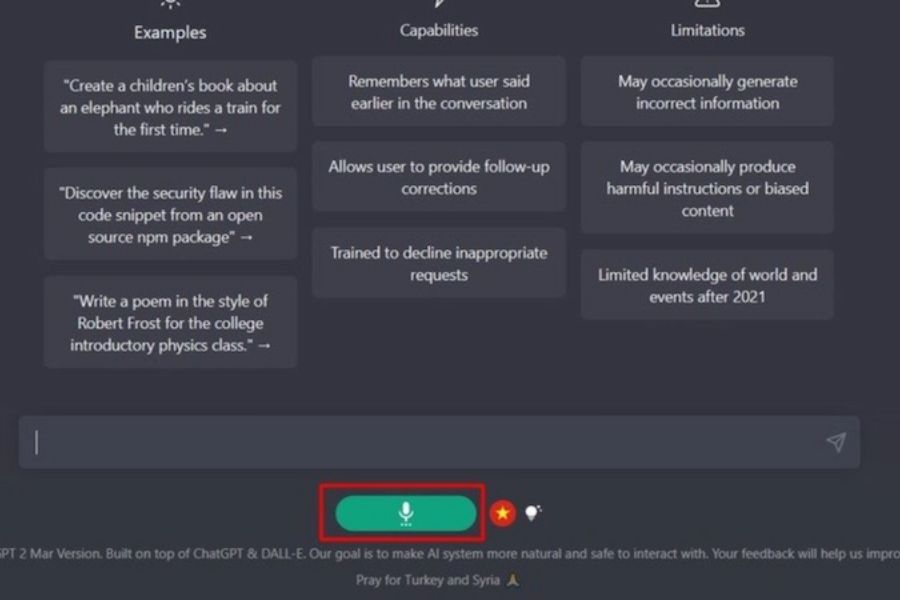
For VoiceGPT to recognize speech, you need to allow your browser or application access to your microphone. When a permission request appears, select allow if you trust the website you are using. If you previously denied permission, you can open your browser's privacy settings to adjust it.
Before starting a conversation, check that the microphone is working and reduce background noise. This helps the speech recognition tool to identify sentences more clearly, reducing the risk of missing words or misunderstandings.
3.3. Step 3: Enter the question or use your voice.
In the chat interface, you can type your question in the text box or press the microphone icon if your version supports this feature. Then, clearly state your request in concise sentences, such as: "Please write me a product description of about 100 words" or "Explain artificial intelligence in easy-to-understand language."
If the tool displays content that has been recognized, you should reread it to check for important words before submitting. For longer questions, break them down into smaller points so that the AI can better understand the intended message.
3.4. Step 4: Submit your request and wait for a response.
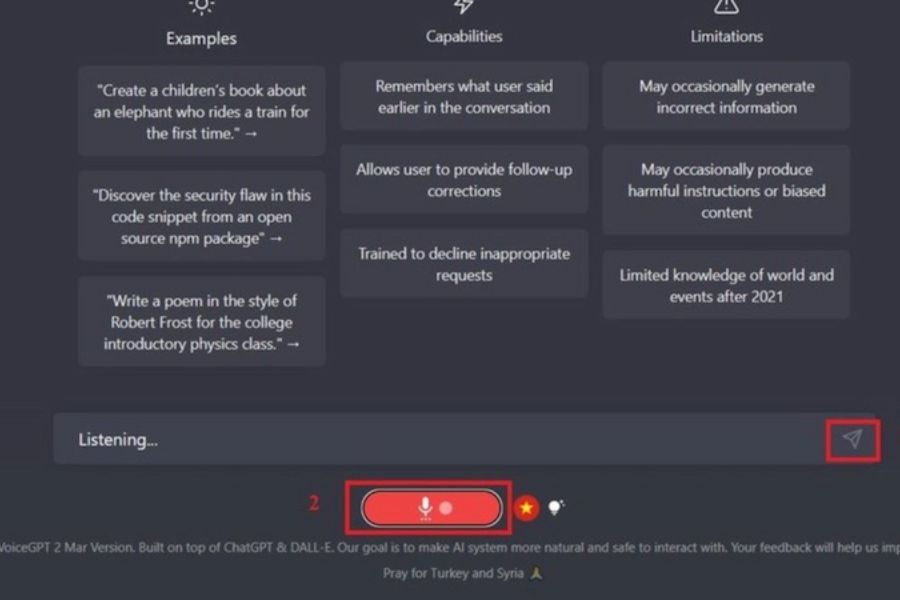
After completing your statement, you can end the recording via the interface, check the content, and press the send button if necessary. VoiceGPT will forward the request to the AI system and display the response after processing. Response time depends on your internet connection, the length of the question, and the service being used.
3.5. Step 5: Listen to the answer aloud.
If the text-to-speech feature is available, tap the speaker icon or the audio playback button to hear the response. If you don't see this option, your version may only support text-only responses. You can ask the AI to summarize the content into easier-to-understand sentences or explain it again with real-world examples for easier comprehension.
4. Instructions for using VoiceGPT on your phone
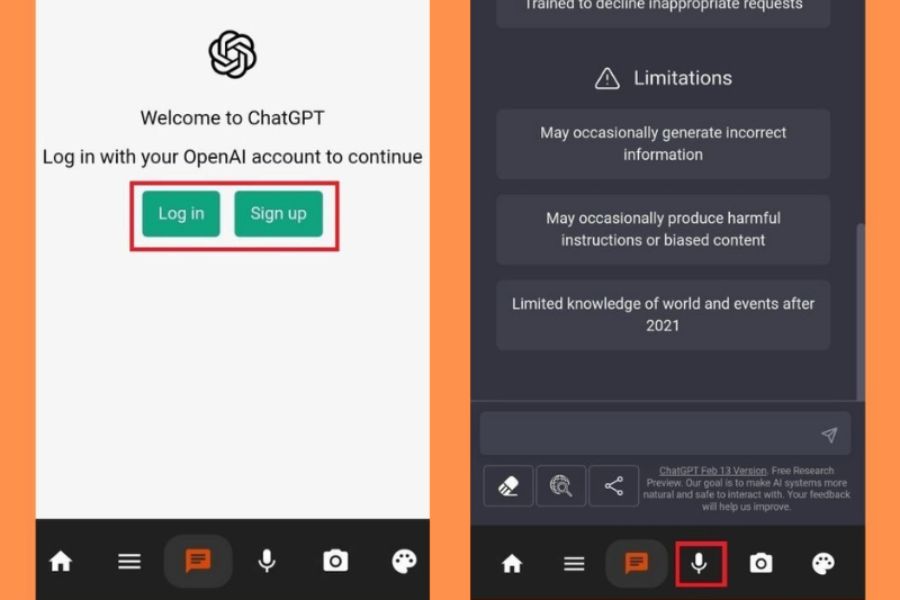
On your phone, VoiceGPT can help you quickly look up information, practice communication, or record ideas when using the keyboard isn't convenient. The steps are generally similar to those on a computer, but the icon location and permission requirements may vary depending on the device.
-
Step 1: Open the app or website. Access the VoiceGPT service you want to use. If an app needs to be installed, check the developer and download source before installing.
-
Step 2: Allow microphone access. When the app requests permission to use the microphone, grant the appropriate permission. If you are unable to record, check your phone's permission settings.
-
Step 3: Speak your question into the microphone. Press the record icon if available, then read your request clearly. You can ask about general knowledge, request content writing, or ask for a sentence to be translated into a foreign language.
-
Step 4: Review and submit the content. If speech is being transcribed, review the words, numbers, and proper names before sending it to the AI.
-
Step 5: Listen to or read the response. Follow the on-screen answer, press the play button if assistance is needed, or ask further questions to clarify information.
5. How to use VoiceGPT effectively in work and study.
VoiceGPT works best when you know how to ask clear questions and specify the desired outcome. Instead of just stating a general request, add context, purpose, and format to the response so the AI can create content that better suits your needs.
5.1. Creating voice content
If you frequently write advertisements, product descriptions, or social media content, you can provide your initial ideas to VoiceGPT and then ask the AI to develop them into a complete piece. For example, you could say: "Write a 120-word description for a women's handbag, using a natural tone, focusing on practicality, and avoiding excessive advertising."
This method allows you to quickly turn ideas into drafts. Then, review the information, adjust the tone, and add your own details to ensure the content aligns with your brand.
5.2. Learning a foreign language and practicing communication skills
VoiceGPT can help learners practice conversational skills, expand their vocabulary, and learn how to express themselves in common situations. You can ask the AI to play the role of an interviewer, hotel employee, or foreign friend to practice your communication reflexes.
For example, say: “Let’s have a conversation in basic English. Each time I respond, please correct any grammatical errors and briefly explain in Vietnamese.” If the tool has speech recognition and playback capabilities, you can also use it for listening practice. However, AI feedback is not a complete replacement for learning pronunciation with a teacher or native speaker.
5.3. Information retrieval and knowledge explanation
When encountering a difficult term or needing a quick explanation of a new topic, you can ask a question verbally and request the AI to explain it step-by-step. For example, "Explain how to calculate discount percentages with a real-world purchase example."
To make the results easier to understand, you should ask the AI to use simple language, provide illustrative examples, or summarize the key points. For information related to law, health, finance, or important decisions, verify it with a reliable source.
5.4. Ideation and Planning
If you're unsure where to start, tell VoiceGPT about your goals, timeframe, and what you're considering. The tool can suggest video topics, build a posting schedule, create a to-do list, or suggest ways to organize your time during the day.
You should ask the AI to provide several options instead of just a single answer. Comparing the options will help you find the right path that suits your resources and goals.
6. Conclusion
VoiceGPT offers a more convenient way to interact with AI through voice, from looking up knowledge and practicing foreign languages to creating content and planning work. To use it effectively, you should start with simple questions, check microphone permissions, articulate your requests clearly, and verify results when necessary. Don't forget to check the features of the specific version of VoiceGPT you're using, as support may vary between applications. By knowing how to use it properly, you'll save time and better utilize AI in your studies and daily life.

















VIP Products





Best Selling Products
Upgrade Genuine Office 365
49 USD
Capcut Pro 1 Year
39 USD
Genuine Adobe Illustrator account
99 USD
Copyright Adobe Lightroom Account
59 USD
Windows 10 & 11 Pro Key
36 USD
Adobe Photoshop Copyright - Full App
120 USD
Freepik Premium Account
59 USD
Plugin Retouch4me
69 USD
Upgrade genuine Capture One account
120 USD
ChatGPT Plus Account (GPT-4)
16 USD
Autodesk All App Account Copyright
120 USD
MidJourney Account
29 USD
Adobe Premiere Pro Account
99 USD
Genuine Cheap Canva Pro
39 USD
Upgrade Duolingo Super
29 USD