Best Selling Products

Genuine Cheap Canva Pro
39 USD

Copyright Adobe Lightroom Account
59 USD

Adobe Photoshop Copyright - Full App
120 USD

Upgrade Duolingo Super
29 USD

Upgrade Genuine Office 365
49 USD

Freepik Premium Account
59 USD

Plugin Retouch4me
69 USD

Windows 10 & 11 Pro Key
36 USD

MidJourney Account
29 USD

Genuine Adobe Illustrator account
99 USD

Adobe Premiere Pro Account
99 USD

Autodesk All App Account Copyright
120 USD

Capcut Pro 1 Year
39 USD

Upgrade genuine Capture One account
120 USD

ChatGPT Plus Account (GPT-4)
16 USD
A guide to using Adobe Firefly to create AI-powered videos.
Nội dung
In recent years, creating videos no longer requires expert filming and editing skills or specialized equipment. With the help of artificial intelligence, a simple text description or a still image can transform your idea into a vibrant video. Adobe Firefly is a prime example of this trend. This article will help you understand what Adobe Firefly is, its outstanding video features, and how to use it step-by-step.
1. What is Adobe Firefly?
Adobe Firefly is an AI-powered creation tool developed by Adobe, allowing users to generate images, text effects, and graphic designs from simple text descriptions. This tool is part of Adobe's Creative Cloud ecosystem and integrates seamlessly with familiar software such as Photoshop, Illustrator, and Adobe Express.
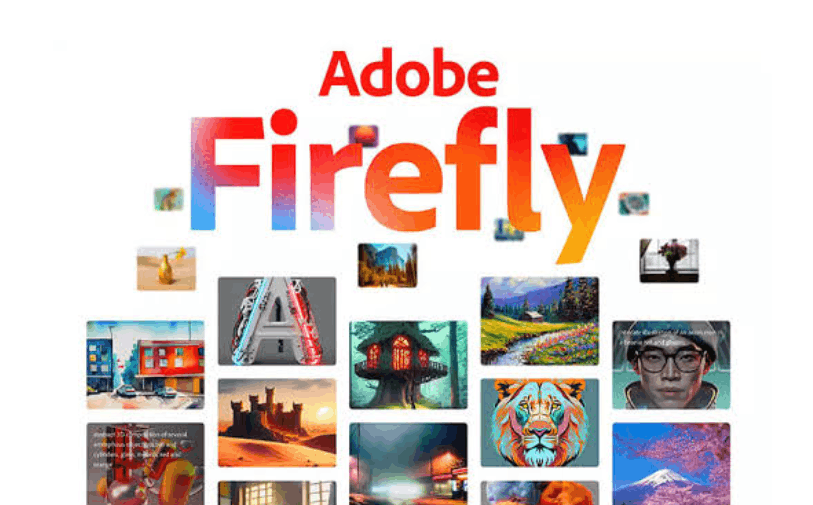
Thanks to the application of artificial intelligence to analyze and interpret user ideas, Firefly is capable of creating high-quality visual images and content in a very short time. This allows designers, marketers, and content creators to produce professional-quality products without needing advanced design skills. In recent versions, Adobe has significantly expanded Firefly's capabilities into the video field, allowing users to convert still text and images into films with movement, lighting, and depth, opening up a new direction for the production of animated visual content.
2. Key features of Adobe Firefly for video
Adobe Firefly offers a completely new approach to video production, reducing manual workload while giving users significant control over the final product. Below are the core features that make this tool so appealing.
The text-to-video feature allows Firefly to transform short descriptions into complete video clips. Simply type out what you want to see, and the system will quickly create the corresponding video. This is an ideal solution for those who have ideas but lack visual materials, allowing users to focus entirely on the story's content instead of worrying about filming and editing.
The image-to-video conversion feature transforms a still image into a truly moving video. Firefly adds motion, lighting, and depth to the image, bringing a location, person, or object to life. This feature is especially useful when you want to create moving content but don't have actual video footage available.
In addition, Firefly offers advanced camera angle control options, allowing users to choose the viewing angle and the degree of zoom in or out of the frame. This enables you to actively guide the viewer's gaze and convey the desired emotion. Smooth camera movement makes videos look more natural, while also making the story easier to follow and more engaging.
Firefly also supports adding voice, music, and sound effects from short text snippets, and even allows the use of virtual characters to deliver dialogue instead of the user. This audio element greatly contributes to conveying emotion and nuance in each scene, making videos clearer and more realistic.
Finally, collaborative integration allows multiple team members to work together on a single video project. Members can share, edit, and exchange feedback within the same workspace, making the production process streamlined, easy to follow, time-saving, and minimizing confusion between versions.
3. How to use Adobe Firefly to create videos
Adobe Firefly is designed to simplify the process of turning ideas into complete videos, allowing even beginners to create creative clips without going through complicated steps. Below is a detailed step-by-step guide.
3.1 Step 1: Log in and select video mode
First, open Adobe Firefly in your browser or app, then log in with your Adobe account. After successfully logging in, find the option to convert text to video or convert images to video, depending on your needs. Once you've selected the appropriate mode, the interface will display an area where you can enter a description or upload an existing image.
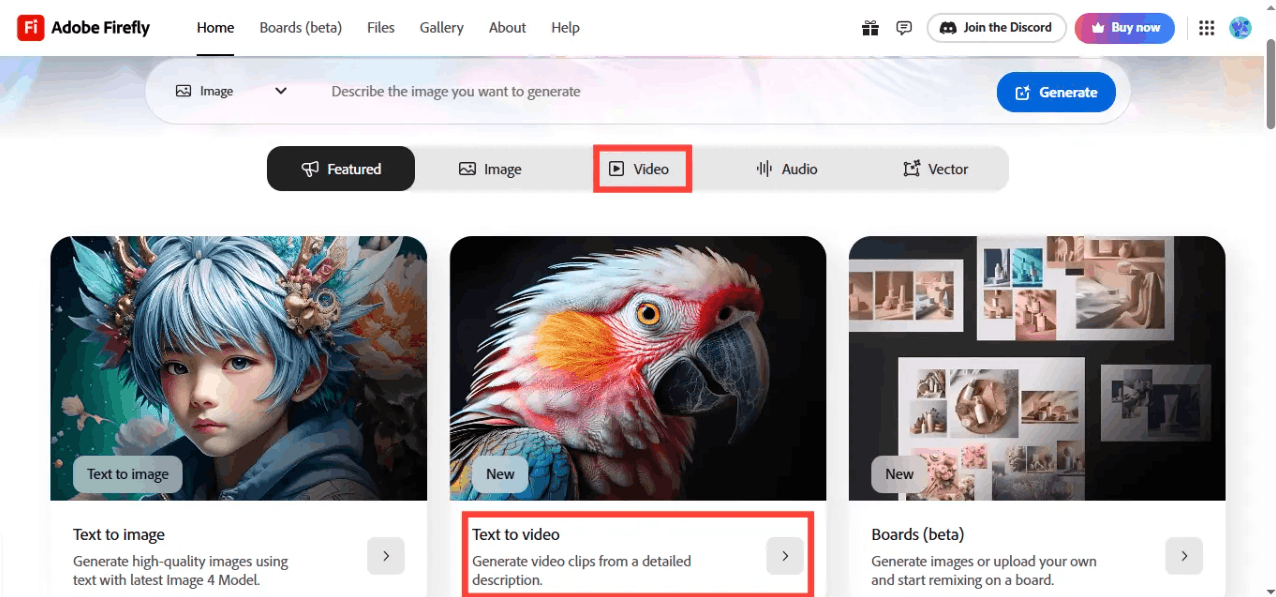
3.2 Step 2: Add a description or upload an image
In the next step, you need to enter a clear and specific description, such as a slow-motion cinematic shot capturing a gymnast performing with a sword against a sunset, filmed in high resolution. You can also upload an existing photo and describe how you want it to move. Don't forget to add details about the desired lighting, color, and emotional tone to guide the system. This step is crucial, helping Firefly understand your idea correctly and transform it into a real product.
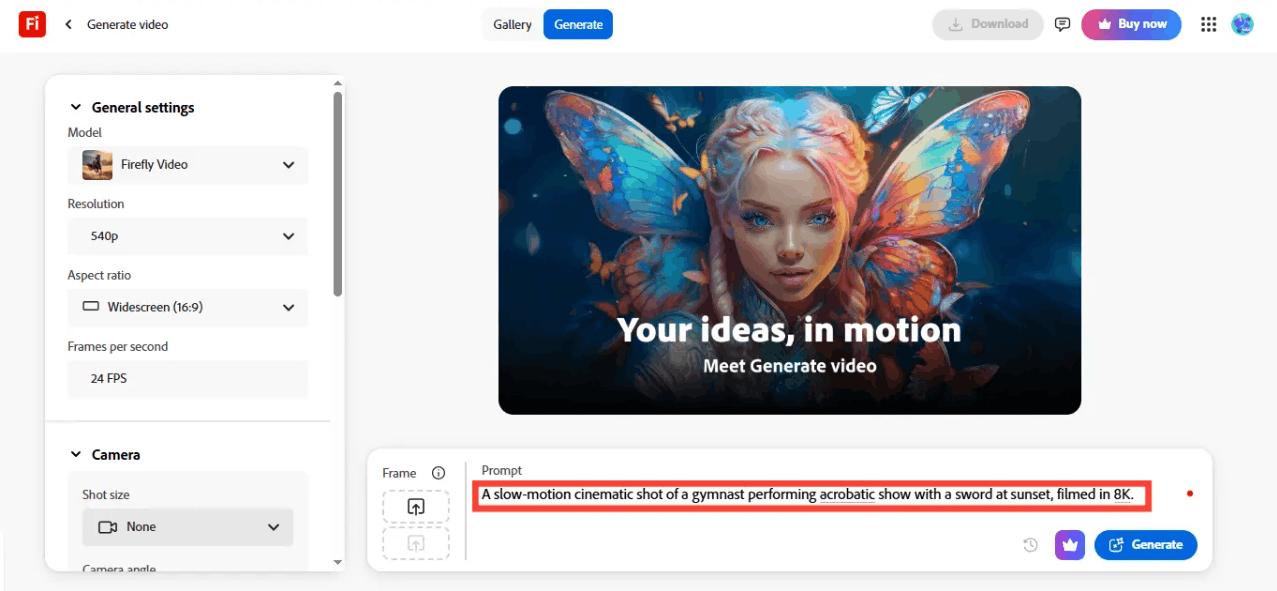
After completing the description, click the create button for the system to process and provide several options for you to choose from. You should review each option and select the video clip that best suits your initial idea. Additionally, you can further adjust parameters such as camera angle, aspect ratio, and motion level to perfect the clip before saving or sharing.
4. 5 effective tips for using Adobe Firefly
Before you start creating videos using artificial intelligence, mastering a few tips will help make your workflow smoother and improve the quality of the final product.
First and foremost, always create a detailed and clear description. The more specific the wording, the easier it will be for Firefly to understand your intended direction. You should clearly state what you want to see, the dominant colors, and the emotion the scene needs to convey. A good description can shape the entire scene, so try to write concisely but still be specific enough to clearly express your ideas.
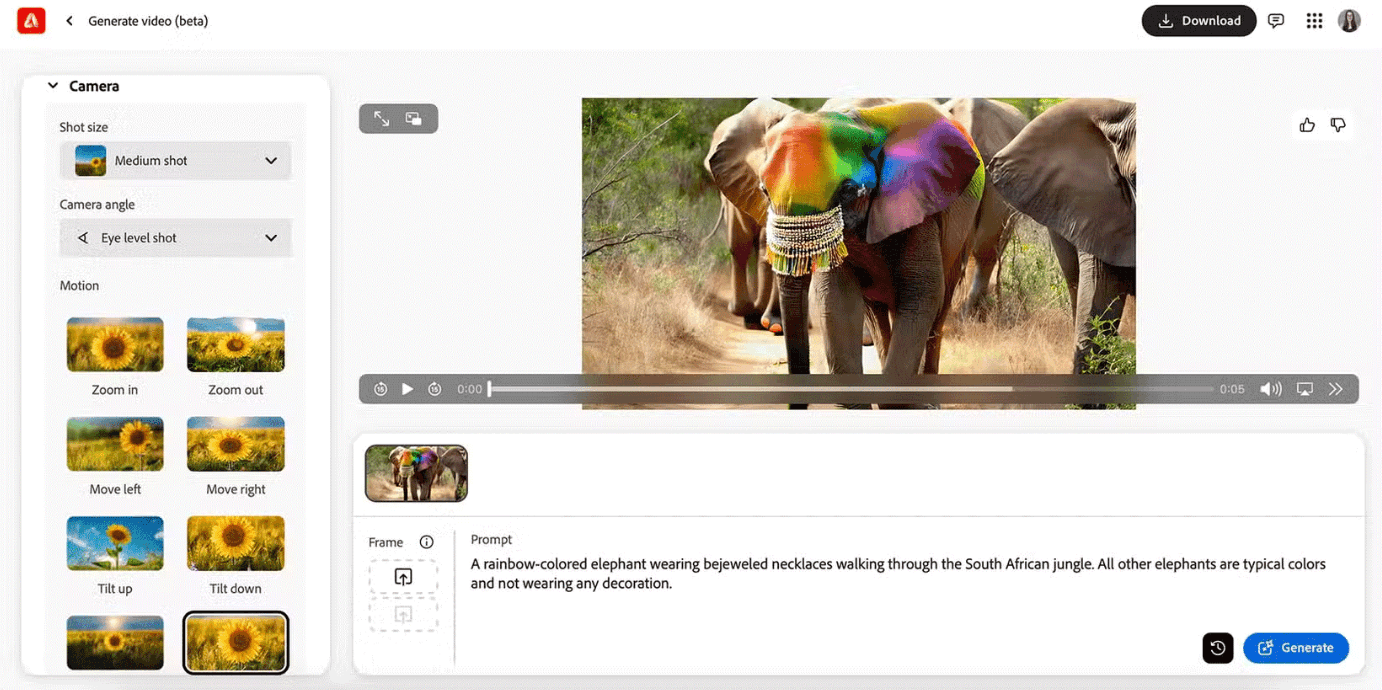
Next, you should take advantage of pre-made style sets to quickly establish the tone for your video. Each style set offers a unique nuance, which can be bright, gentle, strong, or classic. Experiment with several different styles before starting more in-depth editing, then choose the style that best suits the story you want to tell.
Additionally, if possible, you should add keyframe images to guide the movement in your video. These images help the system identify which parts need to remain still and which parts need to move, thus preventing jerky or off-center shots, resulting in smoother and more focused video motion.

Another important tip is to always take the time to review and refine the newly created footage instead of rushing to save the first result. Carefully observe each shot, as some sections may need minor adjustments or re-editing for better results. Even small adjustments contribute to clarifying the idea, and a quality video usually comes from continuous review and refinement, not just a single click.
Finally, you should combine the AI-generated clips with your own manual editing to make the video more impressive. You can add sound, a short caption, or a subtle transition effect. Combining your personal touch with AI-generated clips is how a simple idea can become a truly complete story.
5. Price list for Adobe Firefly packages
Before deciding to subscribe to any service package, you should carefully research the costs. Adobe Firefly applies usage limits based on the subscription level, and the higher the price, the more credits are generated and the more advanced video tools are available. You should choose a package that suits your actual usage frequency.
| Service package | Reference fee | Main features |
|---|---|---|
| Free package | No charge | It provides a limited amount of generated credit per month, suitable for trying out the basic features. |
| Firefly Standard | Approximately $9.99 per month | Unlock higher credit limits, suitable for individual users with frequent spending needs. |
| Firefly Pro | Approximately $19.99 per month | Significantly increased credit limit, expanded access to video models and advanced features. |
| Firefly Premium | Approximately $199.99 per month | For professional users or teams needing to produce large-scale video with the highest number of credits. |
Specific fees may vary depending on the time, region, and payment method, so you should check the latest updates on Adobe's official website before subscribing. Adobe Firefly's biggest advantage lies in its rapid creation speed and low technical barrier to entry, making it accessible to anyone creating content. However, the drawbacks include limited usage across packages, some premium features only available on higher-tier paid plans, and the potential for users to quickly reach the limits of their subscription plan for complex or large-scale commercial projects.
Overall, Adobe Firefly is an effective tool for turning ideas into videos in just a few simple steps, especially suitable for beginners or those who need to quickly create content for social media and promotional campaigns. While this tool still has some limitations in terms of advanced editing capabilities, as a starting point for transforming ideas into moving images, Firefly is definitely worth the time to explore and experiment with.





















VIP Products








Best Selling Products
Genuine Cheap Canva Pro
39 USD
Copyright Adobe Lightroom Account
59 USD
Adobe Photoshop Copyright - Full App
120 USD
Upgrade Duolingo Super
29 USD
Upgrade Genuine Office 365
49 USD
Freepik Premium Account
59 USD
Plugin Retouch4me
69 USD
Windows 10 & 11 Pro Key
36 USD
MidJourney Account
29 USD
Genuine Adobe Illustrator account
99 USD
Adobe Premiere Pro Account
99 USD
Autodesk All App Account Copyright
120 USD
Capcut Pro 1 Year
39 USD
Upgrade genuine Capture One account
120 USD
ChatGPT Plus Account (GPT-4)
16 USD