Best Selling Products

Adobe Photoshop Copyright - Full App
120 USD

Upgrade Genuine Office 365
49 USD

Autodesk All App Account Copyright
120 USD

Upgrade Duolingo Super
29 USD

Capcut Pro 1 Year
39 USD

Copyright Adobe Lightroom Account
59 USD

Upgrade genuine Capture One account
120 USD

Genuine Adobe Illustrator account
99 USD

Windows 10 & 11 Pro Key
36 USD

Genuine Cheap Canva Pro
39 USD

ChatGPT Plus Account (GPT-4)
16 USD

Freepik Premium Account
59 USD

Adobe Premiere Pro Account
99 USD

MidJourney Account
29 USD

Plugin Retouch4me
69 USD
Lightroom vs. Lightroom Classic: Which version should you use?
Nội dung
- 1. A short answer for those in a hurry.
- 2. Why does Adobe have two versions of Lightroom?
- 3. The core difference: where your images are stored.
- 4. Who is Lightroom Classic intended for?
- 5. Who is Lightroom (cloud version) intended for?
- 6. A visual comparison between Lightroom and Lightroom Classic
- 7. Cost issue: good news for you.
- 8. Which version should you choose?
Adobe offers two applications with almost identical names: Lightroom and Lightroom Classic. This is a common dilemma for many beginners in photo editing, and even experienced photographers sometimes confuse the two. This article will help you understand the fundamental differences between the two software programs and provide specific suggestions to help you choose the version that best suits your workflow in 2026.
1. A short answer for those in a hurry.
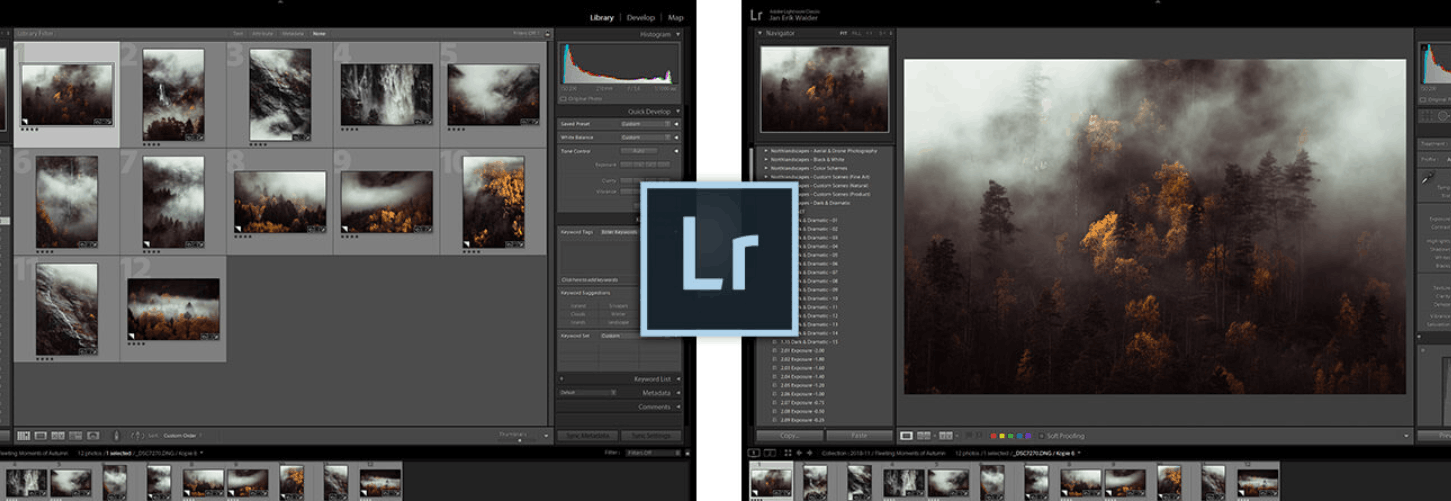
If you're a serious photographer specializing in landscapes, urban architecture, travel, or any genre that requires managing a large number of RAW files on your personal computer, then Lightroom Classic is the choice for you. This version is trusted by many professional photographers worldwide, boasting the most powerful editing tools and superior image library organization capabilities.
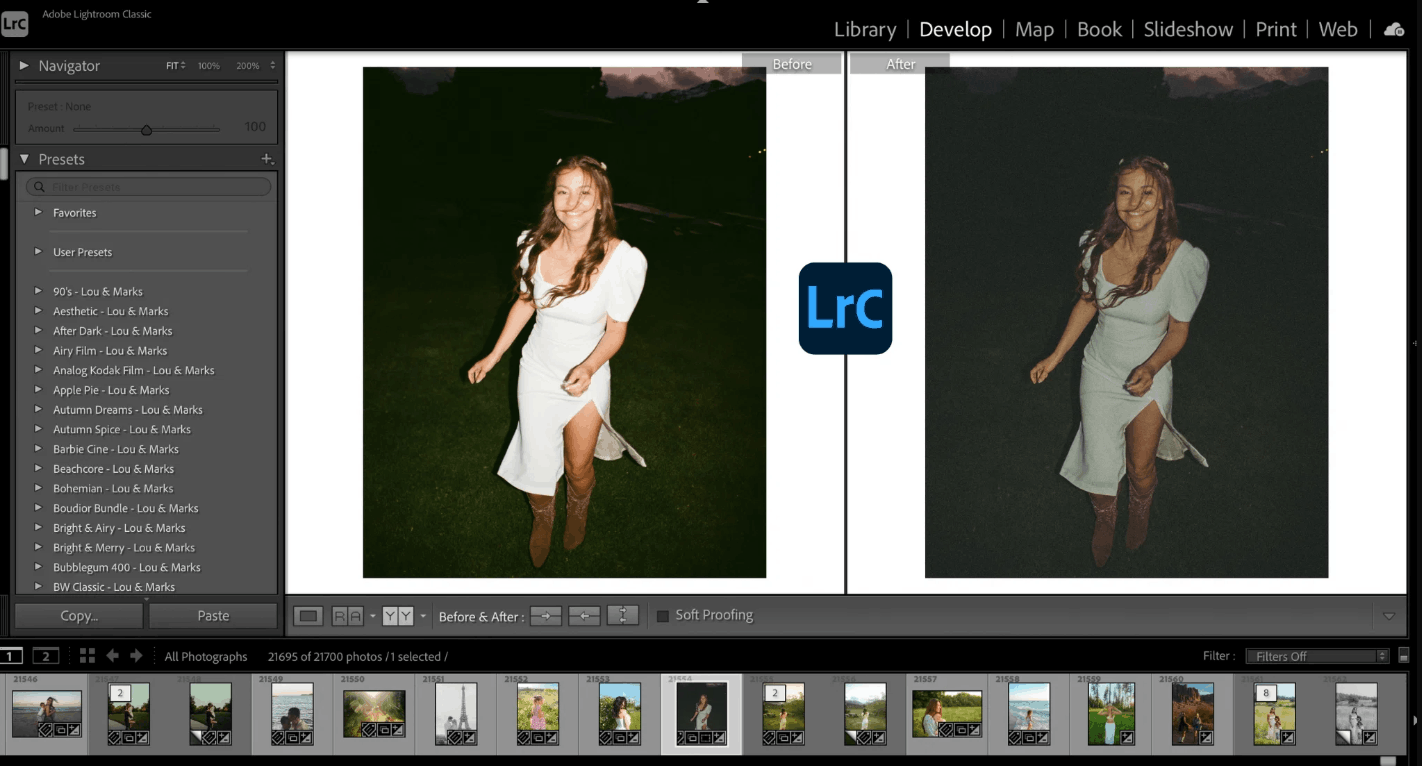
Conversely, if you primarily take photos with your phone, prefer editing photos on your iPad while relaxing, don't have a huge number of photos, and want everything to automatically sync across devices without worrying about file management, then the cloud version of Lightroom will be a much better fit.
Essentially, that's the whole answer. However, to make the right decision for your specific situation, you should read the detailed analysis below, as the appropriate choice depends on your work habits, the size of your photo library, and your individual photography goals.
2. Why does Adobe have two versions of Lightroom?
Previously, Adobe only had a single product called Lightroom, and that was the software that photographers used for many years. Later, Adobe developed a completely new platform, built on a cloud-based approach, and simply named it Lightroom. To avoid confusion, the original version was renamed Lightroom Classic.
As a result, two products now exist side-by-side. Lightroom Classic is the original version, operating only on desktop computers, compatible with both macOS and Windows, and stores all photos directly on the user's hard drive in folders that you create and organize yourself. Meanwhile, Lightroom, as many people commonly call it, Lightroom CC, is the newer version, designed with a cloud-first philosophy, operating on computers, phones, tablets, and web browsers, with photo data automatically synchronized across all devices.
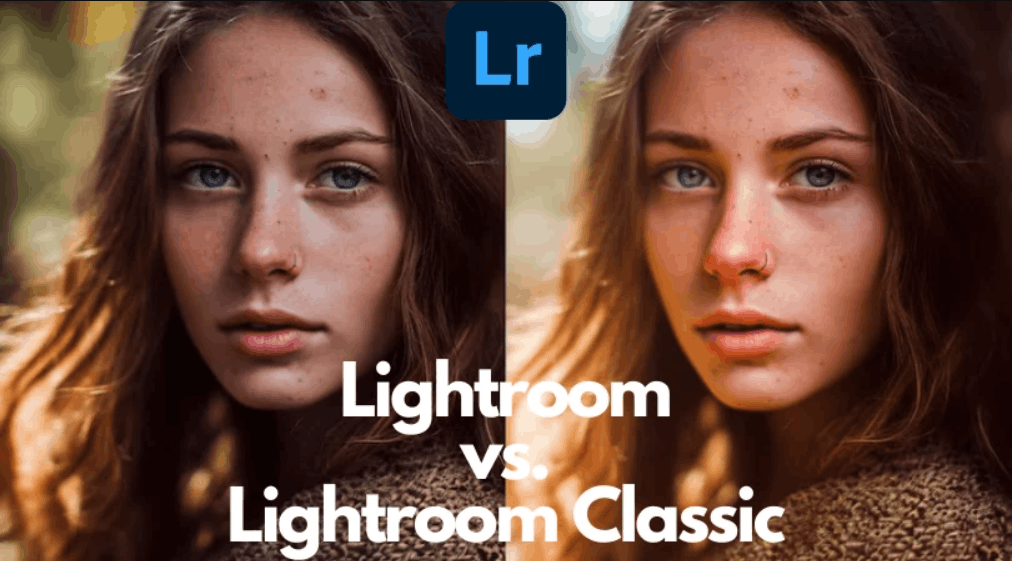
Both products belong to the same company and use the same RAW image processing engine, Adobe Camera Raw, so the basic editing quality is almost identical. The difference lies in the design philosophy and how data is organized, and this is what determines which version will be more suitable for different types of users.
3. The core difference: where your images are stored.
The most important factor differentiating these two software programs is where your photos are actually stored.
With Lightroom Classic, all your photos reside on your computer or external hard drive. You have complete control over the folder structure, and you decide where to save each image file. For those with massive photo libraries—potentially tens of thousands, even hundreds of thousands of photos accumulated over years—this is almost the only solution to prevent management from becoming chaotic.
With the cloud version of Lightroom, original photos are uploaded to Adobe's servers and then automatically appear on all devices you're logged into. You can start editing on your laptop and then continue directly on your phone without manual syncing. This experience is very smooth and stable, but it means you'll need to pay extra for cloud storage and rely on an internet connection to access your full photo library.
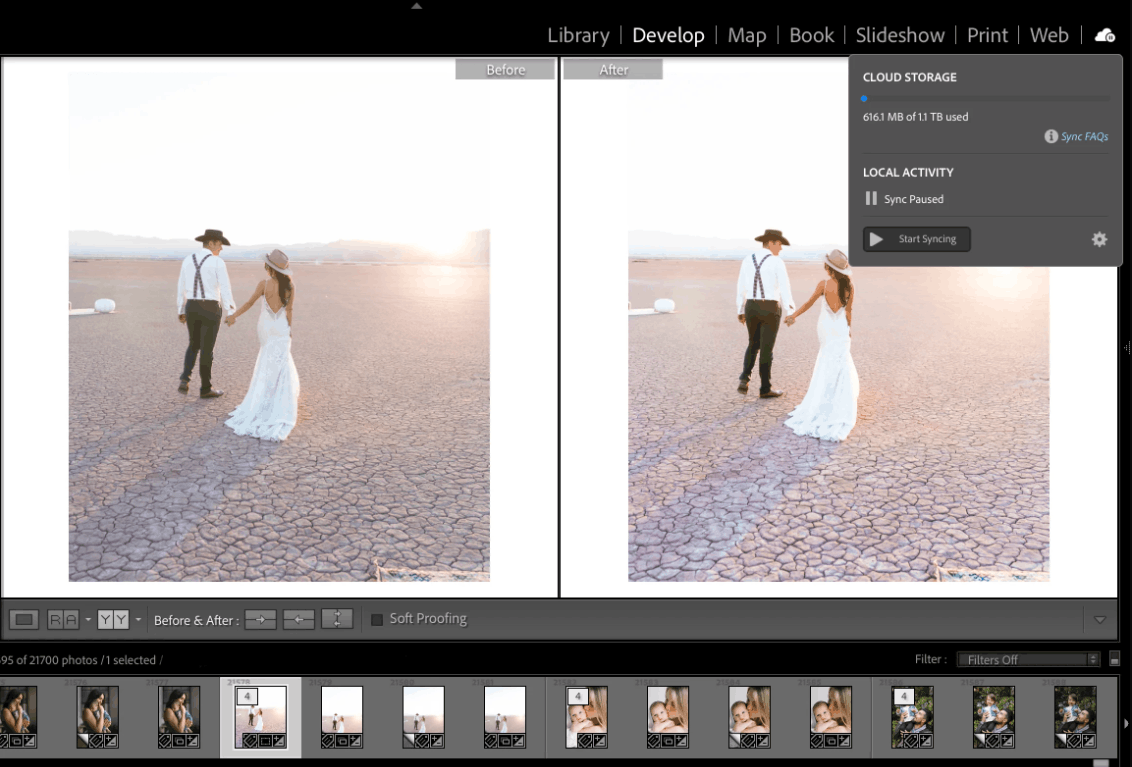
It's also worth noting that the distinction between the two versions is no longer absolute. The cloud version of Lightroom now supports local image storage on your device, while Lightroom Classic also allows partial library syncing to the cloud for viewing on your phone. However, the core philosophies of the two products remain very different, and this is a factor you need to consider carefully before choosing.
4. Who is Lightroom Classic intended for?
Lightroom Classic offers the deepest control and most comprehensive feature set in the entire Adobe photo editing ecosystem. Its file management and library organization capabilities far surpass those of the cloud version, especially when dealing with thousands of RAW files and complex keyword systems, collections, and folder structures.
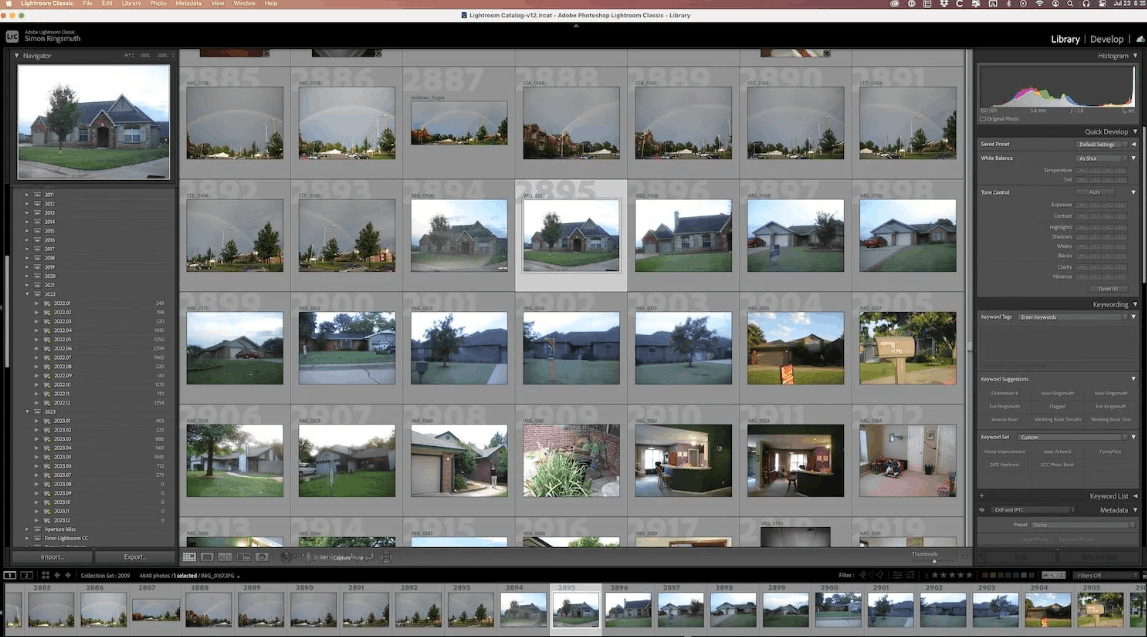
This software also possesses advanced features that the cloud version currently lacks, such as the ability to directly capture images from the camera to the computer for instant viewing of results, a mode for comparing multiple images side-by-side, and the most detailed editing and masking tools available. Furthermore, features like virtual copies, a printing module, and a color preview tool before printing remain Classic's strengths that the cloud version doesn't fully offer.
If your work involves landscape photography, urban architecture, real estate, weddings, or any serious genre where you typically bring your memory card full of RAW images home to edit at your desk, then Lightroom Classic is the tool for you.
The trade-off here is that you'll have to manage things more yourself. Backing up data and organizing folders is entirely your responsibility, requiring some initial adjustment. However, in return, you gain absolute control, and for a serious photographer, that control is crucial to the long-term quality of your work.
5. Who is Lightroom (cloud version) intended for?
The cloud version of Lightroom is truly a quality product, and for the right group of users, it's even a better option.
The software is built around simplicity and the ability to work anytime, anywhere. It works on almost any platform, including desktops, iPhones, iPads, Android devices, ChromeOS, and even web browsers. When you edit a photo on one device, the result will instantly appear on all other devices. The interface of this version is also much cleaner and more user-friendly, making it ideal for beginners who find Lightroom Classic too complicated with its array of panels and modules.
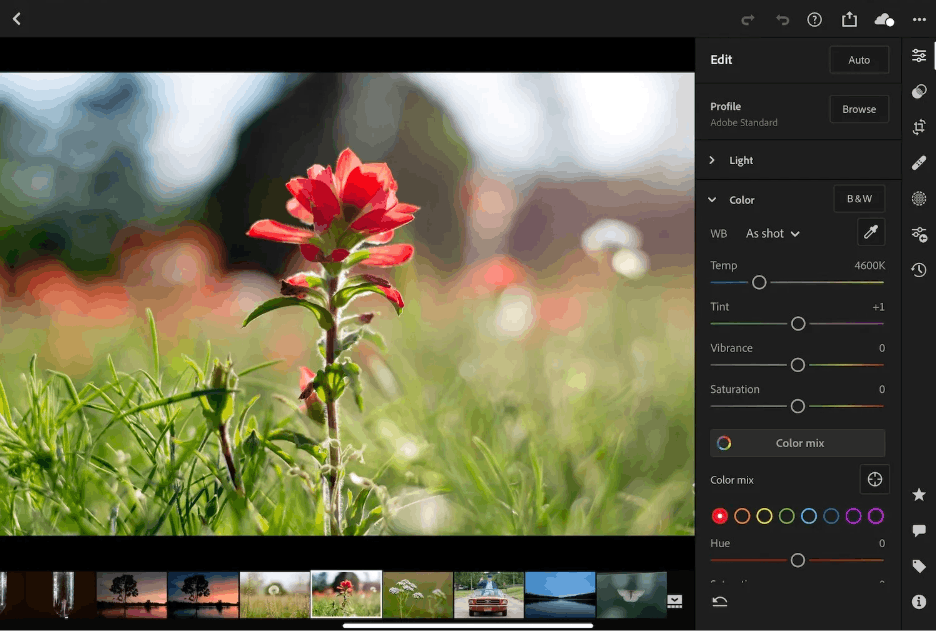
You should choose the cloud version of Lightroom if most of your photos are taken with your phone, you enjoy editing comfortably on a tablet, you don't have a huge photo library, and you want everything to run smoothly without worrying about folder structure or data backups.
The drawbacks of this version are lower system control and fewer professional features compared to the Classic version, although this gap is gradually narrowing each year, and you will have to rely on cloud storage and a stable internet connection.
6. A visual comparison between Lightroom and Lightroom Classic
The table below summarizes the main differences between the two versions to give you an overview.
| Criteria | Lightroom Classic | Lightroom (cloud) |
|---|---|---|
| Suitable candidates | Professional photographer, serious user | People who take photos with their phones are active users who travel a lot. |
| Photo storage location | Computer hard drive or external hard drive | Adobe's cloud servers, synchronize across all devices. |
| Assistive devices | Runs only on computers, both macOS and Windows. | Computers, phones, tablets, web browsers |
| File management | Powerful, with directories, catalogs, and a detailed keyword system. | Simple, highly automated, less control. |
| Professional features | Wire capture, comparison mode, full editing toolset | Fewer now, but more are being added rapidly with each update. |
| Difficulty level when getting used to it | Higher levels require more time to learn. | Low cost, user-friendly interface, easy to access. |
| Backup responsibility | Self-managed users | Adobe automatically stores data in the cloud. |
| Network connection required. | Optional | Full synchronization is necessary. |
7. Cost issue: good news for you.
Many people often think that having to choose between two versions means paying more, but that's not necessarily the case, and this helps reduce the pressure of making a decision.
Adobe's Photography Plan now includes Lightroom Classic, Lightroom Cloud, and Photoshop in a single subscription. This means you can install both versions, try them side-by-side, and flexibly use the appropriate tool depending on your work needs at any given time. Additionally, Adobe offers a separate cloud-based Lightroom plan with larger storage capacity, ideal for those who want to focus entirely on cloud-based workflows.
Pricing and storage capacity may vary depending on the time and region, so you should check for updates directly on Adobe's official website before subscribing. It's important to remember that with most current subscription plans, you don't need to choose one over the other; you can use both tools simultaneously without incurring significant additional costs.
8. Which version should you choose?
To help you make a quick decision, compare your situation with the suggestions below.
-
If you shoot landscape, urban architecture, or travel photos with a physical camera and often edit them on a computer, Lightroom Classic is the tool you should use right from the start.
-
If you primarily take photos with your phone and want to be able to edit them anywhere without any hassle, the cloud version of Lightroom will provide a much more satisfying experience.
-
If you're a complete beginner and find Lightroom Classic too complicated, you can start with the cloud version of Lightroom to get familiar with it, and once you're more confident, switching to Classic will come quite naturally.
-
If you own a library of tens of thousands of photos and have high demands for data organization, Lightroom Classic is almost the only option that truly meets those needs.
Alternatively, if you want to take advantage of both, a common practice among professionals is to use Lightroom Classic as your primary editing space and enable syncing so your favorite photos remain on your phone for quick viewing or sharing.
Ultimately, the most important thing to remember is that software only plays a supporting role. The quality of a photograph doesn't depend on whether you use Lightroom or Lightroom Classic, but on your ability to observe light, composition, and how you tell a story through each frame. Choose the version that best suits your work habits, then dedicate most of your energy to honing your shooting and editing skills, because that's what truly creates a beautiful photograph.





















VIP Products








Best Selling Products
Adobe Photoshop Copyright - Full App
120 USD
Upgrade Genuine Office 365
49 USD
Autodesk All App Account Copyright
120 USD
Upgrade Duolingo Super
29 USD
Capcut Pro 1 Year
39 USD
Copyright Adobe Lightroom Account
59 USD
Upgrade genuine Capture One account
120 USD
Genuine Adobe Illustrator account
99 USD
Windows 10 & 11 Pro Key
36 USD
Genuine Cheap Canva Pro
39 USD
ChatGPT Plus Account (GPT-4)
16 USD
Freepik Premium Account
59 USD
Adobe Premiere Pro Account
99 USD
MidJourney Account
29 USD
Plugin Retouch4me
69 USD