Best Selling Products
Plugin Retouch4me
69 USD
Adobe Premiere Pro Account
99 USD
Adobe Photoshop Copyright - Full App
120 USD
Upgrade Genuine Office 365
49 USD

ChatGPT Plus Account (GPT-4)
16 USD
Copyright Adobe Lightroom Account
59 USD

MidJourney Account
29 USD
Freepik Premium Account
59 USD
Autodesk All App Account Copyright
120 USD
Upgrade Duolingo Super
29 USD
Windows 10 & 11 Pro Key
36 USD
Genuine Cheap Canva Pro
39 USD
Genuine Adobe Illustrator account
99 USD
Upgrade genuine Capture One account
120 USD
Capcut Pro 1 Year
39 USD
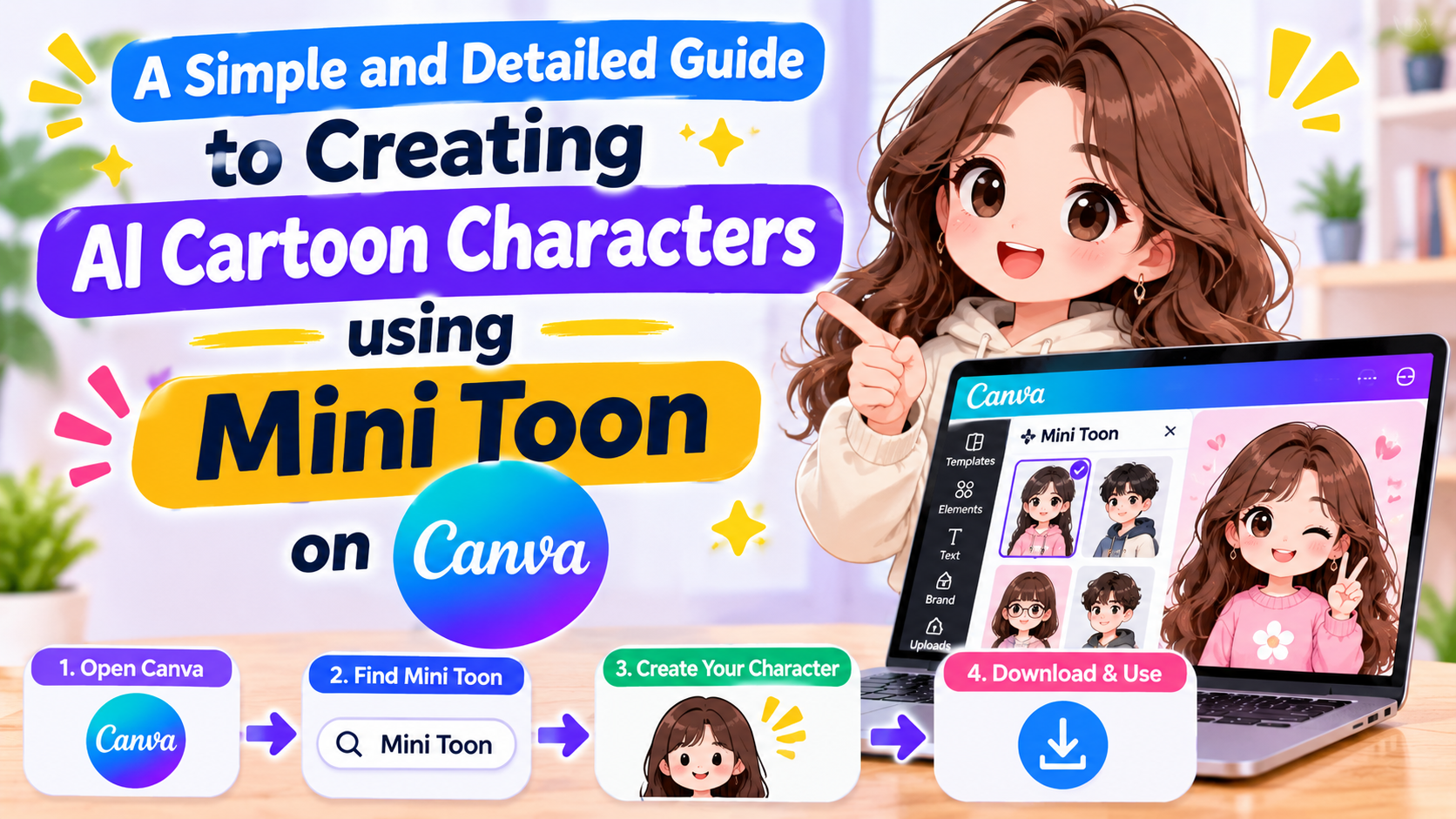
A simple and detailed guide to creating AI cartoon characters using Mini Toon on Canva.
Nội dung
- 1. What is Mini Toon on Canva?
- 2. What do I need to prepare before creating an AI cartoon character using Mini Toon on Canva?
- 3. How to create AI cartoon characters using Mini Toon on Canva
- Step 1: Access the app store on Canva
- Step 2: Search for the Mini Toon app
- Step 3: Choose the design you want to use.
- Step 4: Choose a cartoon character style.
- Step 5: Upload the original image to Mini Toon
- Step 6: Click Create to let the AI process the image.
- Step 7: Review and select suitable animated images.
- Step 8: Add characters to your Canva design.
- Step 9: Edit and upload the final image
- 4. Tips for creating more beautiful and natural-looking AI cartoon characters using Mini Toon
- 5. Things to note when using Mini Toon on Canva
- 6. Conclusion
Do you want to transform ordinary portrait photos into cute, unique cartoon characters without knowing how to draw or using professional graphic design software? With the help of AI, creating chibi-style, mini-cartoon, or adorable character images has become much simpler. Canva now integrates many applications to support image creation, and Mini Toon is an interesting option for those who want to turn personal photos into cartoon versions with just a few steps. Creating AI cartoon characters using Mini Toon on Canva is not too complicated. You just need to prepare a suitable photo, choose your favorite style, and let the AI handle the rest. The finished product can be used as a profile picture, sticker, illustration for social media posts, greeting cards, or incorporated into many other creative designs. Let''s explore the detailed steps in the article below.
1. What is Mini Toon on Canva?
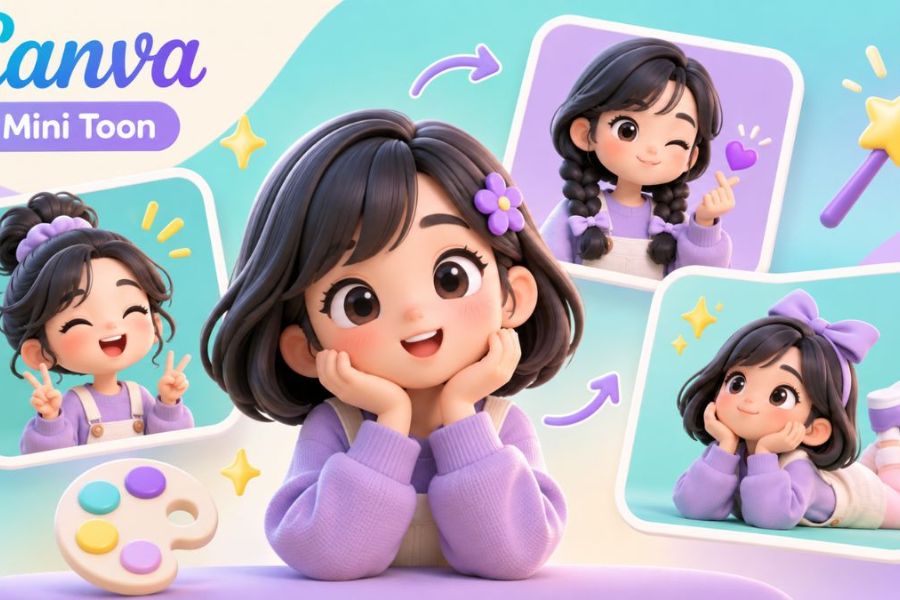
Mini Toon is an app that helps transform images into adorable cartoon characters, often featuring the characteristics of mini or chibi illustrations. Instead of manually drawing each facial feature, outfit, or hairstyle, users can utilize AI to process the original image and create a new cartoon version.
The appeal of Mini Toon lies in its simple usage, making it suitable even for beginners in design. You can choose personal photos, photos of friends, or suitable portraits to experiment with different styles. This makes creating a unique character quicker and more convenient.
Some practical applications of Mini Toon on Canva include:
-
Create a personalized profile picture: Transform your portrait into a unique cartoon image to use on Facebook, TikTok, Instagram, or other platforms.
-
Sticker design: Create cute character designs to use in messages, posts, or other creative materials.
-
Card making and illustrations: Incorporate cartoon characters into birthday cards, greeting cards, posters, or commemorative photos.
-
Creating social media content: Using AI characters as a focal point for posts, videos, cover photos, or personalized content.
-
Create personalized gifts: Transform photos of loved ones and friends into cartoon characters to print on photo frames, mugs, keychains, or other commemorative gifts.
Thanks to its integration with existing design tools on Canva, you don't need to use multiple different software programs to complete an image. After creating a character, users can continue editing, adding text, decorating, and exporting the file directly on the same platform.
2. What do I need to prepare before creating an AI cartoon character using Mini Toon on Canva?
To ensure a smooth character creation process, you should prepare a few basic elements beforehand. These things may seem simple, but they can directly affect the quality of the character after AI processing.
-
Canva Account: Log in to your Canva account to access the editor and app store. Mini Toon is currently presented as a free app on Canva; however, the actual experience may depend on accessibility and app conditions at the time of use.
-
Stable internet connection: Mini Toon requires online image processing, so a stable internet connection will make uploading images, creating shapes, and incorporating results into your design process smoother.
-
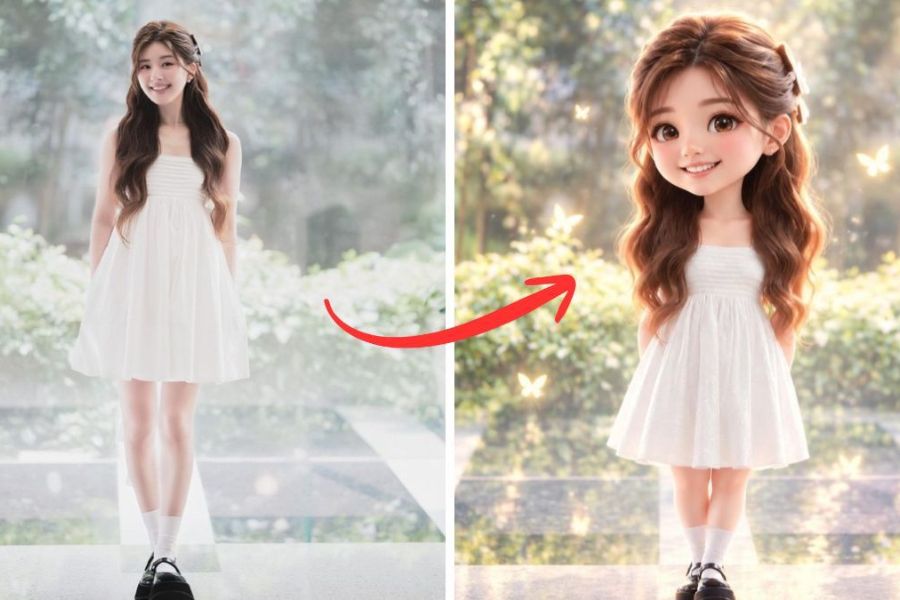
High-quality portrait photos: Prioritize photos that clearly show the face, are well-lit, free from blur, and minimize details that obscure the eyes, nose, and mouth. Photos taken head-on or slightly angled often help AI recognize features more easily.
-
Determine your desired style: You can orient your character towards a cute chibi style, 3D animation, adorable, minimalist, or brightly colored style depending on your purpose.
-
Prepare your design ideas: If you want to use the character for an avatar, sticker, or greeting card, determine the colors, size, and layout beforehand to make it easier to finalize the image after creation.
3. How to create AI cartoon characters using Mini Toon on Canva
With just a few clicks in Canva, you can transform your portrait photos into cartoon characters with your own unique style. Below is a detailed step-by-step guide to help you easily create these images on your computer.
Step 1: Access the app store on Canva
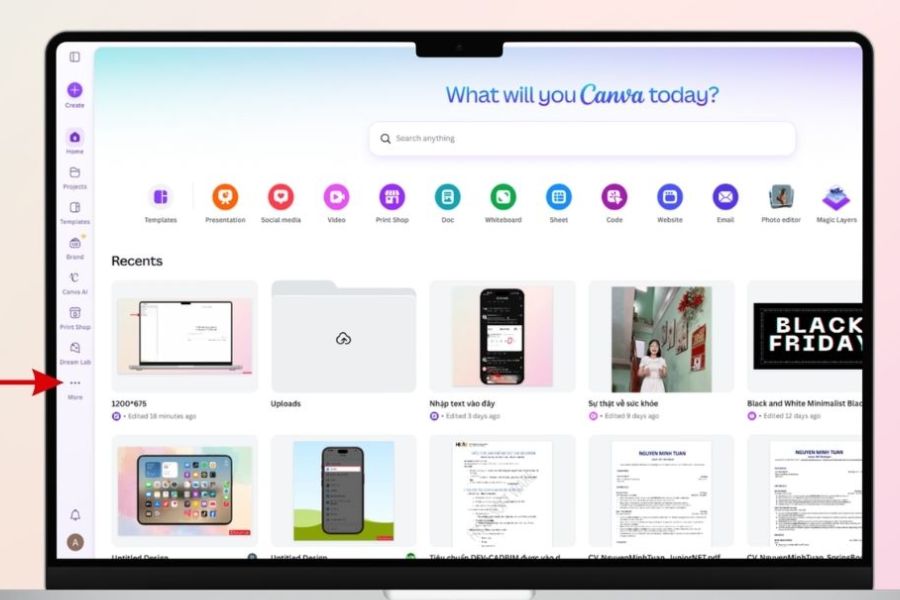
First, open your web browser, go to Canva, and log in to your account. On the main interface, open any design or create a new design to your desired size. Then, find the "Apps" section on the left-hand toolbar. Here, Canva provides many extended applications to support image editing, creating effects, and using AI. If your interface shows "More," click on it and then select "Apps" to open the tool library.
Step 2: Search for the Mini Toon app
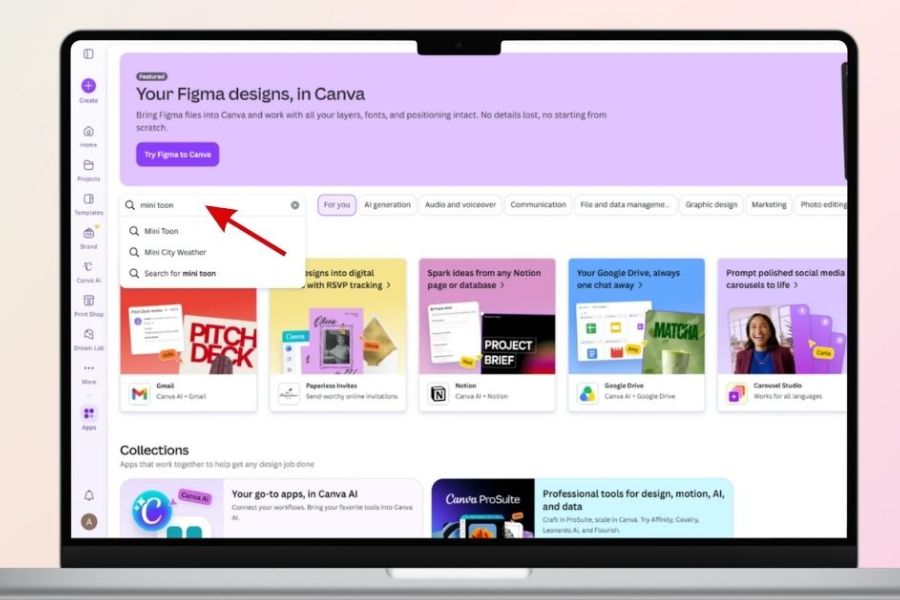
In the app store interface, type " Mini Toon" into the search bar to find the utility you need. When the results appear, select "Mini Toon" to open the application. If this is your first time using it, Canva may display permission requests or confirmation steps before launching. Please review the access information and follow the on-screen instructions to continue.
Step 3: Choose the design you want to use.
After opening Mini Toon, the system may ask you to choose between using the application in a new design or an existing one. If you want to create your own avatar, you can choose a new design frame with a square size. If you are working on a poster, greeting card, or social media post, choose an existing design to easily incorporate the character into the layout. Choosing the right workspace from the start will save you editing time and make it more convenient to complete your product.
Step 4: Choose a cartoon character style.
When the Mini Toon interface opens, you'll see the character creation style options provided by the application. Choose a character style that suits your preferences or purpose. If you want to create an adorable avatar, you can prioritize the chibi style with a round face, prominent eyes, and a small body proportion. If you're using the image for more professional content, choose a style with harmonious colors and clean lines. Each style will give a different feeling, so you should experiment to find the one that suits you best.
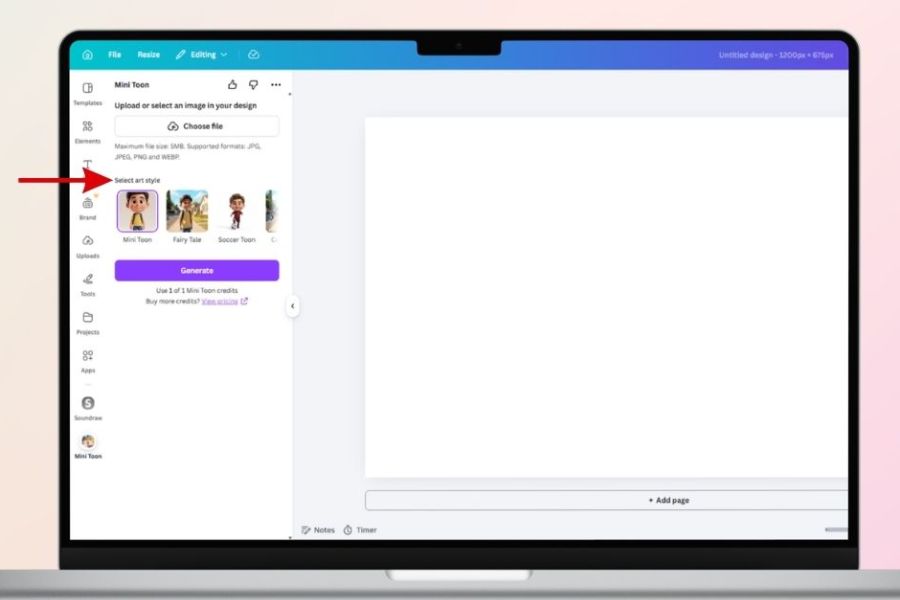
Step 5: Upload the original image to Mini Toon
Next, upload the portrait photo you want to convert to the app. Choose a photo with a clear face, natural lighting, a simple background, and not too many people in it at once. If you want the character to retain specific features such as hairstyle, glasses, clothing, or expression, use the original photo that clearly shows those details. After uploading the photo, double-check it to make sure you've selected the correct file before you start creating the character.
Step 6: Click Create to let the AI process the image.
Once you've selected your style and uploaded your image, press the Create button or the corresponding button displayed on the Mini Toon interface. The AI will then analyze the input image and convert it to your chosen animation style. This process may take some time depending on your network connection, system demands, and application activity. While waiting, keep the interface open to avoid interruptions during the image creation process.
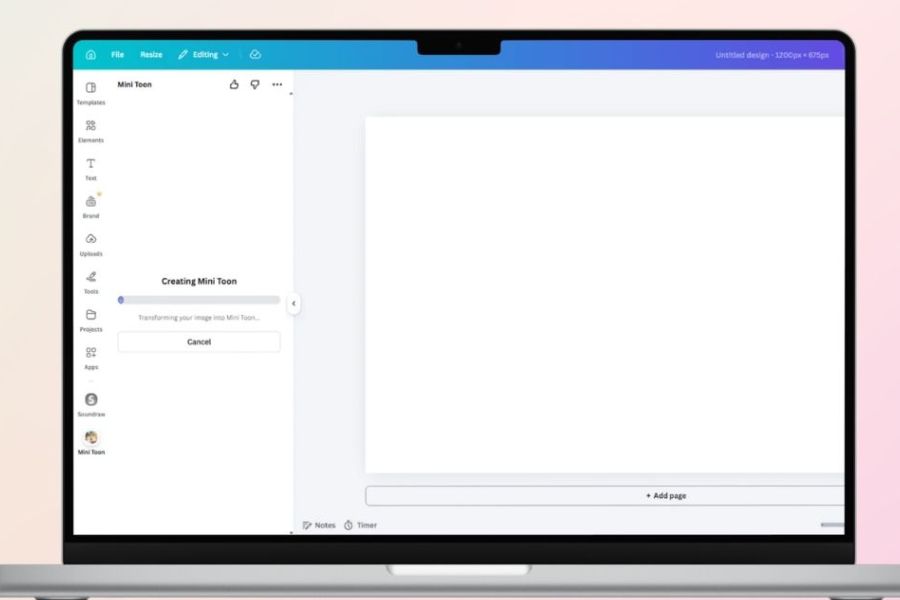
Step 7: Review and select suitable animated images.
After processing is complete, Mini Toon will display the animated character created from the original image. Check the overall face, hairstyle, color, clothing, and expression to see if the result meets your expectations. If the character isn't quite right, you can try again with a different input image or choose a different style if the application supports it. Don't rush to use the first image; further experimentation can sometimes help you find a more beautiful and natural version.
Step 8: Add characters to your Canva design.
Once you're satisfied with the created image, click "Add to Design" or the corresponding option to import the character into your Canva workspace. Then, you can drag and drop, resize, adjust its position, and combine it with other elements. If you want to use the character as an avatar, place it in the center and prioritize a simple layout. For posters or greeting cards, you can position the character to one side, leaving the remaining space for the title and content.
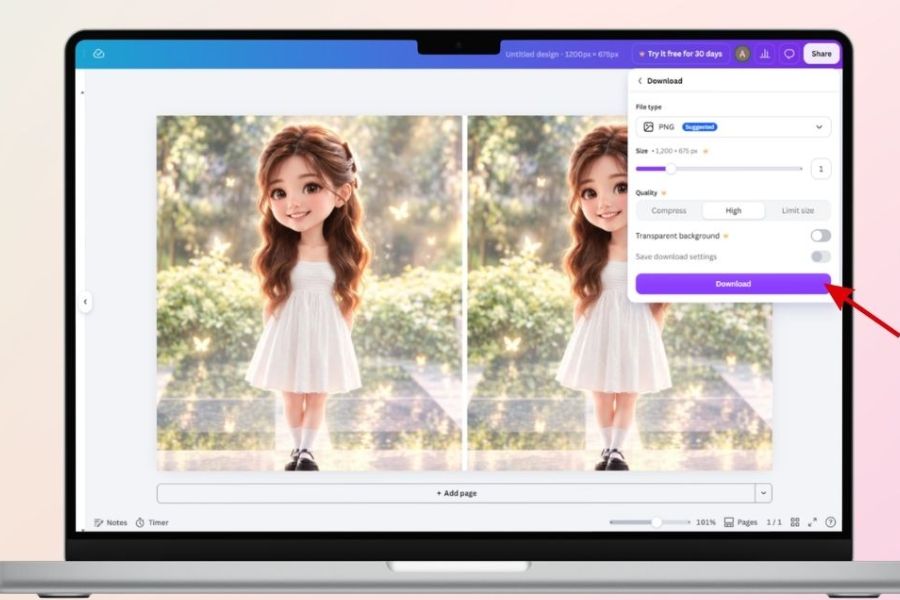
Step 9: Edit and upload the final image
This step helps make your images more professional and unique. You can add background colors, borders, decorative text, stickers, icons, or other effects available in Canva. When finished, tap Share , select Download , and then choose the appropriate file format. PNG is usually suitable for images that need high sharpness or a transparent background if the file supports it, while JPG is suitable for regular photos with a background. Finally, choose your desired size and quality and download it to your device.
4. Tips for creating more beautiful and natural-looking AI cartoon characters using Mini Toon
To ensure the output image looks appealing, retains the characteristics of the original image, and is suitable for its intended purpose, you should keep the following tips in mind.
-
Choose well-lit photos: Photos taken in well-lit areas with clear faces will help the AI process features more easily. Avoid photos that are backlit, too dark, or have areas with lost detail.
-
Prioritize simple portraits: Images of a single person, with a minimal background and natural pose, are often easier to transform. If you want to create a character from a group photo, consider cropping out the person you want to transform first.
-
Try different styles: Don't limit yourself to a single animation style. You can try chibi style, soft animation, or colorful character designs to compare and choose the best result.
-
Pay attention to the layout after importing images into Canva: The subject should be proportionally sized to the design frame, avoiding being too small which makes the image less prominent or too large which obscures important details.
-
Use harmonious colors: If the character has striking colors, choose a simple background or complementary colors to make the overall effect more pleasing to the eye.
-
Save a suitable version: Once you've created a satisfactory image, you should download and save it separately for easy use in other designs, avoiding having to start over from scratch.
5. Things to note when using Mini Toon on Canva
Although Mini Toon speeds up the image creation process, users should still pay attention to a few things to ensure the final product is visually appealing and meets their needs.
-
Input image quality affects the results: If the image is blurry, underexposed, or the face is obscured, the animated character may not accurately display its original features.
-
AI can alter some details: hairstyles, accessories, clothing colors, expressions, or facial features may differ from the original photo. Therefore, you should check carefully before using it.
-
The app's interface may change: Button names, tool placement, or how Mini Toons are used may be updated over time. If you can't find the item you need, try searching for the app directly in the Canva store.
-
Be mindful of privacy when uploading personal photos: Before uploading photos to the app, you should read the access permissions, terms of use, and privacy policy of the app, especially if the images contain personal information or belong to someone else.
-
Check file quality after downloading: Open the image to check sharpness, color, layout, and size before uploading or printing.
-
Don't rely entirely on AI: Automatically generated images may not perfectly meet all requirements. Combining them with Canva's editing tools will help create a more polished final product.
6. Conclusion
Creating AI cartoon characters using Mini Toon on Canva is a simple solution for those who want to transform portrait photos into adorable, unique images without needing professional design skills. Simply choose a suitable photo, find the Mini Toon app, select a style, and perform the necessary steps to create your own personalized cartoon character. Beyond creating avatars, the finished image can also be used for stickers, greeting cards, social media posts, posters, or many other creative content. Try combining Mini Toon with Canva's built-in editing tools to create beautiful designs that reflect your personality and suit your needs.






VIP Products
Best Selling Products
Plugin Retouch4me
69 USD
Adobe Premiere Pro Account
99 USD
Adobe Photoshop Copyright - Full App
120 USD
Upgrade Genuine Office 365
49 USD
ChatGPT Plus Account (GPT-4)
16 USD
Copyright Adobe Lightroom Account
59 USD
MidJourney Account
29 USD
Freepik Premium Account
59 USD
Autodesk All App Account Copyright
120 USD
Upgrade Duolingo Super
29 USD
Windows 10 & 11 Pro Key
36 USD
Genuine Cheap Canva Pro
39 USD
Genuine Adobe Illustrator account
99 USD
Upgrade genuine Capture One account
120 USD
Capcut Pro 1 Year
39 USD