
Best Selling Products

Upgrade Duolingo Super
29 USD

Genuine Adobe Illustrator account
99 USD

Genuine Cheap Canva Pro
39 USD
Upgrade Genuine Office 365
49 USD

Copyright Adobe Lightroom Account
59 USD

Windows 10 & 11 Pro Key
36 USD

Adobe Photoshop Copyright - Full App
120 USD

Capcut Pro 1 Year
39 USD

MidJourney Account
29 USD

Plugin Retouch4me
69 USD

Freepik Premium Account
59 USD

Adobe Premiere Pro Account
99 USD

Upgrade genuine Capture One account
120 USD

ChatGPT Plus Account (GPT-4)
16 USD

Autodesk All App Account Copyright
120 USD
How to use ChatGPT to analyze Excel data quickly, accurately, and efficiently.
Nội dung
- 1. How can ChatGPT assist in analyzing Excel data?
- 2. Instructions on how to use ChatGPT to analyze Excel data
- Step 1: Prepare your Excel data before uploading.
- Step 2: Log in to ChatGPT and upload the Excel file.
- Step 3: Specify your data analysis requirements.
- Step 4: Request ChatGPT to clean and organize the data.
- Step 5: Analyze trends and compare indicators.
- Step 6: Create a visual chart from Excel data.
- Step 7: Compile the results into a complete report.
- 3. Useful ChatGPT commands for analyzing Excel data
- 4. Some notes on using ChatGPT to analyze Excel data.
- 5. Conclusion
Excel is a familiar tool in office work, business, accounting, and data management. However, when dealing with thousands of lines of information, compiling reports, or searching for trends from complex spreadsheets, users can spend a lot of time on manual operations. Especially if you''re not proficient in formulas or Pivot Tables, data analysis can sometimes become a significant challenge. With the support of artificial intelligence, ChatGPT offers a simpler and more flexible approach. Instead of performing each calculation yourself, you can upload your Excel file, describe your requirements, and let ChatGPT help read the data, perform calculations, detect trends, create charts, or suggest report formats. So how can you use ChatGPT to analyze Excel data quickly and efficiently? Let''s explore the detailed steps in the article below.

1. How can ChatGPT assist in analyzing Excel data?
ChatGPT is not simply a chat tool; it also has the ability to support data processing and analysis from spreadsheet files. When uploading Excel files to the chat, users can ask the AI to read the content, identify information columns, calculate figures, and explain the results in an easy-to-understand way. This is especially useful for those who frequently work with revenue sheets, customer lists, sales reports, or survey data.
One of its notable advantages is that ChatGPT can support many different types of analysis. For example, you can request monthly revenue calculations, compare performance between product groups, find best-selling items, or identify high-growth areas. Additionally, AI can assist with data cleaning, anomaly detection, suggest Excel formulas, and build intuitive charts. This saves users processing time and provides a stronger basis for data-driven decision-making.

2. Instructions on how to use ChatGPT to analyze Excel data
To effectively utilize ChatGPT's data analysis capabilities, you should follow a step-by-step approach rather than making overly general requests. Preparing a clear spreadsheet and accurately describing the objective will help the AI understand the task precisely, leading to more relevant results.
Step 1: Prepare your Excel data before uploading.
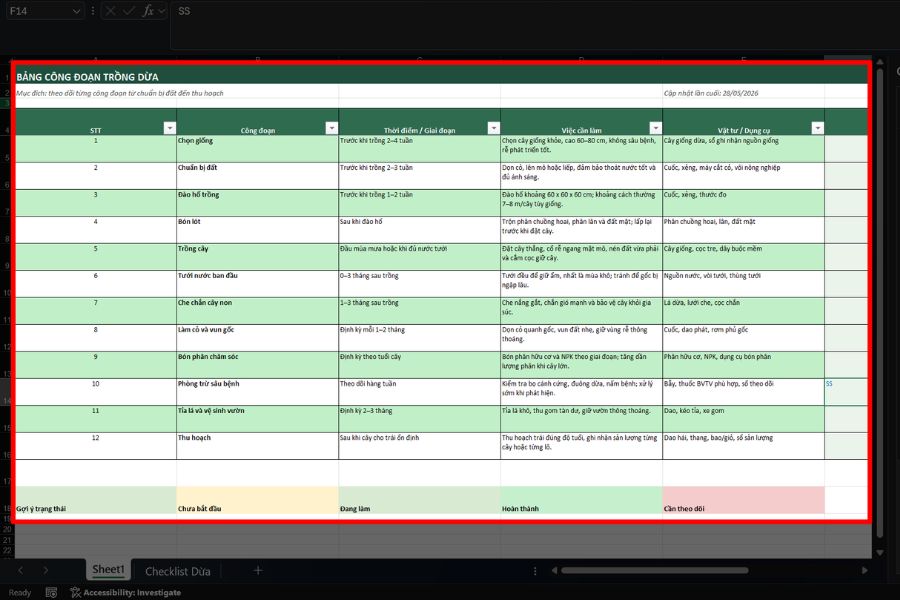
First, open the Excel spreadsheet you need to analyze and review its contents. A well-organized data file will help ChatGPT identify information more easily. You should clearly name each column, such as Sales Date, Product Name, Quantity, Unit Price, Revenue, or Region. Also, avoid unnecessary cell merging, delete blank rows, and check for incorrectly formatted values.
If the spreadsheet has multiple worksheets, clearly identify which worksheet contains the data that needs processing. You should also check for duplicate information, empty cells, or inconsistent data. For example, a date column should not contain a mix of different formats, as this can affect the aggregation process over time. For customer data or internal information, remove unnecessary sensitive content before uploading to minimize privacy risks.
Step 2: Log in to ChatGPT and upload the Excel file.
After preparing your data, access ChatGPT through your browser or the application on your computer. Log in to your account and open a new chat to begin the analysis. In the message input field, select the file attachment icon, then find and upload the Excel spreadsheet from your device. ChatGPT supports processing common spreadsheet formats such as XLSX and CSV, depending on your account's file upload capabilities.
Once the file is successfully uploaded, you don't need to copy all the data into the chat window. Instead, include a short request to help the AI understand its purpose. For example: "Please read this Excel file, identify the data columns, and explain the content of each column." ChatGPT will use the information in the file to help identify the spreadsheet structure. This is a crucial step to verify that the AI has correctly understood the data before moving on to more in-depth analysis requests.
Step 3: Specify your data analysis requirements.
After ChatGPT has identified the spreadsheet content, clearly describe the information you want to learn. Instead of simply asking "Analyze this Excel file," break down the task into specific questions such as calculating total revenue, identifying best-selling products, comparing results across months, or finding the customer group with the highest purchase value.
For example, if you're analyzing a store's revenue, you could enter the request: "Calculate the total revenue for each month, compare the growth rates between months, and identify the month with the highest revenue. Present the results in a table, with brief comments." This way of phrasing the question will give ChatGPT clearer direction when processing the information. You can also ask the AI to explain the calculation method for easier verification of the results. If you're unsure where to start, ask ChatGPT to suggest key metrics to track based on the type of data you have.
Step 4: Request ChatGPT to clean and organize the data.
Data in Excel is sometimes inconsistent, especially when compiled from multiple sources. Errors such as misspelled customer names, duplicate information, blank cells, or inconsistent date formatting can lead to inaccurate analysis results. Therefore, before performing in-depth calculations, you should ask ChatGPT to check the data quality.
You can enter: "Please check the spreadsheet, find duplicate rows, blank cells, and unusual values. List the errors found, explain the possible causes, and suggest solutions." ChatGPT can help you identify significant issues and suggest appropriate cleaning methods. If you want to create a normalized version of the data, you can ask the AI to export the results table to a new file for download and review. However, you should not default to deleting all blank cells or unusual values, as some of these may be valid data.
Step 5: Analyze trends and compare indicators.
This step helps you extract the true value from your Excel spreadsheet. After the data has been examined, ask ChatGPT to look for emerging trends, compare groups of information, and identify factors that may be impacting business results. Instead of just looking at individual numbers, you can understand the relationships between metrics and recognize noticeable changes.
For example, with a monthly revenue spreadsheet, you can ask the AI to compare revenue, order volume, and average order value over each period. If revenue increases but order volume decreases, this could indicate that the average order value is higher. Similarly, when analyzing sales data by region, ChatGPT can help identify the best-performing locations and areas for improvement. You should ask the AI to provide feedback based on specific data, avoiding conclusions about causes when the spreadsheet doesn't provide enough information.
Step 6: Create a visual chart from Excel data.
A spreadsheet containing hundreds or thousands of numbers would be difficult to follow if presented only as rows and columns. To make reports more visually appealing, you can use ChatGPT to create charts based on the analyzed data. Depending on your goals, AI can assist in choosing a bar chart to compare revenue across months, a line chart to track growth trends, or a pie chart to show the proportion of different data groups.
You can simply describe the desired chart type or let ChatGPT suggest a suitable option. For example: "Based on the revenue table, create a column chart showing the revenue for each month, using the month name as the horizontal axis and the revenue value as the vertical axis." Additionally, you can request the AI to present the chart with annotations, titles, and comments highlighting key points. If you wish to continue editing in Excel, ask ChatGPT for guidance on creating the corresponding chart or request a pre-compiled data table for direct use.
Step 7: Compile the results into a complete report.
After completing the analysis steps, you can leverage ChatGPT to synthesize the results into an easy-to-read and user-friendly report. Instead of manually selecting each data point and writing comments, ask the AI to systematize key information such as data overview, key indicators, trends, and areas of concern.
For example, you could enter: "Please summarize the revenue analysis results into a three-part report: overview, highlights, and suggestions for improvement. Use professional, easy-to-understand language, present data in tables, and avoid making assumptions about information not present in the data." ChatGPT will help organize the content into a clearer layout, saving you time preparing reports for superiors or colleagues. You can also request adjustments to the tone, length, and presentation style to suit your needs.
3. Useful ChatGPT commands for analyzing Excel data
The quality of the results that ChatGPT provides depends heavily on how the user describes the request. The clearer, more specific, and better-defined the output format of a command, the easier it is for the AI to perform the task correctly. Below are some commands you can refer to and use directly:
Data overview analysis:
"Analyze this Excel file, identify the number of data rows, columns, and key indicators. Summarize the spreadsheet content in easily understandable language."
Calculate revenue:
"Calculate total revenue, average revenue, and total number of orders. Categorize the results by month, sort from highest to lowest, and present them in a table."
Search for anomalous data:
"Examine the Excel spreadsheet and identify values that are too high, too low, or show signs of incorrect input. List the specific locations and suggest methods for checking."
Performance comparison:
"Compare the revenue of the product groups, identifying the best-performing and worst-performing groups. Explain the differences based on the available data."
Create a chart:
"Based on the data in the file, suggest three suitable chart types to present the results. Explain the purpose of each type and create illustrative charts if possible."
Write a report:
"Compile the analysis results into a professional report, including key indicators, prominent trends, areas for attention, and suggestions for improvement. Do not draw conclusions that go beyond the data."
You can absolutely tailor these commands to the type of spreadsheet. For example, if you work in accounting, focus on costs, profits, and cash flow. If you manage a store, prioritize revenue, order volume, best-selling products, and return rates. Choosing the right metrics will help keep your analysis focused.

4. Some notes on using ChatGPT to analyze Excel data.
Although ChatGPT can assist with many complex tasks, users still need to verify the results before including them in reports or using them for decision-making. AI can sometimes misinterpret data formats, mishandle special cases, or provide comments that are not appropriate for the context. Therefore, you should cross-check important calculations with Excel, especially those related to revenue, expenses, and profits.
In addition, pay attention to data security. Do not upload spreadsheets containing passwords, account information, sensitive customer data, or internal business information without permission. If analysis is needed, you can anonymize identifying fields before sharing the file.
Another point to note is that complex requests should be broken down into smaller tasks. Instead of asking ChatGPT to clean data, perform calculations, create charts, and write reports all at once, you can perform each step sequentially. This makes it easier to check results, detect errors, and adjust requests as needed. Also, provide a clear explanation of the meaning of each data column if the names don't clearly reflect its content.

5. Conclusion
Using ChatGPT to analyze Excel data is a useful solution that simplifies many time-consuming tasks such as checking spreadsheets, calculating metrics, comparing data, finding trends, and building reports. With just an Excel file and the right commands, you can leverage AI to process information more quickly and intuitively without needing to master many complex formulas.


















VIP Products








Best Selling Products
Upgrade Duolingo Super
29 USD
Genuine Adobe Illustrator account
99 USD
Genuine Cheap Canva Pro
39 USD
Upgrade Genuine Office 365
49 USD
Copyright Adobe Lightroom Account
59 USD
Windows 10 & 11 Pro Key
36 USD
Adobe Photoshop Copyright - Full App
120 USD
Capcut Pro 1 Year
39 USD
MidJourney Account
29 USD
Plugin Retouch4me
69 USD
Freepik Premium Account
59 USD
Adobe Premiere Pro Account
99 USD
Upgrade genuine Capture One account
120 USD
ChatGPT Plus Account (GPT-4)
16 USD
Autodesk All App Account Copyright
120 USD