
Best Selling Products
Genuine Cheap Canva Pro
39 USD
Genuine Adobe Illustrator account
99 USD
Upgrade Genuine Office 365
49 USD
Windows 10 & 11 Pro Key
36 USD
Adobe Premiere Pro Account
99 USD
Upgrade Duolingo Super
29 USD
Adobe Photoshop Copyright - Full App
120 USD
Autodesk All App Account Copyright
120 USD

ChatGPT Plus Account (GPT-4)
16 USD

MidJourney Account
29 USD

Freepik Premium Account
59 USD
Capcut Pro 1 Year
39 USD
Upgrade genuine Capture One account
120 USD
Plugin Retouch4me
69 USD
Copyright Adobe Lightroom Account
59 USD
Can Gemini turn images into videos? Detailed instructions.
Nội dung
- 1. Can Gemini convert images into videos?
- 2. Benefits of using Gemini to turn images into videos
- 3. What do I need to prepare before creating a video from images using Gemini?
- 4. Detailed instructions on how to convert images into videos using Gemini.
- Step 1: Access and log in to Google Gemini
- Step 2: Open the video creation tool on Gemini.
- Step 3: Upload the image you want to convert into a video.
- Step 4: Enter the command to describe the movement for the image.
- Step 5: Proceed to create the video using Gemini
- Step 6: Review and edit the video after creation.
- Step 7: Download the video to your device and share it.
- 5. Tips for writing commands to help Gemini create better videos from photos.
- 6. Important notes when using Gemini to create videos from photos
- 7. Conclusion
Do you have a beautiful photo and want to turn it into a dynamic moving video without professional editing skills? With the help of Google Gemini, this is entirely possible. Instead of leaving the image static, you can use AI to create movement for the subject, bring the scene to life, and build short videos from the existing photo. Importantly, you don''t need in-depth knowledge of video editing or complex software. Just prepare the image, enter the desired motion description, and let the AI handle it – you can create an impressive video. So how does Gemini turn images into videos? What do you need to prepare and how do you do it? Let''s explore the details in the article below.
1. Can Gemini convert images into videos?
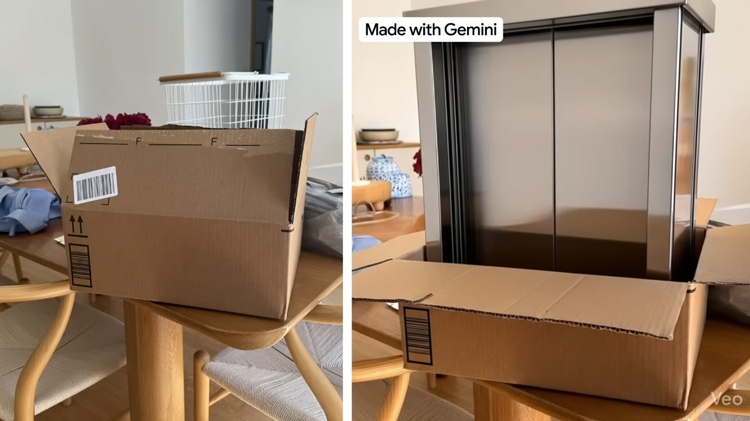
Google Gemini supports the ability to transform still images into videos using Google's AI video creation technology, including the Veo model. This feature allows users to upload an existing image and then describe the movements they want to appear in the video. The AI will use the original image and commands to create a moving video, making the content more engaging.
For example, you can transform a landscape photo into a video with gently drifting clouds, rippling water, and trees swaying in the wind. With portraits, AI can create effects like blinking, smiling, or subtle movement. For product photos, you can also create camera movement effects, changing lighting, or other suitable movements to make the video look more professional.
2. Benefits of using Gemini to turn images into videos
Transforming photos into videos using AI is becoming a popular and innovative way to create content. Instead of searching for materials, filming, or spending hours editing, you can leverage existing images to create fresh and innovative videos. Gemini offers several notable benefits, including:
-
Save creative time: You don't need to manually create each movement or complex effect. AI will assist in image processing and video creation based on the provided description.
-
Utilize existing images: Travel photos, portraits, product photos, or illustrations can be used as source material to create new videos.
-
Enhance the appeal of your content: Motion makes images more dynamic, creating a fresh feel when posting on TikTok, Facebook, Instagram, or other platforms.
-
No video editing skills required: Beginners can still experiment thanks to the relatively simple image loading and command input process.
-
Unleash your creativity with various styles: You can experiment with cinematic effects, natural motion, animation, or creative camera angles depending on your purpose.
3. What do I need to prepare before creating a video from images using Gemini?
To ensure a smooth video creation process, you should prepare some basic elements. The better the preparation, the easier it will be for the AI to understand the content and create the desired motion.
-
Gemini Account: You need to sign in to Gemini with your Google account. According to current Google guidelines, creating videos with Gemini on a personal account requires a suitable Google AI plan. Work or school accounts require a qualifying Workspace license.
-
High-quality images: Choose clear images with easily identifiable subjects, free from blurring or excessive obscuring. You can use landscape photos, object photos, product photos, illustrations, or creative images you've designed yourself.
-
Specific movement concept: Define how the photograph will depict movement. For example, the subject smiling, hair gently blowing in the wind, a dress moving naturally, or the camera slowly moving closer to the subject.
-
Command description: Prepare a short but detailed prompt so Gemini can understand the request. You should describe the subject, action, setting, camera movement, and desired video style.
4. Detailed instructions on how to convert images into videos using Gemini.
After preparing all the images and ideas, you can start creating videos right away on Gemini. The process is relatively simple and doesn't require installing any separate video editing software. Below is a step-by-step guide to help you easily create videos on your computer.
Step 1: Access and log in to Google Gemini
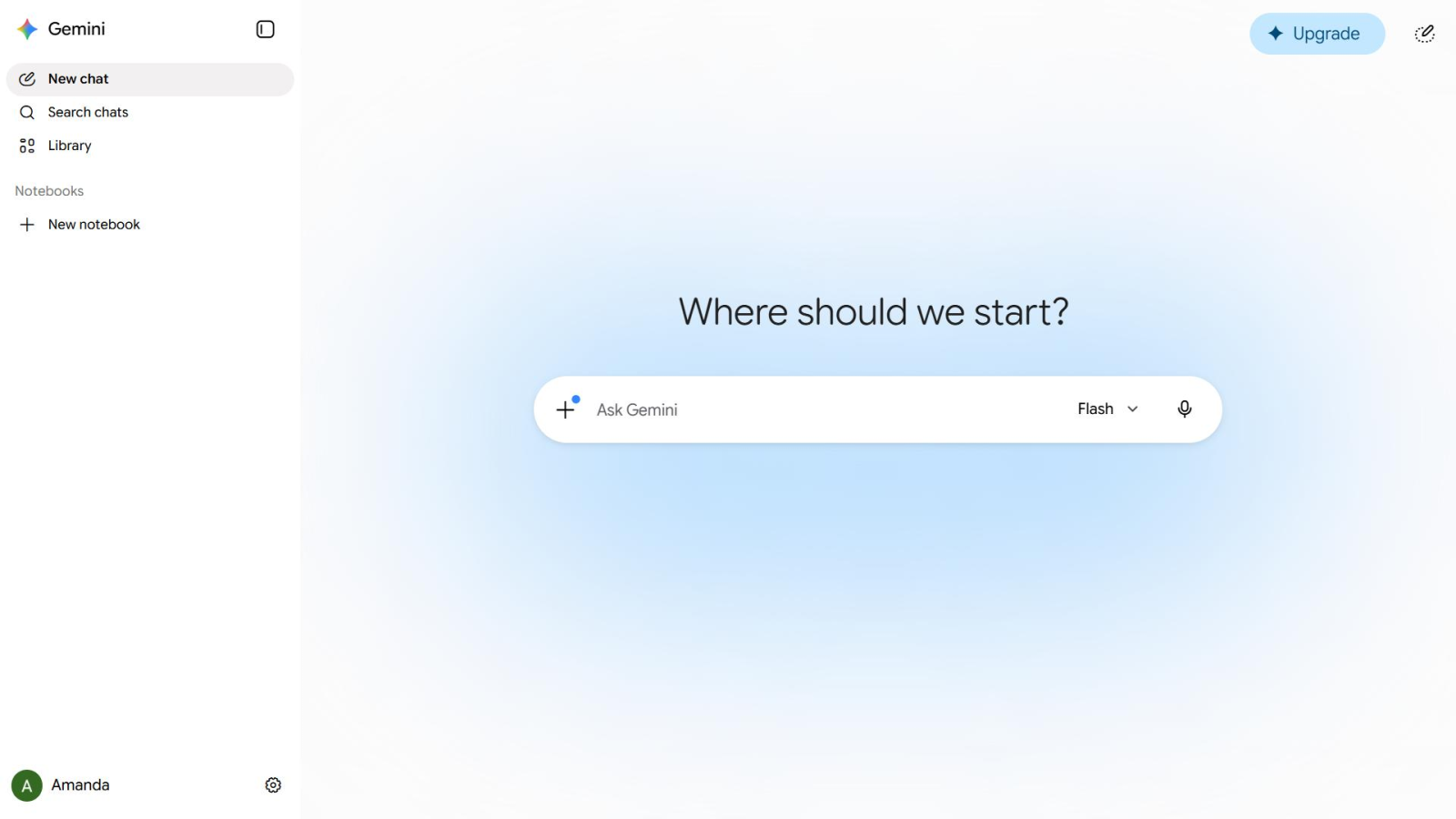
First, open your browser on your computer and go to the Gemini website. Log in using your existing Google account. After successfully logging in, the main chat interface will appear, allowing you to enter commands and use the supported AI tools.
Here, you should check if your account has permission to use the video creation feature. If you don't see the corresponding tool, check your Google AI plan, account conditions, and usage limits. Preparing in advance will help you avoid wasting time if you've completed the image upload steps but can't submit a video creation request.
Step 2: Open the video creation tool on Gemini.
After entering the main interface, locate the sidebar area on the left side of the screen. Click on the "Expand sidebar" option, then select "Videos" or "Create video," depending on the current interface display.
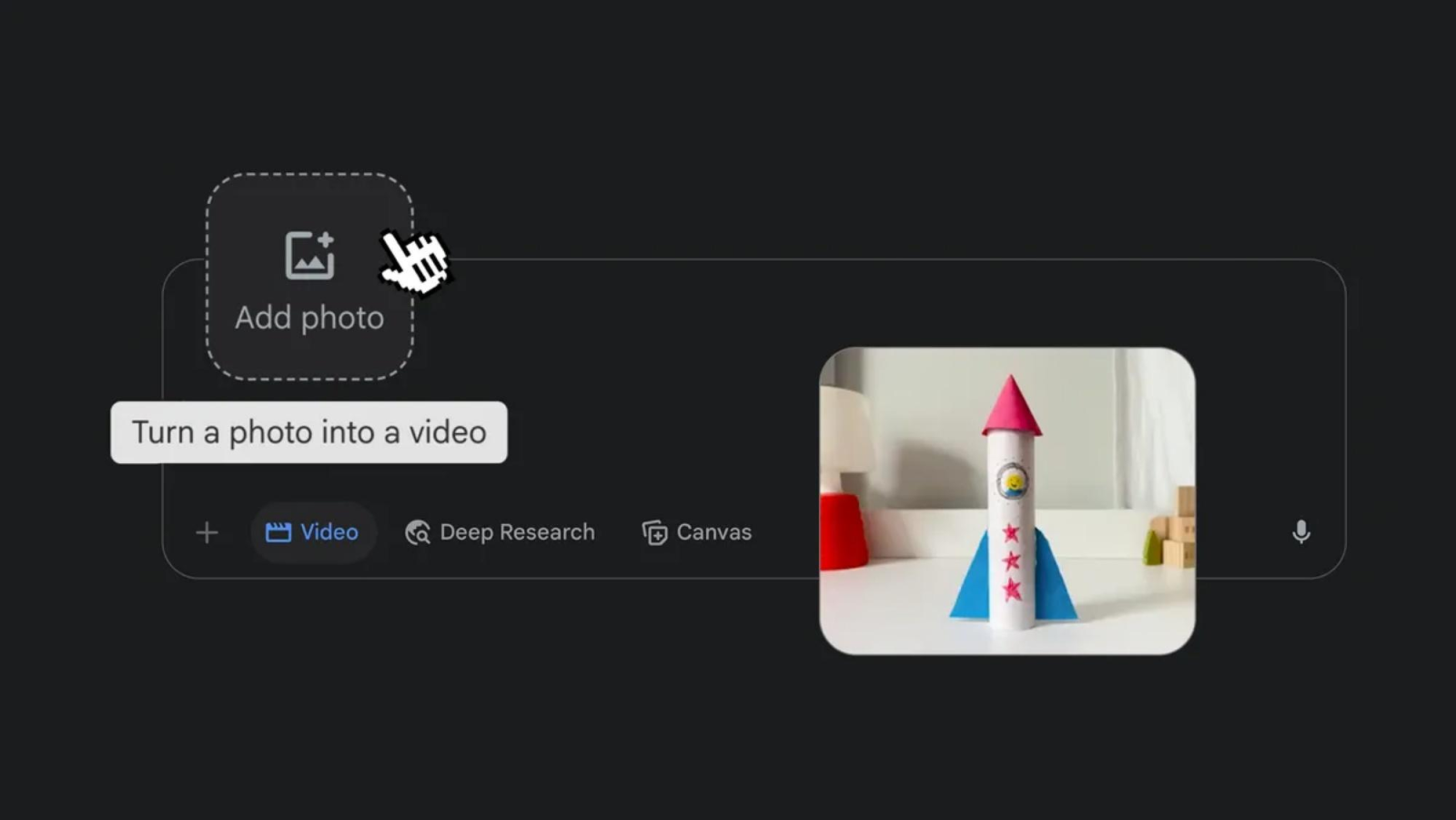
When you open the tool, you can see the content input area, the option to select a video template (if available), and the options to upload images. This is where you set up the necessary information before the AI starts processing. If you don't have a specific idea yet, you can refer to the available templates to visualize the style of video you want to create.
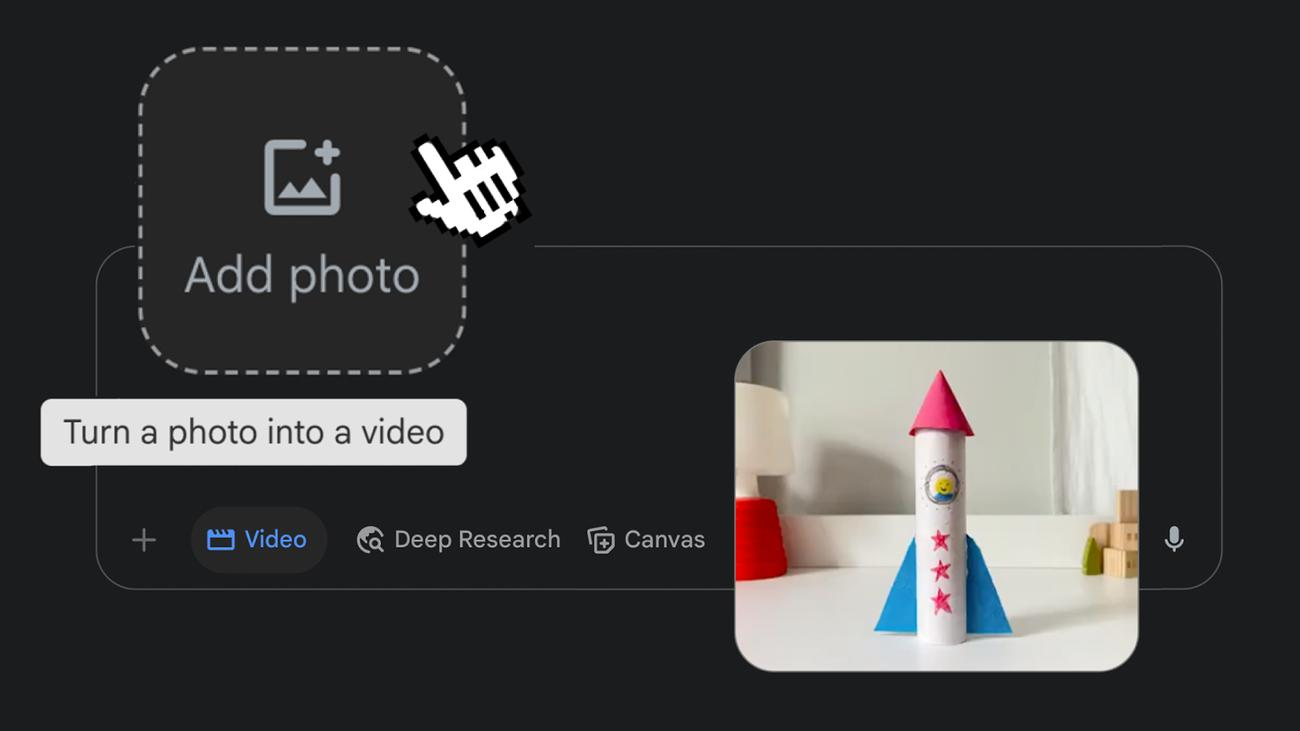
Step 3: Upload the image you want to convert into a video.
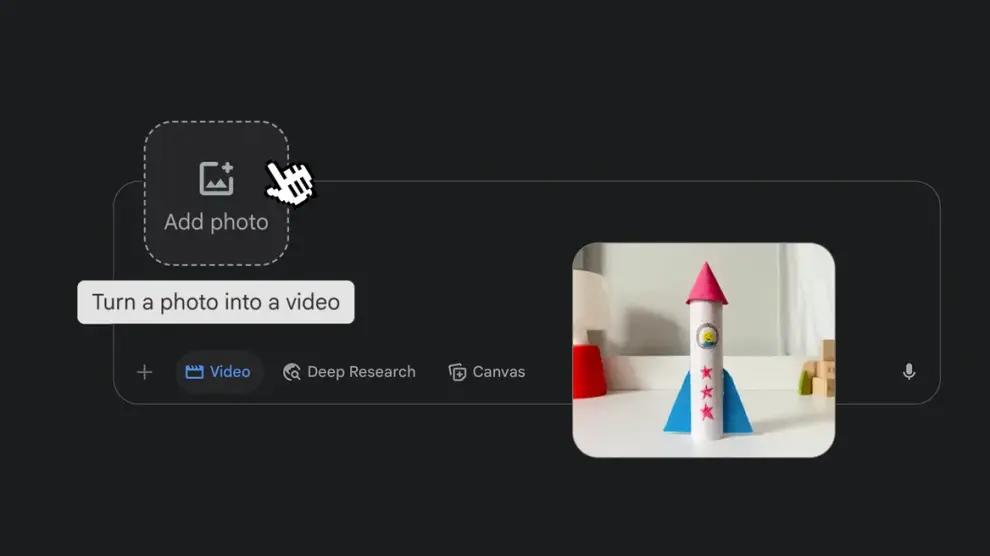
Next, click the "Add image" icon in the command input area. Select the image you want to use from your computer, then wait for Gemini to finish uploading the file. According to Google's current instructions, the tool supports combining up to 5 images and 1 video in a single video creation request.
For beginners, you should start with a single image to easily control the results. Prioritize images with a clear subject, balanced composition, and good lighting. For example, if you want to create a promotional video for a handbag, you should choose a full product photo that clearly shows the style, color, and prominent details. This gives the AI a better foundation to create movement without altering the original features too much.
Step 4: Enter the command to describe the movement for the image.
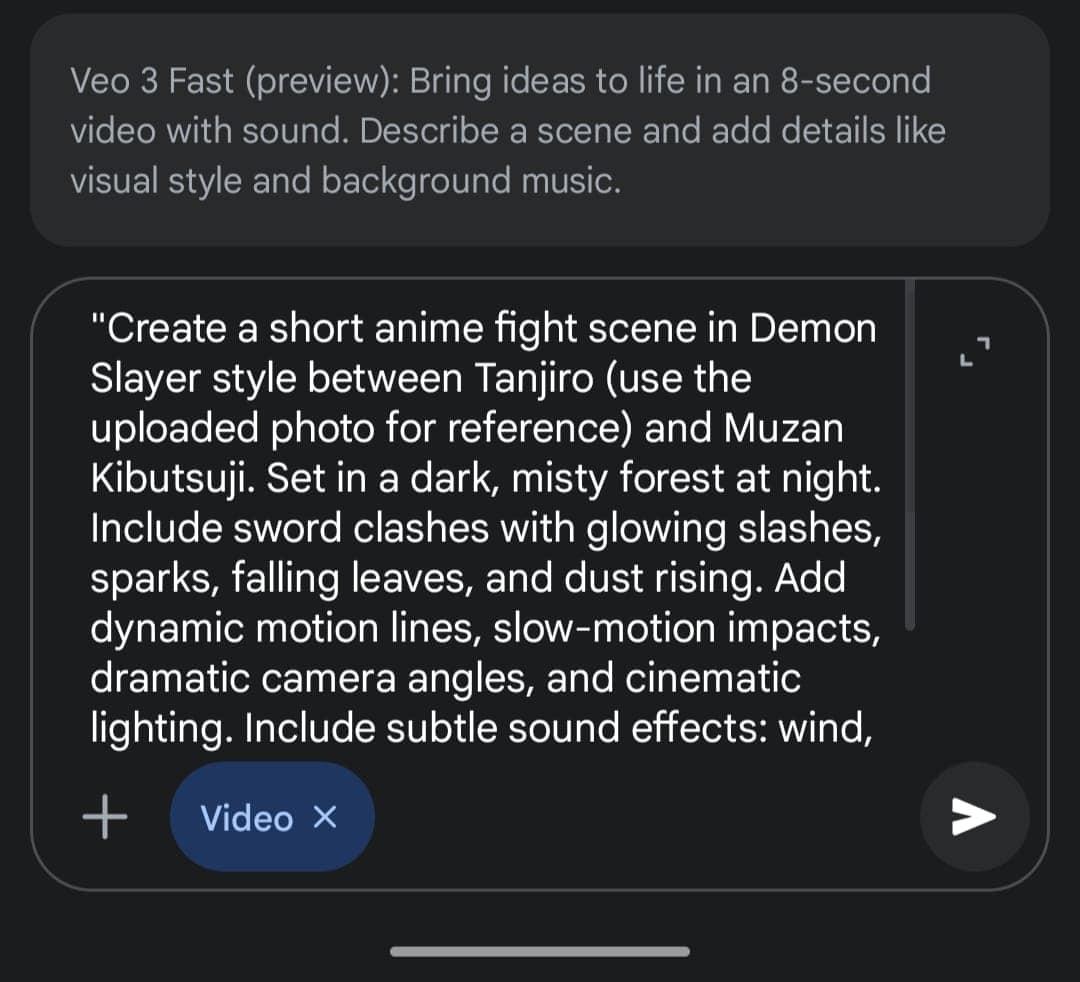
This is a crucial step that determines the content and style of the video. After uploading the images, enter the command in the description box. Instead of just writing general requests like "create a beautiful video" or "add motion to the images," clearly describe what action the subject needs to take, how the movement will occur, and how the camera will change. You can refer to some of the following commands:
-
Landscape photo: "Transform this image into a realistic landscape video. Clouds slowly move across the sky, the water ripples gently, and the trees sway in the wind. The camera moves slowly forward, preserving the natural light and the original beauty of the scene."
-
Portrait photo: "Create a natural-motion video from this image. The subject gently blinks, smiles, and slightly tilts their head. Their hair moves gently in the breeze, the camera slowly zooms in, preserving the facial features and clothing."
-
Product image: "Create a professional advertising video from this product image. The camera slowly rotates around the product, the light reflects gently on the surface, highlighting details and preserving the original color and shape. A high-end advertising style."
You can also ask Gemini to create sounds that match your video content, such as wind, flowing water, or soothing background music, if the feature supports it. The more specific your command, the easier it will be to guide the results toward your original vision.
Step 5: Proceed to create the video using Gemini
After completing the command, review the uploaded image and description. If all information is correct, press the Submit button to begin the video creation process. Gemini will receive the image, analyze the content, and use its AI model to build the corresponding animations.
Processing time may take several minutes depending on the complexity of the request and system status. While waiting, you can open another chat and return to check the results later. Once the video is complete, play a test to observe the subject's movement, the naturalness of the image, and the consistency between the actual content and the initial command.
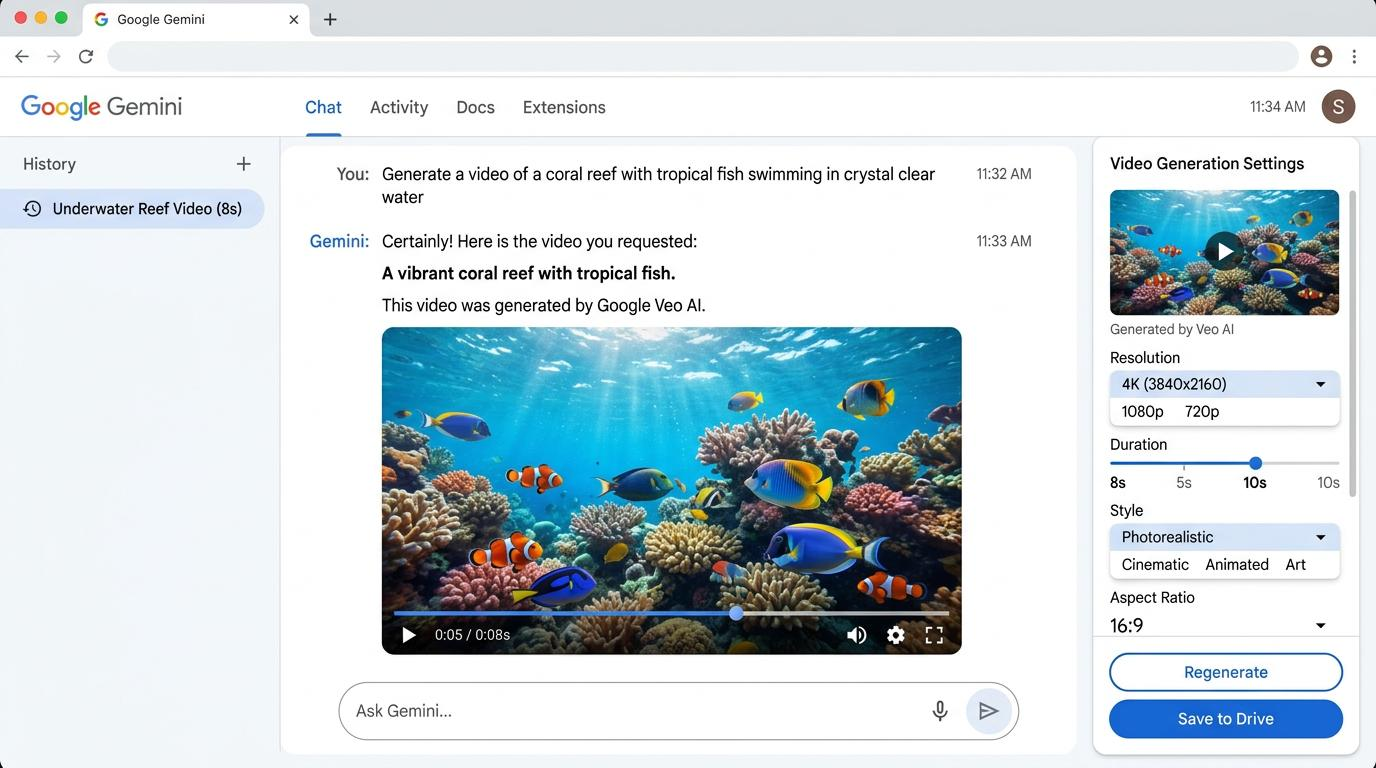
Step 6: Review and edit the video after creation.
The first impression isn't always entirely satisfactory. Sometimes the character's movement isn't natural, the camera moves too fast, or some details in the image are distorted. Therefore, you should review the entire video before using it.
The convenient thing is that you can continue to ask Gemini to edit your video using simple commands. For example, if you want the camera to move slower, you can enter: "Keep the video content the same, reduce the camera speed and create a smoother movement." If the lighting isn't right, ask to adjust the natural light to highlight the subject but not change the composition. You should adjust each element individually instead of making too many requests at once to better control the results.
Step 7: Download the video to your device and share it.
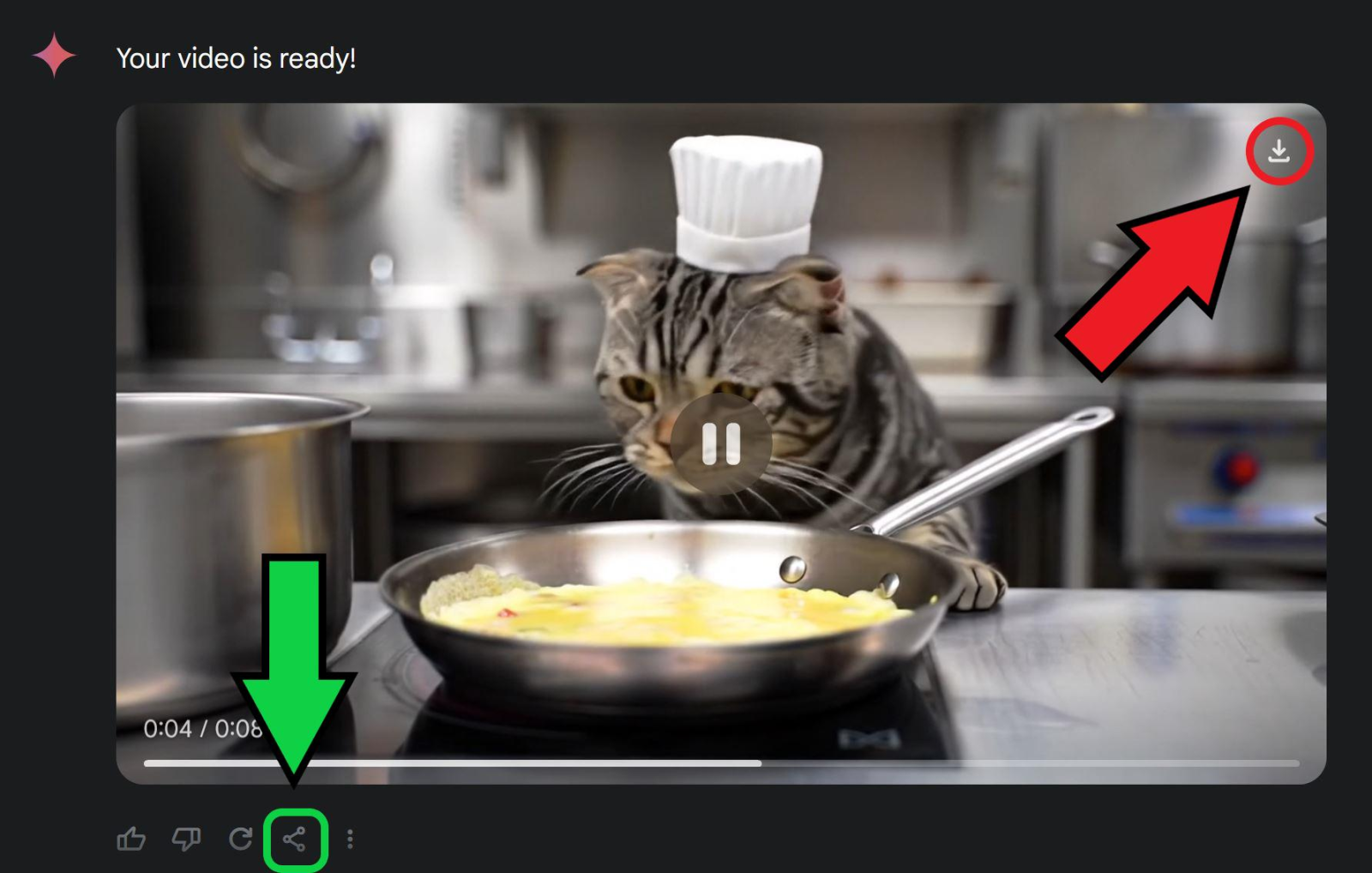
Once you're satisfied with the final product, you can save the video to your computer for later use. In the video display area, click the Share icon , then select Download video to save the file to your device.
After downloading, you should play back the video to check the image quality, sound, and duration. If you want to post it to TikTok, Instagram Reels, or YouTube Shorts, you can use CapCut to trim, add text, insert background music, and adjust the aspect ratio. Thus, from just an initial image, you can create lively video content to share or use for creative work.
5. Tips for writing commands to help Gemini create better videos from photos.
Video quality depends not only on the input images but also heavily on how you describe your requirements. A clear command will help the AI understand your idea correctly, minimize unnecessary movements, and produce a final product closer to your expectations. Here are some helpful tips you can apply:
-
Specify the action: Instead of writing "make the character move," clearly state that the character is smiling, turning their head, walking, or waving. Specific descriptions make the movement more directional.
-
Specify camera movement: You can use phrases like camera moving closer, moving further back, slightly rotating, panning sideways, or moving around the subject. This helps the video feel more like a real-life shot.
-
Preserve key features: If creating a video from product photos or portraits, include a requirement to preserve the original colors, styles, clothing, and identifying details.
-
Choose the right style: You can describe your video in cinematic, realistic, 3D animation, minimalist, or commercial advertising style so that the AI can better shape the image.
-
Avoid overly complex movements: A short video should focus on one or two main actions. Requiring multiple characters to perform various actions simultaneously can result in an unnatural effect.
6. Important notes when using Gemini to create videos from photos
Although AI technology can create quite impressive videos, it still has certain limitations. To avoid unexpected results, you should pay attention to the following issues:
-
Input image quality: Blurry, underexposed images or those with too much overlapping detail can make it difficult for the AI to recognize the subject. Prioritize images with good resolution and clear composition.
-
The animation may not be perfectly accurate: Sometimes the AI creates unnatural-looking actions, distorting certain details or altering objects compared to the original image. You should test it carefully before use.
-
Note video length: Supported lengths depend on the model and account plan. According to current Gemini documentation, videos can range from 3 to 10 seconds, while some AI Ultra users may be able to create longer videos.
-
Check your usage limit: The video creation feature may have a usage limit. If you have reached your limit, you need to wait until the usage limit is reset or check your account plan conditions.
-
Respect copyright and privacy: Only use images that you have the right to exploit. Do not create fake videos or use other people's images to mislead.
7. Conclusion
From the instructions above, it's clear that Gemini is fully capable of transforming still images into moving videos thanks to modern AI technology. With just a readily available image and appropriate descriptive commands, you can create short videos for entertainment, advertising, content creation, or social media sharing. The interesting thing about this tool is its ability to turn simple ideas into moving images without requiring professional video editing skills. Try starting with a favorite image, create different commands, and explore more unique video styles with Gemini!









VIP Products

Best Selling Products
Genuine Cheap Canva Pro
39 USD
Genuine Adobe Illustrator account
99 USD
Upgrade Genuine Office 365
49 USD
Windows 10 & 11 Pro Key
36 USD
Adobe Premiere Pro Account
99 USD
Upgrade Duolingo Super
29 USD
Adobe Photoshop Copyright - Full App
120 USD
Autodesk All App Account Copyright
120 USD
ChatGPT Plus Account (GPT-4)
16 USD
MidJourney Account
29 USD
Freepik Premium Account
59 USD
Capcut Pro 1 Year
39 USD
Upgrade genuine Capture One account
120 USD
Plugin Retouch4me
69 USD
Copyright Adobe Lightroom Account
59 USD