Best Selling Products

Upgrade genuine Capture One account
120 USD

MidJourney Account
29 USD

Autodesk All App Account Copyright
120 USD

Copyright Adobe Lightroom Account
59 USD

Adobe Photoshop Copyright - Full App
120 USD

ChatGPT Plus Account (GPT-4)
16 USD

Windows 10 & 11 Pro Key
36 USD

Genuine Cheap Canva Pro
39 USD

Freepik Premium Account
59 USD

Adobe Premiere Pro Account
99 USD

Capcut Pro 1 Year
39 USD

Plugin Retouch4me
69 USD

Genuine Adobe Illustrator account
99 USD

Upgrade Genuine Office 365
49 USD

Upgrade Duolingo Super
29 USD
After Effects and What You Need to Know
Nội dung
- 1. What is After Effects?
- 2. Things you need to know about After Effects
- 2.1 Applications of After Effects
- 2.2 What can you do after completing the course?
- 2.3 Future Prospects
- 3. Instructions on using the After Effects toolset
- 3.1 Visual Effects
- 3.2 Keyframes and Animation
- 3.3 Composition and Layers
- 3.4 Masking
- 3.5 Rendering and Exporting Video
- 3.6 3D Layer
- 3.7 Parenting
- 3.8 Time Remapping
- 3.9 Expressions
- 3.10 Motion Graphics Templates
- 3.11 Color Correction and Grading
- 3.12 Audio Editing
- 4. Where can I upgrade After Effects?
- 5. Conclusion
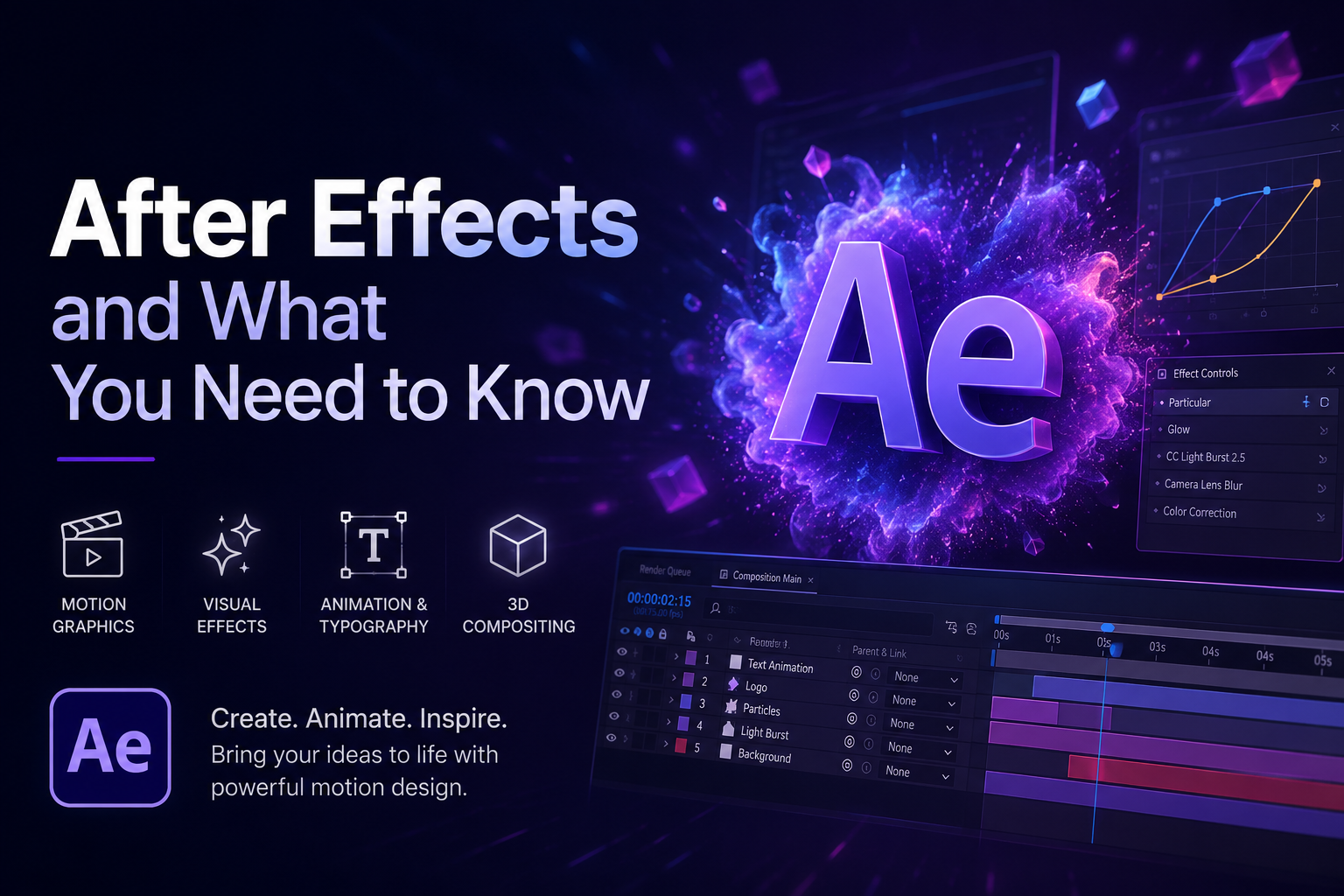
Adobe After Effects is one of the leading software programs in video production and motion graphics.
1. What is After Effects?
After Effects (Adobe After Effects), often abbreviated as AE, is an extremely powerful motion graphics and visual effects software developed by Adobe Systems. For those working in video production, After Effects is not simply a video editing tool, but a world of limitless creativity for designers and editors. With its 2D and 3D graphics processing capabilities, After Effects allows users to create vivid visual effects, providing unique visual experiences for viewers.
This software operates as a non-linear platform, allowing users to edit and process audio and video flexibly and smoothly. From creating short videos for social media to epic feature films, After Effects has established itself as a leading force in the creative industry. Furthermore, the software offers hundreds of plugins and effects, making it easy for users to apply and develop their ideas.
With its user-friendly interface, After Effects isn't just for professionals; it's also accessible to newcomers to the field. The combination of power and versatility has made it a favorite tool for many content creators worldwide.
2. Things you need to know about After Effects
2.1 Applications of After Effects
While Adobe Premiere Pro excels at professional video editing, After Effects shines with its ability to create stunning motion graphics and amazing special effects. From infographic videos and kinetic typography to TV commercial design, After Effects helps you bring your creative ideas to life in a truly impressive way. With this software, you can create vibrant animation effects that captivate viewers from the very first glance.
One of After Effects' standout strengths is its 3D graphics capabilities, allowing users to control the depth, shadows, and reflections of objects in videos. This not only enhances image quality but also expands creative possibilities for designers. Furthermore, its integration and compatibility with other software like Illustrator and Premiere makes the workflow more seamless and efficient.
With After Effects, you can not only create visually stunning videos but also perform complex special effects, such as making the characters in your videos more lifelike. This means you can freely create and experiment with new ideas without being limited by other tools.
2.2 What can you do after completing the course?
Once you've mastered After Effects, you'll be able to control the entire video design process, from initial concept to finished product. With this software, you can easily handle effects, special effects, and create motion videos. You can become a professional editor specializing in effects for films or advertising videos. The combination of After Effects and Premiere Pro will help you create vibrant and artistic cinematic footage.
If you've ever been amazed by the effects in science fiction or superhero movies, now you can create them yourself. Effects like time travel, sparks, or Thanos's disintegration are no longer out of reach. After completing this course, you'll be confident in creating your own video projects, from short social media clips to large-scale commercials.
In addition, After Effects' animation capabilities allow you to create unique GIFs or animated advertising videos yourself. This not only increases the value of your product but also expands opportunities for collaboration and working with other marketers, designers, and editors.
2.3 Future Prospects
Video design is becoming one of the most promising careers for the future, especially as video marketing becomes increasingly popular. With the continuous development of technology and the ever-increasing demand for video content, possessing After Effects skills will be a significant advantage. Those capable of creating high-quality videos will always be in high demand in the job market.
To prepare for the future, you should build an impressive portfolio and master professional video design tools, including After Effects. This will make it easier for you to access career opportunities at film and television production companies or video effects companies. The demand for personnel in this field is increasing rapidly, opening up opportunities for those who are diligent and passionate.
Salaries for editors and designers can range from 10 to 35 million VND per month, depending on your skills and experience. With the continuous growth of the creative industry, your future in this field will be incredibly bright if you constantly learn and develop yourself.
3. Instructions on using the After Effects toolset
3.1 Visual Effects
One of After Effects' most outstanding features is its ability to apply visual effects. After Effects offers hundreds of built-in effects, from basic effects like blur and glow to more complex effects like 3D Camera Tracker. Using effects helps you create more vivid and engaging animations.
Instructions on using visual effects:
-
Select Layer : First, you need to select the layer to which you want to apply the effect.
-
To open the Effects & Presets panel : Press Ctrl + 5 (Windows) or Cmd + 5 (Mac).
-
Search for effects : Type the name of the effect you want in the search bar or browse through the list of effects.
-
Drag and drop : Drag the effect onto the selected layer. You can adjust the effect parameters in the Effect Controls panel.
3.2 Keyframes and Animation
Keyframes are an important tool for creating motion for objects in After Effects. By placing keyframes at different points in the timeline, you can adjust properties such as position, size, opacity, and more.
Instructions for using keyframes:
-
Select Layer : Choose the layer you want to animate.
-
Activate properties : Press P to open Position, S to open Scale, or R to open Rotation.
-
Add keyframe : Click the clock icon next to the property you want to adjust to add the first keyframe.
-
Moving on the timeline : Drag the time slider to the position where you want to place the second keyframe and change the property value (e.g., move its position).
-
Preview : Press Space to see the animation you just created.
3.3 Composition and Layers
Composition is where you organize all the layers, effects, and resources of your project. Layers are individual elements within a composition, allowing you to create complex videos by combining multiple components.
Instructions on using Composition and Layers:
-
To create a new Composition : Go to the Composition menu > New Composition , name it, and choose the size and frame rate.
-
Adding Layers : Drag and drop video, images, or audio into the composition. You can also create new layers by going to the Layer menu > New .
-
Arrange Layers : Drag layers up or down in the Timeline panel to change their display order.
-
Change Layer Properties : Select the layer and adjust properties such as Opacity, Position, and Scale in the Layer Options panel.
3.4 Masking
Masking allows you to create special shapes and effects by hiding or showing parts of a layer. This tool is extremely useful when you want to create unique effects or change the shape of an object.
Instructions for using Masking:
-
Select Layer : Choose the layer you want to create a mask for.
-
Select the Mask tool : Use the Pen Tool ( G ) to draw a mask, or select the Rectangle or Ellipse tool from the toolbar.
-
Drawing a Mask : Draw a mask shape on the layer. The area inside the mask will be visible, while the area outside will be hidden.
-
Adjusting the Mask : You can adjust the mask's properties in the Mask Properties panel, including Feather, Opacity, and Expansion.
3.5 Rendering and Exporting Video
After completing your project, you need to export the video for sharing. After Effects offers various export options, ensuring the best video quality.
Instructions for exporting video:
-
To open Render Queue : Go to the Composition menu > Add to Render Queue .
-
Select format : In the Render Queue, click the Output Module link to select the video format (e.g., H.264, QuickTime).
-
Choose a save location : Click the Output To link to select the folder where you want to save the output video.
-
Start rendering : Press the Render button to begin the video rendering process. You can monitor the progress in the Render Queue.
3.6 3D Layer
The 3D Layer feature allows you to create 3D objects in three-dimensional space, opening up rich creative possibilities for designers. You can adjust properties such as depth, lighting, and shadows to create realistic effects.
Instructions for using 3D Layers:
-
Select Layer : Choose the layer you want to turn into 3D.
-
Activate 3D : Click the 3D Layer icon (cube) in the Timeline panel.
-
Adjusting properties : Use the Position and Rotation properties in 3D space to change the position and viewing angle of a layer.
-
Adding light : Go to the Layer menu > New > Light to add light and adjust its properties.

3.7 Parenting
Parenting is a feature that allows you to link one layer to another, creating a parent-child relationship between the layers. This is very useful when you want to move or adjust a group of layers at the same time.
Instructions for using Parenting:
-
Select Layer : Choose the child layer that you want to link to the parent layer.
-
Select Parent : In the Parent column of the child layer, select the parent layer from the drop-down menu or drag the spiral icon from the parent layer to the child layer.
-
Adjustment : When you move the parent layer, the child layer will automatically follow, making layer management easier.
3.8 Time Remapping
Time Remapping allows you to adjust the playback time of a video, giving you the flexibility to create slow-motion or fast-motion effects. This feature is very useful in creating unique and creative motion effects.
Instructions for using Time Remapping:
-
To enable Time Remapping : Right-click on the video layer and select Time > Enable Time Remapping .
-
Add keyframes : At the points where you want to adjust the speed, add keyframes by clicking the clock icon.
-
Drag keyframe : Drag the keyframe forward to increase the speed or backward to slow down the video.
-
Preview : Press Space to see the effect you just created.
3.9 Expressions
Expressions is a powerful tool that allows you to automate properties in After Effects using code. This helps you create complex effects without having to create many keyframes.
Instructions for using Expressions:
-
To activate Expressions : Press Alt (Windows) or Option (Mac) and click the clock icon next to the property you want to apply the expression to.
-
Enter the code : Enter the expression code in the box that appears. For example, you can enter "time" to create continuous motion.
-
Check the result : Press Enter to apply the expression and preview the effect on the timeline.
3.10 Motion Graphics Templates
After Effects allows you to create animation templates that you can reuse in different projects. This feature is very useful for designers, saving time during the production process.
Instructions for using Motion Graphics Templates:
-
Creating a Template : Complete your design and go to the File menu > Export > Create Motion Graphics Template .
-
Select the properties to edit : In the Essential Graphics panel, select the properties that you want users to be able to adjust.
-
Save template : Name your template and save it to your Creative Cloud Libraries or your computer.
-
Reuse : When needed, you can drag and drop the template into a new composition and adjust the properties as desired.

3.11 Color Correction and Grading
After Effects offers numerous tools for adjusting the color and brightness of videos, helping you create higher-quality and more vibrant images. Tools like Color Balance, Curves, and Hue/Saturation allow you to control color in detail.
Instructions for using Color Correction:
-
Select Layer : Choose the layer you want to adjust the color of.
-
To add an effect : Go to the Effects & Presets panel and search for the Color Correction effect you want to use.
-
Adjust parameters : Drag the effect onto the layer and adjust the parameters in the Effect Controls panel to achieve the desired color.
-
Comparison : Press Ctrl + Y (Windows) or Cmd + Y (Mac) to toggle the effect and compare the before and after adjustments.
3.12 Audio Editing
After Effects not only supports video but also offers basic audio editing features. You can add background music, sound effects, and adjust the volume to create a better overall experience for your video.
Instructions for using Audio Editing:
-
Add Audio : Drag and drop audio files into the composition.
-
Adjusting the volume : Click on the audio layer and press L to open the volume properties. Here, you can add keyframes to adjust the volume over time.
-
Use sound effects : Go to the Effects & Presets panel and look for sound effects like Reverb or Delay to add depth to the sound.
-
Preview : Press Space to hear the audio along with the video.
4. Where can I upgrade After Effects?
Sadesign is one of the leading graphic design and video production companies in Vietnam. With a team of experienced and creative professionals, Sadesign provides services ranging from logo design and advertising videos to motion graphics. We are committed to delivering high-quality, creative products that meet market demands. Let Sadesign be your partner in building your brand!
5. Conclusion
In summary, After Effects is a powerful tool for anyone looking to enhance their video production and motion graphics skills. Whether you're a beginner or an experienced user, mastering the knowledge and techniques in After Effects will help you create more creative and professional products. Keep exploring and practicing to develop your skills in this promising field.





















VIP Products








Best Selling Products
Upgrade genuine Capture One account
120 USD
MidJourney Account
29 USD
Autodesk All App Account Copyright
120 USD
Copyright Adobe Lightroom Account
59 USD
Adobe Photoshop Copyright - Full App
120 USD
ChatGPT Plus Account (GPT-4)
16 USD
Windows 10 & 11 Pro Key
36 USD
Genuine Cheap Canva Pro
39 USD
Freepik Premium Account
59 USD
Adobe Premiere Pro Account
99 USD
Capcut Pro 1 Year
39 USD
Plugin Retouch4me
69 USD
Genuine Adobe Illustrator account
99 USD
Upgrade Genuine Office 365
49 USD
Upgrade Duolingo Super
29 USD