Best Selling Products
Upgrade Genuine Office 365
49 USD

Genuine Adobe Illustrator account
99 USD
Autodesk All App Account Copyright
120 USD

ChatGPT Plus Account (GPT-4)
16 USD
Capcut Pro 1 Year
39 USD

Freepik Premium Account
59 USD
Upgrade Duolingo Super
29 USD
Copyright Adobe Lightroom Account
59 USD
Genuine Cheap Canva Pro
39 USD
Upgrade genuine Capture One account
120 USD
Windows 10 & 11 Pro Key
36 USD
Plugin Retouch4me
69 USD
MidJourney Account
29 USD
Adobe Photoshop Copyright - Full App
120 USD
Adobe Premiere Pro Account
99 USD
AI Note-Taking Chrome Extensions for Web Pages, YouTube and Online Meetings
Nội dung
- 1. List of cross-checked extensions
- 1.1 Glasp Web Highlighter for web excerpts you need to revisit
- 1.2 YouTube Summary for learning from video
- 1.3 Tactiq for browser meeting notes based on captions
- 1.4 Fireflies for recording Google Meet
- 2. Checking permissions before creating official notes
- 3. Frequently asked questions
A single best AI note-taking extension for every situation does not really exist, because the right choice depends on the source of information you need to capture. A tool that summarizes a web page cannot necessarily record a call, and a tool that produces meeting transcripts does not necessarily understand a learning video. Therefore, this article is organized by specific needs, namely quoting web content, learning from YouTube videos and taking meeting notes in the browser, and also guides you through checking permissions before you hand real information over to an extension.
1. List of cross-checked extensions
The four options below were chosen according to the source that needs to be captured. The first two both belong to Glasp and have overlapping functions, so choose based on your main task rather than installing both by default.
Glasp Web Highlighter is suitable for saving excerpts from articles and PDF files. What it captures is limited to highlights and text annotations, along with AI summaries, and it is not a meeting recording tool. Results can be exported in Markdown, HTML, CSV and JSON formats.
Glasp's YouTube Summary is suitable for reviewing a video together with its captions. The extension accesses the transcript when available, and also supports articles and PDFs. You can copy the transcript, and the developer's documentation mentions exporting to Markdown and note-taking apps.
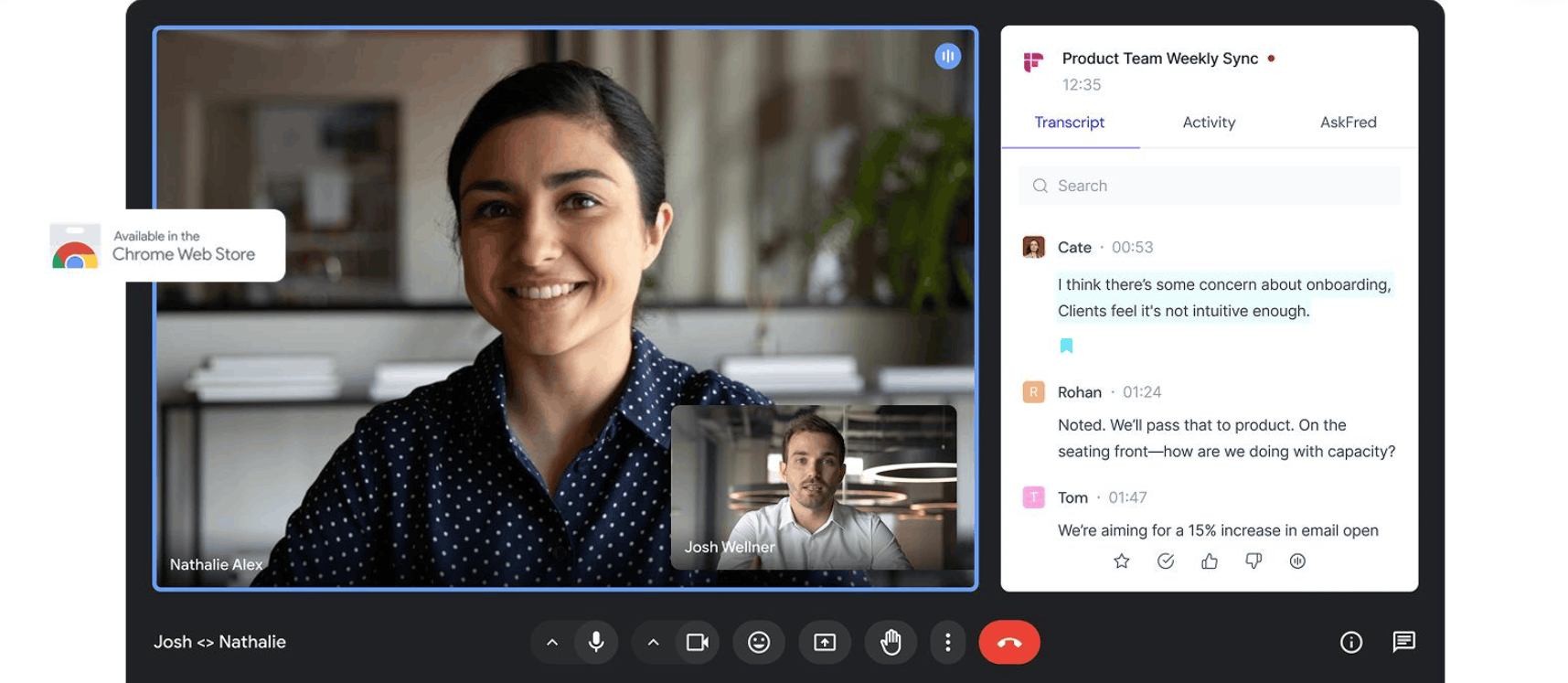
Tactiq is suitable for taking notes on meetings that run in the browser, including Google Meet, Zoom and Teams. The installation guide requires turning on captions in the meeting, because the captions themselves are the source of the transcript. Results are exported as PDF and TXT, one transcript at a time.
Fireflies is suitable for recording Google Meet. This extension captures Meet's audio, while the Fireflies bot is a separate path for video and for Zoom and Teams meetings. Transcripts can be downloaded in many formats such as PDF, DOCX, SRT, CSV, JSON and Markdown, but this requires the Pro plan or higher.
It is necessary to distinguish between an integration that sends notes to another service and downloading a file that you actually keep. The two are not equivalent, and when weighing options you should look carefully at what kind of output you need.
1.1 Glasp Web Highlighter for web excerpts you need to revisit
Choose this highlighter when your notes need the excerpt, the source of that excerpt and how you interpret it. The official introduction page describes the ability to annotate web pages and PDFs, sign in to an account and create summaries based on the annotations. Therefore, it is a reasonable starting point for research reading, not for recording.
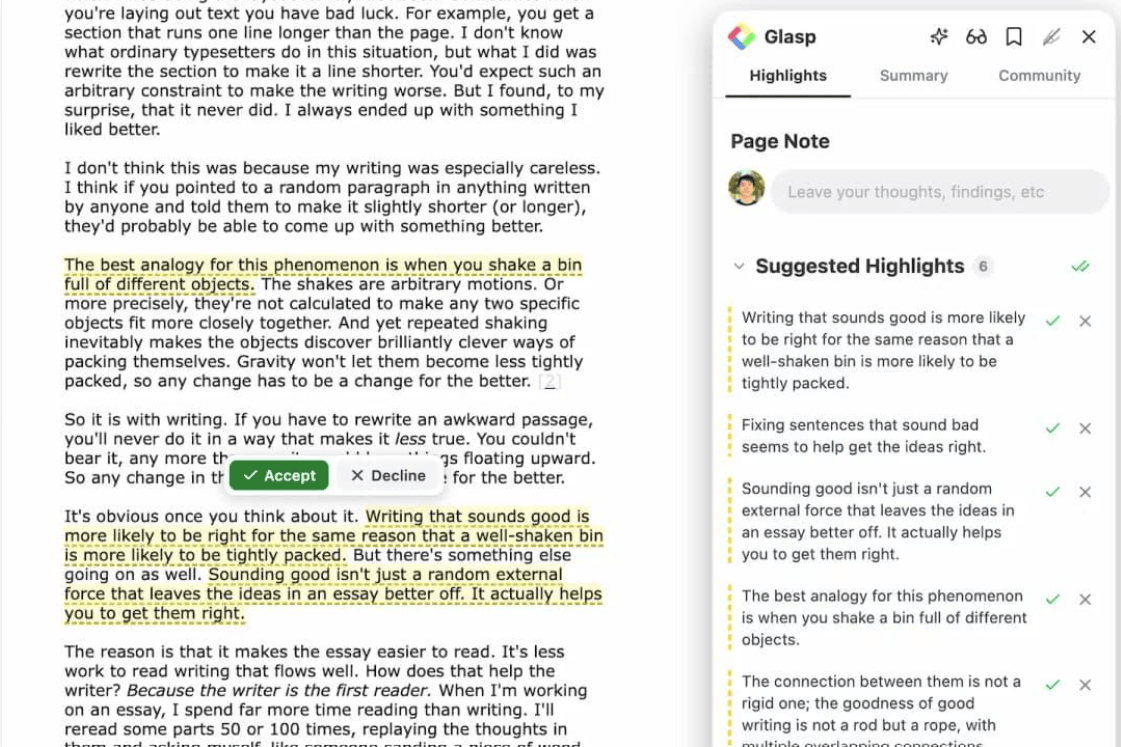
Before saving work documents, check the visibility mode. Glasp's pricing page states that highlights are public by default, while private highlighting is a paid-plan feature. The free plan allows exporting Markdown, HTML, CSV and JSON. However, a free installation does not mean every AI operation is unlimited.
The Chrome Store publishes how personally identifiable information and web page content are handled. Glasp's privacy policy also explains that public content may be indexed by search engines. For the first attempt, use a harmless public page, check what appears on your profile, and avoid putting in private documents until you have verified the relevant settings and plan.
1.2 YouTube Summary for learning from video
Glasp's YouTube Summary extension allows access to a video's transcript when available, has a button to copy the transcript, and supports navigation by timestamps. The official features page also mentions support for articles, PDFs and exporting to Markdown, Notion or Obsidian.
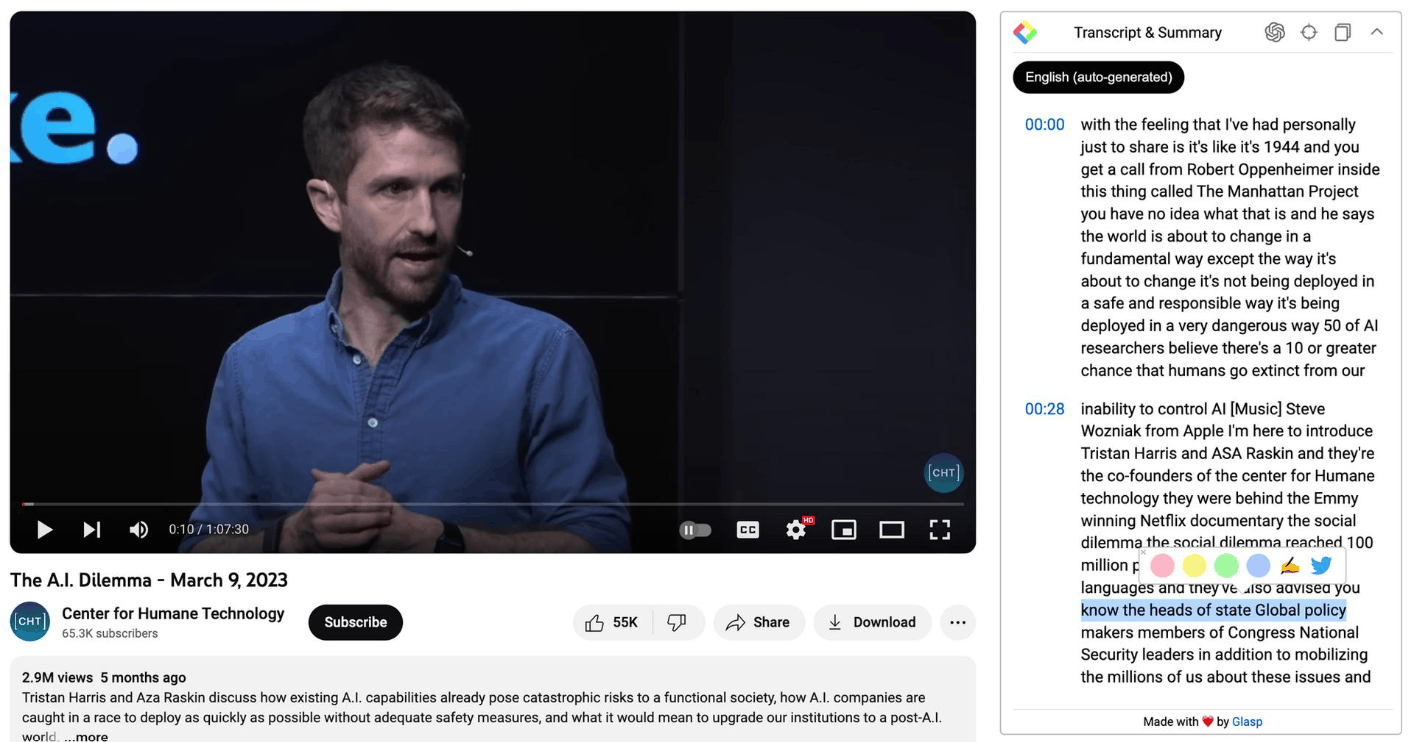
Glasp's account guide distinguishes between reading a summary without an account and signing in to save highlights. The chat-with-content feature requires an account. The current plan page splits the quota into three basic summaries per day and three advanced summaries every seven days, where the advanced quota is shared with article and PDF summaries. Determine which mode you are using, and additionally check the account requirements of the AI provider you choose.
1.3 Tactiq for browser meeting notes based on captions
Tactiq's installation guide states the scope as Google Meet, Microsoft Teams and Zoom meetings running on Chrome or Edge, on a computer. Users are asked to turn on meeting captions and keep them on, because these captions supply the content for the transcript. Choose the correct meeting platform during setup and review any additional permissions requested.
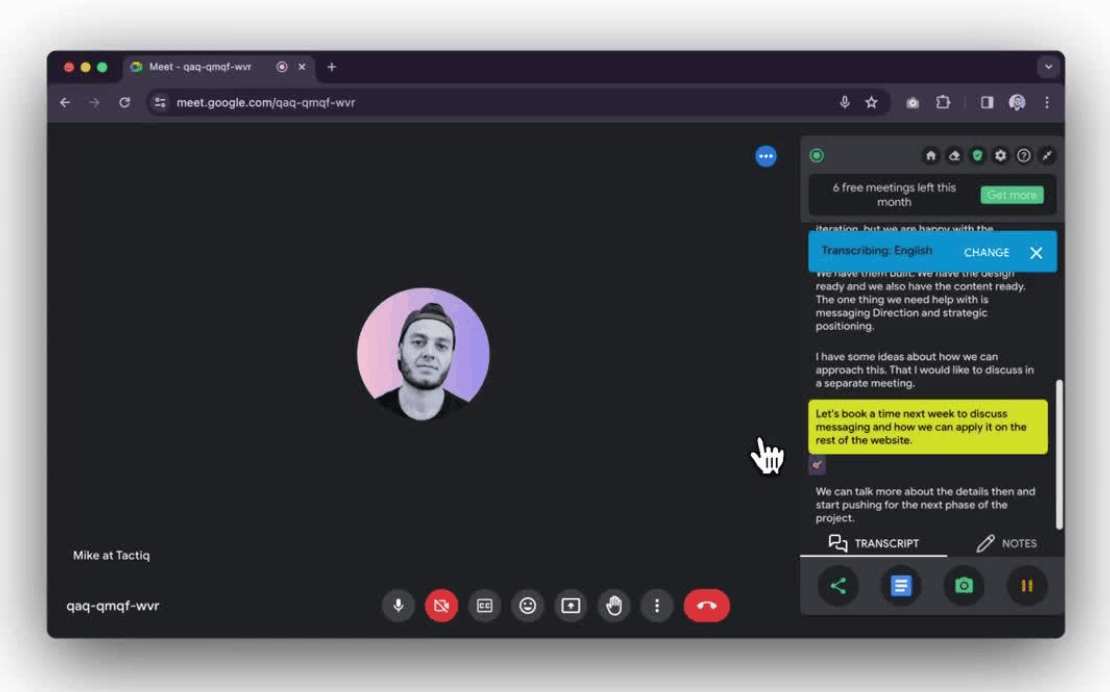
The store's introduction page describes a workflow that needs no bot joining the meeting and does not require recording video. This does not make the transcript any less sensitive. Before using it for work discussions, set up a Tactiq account, review the sharing settings and read their privacy policy.
The free plan lists 10 transcripts and 5 AI credits per month, along with the ability to share and export transcripts. These two quotas are separate, so ten recorded meetings do not mean ten unlimited AI workflows. The downloaded PDF and TXT files include meeting information, speakers, highlights and the transcript, and exporting happens one at a time rather than in batches. If you need audio for playback, this caption-based workflow is not enough by itself.
1.4 Fireflies for recording Google Meet
Fireflies' extension guide records the ability to directly capture Google Meet audio and save it to the Fireflies Notebook. You need a Fireflies account, and the setup process mentions Google sign-in, microphone permission, pop-ups and calendar access. Look carefully at these requirements together with the auto-record setting before joining a real meeting.
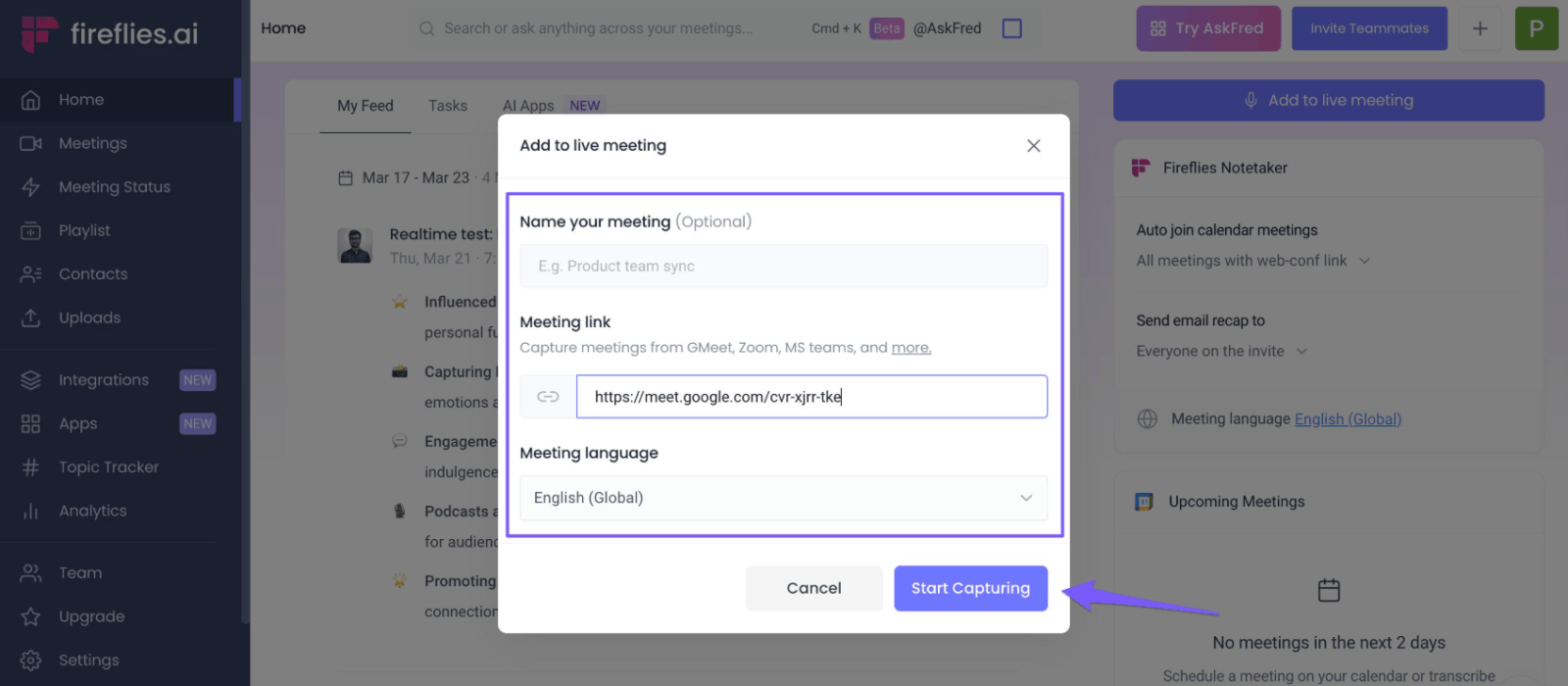
The free plan also has a notable trade-off. For accounts created on September 1, 2026 or later, Fireflies' help page ties unlimited transcription on the free plan to turning on Auto join. When it is off, the page describes a limit of three meetings. Older accounts may differ. Do not turn on the auto-join feature just to unlock the quota without considering which meetings it will automatically enter.
Downloading transcripts, summaries and meeting recordings requires the Pro plan or higher. This matters if you must have a local copy. The data disclosures published on the store include personal communications and web page content, so read Fireflies' privacy policy and check the retention and sharing mechanisms, rather than treating the absence of a bot as a privacy guarantee.
2. Checking permissions before creating official notes
A completely legitimate extension may still request more permissions than you want to grant. Start from the correct introduction page on the store, cross-check the developer against the linked official website and read the current installation prompt. The privacy disclosure on the store only reflects how the developer self-declares its handling of data. It is not the same as Chrome's list of permissions, nor is it an independent audit.
The review process below has five steps.
Check which websites the extension is allowed to read. Open Chrome's extension management page, select the extension's Details and look at the site access section. When Chrome allows it, choose the mode that grants access only on click or only on specific sites suited to the task. Restricting permissions may also cause a feature to stop working, so test first on harmless content.
Separate page-reading permission, audio permission and account permission. Reading page content, recording a browser tab and connecting a calendar are different capabilities. Chrome describes extension permissions and per-site microphone settings separately. Look at each prompt rather than assuming one permission covers everything.
Track the data after it is captured. Check where transcripts and summaries are stored, who can open sharing links, how AI processing is described and how to request data deletion. Public highlights and cloud transcripts need to be handled in different ways.
For meetings, agree on transcription first. Let participants know what will be recorded and how the notes will be shared. Follow your organization's approval process and applicable recording regulations. The absence of a bot icon in the meeting is not the participants' consent.
Test the exit path before depending on the tool. Export a sample, open it outside the service and check the content, sources, speakers and timestamps. If you stop using it, uninstall the extension, revoke the connected account access and use the service's data deletion tool. Uninstalling the extension is not proof that the cloud copy has been deleted.
3. Frequently asked questions
Can an AI note-taking extension record any Chrome tab?
No. The AI label does not imply a universal capability. Tactiq's browser workflow uses meeting captions, while Fireflies' extension guide specifies Google Meet audio. Chrome's tab capture API also has its own requirements for permissions and user action. The actual support of each extension needs to be checked separately, and installing an extension does not get around a website's access controls.
Does having no bot mean the notes stay only on my device?
No. This phrase only describes how the meeting is captured and says nothing about where the transcript is stored or processed. Check the provider's privacy policy, account settings and sharing controls. A cloud transcript can still contain sensitive information even when no audio recording is kept.
Which free option lets me keep my notes?
Glasp lists exporting highlights on the free plan, and Tactiq's free plan includes exporting transcripts. Fireflies records downloads at the Pro plan or higher. Check exactly the type of output you need, such as an editable text file, captions, a summary or a recording, because access to one type does not guarantee the others.







VIP Products

Best Selling Products
Upgrade Genuine Office 365
49 USD
Genuine Adobe Illustrator account
99 USD
Autodesk All App Account Copyright
120 USD
ChatGPT Plus Account (GPT-4)
16 USD
Capcut Pro 1 Year
39 USD
Freepik Premium Account
59 USD
Upgrade Duolingo Super
29 USD
Copyright Adobe Lightroom Account
59 USD
Genuine Cheap Canva Pro
39 USD
Upgrade genuine Capture One account
120 USD
Windows 10 & 11 Pro Key
36 USD
Plugin Retouch4me
69 USD
MidJourney Account
29 USD
Adobe Photoshop Copyright - Full App
120 USD
Adobe Premiere Pro Account
99 USD