Best Selling Products

Adobe Photoshop Copyright - Full App
120 USD
Upgrade genuine Capture One account
120 USD

MidJourney Account
29 USD
ChatGPT Plus Account (GPT-4)
16 USD

Copyright Adobe Lightroom Account
59 USD

Genuine Adobe Illustrator account
99 USD
Plugin Retouch4me
69 USD
Upgrade Duolingo Super
29 USD

Adobe Premiere Pro Account
99 USD

Freepik Premium Account
59 USD
Capcut Pro 1 Year
39 USD
Upgrade Genuine Office 365
49 USD

Windows 10 & 11 Pro Key
36 USD
Autodesk All App Account Copyright
120 USD
Genuine Cheap Canva Pro
39 USD
Connecting Claude with ElevenLabs: Simple and detailed instructions.
Nội dung
- 1. What are Claude and ElevenLabs?
- 2. Benefits of connecting Claude with ElevenLabs
- 3. What preparations are needed before connecting Claude to ElevenLabs?
- 4. Detailed instructions on connecting Claude to ElevenLabs
- Step 1: Access the Connectors section on Claude.
- Step 2: Search for and select ElevenLabs
- Step 3: Enter the ElevenLabs MCP server address.
- Step 4: Log in and grant access.
- Step 5: Complete the connection and check the status.
- 5. How to use Claude to create an AI Agent on ElevenLabs
- Step 1: Enter the command to create an AI Agent.
- Step 2: Check the proposed AI Agent configuration.
- Step 3: Confirm so Claude can perform the operation.
- Step 4: Test and experience the assistant you just created.
- 6. Some useful commands when using Claude with ElevenLabs
- 7. Notes on connecting Claude to ElevenLabs
- 8. Conclusion
Claude possesses the ability to understand natural language, analyze requests, and provide flexible guidance. Meanwhile, ElevenLabs excels in AI speech technology, text-to-speech conversion, and the development of conversational assistants. By connecting the two platforms, users can leverage Claude to assist in setting up, managing, and creating AI agents on ElevenLabs through simple commands. If you''re looking to learn how to connect Claude to ElevenLabs, this article from Sadesign will provide detailed instructions from preparation and integration setup to using the AI assistant after a successful connection.
1. What are Claude and ElevenLabs?
Claude is an artificial intelligence assistant developed by Anthropic, supporting users in various tasks such as content writing, data analysis, planning, word processing, and problem-solving. The tool can receive commands in natural language, understand context, and provide appropriate responses. As a result, Claude is widely used in education, office work, content creation, and programming.
ElevenLabs is an AI platform specializing in voice technology, offering features such as text-to-speech, speech transformation, voice cloning, and the creation of conversational AI assistants. Users can choose from a variety of voices, adjust the delivery, and create audio content for different purposes such as video production, podcasts, narration, or customer service.
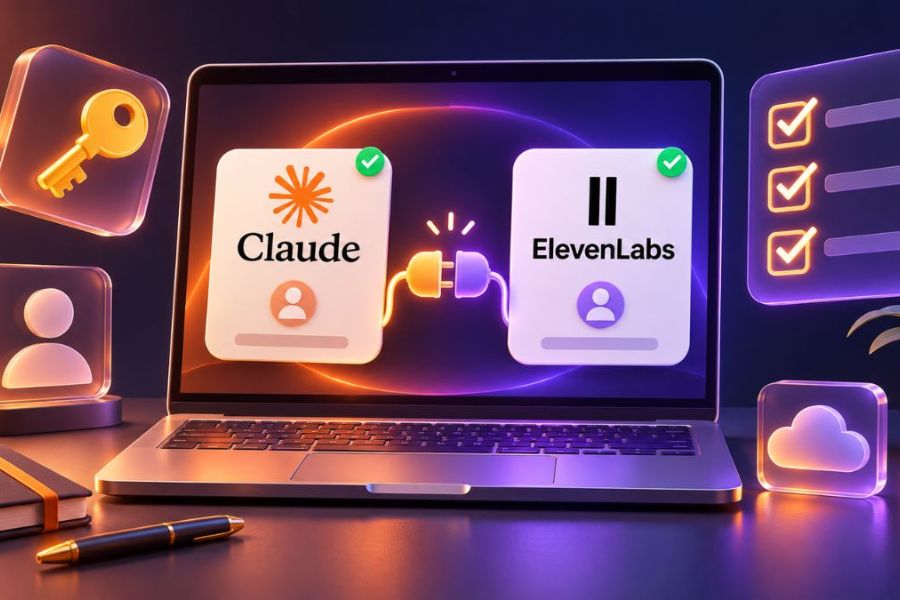
Connecting Claude to ElevenLabs via MCP (Model Context Protocol) allows Claude to interact with tools provided by ElevenLabs after the user sets it up and grants permissions. Instead of performing all operations manually on the interface, you can submit requests in the Claude chat window for the AI to assist with integrated tasks, such as creating or configuring an AI Agent.
2. Benefits of connecting Claude with ElevenLabs
Combining Claude with ElevenLabs offers numerous benefits for users who want to leverage AI in their work and build automated communication solutions. This integration makes setting up voice assistants more convenient and expands the application capabilities of both platforms.
-
Creating AI Agents is convenient: Users can describe their requirements in natural language, such as building a consulting assistant, guiding customers, or supporting learning. Claude will then suggest configurations and perform actions corresponding to the granted permissions.
-
Save setup time: Instead of having to figure out each parameter on ElevenLabs, you can ask Claude for guidance or assistance in configuring the necessary components, shortening the time it takes to get acquainted with the platform.
-
Personalizing AI assistants: AI agents can be configured with individual communication styles, languages, tasks, and responses. This makes the assistant more suitable for individual needs or business purposes.
-
Expanding the applications of voice: The combination of language processing capabilities and audio technology enables users to develop interactive voice experiences, serving a variety of situations such as answering questions, practicing communication, or introducing services.
-
Multilingual support: ElevenLabs offers multilingual voice technologies, enabling the creation of assistants capable of communicating with a wide range of users. You can configure the agent to use Vietnamese, English, or other languages suitable for your deployment needs.
3. What preparations are needed before connecting Claude to ElevenLabs?
For the integration process to go smoothly, you need to prepare some basic conditions before starting the setup.
-
Claude Account: You need to log in to Claude and check if your account supports Connectors or custom MCP connections. Availability may depend on account type, version, and current policies.
-
ElevenLabs Account: Please register or log in to ElevenLabs to verify your connection, select your workspace, and use the supported AI Agent features.
-
Stable browser: It's recommended to use Chrome, Edge, or a browser with the latest version to minimize login, redirection, or authentication errors between the two platforms.
-
Define the purpose of use: Before connecting, you should determine what tasks the AI Agent needs to perform, who the communication audience is, and the desired response style. This preparation will help Claude create a configuration that better matches your needs.
4. Detailed instructions on connecting Claude to ElevenLabs
The integration of Claude with ElevenLabs can be done via the MCP connector. Once set up, users can utilize the supported tools directly within the Claude chat. The steps are as follows.
Step 1: Access the Connectors section on Claude.
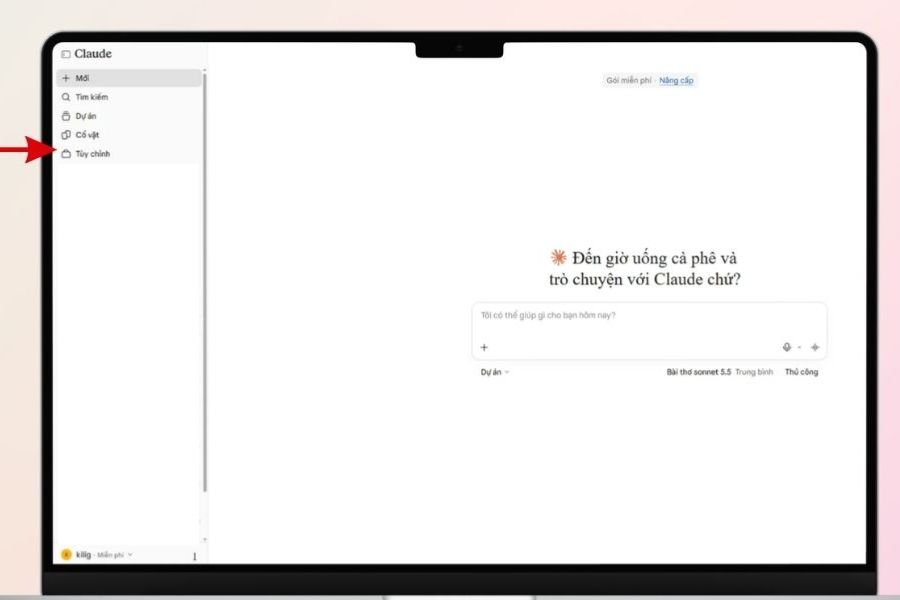
First, open your browser and access Claude, then log in to your personal account. On the main interface, find the Customize section and select Connectors to open the area for managing integrated applications. This is where you can view existing connections, search for the service you want to use, or add custom connectors. If the interface has changed, find the integration management or MCP area in the Claude settings.
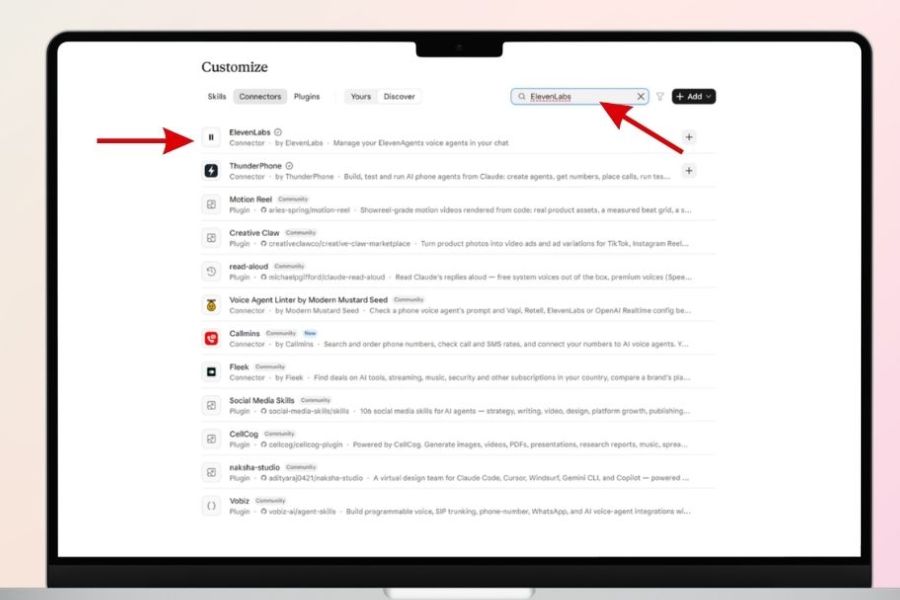
Step 2: Search for and select ElevenLabs
After accessing Connectors, check the list of applications supported by Claude. If ElevenLabs appears in the list, select it to view information and proceed with the connection according to the on-screen instructions. If you don't have a direct connector or want to use ElevenLabs' MCP server, you can select the "Add custom connector" option to manually set it up. This allows users to enter server information and connect to the corresponding service.
Step 3: Enter the ElevenLabs MCP server address.
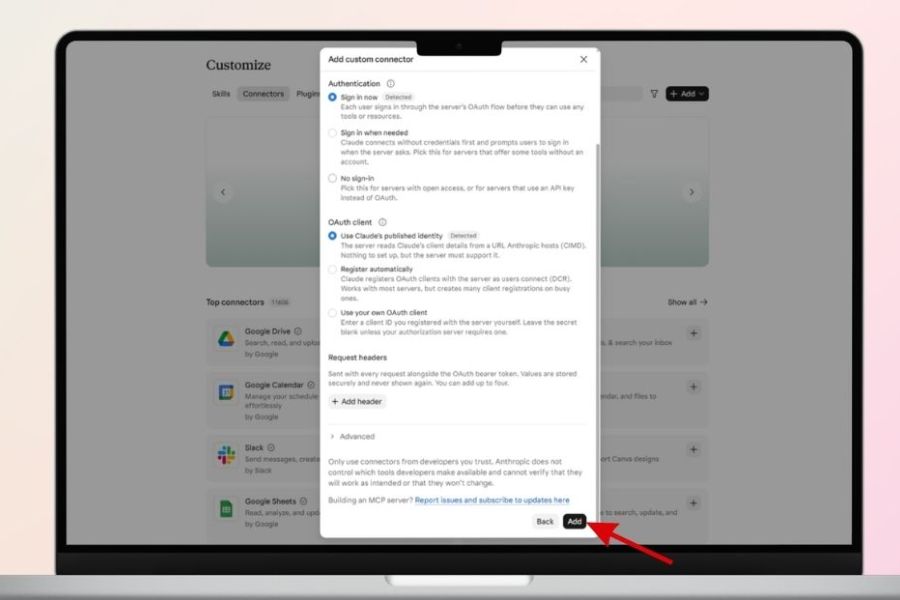
When you select to add a custom connector, Claude will display a form requesting some connection information. Name the connector ElevenLabs for easy identification and management later. Next, enter the official ElevenLabs MCP server address in the URL field: https://api.elevenlabs.io/v1/mcp
After entering the address completely, double-check it to ensure there are no character errors or spaces. This is a crucial step that helps Claude identify the correct server to connect to and access the tools provided by ElevenLabs.
Step 4: Log in and grant access.
After completing the server information, click Add or Continue to begin the authentication process. The system may redirect you to the ElevenLabs login page, where you need to enter your current account information. Once successfully logged in, a permissions screen will appear to inform you of the permissions Claude needs. Carefully read the request, check the connected workspace, and confirm if the permissions meet your needs.
Step 5: Complete the connection and check the status.
Once authentication is complete, return to the Claude interface to check the ElevenLabs connector status. If the connection is successful, the system will display a connected status or allow you to enable the connector in the chat. You can access the connection management section to view supported tools, adjust access permissions, or set up confirmation requirements when Claude performs an action. After this step, try sending a simple command to test the interoperability between the two platforms.
5. How to use Claude to create an AI Agent on ElevenLabs
After a successful connection, you can start requesting Claude's assistance in building your AI assistant on ElevenLabs. Instead of manually setting up each parameter, users simply describe their goals, tasks, and desired communication style, and the AI will suggest a suitable configuration.
Step 1: Enter the command to create an AI Agent.
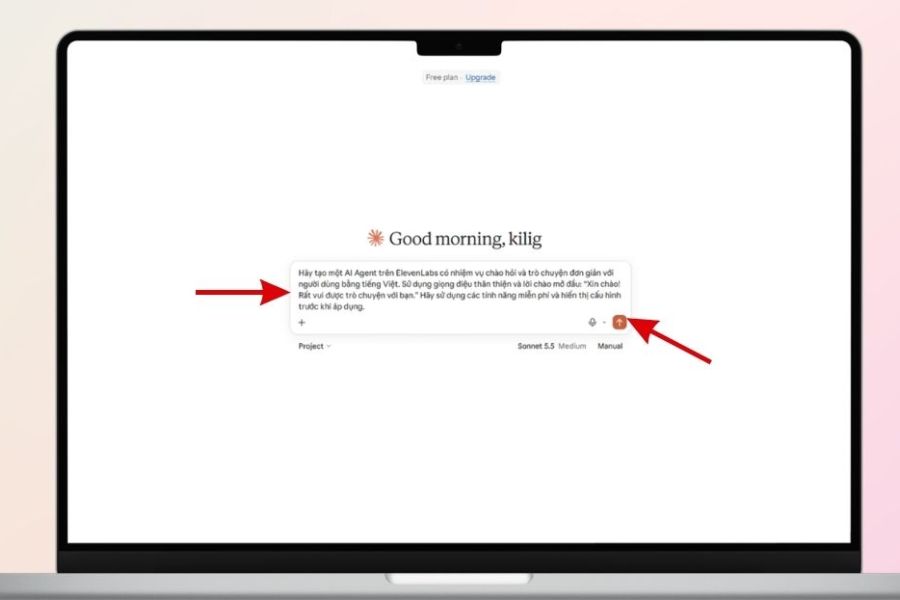
Open a new conversation on Claude, enable the established ElevenLabs connector, and enter a command describing the assistant you want to create. For example, if you want to build an AI Agent that greets and answers questions in Vietnamese, specify its tasks, communication style, language, and the content it needs to handle. The more specific the command, the closer the proposed configuration will be to your intended use.
Example prompt:
"Please create an AI Agent on ElevenLabs that specializes in customer support in Vietnamese. The agent should have a friendly, polite tone, and provide concise and easy-to-understand responses. Set up an opening greeting, operational instructions, and appropriate response guidelines. Prioritize using the features available in my account and display the configuration before proceeding."
Step 2: Check the proposed AI Agent configuration.
After receiving the request, Claude will analyze the task and may suggest appropriate parameters for the AI Agent. You should check the assistant's name, the content of the operational instructions, the initial greeting, the language, the voice, and how to handle questions outside the scope of the task. If the Agent is used to advise customers, add principles such as not providing unverified information, not making commitments, and instructing customers to contact support staff when necessary. Thoroughly checking the configuration helps the assistant operate correctly from the start.
Step 3: Confirm so Claude can perform the operation.
Once the configuration is complete, you can request Claude to create the AI Agent on ElevenLabs. During this process, the system may display a message requesting confirmation of permission to use the tool or allow the action to be performed. Please review the content of the action before agreeing, especially for actions that may create, edit, or modify data on the account. After permission is granted, Claude will perform the corresponding actions if the integrated tool supports them.
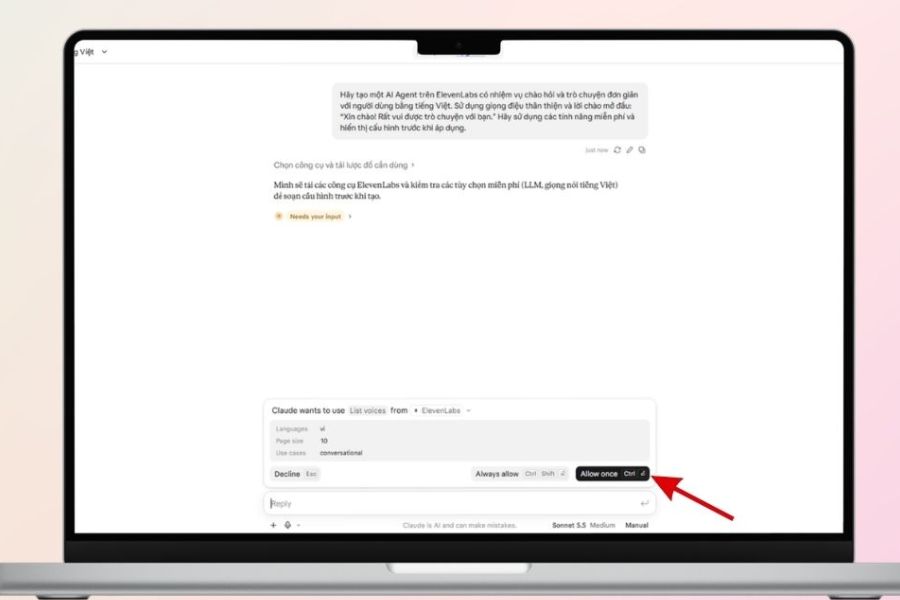
Step 4: Test and experience the assistant you just created.
After completing the creation process, you can ask Claude to confirm the status or provide the Agent's configuration information. Next, access ElevenLabs, open the Agents section, and find the newly created assistant. Try asking frequently asked questions, check the pronunciation, the naturalness of the voice, and the ability to handle requests. If the results are not satisfactory, you can continue to ask Claude to adjust the instruction content, greeting, response style, or supported parameters.
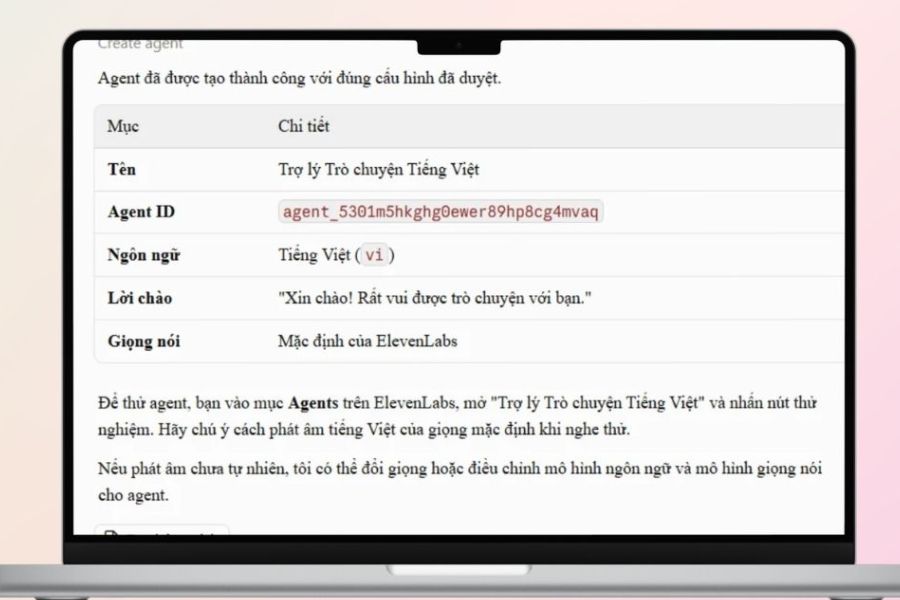
6. Some useful commands when using Claude with ElevenLabs
Once connected, you can leverage Claude to support a variety of needs using simple, clear commands.
-
Create a customer service assistant: Create an AI agent that specializes in advising customers in Vietnamese, answering frequently asked questions, guiding them on how to use the service, and communicating politely and friendly.
-
Create an appointment assistant: Set up an agent to help customers schedule appointments, confirm times, guide them through the process, and gather necessary information.
-
Create an English language training assistant: Build an agent to help you practice English communication, ask questions on various topics, respond naturally, and explain mistakes in Vietnamese.
-
Create a content-reading assistant: Set up an agent with a clear voice and a moderate pace, suitable for narrations, product introductions, or instructional videos.
-
Optimize existing AI Agent: Review current assistant configuration and suggest ways to improve greetings, operational guidance, communication style, or question handling capabilities.
When writing prompts, you should clearly define the objectives, target audience, language, style, and operational limitations of the Agent. This helps Claude understand the requirements correctly, avoids inappropriate suggestions, and supports more effective setup.
7. Notes on connecting Claude to ElevenLabs
During use, users should be aware of several issues to ensure stable connection, protect data, and optimize the performance of the AI Agent.
-
Check access permissions: Claude may be granted access to tools on ElevenLabs depending on the connection configuration. You should carefully check the granted permissions and only allow necessary operations.
-
Monitor your usage limits: Voice creation features, AI Agent operation, or audio processing may consume credits depending on your service plan. Check your limits before using these features frequently or performing high-volume tasks.
-
Write clear prompts: Specify the task, language, communication style, and how to handle the situation to ensure the agent operates as intended. Vague commands may lead to unsatisfactory results.
-
Test the results before application: After creation, the AI Agent still needs to be tested in real-world conditions. You should check the accuracy of the content, responsiveness, voice quality, and how it handles questions outside its scope.
-
Protecting personal information: Avoid providing passwords, payment information, or sensitive customer data in unnecessary requests. Review the privacy policies of platforms before using any actual data.
-
Disconnect when no longer needed: If you no longer need to use it, you can revoke the connector's access in the Claude connection management section or configure your ElevenLabs account settings to restrict unnecessary permissions.
8. Conclusion
Connecting Claude with ElevenLabs is a useful solution that helps users expand their AI capabilities, especially when building voice assistants, automating configuration tasks, or managing AI agents more conveniently. Thanks to integration via MCP, you can communicate with Claude in natural language and utilize the tools provided by ElevenLabs directly within the conversation. Simply prepare your account, set up the connection, authenticate access, and submit the appropriate request, and you can begin experiencing the combination of these two AI platforms. Hopefully, the above guide will help you successfully connect Claude with ElevenLabs, effectively exploiting the features and applications of artificial intelligence in your daily work more easily.















VIP Products





Best Selling Products
Adobe Photoshop Copyright - Full App
120 USD
Upgrade genuine Capture One account
120 USD
MidJourney Account
29 USD
ChatGPT Plus Account (GPT-4)
16 USD
Copyright Adobe Lightroom Account
59 USD
Genuine Adobe Illustrator account
99 USD
Plugin Retouch4me
69 USD
Upgrade Duolingo Super
29 USD
Adobe Premiere Pro Account
99 USD
Freepik Premium Account
59 USD
Capcut Pro 1 Year
39 USD
Upgrade Genuine Office 365
49 USD
Windows 10 & 11 Pro Key
36 USD
Autodesk All App Account Copyright
120 USD
Genuine Cheap Canva Pro
39 USD