Best Selling Products

Adobe Photoshop Copyright - Full App
120 USD

Adobe Premiere Pro Account
99 USD

Upgrade Genuine Office 365
49 USD

Windows 10 & 11 Pro Key
36 USD

Autodesk All App Account Copyright
120 USD

MidJourney Account
29 USD

ChatGPT Plus Account (GPT-4)
16 USD

Plugin Retouch4me
69 USD

Genuine Cheap Canva Pro
39 USD

Freepik Premium Account
59 USD

Genuine Adobe Illustrator account
99 USD

Copyright Adobe Lightroom Account
59 USD

Upgrade genuine Capture One account
120 USD

Capcut Pro 1 Year
39 USD

Upgrade Duolingo Super
29 USD
Create Veo 3 Videos with Canva: A Quick and Simple Creation Guide
Nội dung
- 1. What is Canva?
- 2. Why should you create Veo 3 videos with Canva?
- 3. Requirements for Creating Veo 3 Videos on Canva
- 4. How to Create Veo 3 Videos with Canva
- 4.1 Step 1: Switch the Language to English
- 4.2 Step 2: Access the Canva AI Tool
- 4.3 Step 3: Enter a Prompt and Generate the Video
- 4.4 Step 4: Edit the Video as You Wish
- 4.5 Step 5: Download the Video
- 5. Tips for Creating Stunning Veo 3 Videos
- 6. Should You Upgrade to Canva Pro for Creating Veo 3 Videos?
- 7. Benefits of Upgrading to a 1-Year Canva Pro Plan at Thế Giới Phần Mềm AI
- 7.1 Features of the Canva Pro Plan
- 7.2 Advantages of Using the 1-Year Canva Pro Plan
- 7.3 A Reliable Provider with Affordable Pricing
- 8. Conclusion
Are you looking for a way to create Veo 3 videos with Canva quickly and effectively? With a user-friendly interface and powerful AI features, Canva will help you easily create eye-catching videos in just a few minutes without needing complex editing experience.
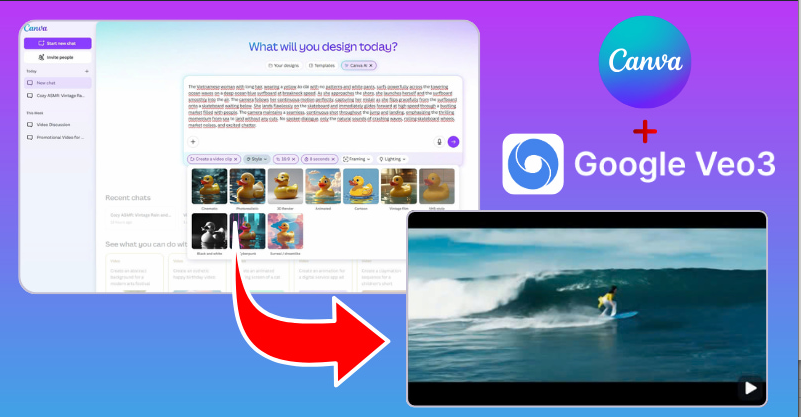
1. What is Canva?
Canva is a versatile online design platform that allows users to create all kinds of content from images, presentations, logos, to videos with simple drag-and-drop operations. Unlike traditional design software that requires complex skills, Canva aims for convenience and creativity for everyone from beginners learning design to professional content creators. Its intuitive interface, library of more than millions of available design templates, images, videos and effects help users turn ideas into complete products in just a few minutes.
The outstanding point of Canva is not only its ease of use, but also its ability to combine AI technology to automatically optimize layouts, colors and effects. Thanks to that, users do not need to spend hours editing but can still get professional, beautiful videos suitable for each purpose such as advertising, marketing or social media sharing. This flexibility and power have helped Canva become the top choice of millions of users around the world in creating digital content quickly and effectively..jpg)
2. Why should you create Veo 3 videos with Canva?
Creating Veo 3 videos with Canva brings an outstanding experience thanks to the perfect combination between Google’s artificial intelligence power and Canva’s flexible customization ability. Just enter a few short lines of description, Canva will automatically create a vivid, smooth and emotional video thanks to Veo 3 technology the most advanced AI video generation model today. No editing experience, no heavy software, you can still own a professional video with frames, lighting and natural movements as if made by an expert.
Moreover, Canva also allows you to customize Veo 3 videos as you wish: add music, effects, logos, subtitles, or combine multiple clips into a complete video. This is extremely useful for content creators, small businesses, or those who want to create promotional videos, lessons, or product introductions quickly while still ensuring high aesthetics. Canva not only helps save time but also opens the door to unlimited creativity where every idea can become reality after just a few clicks.
.jpg)
3. Requirements for Creating Veo 3 Videos on Canva
To use the "Create a Video Clip" feature powered by Google's Veo 3 technology on Canva, users need to subscribe to a Canva Pro, Teams, Enterprise, or Nonprofit plan. These are Canva's premium versions, starting from USD 15/month or USD 120/year, providing access to exclusive AI features, including the Veo 3 automatic video generation tool. These plans not only help users create videos quickly but also unlock a massive resource library containing millions of images, design templates, audio files, and premium effects elements that make your videos more professional and engaging than ever before.
In addition to the Canva subscription requirement, users need to ensure they have a stable Internet connection and an updated browser (such as the latest version of Chrome, Edge, or Safari) to use AI features smoothly. Your Canva account also needs to be verified and signed in with a valid email address to ensure full access to this feature. For those working in teams or needing to share videos online, Canva Teams and Enterprise also support cloud storage and real-time collaboration. Meeting all of these requirements will allow you to fully experience the power of Veo 3 in Canva, from the initial idea to publishing a professional video in just a few minutes.
4. How to Create Veo 3 Videos with Canva
4.1 Step 1: Switch the Language to English
Before getting started, you need to switch Canva's interface to English so you can access the Veo 3 feature, as the "Create a Video Clip" tool currently only supports this language. To do this, from Canva's main interface, click your profile picture in the top-right corner of the screen, select Settings, then go to Language and change it to English. This step will help you easily find AI tools and perform actions more accurately throughout the video creation process.
Switching the language is not only a technical requirement but also helps you become familiar with the specialized terms used in AI video editing. As a result, you will better understand Canva's suggestions, effects, and options, ensuring that your Veo 3 video is created as completely and professionally as possible.
.jpg)
4.2 Step 2: Access the Canva AI Tool
After switching the language, return to Canva's homepage and access the Canva AI section, which is where all of the platform's powerful artificial intelligence tools are gathered. Select Create with AI, then locate the Create a Video Clip option, the new feature integrated with Google's Veo 3 technology.
Here, you will see a user-friendly interface with a simple input box where you can start creating a video from just a single line of description. Canva AI is designed to help users save time, so with only a few simple steps, you can create an emotional short video without installing software or editing manually.
.jpg)
4.3 Step 3: Enter a Prompt and Generate the Video
This is the most exciting step, where you can transform your ideas into vivid visuals. In the Create a Video interface, enter a short prompt describing the video you want to create, such as "a peaceful sunrise over the mountains" or "a futuristic city at night with flying cars". Then click the Submit icon to let the system begin processing.
Canva AI will analyze your prompt and apply the Veo 3 model to automatically generate an approximately 8-second video with smooth framing, lighting, and natural movement. After only about 1–2 minutes, you will have a fully generated video ready for editing or publishing on social media platforms.
(1).jpg)
4.4 Step 4: Edit the Video as You Wish
Once Veo 3 finishes generating the video, Canva will display the Use in Canva Editor option so you can continue customizing it. Here, you can add text, insert logos, adjust colors, add background music, or even combine multiple short clips into one complete video. Every action is optimized with Canva's user-friendly drag-and-drop interface, making it easy to create your own unique style.
The great thing is that Canva does not limit your creativity. You can experiment with different fonts, transition effects, or background music to make your video more dynamic. This is also an opportunity to improve your visual storytelling skills and bring a unique personal touch to every creative project.
.jpg)
4.5 Step 5: Download the Video
Once you are satisfied with the result, simply click Download in the upper-right corner to save the video to your device. Canva allows you to choose from multiple formats, such as MP4 or MOV, with high quality and fast export speeds. If you are using Canva Pro or Canva Teams, you can also save the video directly to Canva Cloud for easy sharing with colleagues or clients.
With just a few simple steps, you have successfully created a fast, beautiful, and professional Veo 3 video using Canva. Thanks to the combination of Google's AI technology and Canva's user-friendly design tools, anyone can become a content creator in just a few minutes.
.jpg)
5. Tips for Creating Stunning Veo 3 Videos
Now that you know how to create Veo 3 videos with Canva, making your videos truly stand out, look professional, and capture viewers' attention still requires a few simple tips. Below are some practical suggestions to help you maximize the power of Canva's AI and create videos that will impress everyone who watches them:
Use detailed and clear prompts: Write your prompt as specifically as possible, including the subject, action, style, color tone, and setting. The clearer your prompt is, the easier it is for the AI to understand and generate the video exactly as you expect.
Experiment with different prompts: Don't hesitate to be creative. Change a few details in your description to discover more impressive visual styles or camera angles sometimes just one small adjustment can produce surprisingly different results.
Take full advantage of Canva's editing tools: After the video is generated, enhance it further by adding text, transition effects, background music, or adjusting the lighting to make your video more engaging and dynamic.
Combine multiple clips together: Since each Veo 3 video is approximately 8 seconds long, you can generate several short clips and combine them into a complete video with a smooth and compelling storyline.
Customize for your intended purpose: Every social media platform has different formats and audience preferences. Clearly define whether your video is for advertising, product promotion, or inspirational content so you can optimize both the content and the duration accordingly.
6. Should You Upgrade to Canva Pro for Creating Veo 3 Videos?
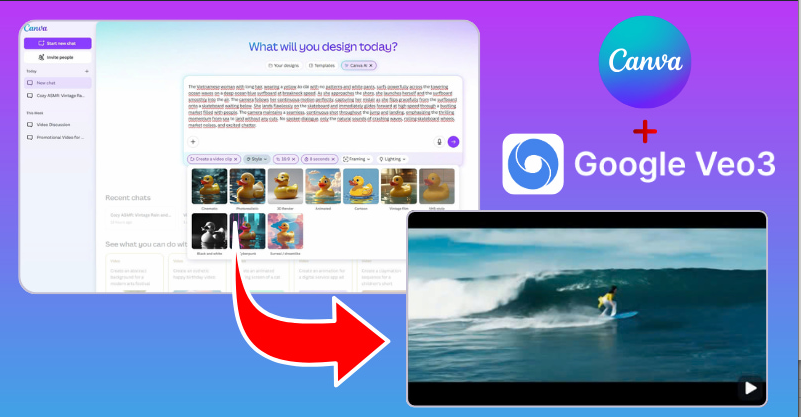
With the Canva Pro plan, you can unlock the "Create a Video Clip" feature powered by Google's Veo 3 AI, allowing you to transform ideas into videos within seconds. Even if you have no video editing experience, you can still create cinematic-style short clips that are ready to publish on TikTok, Reels, or YouTube Shorts to attract millions of views. Canva Pro also supports high-quality video exports, effects, background music, and brand logos all of which are extremely important if you want to build your personal channel or grow an online business brand.
More importantly, Veo 3's AI-powered content creation capabilities allow you to keep up with trends faster and produce videos continuously without spending time filming or editing. This creates excellent opportunities to earn money from TikTok, sell products through video, or succeed in affiliate marketing more easily than ever before. Upgrading to Canva Pro is not only an investment in a design tool, but also a stepping stone to keeping up with the AI content creation trend, building a professional image, and expanding your personal brand to millions of viewers.
7. Benefits of Upgrading to a 1-Year Canva Pro Plan at Thế Giới Phần Mềm AI
7.1 Features of the Canva Pro Plan
The 1-Year Canva Pro plan at AI Software World offers maximum flexibility and convenience for content creators. When you subscribe, you will enjoy full access to all Canva premium features for 12 months, including a library of millions of images, videos, design templates, and professional editing tools. Best of all, this package costs only one-fifth of Canva's official price, while still providing a fully licensed account and unrestricted access to every Pro feature you need.
In addition to helping you save significantly on costs, upgrading through AI Software World also protects you from the risks associated with purchasing cheap, unofficial accounts online. You will receive dedicated support from the technical team, ensuring a fast, secure, and stable activation process. This is a smart solution for anyone who frequently works in design, marketing, or digital content creation.
7.2 Advantages of Using the 1-Year Canva Pro Plan
The 1-Year Canva Pro plan delivers outstanding value for both individual users and businesses. Instead of paying every month, you only need to make a one-time payment, making it easier to manage expenses and optimize your budget. With Canva Pro, you gain access to exclusive resources, export high-resolution videos, remove image backgrounds automatically, and use a wide range of AI-powered professional design tools.
In particular, the Brand Kit and Magic Resize features help you maintain consistent brand colors and automatically resize your designs for every platform from Instagram and TikTok to YouTube in just a few seconds. As a result, your marketing campaigns remain consistent, professional, and much more time-efficient. Canva Pro is not just a design tool, but a reliable companion that helps elevate your brand and create a unique identity in every creative project.
7.3 A Reliable Provider with Affordable Pricing
AI Software World is a trusted provider of licensed software, chosen by thousands of individuals, businesses, and content creators across Vietnam. With many years of experience in software distribution, the company is committed to offering affordable prices, genuine licenses, and dedicated customer support. In addition to Canva Pro, AI Software World also provides a wide range of creative solutions such as Photoshop Full App, CapCut Pro, and ChatGPT Plus, helping users improve productivity and unlock unlimited creative potential.
When upgrading to Canva Pro here, you will receive a clear account warranty policy, detailed user guidance, and lifetime technical support. This is exactly what makes AI Software World the top choice for anyone looking to own a powerful design tool at a reasonable cost. Experience it today and discover the difference in every design while taking your personal brand to the next level!
8. Conclusion
Creating Veo 3 videos with Canva has never been easier. With just a few drag-and-drop actions, you can transform your ideas into professional videos with your own unique style. Canva's strength lies not only in its rich template library but also in its AI-powered capabilities that automatically optimize effects, audio, and lighting, helping you save maximum time while still ensuring outstanding quality. If you are looking for a fast, beautiful, and effective video creation tool, start today with a licensed Canva account from AI Software World to experience every premium feature and take your content to an entirely new level!





















VIP Products








Best Selling Products
Adobe Photoshop Copyright - Full App
120 USD
Adobe Premiere Pro Account
99 USD
Upgrade Genuine Office 365
49 USD
Windows 10 & 11 Pro Key
36 USD
Autodesk All App Account Copyright
120 USD
MidJourney Account
29 USD
ChatGPT Plus Account (GPT-4)
16 USD
Plugin Retouch4me
69 USD
Genuine Cheap Canva Pro
39 USD
Freepik Premium Account
59 USD
Genuine Adobe Illustrator account
99 USD
Copyright Adobe Lightroom Account
59 USD
Upgrade genuine Capture One account
120 USD
Capcut Pro 1 Year
39 USD
Upgrade Duolingo Super
29 USD