Best Selling Products

Adobe Premiere Pro Account
99 USD

MidJourney Account
29 USD

Autodesk All App Account Copyright
120 USD

Upgrade genuine Capture One account
120 USD

Adobe Photoshop Copyright - Full App
120 USD

Capcut Pro 1 Year
39 USD

Upgrade Genuine Office 365
49 USD

Freepik Premium Account
59 USD

Copyright Adobe Lightroom Account
59 USD

Genuine Cheap Canva Pro
39 USD

Windows 10 & 11 Pro Key
36 USD

Upgrade Duolingo Super
29 USD

Genuine Adobe Illustrator account
99 USD

ChatGPT Plus Account (GPT-4)
16 USD

Plugin Retouch4me
69 USD
How to Fix the "Scratch Disks Are Full" Error in Photoshop
Nội dung
- 1. What Is the "Scratch Disks Are Full" Error?
- 2. What Causes the "Scratch Disks Are Full" Error?
- 3. How to Fix the "Scratch Disks Are Full" Error
- 3.1. Switch to Another Drive as the Scratch Disk
- 3.2. Clean Up Temporary Files in Photoshop
- 3.3. Free Up Hard Drive Space
- 3.4. Fix the Error When Cropping Images in Photoshop
- 4. Tips to Prevent the Error During Use
- 5. Where to Buy Affordable, Error-Free Photoshop Accounts
- 6. Conclusion
While using Photoshop, many users often encounter a situation where the software reports that the temporary memory is full, causing Photoshop to slow down or preventing them from continuing their work.
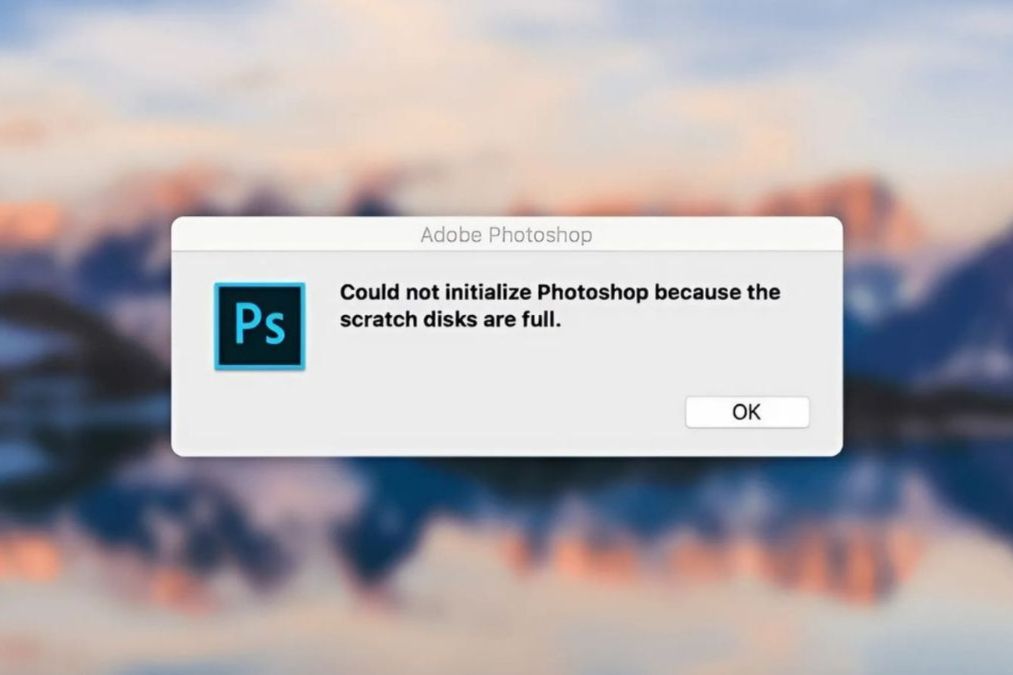
1. What Is the "Scratch Disks Are Full" Error?
While using Photoshop, many users often encounter a situation where the software reports that the temporary memory is full, causing Photoshop to slow down or preventing them from continuing their work. The "Scratch Disks Are Full" message appears when the hard drive used as Photoshop's temporary storage becomes overloaded, resulting in lag, the inability to save files, or even causing the program to freeze. Fortunately, you can completely resolve this issue with just a few simple steps. Let's explore the detailed solutions to fix the Scratch Disks Are Full error so Photoshop can run smoothly and efficiently once again.
When editing images in Photoshop, many users suddenly receive the "Scratch Disks Are Full" notification and can no longer continue working. This is one of the most common errors that causes the software to run sluggishly or even freeze unexpectedly. Simply put, this error occurs when the drive Photoshop uses as its temporary storage area (Scratch Disk) has run out of available space. During image processing, Photoshop relies not only on RAM but also requires additional free hard drive space to temporarily store data. When this storage area becomes full, the software can no longer function properly, resulting in the error message.
A Scratch Disk can be understood as an auxiliary memory that Photoshop uses to support RAM during operation. If you open multiple large files, use numerous layers, or work with complex effects, the amount of temporary data Photoshop generates increases rapidly. Once the Scratch Disk is full, Photoshop no longer has space to store temporary data, interrupting the editing process. This is why many users mistakenly believe their computer is malfunctioning or Photoshop has encountered a serious problem.
The good news is that the "Scratch Disks Are Full" error can be fixed quite easily. Understanding the root cause allows you to proactively resolve it using simple methods such as cleaning up disk space, changing the Scratch Disk location, or optimizing your RAM usage. With just a few minor adjustments, you can restore Photoshop's smooth performance, avoid system freezes, and improve your overall workflow. If you frequently use Photoshop professionally, this is essential knowledge that will help you save time and maintain maximum image editing efficiency.
.jpg)
2. What Causes the "Scratch Disks Are Full" Error?
When Photoshop displays the "Scratch Disks Are Full" message, it means the software no longer has enough temporary storage space to continue operating. The underlying causes usually stem from inefficient memory management or insufficient disk space. Understanding these causes will help you completely eliminate the issue while optimizing Photoshop's performance on your computer.
Below are the most common reasons why the "Scratch Disks Are Full" error occurs:
-
The drive selected as the Scratch Disk is running out of storage space: By default, Photoshop typically uses the system drive (usually drive C:) as the location for temporary files. When this drive is nearly full, Photoshop no longer has enough space to process data.
-
Insufficient RAM: When your computer's RAM is not enough to handle demanding tasks, Photoshop begins using the hard drive as virtual memory. If your RAM capacity is too low, this happens frequently and quickly fills the Scratch Disk.
-
Accumulation of temporary files: Every time Photoshop is opened, edited, or closed, it creates temporary files. If these files are not cleaned regularly, they consume a significant amount of disk space and eventually fill the Scratch Disk.
-
Running too many resource-intensive applications simultaneously: When multiple graphics applications, video editors, or web browsers are running at the same time, the computer's overall memory resources become overloaded, leaving Photoshop with insufficient resources to operate efficiently.
-
Setting the Scratch Disk to the system drive (C:): This is one of the most common configuration mistakes. Since drive C: stores both the operating system and application data, it usually has limited free space. Using it as the Scratch Disk significantly increases the likelihood of running out of storage.
In summary, most causes are related to insufficient storage capacity and unoptimized memory configuration. Identifying the exact cause allows you to clean up storage, redistribute system resources, and prevent the Scratch Disks Are Full error from recurring in the future.
3. How to Fix the "Scratch Disks Are Full" Error
3.1. Switch to Another Drive as the Scratch Disk
One of the quickest and most effective ways to fix the "Scratch Disks Are Full" error is to change the temporary storage location to another drive with more free space. Normally, Photoshop uses drive C, where the operating system is installed, as the default Scratch Disk. However, this drive often fills up easily because it contains many system files and other applications. Switching to drive D, E, or any secondary drive with larger capacity will help reduce the load on the main drive and significantly improve processing speed.
To do this, simply open Photoshop, go to Edit > Preferences > Scratch Disks (or Photoshop > Preferences > Scratch Disks on macOS), then uncheck the current drive and select another drive with more available space. If your computer has multiple hard drives, choose two or more drives to distribute temporary data. After making the change, restart Photoshop so the system can apply the new settings. This is a simple step but delivers high efficiency, especially if you often work with large image files.
.jpg)
3.2. Clean Up Temporary Files in Photoshop
If you have changed the drive but the error still appears, the cause may be that temporary files are still taking up too much disk space. Photoshop often creates these files during work to temporarily store layer data, editing history, and effects. However, when you exit the application without deleting them or when the software shuts down unexpectedly, these files remain on your computer and gradually consume all available storage.
To fix this, first save all open projects, then completely close Photoshop. Next, go to the folder C:\Users[Username]\AppData\Local\Temp and delete all files whose names begin with "Photoshop Temp". In addition, you can use Disk Cleanup or junk-cleaning software such as CCleaner to remove all temporary files from your computer. After completing this process, restart Photoshop and you will notice the software runs much more smoothly. Regularly cleaning temporary files not only helps solve the Scratch Disks Are Full error but also extends hard drive life and optimizes overall system performance.
.jpg)
3.3. Free Up Hard Drive Space
Insufficient hard drive space is a common cause of the Scratch Disks Are Full message in Photoshop. Freeing up storage not only temporarily fixes the error but also improves overall system performance, reduces waiting time when opening large files, and helps process multiple layers more efficiently. Below are specific, easy-to-follow steps to optimize storage space and defragment the hard drive, helping Photoshop run more smoothly.
Step 1: Delete junk files and uninstall unused applications
First, clean up temporary files, downloaded files, and documents you no longer need. Open This PC, check the Downloads, Desktop, and Documents folders to delete or move large files to an external drive or cloud storage service. Next, go to Settings and select Apps to uninstall programs you no longer use. Removing unnecessary software and junk files will immediately increase free space for the Scratch Disk and reduce the risk of Photoshop reporting full temporary memory.
.jpg)
Step 2: Use Disk Cleanup to reduce system data
Windows has a very useful disk-cleaning tool for freeing up space. Open This PC, right-click the drive you want to optimize, then select Properties. In the General tab, click Disk Cleanup to scan for removable files such as temporary files, cache, temporary installation files, and files in the recycle bin. If you want to free up more space, choose Clean up system files to remove old Windows updates or unnecessary system files. Once completed, you will have more free space for Photoshop to use as its Scratch Disk.
.jpg)
Step 3: Defragment the hard drive so Photoshop can recognize free space more effectively
Even when the drive still has free capacity, heavy fragmentation can prevent Photoshop from using continuous free space efficiently. To optimize it, open This PC, right-click the drive, select Properties, switch to the Tools tab, and under Optimize and defragment drive, choose Optimize. The system will reorganize data, bring free space areas closer together, and improve read/write speed. After defragmentation, Photoshop will have more continuous free space to store temporary files, reducing the risk of encountering the Scratch Disks Are Full error again.
Applying all three steps together will bring noticeable results: the hard drive will have more free space, data will be arranged more neatly, and Photoshop will operate more stably when handling large files. If you are limited by hard drive capacity, you should also consider upgrading to an SSD or adding an external drive dedicated to the Scratch Disk, thereby optimizing your professional photo editing experience..jpg)
3.4. Fix the Error When Cropping Images in Photoshop
A fairly common situation is when you are cropping an image in Photoshop and the software suddenly displays the "Scratch Disks Are Full" error. In many cases, the problem is not caused by the hard drive itself but by entering incorrect measurement units or setting the image resolution too high. This forces Photoshop to process an enormous amount of data, quickly filling the temporary storage space. To fix this, simply select the Crop Tool, look at the options bar at the top, remove any unnecessary values, and change the measurement unit back to pixels instead of centimeters or inches.
If the resolution is set too high (for example, 300–600 ppi for an image that is only intended for screen display), reduce it to a more appropriate range of 72–150 ppi. This allows Photoshop to operate more efficiently while maintaining sharp image quality. Properly adjusting the image dimensions and resolution not only prevents the Scratch Disk error but also makes cropping, editing, and exporting images much faster, smoother, and more storage-efficient.
4. Tips to Prevent the Error During Use
While working with Photoshop, encountering the "Scratch Disks Are Full" error not only interrupts your workflow but also significantly reduces editing performance. Fortunately, you can completely avoid this issue by developing smart usage habits and optimizing your storage capacity from the beginning. Below are some useful tips to help Photoshop run more smoothly, remain stable, and effectively prevent temporary storage errors.
-
Keep sufficient free space on your hard drive: Always ensure that the drive selected as the Scratch Disk has at least 20–30 GB of available space. This provides Photoshop with enough room to store temporary files, especially when editing large images or working with complex multi-layer projects.
-
Assign the Scratch Disk to a drive other than the system drive (C:): Drive C: usually stores the operating system and installed applications, making it prone to filling up quickly. You should move Photoshop's Scratch Disk to drive D, E, or a high-capacity SSD to prevent errors and improve processing speed.
-
Regularly delete temporary and junk files: After each editing session, clear temporary files and clean the Temp folder. This not only frees up storage space but also helps the system run more efficiently, reducing the likelihood of Scratch Disk errors.
-
Defragment your hard drive periodically: For HDD users, regularly run the Disk Defragmenter tool to reorganize data and create larger continuous free space. This allows Photoshop to access data more efficiently and minimizes virtual disk issues.
-
Upgrade your hardware when necessary: If you frequently work with large project files, consider upgrading your RAM or switching to an SSD. Hardware upgrades not only make Photoshop run faster but also significantly reduce memory-related issues.
-
Manage design files efficiently: Avoid letting PSD files become excessively large with hundreds of unnecessary layers. Merge layers, delete unused ones, or save files in lighter formats to reduce system load and optimize storage usage.
-
Close unnecessary applications while using Photoshop: Running multiple programs simultaneously consumes RAM and virtual memory. Before launching Photoshop, close background applications that are not essential so your computer can dedicate maximum resources to image editing, ensuring stable performance and preventing Scratch Disk errors.
Applying these practices consistently will not only help you avoid the "Scratch Disks Are Full" error but also optimize your computer's speed, stability, and longevity while working with Photoshop over the long term.
.jpg)
5. Where to Buy Affordable, Error-Free Photoshop Accounts
If you're looking for an affordable, genuine, and error-free Photoshop account, Appvip is the perfect choice. As one of Vietnam's leading software providers, Appvip specializes in offering Adobe Genuine Full Apps 100GB Cloud packages at highly competitive prices. In addition to providing legal, stable software with full functionality, Appvip delivers a professional purchasing experience with fast payment processing, instant activation, and dedicated customer support. Everything is designed to ensure complete customer satisfaction, whether you're an individual user, a student, or a creative business.
One of Appvip's greatest strengths is its reputation, reasonable pricing, and lifetime warranty policy. The Adobe accounts provided are genuine personal accounts, ensuring complete data security and user privacy. Moreover, the experienced support team is always ready to offer free consultation and detailed guidance on how to maximize Adobe's creative tools, including Photoshop, Illustrator, Premiere Pro, After Effects, and more. Choosing software from Appvip not only helps you save money but also guarantees long-term safety, quality, and efficiency for your design and creative work.
6. Conclusion
Although the "Scratch Disks Are Full" error is common, it can be resolved quickly once you understand its causes and apply the appropriate solutions. Regularly cleaning your hard drive, managing temporary files, optimizing memory capacity, and properly allocating Photoshop's Scratch Disk will not only eliminate this error but also significantly improve the software's speed and overall performance.
Hopefully, with this detailed guide from Appvip, you'll be able to fix the Scratch Disks Are Full error easily and enjoy a smoother, faster, and more professional image editing experience than ever before.





















VIP Products








Best Selling Products
Adobe Premiere Pro Account
99 USD
MidJourney Account
29 USD
Autodesk All App Account Copyright
120 USD
Upgrade genuine Capture One account
120 USD
Adobe Photoshop Copyright - Full App
120 USD
Capcut Pro 1 Year
39 USD
Upgrade Genuine Office 365
49 USD
Freepik Premium Account
59 USD
Copyright Adobe Lightroom Account
59 USD
Genuine Cheap Canva Pro
39 USD
Windows 10 & 11 Pro Key
36 USD
Upgrade Duolingo Super
29 USD
Genuine Adobe Illustrator account
99 USD
ChatGPT Plus Account (GPT-4)
16 USD
Plugin Retouch4me
69 USD