Best Selling Products

MidJourney Account
29 USD

Upgrade Genuine Office 365
49 USD

Plugin Retouch4me
69 USD

Genuine Cheap Canva Pro
39 USD

Autodesk All App Account Copyright
120 USD

Adobe Premiere Pro Account
99 USD

ChatGPT Plus Account (GPT-4)
16 USD

Freepik Premium Account
59 USD

Windows 10 & 11 Pro Key
36 USD

Upgrade Duolingo Super
29 USD

Adobe Photoshop Copyright - Full App
120 USD

Genuine Adobe Illustrator account
99 USD

Upgrade genuine Capture One account
120 USD

Copyright Adobe Lightroom Account
59 USD

Capcut Pro 1 Year
39 USD
Creating Professional Tables in Illustrator 2025: A to Z Guide
Nội dung
- 1. A brief introduction to Adobe Illustrator
- 2. Instructions on how to create tables in the latest Illustrator version (2025)
- Step 1: Open Adobe Illustrator and create a new file.
- Step 2: Enter the dimensions and create the file.
- Step 3: Draw the table frame using the Rectangle Tool
- Step 4: Select the table frame using the Selection Tool
- Step 5: Divide the frame into rows and columns.
- Step 6: Preview and adjust the grid
- Step 7: Edit the cell or border using the Direct Selection Tool
- Step 8: Change the Fill and Stroke colors
- Step 9: Save the table using Export for Screens
- Step 10: Choose the format and complete saving the file.
- 3. Some notes when creating tables in Illustrator
This detailed guide shows you how to create beautiful, intuitive tables in Illustrator 2025, from setting up the framework to fine-tuning colors and exporting the file, suitable for all designers.

Adobe Illustrator has always been one of the leading vector design software programs, widely used in fields ranging from graphic design and printing to advertising and digital marketing. Mastering basic skills such as table creation not only saves designers time but also improves the quality of the final product. In the latest version of Illustrator (2025), Adobe has optimized many tools, improved the user experience, and added intelligent features, making the table creation process more intuitive, faster, and more flexible than ever before.
Creating tables in Illustrator may seem simple, but it actually requires precision, logical organization, and the ability to utilize supporting tools. A professionally designed table will not only be easy to read but also aesthetically pleasing, effectively serving projects such as reports, infographics, presentation slides, or advertising materials. This article will provide detailed instructions on how to create tables in the latest 2025 version of Illustrator, from preparation, drawing the table, dividing cells, adjusting colors, to exporting the complete file, along with important notes to optimize the final product.
1. A brief introduction to Adobe Illustrator
Adobe Illustrator is one of the world's leading vector graphics design software programs, widely used in many fields such as graphic design, printing, advertising, media, and web design. Illustrator's distinguishing feature compared to other graphic design software, such as Photoshop, is its ability to create shapes, icons, charts, tables, and complex graphic products while maintaining sharpness when zoomed in or out. This is because Illustrator is based on vector graphics rather than raster graphics. While raster graphics use fixed pixels, leading to image distortion when scaled up, vector graphics rely on mathematical formulas to define shapes and lines, ensuring smooth and clear designs at all sizes, from small logos on websites to large outdoor banners.
Illustrator is favored not only for its ability to maintain sharpness, but also for its superior flexibility in creating and managing geometric objects. Users can manipulate layers , group objects, create clipping masks, blend shapes, and apply gradient, pattern, or texture effects accurately and quickly. Color coordination in Illustrator is also very convenient, from basic color systems to complex gradients, making designs vibrant and professional. Furthermore, Illustrator's typographic tools allow for detailed control over fonts, kerning, tracking, leading, and text distortion, adding sophistication to text-related designs.
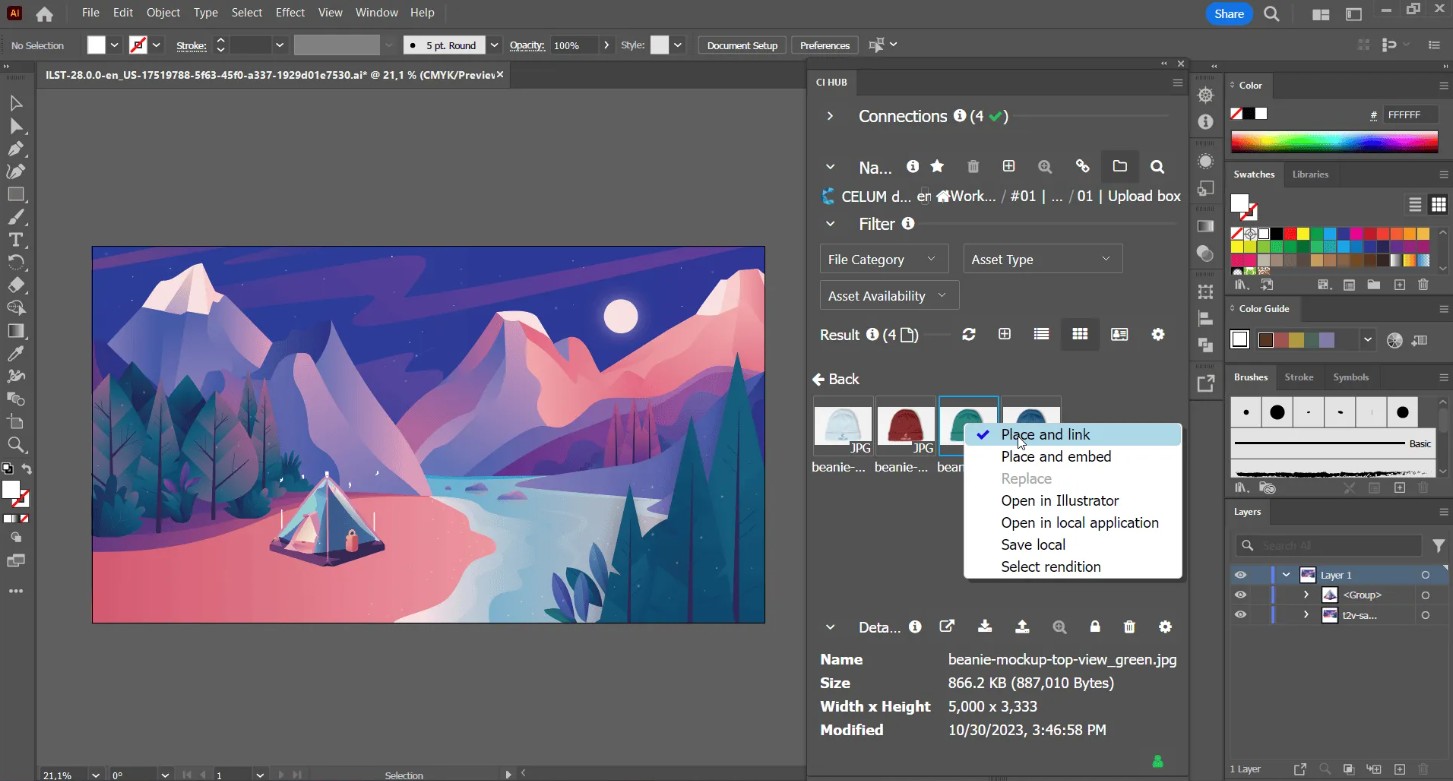
In the context of modern design, Illustrator is not just a drawing tool but also a platform for creating highly visual graphic products. When designing tables in Illustrator, the work goes beyond simply dividing cells. A professional table requires a combination of logical layout, harmonious colors, and balanced proportions between rows, columns, and content. This makes the table easy to read, intuitive, and aesthetically pleasing, effectively serving reports, presentation slides, infographics, or branding projects.
The latest version of Illustrator 2025 brings many notable improvements, focusing on user experience and workflow optimization. The Split Into Grid tools, border customization, and color options have been upgraded for faster and more intuitive operation. Illustrator 2025 also adds diverse export features, allowing files to be exported in various formats such as PNG, JPG, PDF, SVG, or advanced vector formats, while ensuring maximum graphic quality for each purpose, from web and print to multimedia applications. Furthermore, the ability to quickly customize objects, apply styles, patterns, or gradients to individual cells within a palette helps designers control every detail, from borders to cell backgrounds, significantly improving efficiency and saving time.
2. Instructions on how to create tables in the latest Illustrator version (2025)
Creating tables in Illustrator 2025 has become more intuitive, thanks to tools like the Rectangle Tool, Split Into Grid, and Direct Selection Tool. Here are 10 detailed steps to help you create a complete table, from drawing the outline to exporting the file, ensuring the table is both visually appealing and easy to edit.
Step 1: Open Adobe Illustrator and create a new file.
First, launch Adobe Illustrator on your computer and select File > New to create a new design file. The New File interface will appear, allowing you to choose basic parameters such as size, resolution, and color mode. This determines your workspace and directly affects the quality of the final output file. You can choose a standard Artboard for web or print depending on your needs, for example, 1920x1080px for digital design or A4 for printed reports.
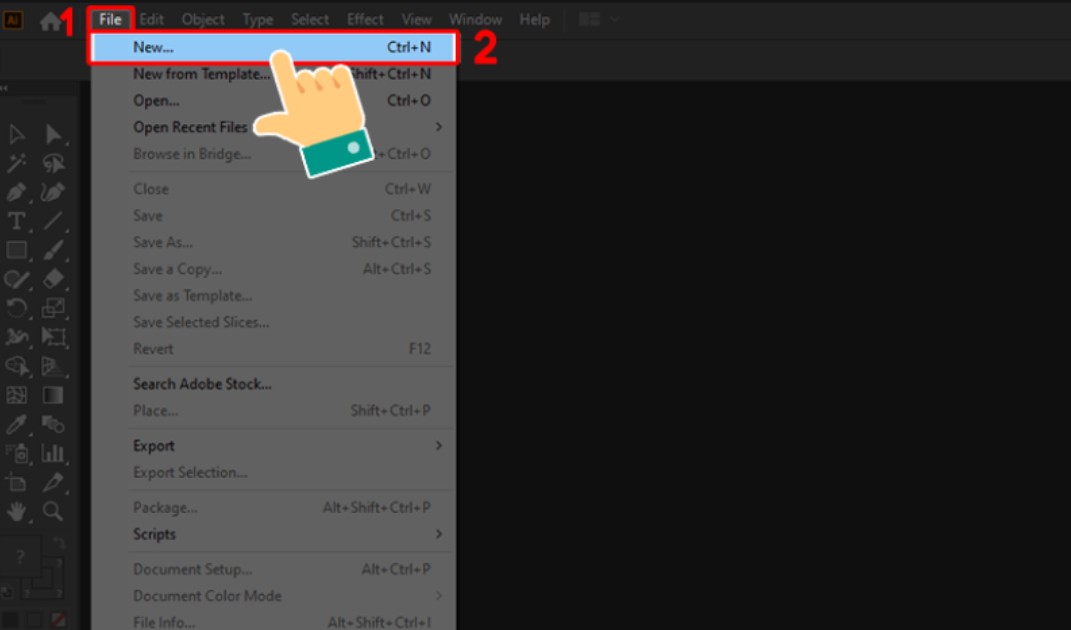
Step 2: Enter the dimensions and create the file.
After selecting "New ," enter specific parameters for width, height, and other options such as Orientation (Portrait or Landscape) and Color Mode (RGB or CMYK). Press " Create" to open a new Artboard. This step helps you create a standard design space, optimized for creating tables and other graphic elements later.

Step 3: Draw the table frame using the Rectangle Tool
On the toolbar, select the Rectangle Tool , press and hold, and drag on the Artboard to draw a large rectangle. This will be the main frame of the table. Choosing the correct aspect ratio and frame size from the start makes dividing rows and columns easier later. You can use the arithmetic parameters on the toolbar to draw the rectangle accurately, ensuring the table is balanced from the beginning.
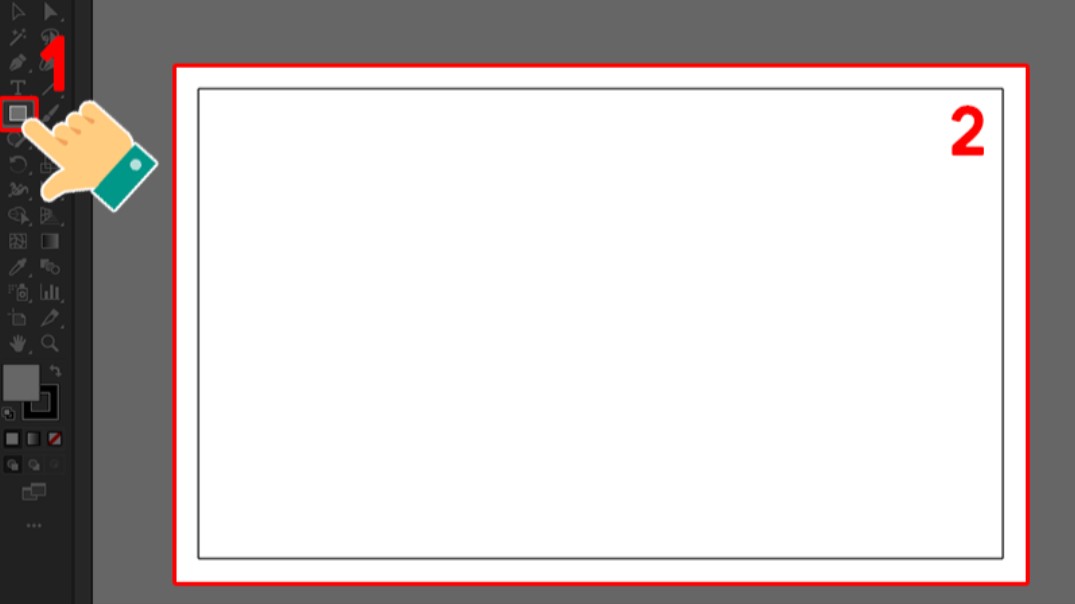
Step 4: Select the table frame using the Selection Tool
Use the Selection Tool (shortcut key V) and click to select the rectangle you just drew. This is a crucial step for Illustrator to identify the object to be meshed. You need to ensure the frame is selected correctly to avoid accidentally meshing other objects on the Artboard.
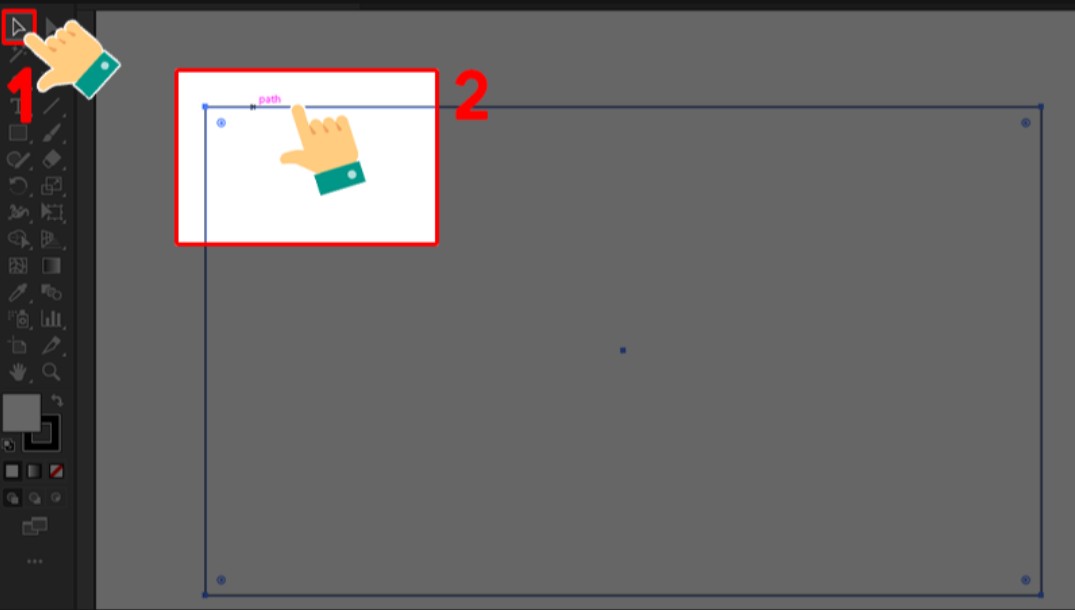
Step 5: Divide the frame into rows and columns.
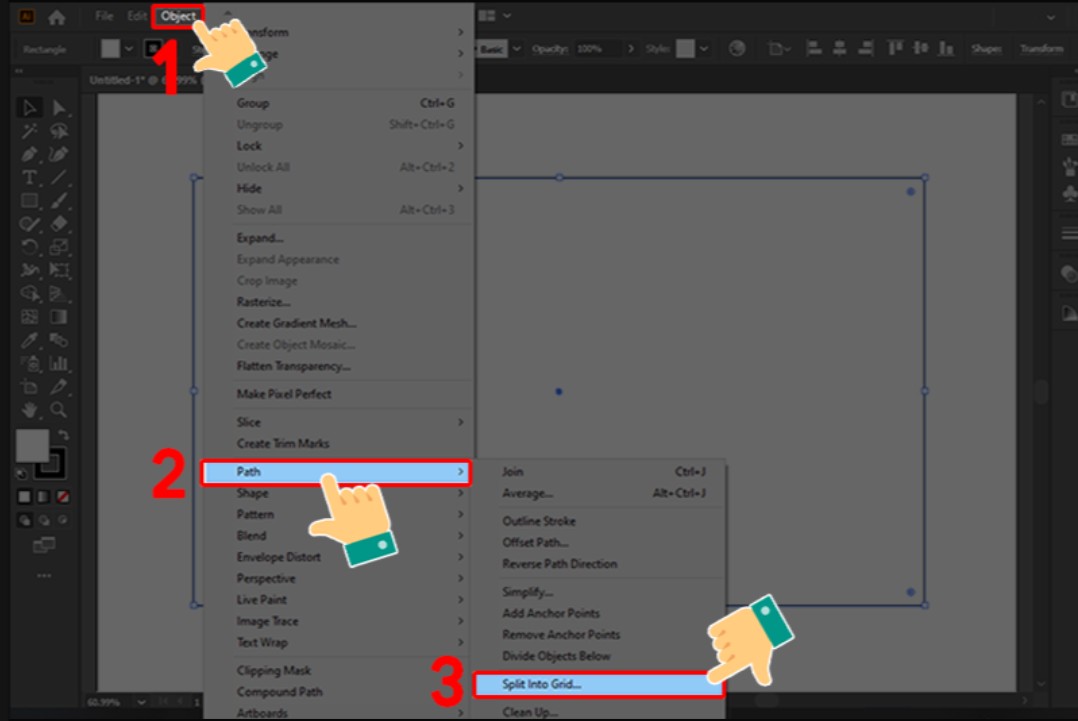
Go to the Object menu > Path > Split Into Grid , and Illustrator will display the grid splitting dialog box. Here, you can define the number of rows and columns , as well as the spacing between cells. This feature allows you to divide the table accurately and evenly, making it look professional and easy to read.
Step 6: Preview and adjust the grid
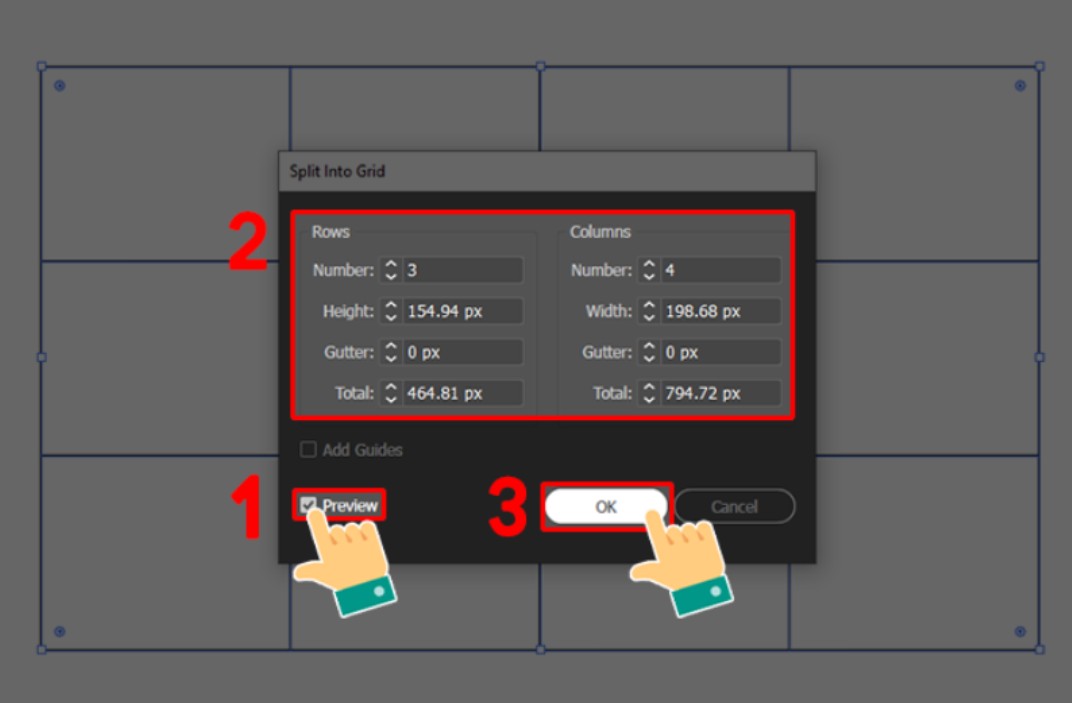
Check the Preview box to see a preview of the grid layout. You can adjust the number of rows, columns, or spacing between cells to suit your design needs. Once you are satisfied with the result, click OK to confirm. This step helps you check the layout before proceeding with color adjustments and cell details.
Step 7: Edit the cell or border using the Direct Selection Tool
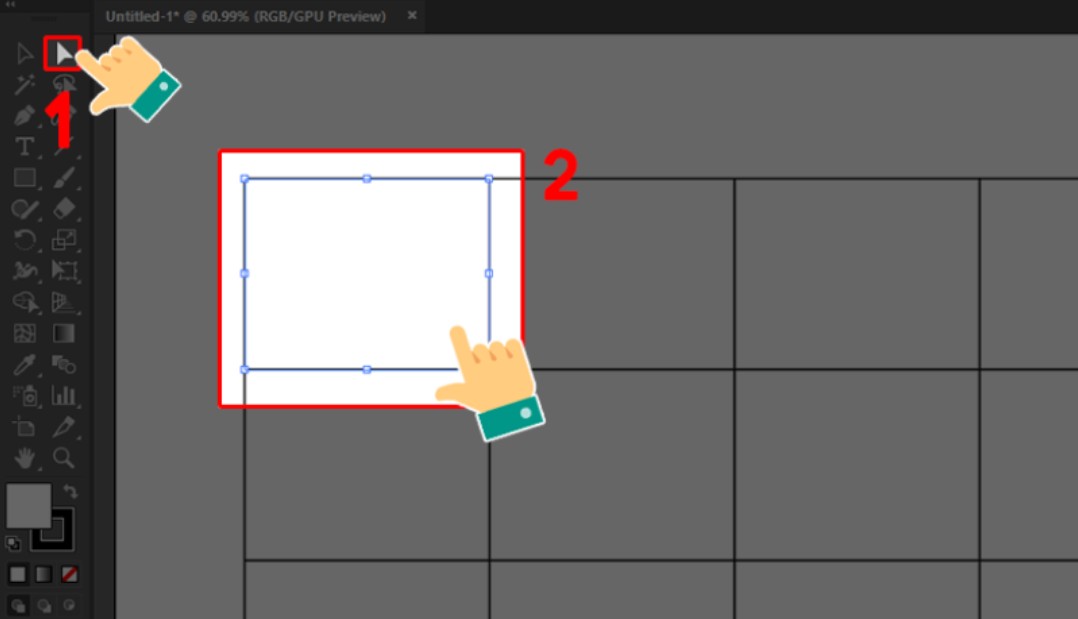
Select the Direct Selection Tool (shortcut key A) to click and select individual cells or borders you want to edit. This tool allows you to adjust the size, position, or color of individual parts of the table without affecting the entire frame. This is an important step in personalizing the table, making each cell clearer and more visually appealing.
Step 8: Change the Fill and Stroke colors
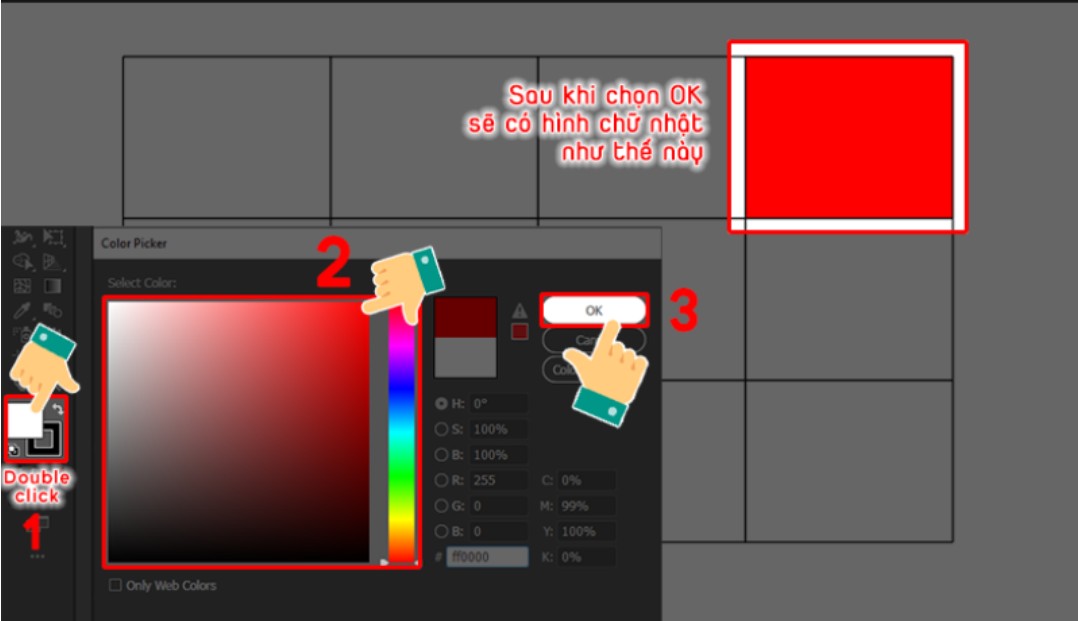
Double-click on Fill or Stroke in the toolbar (or press the shortcut key <) to select your desired color for the cell border or background. You can use a uniform color for the entire table or mix colors for each cell to create emphasis. Choosing appropriate colors not only enhances aesthetics but also helps viewers easily distinguish important data sections.
Step 9: Save the table using Export for Screens
Select File > Export > Export for Screens to begin saving your design. This tool allows you to export your artwork in various formats, including web and print, while preserving vector quality and color. You can choose to export individual artworks or the entire design if you created multiple artworks in the same file.

Step 10: Choose the format and complete saving the file.
In the Format section , select your desired file format such as PNG, JPG, PDF, SVG, etc. Then click Export Artboard to complete the saving process. This step determines the display and printing quality of the artboard, and also allows you to easily share or use it in other projects.

3. Some notes when creating tables in Illustrator
When designing a whiteboard, mastering a few tips and considerations will help speed up the process, make the whiteboard look professional, and avoid common mistakes.
First, use the Align tool to align the cells evenly, ensuring the board is neat, balanced, and easy to read. Next, hold down the Shift key while dragging to draw the shape to maintain the correct aspect ratio and prevent distortion. Grouping cells using Ctrl + G will allow you to easily move or edit the entire board as a single object. Also, synchronize the stroke thickness to prevent the board from looking cluttered or inconsistent between cells. Finally, lock the board ( Object > Lock > Selection ) when finished to avoid accidental edits while working with other elements on the Artboard.
Additionally, when creating tables for reports or infographics, consider using harmonious colors, easy-to-read fonts, and intuitive icons to enhance aesthetics. If the table contains a lot of data, you can divide it into smaller sections for easier viewing. Using separate layers for each section of the table also makes editing quicker and more accurate.
Creating tables in Adobe Illustrator 2025 is not just a technical task; it also requires finesse in layout, color, and data presentation. With this detailed 10-step guide and important notes, you can easily create professional, intuitive, and versatile tables for a variety of projects, from infographics and reports to presentation slides and advertising materials. Adobe Illustrator 2025 offers an optimal experience, combining precise grid generation, intelligent color customization, and diverse file export options, helping designers improve work efficiency and save time. Mastering this tool will help you create tables that are not only visually appealing but also professional, meeting the demands of a modern design environment.





















VIP Products








Best Selling Products
MidJourney Account
29 USD
Upgrade Genuine Office 365
49 USD
Plugin Retouch4me
69 USD
Genuine Cheap Canva Pro
39 USD
Autodesk All App Account Copyright
120 USD
Adobe Premiere Pro Account
99 USD
ChatGPT Plus Account (GPT-4)
16 USD
Freepik Premium Account
59 USD
Windows 10 & 11 Pro Key
36 USD
Upgrade Duolingo Super
29 USD
Adobe Photoshop Copyright - Full App
120 USD
Genuine Adobe Illustrator account
99 USD
Upgrade genuine Capture One account
120 USD
Copyright Adobe Lightroom Account
59 USD
Capcut Pro 1 Year
39 USD