Best Selling Products

Upgrade Genuine Office 365
49 USD

Plugin Retouch4me
69 USD

Freepik Premium Account
59 USD

ChatGPT Plus Account (GPT-4)
16 USD

MidJourney Account
29 USD

Copyright Adobe Lightroom Account
59 USD

Windows 10 & 11 Pro Key
36 USD

Genuine Adobe Illustrator account
99 USD

Adobe Photoshop Copyright - Full App
120 USD

Upgrade Duolingo Super
29 USD

Genuine Cheap Canva Pro
39 USD

Adobe Premiere Pro Account
99 USD

Upgrade genuine Capture One account
120 USD

Capcut Pro 1 Year
39 USD

Autodesk All App Account Copyright
120 USD
Microsoft Teams and PowerPoint: Optimizing presentations for more effective meetings.
Nội dung
- 1. Benefits of presenting PowerPoint on Teams
- 2. Prepare before giving a PowerPoint presentation on Teams.
- 2.1. Check PowerPoint Files and Clean Up Your Computer
- 2.2. Check the Internet Connection and Audio/Video Equipment
- 2.3. Update the Microsoft Teams application version.
- 3. Ways to give a PowerPoint presentation on Teams
- 3.1. Presenting using PowerPoint Live
- 3.2. Sharing PowerPoint windows via Share Screen
- 3.3. Upload the PowerPoint file to Teams in advance.
How to combine PowerPoint and Teams to create effective, engaging meetings while ensuring data security and a smooth experience for participants.
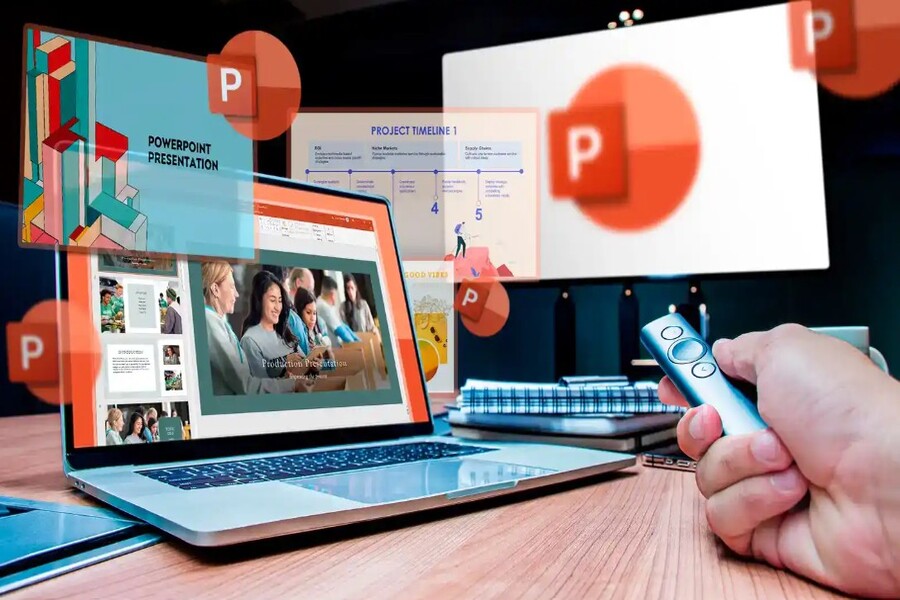
Among its most frequently used features, PowerPoint presentations on Teams are particularly important for those who regularly give presentations, teach, or share content with a team. However, not everyone knows how to fully utilize Teams' presentation capabilities to deliver the smoothest, most professional, and most effective experience for attendees.
Presenting PowerPoint content is already very familiar in online environments, but when combined with Microsoft Teams, you gain even more intelligent options to optimize presentation performance. Many people simply share their screen to present, while in reality, Teams offers many more modern and diverse methods, allowing presenters to better control the content, view notes discreetly, and interact directly with attendees more easily.
This article will help you understand the benefits of using PowerPoint presentations on Teams, prepare thoroughly before each meeting, and master the three most common presentation methods. When applied skillfully, you will optimize meeting quality, increase professionalism, and ensure that content is conveyed completely and clearly to all viewers.
1. Benefits of presenting PowerPoint on Teams
Presenting PowerPoint on Teams is not just about sharing content; it offers many benefits that improve the experience for both the presenter and the participants. First, Teams provides a seamless collaboration environment, allowing everyone to view content simultaneously with consistent quality, unaffected by individual network speeds. This avoids slide lag or reduced display quality often seen with traditional screen sharing.
Another significant benefit comes from the PowerPoint Live feature. With PowerPoint Live, you can view personal notes that attendees can't see, and monitor audience expressions or reactions to adjust your speaking speed. Attendees can also review previous slides without disrupting the overall presentation, creating a flexibility that traditional meetings struggle to achieve.
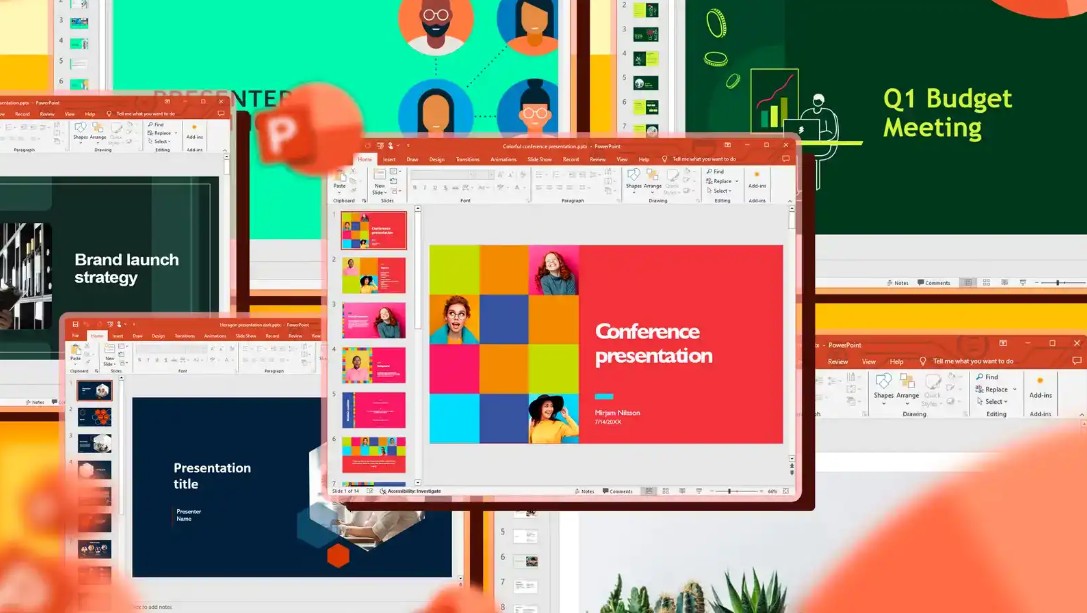
Teams presentations also support greater interaction, as you can combine them with chat, live feedback, raise your hand, or use a whiteboard to further explain the content. All of these features help make the presentation more engaging and easier to follow.
Security is also a crucial factor. When presenting via PowerPoint Live, your file is processed through Microsoft 365's secure system, minimizing the risk of data leaks or unauthorized downloads if you set appropriate permissions. This is a significant advantage for businesses that need to protect their data.
Overall, PowerPoint presentations on Teams offer greater convenience, professionalism, and control compared to traditional screen sharing, enhancing communication efficiency in all online meetings.
2. Prepare before giving a PowerPoint presentation on Teams.
A successful presentation depends not only on the content but also on the level of preparation beforehand. In an online environment, presenters need to be even more thorough to avoid unexpected issues such as connection loss, audio problems, or slide display errors. Therefore, before starting your PowerPoint presentation on Teams, you need to check all files, equipment, and software to ensure everything is working properly. Good preparation helps you feel more confident and ensures a smooth meeting with minimal interruptions.
2.1. Check PowerPoint Files and Clean Up Your Computer
First, open the PowerPoint file to check all its content. You need to ensure that all images, videos, charts, or links are displayed correctly and without errors. If the presentation includes video, it's best to download and embed it directly instead of linking online to avoid connection issues during the presentation. Also, try the Slide Show mode to check fonts, effects, and compatibility if the file was created using different versions of Office.

In addition, cleaning up your computer before a meeting is an important but often overlooked step. You should close resource-intensive background applications such as Photoshop, video editing software, browsers with many tabs, or other tools that consume a lot of resources. This helps your computer run smoothly and reduces lag during presentations. You should also close all personal files or sensitive content to avoid accidental exposure when sharing your screen.
A small but effective tip is to put your PowerPoint file in a separate, easy-to-find folder, or upload it to OneDrive so that when you're in Teams you can open it quickly and present more conveniently.
2.2. Check the Internet Connection and Audio/Video Equipment
Internet connection is a crucial factor in the quality of an online presentation. You should connect via a wired network if possible, as Wi-Fi connections can sometimes be unstable. Checking your network speed with tools like Speedtest will help you determine if it's sufficient for a smooth presentation. If your network speed is low, limit the number of other devices accessing the network simultaneously or close applications that are consuming bandwidth.
Regarding audio and video equipment, check your microphone, speakers, and webcam before the meeting. Teams has an audio test mode that lets you listen back to your voice to adjust your distance or volume. A separate microphone usually provides better sound quality than a laptop microphone, so if you give presentations frequently, invest in a dedicated device for a more professional look.
Additionally, lighting is crucial. If using a webcam, ensure the light is coming from the front to provide a clear image and avoid backlighting or blurriness. You should also check the camera angle, background composition, and enable background blur if the surrounding environment is unsuitable.

2.3. Update the Microsoft Teams application version.
Microsoft regularly updates Teams to add new features and improve performance. If you're using an older version, you might encounter errors during presentations or miss features like PowerPoint Live. Therefore, check and update Teams before your presentation. For desktop users, Teams will update automatically, but you can still check manually in Settings. For Teams web, using Edge or Chrome browsers is recommended for the best experience.
The update not only helps Teams run more stably but also avoids compatibility issues between the application and the system, ensuring a smooth presentation from start to finish.
3. Ways to give a PowerPoint presentation on Teams
Microsoft Teams offers various ways to present PowerPoint slides depending on the user's purpose and habits. Whether you're a beginner or already familiar with the platform, understanding each method will help you choose the right presentation style, ensuring the content is clear, easy to follow, and professional.
Currently, there are three common ways to present PowerPoint on Teams, each with its own strengths and suitability for different meeting or presentation contexts.
3.1. Presenting using PowerPoint Live
PowerPoint Live is the most modern and optimal method. Using this feature, you can directly upload PowerPoint files to the meeting and control slides in a completely different interface compared to screen sharing mode.
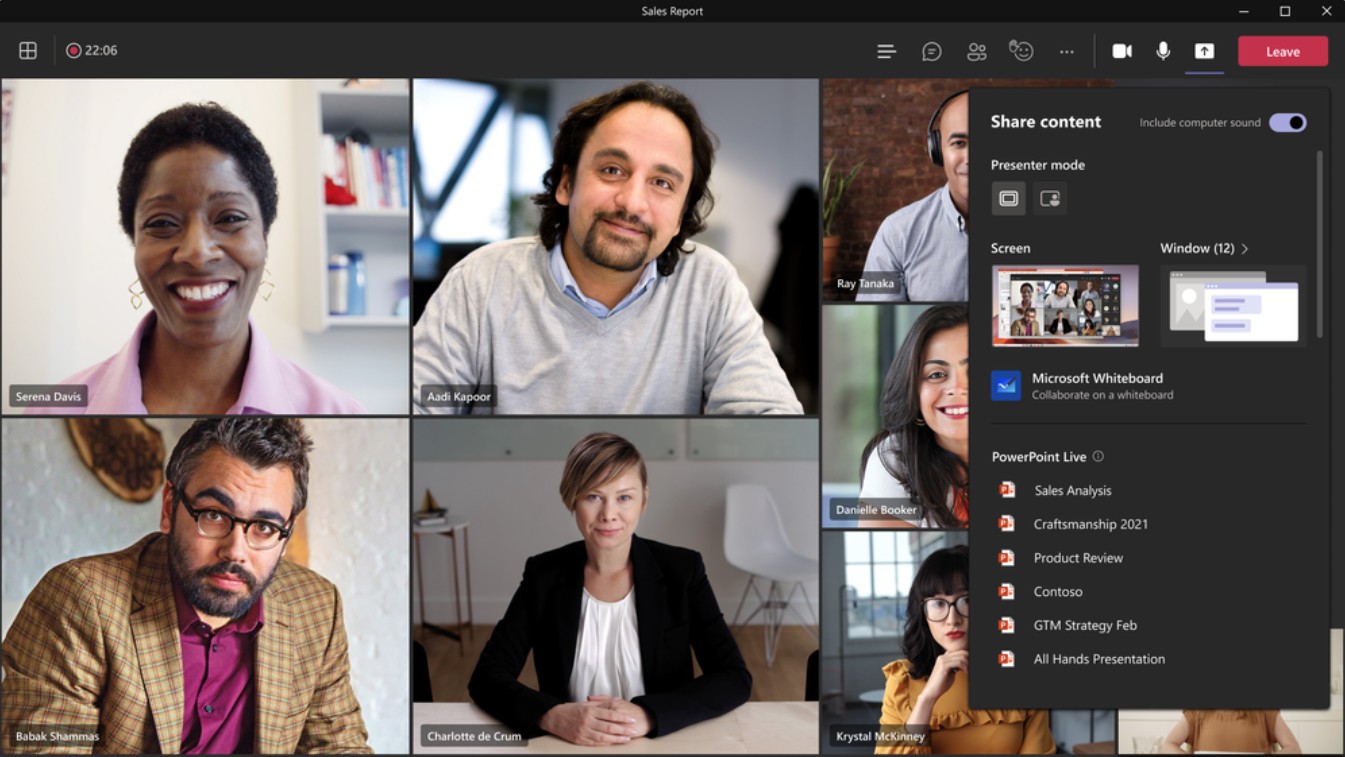
What makes PowerPoint Live a top choice is that you can see your own notes directly within the presentation interface, while your audience can't see them. This helps you maintain a professional image without needing to open additional note-taking windows or use a secondary screen.
Additionally, PowerPoint Live allows you to monitor the participant list, their expressions, and even the chat window during the presentation without switching windows. Attendees can review previous slides or skip to the next slide to follow the content at their own pace without disrupting the overall presentation flow.
Another notable advantage is its very low system resource consumption because PowerPoint Live runs primarily through the Microsoft 365 cloud platform. This ensures smooth meetings even on computers with less powerful configurations.
PowerPoint Live is particularly suitable for webinars, online classes, or long presentations that require a lot of interaction.
3.2. Sharing PowerPoint windows via Share Screen
This is a familiar and often preferred method for users who need a quick presentation without uploading the file to Teams. Simply open the PowerPoint file on your computer, then use the Share Screen feature to share the application window.
This method offers simplicity and speed. However, it has certain limitations. Attendees cannot review slides at their own pace, and you cannot view notes unless using Presenter View, which can sometimes be inconvenient for those using only one screen.
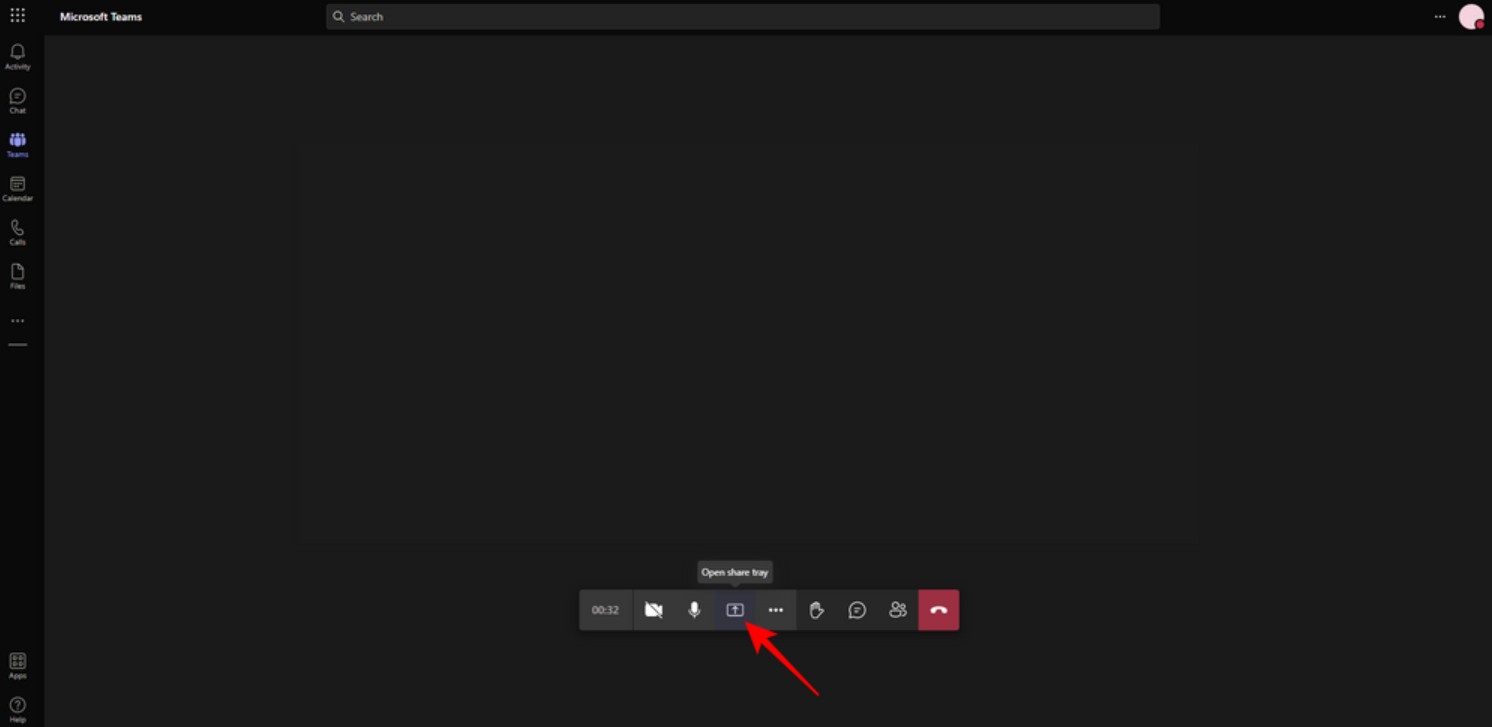
In addition, screen sharing consumes more computer resources and can easily cause lag if the device is weak or the internet connection is unstable. If you have notifications enabled on your computer, they may also accidentally appear during the sharing process, causing distractions.
Nevertheless, this method is still suitable for short meetings, or when you're using heavy PowerPoint effects that PowerPoint Live doesn't yet support, such as 3D models or special embedded content.
3.3. Upload the PowerPoint file to Teams in advance.
If you want to prepare a thorough presentation, uploading your PowerPoint file to Teams in advance is a very effective option. You can upload the file to the team's Files folder, to a channel, or share it via chat with attendees before the meeting.
When it's time to present, simply reopen the downloaded file and select "Present using PowerPoint Live" to begin. This saves time and helps minimize errors that can occur when opening the file directly from your computer.
Pre-uploading files to Teams is especially useful when multiple people are editing content simultaneously or when you want to ensure everyone can review the document after the meeting. It's also the optimal way to store files in the cloud with full access control features of Microsoft 365.
Using PowerPoint to deliver presentations on Microsoft Teams is a crucial skill for improving the effectiveness of online meetings, remote teaching, and presentations in a business environment. Mastering presentation techniques and completing all necessary preparations before a meeting will ensure a professional and smooth delivery of your content.





















VIP Products








Best Selling Products
Upgrade Genuine Office 365
49 USD
Plugin Retouch4me
69 USD
Freepik Premium Account
59 USD
ChatGPT Plus Account (GPT-4)
16 USD
MidJourney Account
29 USD
Copyright Adobe Lightroom Account
59 USD
Windows 10 & 11 Pro Key
36 USD
Genuine Adobe Illustrator account
99 USD
Adobe Photoshop Copyright - Full App
120 USD
Upgrade Duolingo Super
29 USD
Genuine Cheap Canva Pro
39 USD
Adobe Premiere Pro Account
99 USD
Upgrade genuine Capture One account
120 USD
Capcut Pro 1 Year
39 USD
Autodesk All App Account Copyright
120 USD