Best Selling Products

Autodesk All App Account Copyright
120 USD

Adobe Premiere Pro Account
99 USD

Upgrade Genuine Office 365
49 USD

ChatGPT Plus Account (GPT-4)
16 USD

Capcut Pro 1 Year
39 USD

Upgrade Duolingo Super
29 USD

Freepik Premium Account
59 USD

MidJourney Account
29 USD

Windows 10 & 11 Pro Key
36 USD

Copyright Adobe Lightroom Account
59 USD

Genuine Cheap Canva Pro
39 USD

Plugin Retouch4me
69 USD

Upgrade genuine Capture One account
120 USD

Genuine Adobe Illustrator account
99 USD

Adobe Photoshop Copyright - Full App
120 USD
Presenting PowerPoint on Microsoft Teams: A detailed guide from A to Z.
Nội dung
- 1. Detailed instructions on how to create a PowerPoint presentation on Teams.
- 1.1. Method 1: Using PowerPoint Live in Teams
- 1.2. Method 2: Sharing the PowerPoint window via Share Screen
- 1.3. Method 3: Upload the PowerPoint file to Teams in advance.
- 2. Tips for effective PowerPoint presentations on Teams
- 2.1. Prepare clear and visually appealing slides.
- 2.2. Check equipment and connections before the presentation.
- 2.3. Using the Presenter View
- 2.4. Leveraging interactive tools
- 2.5. Record the presentation when needed.
- 2.6. Preparing backup files
- 2.7. Practice before the presentation
This detailed, step-by-step guide shows you how to present PowerPoint on Microsoft Teams, making it easy for both beginners and professionals to control slides, add notes, and interact with attendees.

Microsoft Teams, with its ability to connect, share content, and interact directly, has become one of the most popular tools. In this context, presenting PowerPoint on Teams is not simply about displaying slides; it's a crucial skill that helps presenters convey their message effectively, visually, and professionally. Understanding presentation methods, utilizing supporting tools, and applying appropriate technical tips will make your presentation smooth, engaging, and captivating for your audience.
This article will provide detailed instructions on each method of presenting PowerPoint on Microsoft Teams, analyzing the advantages and disadvantages of each method, offering detailed operation instructions, and sharing important tips to optimize the presentation experience while ensuring effective interaction with attendees.
1. Detailed instructions on how to create a PowerPoint presentation on Teams.
Microsoft Teams offers several different PowerPoint presentation methods to cater to diverse user needs. The three most common methods are using PowerPoint Live, sharing a PowerPoint window, and sharing the entire screen. Each method has its own advantages and disadvantages, and choosing the right method depends on the presentation's purpose, the number of participants, the slide content, and your equipment and network connection.
In this section, we will delve into each method, provide instructions on how to implement them, and explain in detail the key points and tips to ensure a successful presentation.
1.1. Method 1: Using PowerPoint Live in Teams
PowerPoint Live is the most modern and optimal method for presenting PowerPoint on Teams. Unlike screen or window sharing, PowerPoint Live allows you to directly upload PowerPoint files to Teams' cloud platform. This means slide delivery is less dependent on computer processing speed or network bandwidth, while also providing many features to help presenters control and interact more effectively.
One of the standout features of PowerPoint Live is Private Presenter View , which allows the presenter to see notes, the next slide, and interactive tools, while the audience only sees the current slide. This feature is especially useful when you want to prepare detailed content beforehand, control the presentation pace, and prevent attendees from seeing unnecessary information. Additionally, PowerPoint Live ensures smooth sharing even with slides containing video, animations, or complex transition effects, while reducing bandwidth usage by transmitting only the content data instead of the entire screen video.
How to use PowerPoint Live:
First, in a Teams meeting, click the "Share" button on the control panel and scroll down to the PowerPoint Live section.
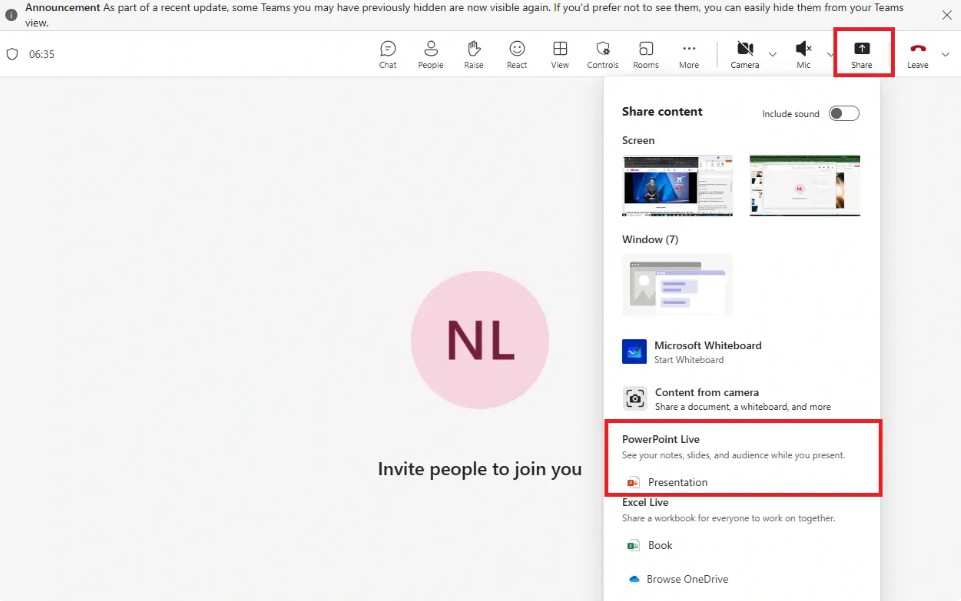
Here, Teams will automatically display a list of recent PowerPoint files that you have opened or saved to OneDrive. If the file is not in the list, click "Browse" to upload it from your computer or select a file from OneDrive/SharePoint that has already been uploaded. When uploading a file from your computer, Teams will automatically save it to your personal OneDrive/SharePoint, ensuring optimal performance of PowerPoint Live.
Once the file has finished loading, the Presenter View interface will appear on your screen. This interface displays the current slide in the center, personal notes on the right, a thumbnail slide at the bottom, along with Laser Pointer and handwriting tools. Viewers only see the current slide, not the notes or subsequent slides. This helps presenters feel more confident, while also increasing professionalism and information security.
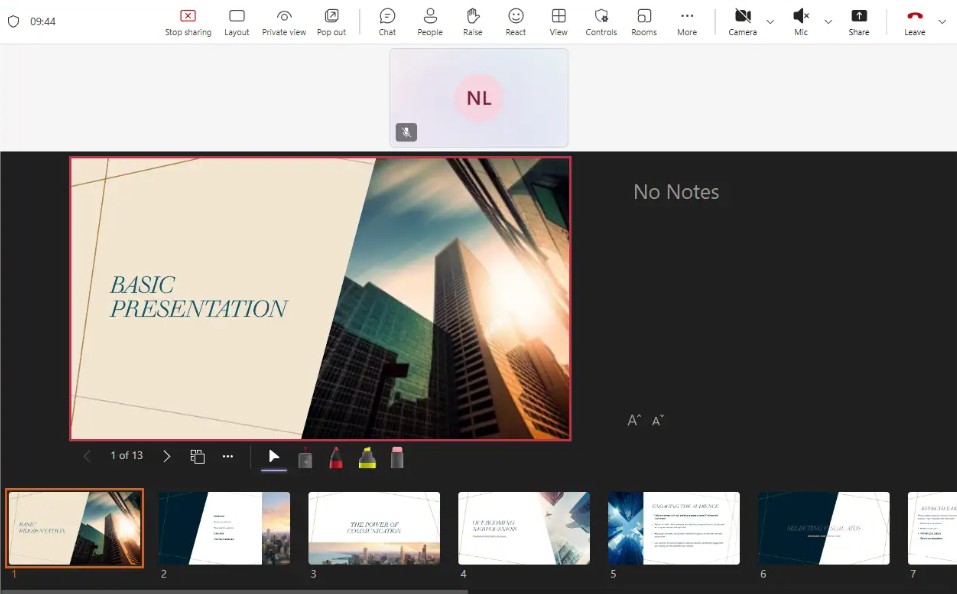
During a presentation, you can use the laser pointer to point to content on slides or enable/disable viewer navigation. This feature allows attendees to review or preview new slides without disrupting the main presentation. PowerPoint Live is truly the optimal choice for professional presentations, especially when you need to present slides with rich content, animations, and videos.
1.2. Method 2: Sharing the PowerPoint window via Share Screen
If you need to switch seamlessly between PowerPoint and other applications such as web browsers, Excel, or other supporting software, sharing the PowerPoint window is a suitable option. This method allows you to precisely control the displayed content and combine multiple applications in the same presentation without uploading files to the cloud.
To do this, first open your PowerPoint file and switch to presentation mode in a separate window. In the Slide Show tab, select Set Up Slide Show and choose Show type as “Browsed by an individual (window)”, then press F5 to start the presentation in the window.
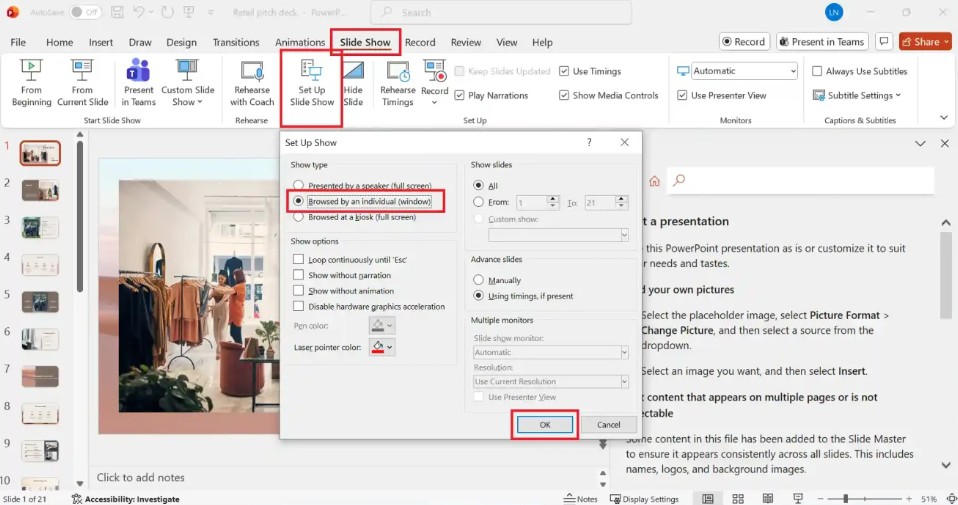
In a Teams meeting, click the Share button and select the PowerPoint window that's currently displaying the slideshow. If the slides contain audio or video, check the "Include computer sound" option so participants can hear the audio. This method is especially useful when you need to quickly switch between multiple applications or present complex content combining various software programs.
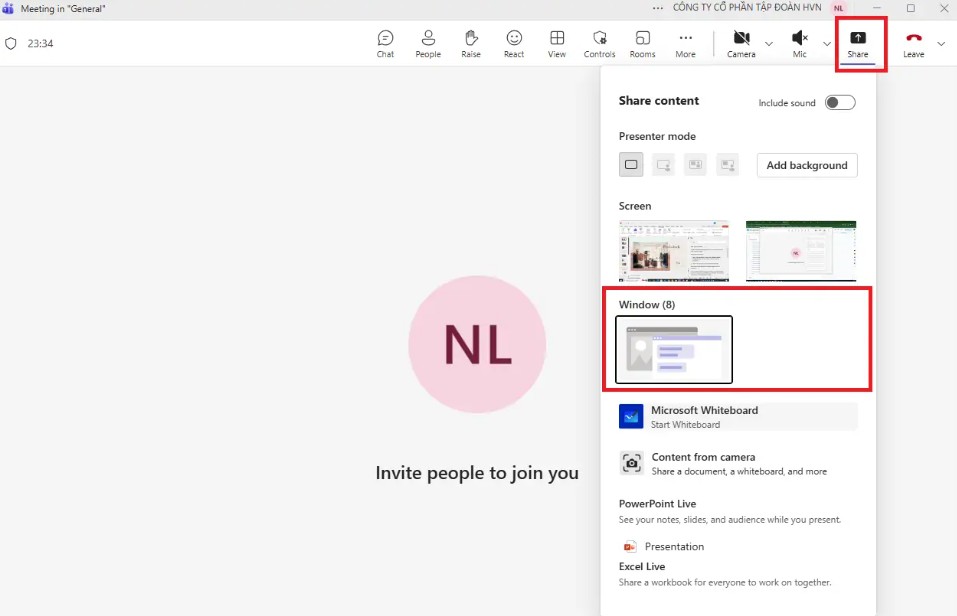
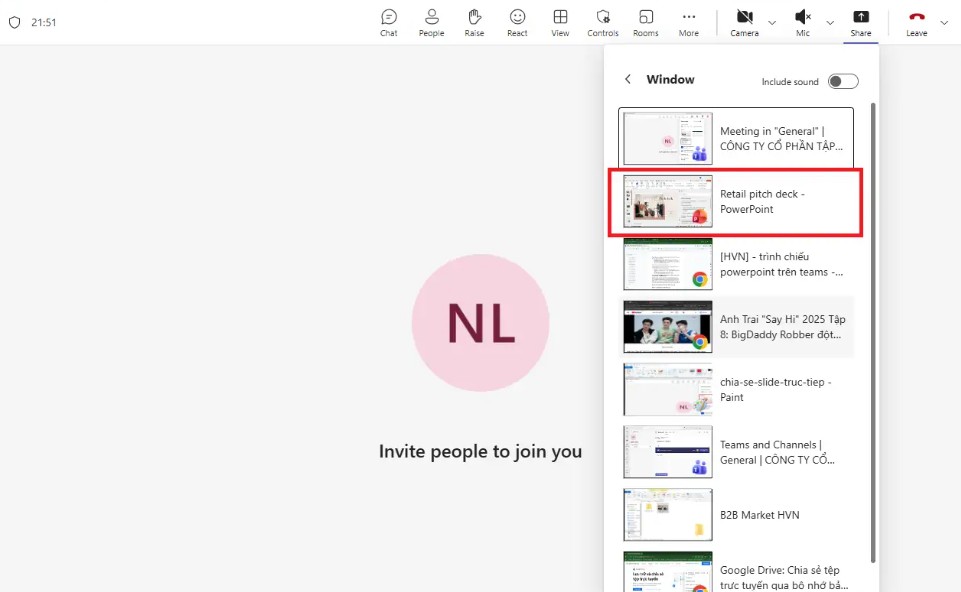
However, if you're only using one monitor, you won't be able to share the PowerPoint window and view your personal notes at the same time. The solution is to use PowerPoint Live or set up two monitors, where one displays Presenter View and the other shares the content with the audience. This method of sharing the PowerPoint window is suitable for presentations that require flexibility while still ensuring precise control over the displayed content.
1.3. Method 3: Upload the PowerPoint file to Teams in advance.
This is a commonly used method when you want to ensure all participants have access to the file before a meeting, especially in group work sessions, training, or project discussions. While simple, this method is less advantageous than PowerPoint Live because you have to share your entire desktop, potentially exposing personal information and leading to lag issues if your internet connection is unstable.
To do this, you need to close all unrelated windows and clean up your desktop to avoid exposing personal information. In Teams, click Share and select the screen or desktop you want to share. Then open the PowerPoint file and press F5 to display it in full screen. Note that if you are only using one screen, you will not be able to view your personal notes. The solution is to use two screens or combine it with PowerPoint Live if you need to view your notes privately.
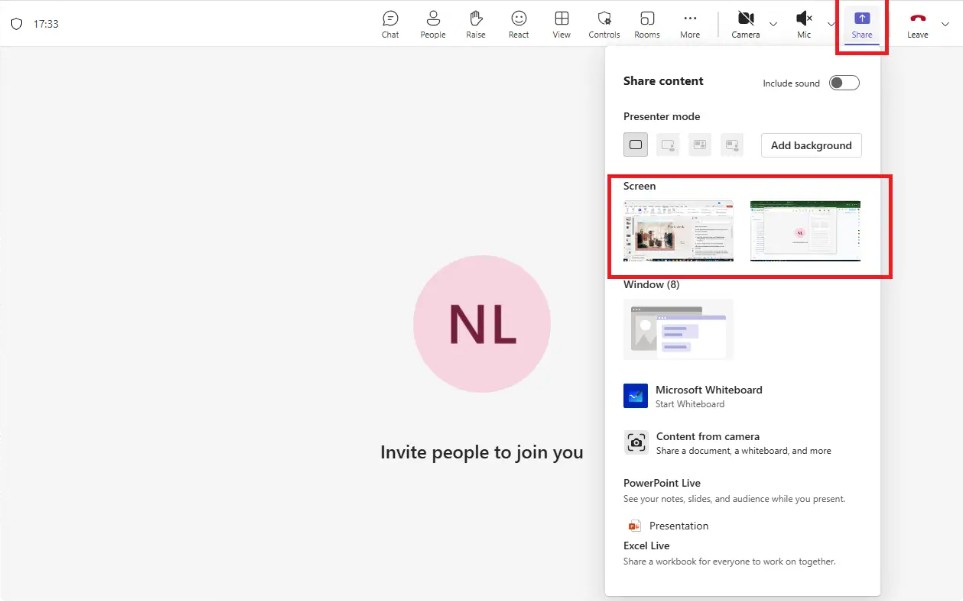
Although this method isn't as optimal as PowerPoint Live, it's still useful in special situations, for example, when the device doesn't support PowerPoint Live or when a full-screen presentation is needed so all attendees can see the content simultaneously.
2. Tips for effective PowerPoint presentations on Teams
Presenting PowerPoint on Teams is more than just opening a file and sharing your screen. To make your presentation professional, engaging, and highly effective, you need to keep in mind some important tips. These tips will help optimize images, sound, interactivity, and content control throughout the presentation.
2.1. Prepare clear and visually appealing slides.
An effective slide should minimize text and maximize images, charts, and icons to illustrate the content. Choose contrasting colors and clear fonts, with a font size large enough for easy reading. Avoid overly complex effects that can cause lag during online presentations. Visually appealing slides help viewers absorb information easily, while increasing their interest and focus on the main content.
2.2. Check equipment and connections before the presentation.
Before the meeting, check your microphone, speakers, camera, and lighting to ensure everyone can hear clearly and see a sharp image. Check your internet connection; prioritize a wired connection if possible, avoiding weak or unstable Wi-Fi. Thorough preparation of your equipment will boost your confidence and reduce the risk of technical problems during the presentation.
2.3. Using the Presenter View
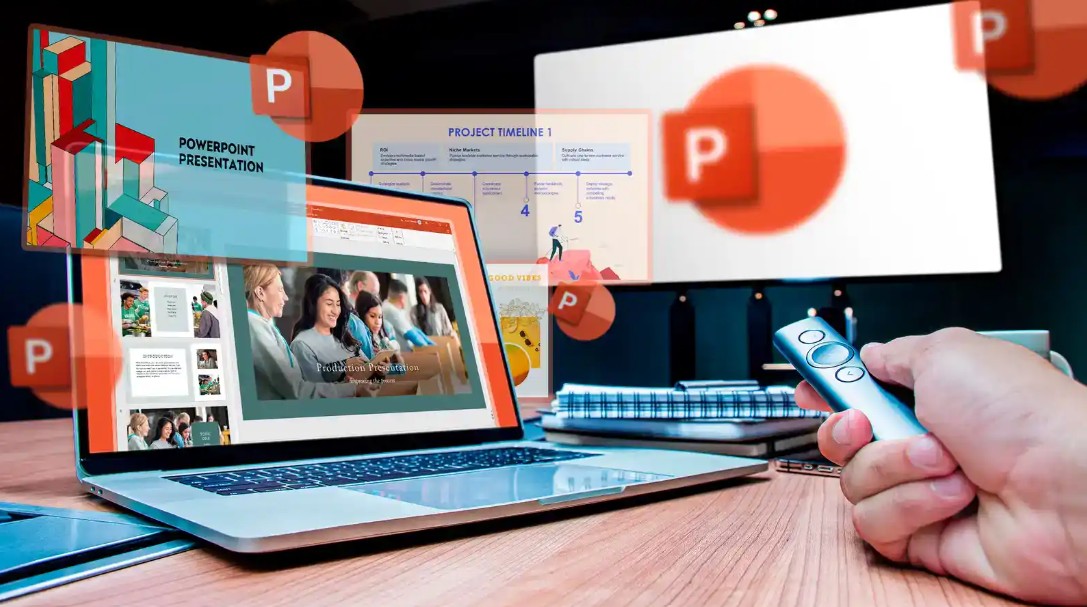
Presenter View in PowerPoint Live lets you see notes, the next slide, and interactive tools, while the audience only sees the current slide. This feature helps you control the content, ensures you don't miss any important information, and boosts your confidence during presentations.
2.4. Leveraging interactive tools
Use a laser pointer, pen, or annotation tool to highlight key points on the slides. Encourage attendees to interact via chat, raise their hands, or provide direct feedback to make the presentation more lively and engaging. Effective interaction creates a positive experience, making it easier for viewers to absorb the information.
2.5. Record the presentation when needed.
Teams allows you to record entire meetings or presentations. This is a useful tool for reviewing, sharing with absentees, or for training purposes. Recording presentations also helps you review content and improve your presentation skills for future sessions.
2.6. Preparing backup files
Always keep a copy on your computer or OneDrive in case the file won't open or Teams crashes. Having a backup allows you to flexibly switch to live screen sharing if needed, ensuring your presentation isn't interrupted.

2.7. Practice before the presentation
Rehearsing the entire presentation helps you check your time, slide transitions, use interactive tools, and detect potential problems early. Practicing beforehand helps you become familiar with the procedures, handle situations flexibly, and increase your confidence when presenting live.
Presenting PowerPoint slides on Microsoft Teams is a crucial skill in online work and learning environments. Choosing the right presentation method, combined with thorough slide preparation, equipment checks, the use of personal notes, and interactive tools, will help make the presentation smooth, professional, and effective.





















VIP Products








Best Selling Products
Autodesk All App Account Copyright
120 USD
Adobe Premiere Pro Account
99 USD
Upgrade Genuine Office 365
49 USD
ChatGPT Plus Account (GPT-4)
16 USD
Capcut Pro 1 Year
39 USD
Upgrade Duolingo Super
29 USD
Freepik Premium Account
59 USD
MidJourney Account
29 USD
Windows 10 & 11 Pro Key
36 USD
Copyright Adobe Lightroom Account
59 USD
Genuine Cheap Canva Pro
39 USD
Plugin Retouch4me
69 USD
Upgrade genuine Capture One account
120 USD
Genuine Adobe Illustrator account
99 USD
Adobe Photoshop Copyright - Full App
120 USD