Best Selling Products

Autodesk All App Account Copyright
120 USD

Genuine Adobe Illustrator account
99 USD

Upgrade Duolingo Super
29 USD

Upgrade Genuine Office 365
49 USD

ChatGPT Plus Account (GPT-4)
16 USD

MidJourney Account
29 USD

Copyright Adobe Lightroom Account
59 USD

Capcut Pro 1 Year
39 USD

Adobe Photoshop Copyright - Full App
120 USD

Windows 10 & 11 Pro Key
36 USD

Freepik Premium Account
59 USD

Adobe Premiere Pro Account
99 USD

Plugin Retouch4me
69 USD

Upgrade genuine Capture One account
120 USD

Genuine Cheap Canva Pro
39 USD
Detailed Guide on How to Fix the Scratch Disks Are Full Error in Photoshop
Nội dung
- 1. What are Scratch Disks?
- 2. Why do Scratch Disks become full?
- 3. Ways to fix the Scratch Disks Are Full error in Photoshop
- 3.1 Change to another drive for Scratch Disks
- 3.2 Delete temporary files in Photoshop
- 3.3 Free up hard drive space
- 3.4 Increase RAM allocation for Photoshop
- 3.5 Close unnecessary applications
- 3.6 Restart Photoshop and the computer
- 4. Tips to avoid the Scratch Disks Are Full error in Photoshop
- 5. Conclusion
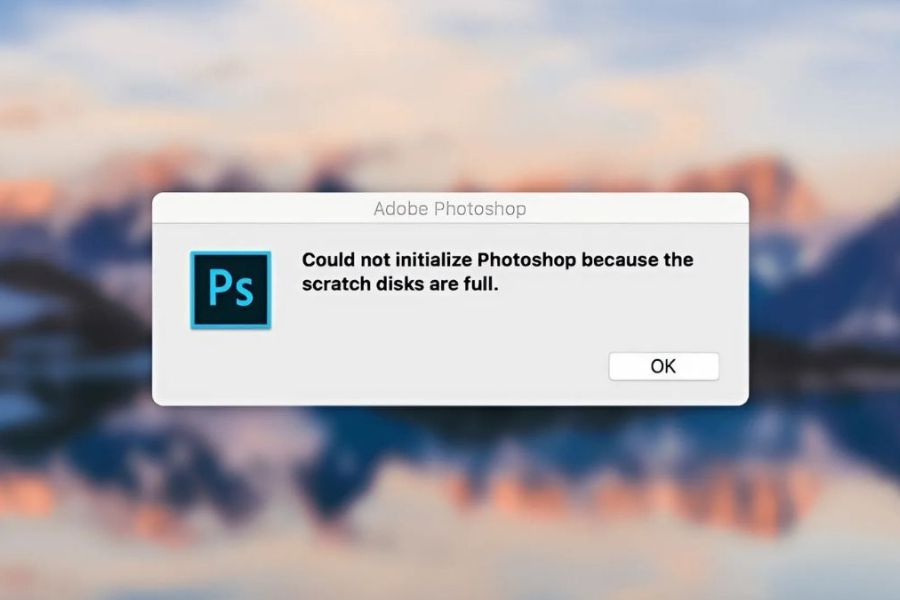
Many Photoshop users often “freeze” midway because of the Scratch Disks Are Full error, especially when editing large image files or working with multiple complex layers.
1. What are Scratch Disks?
When working with Photoshop, the computer’s RAM is not always enough to handle every operation, especially with heavy image files, multiple layers, or high-resolution projects. At that point, Photoshop uses Scratch Disks as a “backup memory” on the hard drive to store temporary data during the editing process. Simply put, Scratch Disks are the space Photoshop borrows from the hard drive to continue running smoothly when RAM becomes overloaded.
Problems occur when this temporary storage area no longer has enough free space. At that point, Photoshop cannot process additional data, leading to lagging, freezing, software crashes, or even preventing you from saving files. This is why many users suddenly encounter the Scratch Disks Are Full Photoshop notification even though the computer still works normally with other applications.
By default, Photoshop usually selects the system drive (commonly drive C on Windows or Macintosh HD on MacBook) as the Scratch Disk. If this drive is nearly full, filled with too many temporary files, or used for many other purposes, the error will appear very quickly. On MacBooks, this issue is also quite common and often displays the message The Scratch Disks Are Full Photoshop Mac, causing a lot of frustration for users who do not yet fully understand the nature of Scratch Disks and how to manage them effectively.
.jpg)
2. Why do Scratch Disks become full?
The Scratch Disks Are Full Photoshop error does not appear randomly but usually comes from long-term usage habits and system configurations. When Photoshop has to process a large amount of data without sufficient resources, the temporary memory area on the hard drive quickly becomes occupied. Without proper cleanup or setup, Scratch Disks will gradually fill up without users realizing it until the software reports an error.
Common reasons why Scratch Disks become full include:
The drive selected as Scratch Disks no longer has enough free space for Photoshop to process temporary data.
Temporary files and Photoshop cache accumulate over time without being cleaned regularly.
Limited RAM capacity forces Photoshop to rely more heavily on Scratch Disks.
The hard drive contains too many large files, is fragmented, or performs inefficiently.
Users have not configured an additional drive as Scratch Disks when the main drive is nearly full.
Cache and Photoshop temporary memory cleanup on Windows or MacBook has not been done correctly.
3. Ways to fix the Scratch Disks Are Full error in Photoshop
When encountering the Scratch Disks Are Full Photoshop error, many people think the software is broken or the computer is “too weak” to continue working. However, in reality, this issue can be completely resolved if you know how to optimize storage space and configure Photoshop properly. Fixing this error not only helps Photoshop run more smoothly but also reduces freezing, lagging, and losing unsaved work. Below are effective and easy-to-follow solutions suitable for both beginners and long-time Photoshop users.
Upgrade to Licensed Adobe Photoshop
3.1 Change to another drive for Scratch Disks
One of the simplest and most effective ways to fix the Scratch Disks Are Full Photoshop error is to change the drive used for Scratch Disks. By default, Photoshop usually selects the system drive where Windows or macOS is installed to store temporary data. However, after long-term use, this drive can easily become full because it stores the operating system, software, and many personal files. When there is not enough free space left, Photoshop will immediately display the error and stop functioning properly.
To solve this issue, you can move Scratch Disks to another drive with more available space, giving Photoshop more room to process temporary data during work.
How to do it:
Step 1: Open Photoshop. On Windows, select Edit, while on Mac select Photoshop, then go to Preferences > Scratch Disks to open the temporary storage settings.
Step 2: Here, you will see a list of drives available for Scratch Disks. Select another hard drive with significantly more free space than the one currently in use.
Step 3: If your computer has an SSD, prioritize using it as the Scratch Disk. SSDs have much faster read and write speeds than HDDs, helping Photoshop process files more smoothly, reducing waiting times, and minimizing temporary memory errors.
Step 4: After completing the selection, press OK and restart Photoshop so the changes are fully applied.
Changing Scratch Disks to a more suitable drive not only solves the immediate problem but also significantly improves long-term performance. If you frequently edit large image files, design banners, posters, or PSD files with many layers, consider investing in a laptop or computer with large RAM and high-capacity SSD storage. This will help Photoshop run more stably and minimize the chances of encountering the Scratch Disks Are Full error again during use.
.jpg)
3.2 Delete temporary files in Photoshop
During operation, Photoshop continuously creates temporary files to store editing data when RAM cannot fully handle the workload. Over time, these files can accumulate to a very large size and occupy almost all the space of the Scratch Disks. This is one of the most common reasons why the Scratch Disks Are Full Photoshop error appears, even when you do not realize your hard drive is being gradually consumed.
Regularly deleting temporary files will help free up disk space, reduce pressure on Scratch Disks, and help Photoshop run more stably. This process is quite simple, safe when done correctly, and especially effective when Photoshop repeatedly shows errors immediately after opening the software.
How to delete Photoshop temporary files:
Step 1: Completely close Photoshop before starting. This helps avoid data conflicts and ensures temporary files are no longer being used by the software.
Step 2: Access the Photoshop temporary file folder on your computer:
Windows: C:\Users[Username]\AppData\Local\Temp
Mac: /Users/[Username]/Library/Caches/Adobe/Photoshop/
Step 3: In this folder, locate and delete all files beginning with Photoshop Temp or other Photoshop-related temporary files. These files are unnecessary and safe to remove.
Step 4: After finishing, reopen Photoshop and check whether the Scratch Disks Are Full error still appears.
Maintaining the habit of periodically deleting temporary files not only helps fix the Scratch Disks full error but also keeps the system cleaner and reduces lag when working with large design files. If you regularly use Photoshop for professional work, this is a small step that provides major long-term benefits.
.jpg)
3.3 Free up hard drive space
One of the core reasons why the Scratch Disks Are Full Photoshop error keeps appearing is that the hard drive no longer has enough free space for Photoshop to use as temporary memory. When the drive becomes overloaded with unnecessary files, old data, or large-sized files, Photoshop no longer has room to process editing operations, leading to lagging, freezing, or failure to open files. Therefore, freeing up hard drive space is an important step in resolving this issue thoroughly.
How to do it:
Step 1: Open File Explorer or This PC on Windows, then review all data stored on your computer. Delete files that are no longer needed, especially old downloads, videos, or completed projects. For large files that still need to be kept, move them to an external hard drive or cloud storage service to free up space on the main drive.
Step 2: After cleaning up data, use the Disk Defragmenter (Optimize Drives) tool to reorganize files on the hard drive. Reducing fragmentation helps the drive operate more efficiently, improves data access speed, and helps Photoshop process Scratch Disks more stably, especially with HDDs.
Step 3: In the Optimize Drives interface, select the drive that Photoshop uses as Scratch Disks, then press Optimize to begin the optimization process.
Regularly cleaning and optimizing your hard drive not only fixes the Scratch Disks Are Full Photoshop error but also helps the entire system run more smoothly. This is a habit worth maintaining long-term, especially for users who frequently work with heavy design files or use Photoshop for extended periods every day.
.jpg)
3.4 Increase RAM allocation for Photoshop
One effective way to reduce the Scratch Disks Are Full Photoshop error is to allocate more RAM to Photoshop. When RAM capacity is too low, the software is forced to rely more heavily on Scratch Disks to process temporary data. This quickly fills the hard drive and causes errors, especially when working with large image files, multiple layers, or heavy effects.
If possible, upgrading physical RAM will significantly improve Photoshop’s stability and performance. However, even if you cannot upgrade hardware yet, you can still optimize performance by adjusting how much RAM Photoshop is allowed to use in the settings. This reduces pressure on Scratch Disks and improves workflow performance.
How to increase RAM allocation for Photoshop:
Step 1: Open Photoshop, then go to Edit > Preferences > Performance to access performance settings.
Step 2: In the Memory Usage section, you will see a slider allowing you to adjust how much RAM Photoshop can use. Increase it to around 70–80% of total RAM, which is the recommended range to ensure Photoshop runs smoothly without affecting other applications.
Step 3: After making adjustments, press OK to save the settings, then restart Photoshop so the changes are fully applied.
Proper RAM allocation not only reduces the risk of the Scratch Disks Are Full error but also helps Photoshop respond faster, process operations more smoothly, and minimize freezing during long working sessions. This is an important optimization step every Photoshop user should perform from the beginning for a more stable and efficient working experience.
.jpg)
3.5 Close unnecessary applications
Before thinking about more complicated solutions, you should check how many applications are running simultaneously on your computer. Many background applications such as web browsers, video editing tools, other graphic software, or startup utilities can silently consume RAM and hard drive resources. When resources are spread too thin, Photoshop is forced to use Scratch Disks more heavily, leading to the Scratch Disks Are Full Photoshop error.
To minimize this issue, close all applications that are not truly necessary before opening Photoshop. Freeing up RAM will give Photoshop more room to process data, reduce pressure on temporary memory, and make editing smoother. This is a simple habit but provides noticeable results, especially for computers with mid-range specifications or limited RAM capacity.
.jpg)
3.6 Restart Photoshop and the computer
When encountering the Scratch Disks Are Full Photoshop error, there is no need to panic. In many cases, the issue occurs simply because a Photoshop or system process has frozen, preventing temporary memory from being released properly. At this point, try completely closing Photoshop and reopening the software to see if the issue improves.
If Photoshop still reports the error, restarting the computer is a quick yet extremely effective solution. This refreshes the entire system, frees RAM, removes unnecessary background processes, and restores resources for Photoshop. After the computer restarts, reopen Photoshop and continue working. Many users have resolved the issue with this simple step alone.
4. Tips to avoid the Scratch Disks Are Full error in Photoshop
The Scratch Disks Are Full Photoshop error is not overly complicated, but it can easily reoccur if users do not develop proper Photoshop usage and optimization habits. Instead of waiting for the software to display errors before fixing them, you can proactively prevent the issue from the start. A few small adjustments in how you manage memory and system resources can help Photoshop run more stably and minimize workflow interruptions.
Useful tips to avoid the Scratch Disks Are Full Photoshop error:
Regularly clear Photoshop cache on both Windows and MacBook to prevent temporary files from accumulating and consuming drive space.
Always ensure the Scratch Disks drive has at least 20GB of free space, especially when working with large image files or multiple layers.
Prioritize using SSDs instead of HDDs as Scratch Disks to increase read/write speeds and reduce the risk of temporary memory becoming full.
Remove unnecessary Photoshop plugins, as many background plugins can consume resources and make Photoshop rely more heavily on Scratch Disks.
Upgrade RAM if you frequently edit high-resolution images, design banners, posters, or large PSD files.
Reduce file size while working by merging unnecessary layers, deleting hidden layers, and avoiding opening too many Photoshop files at once. This helps Photoshop use less memory, reduces pressure on Scratch Disks, and minimizes the risk of errors during editing.
Maintaining these habits not only helps you avoid the Scratch Disks Are Full error but also provides a smoother, more stable, and more professional experience when using Photoshop long-term.
.jpg)
5. Conclusion
The Scratch Disks Are Full error in Photoshop is common but completely fixable if you clearly understand the nature of the issue and apply the right solutions. Proactively cleaning up drives, reconfiguring Scratch Disks, optimizing working files, and improving Photoshop usage habits will not only prevent the error from recurring but also significantly improve software performance. Hopefully, with the detailed guide in this article, you will no longer experience interruptions while designing and can work with Photoshop more smoothly, stably, and professionally over the long term.





















VIP Products








Best Selling Products
Autodesk All App Account Copyright
120 USD
Genuine Adobe Illustrator account
99 USD
Upgrade Duolingo Super
29 USD
Upgrade Genuine Office 365
49 USD
ChatGPT Plus Account (GPT-4)
16 USD
MidJourney Account
29 USD
Copyright Adobe Lightroom Account
59 USD
Capcut Pro 1 Year
39 USD
Adobe Photoshop Copyright - Full App
120 USD
Windows 10 & 11 Pro Key
36 USD
Freepik Premium Account
59 USD
Adobe Premiere Pro Account
99 USD
Plugin Retouch4me
69 USD
Upgrade genuine Capture One account
120 USD
Genuine Cheap Canva Pro
39 USD