Best Selling Products

MidJourney Account
29 USD

Genuine Cheap Canva Pro
39 USD

Freepik Premium Account
59 USD

Upgrade Genuine Office 365
49 USD

Upgrade genuine Capture One account
120 USD

Genuine Adobe Illustrator account
99 USD

Capcut Pro 1 Year
39 USD

Adobe Premiere Pro Account
99 USD

Autodesk All App Account Copyright
120 USD

Adobe Photoshop Copyright - Full App
120 USD

Upgrade Duolingo Super
29 USD

Windows 10 & 11 Pro Key
36 USD

ChatGPT Plus Account (GPT-4)
16 USD

Plugin Retouch4me
69 USD

Copyright Adobe Lightroom Account
59 USD
How To Create Ultra-Realistic iPhone 17 Holding Photos Using Google AI Studio & Gemini
Nội dung
- 1. Why Is the AI iPhone 17 Holding Photo Trend “Going Viral”?
- 2. What Is Google AI Studio and Why Is It Suitable for Creating Ultra-Realistic iPhone 17 Images?
- 3. How Does Gemini Help Create iPhone 17 Holding Photos?
- 4. How To Write Prompts for Realistic iPhone 17 Holding Photos
- 5. How To Create iPhone 17 Holding Photos with Google AI Studio
- 5.1 Step 1: Access Google AI Studio and Enter the Image Creation Prompt
- 5.2 Step 2: Upload Your Portrait Photo and iPhone 17 Reference Image
- 5.3 Step 3: Run the AI Command and Wait for Processing
- 5.4 Step 4: Preview and Refine the Image If Necessary
- 5.5 Step 5: Download and Share the Image
- 6. How To Create iPhone 17 Holding Photos with Gemini
- 6.1 Step 1: Open Google Gemini AI
- 6.2 Step 2: Upload Your Portrait and iPhone 17 Images to Gemini
- 6.3 Step 3: Enter the Prompt to Generate the Image
- 6.4 Step 4: Generate the Image and Download It
- 7. Tips To Make AI iPhone 17 Holding Photos Look More Realistic
- 8. Conclusion
Creating AI-generated photos holding an iPhone 17 is no longer something far-fetched or reserved only for professional designers.
1. Why Is the AI iPhone 17 Holding Photo Trend “Going Viral”?
The AI-generated iPhone 17 holding photo trend is exploding because it perfectly combines cutting-edge technology, the desire for early experiences, and the need for self-expression on social media. While the iPhone 17 has not officially launched yet, being able to create a photo of yourself holding the next-generation iPhone creates the feeling of being “ahead of the curve,” satisfying curiosity while also attracting viewers. Thanks to increasingly intelligent AI, the generated images no longer feel artificial but instead closely resemble real-life photos, from lighting and skin tone to hand proportions and product design.
Reasons why this trend is spreading so quickly:
Allows users to experience the iPhone 17 before its official release: Users don’t need to own the actual device to clearly imagine the feel, design, and style of the iPhone 17 through AI-generated images.
The images look highly realistic and spark curiosity: AI-generated iPhone 17 holding photos are often visually impressive, making viewers easily mistake them for real photos, which increases engagement and shares.
Suitable for many different purposes: Not only for entertainment, AI-generated photos are also used for personal content creation, tech reviews, online selling, or building brand identity.
Easy to create, anyone can try it: No design knowledge or complicated editing skills are needed, just a few basic steps are enough to create beautiful images.
.jpg)
2. What Is Google AI Studio and Why Is It Suitable for Creating Ultra-Realistic iPhone 17 Images?
Google AI Studio is a platform that allows users to directly access Google’s powerful generative AI models, especially its ability to create images from text descriptions. What makes Google AI Studio ideal for generating iPhone 17 holding photos is its strong contextual understanding, especially with prompts related to technology products, lighting, and composition. Because of this, the generated images feel natural instead of looking overly artificial or stiff like many other AI tools.
Reasons why Google AI Studio is suitable for creating iPhone 17 images:
AI understands technology product details very well: From the iPhone design and metallic frame material to the glass surface, AI can recreate images very close to reality.
Excellent lighting and shadow processing: This is an important factor that helps iPhone 17 holding photos look like real photographs instead of flat or depthless images.
Flexible image style customization: Users can create photos in casual, luxurious, minimalist, or lifestyle-inspired styles.
Friendly and easy-to-use interface: Even beginners can create beautiful images after just a few minutes of use.
3. How Does Gemini Help Create iPhone 17 Holding Photos?
Gemini acts like an intelligent assistant that helps users communicate with AI more naturally and accurately. Instead of struggling to figure out how to write prompts correctly, Gemini helps suggest detailed, coherent descriptions that match how image-generation AI processes information. When combined with Google AI Studio, the process of creating iPhone 17 holding photos becomes much simpler while also reducing common issues such as distorted hands, unnatural grips, or unrealistic-looking iPhones.
Benefits Gemini brings when creating images:
Supports clear and easy-to-understand prompt building: Helps AI understand the idea correctly from the start, reducing the need for repeated adjustments.
Reduces unnatural image errors: Especially with difficult details such as fingers, hand poses, or camera angles.
Easy to customize for different purposes: From social media photos to marketing visuals.
Beginner-friendly: Even users who have never used AI image tools before can still create impressive results.
4. How To Write Prompts for Realistic iPhone 17 Holding Photos
Prompts are the “key” that determines the quality of the iPhone 17 holding photo generated by AI. An effective prompt doesn’t just describe the iPhone but also communicates the setting, lighting, and overall mood of the image. Instead of using vague descriptions, specifically describing each detail helps AI recreate images that feel more lifelike and avoids making them look fake or overly polished.
Principles for writing prompts that make photos look like real shots:
Clearly describe the hand pose and grip: For example, natural hand positioning, relaxed fingers, and realistic proportions relative to the iPhone 17 size.
Focus on lighting and surroundings: Natural indoor or outdoor lighting helps create depth and realism.
Emphasize product materials and details: Metallic frame, lightly reflective glass surface, and a clear but not overly prominent Apple logo.
Avoid overly “digital” words: Limit terms like CGI, 3D render, or fantasy so the image doesn’t feel artificial.
5. How To Create iPhone 17 Holding Photos with Google AI Studio
Creating iPhone 17 holding photos with Google AI Studio is actually much simpler than many people think. You don’t need design skills or complicated editing techniques. You only need a clear portrait photo of yourself and a reference image of the iPhone 17. Through a few prompt inputs and image uploads, AI will automatically combine the images, process the lighting, adjust hand proportions, and arrange the overall composition to create a result that looks like a real photograph. If done properly, the final image can “fool” viewers into thinking it’s genuine.
5.1 Step 1: Access Google AI Studio and Enter the Image Creation Prompt
First, open your browser and access Google AI Studio. After signing in, you’ll see the prompt input interface. This is where you describe the image you want AI to create. The more detailed the prompt, the closer the result will match your expectations. For iPhone 17 holding photos, you should fully describe the setting, lighting, phone-holding pose, and request that the original face remains unchanged so the image looks as natural as possible.
Suggested prompt: Create a high-quality, photorealistic portrait based on the uploaded image. The person is standing in front of a large mirror inside a luxurious hotel room, holding an iPhone 17 and taking a mirror selfie. The scene is softly lit by warm natural sunlight coming through the window, with golden reflections on the walls and floor. Maintain the person’s original face, expression, and identity exactly as in the uploaded photo, do not alter or replace them.
You can also customize additional details such as:
Coffee shop, bedroom, or outdoor settings
Casual, luxurious, or minimalist photography styles
Elegant, casual, or tech-inspired outfits
Personalizing the prompt helps your image stand out instead of looking generic.
.jpg)
5.2 Step 2: Upload Your Portrait Photo and iPhone 17 Reference Image
After entering the prompt, click the “+” icon next to the Run button, then select Upload File to upload your images.
At this step, you should prepare:
A clear portrait photo with visible facial features and good lighting
An iPhone 17 image (high-quality render or reference photo)
It’s best to use a portrait photo with good resolution, without blur or face obstruction. This helps AI preserve your expression, facial identity, and overall appearance when generating the iPhone 17 holding image.
.jpg)
5.3 Step 3: Run the AI Command and Wait for Processing
Once all images are uploaded and the prompt is entered, simply click the Run button. Google AI Studio will begin analyzing the data and generating the image based on your description.
This process usually takes only a few seconds to a minute, depending on the complexity of the prompt and the quality of the input images.
During processing, AI will:
Recognize the face and pose of the person in the image
Place the iPhone 17 naturally into the hand
Adjust lighting, shadows, and reflections
The final result will be a complete image that looks as if it was captured using a premium smartphone camera.
.jpg)
5.4 Step 4: Preview and Refine the Image If Necessary
Once the image appears, take time to carefully review the details:
Does the hand grip the iPhone naturally?
Is the lighting consistent with the face?
Does the background match your expectations?
If the result isn’t perfect yet, you can add more instructions for AI to refine the image, for example:
Request softer lighting
Adjust the phone angle
Blur the background to highlight the subject
Small refinements like these help the iPhone 17 holding photo look more realistic and less like a photo manipulation.
.jpg)
5.5 Step 5: Download and Share the Image
Once you are satisfied with the final result, simply click the Download icon below the image to save it to your device.
The downloaded image can be used for:
Posting on Facebook, Instagram, or TikTok
Profile pictures or cover photos
Technology content, reviews, or sales posts
With this method, you can own a premium-looking iPhone 17 holding photo in just a few minutes without having the real device in your hand.
.jpg)
6. How To Create iPhone 17 Holding Photos with Gemini
Compared to Google AI Studio, Gemini offers a more user-friendly and intuitive experience, especially suitable for beginners. With just a few simple chat interactions, you can create an iPhone 17 Pro Max holding photo that looks like a real shot, from lighting and pose to the overall lifestyle atmosphere. Below are the detailed steps to help you easily create beautiful results from your very first try.
6.1 Step 1: Open Google Gemini AI
First, open your browser and access Google Gemini or use the Gemini app on your phone if it is already installed. After signing in with your Google account, you will see a familiar chat interface, similar to messaging an intelligent virtual assistant.
Gemini’s strength lies in its excellent understanding of natural language. Instead of requiring complicated operations, you only need to describe your idea in simple language, and Gemini will automatically analyze and create images based on your request. This is why many users choose Gemini when they want to quickly and easily create iPhone 17 holding photos.
6.2 Step 2: Upload Your Portrait and iPhone 17 Images to Gemini
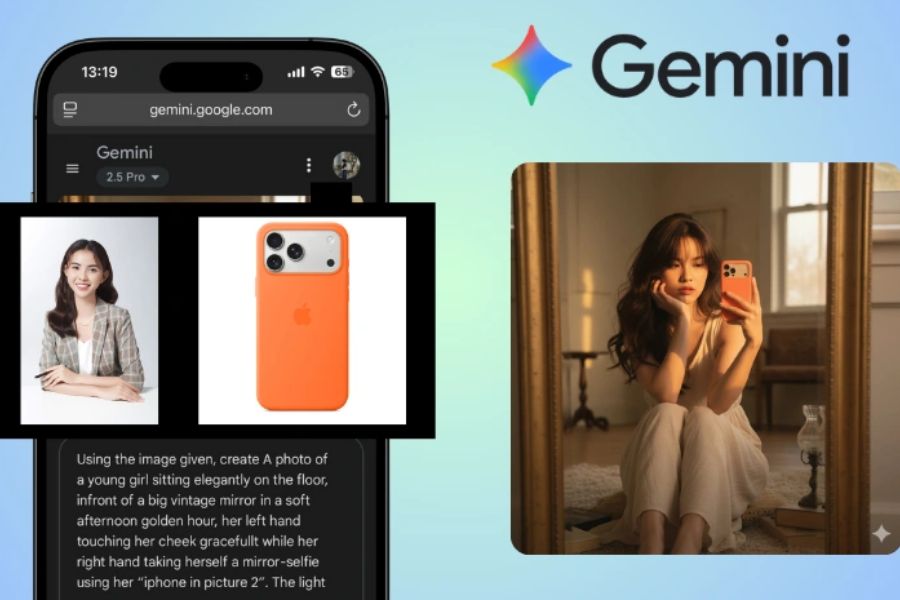
In the chat box, click the “+” icon, then select Upload File to add your images to the system. At this stage, you need to upload two types of images: a clear portrait photo of yourself and an iPhone 17 Pro Max image you want AI to place into your hand.
Input image quality has a huge impact on the final result. You should choose photos with even lighting, clear facial details, and no blur or obstruction. If the image already includes visible hands or a natural pose, Gemini will recognize the scene more accurately, making the iPhone 17 placement look more natural and proportional instead of fake or awkward.
.jpg)
6.3 Step 3: Enter the Prompt to Generate the Image
After successfully uploading the images, paste your prompt into the chat box so Gemini clearly understands the type of image you want to create. The more detailed the prompt, the more realistic the generated image will be. For iPhone 17 photos, you should clearly describe the setting, lighting, phone-holding pose, and request to preserve the original face.
Suggested prompt: Using the uploaded image as reference, create a high-quality, realistic portrait. The person is sitting gracefully on the floor in front of a large vintage mirror during the soft golden hour of the afternoon. Their right hand is holding an iPhone 17 Pro Max while taking a mirror selfie, and their other hand gently touches the face in a natural, relaxed pose. Warm sunlight from the window casts a golden reflection across the room, creating an elegant and dreamy atmosphere. Maintain the original face, features, and expression exactly as in the reference image, do not alter or replace them.
You can freely modify this prompt to match your personal style, such as changing the standing pose, room setting, or lighting style. The important thing is to avoid overly “digital” wording so the image keeps a realistic feel.
.jpg)
6.4 Step 4: Generate the Image and Download It
After entering the prompt, simply click Generate Image and wait a few seconds for Gemini to process it. The system will automatically analyze the images, place the iPhone 17 Pro Max into the hand, and adjust the lighting to match the entire composition.
Once the image appears, carefully review the overall result and small details such as hand placement, shooting angle, and reflections on the iPhone glass surface. If you are satisfied, click Download to save the image to your device. If not, you can continue chatting with Gemini and request further refinements until the iPhone 17 holding photo looks truly premium and natural.
.jpg)
7. Tips To Make AI iPhone 17 Holding Photos Look More Realistic
To make AI-generated iPhone 17 holding photos look natural and similar to real photographs, you only need to pay attention to a few basic points:
Choose high-quality input images: Portrait photos should be bright, with clear facial features and hands; iPhone 17 reference images should have suitable angles for more accurate AI placement.
Be specific when writing prompts: Clearly describe the phone-holding pose, lighting, and setting so AI understands your idea correctly.
Generate multiple versions and choose the best one: Each AI generation produces slightly different results, so it’s worth trying several variations.
Apply light editing after generation: Adjusting brightness, color, or contrast slightly can help the image look more balanced and realistic.
8. Conclusion
The combination of Google AI Studio and Gemini has opened up an entirely new approach to creating ultra-realistic tech images, where your imagination is almost limitless. With the right descriptions, careful refinements, and an understanding of how AI “thinks,” you can create iPhone 17 holding photos that are both visually stunning and realistic enough to be mistaken for real photographs. This is not just an entertainment tool, but also a powerful assistant for content creators, online businesses, or simply technology lovers who want to stay ahead of trends. In the future, as AI becomes even smarter, creating personalized images will become as common and easy as taking a photo with a smartphone. And who knows, the premium-looking iPhone 17 image you create today might become your own unique way of telling a technology story in the most impressive way possible.





















VIP Products








Best Selling Products
MidJourney Account
29 USD
Genuine Cheap Canva Pro
39 USD
Freepik Premium Account
59 USD
Upgrade Genuine Office 365
49 USD
Upgrade genuine Capture One account
120 USD
Genuine Adobe Illustrator account
99 USD
Capcut Pro 1 Year
39 USD
Adobe Premiere Pro Account
99 USD
Autodesk All App Account Copyright
120 USD
Adobe Photoshop Copyright - Full App
120 USD
Upgrade Duolingo Super
29 USD
Windows 10 & 11 Pro Key
36 USD
ChatGPT Plus Account (GPT-4)
16 USD
Plugin Retouch4me
69 USD
Copyright Adobe Lightroom Account
59 USD