Best Selling Products

MidJourney Account
29 USD

Windows 10 & 11 Pro Key
36 USD

Upgrade Duolingo Super
29 USD

Plugin Retouch4me
69 USD

Adobe Premiere Pro Account
99 USD

Upgrade genuine Capture One account
120 USD

Copyright Adobe Lightroom Account
59 USD

Upgrade Genuine Office 365
49 USD

Autodesk All App Account Copyright
120 USD

ChatGPT Plus Account (GPT-4)
16 USD

Freepik Premium Account
59 USD

Genuine Cheap Canva Pro
39 USD

Genuine Adobe Illustrator account
99 USD

Capcut Pro 1 Year
39 USD

Adobe Photoshop Copyright - Full App
120 USD
Photoshop Image Blending Guide: Super Easy, Anyone Can Do It!
Nội dung
- 1. Why is image blending needed in Photoshop?
- 1.1 Create impressive effects
- 1.2 Adjust colors and lighting in photos
- 1.3 Create unique overlay effects
- 2. Basic Blend Modes in Photoshop
- 2.1 Normal Group – Preserve the original nature of the image
- 2.2 Darken Group – Create depth and dramatic tones
- 2.3 Lighten Group – Illuminate and brighten the frame
- 2.4 Contrast Group – Enhance contrast and color vibrancy
- 2.5 Inversion Group – Surprising reverse effects
- 2.6 Component Group – Fine control over colors and lighting
- 3. Detailed guide to blending 2 images in Photoshop
- 3.1 Method 1: Using Layer Blend Modes
- 3.2 Method 2: Using Layer Mask for selective blending
- 3.3 Method 3: Using Gradient Tool for soft blending
- 4. Conclusion
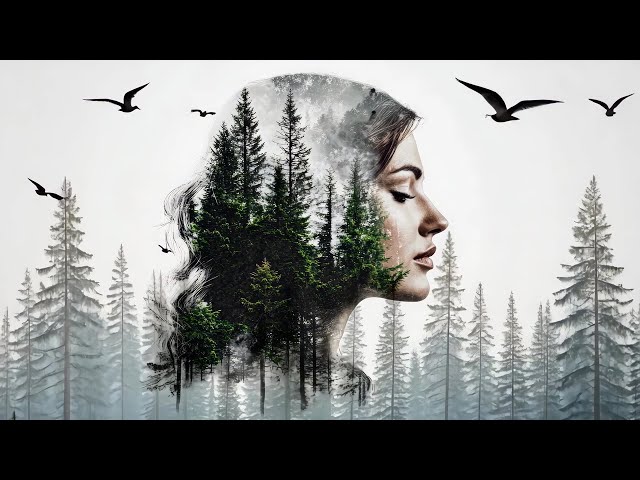
Blending 2 images in Photoshop is no longer something reserved only for professional photo editors. With just a few simple steps, you can completely create images that “match” perfectly, blend beautifully together, and captivate viewers at first glance.
1. Why is image blending needed in Photoshop?
Image blending in Photoshop is one of the most important techniques for elevating creativity in any visual project. Instead of letting images exist separately, blending helps them combine delicately, creating a harmonious and eye-catching composition. This technique not only adds uniqueness to the artwork but also creates depth and emotion, making viewers feel drawn into the story behind the image.
1.1 Create impressive effects
By knowing how to blend 2 images in Photoshop, you can transform a simple photo into a colorful masterpiece filled with magical lighting. For example, blending a portrait with a dreamy smoke layer can make the character feel like they are dissolving into a fantasy space, both captivating and artistic. This is how an image becomes vivid, dimensional, and able to attract attention from the very first glance.
This technique also allows you to intertwine image layers delicately, creating vibrant background effects. It is especially useful in advertising designs, posters, or digital artwork, where every small detail needs to tell a story and leave a lasting impression. As a result, the artwork becomes not only beautiful but also emotional and professional.
1.2 Adjust colors and lighting in photos
Image blending is also an excellent tool for refining colors and lighting. By using modes such as Multiply or Color, you can balance tones, soften or enhance natural light in an image. For example, blending a sunset into a portrait can create the feeling that the photo is immersed in radiant golden light, bringing warmth and romance.
This technique also helps correct uneven light and shadow areas, creating overall harmony and realism. This is an important factor in artistic photography or visually refined design, helping every piece become more vivid and polished.
1.3 Create unique overlay effects
With blending modes like Overlay or Hard Light, you can combine multiple image layers to create unique effects, from sparkling lights to rough textures or magical atmospheres. For example, overlaying a portrait with vintage patterns can create an image that feels both artistic and mysterious, making it hard for viewers to look away.
The flexibility of blending image layers allows designers to freely create and combine multiple elements into one-of-a-kind artworks. This is the “soul” of creative design in digital art and advertising, helping each piece make a strong impression and leave a lasting mark on audiences.
.jpg)
2. Basic Blend Modes in Photoshop
Understanding and using Blend Modes in Photoshop is an important step in turning simple images into vibrant artistic creations. Each mode has its own unique style, from darkening and brightening to enhancing contrast or creating surreal color effects. Once you master how each Blend Mode group works, you open the door to creativity where every idea can flourish.
2.1 Normal Group – Preserve the original nature of the image
The Normal group is the most basic and pure foundation, where image layers interact without complicated transformations. Including Normal and Dissolve modes, this group preserves the natural look of the image. Normal allows the top layer to fully cover the layer beneath, giving complete control over visibility, while Dissolve creates random grain-like effects, as tiny dots seem to dance when opacity is reduced, bringing a rough and unconventional feel.
This is the ideal group when you want to maintain the authenticity of an image while still adding a touch of creativity. Designers often use the Normal group as a foundation for more complex effects or to preserve originality when compositing multiple layers. As a result, the artwork feels both realistic and stylish.
2.2 Darken Group – Create depth and dramatic tones
The Darken group is the “artist of shadows” in Photoshop, helping designs become deeper, more dramatic, and emotional. Including Darken, Multiply, Color Burn, Linear Burn, and Darker Color, this group works by prioritizing darker areas between image layers, creating depth and emphasizing important details.
For example, Multiply intensifies colors and creates an ink-like richness, while Color Burn dramatically boosts contrast for a powerful atmosphere. These modes are ideal for vintage photos, mysterious environments, or designs requiring refined interplay between light and shadow, making the artwork both captivating and storytelling.
.jpg)
2.3 Lighten Group – Illuminate and brighten the frame
Opposite to the Darken group, the Lighten group acts like Photoshop’s “radiant sunlight,” specializing in brightening images and bringing an uplifting atmosphere. Including Lighten, Screen, Color Dodge, Linear Dodge, and Lighter Color, this group prioritizes brighter areas, making images more luminous and energetic.
For example, Screen brightens an image like moonlight shining through, while Color Dodge creates dazzling effects bursting with energy. The Lighten group is the perfect secret for dreamy designs, glowing spaces, or radiant effects, helping images become lively and captivating at first glance.
2.4 Contrast Group – Enhance contrast and color vibrancy
The Contrast group is where image layers interact to create sharp, vivid, and eye-catching effects. Including Overlay, Soft Light, Hard Light, Vivid Light, Linear Light, Pin Light, and Hard Mix, this group energizes colors, highlights light and shadows, and adds depth that immediately captures attention.
Overlay blends light and dark delicately, while Hard Mix creates sharp, vibrant, and modern effects. The Contrast group is ideal for designs that require vividness, from advertising posters to digital artwork, where colors and lighting play the central role in making every image unforgettable.
.jpg)
2.5 Inversion Group – Surprising reverse effects
The Inversion group is Photoshop’s “magician,” helping reverse colors and create unexpected effects. Including Difference and Exclusion, this group works by comparing and inverting color values between layers, producing surreal and creative results.
For example, Difference creates bright neon-like tones that make images look striking and unusual, while Exclusion offers a softer effect that feels dreamy and mystical. The Inversion group is a fantastic tool for unconventional designs, helping artworks stand out and leave a strong impression.
2.6 Component Group – Fine control over colors and lighting
The Component group allows detailed adjustments of colors and lighting. Including Hue, Saturation, Color, and Luminosity, this group affects hue, saturation, or brightness separately, giving full control over color effects.
For example, Hue changes colors while preserving brightness, while Luminosity adjusts brightness without affecting color. The Component group is the key to subtle refinements, helping designers and photographers create highly artistic, creative, and visually refined images.
.jpg)
3. Detailed guide to blending 2 images in Photoshop
Blending 2 images in Photoshop is not simply about compositing photos but also about storytelling through visuals. You can turn two unrelated images into one vivid artwork full of depth and emotion. Don’t worry if you have never tried before – just follow the steps below, and creating smooth, natural blending effects will become easier than ever.
3.1 Method 1: Using Layer Blend Modes
Layer Blend Modes are the most basic yet highly effective method for blending images. They allow you to combine image layers and create various color, lighting, and shadow effects with only a few simple actions. This is also the most popular method used by professional designers and Photoshop beginners alike.
Step 1: Prepare the images
First, choose the two images you want to blend. Make sure the images have similar resolutions so they do not become blurry or mismatched when combined. The more compatible the colors and lighting are, the more natural the blending effect will look.
Step 2: Create a document and import the images into Photoshop
Open Photoshop and create a new document with your desired size. Drag or import the two images into the document, with each image on a separate layer. Place the main layer (subject) on top and the background layer underneath for easier control of the effects.
Step 3: Choose a suitable Blend Mode
In the Layers panel, at the Blend Mode dropdown menu (default is Normal), experiment with modes such as:
Overlay: Blends light and shadows, increasing vibrancy.
Screen: Brightens the overall image with a soft glowing effect.
Multiply: Darkens the image and increases depth.
Soft Light: Creates delicate and natural blending without harshness.
Try each mode and observe the changes. Choose the one that creates the most harmonious blend and best matches your creative idea.
Step 4: Adjust Opacity and Mask
After selecting a Blend Mode, you can reduce the Opacity of the top layer to make the effect softer and more natural. Additionally, use Layer Mask to erase or blur unwanted areas, helping the images combine seamlessly. This is the secret to creating smooth and professional effects that make the editing nearly invisible to viewers.
.jpg)
3.2 Method 2: Using Layer Mask for selective blending
Layer Mask is a powerful Photoshop tool that allows flexible blending by specific areas, creating smooth and natural effects without affecting the entire layer. Compared to only using Blend Modes, Layer Mask provides precise control over which parts appear or disappear, making the image look more professional and refined.
Step 1: Prepare the images and create a Layer Mask
First, select the two images you want to blend. Place them in the same Photoshop document, with the main image (subject) on the top layer and the background image underneath.
Next, select the top layer and click the Add Layer Mask icon at the bottom of the Layers panel. A white thumbnail will appear beside the layer – this is the mask. White reveals the entire layer, while black hides corresponding areas, allowing you to begin blending specific regions.
Step 2: Use the Brush Tool to blend selected areas
Choose the Brush Tool, set it to Soft Round Brush for smooth edges, and ensure the Foreground color is black. When you paint over the image on the top layer, those areas gradually fade away, revealing the image underneath.
If you want to restore hidden areas, simply change the Foreground color to white and paint again. You can flexibly combine black and white to create smooth gradual blending, controlling every small detail from subject edges to background areas, making the image feel naturally unified.
Step 3: Review and refine details
After brushing, zoom in to inspect details, especially around subject edges. Adjust the brush Opacity or soften mask areas with Gaussian Blur for more natural blending.
Finally, review the entire image and refine imperfect areas. Layer Mask allows unlimited experimentation without damaging the original layer, helping you create smooth, vivid, and artistic blending effects.
.jpg)
3.3 Method 3: Using Gradient Tool for soft blending
The Gradient Tool is an excellent method for blending two images smoothly and naturally, especially when you want soft transitions between light and dark areas or between subjects and backgrounds. Unlike Layer Mask with Brush, Gradient Tool creates gradual blending effects, making the composition feel like a single image.
Step 1: Create a Layer Mask for the top layer
First, open Photoshop and place the two images in the same document, with the subject image on top and the background image underneath.
Then select the top layer and click the Add Layer Mask icon at the bottom of the Layers panel. A white thumbnail will appear beside the layer – this is the Layer Mask. White reveals the entire layer, while black hides corresponding areas. Layer Mask is the foundation for creating soft blending with the Gradient Tool.
Step 2: Select Gradient Tool and black-to-white mode
Choose the Gradient Tool (shortcut key G). In the options bar above, select the gradient mode from White to Black.
White: reveals the top layer.
Black: hides the top layer, revealing the image below.
This method allows you to create soft transitions where the top layer gradually blends into the layer below without harsh edges, making the image more natural.
Step 3: Drag the Gradient on the Layer Mask
Drag your mouse from the point where you want blending to start to where it should end. For example, drag from top to bottom or left to right depending on the image composition.
You can repeat the process multiple times to control transitions or change directions to create different effects. Gradient Tool is especially useful for blending landscapes, skies, or gradual lighting effects on subjects.
Step 4: Edit and refine details
After applying the gradient, zoom in to inspect the results. You can:
Use a soft Brush on the Layer Mask to refine or soften certain areas further.
Adjust the layer Opacity to reduce the intensity of the effect if needed.
Apply Gaussian Blur on the Layer Mask to increase smoothness and create more natural transitions between the two images.
The result will be a perfectly blended image that feels soft, natural, and artistic without requiring complicated editing techniques.
.jpg)
4. Conclusion
Blending images in Photoshop is actually not as complicated as many people think. By mastering a few basic tools and simple steps, you can transform separate images into a seamless, creative, and vibrant artwork. Most importantly, experiment and enjoy the creative process – those small experiments will help you discover your own blending style. Start today, and let Photoshop become the digital “paintbrush” that helps you tell stories through every image in the most vivid way possible.





















VIP Products








Best Selling Products
MidJourney Account
29 USD
Windows 10 & 11 Pro Key
36 USD
Upgrade Duolingo Super
29 USD
Plugin Retouch4me
69 USD
Adobe Premiere Pro Account
99 USD
Upgrade genuine Capture One account
120 USD
Copyright Adobe Lightroom Account
59 USD
Upgrade Genuine Office 365
49 USD
Autodesk All App Account Copyright
120 USD
ChatGPT Plus Account (GPT-4)
16 USD
Freepik Premium Account
59 USD
Genuine Cheap Canva Pro
39 USD
Genuine Adobe Illustrator account
99 USD
Capcut Pro 1 Year
39 USD
Adobe Photoshop Copyright - Full App
120 USD