Best Selling Products

Copyright Adobe Lightroom Account
59 USD

Upgrade Duolingo Super
29 USD

ChatGPT Plus Account (GPT-4)
16 USD

Upgrade Genuine Office 365
49 USD

Capcut Pro 1 Year
39 USD

Adobe Photoshop Copyright - Full App
120 USD

Windows 10 & 11 Pro Key
36 USD

Upgrade genuine Capture One account
120 USD

Freepik Premium Account
59 USD

Genuine Adobe Illustrator account
99 USD

MidJourney Account
29 USD

Plugin Retouch4me
69 USD

Genuine Cheap Canva Pro
39 USD

Autodesk All App Account Copyright
120 USD

Adobe Premiere Pro Account
99 USD
Discover how to edit photos beautifully and professionally in Photoshop CS6, even for beginners.
Nội dung
- 1. Why is Photoshop CS6 still chosen by many people?
- 2. Things to prepare before editing photos in Photoshop CS6
- 3. Get familiar with the Photoshop CS6 interface.
- 3.1 Toolbar
- 3.2 Layer Panel
- 3.3 Menu Bar
- 4. Basic Photoshop CS6 Photo Editing Guide for Beginners
- 4.1 Cropping and adjusting image composition
- 4.2 Adjusting Brightness and Contrast
- 4.3 Adjusting image colors
- 4.4 Sharpening the image
- 5. How to edit beautiful portrait photos using Photoshop CS6
- 5.1 Eliminate acne and skin blemishes
- 5.2 Natural skin whitening
- 5.3 Brighten the eyes
- 6. Tips for more professional photo editing in Photoshop CS6
- 6.1 Always work using Layers
- 6.2 Using keyboard shortcuts
- 6.3 Editing in small steps
- 7. Common mistakes when editing photos in Photoshop CS6
- 8. Conclusion
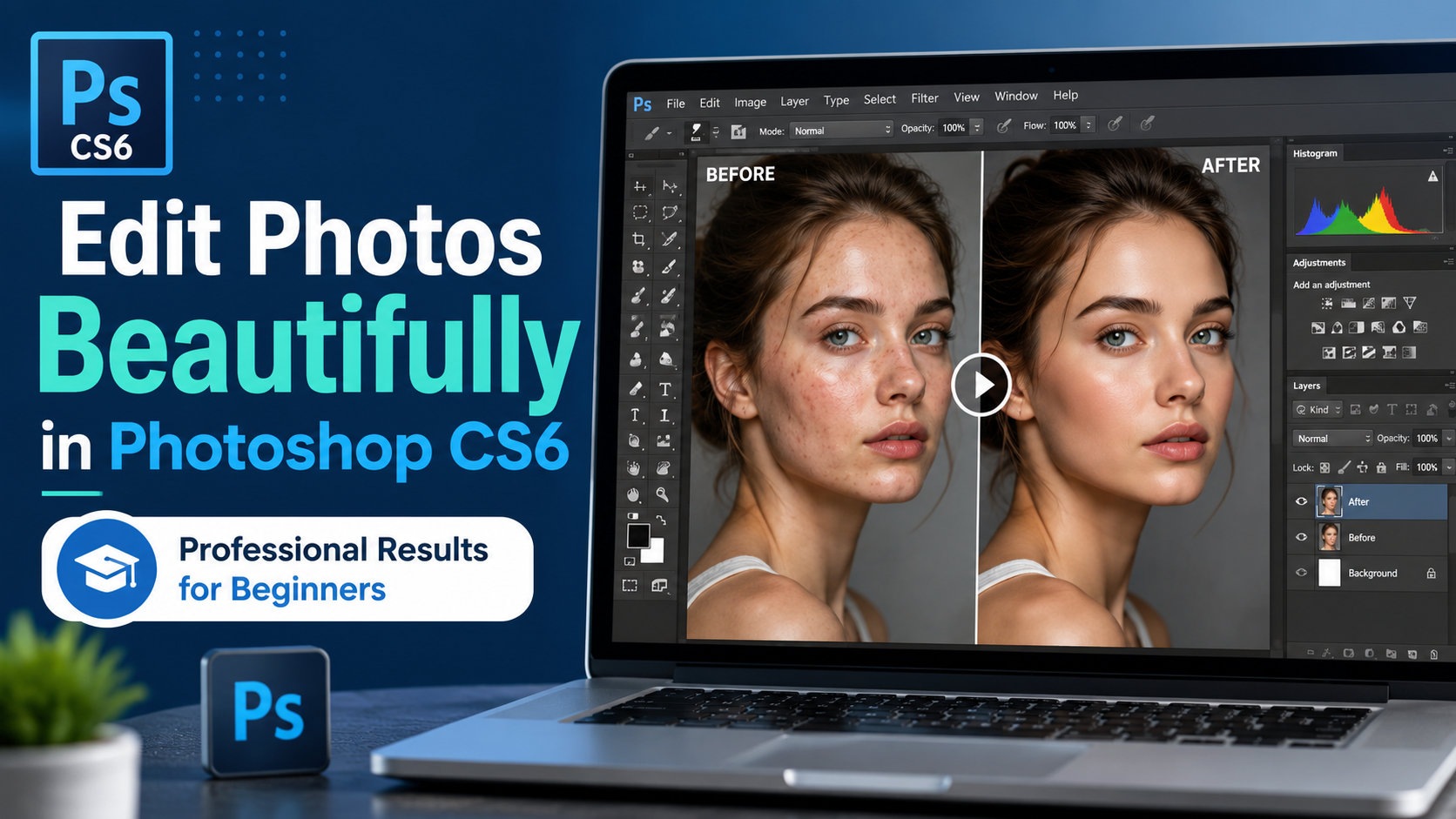
For beginners, Photoshop CS6 can feel a bit overwhelming due to its vast number of tools and features.
1. Why is Photoshop CS6 still chosen by many people?
Although Adobe has released many newer versions of Photoshop, Photoshop CS6 still holds a special place in the hearts of users. It's a stable version that runs smoothly on a wide range of computer configurations and effectively meets both basic and advanced photo editing needs.
One of the biggest advantages of Photoshop CS6 is its intuitive and easy-to-learn interface. Beginners don't need to spend too much time learning how to use it. In addition, the software integrates a full range of tools for color correction, image cropping and merging, object removal, portrait beautification, and basic graphic design.
Not only is Photoshop CS6 suitable for professional photographers and designers, it's also ideal for:
-
Online businesses need to edit product photos.
-
Students study graphic design.
-
Social media content creators.
-
People who want to edit their personal photos to make them look better.
-
Marketing and advertising professionals.
Because of this versatility, Photoshop CS6 photo editing remains a highly searched keyword today.
2. Things to prepare before editing photos in Photoshop CS6
-
Before you begin editing photos, you should prepare all the necessary tools and resources to make the process smoother.
-
First, choose high-quality images. A sharp, original photo will make editing much easier than a blurry or poorly lit image. Additionally, you should make it a habit to save the original image before editing to avoid data loss in case of errors.
-
Furthermore, a basic understanding of the fundamental tools in Photoshop CS6 will save you time and allow for more precise operations. Instead of randomly using features, you'll know which tool is suitable for each specific editing purpose.
3. Get familiar with the Photoshop CS6 interface.
3.1 Toolbar
The Toolbar is located on the left side of the screen and contains most of the important editing tools. This is where users frequently work during image editing. Notable tools include the Move Tool, Crop Tool, Brush Tool, Eraser Tool, Clone Stamp Tool, and Healing Brush Tool. When first learning Photoshop CS6, you should take the time to understand the function of each tool to avoid confusion when using them.
Each tool is designed to serve a specific purpose. For example, the Crop Tool is used for cropping images, the Brush Tool for painting, and the Clone Stamp Tool helps to copy areas of an image to remove imperfections. Mastering these tools will provide a solid foundation for professional editing later on.
3.2 Layer Panel
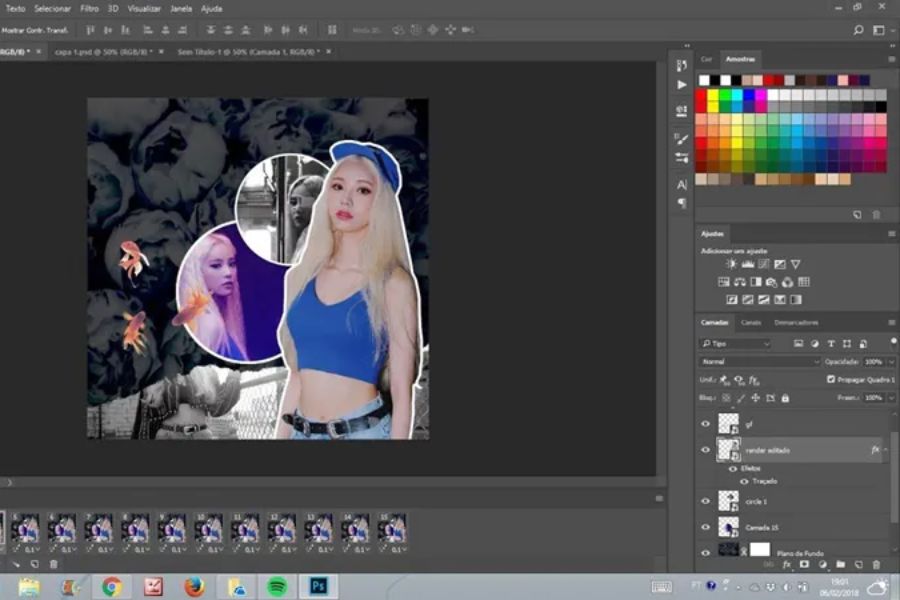
Layers are considered the "soul" of Photoshop. They are where all the elements in an image are managed. When editing, you should create separate layers instead of working directly on the original image. This makes it easier to edit or undo work when needed without affecting the entire image.
Using layers correctly also allows you to combine various effects, creating much more creative and professional works.
3.3 Menu Bar
The Menu bar is located at the top of the interface and contains all the software's functions. Here, you can open files, save projects, edit colors, add filters, or manage layers. Beginners often don't use all the features in the Menu, but this is a very important area when performing advanced operations.
After some practice, you'll find that a thorough understanding of menus significantly speeds up editing and improves work efficiency.
4. Basic Photoshop CS6 Photo Editing Guide for Beginners
4.1 Cropping and adjusting image composition
The Crop Tool is the first tool almost everyone uses when editing photos. This tool allows you to remove unwanted areas, focus on the main subject, and improve the overall composition. A well-balanced photo will look much more professional and appealing. You can apply the Rule of Thirds to arrange the subject appropriately within the frame.
In addition to cropping images, Crop Tool also supports rotating images, correcting a misaligned horizon line, or changing the aspect ratio to suit different platforms such as Facebook, Instagram, or websites.
4.2 Adjusting Brightness and Contrast
Many beautiful photos suffer from reduced quality due to insufficient or excessively dark lighting. Photoshop CS6 offers numerous tools to effectively improve this situation. You can use Brightness/Contrast to increase brightness or add depth to your image. Proper adjustments will make details clearer and create a more professional look. However, avoid over-brightening as this can cause a loss of detail in white areas or make the image look unnatural.
4.3 Adjusting image colors
Color is a key factor in determining the viewer's emotions when looking at a photograph. Photoshop CS6 supports tools like Hue/Saturation, Color Balance, and Vibrance to adjust color. You can make the photo brighter, warmer, or give it an artistic style as you wish.
When you're just starting out, adjust the colors subtly and prioritize naturalness. This is the secret to keeping your photos looking authentic instead of overly artificial.
4.4 Sharpening the image
Photos lacking sharpness often look unprofessional. Photoshop CS6 allows you to increase sharpness using the Sharpen filter. Sharpening helps details like eyes, hair, or products stand out more. However, it needs to be used appropriately to avoid graininess or harsh edges. A helpful tip is to only sharpen the key areas instead of the entire image for the best results.
5. How to edit beautiful portrait photos using Photoshop CS6
5.1 Eliminate acne and skin blemishes
The Healing Brush Tool is a great tool for removing acne, blemishes, or minor imperfections on the face. Simply select a nearby area of healthy skin and lightly brush over the area you want to correct; Photoshop will automatically blend the color and skin texture naturally. It's important not to overuse this tool, as it can make the face look unnatural.
5.2 Natural skin whitening
Brighter skin helps the face stand out and look more attractive in photos. You can use Curves or Levels to gently increase the brightness of the skin. Combining this with Layer Masks will help you precisely control the areas that need editing. Prioritize preserving the skin texture rather than completely whitening it. The current trend is towards a more natural and realistic look.
5.3 Brighten the eyes
The eyes are often the most striking feature on a face. Bright eyes will make a photo more expressive. You can slightly increase the brightness and contrast in the eye area using the Dodge Tool or Adjustment Layer. This will make the subject look more radiant and attractive. However, only adjust moderately to avoid creating an artificial or unnatural look.
6. Tips for more professional photo editing in Photoshop CS6
6.1 Always work using Layers
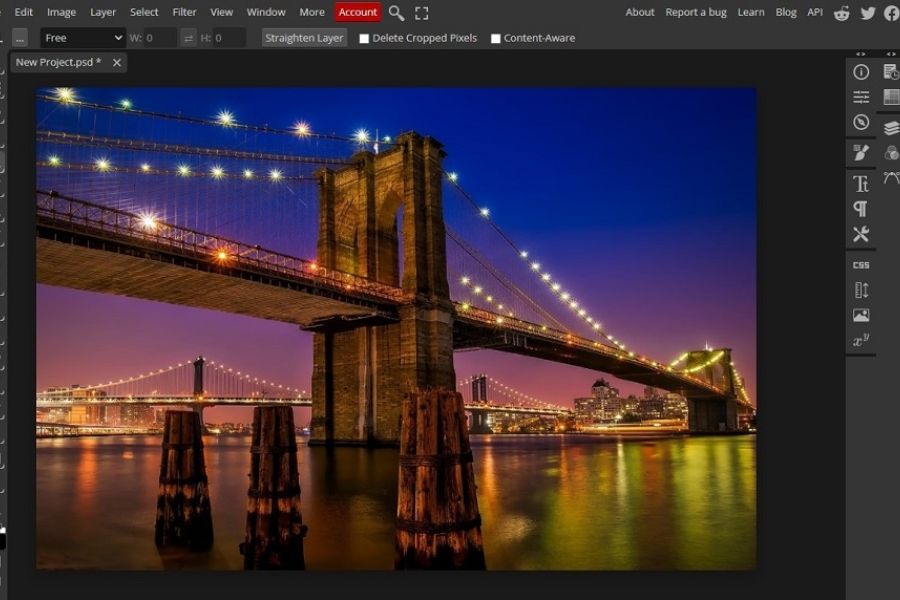
This is a crucial principle that every professional designer applies. Working on separate layers allows you to easily edit, change, or delete effects at any time without affecting the original image. Furthermore, systematic layer management helps keep projects neat and easier to manage, especially when working on complex designs.
6.2 Using keyboard shortcuts
Photoshop CS6 supports many keyboard shortcuts that help speed up your workflow.
Some common keyboard shortcuts include:
-
Ctrl + J: Duplicate the layer.
-
Ctrl + T: Transforms the object.
-
Ctrl + Z: Undo.
-
Ctrl + S: Save file.
-
B: Select the Brush Tool.
-
V: Select the Move Tool.
-
C: Select the Crop Tool.
Memorizing these keyboard shortcuts will save you considerable editing time.
6.3 Editing in small steps
Many beginners often try to make too many adjustments at once, resulting in unnatural-looking results. Professionals usually make small changes and observe the overall effect before continuing. This approach helps control image quality better and minimizes errors. Patience is key to improving your Photoshop CS6 editing skills over time.
7. Common mistakes when editing photos in Photoshop CS6
Beginners often make some common mistakes such as:
-
The colors are too saturated.
-
Excessive skin whitening.
-
Abusing the effect.
-
The resolution is too high.
-
Do not save the original file.
-
Manage cluttered layers.
-
The image was cropped out of alignment.
These mistakes can make a photo look unnatural and unprofessional. Therefore, always double-check the overall result before exporting the final file. Also, don't rely too heavily on effects. A beautiful photo usually comes from subtle processing rather than applying too many complex techniques.
8. Conclusion
Photoshop CS6 image editing is an incredibly useful skill for anyone wanting to improve image quality in their work and life. Whether you're a beginner or have basic experience, mastering the tools, principles, and editing tips will help you create more beautiful, professional, and attractive photos. Hopefully, the above information has helped you better understand how to edit photos in Photoshop CS6, as well as important secrets to improving your skills. Take the time to practice regularly, experiment with different styles, and gradually perfect your skills. With perseverance, you can create impressive works that rival those of professional designers.





















VIP Products








Best Selling Products
Copyright Adobe Lightroom Account
59 USD
Upgrade Duolingo Super
29 USD
ChatGPT Plus Account (GPT-4)
16 USD
Upgrade Genuine Office 365
49 USD
Capcut Pro 1 Year
39 USD
Adobe Photoshop Copyright - Full App
120 USD
Windows 10 & 11 Pro Key
36 USD
Upgrade genuine Capture One account
120 USD
Freepik Premium Account
59 USD
Genuine Adobe Illustrator account
99 USD
MidJourney Account
29 USD
Plugin Retouch4me
69 USD
Genuine Cheap Canva Pro
39 USD
Autodesk All App Account Copyright
120 USD
Adobe Premiere Pro Account
99 USD