Best Selling Products

Autodesk All App Account Copyright
120 USD

MidJourney Account
29 USD

Genuine Cheap Canva Pro
39 USD

Plugin Retouch4me
69 USD

ChatGPT Plus Account (GPT-4)
16 USD

Freepik Premium Account
59 USD

Genuine Adobe Illustrator account
99 USD

Adobe Premiere Pro Account
99 USD

Upgrade Genuine Office 365
49 USD

Upgrade genuine Capture One account
120 USD

Capcut Pro 1 Year
39 USD

Upgrade Duolingo Super
29 USD

Windows 10 & 11 Pro Key
36 USD

Adobe Photoshop Copyright - Full App
120 USD

Copyright Adobe Lightroom Account
59 USD
Discover little-known features of computer mice that help you work faster.
Nội dung
- 1. Copy or move files faster using drag-and-drop.
- 2. Close browser tabs with just a middle click.
- 3. Automatically scroll long web pages or documents.
- 4. Zoom in and out of content using only the mouse wheel.
- 5. Speed up text selection with mouse clicks.
- 6. Open additional application windows with just one click.
- 7. Open the folder in a new tab of File Explorer.
- 8. Quickly close application windows directly from the Taskbar.
- 9. Why should you make the most of your computer mouse's features?
Computer mice are not just used for clicking and scrolling; they also possess many hidden features that help speed up operations on Windows and macOS.

1. Copy or move files faster using drag-and-drop.
Drag and drop is a familiar operation for all computer users. However, very few people know that by combining the mouse with the keys on the keyboard, users can precisely control how the operating system processes data.
On Windows, holding down the Ctrl key while dragging a file or folder to a different location will create a copy instead of moving the original file. This is the fastest way to duplicate data without using the traditional Copy and Paste commands.
If you only want to create a shortcut, simply hold down Alt while dragging the file. Windows will create the shortcut instead of copying the entire file, saving storage space and making it convenient to access frequently used files.

If you drag a file between two different hard drives, Windows will by default copy the data. However, if you want to move the file entirely to the new location, simply hold down Shift while dragging to change the default behavior.
For macOS users, the principle is similar but uses different key combinations. Holding Option will create a copy of the file, while Command + Option will create an alias for quick access to the original data. If you drag data between two drives and hold Command , the system will move the file instead of copying it.
Another very useful tip for Windows is to drag a file using the right mouse button . After releasing the mouse button, a menu will appear allowing you to choose between Copy, Move, or Create Shortcut. This gives users more flexibility without having to remember keyboard shortcuts.
2. Close browser tabs with just a middle click.
Many people have a habit of moving their mouse to the "X" icon in the corner of each tab to close them. When working with dozens of tabs at once, this action is both time-consuming and makes the web browsing process less efficient.
In fact, most popular browsers like Google Chrome, Microsoft Edge, Mozilla Firefox, and Opera support closing tabs using the mouse scroll wheel.
Users simply need to move the cursor over the tab they want to close and press the scroll button (Middle Click). The tab will close immediately without needing to move the mouse to the "X" icon.

Although it only saves a few seconds per operation, if you frequently open many tabs for work or research, this little trick can significantly reduce the number of times you move your mouse throughout the workday.
3. Automatically scroll long web pages or documents.
Reading long documents, ebooks, PDF reports, or articles of thousands of words often requires users to constantly scroll their mouse wheel.
Windows offers a little-known feature called Auto Scroll . Users simply click the mouse scroll wheel on an empty area of the page. An auto-scrolling control icon will immediately appear. Instead of constantly rotating the scroll wheel, users can simply move the mouse up or down. The further the mouse is moved, the faster the scrolling speed.
This feature works across multiple web browsers, PDF readers, and even some office applications, and is especially useful when reading long documents or reviewing reports.
4. Zoom in and out of content using only the mouse wheel.
When working with documents, spreadsheets, images, or browsing the web, the need to zoom in and out of content occurs very frequently. Instead of wasting time searching for the Zoom button on the toolbar of each software, you can use your mouse and keyboard to perform this operation quickly.
On Windows, simply holding down the Ctrl key and scrolling the mouse wheel will change the zoom level of the displayed content. Scrolling forward zooms in and scrolling backward zooms out. This trick is supported on most web browsers such as Google Chrome, Microsoft Edge, Mozilla Firefox, as well as many popular applications like Microsoft Word, Excel, PowerPoint, Adobe Acrobat, and image editing software.
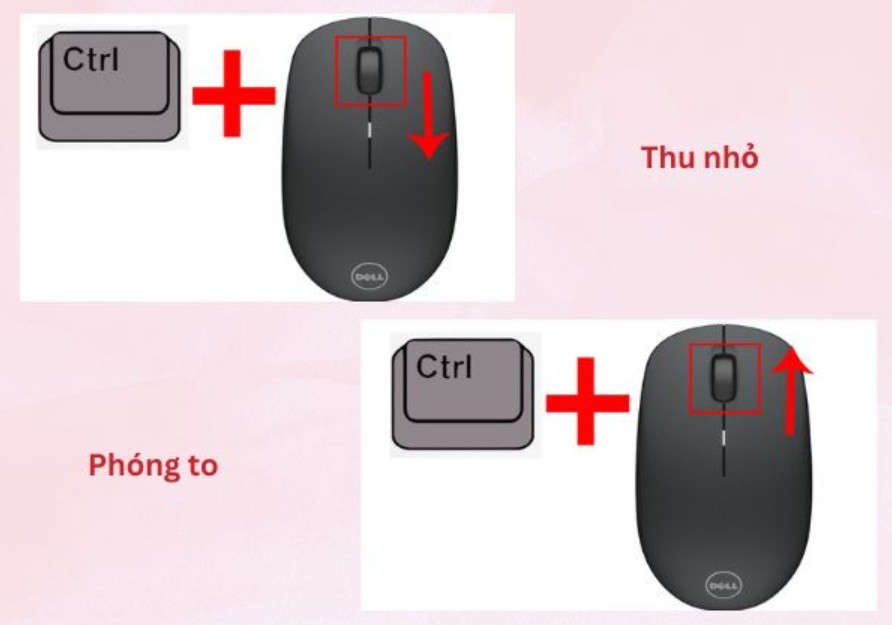
This is a particularly useful solution when you need to read small text, view drawing details, images, or check designs without having to adjust the screen resolution. Zooming with the mouse also makes the operation more natural and seamless compared to using the control buttons in the software interface.
For macOS users, many applications also support similar functionality through corresponding keyboard shortcuts, providing a flexible work experience across multiple platforms.
5. Speed up text selection with mouse clicks.
When editing documents, many people still have the habit of dragging the mouse to highlight individual words or paragraphs. Although this is a common method, it is not the fastest.
Most modern text editors support various mouse selection methods. With a double-click , you can instantly select an entire word without dragging. To select a whole paragraph, simply triple-click , and the entire paragraph will be highlighted immediately.
These operations work reliably across Microsoft Word, Google Docs, Notepad, web browsers, note-taking software, and many other text editing tools. When combined with keyboard shortcuts for copying, cutting, or formatting content, users can significantly reduce document processing time.
For those who frequently write articles, edit contracts, program, or work with large amounts of text, this is a small tip that can greatly improve your daily workflow.
6. Open additional application windows with just one click.
Windows allows users to open multiple windows of the same application to work in parallel. However, many people still choose to reopen the program from the Start Menu or the desktop icon, making the process more time-consuming than necessary.
If the application is already pinned to the Taskbar, simply move your mouse cursor to the application's icon and press the scroll wheel . Windows will immediately create a new window if the program supports multi-session functionality.

This technique is particularly useful when you need to open multiple File Explorer windows simultaneously to copy data, multiple browser windows to look up information, or multiple Word or Excel documents to compare content. Minimizing intermediate steps makes the workflow faster and more seamless.
7. Open the folder in a new tab of File Explorer.
Since Windows 11, File Explorer has added tabbed management features similar to web browsers. This allows users to open multiple folders in a single window instead of creating numerous separate windows, resulting in a cleaner and more manageable workspace.
One lesser-known feature is that you can use the mouse scroll wheel to quickly open folders in a new tab. Simply move the cursor to the desired folder and press the scroll wheel; File Explorer will automatically create a new tab containing that folder without affecting the tab you are currently using.
This is a very useful tip when you need to move data between multiple folders or work on multiple projects simultaneously. Switching between tabs is also faster and more intuitive than managing multiple individual File Explorer windows.
8. Quickly close application windows directly from the Taskbar.
Besides opening new windows, the mouse scroll wheel also helps close applications without switching to the currently active window.
To do this, hover your mouse over the program icon on the Taskbar to display the preview window. Then move the cursor to the window you want to close and press the scroll wheel . The window will close immediately without needing to open it and press the X button as you normally would.
Although it's a small step, it's very useful when you have many applications open at the same time and want to quickly clean up your workspace. For those who frequently work with many windows or multitask, this tip will save a significant amount of time each day.
9. Why should you make the most of your computer mouse's features?
These features may seem simple, but when used regularly, they can help reduce hundreds of tasks each day.
For office workers, reducing the time spent managing files, processing documents, or browsing the web will contribute to increased productivity.
For students, tips such as auto-scrolling, quick text selection, or zooming in on content can support more effective learning.
Meanwhile, designers, programmers, or system administrators can also leverage these operations to reduce the time spent on repetitive tasks.
More importantly, combining the mouse with keyboard shortcuts significantly reduces the number of cursor movements on the screen, resulting in a smoother and more professional workflow.
These simple tips don't require installing any additional software or upgrading your hardware, as they're already built into Windows or macOS. By simply taking the time to familiarize yourself with them and applying them to your daily work, users can significantly save time, reduce repetitive tasks, and improve their overall computing experience.





















VIP Products








Best Selling Products
Autodesk All App Account Copyright
120 USD
MidJourney Account
29 USD
Genuine Cheap Canva Pro
39 USD
Plugin Retouch4me
69 USD
ChatGPT Plus Account (GPT-4)
16 USD
Freepik Premium Account
59 USD
Genuine Adobe Illustrator account
99 USD
Adobe Premiere Pro Account
99 USD
Upgrade Genuine Office 365
49 USD
Upgrade genuine Capture One account
120 USD
Capcut Pro 1 Year
39 USD
Upgrade Duolingo Super
29 USD
Windows 10 & 11 Pro Key
36 USD
Adobe Photoshop Copyright - Full App
120 USD
Copyright Adobe Lightroom Account
59 USD