Best Selling Products

Genuine Adobe Illustrator account
99 USD

Adobe Photoshop Copyright - Full App
120 USD

Freepik Premium Account
59 USD

Upgrade Duolingo Super
29 USD

Upgrade Genuine Office 365
49 USD

MidJourney Account
29 USD

Plugin Retouch4me
69 USD

Windows 10 & 11 Pro Key
36 USD

Autodesk All App Account Copyright
120 USD

Upgrade genuine Capture One account
120 USD

Capcut Pro 1 Year
39 USD

Copyright Adobe Lightroom Account
59 USD

Adobe Premiere Pro Account
99 USD

ChatGPT Plus Account (GPT-4)
16 USD

Genuine Cheap Canva Pro
39 USD
Easy Ways to Fix the Too Many Requests Error on Microsoft for All Users
Nội dung
- 1. What Is the Too Many Requests Error?
- 2. Causes of the Too Many Requests Error on Microsoft
- 3. How to Fix the “Too Many Requests” Error in Microsoft
- 3.1 Wait for the Microsoft System to Reopen Access
- 3.2 Sign Out of All Devices and Sign In Again
- 3.3 Clear Cache, Cookies, and Browser Data
- 3.4 Clear DNS Cache
- 3.5 Change Networks or Disable VPN/Proxy
- 3.6 Use Another Account or Incognito Browser
- 3.7 Contact Microsoft Support If the Error Persists
- 4. Ways to Prevent the 429 Too Many Requests Error
- 5. Conclusion
The Too Many Requests error on Microsoft can be frustrating when you are working with Outlook, OneDrive, or Teams.
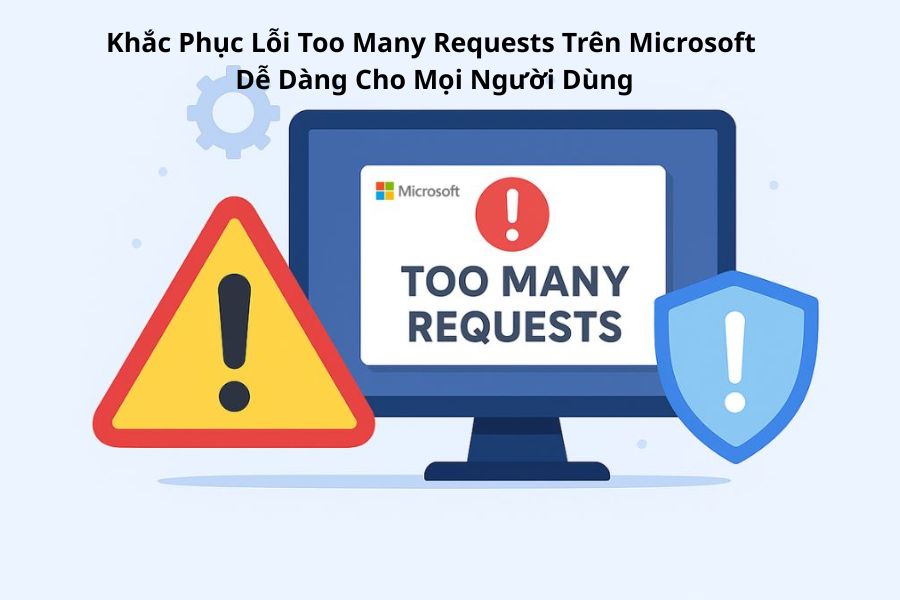
1. What Is the Too Many Requests Error?
The Too Many Requests error, also known as HTTP Error 429, appears when the Microsoft system detects too many requests at the same time from an account or device. At that point, the server will temporarily refuse to process additional requests in order to avoid overload and maintain stable performance for all users. This is an important protection mechanism, but it often surprises many users when the notification appears.
The error message usually appears as: “HTTP Error 429: Too Many Requests” or “You have sent too many requests. Please try again later”. When users see this notification, they will not be able to continue using the service until the Microsoft system automatically restores access. This often makes many people think their account has been locked or has a problem, but in reality it is only temporary.
.jpg)
2. Causes of the Too Many Requests Error on Microsoft
The Too Many Requests error on Microsoft does not appear randomly, but is usually caused by a series of reasons related to how users and systems interact with Microsoft servers. Understanding these causes will help you proactively prevent and fix the issue quickly, avoiding interruptions to your work.
Sending too many requests in a short time: One of the most common causes is users continuously performing actions on Microsoft services such as Outlook, OneDrive, or Teams. For example, opening many Outlook tabs, continuously downloading data, or pressing refresh multiple times within a few seconds. Microsoft systems may identify this behavior as spam or automated attacks, leading to temporary access restrictions. This is how the system protects servers from overload, but it can be inconvenient for normal users.
Signing in on multiple devices simultaneously: If you use the same Microsoft account on a computer, phone, tablet, or other devices at the same time, the system may sometimes consider this unusual behavior. Signing in from multiple IP addresses or across several devices simultaneously may cause Microsoft servers to limit access and trigger Error 429. This is especially common for users who frequently work across multiple platforms or share accounts with colleagues.
Automatic account synchronization errors: Many apps such as Outlook, Teams, or backup tools automatically send requests to Microsoft servers to sync data. If these requests occur too frequently, the server may detect overload and respond with the Too Many Requests error. This is often overlooked because users are not directly performing actions but still encounter the error.
Using VPN or Proxy: When connecting through a VPN or Proxy, your IP address may change frequently or overlap with many other users. Microsoft may recognize these IP addresses as unstable or unusual, leading to temporary access restrictions. This issue is common among remote workers or users accessing international services through VPNs.
Corrupted cache and cookies: Web browsers store cache and cookies to speed up access, but sometimes outdated data or conflicts with the current session can trigger Error 429. In such cases, Microsoft servers may refuse requests coming from the browser until the cache data is refreshed. This is a common issue but easy to fix by clearing the cache or signing in again.
Issues from Microsoft servers: Finally, in some rare cases, the Too Many Requests error comes directly from Microsoft servers. This can happen when the system is under maintenance, upgrading, or experiencing temporary issues, causing servers to fail to process requests promptly. In these situations, users only need to wait a short time for the system to stabilize again.
.jpg)
3. How to Fix the “Too Many Requests” Error in Microsoft
The Too Many Requests error on Microsoft can interrupt your workflow, but fortunately, you can completely fix it quickly with simple methods. Below is a detailed guide from basic to advanced solutions to help you regain access without trouble.
3.1 Wait for the Microsoft System to Reopen Access
In many cases, the Too Many Requests error on Microsoft is only a temporary restriction because the system detects too many requests from an account or device within a short period. When this happens, Microsoft servers will automatically restore access after a certain amount of time, usually from 15 to 60 minutes depending on the severity. This is a protection mechanism to prevent server overload and ensure stable service for all users.
To do this, simply close the application or browser tab completely if you are using Microsoft services such as Outlook, OneDrive, or Teams. Then wait for the recommended period before trying to sign in again. This helps reduce the number of requests sent to the server and increases the chances of successful access when the system reopens.
During the waiting period, avoid constantly refreshing the page or trying to sign in repeatedly, because every action counts as a new request and may extend the restriction time. Use this time to rest or check your devices and network connection so that when you return, you can access Microsoft services smoothly and stably.
3.2 Sign Out of All Devices and Sign In Again
If you are using your Microsoft account on multiple devices at the same time, the system may sometimes consider this unusual behavior and trigger Error 429. Signing out from all devices will help reset your session and resolve the issue, allowing you to access services like Outlook, OneDrive, or Teams normally again.
Step 1: Access the Microsoft account management page
Open your browser and visit: https://account.microsoft.com/account/Account. Next, sign in with your Microsoft account to access your personal management page. This is where you can control all signed-in devices and account access permissions.
Step 2: Open the Security section
In the left sidebar of the management page, select “Security”. Here, you will find options to protect and manage your account, including signed-in devices, sign-in methods, and security alerts.
Step 3: Select advanced security options
In the Security interface, click “Manage how I sign in”. This option will open more detailed settings, allowing you to control all sign-in sessions and devices linked to your Microsoft account.
Step 4: Find the Sign out everywhere option
Scroll near the bottom of the page and click “Sign out everywhere”. This action will disconnect all active sessions on other devices, helping reset the account state and remove temporary sessions causing the error.
Step 5: Confirm sign out
Click “Sign out” to complete the process. After successfully signing out, sign back in on your main device. This will help you access Microsoft services normally again without encountering the Too Many Requests error.
.jpg)
3.3 Clear Cache, Cookies, and Browser Data
One common reason browsers send too many duplicate requests to Microsoft servers is corrupted temporary data or conflicts with the current session. Clearing cache and cookies will help the browser send accurate requests, effectively fixing the Too Many Requests error.
Step 1: Open Browser Settings
In Chrome, click the three-dot icon in the top-right corner of the screen, then select “Settings”. This is where you can manage all browser data, including cookies, cache, and privacy permissions.
Step 2: Access Privacy and Security
In the left menu of the Settings page, select “Privacy and Security”. Next, click “Delete browsing data” to prepare for cleaning outdated data causing conflicts.
Step 3: Select data types to clear
In the data clearing window, check the two important options: “Cookie and other site data” and “Cached images and files”. Then click “Delete data” to complete the process. Once old data is removed, the browser will send new requests to Microsoft servers, reducing the risk of encountering the Too Many Requests error.
.jpg)
3.4 Clear DNS Cache
Sometimes, the Too Many Requests (429) error on Microsoft is caused by corrupted DNS cache, preventing the browser or device from correctly updating Microsoft server addresses. Clearing the DNS cache will help the device recognize updated IP addresses, allowing requests to be sent correctly and reducing the risk of errors.
Step 1: Open the Run dialog
Press the Windows + R keyboard shortcut to quickly open the Run window. This is a convenient way to execute system commands without manually opening Command Prompt.
Step 2: Enter the DNS flush command
In the Run box, type the following command exactly: ipconfig /flushdns. This command will clear all existing DNS cache on the computer, helping the system refresh server addresses.
Step 3: Execute the command
Click OK or press Enter to execute the command. The Command Prompt window will automatically open, clear the DNS cache, and close after completion. Once finished, you can try signing back into your Microsoft account to check if Error 429 has been resolved.
.jpg)
3.5 Change Networks or Disable VPN/Proxy
If you are using a VPN or Proxy, Microsoft may identify the connection as unusual from an anonymous IP address, resulting in restricted access and triggering the Too Many Requests (429) error. To fix this, you should disable any active VPN/Proxy and, if necessary, switch to another network such as moving from Wi-Fi to 4G/5G before signing back into your Microsoft account.
Step 1: Open Settings
Press the Windows + I keyboard shortcut to open the Settings window on your computer. This is where you can manage all network and Internet settings on the device.
Step 2: Access the Proxy section
In the Settings interface, select “Network & Internet”, then click “Proxy” to open network configuration options. Here, you will see the settings related to the Proxy currently being used by the computer.
Step 3: Disable the active Proxy
In the “Use a proxy server” section, click “Set up”. Then switch the toggle from On to Off and click “Save” to complete the process. After disabling the Proxy, try signing back into your Microsoft account. Additionally, if you are using a VPN, temporarily disconnect it and switch to a more stable network to avoid Error 429.
.jpg)
3.6 Use Another Account or Incognito Browser
If you still cannot access Microsoft services after trying the above methods, you can try signing in with another Microsoft account or using an incognito browser window. On most browsers, you can open incognito mode with the Ctrl + Shift + N keyboard shortcut.
This method helps determine whether the Too Many Requests (429) error comes from the account, browser, or Microsoft servers. If another account works normally, it means your main account is temporarily restricted and you should apply other solutions or wait for the restriction period to end.
.jpg)
3.7 Contact Microsoft Support If the Error Persists
If you have tried all the methods above but the error still occurs after more than 24 hours, the best solution is to contact Microsoft Support for assistance and troubleshooting.
Detailed instructions:
Step 1: Visit the Microsoft support page at support.microsoft.com/vi-vn/contactus.
Step 2: Sign in with your Microsoft account to verify access.
Step 3: Select the product experiencing issues, such as Outlook, OneDrive, or Teams.
Step 4: Describe the Too Many Requests error in detail, including Error Code 429 and the troubleshooting steps you have already tried, so the technical team can provide faster and more accurate support.
Contacting Microsoft Support directly is the final but effective solution, especially when the issue originates from server-side problems or temporary account restrictions.
.jpg)
4. Ways to Prevent the 429 Too Many Requests Error
To avoid repeated 429 Too Many Requests errors and ensure a smooth experience when using Microsoft services such as Outlook, OneDrive, or Teams, you should proactively apply several preventive measures. These simple but effective habits will help minimize the risk of restricted access, protect your account from temporary limitations, and maintain stable work performance.
Avoid signing in on too many devices at the same time: Using one account on too many devices simultaneously may cause Microsoft to detect unusual behavior and temporarily restrict access. Sign in sequentially across devices and always sign out when not in use.
Do not spam or constantly refresh pages: Continuously refreshing pages or performing actions too quickly in applications sends many requests to the server, easily triggering Error 429. Perform actions reasonably and patiently wait for system responses.
Limit VPN usage or automated request software: Connecting through VPNs or software that automatically sends requests may cause your IP address to be flagged as unusual, leading to restricted access. If necessary, use stable and trustworthy network connections.
Regularly clear cache and cookies: Outdated or corrupted browser data can cause duplicate requests. Clearing cache and cookies periodically helps the browser send accurate information and reduces the possibility of Error 429.
Ensure a stable network connection: An unstable connection or frequently changing IP address may cause Microsoft systems to detect unusual requests. Use a stable network when accessing important services for a smoother experience.
Applying these small tips regularly will help you avoid Error 429, optimize your Microsoft experience, and keep your account secure.
5. Conclusion
The Too Many Requests Microsoft error can be frustrating, but it can be resolved quickly if you understand the causes and apply the correct solutions. With simple actions such as reducing access frequency, checking your internet connection, clearing cache, or temporarily stopping applications, you can avoid being blocked and maintain a smooth experience on Outlook, OneDrive, or Teams. Remember that understanding how the system works will help you stay proactive, avoid interruptions to your work, and use Microsoft services more effectively.





















VIP Products








Best Selling Products
Genuine Adobe Illustrator account
99 USD
Adobe Photoshop Copyright - Full App
120 USD
Freepik Premium Account
59 USD
Upgrade Duolingo Super
29 USD
Upgrade Genuine Office 365
49 USD
MidJourney Account
29 USD
Plugin Retouch4me
69 USD
Windows 10 & 11 Pro Key
36 USD
Autodesk All App Account Copyright
120 USD
Upgrade genuine Capture One account
120 USD
Capcut Pro 1 Year
39 USD
Copyright Adobe Lightroom Account
59 USD
Adobe Premiere Pro Account
99 USD
ChatGPT Plus Account (GPT-4)
16 USD
Genuine Cheap Canva Pro
39 USD