Best Selling Products

Capcut Pro 1 Year
39 USD

Upgrade Duolingo Super
29 USD

Genuine Adobe Illustrator account
99 USD

Copyright Adobe Lightroom Account
59 USD

Upgrade Genuine Office 365
49 USD

ChatGPT Plus Account (GPT-4)
16 USD

Autodesk All App Account Copyright
120 USD

Upgrade genuine Capture One account
120 USD

Adobe Photoshop Copyright - Full App
120 USD

Plugin Retouch4me
69 USD

Genuine Cheap Canva Pro
39 USD

Freepik Premium Account
59 USD

MidJourney Account
29 USD

Adobe Premiere Pro Account
99 USD

Windows 10 & 11 Pro Key
36 USD
Figma: The Warrior That Creates Perfect UI/UX Designs
Nội dung
- 1. What is Figma?
- 3. Which positions may need to use Figma?
- 4. What are Figma’s outstanding features?
- 4.1 Tracking activities in real time
- 4.2 Built-in Prototype
- 4.3 Commenting directly on design files
- 4.5 The Version History function helps manage file versions
- 5. Basic operations for develop
- 5.1 Viewing the Inspect tab
- 5.2 Selecting an element
- 5.3 Export Assets
- 5.4 Checking spacing and dimensions
- 6. Conclusion
In the world of modern design, Figma has risen to become one of the indispensable tools for UI/UX designers. With its user-friendly interface and powerful features, Figma not only helps optimize the design process but also encourages creativity and collaboration among team members. From initial ideas to the finished product, Figma acts like a “warrior” guiding designers to conquer every challenge and deliver the most exceptional user experiences. Let’s explore this tool with Appvip right below!
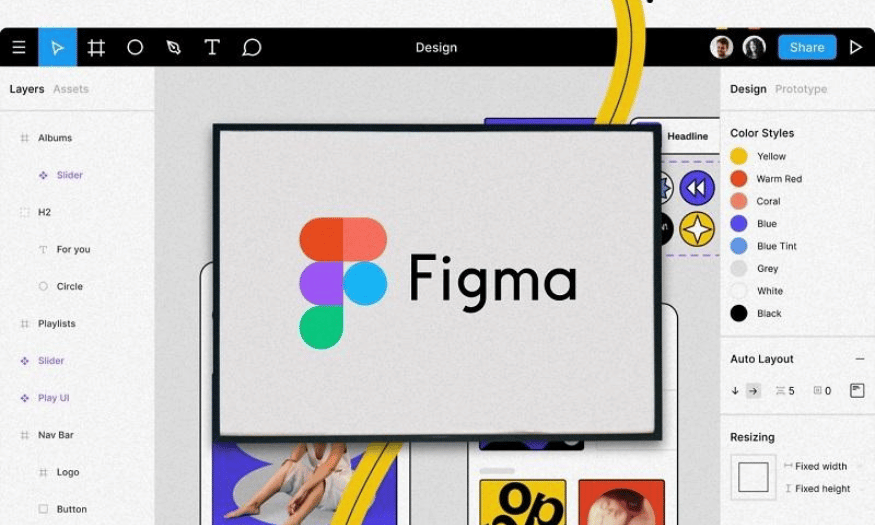
1. What is Figma?
Figma is a vector graphic design tool that operates directly on a web browser and is widely used in the field of UI (user interface) and UX (user experience) design. With the ability to flexibly create design templates and prototypes, Figma has become a leading choice for designers around the world. It provides the tools and resources needed for every stage of the design process, from developing ideas to converting them into actual code. This helps minimize the time and effort required to complete a project.
Figma can be compared to Google Docs for design. Just as Google Docs allows multiple people to edit a document at the same time, Figma allows multiple team members to work together on a design file in real time. This collaboration feature not only enhances creativity but also helps members easily exchange ideas, receive feedback, and monitor project progress without having to send multiple different versions back and forth. This is particularly useful in remote working environments, where teams often have to connect through digital platforms.
Dylan Field, the co-founder of Figma, once shared: “I noticed that the trend of working in digital interactive spaces had caused teams to change their way of thinking from ‘my idea’ to ‘our idea’.” This mindset led to the development of Figma, a tool that not only helps simplify the design process but also promotes collaboration and creativity within teams.
.png)
2. What are the common applications of Figma?
Figma is not only a design tool but also a versatile platform that serves many different needs in the design field. One of Figma’s most common applications is prototype design, allowing designers to create interactive models for their products. This helps developers and customers experience the product before it is fully developed, thereby minimizing risks and improving the user experience.
In addition, Figma is also very useful for designing wireframes for websites. With its drag-and-drop feature, users can quickly build the basic structure of a website without having to worry about design details. This saves time and allows designers to focus on developing ideas more creatively. Figma also supports interface design for mobile applications, helping designers create smooth and engaging user experiences on mobile devices.
Finally, Figma is also a powerful tool for designing social media posts. With many templates and customization tools, users can create eye-catching graphics that attract users’ attention in just a few simple steps. Figma’s flexibility and collaboration features help creative teams work more effectively, producing engaging content that is suitable for each media platform.
.png)
3. Which positions may need to use Figma?
Figma is not exclusively for designers but also serves many different positions within a project. First of all, UI/UX designers are the people who use Figma the most. They take advantage of this tool to create interface templates, prototypes, and wireframes, helping them clearly visualize the user experience. Thanks to its collaboration features, designers can receive immediate feedback from colleagues and customers, thereby improving designs quickly and effectively.
Next, front-end and back-end developers can also benefit from using Figma. When working on a project, they need to clearly understand how the user interface works and how data is organized. Figma allows them to easily access design templates, helping them obtain the information needed to develop the product. In this way, Figma becomes a bridge between design and programming, making the product development process smoother.
Finally, project managers and CTOs can also find value in using Figma. They need to monitor progress and ensure that all team members are moving in the right direction. Figma provides a visual platform where they can easily review designs, provide feedback, and adjust plans when necessary. This helps strengthen coordination within the team and ensures that everyone shares the same vision of the final product.
.png)
4. What are Figma’s outstanding features?
Figma is a unique design tool that not only helps designers but also enables the entire team to work together more effectively.
4.1 Tracking activities in real time
One of Figma’s most outstanding features is its ability to track activities in real time. Each user who accesses a project is represented by a separate avatar displayed on the toolbar. When clicking on a member’s avatar, you can easily see where they are positioned within the design and what operations they are performing. This feature not only helps everyone on the team understand the work progress but also creates opportunities for them to learn from one another. This is particularly useful during training sessions, where instructors can directly provide suggestions and guidance to newcomers, helping them quickly become familiar with the workflow.
Furthermore, Figma also provides notifications whenever changes are made to a design file, ensuring that all team members are promptly updated about important edits. Thanks to this feature, leaders can quickly understand the project’s situation and make timely adjustments if errors are detected. The combination of activity tracking and instant notifications makes the workflow smoother and minimizes potential problems that may arise during the design process.
4.2 Built-in Prototype
Figma also stands out with its built-in prototyping feature, allowing users to easily create simulations for their designed products. This feature not only helps you visualize how the product will operate when completed but also allows you to interact directly with elements on the interface. Unlike many other tools, Figma integrated this feature early on, meaning users do not need to switch to third-party applications such as Marvel or InVision. This not only saves time but also helps optimize the team’s workflow because all tasks, from design to prototyping, are performed on a single platform.
Furthermore, with Figma, whenever you make an edit in the team’s design library, the changes are automatically updated in the prototype without requiring you to export files or perform manual operations. This feature helps ensure that everyone is working with the latest and most accurate information, thereby increasing product development efficiency. This seamless process not only creates favorable conditions for designers but also helps developers easily understand and gain a clearer view of the interface they will be working with.
4.3 Commenting directly on design files
An indispensable feature in Figma is the ability to comment directly on design files. This feature allows team members to quickly record discussions, feedback, or evaluations during meetings without needing to use external tools. This saves a significant amount of time because you no longer need to take screenshots or transfer information to another file. Instead, all comments are recorded directly on the design, making it easy for everyone to monitor and handle the necessary issues.
More importantly, comment threads on Figma can be monitored through channels such as Slack or email, ensuring that no one on the team misses important information. Whenever a comment or edit is made, team members immediately receive a notification. This is very important, especially for developers, because they will not want to miss significant design changes that could affect their work progress. Thanks to this feature, team communication becomes more visual and effective.
4.4 Switching between multiple accounts
Figma allows users to easily switch between multiple different accounts without encountering any difficulties. With this feature, you can access all Figma accounts, workspaces, and community profiles on the same screen. This is very convenient for people working on multiple different projects or freelancers managing multiple clients. You can log in to up to 10 Figma accounts and quickly switch between them with just one click in the upper-right corner of the interface.
Being able to manage multiple accounts on the same platform not only saves time but also helps you keep your work organized and tidy. This feature allows users to easily access different projects without having to log out and log back in, which is particularly useful when you need to work on different projects within a short period of time. This flexibility helps increase productivity and improve the user’s working experience.
.png)
4.5 The Version History function helps manage file versions
Figma’s Version History function is a powerful tool that helps users effectively manage different versions of a file. Figma automatically saves your work through checkpoints every 30 minutes if there is no new activity. This means that you do not need to worry about losing data or being unable to return to a previous version when necessary. By simply selecting “Show Version History”, you can easily access the file’s version history in a timeline, thereby quickly understanding the changes that have been made.
This feature not only helps you monitor the project’s development but also allows you to return to previous versions when necessary. This is extremely important in a teamwork environment, where multiple members may make changes simultaneously. With this powerful version management capability, Figma helps ensure that everyone on the team clearly understands the changes that have occurred and can coordinate effectively. This transparency not only facilitates product development but also helps minimize potential risks that may arise during the design process.
5. Basic operations for develop
To become a successful Full-stack Developer, having knowledge of UI/UX design is essential. With its powerful features and user-friendly interface, Figma is an ideal tool for developers to become familiar with and interact with designs. Below are some basic operations that developers can perform on Figma to optimize their workflow.
5.1 Viewing the Inspect tab
The Inspect tab in Figma is the first tool that developers should become familiar with. Here, you can view all the properties of the elements in the design, including colors, dimensions, spacing, typography, and many other factors. This function is extremely useful when you need to understand detailed design information without having to ask the designer again. In addition, you can export this information into formats such as PNG and SVG or export it as code such as CSS, Swift, or XML for easy integration into the source code. If you need more powerful features for measuring and displaying CSS, Figma also supports the Zeplin plugin, making the conversion from design to code easier.
5.2 Selecting an element
.png)
Selecting an element is an essential operation in Figma. When clicking on an element, the program automatically selects the top layer. However, if you need to access the inner layers, you can hold down the Command key—or Control on Windows—and click on the desired element. In addition, you can also right-click on an element to display the “Select Layer” panel, allowing you to easily select the necessary elements. This helps you understand the design structure and quickly identify the position of each component.
5.3 Export Assets
Figma allows you to export assets in many different ways, helping developers easily integrate them into applications. To export individual assets, you simply need to select them and click the export button. If you want to export all available assets at once, use the Control/Command + Shift + E keyboard shortcut to open the Export Panel. This feature saves time, especially when you need multiple resources from a design quickly. Figma also supports directly exporting CSS that is compatible with both iOS and Android operating systems.
.png)
5.4 Checking spacing and dimensions
When working with elements, clearly understanding spacing and dimensions is very important. When you select an element, Figma displays visual spacing measurements in relation to the surrounding objects. To perform this operation, you can go to the Code Panel and select the element you want to measure. Then, move the cursor over another layer to view the spacing and dimensions in detail. This feature helps developers ensure that the design is implemented accurately and does not violate design rules.
6. Conclusion
If you need to upgrade Figma, Appvip is the place that will support you. With affordable prices, Appvip has always earned the trust of customers. This is not only a design tool but also an indispensable part of every designer’s creative journey. With support from Figma, creating perfect UI/UX products becomes easier than ever. Let Appvip be your reliable companion, helping you bring groundbreaking ideas to life and win over every customer with the most exceptional experiences.





















VIP Products








Best Selling Products
Capcut Pro 1 Year
39 USD
Upgrade Duolingo Super
29 USD
Genuine Adobe Illustrator account
99 USD
Copyright Adobe Lightroom Account
59 USD
Upgrade Genuine Office 365
49 USD
ChatGPT Plus Account (GPT-4)
16 USD
Autodesk All App Account Copyright
120 USD
Upgrade genuine Capture One account
120 USD
Adobe Photoshop Copyright - Full App
120 USD
Plugin Retouch4me
69 USD
Genuine Cheap Canva Pro
39 USD
Freepik Premium Account
59 USD
MidJourney Account
29 USD
Adobe Premiere Pro Account
99 USD
Windows 10 & 11 Pro Key
36 USD