Best Selling Products

Genuine Cheap Canva Pro
39 USD

Upgrade genuine Capture One account
120 USD

Windows 10 & 11 Pro Key
36 USD

ChatGPT Plus Account (GPT-4)
16 USD

Upgrade Genuine Office 365
49 USD

Freepik Premium Account
59 USD

Upgrade Duolingo Super
29 USD

Adobe Premiere Pro Account
99 USD

Copyright Adobe Lightroom Account
59 USD

Plugin Retouch4me
69 USD

Capcut Pro 1 Year
39 USD

Autodesk All App Account Copyright
120 USD

Adobe Photoshop Copyright - Full App
120 USD

Genuine Adobe Illustrator account
99 USD

MidJourney Account
29 USD
Guide to Batch Resize Images in Photoshop Simply and Save Time
Nội dung
- 1. Why is batch resizing images necessary?
- 1.1 Optimize website/blog loading speed
- 1.2 Standardize image library dimensions
- 1.3 Save storage space
- 1.4 Prepare images for printing and design
- 2. How to batch resize images in Photoshop
- 2.1 Method 1: Using Image Processor
- 2.2 Method 2: Using Actions & Batch
- 3. Tips and notes when batch resizing images in Photoshop
- 3.1 Work with copies
- 3.2 Check results after resizing
- 3.3 Prioritize JPG/JPEG format
- 3.4 Master the Image Size tool
- 4. Common mistakes when batch resizing images in Photoshop
- 4.1 Images become distorted or stretched
- 4.2 Reduced image quality after resizing
- 4.3 Images are not saved in the correct folder
- 4.4 Action errors during Batch execution
- 4.5 Photoshop freezes or runs slowly
- 5. Conclusion
In an era where images play a key role in marketing, design, and photography, processing large numbers of images in a short time has become an essential need for many creative professionals.
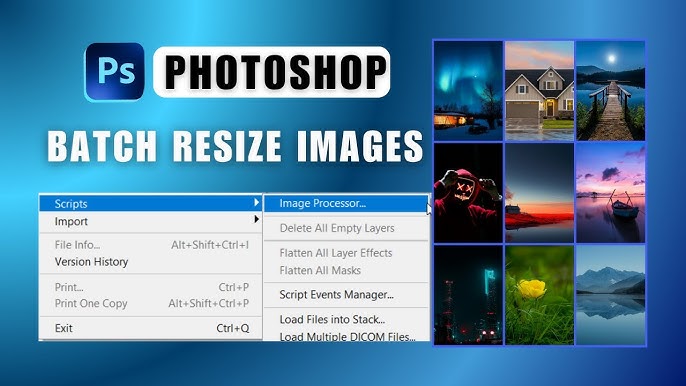
1. Why is batch resizing images necessary?
Instead of repeating the same task over and over, batch resizing helps optimize your post-processing workflow, ensuring all images are consistent in size while maintaining the required quality. With just one setup, you can process an entire image library quickly, reduce mistakes, and focus more on creative content production.
1.1 Optimize website/blog loading speed
One of the biggest reasons websites or blogs load slowly is oversized image files. High-resolution images that are not optimized increase loading times, frustrate visitors, and lower user retention rates. Therefore, resizing images in Photoshop is an essential step before uploading them to digital platforms.
Applying Photoshop batch resizing helps significantly reduce file size while maintaining sharp image display. Faster loading speeds improve user experience, and search engines also reward better performance with improved SEO rankings, increasing your chances of reaching the top search results.
1.2 Standardize image library dimensions
A professional image library does not only require beautiful images but also consistency in size. Images with inconsistent dimensions make website layouts, articles, or design projects look messy, reduce visual appeal, and weaken brand professionalism.
Using Photoshop’s automatic resizing makes it easy to standardize all image dimensions in just minutes. As a result, your image library becomes neat and unified, making layout arrangement, content presentation, and interface design much simpler and more effective.
1.3 Save storage space
When working with images long-term, storage capacity is always a concern. Large image files quickly fill hard drives, making backups, file sharing, and long-term image management more difficult.
Batch resizing in Photoshop is a smart way to optimize storage space. Resized images still maintain practical quality while significantly reducing file size, helping you save memory and manage data more efficiently.
1.4 Prepare images for printing and design
In printing and design, image size and resolution determine final output quality. If images are not resized correctly, printed products may appear blurry, stretched, or fail to meet color and layout standards.
Batch resizing in Photoshop helps prepare images consistently before placing them into designs or sending them for printing. This ensures output quality while saving time otherwise spent re-editing individual files, especially useful for large-scale projects or handling large image collections.
.jpg)
2. How to batch resize images in Photoshop
2.1 Method 1: Using Image Processor
Image Processor is a built-in Photoshop feature that allows batch processing with just a few simple steps. Its advantage lies in its intuitive interface, ease of use, and no need to create complicated Actions.
If you need to resize images in bulk for websites, client delivery, or storage, Image Processor helps complete the task quickly while preserving image sharpness and proper proportions.
2.1.1 Step 1: Open Image Processor in Photoshop
First, launch Photoshop on your computer. Once the main interface is ready, go to the top menu and select File → Scripts → Image Processor. This opens the batch resizing tool in Photoshop.
After clicking, the Image Processor window will appear with clearly organized sections. This layout helps users easily set up resizing workflows without advanced technical knowledge.
.jpg)
2.1.2 Step 2: Select the image folder and output folder
In the first section, click Select Folder… to choose the folder containing the images to resize. Photoshop will automatically detect and process all images inside, so you do not need to open files individually.
Next, in the second section, click Select Folder… again to choose where resized images will be saved. It is recommended to create an empty folder in advance for easier management and to avoid overwriting original files. This ensures your source files remain intact if needed later.
.jpg)
2.1.3 Step 3: Choose file format and set image dimensions
In the third section, choose the export format that suits your needs, such as JPEG, PSD, or TIFF. Each format serves different purposes: JPEG is ideal for web use, while PSD and TIFF are better for storage and advanced editing.
Then check Resize to Fit and enter your desired dimensions, usually maximum width or height. Photoshop will automatically resize proportionally, preventing distortion or stretching. Once all settings are complete, click Run, and Photoshop will automatically resize all selected images quickly and accurately.
.jpg)
2.2 Method 2: Using Actions & Batch
Besides Image Processor, using Actions & Batch is a Photoshop batch resizing method favored by many designers and photographers due to its flexibility. This method allows you to “record” a sample resizing process and apply it to an entire image folder with just a few clicks.
Its greatest advantage is deep customization. You can combine resizing with other tasks such as saving files, converting formats, or optimizing image quality, making it ideal for repetitive workflows.
2.2.1 Step 1: Open the Actions panel and prepare a sample file
First, open any image file in Photoshop as a sample. This image will be used to set dimensions and actions before applying them to all other files.
Next, go to Window → Actions to open the Actions panel. Once visible, you are ready to create a new automated resizing action.
.jpg)
2.2.2 Step 2: Create a new Action and start recording
In the Actions panel, click the plus (+) icon at the bottom to open the New Action dialog. Enter a name, preferably something clear like “Batch Resize Images” for easy management later.
After naming it, click Record. From this point on, Photoshop records every action you perform on the sample file, so ensure the following steps are accurate for effective automation.
.jpg)
2.2.3 Step 3: Resize the image and save the Action
While recording, go to Image → Image Size and adjust dimensions as needed. Enter the appropriate width, height, or resolution while maintaining proportions to prevent distortion.
After resizing, click OK and then Save the file. All these actions are recorded in the Action sequence. Once finished, return to the Actions panel and click Stop to end recording.
(1).jpg)
2.2.4 Step 4: Apply the Action to multiple images using Batch
Next, go to File → Automate → Batch to open the Batch dialog. This is where you apply the recorded Action to an entire image folder in one run.
In the Batch window, select the resizing Action you created, then click Choose to select the source folder. Finally, confirm the output folder and click OK. Photoshop will automatically resize all images according to your recorded settings, saving significant time and effort.
.jpg)
3. Tips and notes when batch resizing images in Photoshop
3.1 Work with copies
One of the most important principles when batch resizing images in Photoshop is to always work with copies rather than directly editing original files. Resizing, especially downsizing, may permanently remove image data and cannot always be fully restored later.
Working with copies allows experimentation with different sizes without risking original files. It also makes file management more professional and simplifies future reuse for printing or design projects.
3.2 Check results after resizing
After completing Photoshop resizing, do not use files immediately. Take time to review results to ensure dimensions are correct, proportions are preserved, and image sharpness remains acceptable.
Careful checking helps detect mistakes such as incorrect dimensions, wrong save location, or excessive quality loss, allowing quick correction without reprocessing everything.
3.3 Prioritize JPG/JPEG format
When batch resizing in Photoshop, JPG/JPEG is often the best choice for most uses, especially websites, blogs, or social media uploads. This format offers excellent compression while maintaining strong display quality.
However, avoid over-compression to prevent blurry or pixelated results. Choosing balanced quality settings ensures optimized file size without sacrificing sharpness.
3.4 Master the Image Size tool
Understanding how the Image Size dialog works is crucial for effective resizing. It not only lets you adjust width and height but also control resolution, aspect ratio, and output quality.
When mastered, you will know when to preserve proportions, when to change resolution, and how to resize without degrading quality. This is an essential skill for handling large projects or high-standard visual work.
.jpg)
4. Common mistakes when batch resizing images in Photoshop
4.1 Images become distorted or stretched
A common error is entering new width and height values without maintaining the original aspect ratio, causing unnatural stretching or squashing.
To avoid this, ensure Constrain Proportions or the link icon between width and height remains enabled in the Image Size dialog. Photoshop will then automatically resize proportionally.
4.2 Reduced image quality after resizing
Batch resizing is convenient, but incorrect settings can lower image quality. Low resolution, poor interpolation choices, or enlarging images beyond original size can make images blurry and lacking detail.
Use Bicubic Sharper when downsizing and verify DPI settings before saving. Starting from high-quality originals also ensures sharper results.
4.3 Images are not saved in the correct folder
Many users experience misplaced files after batch resizing due to incorrect output folder selection in Image Processor or Batch settings.
To avoid this, double-check save paths before processing. Creating clearly named empty folders ensures better organization and smoother workflows.
4.4 Action errors during Batch execution
When using Actions & Batch, Actions may fail or stop midway if recorded with file-specific operations like custom layer names, canvas sizes, or inconsistent formats.
To minimize errors, keep Actions simple and focused only on resizing and saving, avoiding overly personalized steps. This ensures flexibility across multiple files.
4.5 Photoshop freezes or runs slowly
When processing large files in bulk, Photoshop may freeze or slow down due to hardware limitations.
To improve performance, close unnecessary applications and split images into smaller groups. Processing manageable batches reduces system strain and ensures stable performance.
5. Conclusion
It is clear that mastering batch resizing in Photoshop not only speeds up your workflow but also improves efficiency and professionalism when working with images. Instead of editing files one by one, you can fully control dimensions, formats, and quality with a single setup, especially useful for large projects or exporting image sets for websites, social media, or print.
When applied correctly, batch resizing not only saves time but also minimizes risks such as incorrect sizes, distorted proportions, or inconsistent image quality. Photoshop is not as complicated as many people think—the key is knowing how to use the right tools and features effectively.
Hopefully, with the insights shared by Appvip, you now have a clearer understanding of batch resizing images in Photoshop and can apply it directly to real-world tasks, optimizing your workflow, improving productivity, and leaving more time for important creative ideas.





















VIP Products








Best Selling Products
Genuine Cheap Canva Pro
39 USD
Upgrade genuine Capture One account
120 USD
Windows 10 & 11 Pro Key
36 USD
ChatGPT Plus Account (GPT-4)
16 USD
Upgrade Genuine Office 365
49 USD
Freepik Premium Account
59 USD
Upgrade Duolingo Super
29 USD
Adobe Premiere Pro Account
99 USD
Copyright Adobe Lightroom Account
59 USD
Plugin Retouch4me
69 USD
Capcut Pro 1 Year
39 USD
Autodesk All App Account Copyright
120 USD
Adobe Photoshop Copyright - Full App
120 USD
Genuine Adobe Illustrator account
99 USD
MidJourney Account
29 USD