Best Selling Products

ChatGPT Plus Account (GPT-4)
16 USD

Upgrade genuine Capture One account
120 USD

Genuine Cheap Canva Pro
39 USD

MidJourney Account
29 USD

Adobe Photoshop Copyright - Full App
120 USD

Upgrade Duolingo Super
29 USD

Capcut Pro 1 Year
39 USD

Plugin Retouch4me
69 USD

Windows 10 & 11 Pro Key
36 USD

Autodesk All App Account Copyright
120 USD

Copyright Adobe Lightroom Account
59 USD

Adobe Premiere Pro Account
99 USD

Freepik Premium Account
59 USD

Upgrade Genuine Office 365
49 USD

Genuine Adobe Illustrator account
99 USD
Guide to Connecting Gmail with Canva AI Quickly and Simply for Beginners
Nội dung
- 1. Why Should You Connect Gmail with Canva AI?
- 2. Guide to Connecting Gmail with Canva AI
- 2.1. Step 1: Open the App Connection Feature
- 2.2. Step 2: Connect Gmail with Canva
- 2.3. Step 3: Ask Canva AI to Compile Your Emails
- 2.4. Step 4: Create and Edit Slides
- 3. What Can You Do After Connecting Gmail with Canva AI?
- 3.1. Compiling and Summarizing Emails
- 3.2. Creating Slides from Email Content
- 3.3. Preparing Reports and Documents
- 3.4. Preparing Content for a Meeting
- 4. Tips for Using Canva AI with Gmail More Effectively
- 5. Things to Note When Connecting Gmail with Canva AI
- 6. What to Do If You Can't Connect Gmail with Canva
- 8. Conclusion
Gmail is where a huge amount of work-related information is stored, from customer correspondence and project plans to documents and important updates. However, when you have to search through emails one by one and then copy the content into a design tool, you can end up spending a lot of time on repetitive tasks. Connecting Gmail with Canva AI is a way to shorten this process. Once linked, you can ask Canva AI to search and compile information from your emails based on specific conditions, then help turn that content into slides or visual documents. If this is your first time using this feature, don''''''''''''''''''''''''''''''''t worry — the steps are relatively simple. Let''''''''''''''''''''''''''''''''s join Appvip in exploring the detailed steps for connecting Gmail with Canva AI below.
1. Why Should You Connect Gmail with Canva AI?
If you regularly make reports, presentations, or process information from emails, manually transferring data between Gmail and Canva can take quite a lot of time. You have to open each email, pick out the content you need, copy it, and then go back to Canva to organize it. As the number of emails grows, this process becomes even more tedious and prone to missing information.
Connecting Gmail with Canva AI makes the workflow more seamless. Instead of filtering through each email yourself, you can give a specific request and let AI help search and organize the content. The selected information can then be developed further into slides or visual documents, giving you a quick draft to edit.
Some notable benefits of connecting Gmail with Canva AI include:
- Saves time: Significantly reduces the back-and-forth between Gmail and Canva.
- Quick email compilation: Helps find and organize content by sender, time period, or specific request.
- Helps build slides: Turns long email content into visual, easy-to-follow material.
- Reduces manual work: No need to constantly copy and paste individual pieces of content.
- Easy to edit: After Canva AI generates the content, you can still change the wording, layout, colors, images, and fonts as needed.
- Helps with work preparation: Information scattered across many emails can be gathered together for reports, meetings, or presentations.
.jpg)
2. Guide to Connecting Gmail with Canva AI
To get started, you need to log into your Canva account on your computer and go to the Canva AI area. The interface may vary slightly depending on the time or the version of Canva you're using, so the names of some buttons may not be exactly the same. Basically, the process consists of the main steps of opening the list of supported apps, selecting Gmail, granting connection permissions, and then giving a request for Canva AI to process your emails. Below is a detailed step-by-step guide so even beginners can do this easily.
2.1. Step 1: Open the App Connection Feature
First, go to Canva AI and log in with your Canva account. On the Canva AI interface, find the area that allows connecting with external apps. You can click the plus (+) icon, then select Connect apps to open the list of services that can be linked.
At this step, you should carefully check which Canva account you're logged into. If you use several different accounts, identifying the correct one from the start will help you avoid having to redo the process. After opening the app list, Canva will display the services currently available for connection for you to choose from.
.png)
2.2. Step 2: Connect Gmail with Canva
In the app list, scroll down or use the search function to find Gmail. Click on Gmail to open the introduction and connection setup section. When the information window appears, select Connect to begin the account-linking process.
Next, Canva will ask you to complete a few confirmation steps and grant the necessary permissions. Carefully read what's shown on screen and follow the instructions. Depending on your account and security settings, you may need to select the Google account you want to use or confirm access permissions. Once the process is complete, Gmail will be linked to Canva and ready to be used in requests to Canva AI.
.png)
2.3. Step 3: Ask Canva AI to Compile Your Emails
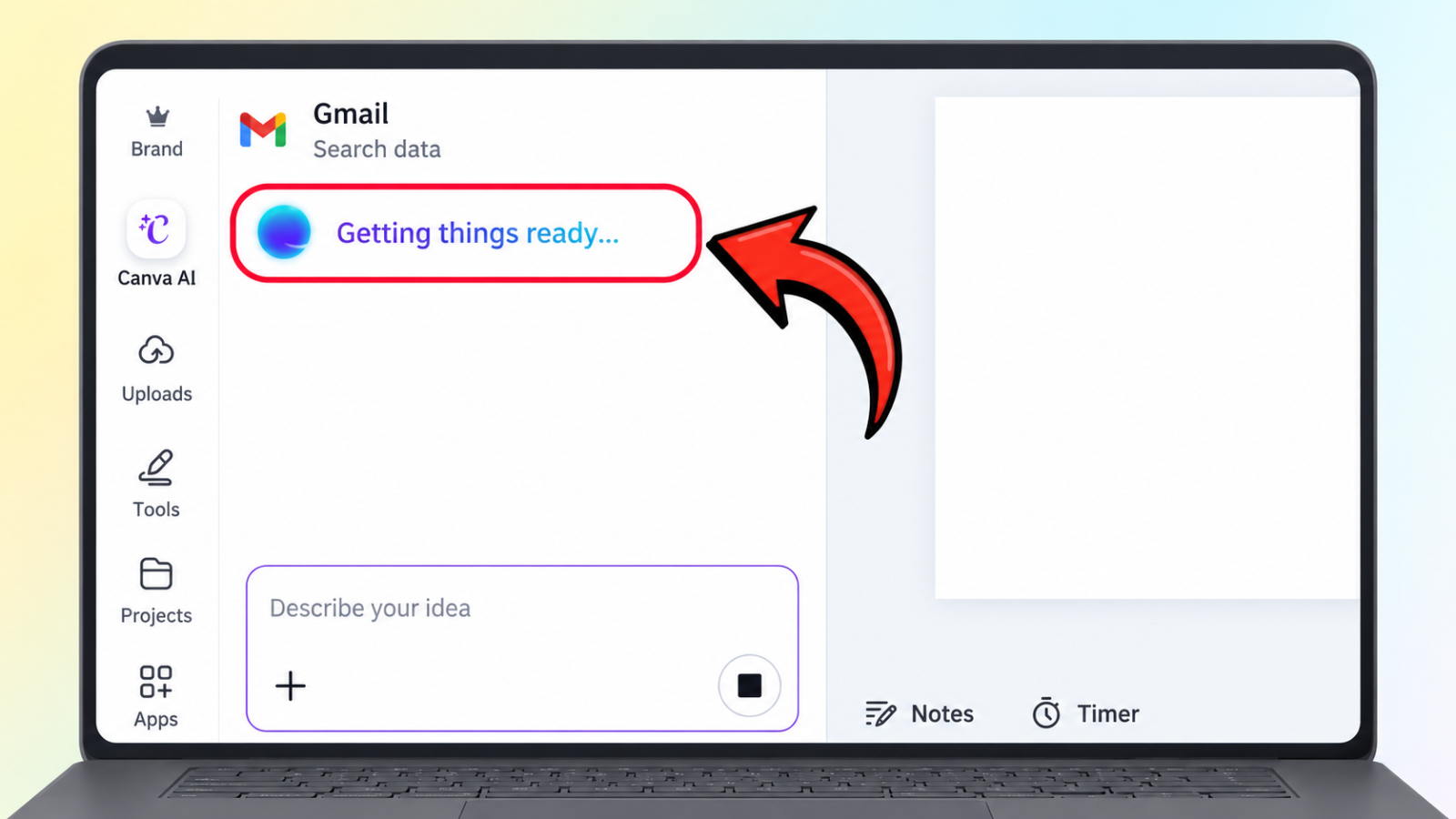
After a successful connection, this is when you can start tapping into your Gmail data. In the Canva AI workspace, enter your request as specifically as possible. For example, you could ask: "Create slides for me from all the emails I received during [time period] from abc@gmail.com."
After entering your request, click Send and wait for Canva AI to process it. The tool will use the conditions you provided to search for relevant emails, then compile the information into content for your design. Instead of having to open dozens of emails one by one, you can quickly get a section of already-organized information. To get results closer to what you need, write your request clearly, specifying the sender, time period, topic, or intended purpose. For example, if you're preparing for a project meeting, you could ask for a compilation of emails related to the project within a certain time period, focusing on content such as progress, outstanding issues, or work that needs to be handled.
2.4. Step 4: Create and Edit Slides
Once Canva AI has compiled the content, you can select Create presentation to turn the information into slides. Canva will use the processed content to build a layout and divide the information into sections, giving you an initial presentation without having to start from a blank page. However, the design created by AI should still be treated as a draft for you to review and refine. Open each slide, review the content, and correct any information that's inaccurate or doesn't fit the purpose of the presentation. You can also change the font style, colors, images, layout, and how the content is arranged so the presentation has your own personal touch.
If you no longer want to keep using the Gmail connection, you can go to the connected apps management section and turn off the connection using the option Canva provides. Before disconnecting, check whether you still need to use data from Gmail for work you're currently doing.
3. What Can You Do After Connecting Gmail with Canva AI?
What's interesting about connecting Gmail with Canva AI is the ability to bring information that's otherwise scattered across your inbox into the content-creation process. You don't have to use this feature just to create slides. With the right kind of request, email data can become a useful information source for many different tasks. This is especially true for people who regularly receive a lot of emails each day, where digging up old information can sometimes take more time than expected. When you can ask AI to help compile information based on specific criteria, it becomes much easier to picture the content you need to work with before you even start designing.
.png)
3.1. Compiling and Summarizing Emails
If a topic has a lot of back-and-forth emails, you can ask Canva AI to compile the related information so it's easier to grasp the main points. Instead of rereading every single email, you can focus on the important points, such as new information, changes in plans, or issues that need to be resolved.
This is especially useful when you need to quickly review an old chain of correspondence. However, for important content, you should still cross-check it against the original emails before using it, to make sure the information is understood in its correct context.
3.2. Creating Slides from Email Content
One of the most obvious uses is turning email content into a presentation. If you've received a lot of information about a project, Canva AI can help organize it into content sections to develop into slides.
Once you have a draft, you can continue editing it based on the intended use. For example, a presentation for an internal meeting might prioritize progress and work that needs to be handled, while a document sent to a client should be presented more concisely, professionally, and in an easier-to-follow way.
3.3. Preparing Reports and Documents
Emails often contain a lot of important work updates. If you had to manually compile all this information into a report yourself, it could take quite a bit of time to filter and organize it.
Canva AI can help turn compiled data into a more visual content structure. You can use the result as a foundation for building a report, proposal, or introductory document. The final version should still be reviewed and manually edited to ensure accuracy.
3.4. Preparing Content for a Meeting
Before a meeting, rereading a whole batch of emails to remember the entire back-and-forth can be quite stressful. Instead, you can ask AI to compile the emails related to the meeting topic and focus on the important information.
From this compilation, you can quickly build content for meeting slides, a list of issues to discuss, or tasks that need to be tracked. As a result, preparation time is shortened and the meeting content also has a clearer structure.
4. Tips for Using Canva AI with Gmail More Effectively
When giving a request to Canva AI, the factor that determines the quality of the result lies not only in the tool but also in how you describe what you want. A request that's too generic can make it hard for AI to pinpoint exactly the information you need. So instead of writing "Summarize my emails for me," add details such as the sender, time period, topic, and intended use.
You should also break complex requests into separate parts. First, let AI compile the information, then ask it to build a slide structure, and only after that edit the design. This approach makes it easier to control the results and quickly spot anything that doesn't fit.
Some example requests you can reference:
- "Compile emails from [sender] during [time period]."
- "Summarize the important content in the emails related to [topic]."
- "Organize the information in these emails into a presentation structure."
- "Create concise slide content from the emails related to [project]."
- "Compile the issues that need to be handled mentioned in emails during [time period]."
.jpg)
5. Things to Note When Connecting Gmail with Canva AI
Before granting connection permissions, you should carefully read the information displayed by Canva and Google. In particular, make sure you're selecting the correct Google account and understand the scope of permissions the app is requesting. This is a small but very important step if you use multiple Gmail accounts for different purposes.
In addition, you shouldn't rely completely on the results generated by AI. Emails can contain information that depends on context, phrasing, or previous exchanges. So if you're using the compiled content for a report, client work, or an important document, double-check the original emails before sending or publishing it.
You should also limit putting sensitive information into this process if it's not truly necessary. Connecting services should be done in a controlled way, and you should regularly review which apps have been granted access to your account.
6. What to Do If You Can't Connect Gmail with Canva
If you can't find Gmail in the app list, first check your Canva account and try reloading the page. Some features may depend on the version, region, account type, or the timing of Canva's feature rollout. So your actual interface may differ from this guide.
If you've selected the connection but the permission-granting process doesn't complete, check the Google account you're logged into and the access-confirmation steps. You can also try logging out and back into Canva, using a different browser, or clearing your browser data if the interface is behaving unstably.
If the feature still isn't working, don't rush to make too many changes at once. Identify exactly at which step the error occurs — from opening the app list, selecting Gmail, granting permissions, to sending a request to Canva AI. Pinpointing the exact point of failure will help you resolve it faster and more accurately.
7. Should You Connect Gmail with Canva AI?
If your work regularly involves processing emails and then turning that information into slides, reports, or visual documents, connecting Gmail with Canva AI is an option worth trying. The convenience lies in reducing manual work and helping you quickly turn information in your inbox into structured content.
That said, AI should be seen as a supporting tool rather than a complete replacement for the user's own review process. You still need to review the content, adjust the wording, and redesign the slides to fit your intended purpose. When you combine AI's information-processing ability with human oversight, the workflow becomes faster while still maintaining quality.
8. Conclusion
Connecting Gmail with Canva AI can significantly cut down the time spent processing information, especially when you have to work with many emails at once. From compiling messages and summarizing content to building slides and visual documents, tasks that used to take a lot of time can be simplified into a more convenient process. Hopefully this guide has helped you understand clearly how to connect Gmail with Canva AI and how to make the most of this feature. When using it, remember to write specific requests, carefully check the content AI compiles, and manage access permissions carefully. With just a few simple steps, Gmail can fully become a useful data source for you to create more professional presentations and documents on Canva.





















VIP Products








Best Selling Products
ChatGPT Plus Account (GPT-4)
16 USD
Upgrade genuine Capture One account
120 USD
Genuine Cheap Canva Pro
39 USD
MidJourney Account
29 USD
Adobe Photoshop Copyright - Full App
120 USD
Upgrade Duolingo Super
29 USD
Capcut Pro 1 Year
39 USD
Plugin Retouch4me
69 USD
Windows 10 & 11 Pro Key
36 USD
Autodesk All App Account Copyright
120 USD
Copyright Adobe Lightroom Account
59 USD
Adobe Premiere Pro Account
99 USD
Freepik Premium Account
59 USD
Upgrade Genuine Office 365
49 USD
Genuine Adobe Illustrator account
99 USD