Best Selling Products

MidJourney Account
29 USD

Adobe Premiere Pro Account
99 USD

Copyright Adobe Lightroom Account
59 USD

Autodesk All App Account Copyright
120 USD

Capcut Pro 1 Year
39 USD

Upgrade genuine Capture One account
120 USD

Genuine Cheap Canva Pro
39 USD

Adobe Photoshop Copyright - Full App
120 USD

Plugin Retouch4me
69 USD

Genuine Adobe Illustrator account
99 USD

Upgrade Duolingo Super
29 USD

ChatGPT Plus Account (GPT-4)
16 USD

Freepik Premium Account
59 USD

Windows 10 & 11 Pro Key
36 USD

Upgrade Genuine Office 365
49 USD
How to Download YouTube Shorts to Your Phone Quickly, Safely, and Legally
Nội dung
- 1. Should You Download YouTube Shorts Videos to Your Phone?
- 2. How to Download a YouTube Shorts Video to Your Phone Using a Link
- 2.1. Step 1: Open the Shorts Video You Want to Save
- 2.2. Step 2: Copy the Shorts Link
- 2.3. Step 3: Open a Video Downloader Tool in Your Browser
- 2.4. Step 4: Paste the Shorts Video Link
- 2.5. Step 5: Choose Quality and Download the Video
- 3. How to Save Shorts on YouTube Without Downloading the Video to Your Device
- 3.1. Step 1: Open the Shorts Video You Want to Save
- 3.2. Step 2: Select "Save to Playlist"
- 3.3. Step 3: Create a New Playlist If Needed
- 4. The Risks of Using Third-Party Websites to Download Shorts
- 5. Copyright Notes When Downloading YouTube Shorts Videos
- 6. Comparing the Safety Level of Different Ways to Save Shorts
- 7. Tips for Downloading Shorts Safely, Avoiding Full Storage and Data Loss
- 8. Conclusion
YouTube Shorts increasingly features engaging short videos — from useful tips and entertainment to creative moments that make viewers want to save them to watch again and again. However, downloading a YouTube Shorts video to your phone isn''''t as simple as just copying a link and downloading it. You need to choose the right method to limit security risks while also respecting copyright and YouTube''''s terms of service. In the article below, Appvip will walk you through the detailed ways to save Shorts on your phone, from the safe option built right into YouTube to things to watch out for when using external tools.
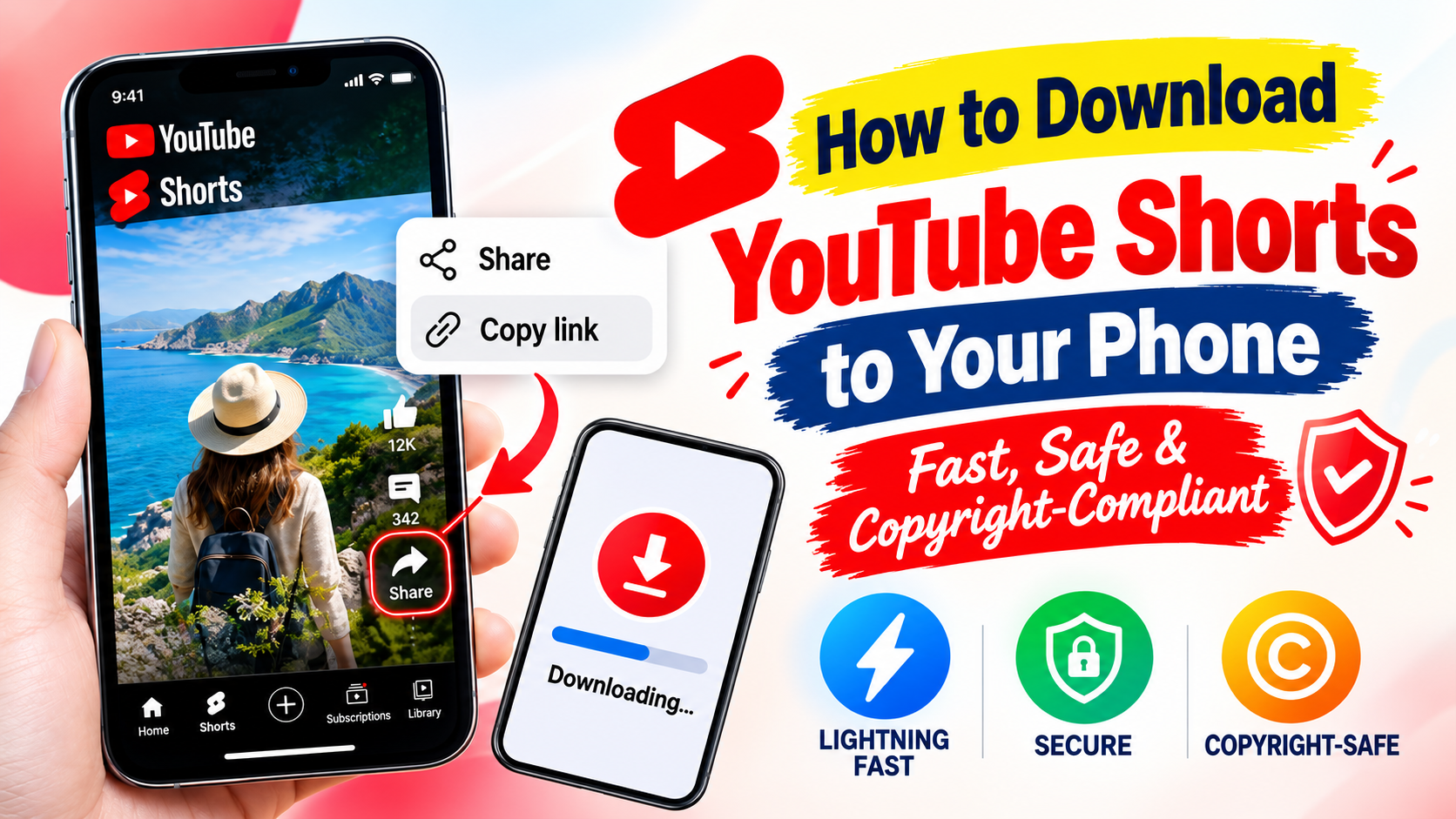
1. Should You Download YouTube Shorts Videos to Your Phone?
Shorts are typically short in duration, which makes it very easy for users to want to save one right away when they come across interesting content. For example, you might want to rewatch a study tip, a recipe, a product tutorial, or an entertaining video when you don't have time to search for it again on YouTube. Saving a video for personal purposes can help you manage your favorite content more conveniently, but that doesn't mean every video can be freely downloaded and used.
The most important point comes down to content usage rights. A Shorts video may belong to the creator or may contain images, audio, music, and other elements that are copyrighted by other parties. So if you want to download a video to your device, you should prioritize YouTube's official features, or only download and use content that you have the right to store and use. In particular, you shouldn't download someone else's video and then repost it, edit it to monetize, or use it for commercial purposes without permission.
2. How to Download a YouTube Shorts Video to Your Phone Using a Link
If you've confirmed that a video is allowed to be downloaded and want to use an appropriate support tool, a common method is to grab the Shorts link and process it through a video downloading service. This method is relatively easy to do on both Android and iPhone since it doesn't require complicated steps. However, be sure to carefully check the video's usage rights before downloading, especially if you plan to repost or use the content beyond personal purposes.
2.1. Step 1: Open the Shorts Video You Want to Save
First, open the YouTube app on your phone and find the Shorts video you want to save. Double-check the channel name, content, and video source to avoid confusion, especially when there are multiple Shorts using similar images or topics.
While the video is playing, find the Share button on the Shorts interface and tap it. This lets you get the exact video link instead of having to copy the URL manually or search for it again using keywords. Using the correct link also helps prevent downloading the wrong video.
2.2. Step 2: Copy the Shorts Link
After tapping Share, an options panel will appear. Select Copy link to save the video's URL to your phone's clipboard. At this point, you don't need to close YouTube right away if you want to double-check the video or the channel that posted it.
A Shorts link usually contains information that identifies the specific video. So make sure you've copied the correct video you want to save. If your phone shows a notification that the link has been copied, you can switch to your browser to do the next step.
.png)
2.3. Step 3: Open a Video Downloader Tool in Your Browser
Open Safari, Chrome, or your preferred browser on your phone. Then go to a legitimate, trustworthy YouTube video downloading service, provided that service is allowed to be used for content you have the right to download.
At this step, be especially careful with websites that ask you to install additional apps or extensions of unclear origin, or that ask for your YouTube account information. A download page that shows too many ads, automatically redirects to another website, or repeatedly asks for unusual permissions is also a sign that you should stop.
2.4. Step 4: Paste the Shorts Video Link
On the tool's interface, find the URL input field and paste the Shorts link you just copied. Double-check the video information shown to make sure it's exactly the content you want to save.
If the website asks you to log into your YouTube account, download additional software, or provide a password, you shouldn't casually continue. For personal content-downloading needs, there's no legitimate reason to share your Google account password with a website that isn't YouTube.
.jpg)
2.5. Step 5: Choose Quality and Download the Video
If the tool offers multiple options, you can choose a suitable resolution such as 720p or 1080p, depending on the video's original quality and the remaining storage space on your phone. Higher-resolution video usually looks sharper but also takes up more storage space.
After making your selection, tap Download and wait for the process to finish. Once the video has downloaded, check your downloads folder or file manager app on your phone. Don't open files with unusual extensions or install any app that the website downloads without your intention.
3. How to Save Shorts on YouTube Without Downloading the Video to Your Device
If your goal is simply to rewatch a Shorts video, you don't actually need to download the video file to your phone. YouTube has a feature to save content to a playlist, letting you bookmark your favorite videos and find them again quickly without using up extra device storage. This is also a safer and more convenient option if you regularly save a lot of Shorts. The video stays on YouTube, and you just open your saved list to watch it again. Of course, this method depends on the video still existing on YouTube and your device having an Internet connection when you go to watch it.
3.1. Step 1: Open the Shorts Video You Want to Save
Open YouTube and play the Shorts video you want to keep. Instead of trying to download the file to your device, look for the three-dot icon or the options menu on the video interface.
Depending on the app version and device, the position of these buttons may vary slightly. So if you don't immediately see a save option, just open the video's menu to find the feature related to playlists.
3.2. Step 2: Select "Save to Playlist"
After opening the menu, select Save to playlist. YouTube will let you choose an existing playlist or create a new one.
You can create your own playlists such as "Favorite Shorts," "Study Videos," "Recipes," or "Videos to Rewatch." This kind of organization is especially useful if you watch Shorts often and don't want to waste time searching for them again.
3.3. Step 3: Create a New Playlist If Needed
If you don't have a suitable playlist yet, select New playlist and name it according to your needs. Once saved, the video will be added to the corresponding playlist, and you can access it again from YouTube's Library section.
Compared to downloading a large batch of videos to your device, this method helps keep your phone's storage from filling up quickly. It's also the preferable option when you just want to bookmark content to watch later rather than needing a standalone video file.
.jpg)
4. The Risks of Using Third-Party Websites to Download Shorts
Online video downloader websites have the advantage of being quick to use and usually don't require installing an app. However, users may also run into annoying ads, fake download buttons, pop-up windows, or unwanted redirect pages. Some websites may even request access permissions or download files that you didn't actively choose.
The bigger risk lies in device security and personal data. You shouldn't enter your Google account, password, verification code, or other sensitive information into a video downloading website of unclear origin. If your browser warns that a website is unsafe, a downloaded file shows unusual signs, or a page repeatedly asks you to install software, it's best to close the page and look for another option.
Beyond security concerns, you also need to think about copyright. Downloading a video to your phone doesn't mean you now own it or have the right to exploit it. Reposting, editing, using it in ads, or monetizing it can raise copyright issues if you don't have the necessary permission.
5. Copyright Notes When Downloading YouTube Shorts Videos
Before downloading a Shorts video to your phone, be clear about the distinction between saving to watch and reusing the content. If the video is something you created yourself, the usage-rights question is usually simpler. If it's a video from another creator, you need to consider the conditions the owner has set before copying or using it.
In particular, you shouldn't download someone else's Shorts video and then repost it unchanged on TikTok, Facebook, YouTube, or other platforms and present it as your own content. Crediting the original author can show respect for the source, but in many cases it still doesn't substitute for permission to use copyrighted content.
In addition, a video may contain music, images, footage, or intellectual property belonging to several different parties. So even if the poster allows the video to be shared, you should still check the usage conditions for the elements within it if you intend to use the video for commercial purposes.
.jpg)
6. Comparing the Safety Level of Different Ways to Save Shorts
Not every method offers the same level of safety. If you prioritize security, protecting personal data, and minimizing copyright issues, you should start with the features already built into the YouTube ecosystem before turning to external tools.
7. Tips for Downloading Shorts Safely, Avoiding Full Storage and Data Loss
Before downloading a video, check your phone's available storage. If you frequently download 1080p videos, your storage can fill up fairly quickly, especially on devices with lower storage capacity. You should delete videos you no longer need and organize files into separate folders for easier management.
In addition, only download files from sources you trust. Don't grant unnecessary permissions to websites or apps, don't install APK files from unknown sources on Android, and don't provide your Google login information to a video downloading tool. On iPhone, carefully check the Files folder after downloading to avoid accidentally opening unidentified files.
Another tip is to prioritize a quality level that's just enough for your needs. If you're only watching on your phone screen, 720p video is often more than enough for typical viewing. Choosing the right resolution helps reduce storage usage while still keeping a stable viewing experience.
.jpg)
8. Conclusion
Downloading a YouTube Shorts video to your phone can be done fairly quickly, but the important thing isn't finding the fastest download tool — it's choosing a safe method that's appropriate for the content's usage rights. If you just want to rewatch a video, YouTube's Save to playlist feature is a convenient, low-risk choice that won't fill up your phone's storage. If you do need to download a video file, check the source, avoid suspicious websites or apps, and pay special attention to copyright. When using someone else's Shorts, respect the creator and only use the content within permitted limits. Downloading the right way not only helps protect your device but also helps you use digital content in a more civilized, safe, and responsible manner.





















VIP Products








Best Selling Products
MidJourney Account
29 USD
Adobe Premiere Pro Account
99 USD
Copyright Adobe Lightroom Account
59 USD
Autodesk All App Account Copyright
120 USD
Capcut Pro 1 Year
39 USD
Upgrade genuine Capture One account
120 USD
Genuine Cheap Canva Pro
39 USD
Adobe Photoshop Copyright - Full App
120 USD
Plugin Retouch4me
69 USD
Genuine Adobe Illustrator account
99 USD
Upgrade Duolingo Super
29 USD
ChatGPT Plus Account (GPT-4)
16 USD
Freepik Premium Account
59 USD
Windows 10 & 11 Pro Key
36 USD
Upgrade Genuine Office 365
49 USD