Best Selling Products

Genuine Cheap Canva Pro
39 USD

Adobe Photoshop Copyright - Full App
120 USD

Capcut Pro 1 Year
39 USD

Plugin Retouch4me
69 USD

Copyright Adobe Lightroom Account
59 USD

ChatGPT Plus Account (GPT-4)
16 USD

MidJourney Account
29 USD

Autodesk All App Account Copyright
120 USD

Adobe Premiere Pro Account
99 USD

Upgrade Duolingo Super
29 USD

Genuine Adobe Illustrator account
99 USD

Upgrade genuine Capture One account
120 USD

Upgrade Genuine Office 365
49 USD

Windows 10 & 11 Pro Key
36 USD

Freepik Premium Account
59 USD
Guide to Fixing Veo 3 Video Error With No Sound
Nội dung
- 1. Why is Veo 3 so popular?
- 1.1. Create videos from text (Text-to-Video)
- 1.2. Integrated synchronized audio
- 1.3. High-end image quality
- 1.4. Advanced creative control
- 2. Applications of Veo 3 in daily life
- 3. Causes of Veo 3 videos having no sound
- 4. Guide to handling Veo 3 video error with no sound
- 4.1 Check the input Prompt again
- 4.2 Choose a lower resolution
- 4.3 Choose Highest Quality (Experimental Audio) Veo 3
- 5. Guide to creating audio for Veo 3 videos with no sound
- 5.1 Insert audio from a 720p video into a 1080p video
- 5.2 Use Vbee AIVoice to create audio for Veo 3 videos
- 6. Address to buy cheap Google AI Ultra, VEO 3 accounts
- 6.1 Why should you buy a Google AI Ultra account at Appvip?
- 6.2 Appvip – A reputable Google partner in Vietnam
- 6.3 Customers are number 1 at Appvip
- 7. Conclusion
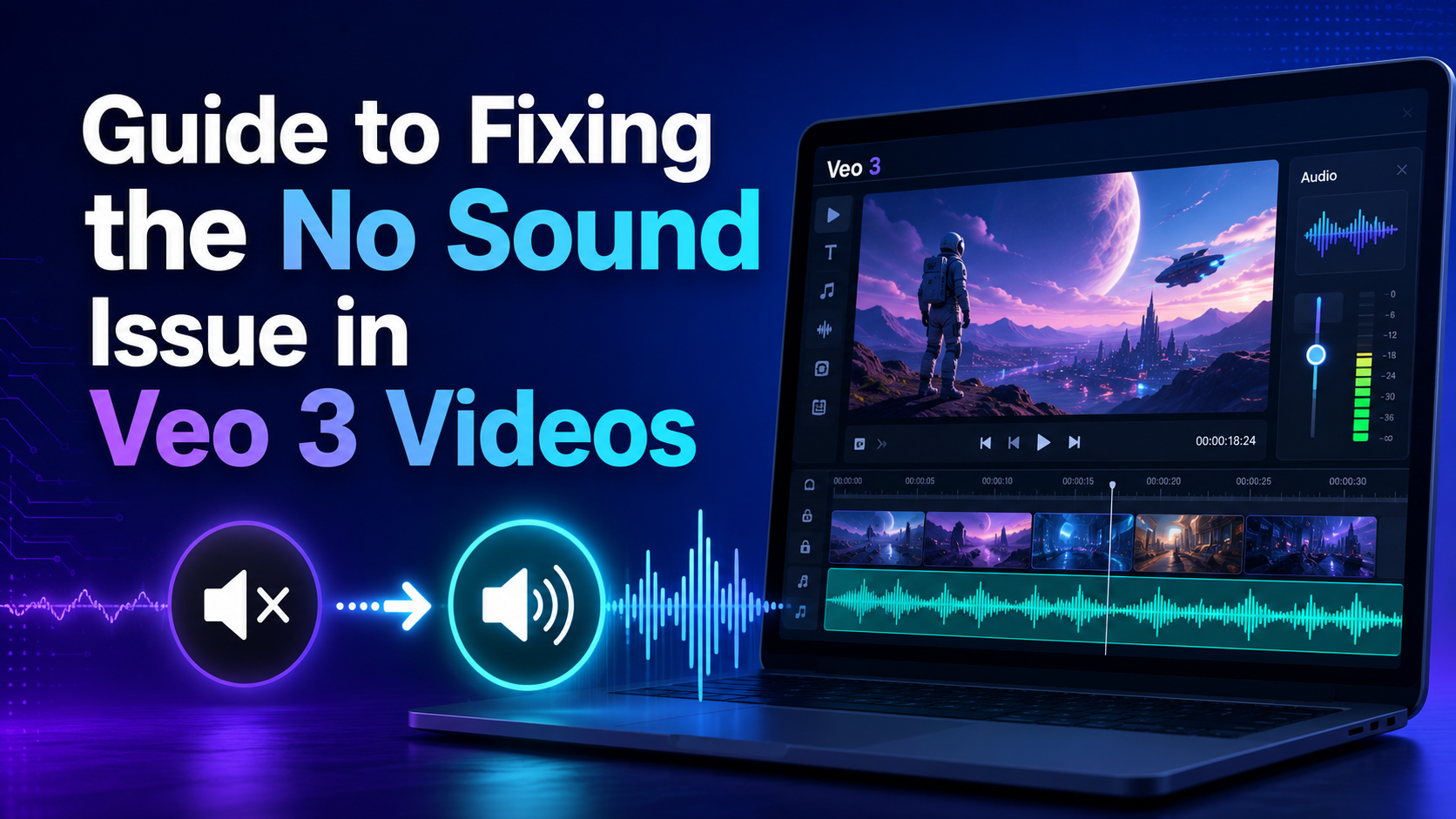
Google Veo 3 is an advanced AI video creation tool, trusted by many content creators thanks to its ability to create vivid videos with sharp images and synchronized audio. However, during use, many people encounter the situation where the video loses sound, affecting the quality of the final product and interrupting the creative experience. If you are in this situation, don’t worry! The article below Appvip will guide you to learn the causes and how to fix the Veo 3 video error with no sound quickly and effectively.
1. Why is Veo 3 so popular?
1.1. Create videos from text (Text-to-Video)
Veo 3 opens up a remarkable breakthrough in content production when it has the ability to turn text descriptions into vivid videos. With just one detailed command, users can create a complete scene, from characters, settings to smooth motion elements. For example, when entering the description “A young girl wearing a white ao dai standing in a Vietnamese night market full of lanterns”, Veo 3 will recreate vivid images, sparkling light and realistic motion, making the video look like a real mini movie.
Not only stopping at simple descriptions, Veo 3 also supports more complex commands, such as character emotions, metaphors or in-depth cinematic terms. This helps users who do not need professional filmmaking skills still be able to create videos with creative content and unique style. The Text-to-Video capability of Veo 3 truly becomes an effective tool for content creators, marketers and online education.
1.2. Integrated synchronized audio
One of the reasons Veo 3 has exploded is its ability to create audio that is perfectly synchronized with images. The tool not only adds background music but also creates original sounds such as animal sounds, environmental sounds and especially character dialogue. All audio elements are synchronized with the movement and facial expressions of the characters, helping the video become as vivid as a mini movie.
Natural dubbing technology and lip-sync are also highlights. Characters in the video can talk with a natural tone, matching mouth gestures, creating a seamless viewing experience. Although sometimes the voice still carries an “AI-like” feel, the overall synchronized audio and images have elevated Veo 3 to the level of a professional video production tool that any creator wants to try.
1.3. High-end image quality
Veo 3 is highly appreciated thanks to its ability to create videos with image quality up to 4K. Sharp images, smooth motion and realistic physical effects such as lighting, shadows or surface textures help videos look vivid and professional. In particular, the tool maintains character consistency throughout the video, using reference images to ensure appearance and style do not change.
Although this feature has not been fully equipped in the experimental version, the ability to create high-quality footage has made Veo 3 a top choice for creators who want to produce professional videos without needing a studio or expensive equipment. High-end image quality is the factor that makes this tool stand out in the market.
1.4. Advanced creative control
Veo 3 brings an experience like a real director, when users can adjust camera angles, change cinematic styles and add transition effects. Operations such as zoom, pan, track subject help you easily control every detail in the video. At the same time, the Google Flow tool supports creating short films with many seamless scenes, helping integrate storyboards and customize shots easily, enhancing the professionalism of the final product.
This advanced creative control capability helps users not only create videos but also express their personal style and own cinematic ideas. From building scenes to choosing effects, Veo 3 allows turning ideas from text into complete products, helping creators stand out among countless videos on social networks and online platforms.
.jpg)
2. Applications of Veo 3 in daily life
Veo 3 is not only an AI video creation tool but also becomes an effective assistant in many areas of modern life. From content creation to education, marketing or entertainment, Veo 3 helps users turn ideas into vivid videos quickly and professionally.
Content creation: Create advertising videos, short films, animations or social media content such as TikTok, YouTube Shorts, helping increase interaction and attract audiences.
Education: Illustrate scientific concepts, historical events or visual lessons, helping pupils and students absorb knowledge more easily.
Marketing: Produce stock videos, templates for platforms such as Envato, Adobe Stock, serving advertising and branding campaigns.
Entertainment: Create fantasy videos, recreate scenes that are difficult to film in reality such as future cities, explosions, bringing an attractive and vivid entertainment experience.
3. Causes of Veo 3 videos having no sound
The fact that Veo 3 videos do not play sound causes a lot of discomfort for users, especially when you have invested a lot of effort into the content. Before finding a way to fix it, understanding the cause is an important step for effective handling. Below are common reasons why your video loses sound:
Prompt request is too long or complex: Veo 3 only supports creating audio segments up to 8 seconds. If the audio prompt exceeds this limit, the system will not be able to create corresponding audio, leading to the final video losing sound.
1080p resolution (only 720p has audio): In some cases, when choosing 1080p resolution, Veo 3 prioritizes image processing over audio, causing the exported video to have no sound. 720p resolution usually ensures more stable audio operation.
The Veo 3 Model item has not been selected: If users forget to select the Highest Quality (Experimental Audio) Veo 3 item before creating the video, the system will not activate the audio feature, resulting in the video losing sound.
Incompatible audio playback device: Speakers, headphones or volume settings on the device may cause misunderstanding that the video has no sound.
Original audio file is corrupted or incompatible: If using audio or background music from an external source, an unsuitable format may cause Veo 3 to be unable to read the audio.
Software or cache problem: The Veo 3 application may encounter a temporary error due to overloaded cache data, affecting the ability to play audio.
Unstable network connection: Veo 3 operates based on online AI; if the network is weak or unstable while creating the video, audio may not be synchronized properly.
Security software blocking audio access permission: Some antivirus software or firewalls may restrict Veo 3’s audio access permission, causing the exported video to have no sound.
.jpg)
4. Guide to handling Veo 3 video error with no sound
When encountering the situation where a Veo 3 video does not play audio, understanding and applying quick handling tips will help you save time and ensure product quality. The methods below are evaluated as effective, helping fix audio errors easily and accurately.
4.1 Check the input Prompt again
One of the common causes of Veo 3 videos having no sound is that the audio request prompt is too long or complex. Make sure the prompt is concise, clear and suitable for the system’s 8-second limit. Veo 3 depends on the prompt to create video and audio; if the description is not detailed or too long, audio may not be created.
You should add specific audio descriptions, for example: “Natural speech in a female voice, lip-synced, with gentle symphonic background music” or “Sound effect of ocean waves.” In addition, using English for the prompt will avoid the error “Only English prompts are supported at this time.” A standard example could be: “A young woman speaking in Vietnamese with a calm tone, background with soft piano music and ambient city sounds.”
.jpg)
4.2 Choose a lower resolution
Some Veo 3 videos encounter audio errors when exported at 1080p resolution, while videos at lower resolution still have sound. To fix this, you should try reducing the resolution to 720p, helping the system process audio more stably and ensuring the final video has full sound.
Choosing a suitable resolution not only helps audio operate correctly but also reduces video rendering time. This is a simple but very effective tip, especially when you need to create many videos quickly while still maintaining stable image and audio quality.
4.3 Choose Highest Quality (Experimental Audio) Veo 3
To ensure that Veo 3 videos have sound, you need to check whether the correct video creation model has been selected. The Highest Quality (Experimental Audio) Veo 3 model supports synchronized and high-quality audio, helping the video achieve a vivid experience as desired.
If you skip this step, the system will not activate the audio feature, resulting in the exported video losing sound. Therefore, before creating a video, make sure you have selected the correct model and fully set up audio to avoid repeating unwanted errors.
.jpg)
5. Guide to creating audio for Veo 3 videos with no sound
For Veo 3 videos exported at 1080p resolution without audio, you can still create high-quality audio with some simple but effective tips. These methods help keep the sharpness of the video while ensuring vivid audio synchronized with the images.
5.1 Insert audio from a 720p video into a 1080p video
In case the Veo 3 video exported at 1080p has no sound but the 720p video already has audio, you can use the audio from the 720p video to insert into the 1080p video. This method helps both keep the sharpness of the image and ensure accurate audio, bringing a complete viewing experience.
Step 1: Download the video to your device
After creating the Veo 3 video, you need to download both 720p and 1080p video formats to your device. The 720p video will be the main audio source because this format usually does not encounter the no-sound error, while the 1080p video keeps sharp image quality. Preparing both files will help the process of inserting audio happen quickly and effectively.
Step 2: Open CapCut and upload the video
Open the CapCut application, then upload both 720p and 1080p videos to the timeline. Make sure the video order is clear for easy audio extraction operation. CapCut is a convenient tool, helping you both edit video and process audio without needing other complicated software.
Step 3: Extract and insert audio
Proceed to extract audio from the 720p video that already has sound. After the extraction is complete, insert the audio into the 1080p video. Finally, export the video on CapCut. As a result, you will have a 1080p video with sharp images and synchronized audio, completely ready to upload or use for professional projects.
.jpg)
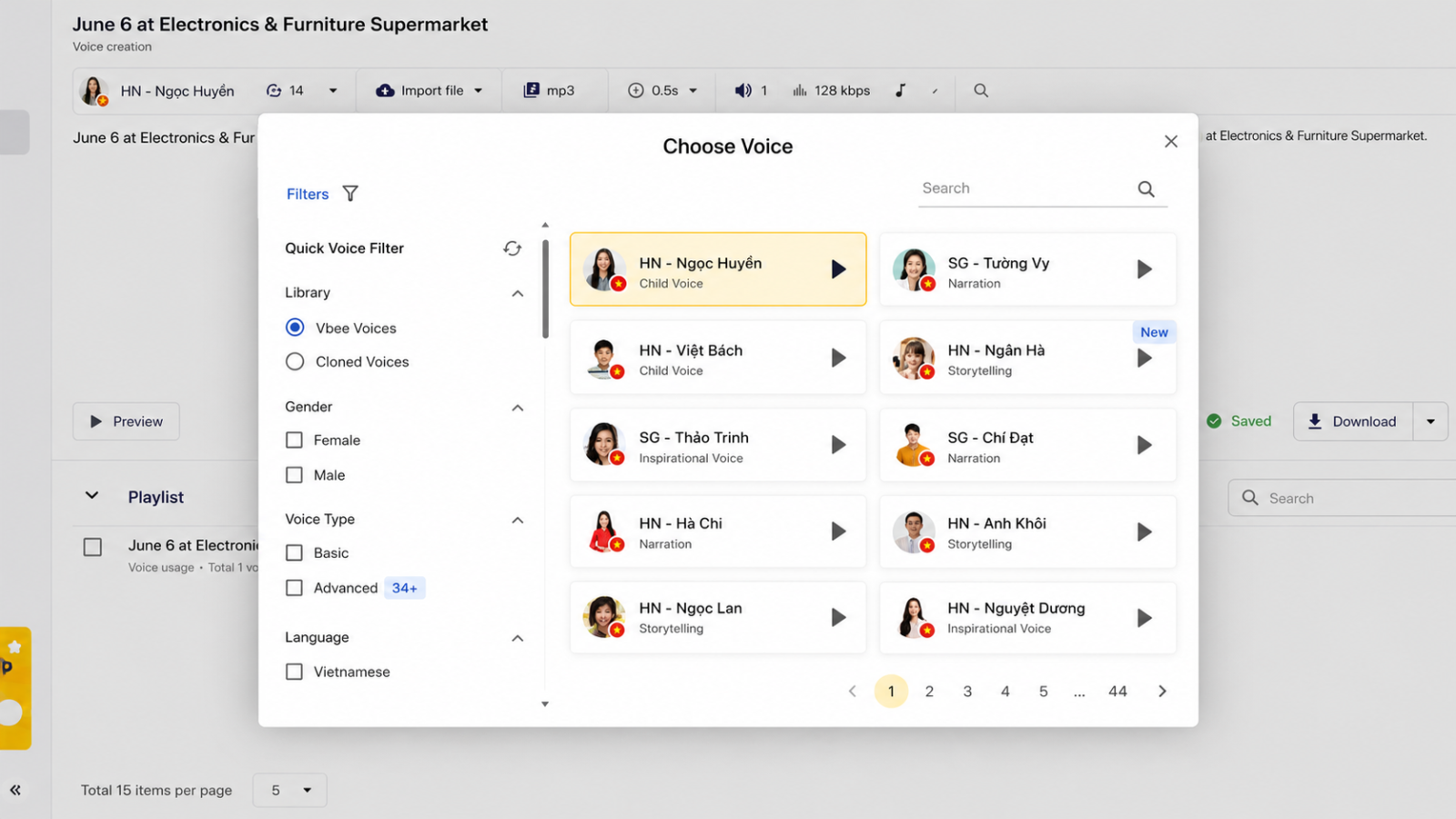
5.2 Use Vbee AIVoice to create audio for Veo 3 videos
If your Veo 3 video exports with no sound or the voiceover is not suitable, Vbee AIVoice is a great tool to create quality audio and synchronize it with images. This software helps you customize voice, tone and create a complete audio file, easily inserted into 1080p videos.
Step 1: Prepare text on Vbee AIVoice
First, open the Vbee AIVoice software on your computer or device. Copy the dialogue from the prompt used on Veo 3 and paste it into the text box on Vbee. Then, click Select text so the software can recognize the content and prepare to create audio. Preparing clear text will help the voice become lively, natural and synchronized with the video content.
Step 2: Choose a voice and download the audio
Next, click the voice option to choose the gender, tone and style suitable for your video. When you are satisfied with the setup, click Download to save the newly created audio file. This file will be standard audio, which can be easily inserted into a Veo 3 1080p video using video editing software such as CapCut, helping the video become complete, vivid and more professional.
6. Address to buy cheap Google AI Ultra, VEO 3 accounts
6.1 Why should you buy a Google AI Ultra account at Appvip?
Appvip offers the opportunity to own an official Google AI Ultra account at a price up to 90% cheaper than the original price of $249.99/month, helping you save significant costs. This is the perfect choice for individuals and businesses that want to take advantage of the power of AI without worrying about the budget.
Supports diverse needs: Writing code, creating content, analyzing data.
Fast activation, absolute information security.
24/7 technical support, ensuring a seamless experience.
6.2 Appvip – A reputable Google partner in Vietnam
Appvip, or APPVIP LLC, is a leading licensed software provider in Vietnam. Not only Google AI Ultra, Appvip also provides ChatGPT Plus 4.0, licensed Photoshop, Canva Pro, CapCut Pro, Zoom Pro… with full VAT invoices and official licenses.
Issue VAT invoices for individuals and businesses.
Many years of experience providing software to partners inside and outside the country.
An elite technical team always ready to support customers.
6.3 Customers are number 1 at Appvip
At Appvip, receiving and using a Google AI Ultra account becomes quick and easy. The support team will guide you step by step, answer all questions wholeheartedly, helping you feel secure when using the service.
Preferential and reasonable prices, worthy of product quality.
Detailed installation instructions and lifetime product support.
Upgrade storage experience, data security and enjoy exclusive offers from Google AI Ultra.
.jpg)
7. Conclusion
The Veo 3 video error with no sound can come from many different causes, from hardware, software settings to system problems. However, you can completely fix it quickly with the simple tips shared in this article. With patience and proper implementation, you will easily create quality videos with full and vivid audio. Do not let audio errors hinder your creativity – try the solutions above now to enjoy a smooth video-making experience with Veo 3!





















VIP Products








Best Selling Products
Genuine Cheap Canva Pro
39 USD
Adobe Photoshop Copyright - Full App
120 USD
Capcut Pro 1 Year
39 USD
Plugin Retouch4me
69 USD
Copyright Adobe Lightroom Account
59 USD
ChatGPT Plus Account (GPT-4)
16 USD
MidJourney Account
29 USD
Autodesk All App Account Copyright
120 USD
Adobe Premiere Pro Account
99 USD
Upgrade Duolingo Super
29 USD
Genuine Adobe Illustrator account
99 USD
Upgrade genuine Capture One account
120 USD
Upgrade Genuine Office 365
49 USD
Windows 10 & 11 Pro Key
36 USD
Freepik Premium Account
59 USD