Best Selling Products

Upgrade Genuine Office 365
49 USD

Adobe Photoshop Copyright - Full App
120 USD

Autodesk All App Account Copyright
120 USD

Plugin Retouch4me
69 USD

Upgrade Duolingo Super
29 USD

Genuine Adobe Illustrator account
99 USD

Genuine Cheap Canva Pro
39 USD

Windows 10 & 11 Pro Key
36 USD

Copyright Adobe Lightroom Account
59 USD

Upgrade genuine Capture One account
120 USD

ChatGPT Plus Account (GPT-4)
16 USD

MidJourney Account
29 USD

Freepik Premium Account
59 USD

Capcut Pro 1 Year
39 USD

Adobe Premiere Pro Account
99 USD
How to Add Gemini to Chrome in 1 Minute: A Quick Guide for Beginners
Nội dung
Transform Chrome into a smart AI assistant with just a few taps.
Gemini Extensions are a key feature that allows users to connect directly with AI on Chrome without complicated installation. Integrating Gemini into Chrome not only enables smarter searching and faster operation but also significantly optimizes daily productivity and creativity. From students and content creators to office workers and professionals, everyone can benefit from this seamless AI experience. This article will guide you in detail, from understanding what Gemini Extensions are, the requirements for using them, the step-by-step integration process, to how to maximize the power of Gemini in your work and studies.
1. What are Gemini Extensions for Chrome?
When Google introduced Gemini, most users thought it was just a new version of Bard. However, Gemini is actually a giant leap forward, becoming a central artificial intelligence hub capable of supporting users across a wide range of platforms, from research, writing, data analysis, programming, content creation, and design to learning and entertainment.
Gemini Extensions is the bridge that brings all that power to Chrome. It's not a standalone extension downloaded from the Chrome Web Store, but a feature directly integrated by Google into Chrome and Google Workspace services. Thanks to this, Gemini can "understand" what you're doing, which website you're viewing, what document you're working on, etc., to provide appropriate support without needing to switch tabs or open additional applications.
Imagine you're reading a lengthy article of thousands of words on an international news site; Gemini can instantly summarize the content, translate it into Vietnamese, or analyze relevant data. If you're writing an email on Gmail, Gemini can automatically suggest content, edit wording, and enhance professionalism. If you're using Google Docs to create a report, Gemini can generate an outline, suggest data, create tables, and assist in checking the logic of the content.
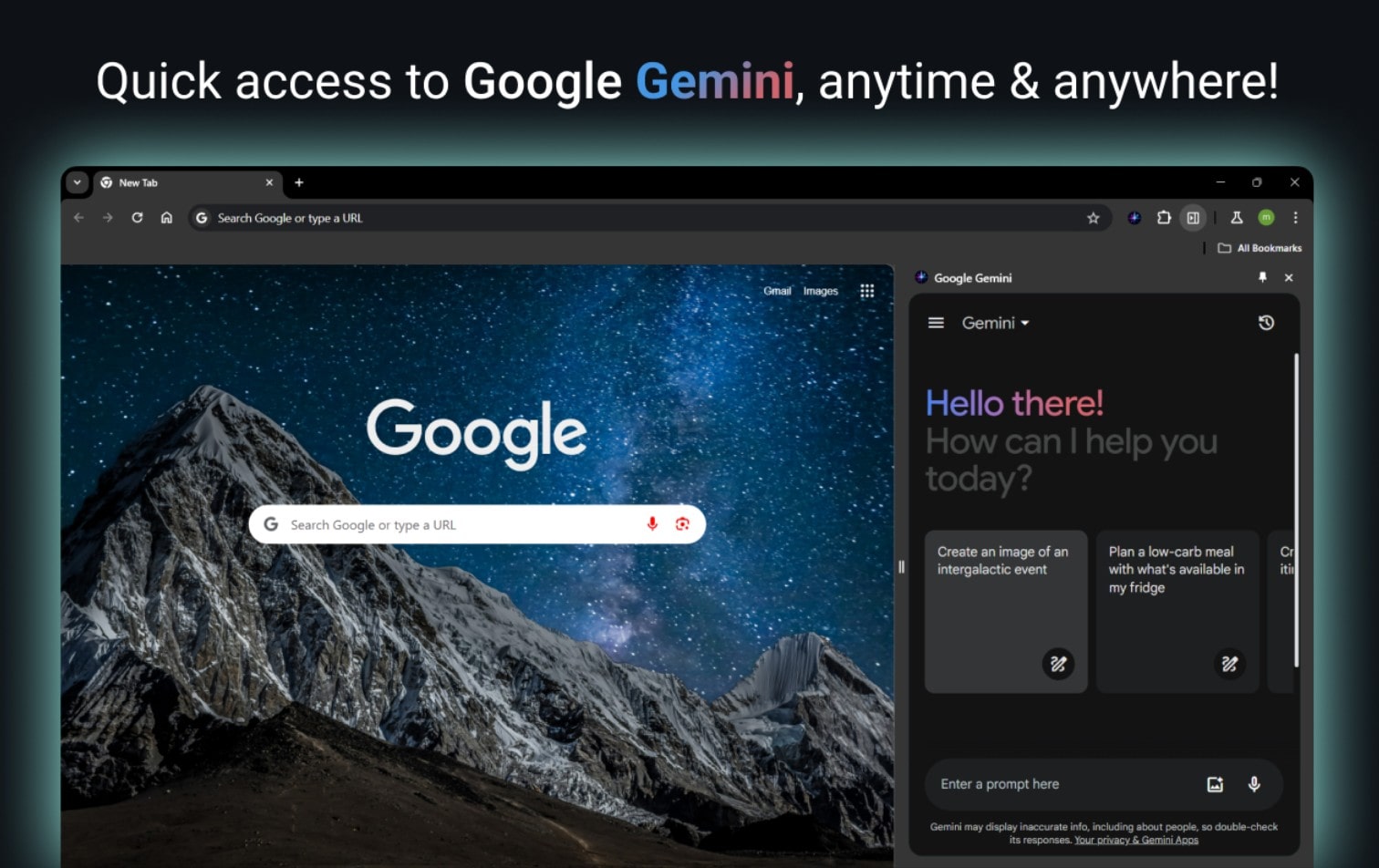
In other words, Gemini Extensions redefines how users interact with browsers: it's no longer a journey of independently searching, gathering, and processing information, but rather a direct collaboration with AI to accelerate the thinking, analysis, and creative processes.
The most notable feature is that Gemini Extensions utilize the Gemini-centric language model, enabling multimodal processing, meaning it can understand text, images, data, audio, and more as users provide information. This flexibility makes Chrome a much smarter work environment than before.
2. What do I need to add Gemini to Chrome?
Before you begin integrating Gemini into your Chrome browser, you need to ensure you meet Google's requirements for using Gemini on the web. These requirements aren't overly complicated, but they are crucial to avoid access errors or being denied access.
The first requirement is that you must use a Google account that you manage yourself. This means the account is under your personal control, not an account monitored by someone else or by a family system like Family Link. Accounts under supervision are often restricted for security and privacy reasons, especially when accessing AI-powered services that can process data.
The second requirement relates to age. Google requires users to be 13 years old or older, or to meet the minimum age stipulated by their country of residence. This requirement aims to ensure that users have sufficient awareness when using AI services, and is also in compliance with laws protecting children online.
The final requirement is that users must agree to grant Gemini permissions through the Gemini app's Privacy Notice. This confirms that you agree to allow Gemini to process your content, questions, and queries in response. Google also emphasizes that users' personal data will not be used to train the AI model.
Once you meet all three requirements above, you can fully access the Gemini web application and easily integrate it into Chrome.
3. Instructions for integrating Gemini into Chrome
Integrating Gemini into Chrome is quite smooth and doesn't require complex technical skills. Even novice users can do it in less than a minute. Google has optimized the entire interface, making the process intuitive, clear, and secure.
Step 1: Access Google Gemini
You can open Gemini on your computer or phone. When you access it, the system will automatically detect your Google account and determine if your device supports Gemini Extensions.
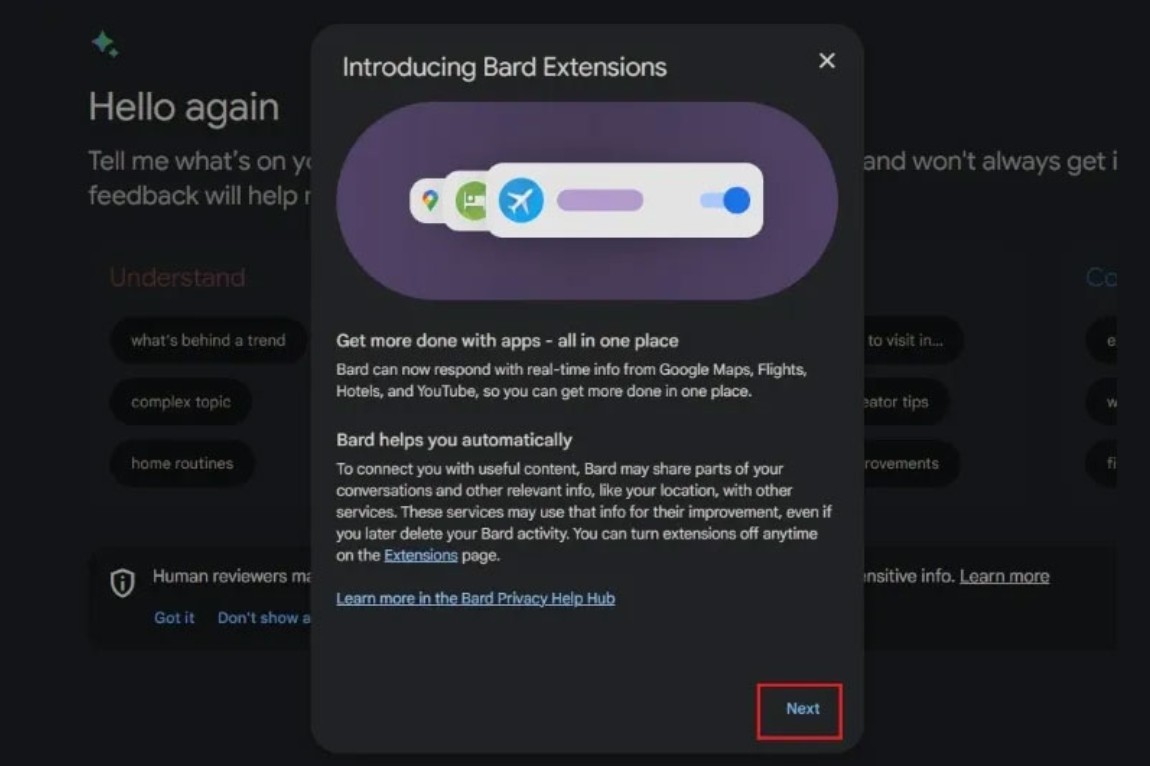
Step 2: Click “Next” in the introductory window.
When the introductory window appears, you'll see a description of the Gemini extension, along with its main features. This step helps users better understand the connection between AI and Chrome.
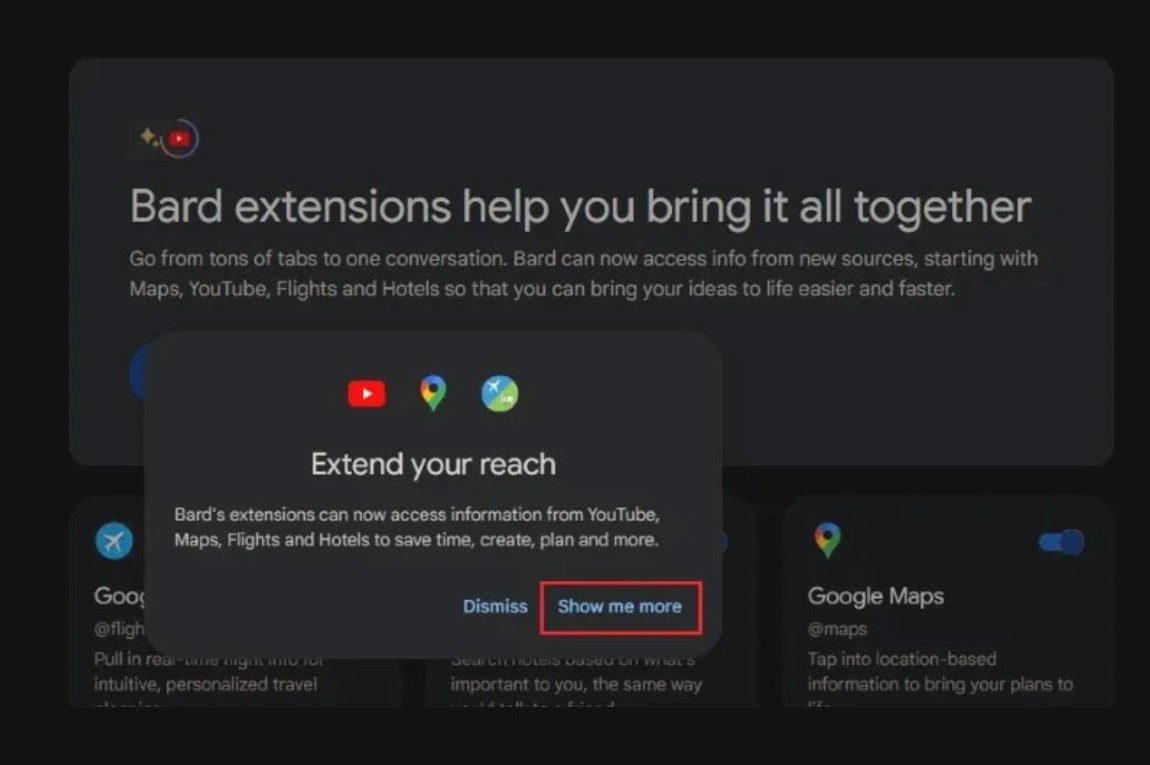
Step 3: Click “Show me more”
Google provides more detailed information about Gemini's capabilities within the Chrome and Workspace ecosystem. Reviewing this information will help you understand access permissions, support levels, and how the AI works.
Step 4: Click “Continue” to close the instruction panel.
After reviewing all the information, you can proceed to the activation and actual connection steps.

Step 5: Select “Connect” to integrate Gemini with Workspace.
This is the most important step. When you select "Connect," the system will automatically link Gemini to Google services such as Gmail, Docs, Sheets, Drive, YouTube, and Maps.
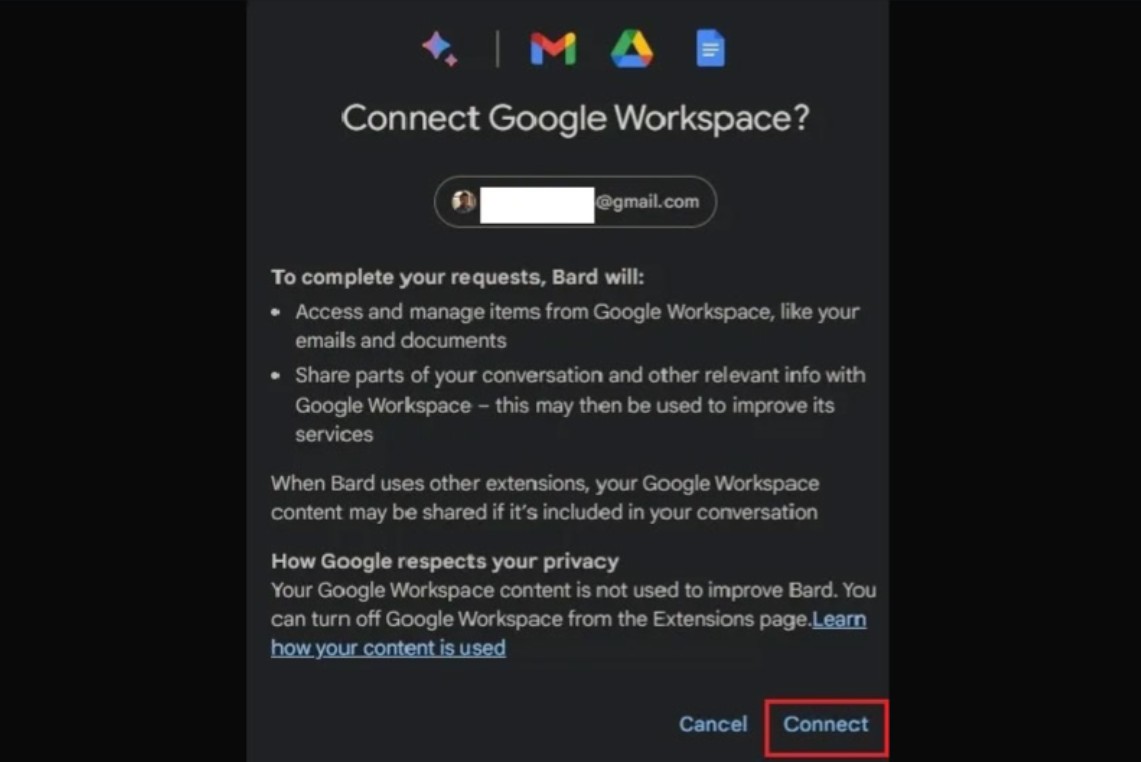
Step 6: Complete and integrate with Chrome
From this point on, your Chrome browser will recognize Gemini as a smart extension. Simply type "@" in the text bar of Gmail, Docs, or other input fields to bring Gemini up.
It's worth noting that Google is committed to ensuring your personal data is not used to train AI. All queries are processed in accordance with privacy regulations.

Step 7: Turn off Gemini Extensions when needed.
If you wish to temporarily hide or disable Gemini Extensions, you can access the relevant settings page to turn off each feature individually. This allows users to have complete control over the level of AI intervention in their web browsing experience.

4. How to use Gemini on Chrome
After integration, the most important thing is how to use Gemini most effectively. Google designed Gemini Extensions for maximum convenience, so users don't need to switch tabs, open additional software, and there is virtually no lag during interaction.
Here are some ways you can get the most out of Gemini on Chrome.
4.1. Utilize the content summarization feature.
One of the features that users find most impressive is its ability to summarize content. When reading a research paper, a long news article, or a work-related document, you can simply call Gemini and request a summary.
Gemini not only condenses content but can also categorize it by topic, highlight key points, list data, and even analyze the reliability of information sources. It's a particularly useful tool for students, researchers, or anyone looking to save time processing information.
4.2. Using language translation
Gemini supports multilingual translation with high accuracy, seamlessness, and extreme speed. When accessing foreign websites, you don't need to copy text or use external software. Simply call Gemini and request translation directly on the page you're currently viewing.
This is very convenient for those working in research, marketing, journalism, academia, or international business.
4.3. Improve your writing skills.
Gemini is a great writing assistant when integrated into Chrome. You can compose emails faster, write coherent product descriptions, create engaging social media content, or prepare professional documents without worrying about spelling errors, grammatical mistakes, or missing ideas.
Beyond just fixing errors, Gemini can also suggest smoother wording, analyze tone, and restructure content to better suit specific needs.
4.4. Personalizing your web browsing experience
Gemini has the ability to learn your web browsing habits, from the types of pages you frequently visit and the kinds of content you're interested in to your daily work style. Based on this, the AI will make more relevant recommendations, helping you save time searching for information and filtering out unnecessary content.
This is a particularly useful experience for creative professionals or those working on multiple projects.
4.5. Smart Information Search
By typing "@" to open Gemini, you can ask the AI to search for information in a more streamlined way than traditional Google Search. Instead of returning millions of results, Gemini aggregates the most accurate data to optimize search speed.
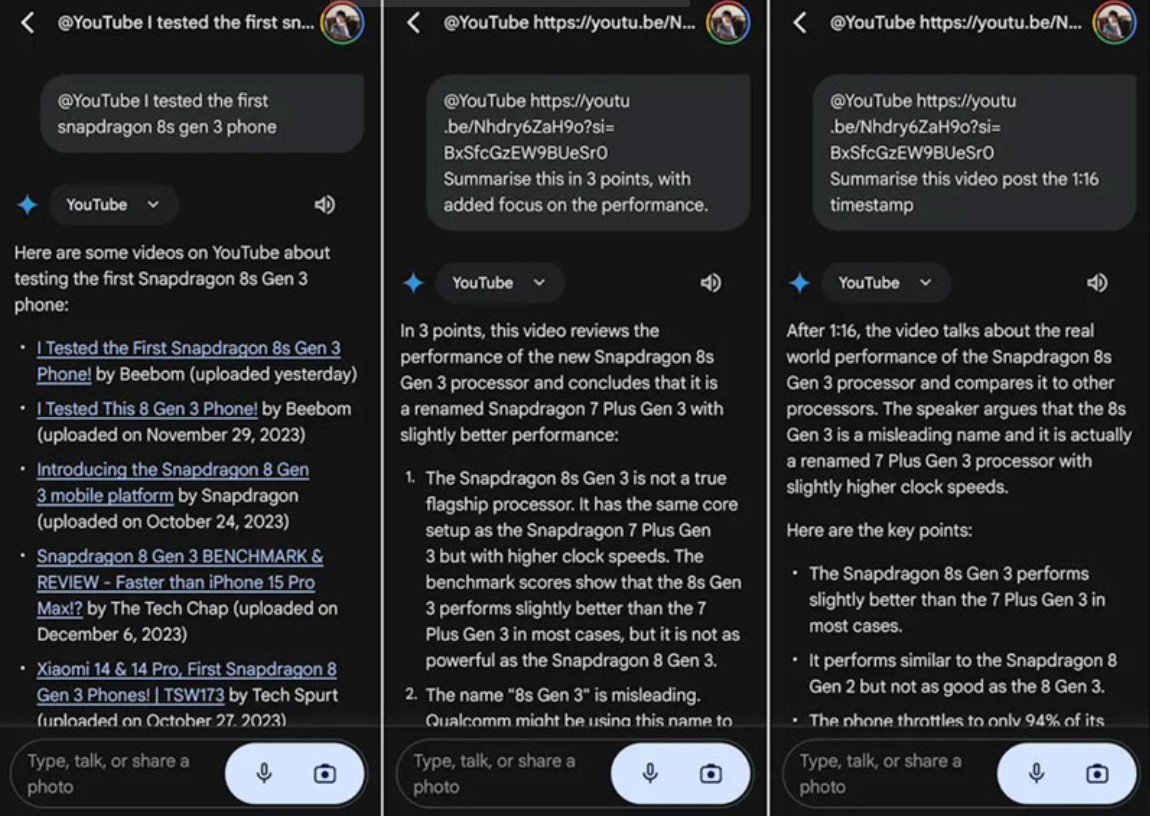
Gemini can also present information in tabular form, suggest next steps, or provide in-depth analysis as needed.
4.6. Extension Management
One of the advantages of Gemini Extensions is its flexible customization capabilities. Users can enable or disable individual features as needed, making the experience more proactive and preventing overload.
You can decide whether Gemini works only with Gmail, or only supports writing in Docs, or turn it off entirely when not needed.
4.7. Speed up web browsing and daily tasks.
Gemini is more than just a question-answering assistant; it can also automate repetitive tasks. From filling out common forms and finding relevant documents to comparing product specifications and generating quick reports, everything can be done right in your browser.
This significantly improves the productivity of anyone who uses Chrome as their primary tool in their daily work.
Integrating Gemini into Chrome marks a significant shift in the web browsing experience, opening up the possibility of directly incorporating AI into daily tasks that previously consumed a lot of time and effort. With its superior processing speed, powerful contextual understanding, and direct integration with the entire Google Workspace ecosystem, Gemini becomes a powerful companion for learning, working, and creating.





















VIP Products








Best Selling Products
Upgrade Genuine Office 365
49 USD
Adobe Photoshop Copyright - Full App
120 USD
Autodesk All App Account Copyright
120 USD
Plugin Retouch4me
69 USD
Upgrade Duolingo Super
29 USD
Genuine Adobe Illustrator account
99 USD
Genuine Cheap Canva Pro
39 USD
Windows 10 & 11 Pro Key
36 USD
Copyright Adobe Lightroom Account
59 USD
Upgrade genuine Capture One account
120 USD
ChatGPT Plus Account (GPT-4)
16 USD
MidJourney Account
29 USD
Freepik Premium Account
59 USD
Capcut Pro 1 Year
39 USD
Adobe Premiere Pro Account
99 USD