Best Selling Products

Genuine Adobe Illustrator account
99 USD

Adobe Premiere Pro Account
99 USD

Upgrade genuine Capture One account
120 USD

Adobe Photoshop Copyright - Full App
120 USD

Capcut Pro 1 Year
39 USD

Plugin Retouch4me
69 USD

ChatGPT Plus Account (GPT-4)
16 USD

MidJourney Account
29 USD

Copyright Adobe Lightroom Account
59 USD

Genuine Cheap Canva Pro
39 USD

Windows 10 & 11 Pro Key
36 USD

Freepik Premium Account
59 USD

Upgrade Duolingo Super
29 USD

Upgrade Genuine Office 365
49 USD

Autodesk All App Account Copyright
120 USD
How to Back Up iPhone Photos Without Losing Data?
Nội dung
- 1. The easiest and most reliable ways to back up iPhone photos.
- 1.1 Use iCloud for seamless backups
- 1.2 Backing up photos to a Mac computer
- 1.3 Explore other cloud storage services
- 2. The benefits of external hard drives for backing up photos.
- 3. Set up automatic backups so you don't miss any new photos.
- 4. Enhance security with multiple parallel backup methods.
- 5. Tips for managing and protecting photos after backup.
- 5.1 Regularly organize your albums.
- 5.2 Retain original files
- 5.3 Enable an additional layer of security
- 5.4 Check the backups
- 5.5 Establish a habit of regularly exporting and archiving files.
- 6. Which photo backup solution is right for you?
iPhone cameras are getting more powerful, and everyone''s photo library is growing rapidly. In just a few years of use, an iPhone can contain tens of thousands of high-resolution photos and videos, including family memories, travel experiences, and unforgettable milestones. Yet, most of us only think about backing up after something bad has happened, such as a dropped phone, theft, or accidental deletion. By then, it''s often too late. The good news is that protecting your photo library is easier than ever, as long as you don''t rely entirely on a single storage solution. Each solution has its own advantages and limitations, so understanding each option will help you build a truly reliable backup system.

1. The easiest and most reliable ways to back up iPhone photos.
There isn't a one-size-fits-all solution. The ideal backup method depends on the number of photos you take each month, how attached you are to the Apple ecosystem, and the level of peace of mind you desire. The three popular options below can be used individually or in combination.
1.1 Use iCloud for seamless backups
For most users, iCloud Photos is the easiest starting point. When enabled, every photo and video you take will be automatically uploaded and synced across all Apple devices signed in with the same account. Photos are preserved in their original format and full resolution, including HEIF, RAW, Live Photos, and 4K video. You can start shooting on your iPhone and review them instantly on your iPad or Mac without any further action.
To activate it, follow these steps in order.
- Open the Settings app on your iPhone.
- Tap your Apple ID name at the top of the screen.
- Select iCloud, then select Photos.
- Turn on this iPhone sync option.
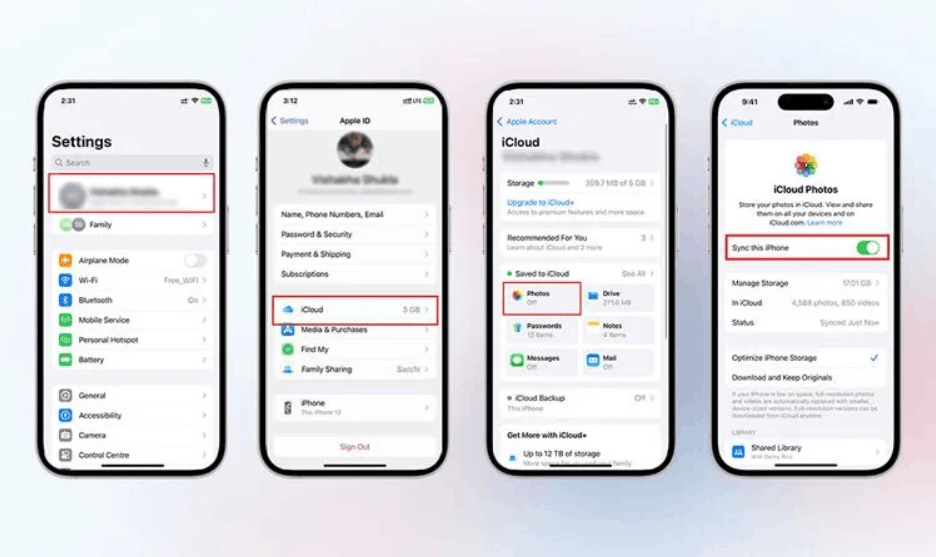
Once set up, you hardly need to do anything else, which is why iCloud is often the first answer to the question of how to back up iPhone photos. If your device has limited storage, you can enable storage optimization mode so that your iPhone keeps smaller copies on your device and stores the originals in the cloud.
However, it's important to understand one key limitation. iCloud Photos functions more like a syncing service than a true backup storage. If you delete a photo on one device, it will gradually disappear from all other synced devices. The "Recently Deleted" section only holds photos for a short time, after which they are permanently deleted. Additionally, the free plan offers very limited storage, so a paid plan will be necessary for a large library. For these reasons, many professional photographers don't consider iCloud their sole backup.
1.2 Backing up photos to a Mac computer
A Mac is a valuable second layer of protection. When you import photos into the Photos app on your Mac or save them to a local folder, you get a copy that's entirely under your control. This copy can then be included in Time Machine's automatic backup mechanism, adding another layer of security.
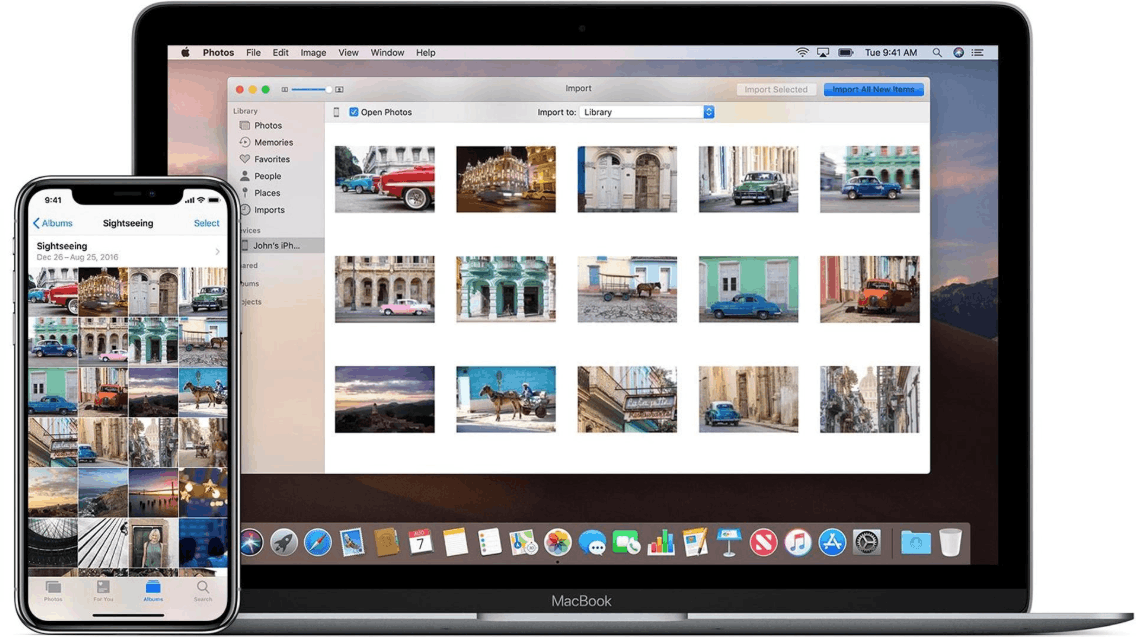
In addition to photos, Finder also allows you to create a full device backup, including settings, app data, and more. Apple still considers computer backups an important part of its data protection system, and this is a suitable option if you want a backup independent of your cloud account.
If you shoot a lot of ProRAW photos or record large amounts of video, local storage may be more economical in the long run than constantly upgrading your cloud plan. When combined with an external hard drive, a Mac becomes one of the most efficient and sustainable ways to store iPhone photos.
1.3 Explore other cloud storage services
While iCloud integrates very well with iOS, it's not the only option. Other popular services include Google Photos, Dropbox, Microsoft OneDrive, and Amazon Photos. Each service has its own strengths. Google Photos excels at automatically grouping similar photos, recognizing people and locations, so finding an old memory often only requires typing a few keywords into the search box. Dropbox and OneDrive are strong in file synchronization across multiple platforms and integration with daily tasks. Amazon Photos is often appealing to those already using Amazon's services.
If you frequently work between Apple and Windows devices, a third-party cloud service might be the optimal place to store your iPhone photos, thanks to its wider compatibility. Additionally, using a service other than iCloud helps diversify risk, because if one account experiences problems, the copies stored elsewhere will remain intact.
2. The benefits of external hard drives for backing up photos.
External hard drives and portable SSDs remain underrated backup solutions compared to their true value. However, compared to cloud services, they offer several distinct advantages. You don't have to pay recurring subscription fees, you can access photos even offline, data transfer speeds are fast, and there's an added layer of protection against account issues like account suspension, forgotten passwords, or provider policy changes.
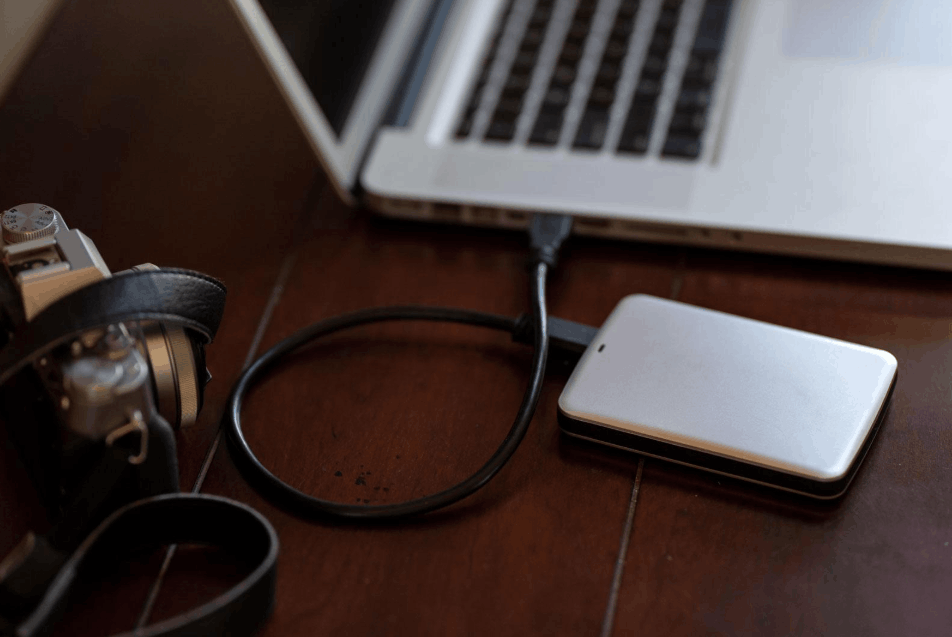
One thing many people don't know is that newer iPhone models can now export photos directly to compatible storage devices via the Photos and Files apps. With devices using a USB Type-C port, you can simply plug in the hard drive directly or use a suitable adapter; a computer isn't necessary. This makes transferring photos from an iPhone to an external hard drive much simpler than before.
With a library containing tens of thousands of photos, the cost of buying an SSD is often significantly lower than paying for cloud storage over many years. It's important that you don't leave the hard drive permanently next to your computer. If possible, store a drive elsewhere, such as at a relative's house or workplace, to protect against fire, flooding, or theft.
3. Set up automatic backups so you don't miss any new photos.
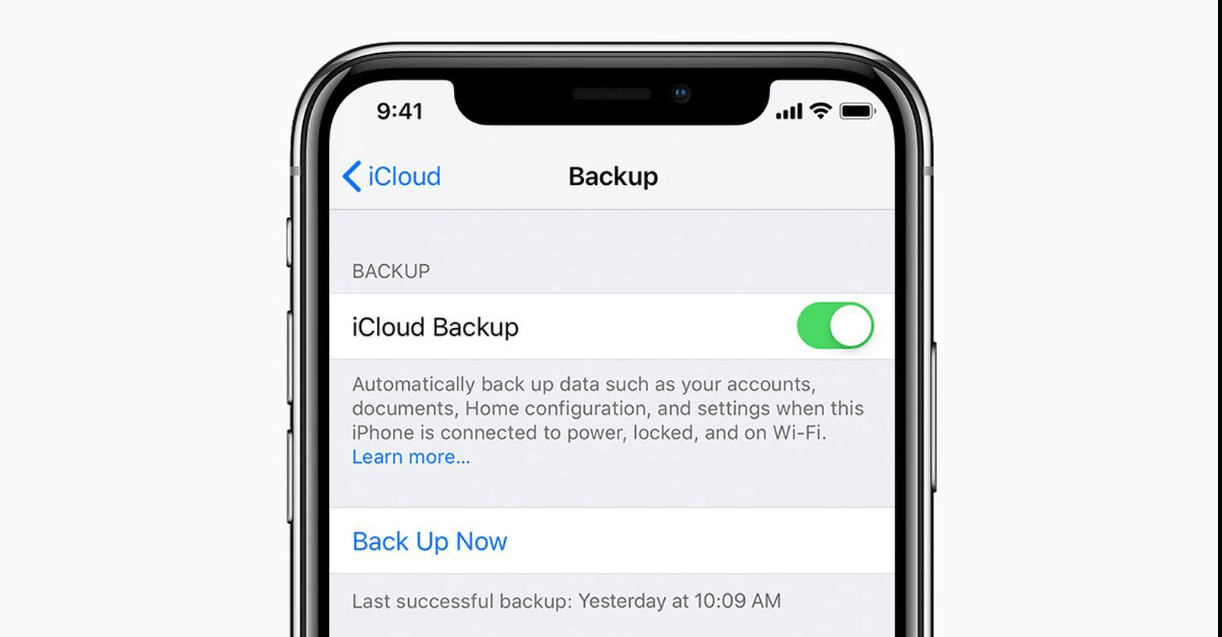
Manual backups are easily forgotten, and the photos that aren't backed up are often the most recent ones. Automation significantly reduces this risk. A reliable process might include four steps. First, enable iCloud Photos. Next, connect your iPhone to a wireless network and charge it overnight, as this is when the system typically uploads photos most efficiently. Then, schedule regular backups for your Mac using Time Machine. Finally, sync your external hard drive weekly or monthly, depending on how often you take photos.
This setup addresses both issues: how to back up iPhone photos and how to maintain long-term protection without much effort. Many professional photographers automate almost every step, because human error remains one of the leading causes of data loss.
4. Enhance security with multiple parallel backup methods.
The safest strategy recommended by many experts is the 3, 2, 1 backup rule. This means keeping three copies of your data, storing them on two different types of media, and ensuring one copy is located elsewhere, separate from the primary location.
A simple example is the original photo stored on your iPhone, a first copy on iCloud Photos, and a second copy on an external SSD. For even greater security, you can add a third copy on your Mac or another cloud service. This approach is widely recommended because no storage system is completely immune to failure. For many, this combination is the best iPhone photo backup solution, balancing convenience, cost, and security.
5. Tips for managing and protecting photos after backup.
Preserving copies is important, but the long-term protection of your photos also depends on how you organize and maintain your library. The five habits below will help keep your photo collection tidy and secure.
5.1 Regularly organize your albums.
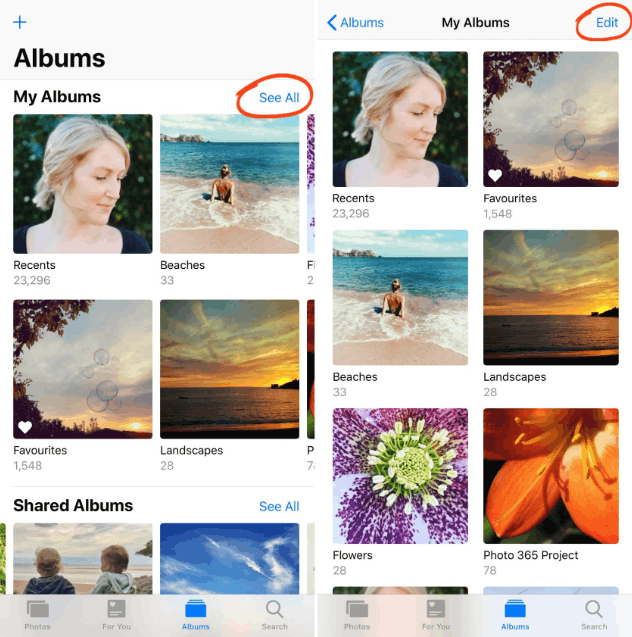
Take time to periodically delete duplicate photos, bad shots, and blurry frames that are no longer valuable. This helps reduce storage costs and makes subsequent backups faster and lighter. You should also create albums by event, location, or time for easier searching. An organized library also helps you quickly identify missing or lost photos.
5.2 Retain original files
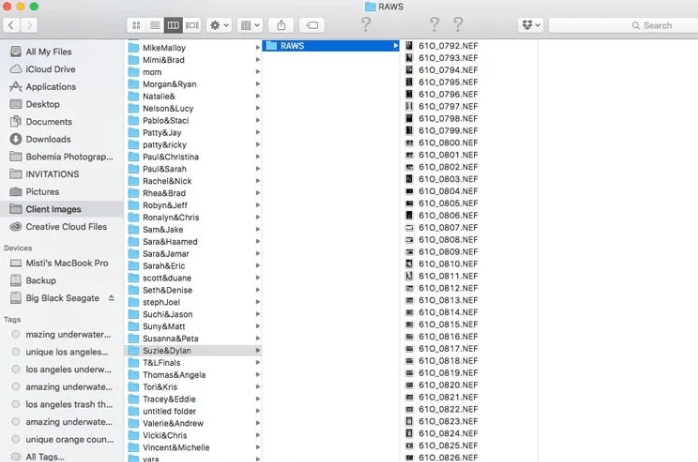
Avoid repeatedly exporting compressed versions, as each compression results in a loss of information. HEIF and ProRAW files retain significantly more data, making them ideal for later editing and printing. You can create smaller versions for sharing on social media, but always keep the originals safe. As display and printing technologies advance, high-quality original files will become invaluable assets.
5.3 Enable an additional layer of security
If this feature is available in your region, consider enabling Apple's Advanced Data Protection. This feature adds end-to-end encryption to more iCloud data categories, providing stronger protection for your data even if the servers fail. Additionally, use a strong password, enable two-factor authentication for your Apple ID account, and set up a recovery method to avoid being locked out of your own photos.
5.4 Check the backups
A backup is only valuable if you can actually restore it. Therefore, periodically test opening a few files from an external hard drive or cloud service to ensure everything is working correctly. Check both old and new files, and verify that the hard drive is still recognized and that the space is full. Many people only discover a backup is corrupted when they need it most, and by then, it's often very difficult to fix.
5.5 Establish a habit of regularly exporting and archiving files.
If you frequently photograph events or travel, dedicate a specific time each month to backing up your photos. You could choose a fixed day, such as the end of the month, to import new photos to your computer, copy them to an external hard drive, and clean up your phone's library. This is often the most efficient way to back up photos from an iPhone, especially for those with rapidly growing libraries, as it transforms backups from a burdensome task into a lighthearted habit.
6. Which photo backup solution is right for you?
There's no perfect solution for everyone, and backup preferences vary from person to person. For users who take few photos and primarily use Apple devices, iCloud combined with an external hard drive for occasional use may be sufficient. For those who take many photos, work on both Windows and Apple devices, or have a need for in-depth editing, a combination of cloud storage, a PC, and an external hard drive will be more reliable. And for those who consider photos a professional asset, the 3, 2, 1 rule along with a regular check-up schedule is almost mandatory.
Ultimately, the safest rule of thumb is to store your photos in multiple locations. If one method fails, you still have at least another copy to rely on. Whether you're just starting to think about backups or finalizing an existing plan, combining cloud storage with local copies and external hard drives is one of the most reliable ways to protect memories you don't want to lose.





















VIP Products








Best Selling Products
Genuine Adobe Illustrator account
99 USD
Adobe Premiere Pro Account
99 USD
Upgrade genuine Capture One account
120 USD
Adobe Photoshop Copyright - Full App
120 USD
Capcut Pro 1 Year
39 USD
Plugin Retouch4me
69 USD
ChatGPT Plus Account (GPT-4)
16 USD
MidJourney Account
29 USD
Copyright Adobe Lightroom Account
59 USD
Genuine Cheap Canva Pro
39 USD
Windows 10 & 11 Pro Key
36 USD
Freepik Premium Account
59 USD
Upgrade Duolingo Super
29 USD
Upgrade Genuine Office 365
49 USD
Autodesk All App Account Copyright
120 USD