Best Selling Products

Upgrade genuine Capture One account
120 USD

Freepik Premium Account
59 USD

Upgrade Duolingo Super
29 USD

Windows 10 & 11 Pro Key
36 USD

Genuine Cheap Canva Pro
39 USD

ChatGPT Plus Account (GPT-4)
16 USD

Copyright Adobe Lightroom Account
59 USD

Adobe Premiere Pro Account
99 USD

Capcut Pro 1 Year
39 USD

Genuine Adobe Illustrator account
99 USD

Plugin Retouch4me
69 USD

Autodesk All App Account Copyright
120 USD

Upgrade Genuine Office 365
49 USD

MidJourney Account
29 USD

Adobe Photoshop Copyright - Full App
120 USD
How to Create Beautiful and Simple Videos on Canva
Nội dung
- 1. Things You Need to Know to Prepare Before Starting to Make Videos on Canva
- 2. What Should You Keep in Mind When Making Canva Videos?
- 3. Guide on How to Make Videos on Canva Using a Phone
- 4. Guide on How to Make Videos on Canva Using a Computer
- 5. Why You Should Use Canva to Create Media Videos
- 6. Conclusion
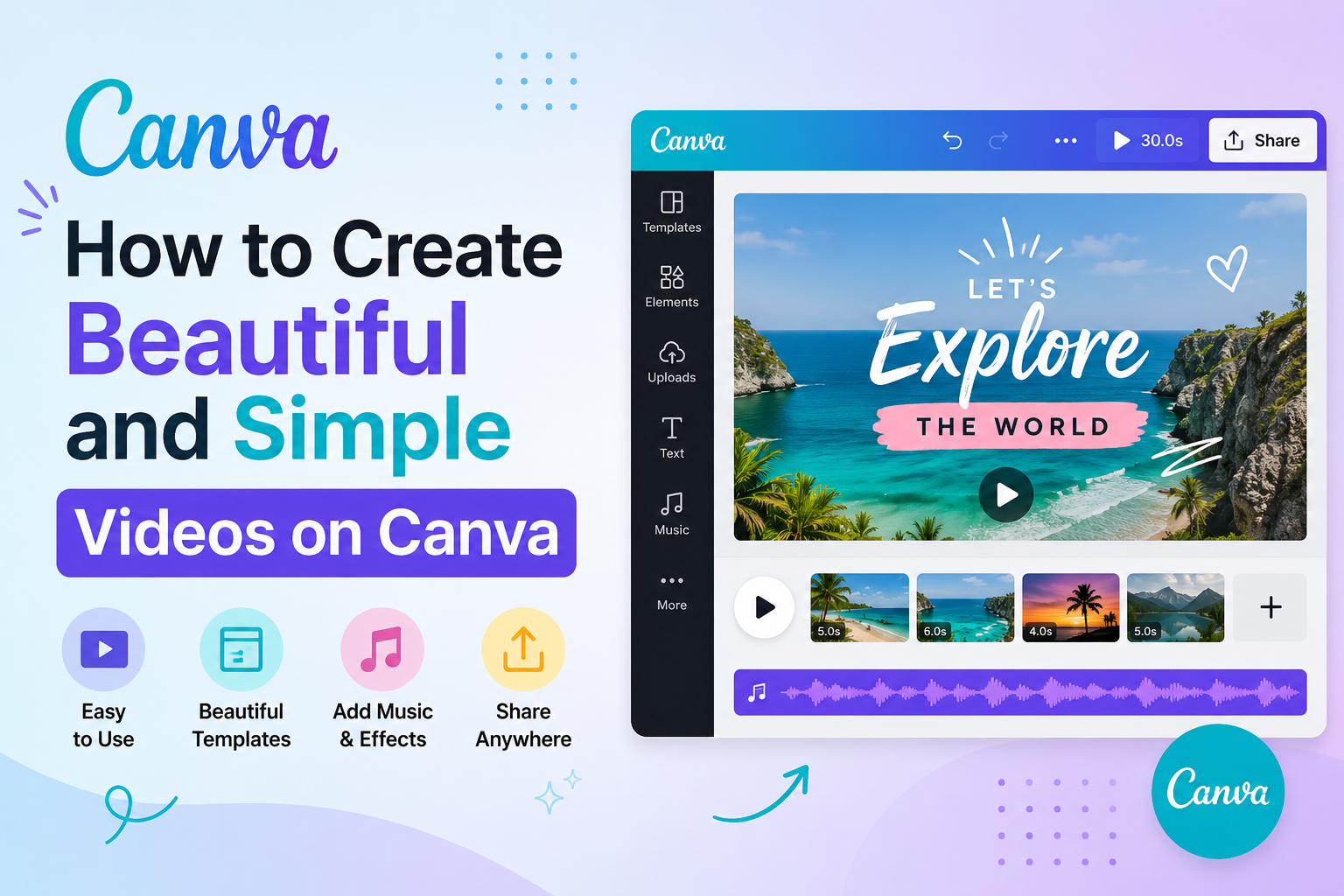
Want to create professional videos without spending too much time and still ensure sharp image quality? Canva is the perfect solution for you.
1. Things You Need to Know to Prepare Before Starting to Make Videos on Canva
Before starting to make videos on Canva, you need to prepare all the necessary tools and access rights to make the most of its features. This helps you create high-quality, creative videos without being limited like the free version.
Own a Canva Pro account: To fully experience video templates, effects, audio, and remove Watermark, you should use a Canva Pro account. The free version will limit many important features, making the creative process more difficult.
Buy an official account: AI Software World provides licensed Canva Pro accounts at preferential prices. When owning this account, you will have access to all premium features, ensuring a smooth and professional experience.
How to order quickly: Visit the AI Software World Website, enter the keyword “Canva Pro” in the search box. The interface will display the corresponding pricing packages, you only need to choose the suitable package and click “Add to cart”.
Complete information and payment: After adding to cart, fill in all necessary information and choose a convenient payment method. We will grant access to the Canva Pro account immediately after successful payment.
Start unlimited creativity: With an official Canva Pro account, you can freely use professional video templates, audio, transition effects, and many other supporting tools to create unique and impressive videos.
2. What Should You Keep in Mind When Making Canva Videos?
To create impressive and professional videos on Canva, you need to prepare carefully from content, images to audio. Planning ahead will help your video both attract viewers and convey the message effectively.
Define the video content: Before starting the design, clearly define the purpose and type of video you want to create. It could be a product advertising video, tutorial video, service introduction video, or other videos for personal purposes. Defining the content helps you focus on the main message and choose the appropriate design style.
Prepare a script and ideas: Create a detailed script or write down the main ideas for the video. The script helps you arrange the content sequence, choose scenes, effects, and convey the message coherently. A video with a clear script will look more professional and be easier for viewers to follow.
Illustrative images and videos: Search for and prepare images, videos, or graphics that you want to include in the product. Canva provides a rich resource library, from images, videos, icons to available templates, helping you easily choose and integrate them into videos quickly.
Audio and background music: Audio and background music are important factors that make videos more lively and attractive. You can prepare your own audio files or use Canva’s rich library of music and sound effects to increase emotion and create highlights for the video.
Ensure consistency and branding: When designing videos, pay attention to style, colors, fonts, and logo if available. Consistency in visuals and audio will make your video more professional and easier to recognize as a brand.
Check and optimize before publishing: Before finishing, review the entire video, check the audio, images, effects, and text. This helps you promptly edit unreasonable details, ensuring the final product is perfect and attractive to viewers.
3. Guide on How to Make Videos on Canva Using a Phone
Creating videos on Canva has never been easier, especially when you use a phone. With an intuitive interface, rich template library, and convenient drag-and-drop tools, you can create professional videos in just a few simple steps. Below is a detailed step-by-step guide to help you make videos on Canva quickly and effectively.
Step 1: Open the Canva Pro App on Your Phone
First, make sure you have installed and logged in to the Canva Pro app on your phone. Using Canva Pro helps you access all video templates, images, effects, and audio without limitations or Watermark.
When opening the app, you will see the main interface with design creation options. Prepare your idea for the video you want to make so that the design process goes smoothly and saves time.
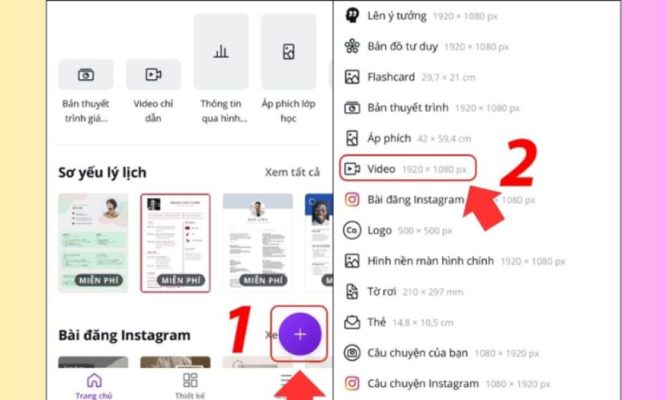
Step 2: Create a New Design
Tap the “+” icon on the main interface to start creating a new design. In the list of options, select “Video” so Canva automatically adjusts the size suitable for the type of video you want to make.
Choosing the right design type from the beginning will help you easily arrange scenes, images, and effects harmoniously, while reducing later editing steps.
Step 3: Choose a Suitable Video Template
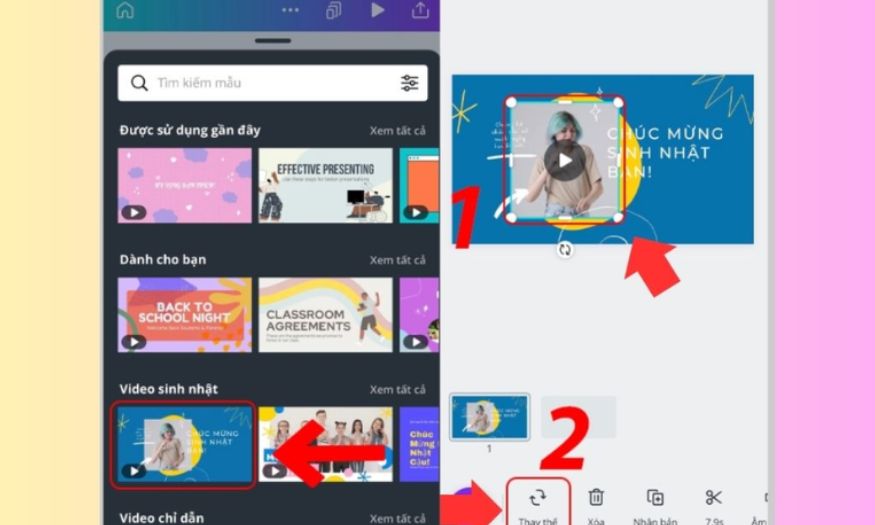
Canva provides thousands of diverse video templates, from advertising videos and product introduction videos to tutorial videos or social media videos. Search for and choose a template that matches your idea and style.
After choosing a template, you can customize each scene, change images, text, colors, and transition effects. This helps the video become unique and completely suitable for the message you want to convey.
Step 4: Add Audio and Background Music
Audio is an important factor that makes your video lively and attractive to viewers. Tap the “+” icon and select the “Audio” tab to access Canva’s available background music and effects library.
In addition, you can also upload your own audio file. Combining images, videos, and audio reasonably will create impressive, professional videos that are easier for audiences to remember.
Step 5: Download the Video to Your Phone
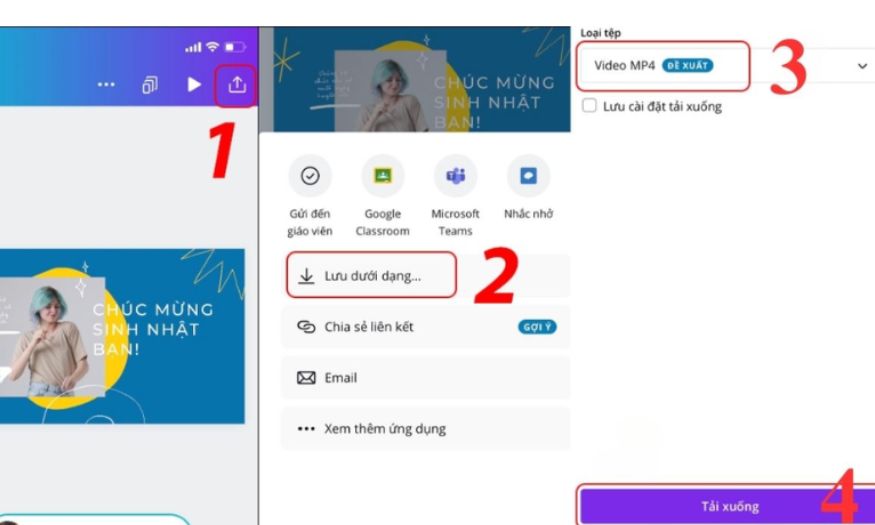
When you have finished editing, tap the share icon in the right corner and select “Save as”. Next, choose the Video MP4 file format to download the video to your phone.
Review the video before sharing to ensure all effects, audio, and images display correctly. Your video is now ready to post on social media, present, or use for promotional purposes.
4. Guide on How to Make Videos on Canva Using a Computer
Creating videos on Canva using a computer brings a more flexible, convenient, and professional design experience thanks to the larger screen and complete editing tools. With just a few basic steps, you can own beautiful, lively videos that are ready to share on social media.
Step 1: Create a New Video Design
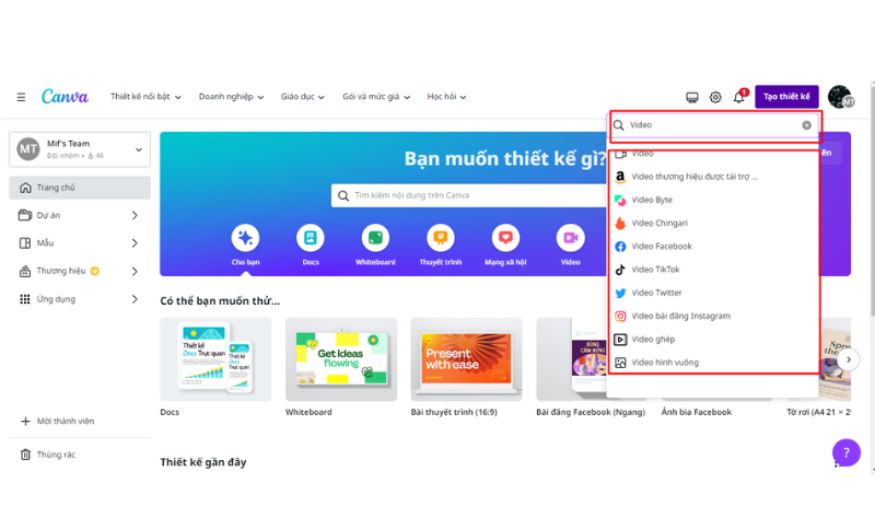
Access the Canva homepage and click the “Create a design” button, then choose the type of video you want to use. Canva provides many different video formats such as square video, TikTok video, Facebook video, or YouTube video.
Choosing the right format from the beginning helps your video display correctly on the platform where you want to upload it, while making it easy to arrange images, text, and transition effects reasonably.
Step 2: Choose an Available Video Template or Create a New One Yourself
In the editor, you can search for available video templates by topic in the Design tab. Choose a template that matches your content to save time, or start from a blank design if you want to create freely.
Choosing an available video template helps you quickly visualize the overall look, while creating a new video yourself allows you to make a unique product that truly reflects your own style.
.jpg)
Step 3: Edit the Video
Add images and overlays
Go to the Elements tab, enter keywords related to the video topic to find suitable images or overlays. When the library appears, you only need to drag and drop the image or overlay into the video.
This method helps your video become more lively while creating visual highlights for the content you want to convey.
Insert videos and images from your device
You can use your own videos and images by going to the Uploads tab, selecting Upload files, and dragging videos/images from your computer into the design. After uploading, you only need to drag and drop them into the video to combine them with other elements.
Trim video duration
Canva provides a Scissors tool that helps you easily trim videos. Click the icon, choose the desired start and end points to adjust the video length.
Add music and voiceover
Access the Elements > Audio tab to find suitable background music or sound effects. You can drag and drop music into the video and cut the audio segment as desired. In addition, you can upload your own voice or music to create a personal touch.
Add transition effects
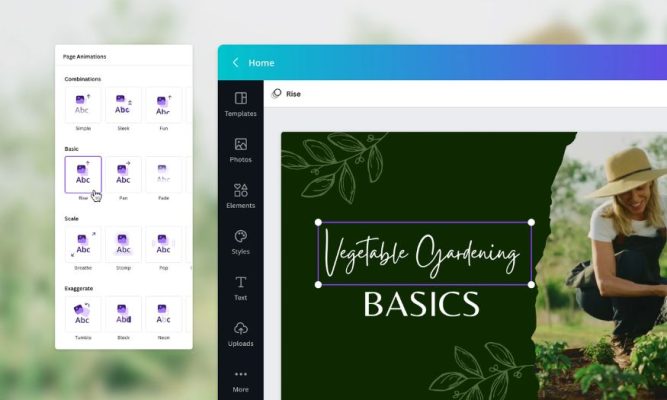
Click the Motion button on the toolbar and choose a transition effect. You can also adjust the duration of the transition process to make the video smoother and more professional.
Add stickers and graphics
Canva provides many lively stickers and graphics in the Sticker and Graphics tabs. Choose a suitable sticker and drag it into the video, then adjust the size and position to increase liveliness.
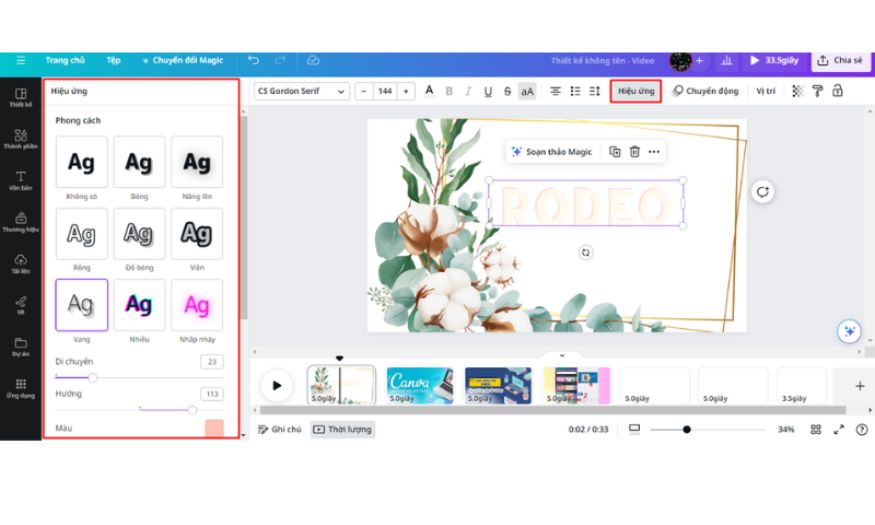
Add text and text effects
Go to the Text tab, choose fonts, colors, and enter the content you want to display. To increase attraction, click Effects to create outstanding text styles, then use Motion to add movement effects to the text.
Step 4: Export and Share the Video
When the video is complete, click Download in the top right corner. Choose MP4 or GIF format and save it to your computer.
You can also share the video online with your team to discuss, edit together, or post directly to social networks such as Facebook, TikTok, and YouTube. This helps save time and expand audience reach.
5. Why You Should Use Canva to Create Media Videos
In the digital age, video has become an indispensable tool for promoting brands and attracting audiences. Canva is the perfect solution to help you create professional, beautiful, and easy-to-share videos, even when you do not have advanced design skills.
Video helps brands stand out and make an impression: Video is a powerful visual medium that helps express your brand story, product, or service vividly. Compared with traditional images or text, video creates emotion more easily and leaves a lasting impression, helping your brand stand out among thousands of competitors.
Optimize videos to increase searchability: When created properly, videos not only attract viewers but also help improve SEO for businesses. Factors such as titles, descriptions, tags, audio, and images in the video can all be optimized, helping the video appear more on search engines and social networks, expanding the reach to potential customers.
Connect deeply with audiences: Video helps you tell stories and convey messages vividly and more easily. Through moving images, sound, background music, and voiceover, video creates a strong emotional experience, attracting higher interaction than static content.
Increase conversion rates and business effectiveness: Studies show that video can help increase conversion rates by up to 80%. An attractive media video not only keeps audiences watching longer but also encourages them to take action, from registering and buying to sharing content, bringing clear business benefits.
Save design time and costs: With Canva, you can easily create high-quality videos in just a few minutes without hiring a designer or investing in complicated software. The rich video template library, audio, effects, and intuitive drag-and-drop tools help you create quickly, saving costs while still ensuring professionalism for the final product.
Easy customization and unlimited creativity: Canva provides thousands of video templates, images, background music, and transition effects, allowing you to customize every detail according to your own style. This helps videos become unique, suitable for communication goals, and carry the personal mark of the brand.
6. Conclusion
So AI Software World has guided you on how to make videos on Canva in a detailed and easy-to-follow way. If you want to experience more premium features, completely remove Watermark, and create without limits, register for a Canva Pro account today. Visit the website and follow the “News” section on the homepage to receive complete and quick guidance. With Canva Pro, creating professional videos has never been this simple!





















VIP Products








Best Selling Products
Upgrade genuine Capture One account
120 USD
Freepik Premium Account
59 USD
Upgrade Duolingo Super
29 USD
Windows 10 & 11 Pro Key
36 USD
Genuine Cheap Canva Pro
39 USD
ChatGPT Plus Account (GPT-4)
16 USD
Copyright Adobe Lightroom Account
59 USD
Adobe Premiere Pro Account
99 USD
Capcut Pro 1 Year
39 USD
Genuine Adobe Illustrator account
99 USD
Plugin Retouch4me
69 USD
Autodesk All App Account Copyright
120 USD
Upgrade Genuine Office 365
49 USD
MidJourney Account
29 USD
Adobe Photoshop Copyright - Full App
120 USD