Best Selling Products

Adobe Premiere Pro Account
99 USD

Copyright Adobe Lightroom Account
59 USD

Upgrade Duolingo Super
29 USD

Plugin Retouch4me
69 USD

Windows 10 & 11 Pro Key
36 USD

Adobe Photoshop Copyright - Full App
120 USD

Genuine Cheap Canva Pro
39 USD

MidJourney Account
29 USD

Freepik Premium Account
59 USD

Upgrade Genuine Office 365
49 USD

Upgrade genuine Capture One account
120 USD

Capcut Pro 1 Year
39 USD

Autodesk All App Account Copyright
120 USD

ChatGPT Plus Account (GPT-4)
16 USD

Genuine Adobe Illustrator account
99 USD
How to Transfer Slides from Canva to PowerPoint with a Few Simple Steps
Nội dung
- 1. What Are the Characteristics of Canva and PowerPoint?
- 2. Some Reasons Why You Should Transfer Canva Slides to PowerPoint
- 3.1 Step 1: Access the Export Function on Canva
- 3.2 Step 2: Choose Microsoft PowerPoint Format
- 3.3 Step 3: Select the Slides You Want to Export
- 5. Should You Use Canva or PowerPoint to Make Slides?
- 5.2 When Should You Use Canva?
- 6. Choosing a Reputable Company to Upgrade Canva Pro
- 6.1 AI Software World – A Reputable Canva Pro Provider
- 6.2 Customers Are the Top Priority
- 6.3 Reasonable and Transparent Pricing
- 7. Conclusion
Canva has become a powerful tool for those who want to create beautiful and professional presentation slides without spending too much time.
1. What Are the Characteristics of Canva and PowerPoint?
Canva is a powerful online design platform that allows users to create slides, posters, social media images, videos, and many other types of publications without needing advanced design skills. Canva stands out with a diverse library of ready-made templates and intuitive drag-and-drop tools, helping you easily create and personalize products according to your needs. Besides that, Canva also supports teamwork, online sharing, and integration with many applications, making the design process faster and more convenient.
PowerPoint is a familiar presentation software and is widely used around the world, especially in office, education, and seminar environments. PowerPoint stands out with the ability to create dynamic slides, insert multimedia, transition effects, and customize each element in detail within the slide. This software also supports offline presentation, printing, and exporting files in many different formats, helping users easily prepare professional presentations and stay flexible in many situations.

2. Some Reasons Why You Should Transfer Canva Slides to PowerPoint
Transferring slides from Canva to PowerPoint not only helps you become more flexible in presenting but also brings many practical benefits. From compatibility and offline access to advanced features, this conversion will make your presentation more professional and convenient than ever.
2.1 Compatible with Many Systems
PowerPoint is software used widely around the world, so transferring slides from Canva to PowerPoint helps you ensure that everyone can easily open, view, and edit the presentation. This completely eliminates compatibility problems between different systems, helping your work run more smoothly and effectively.
2.2 Offline Access
Unlike Canva, PowerPoint allows you to open and present slides without needing an Internet connection. This is a major advantage when you need to present in places with limited network access or when the Internet connection is unstable. With PowerPoint, you are always proactive and confident in every situation.
2.3 Familiarity with PowerPoint
PowerPoint has accompanied many generations of users in creating slides and giving presentations. Converting from Canva to PowerPoint helps you immediately make use of existing knowledge without spending time learning how to use a new tool. This is especially useful for those who are already familiar with PowerPoint’s interface and features.
2.4 Advanced Features of PowerPoint
PowerPoint provides many advanced features that Canva cannot replace, including complex animations, multimedia integration, and the ability to create interactive content. When transferring slides from Canva to PowerPoint, you open up the opportunity to create more vivid, professional, and attractive presentations that leave a strong impression on the audience.
2.5 Diverse Printing and Export Options
Another strength of PowerPoint is its ability to print and export slides in many different formats, from outlines and handouts to professional presentation files. Converting slides from Canva to PowerPoint helps you easily prepare materials for meetings, seminars, or presentations, meeting diverse needs and improving work efficiency.
3. Guide to Converting Canva to PowerPoint
3.1 Step 1: Access the Export Function on Canva
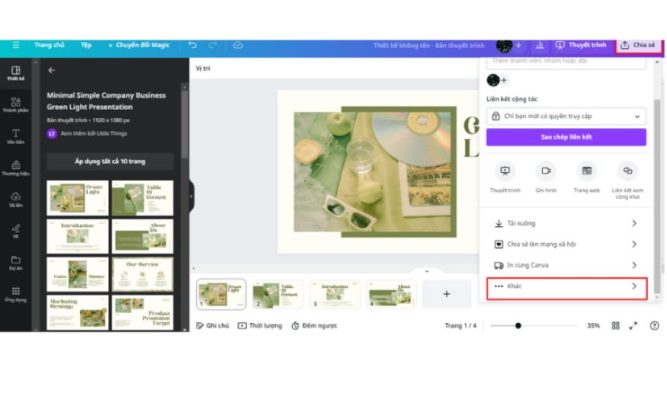
After you have finished creating your presentation on Canva, the first step is to export the file in PowerPoint format. To do this, click the “Share” button located in the right corner of the screen. This is where Canva gathers all sharing and export options, helping you quickly find the desired format.
Next, from the drop-down menu, select “More”. This option will open a list of applications and formats that Canva supports for export, including popular tools such as PowerPoint, PDF, Google Drive, etc. This helps you get ready for the conversion to PowerPoint without losing data or design formatting.
3.2 Step 2: Choose Microsoft PowerPoint Format
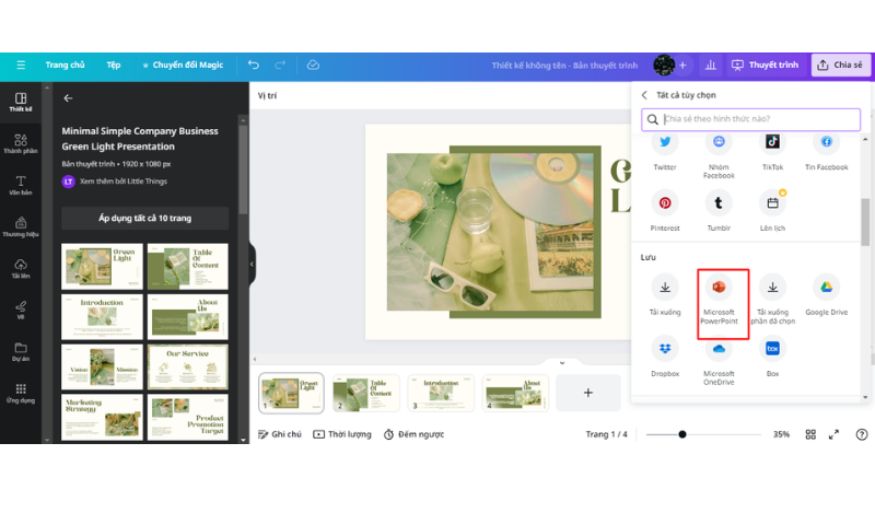
After clicking “More”, scroll down the list to find and select Microsoft PowerPoint. This is the format provided by Canva, directly compatible with PowerPoint, helping you keep the layout, colors, and fonts of the slides when converting.
Choosing PowerPoint is an important step to ensure your presentation can be opened and edited easily on a computer, even without an Internet connection. When clicking this option, Canva will prepare the file export process, helping you quickly download it without having to convert manually.
3.3 Step 3: Select the Slides You Want to Export
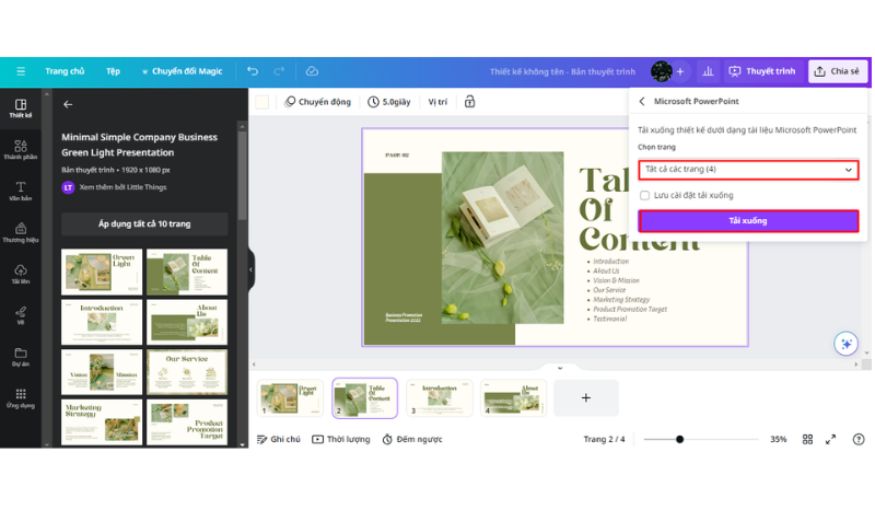
By default, Canva will select all slides in the presentation to export to PowerPoint. If you only want to export certain slides, click the drop-down arrow in “Select Pages” to choose specific slides. You can also deselect unnecessary slides by clicking “Done” to complete the selection.
After identifying the slides you want to export, click “Download”. Canva will process and prepare the PowerPoint file based on the slides you have selected. This step ensures that you only download the necessary slides, saving storage space and time.
3.4 Step 4: Save the PowerPoint File on Your Computer
When the save file window appears, choose a location on your computer and name the file so it is easy to recognize. This helps you easily manage presentations and find them again when needed.
Finally, click “Save” to complete the process. Immediately, your Canva presentation will be downloaded as a PowerPoint file, ready to open, edit, or present on any device using PowerPoint.
4. How to Transfer Canva Slides to PowerPoint Without Changing Fonts and While Keeping Animations
4.1 Step 1: Keep Fonts Unchanged When Transferring Slides
When using custom fonts in Canva, PowerPoint sometimes will not recognize them correctly and will automatically replace them with default fonts. To avoid this, before exporting slides, you need to check the fonts you are using in Canva and compare them with the font library available in PowerPoint.
If the font you use is not available in PowerPoint, replace it with a similar available font or install a compatible font on your computer. This method ensures that when opening the slide in PowerPoint, the layout, text size, and design style remain unchanged, helping the presentation look professional and consistent.
4.2 Step 2: Export Canva Slides with Animations
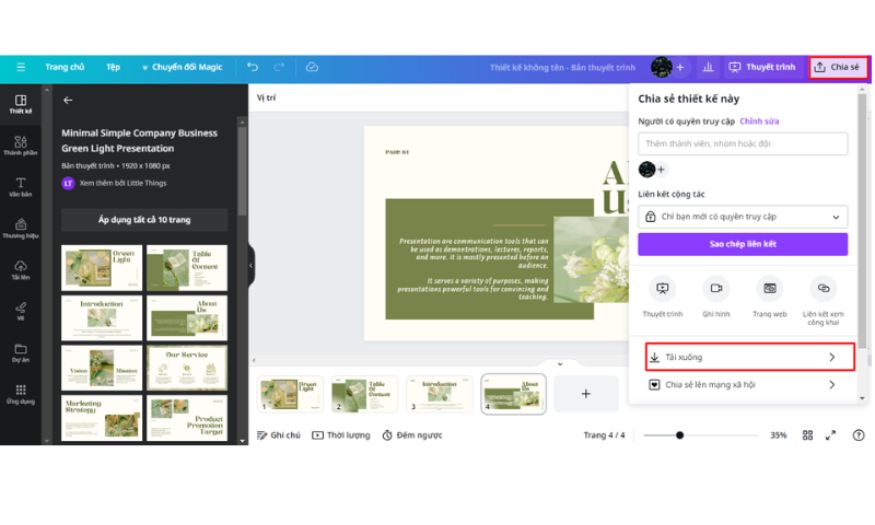
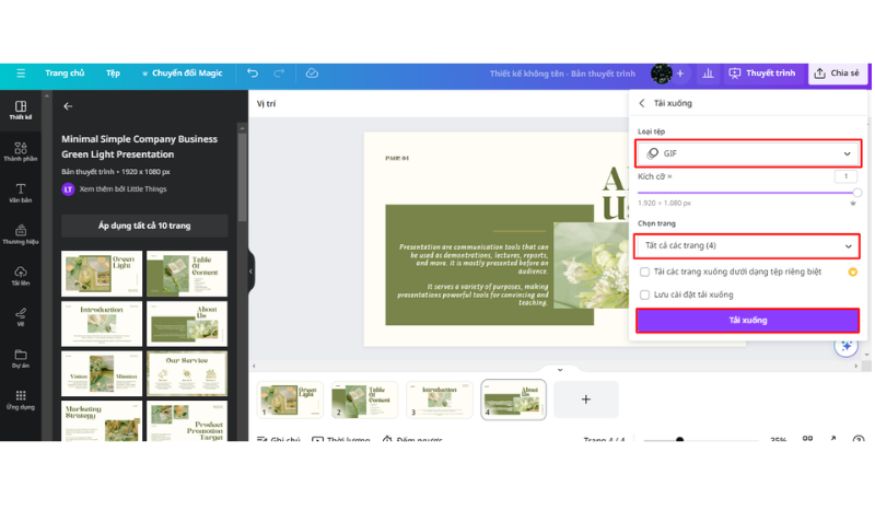
PowerPoint cannot directly receive Animations effects from Canva. If you want to keep the effects created in Canva, you need to export the slide as a GIF. First, click the “Share” button in the top right corner of the Canva screen, then select “Download” from the menu.
Next, in the File type section, choose GIF. Select the slide page you want to export and click “Download”. Canva will process and create an animated GIF file, keeping the Animations effects you designed.
4.3 Step 3: Save the GIF File on Your Computer
When the save file window appears, choose a suitable location on your computer and name the file so it is easy to recognize. Then click “Save” to complete. Immediately, your Canva slide will be downloaded as a GIF file, ready to present while still keeping the Animations effects created.
4.4 Step 4: Important Notes When Using GIF in PowerPoint
You need to note that when exporting Canva slides to .pptx format, animated elements will be removed. If you want to present with Animations effects, you can only use GIF or animated PNG files. At the same time, the elements on the slide cannot be edited directly in PowerPoint because they have been “fixed” into an animated image.
5. Should You Use Canva or PowerPoint to Make Slides?
5.1 When Should You Use PowerPoint?
PowerPoint is a traditional presentation creation tool, widely used in offices, education, and seminars. PowerPoint’s interface is simple and intuitive, helping users easily add content, images, charts, and effects to each slide. Besides that, the available slide template library helps save time, and you can also apply animations to make the presentation more lively and attractive. The read-only feature also helps protect content when sharing files with others.
However, PowerPoint also has some limitations to keep in mind. When opening a file on another computer, font, formatting, or effect errors sometimes occur. The software does not automatically save files, so if you forget to save, you may lose all the content you created. In addition, group collaboration on PowerPoint is quite inconvenient, as you often have to send and download files many times for everyone to edit together.
5.2 When Should You Use Canva?
Canva is a versatile online design platform, suitable for both beginners and those who want to create slides quickly. Canva provides hundreds of design templates, more than 500 font types, and a huge library of images and icons, helping you create beautiful and professional slides without much effort. The intuitive drag-and-drop interface helps you easily edit and personalize each slide. Canva also supports online sharing and group collaboration, while automatically saving files, helping you feel secure and not worry about losing data.
However, Canva also has some limitations. Some advanced features or high-quality graphic elements require payment to use. In addition, Canva is also limited in the ability to create complex animations compared with PowerPoint, so if you need powerful animation effects, PowerPoint is still the more optimal choice.
6. Choosing a Reputable Company to Upgrade Canva Pro
Canva Pro is a powerful tool that helps you create professional designs, from presentation slides, posters, banners to high-quality videos. However, the important thing is to choose a reputable place to buy an account, ensuring copyright and safety during use. AI Software World is a trustworthy address, helping you upgrade Canva Pro quickly and conveniently.
6.1 AI Software World – A Reputable Canva Pro Provider
AI Software World is one of the leading graphic software providers in Vietnam. With many years of experience, the company specializes in providing licensed products, including Canva Pro, ensuring full VAT invoices and legal licenses. Thanks to that, you can be completely assured about quality and benefits when using a Canva Pro account.
VAT invoices are issued for both individuals and businesses.
The professional support team always provides detailed step-by-step usage guidance.
All the latest features of Canva Pro are always fully updated.
Committed to dedicated support and answering all questions throughout the usage process.
6.2 Customers Are the Top Priority
When coming to AI Software World, you do not need to worry about activating or using Canva Pro after payment. The company’s support team will guide installation and detailed operations, helping you upgrade your account easily and quickly. Any issue during use will also be answered dedicatedly, helping you experience the software completely.
6.3 Reasonable and Transparent Pricing
AI Software World is proud to provide Canva Pro accounts at the most reasonable price on the market. You will receive a licensed product with full features, worthy of the money spent. This is a great opportunity to improve the quality of your designs, save time, and optimize work efficiency today.
7. Conclusion
Above is the full detailed guide on how to transfer slides from Canva to PowerPoint that we shared in the “News” section. Hopefully, this information will help you clearly understand the process and apply it easily. Do not hesitate to contact us immediately if you need to buy a Canva account to fully experience the wonderful features of this platform.





















VIP Products








Best Selling Products
Adobe Premiere Pro Account
99 USD
Copyright Adobe Lightroom Account
59 USD
Upgrade Duolingo Super
29 USD
Plugin Retouch4me
69 USD
Windows 10 & 11 Pro Key
36 USD
Adobe Photoshop Copyright - Full App
120 USD
Genuine Cheap Canva Pro
39 USD
MidJourney Account
29 USD
Freepik Premium Account
59 USD
Upgrade Genuine Office 365
49 USD
Upgrade genuine Capture One account
120 USD
Capcut Pro 1 Year
39 USD
Autodesk All App Account Copyright
120 USD
ChatGPT Plus Account (GPT-4)
16 USD
Genuine Adobe Illustrator account
99 USD