Best Selling Products

Freepik Premium Account
59 USD

Adobe Premiere Pro Account
99 USD

Windows 10 & 11 Pro Key
36 USD

Genuine Adobe Illustrator account
99 USD

Adobe Photoshop Copyright - Full App
120 USD

Plugin Retouch4me
69 USD

Copyright Adobe Lightroom Account
59 USD

Genuine Cheap Canva Pro
39 USD

Autodesk All App Account Copyright
120 USD

Capcut Pro 1 Year
39 USD

Upgrade Genuine Office 365
49 USD

MidJourney Account
29 USD

Upgrade Duolingo Super
29 USD

Upgrade genuine Capture One account
120 USD

ChatGPT Plus Account (GPT-4)
16 USD
Instructions on How to Separate Beats Using Adobe Audition CS6 Software
Music always evokes special emotions in us, but to create a perfect piece of music, the process of editing and processing audio plays a crucial role.
1. What is Adobe Audition CS6?
Adobe Audition CS6 is professional audio editing software developed by Adobe Systems, standing out with its intuitive interface, powerful toolkit, and diverse audio processing capabilities. First released in 2003 under the name Cool Edit Pro, this software was quickly acquired by Adobe and improved into Adobe Audition, becoming an indispensable tool in the field of music production and audio post-production. The CS6 version is considered one of the most stable and popular versions, chosen by music producers, studios, DJs, and content creators.
With Adobe Audition CS6, users can easily record, edit, mix, master, and optimize audio quality at a professional level. The outstanding point of this software lies in its multitrack audio processing capability, along with a series of supporting tools such as Noise Reduction to remove noise, EQ to adjust frequencies, and Center Channel Extractor – a powerful feature that helps separate vocals or beats from a track. Not only suitable for audio experts, Adobe Audition CS6 is also an ideal choice for YouTubers, podcasters, DJs, filmmakers, or those who love creating music at home, because of its easy-to-use interface and stable operation on many different computer configurations.
2. Why is it necessary to separate beats in music?
Beat separation is one of the important operations in the process of audio production and editing, bringing many practical benefits. When separating beats, you can remove the vocal part or background music, thereby creating a clean beat file to use for many different purposes. This is an indispensable step when you want to make background music for videos, produce karaoke, remix songs, mix tracks, or serve audio post-production work for films and advertising TVCs.
For DJs and music producers, separating beats helps them easily transform and combine music segments together to create unique mixes with their own personal mark. For YouTubers and content creators, owning clean beats greatly supports building videos without violating music copyright, while also increasing the professionalism of the product. In addition, music lovers can also use this feature to create karaoke versions, sing, and record right at home with quality that is not inferior to a studio.
Thanks to the support from Adobe Audition CS6, the beat separation process is no longer as complicated as before. Instead of having to use many tools at the same time, this software integrates full features that help users separate beats quickly, accurately, and with high quality. This not only saves time but also opens up unlimited creative opportunities for those who are passionate about music and content production.
3. Preparation before separating beats with Adobe Audition CS6
Before starting to separate beats, you need to fully prepare equipment, software, and the original music file to ensure the working process runs smoothly and produces the best audio quality. Careful preparation will help you save time, reduce technical errors, and optimize audio editing efficiency.
3.1. Required computer configuration
Adobe Audition CS6 is professional audio processing software, so it requires a relatively strong computer configuration to operate stably, especially when working with high-quality audio files.
Minimum configuration to run Adobe Audition CS6:
CPU: Intel Core 2 Duo or equivalent AMD, speed from 2.0 GHz or higher.
RAM: Minimum 2GB, recommended 4GB or higher so the software can run smoothly when working with multiple tracks.
Hard drive: At least 2GB of free space to install the software and an additional 5-10GB for audio files.
Operating system: Windows 7, 8, 10, or compatible Mac OS version.
Sound card: Supports ASIO or WASAPI standard to optimize input and output audio quality.
Recommended devices to support accurate audio monitoring:
Studio Headphones: Help you hear every detail of the audio clearly, easily detect errors or noise when separating beats.
Monitor Speakers: If you work in a studio or need to listen to audio in a wider space, monitor speakers are an ideal choice.
High-quality microphone, if recording is needed: Provides additional support when you want to test recording and mix with the separated beat.
Investing in a standard audio equipment set will help you achieve accurate results, especially when processing audio in depth.
3.2. Download and install Adobe Audition CS6
To separate beats, first you need to install Adobe Audition CS6 with the correct version and full features.
Instructions for downloading the correct version:
Access reputable sources to download the installer, avoid downloading from unknown websites because they may contain viruses or outdated software.
Choose Adobe Audition CS6 Full version to ensure it has all tools, especially the Center Channel Extractor feature used in beat separation.
Quick and easy-to-understand installation steps:
After downloading, extract the installation file.
Run the setup.exe file and select Install to begin.
Follow the instructions on the screen, choose the storage folder, and complete the installation process.
When the software asks you to log in, you can use an Adobe account or choose trial mode.
Suggestion to enable English for easier operation:
Adobe Audition CS6 supports many languages, but English is the most common in instruction documents and tutorial videos.
To change the language, go to Edit → Preferences → General → Language, then select English.
Using English will help you easily search for instructions and learn more from the user community around the world.
3.3. Prepare the music file for beat separation
An important factor that affects the quality of the beat after separation is the original music file.
Choose a high-quality music file:
Prioritize WAV or FLAC formats. These are two uncompressed audio formats that preserve the original audio quality.
Avoid using low-quality MP3 files because when separating beats, the sound can easily become distorted or mixed with noise.
Notes about copyright and legal use:
Make sure you have the right to use the track, especially if the purpose is to produce videos or publish publicly.
You can use royalty-free music sources to avoid violating the law and having content removed by platforms such as YouTube and Facebook.
Some popular royalty-free music libraries: Free Music Archive, Pixabay Music, Bensound.
Preparing high-quality and legal music files not only helps you separate beats better but also ensures professionalism and sustainability for long-term audio projects.
4. Detailed instructions for separating beats using Adobe Audition CS6
4.1 Step 1: Start the software and open the audio file
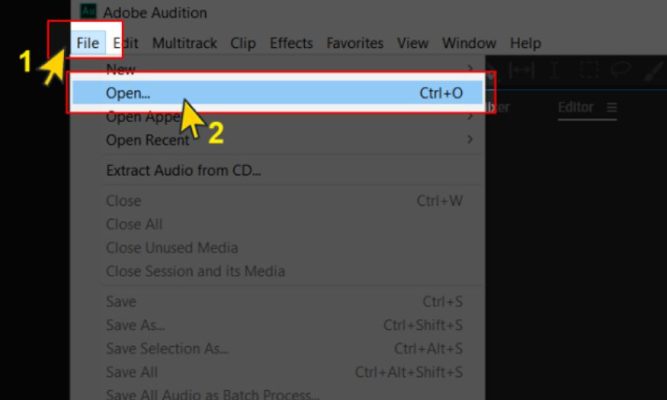
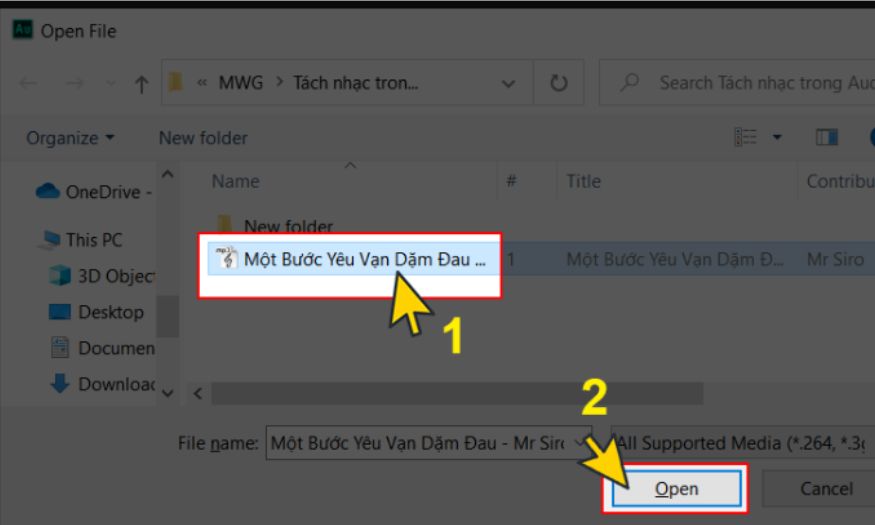
Open Adobe Audition CS6 and select File, then click Open or use the Ctrl O key combination to load the song that needs processing. This is an important starting operation in how to separate beats using Adobe Audition CS6, because you will work directly on the waveform of the original file, so you need to make sure you have opened the correct high-quality track.
After opening the file, observe the Waveform interface to understand the structure of the song, paying attention to the intro, verse, and chorus sections to easily identify the beat position that needs to be separated. For safety, you should save a copy of the original file before operating to avoid losing the original data.
4.2 Step 2: Select the music file and check audio resolution
When the Open window appears, find the high-quality WAV or FLAC file and click Open to import it into Audition. Choosing a high-quality file is a key factor in how to separate beats using Adobe Audition CS6 because a low-compression file helps the vocal separation tool retain more beat details.
After the file is loaded, play the entire track to determine where the vocal appears most clearly and the beat part that needs to be kept, while also checking the sample rate and bit depth in the Properties section to ensure compatibility when exporting the final file.
4.3 Step 3: Open the Center Channel Extractor effect
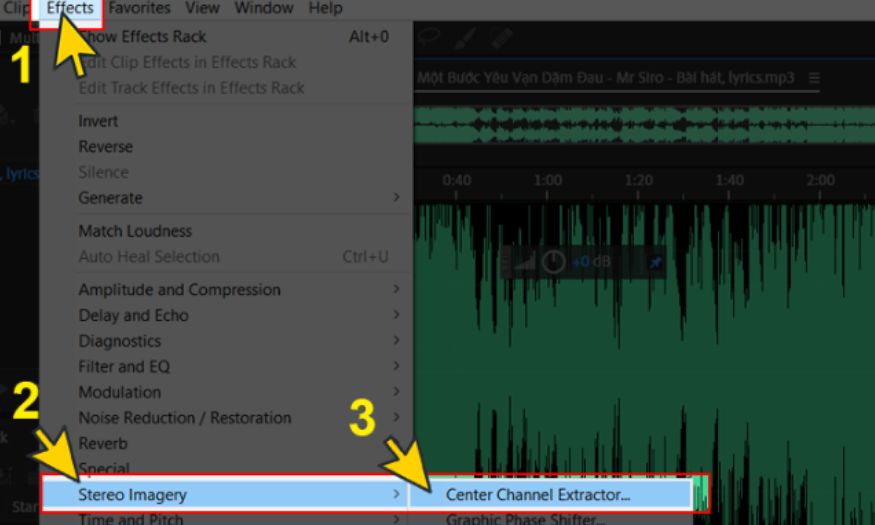
On the menu bar, select Effects, then go to Stereo Imagery and click Center Channel Extractor to open the specialized tool for removing or separating components in the center channel. This tool is one of the main steps in how to separate beats using Adobe Audition CS6 because it allows you to interfere with audio in the stereo field and process the vocal part located in the center of the mix.
Before applying, select the area to process by highlighting it on the waveform if you only want to work on each section instead of the entire file, and click Preview in the effect window to listen to the changes before confirming.
4.4 Step 4: Choose the Vocal Remove preset and preview the result
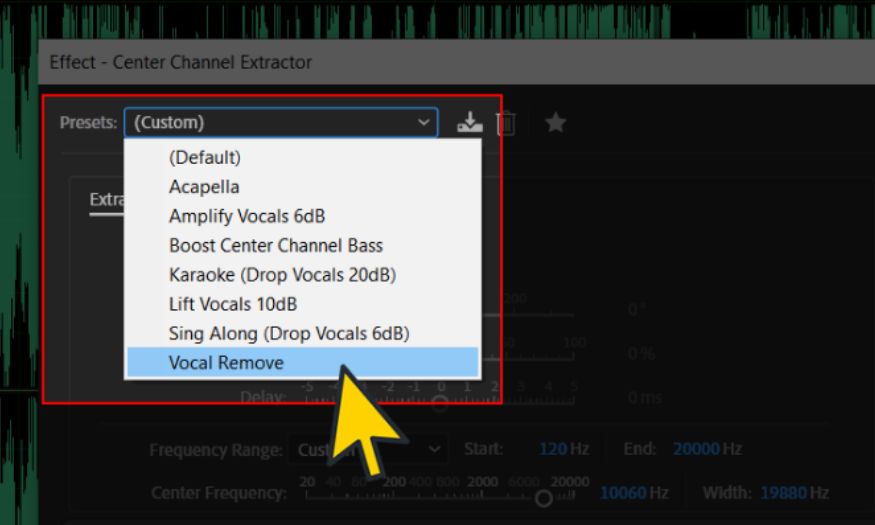
In the Effects window of Center Channel Extractor, in the Presets section, choose Vocal Remove so the software attempts to remove the main vocal in the center, thereby obtaining a cleaner beat. This preset is a suitable choice for many popular tracks in the guide on how to separate beats using Adobe Audition CS6; however, the result still depends on the original mix and vocal characteristics.
After selecting the preset, use the Preview button to listen and carefully check each section, especially the chorus where the vocal is often clearest. If you still hear remaining vocals or the beat is affected, continue adjusting the parameters until you achieve a satisfactory sound balance.
4.5 Step 5: Choose the Frequency Range suitable for the vocal
In the Frequency Range section, choose Male Voice or Female Voice depending on the singer’s gender to help the tool identify the frequency range that needs to be reduced. This operation increases effectiveness in how to separate beats using Adobe Audition CS6. Male voices usually have a lower frequency range, while female voices usually focus on a higher frequency range, so choosing the correct option will minimize the impact on the background music.
If the song has many instruments occupying a frequency range close to the vocal, you should further refine the frequency parameters manually or use Spectral Frequency Display to accurately identify the vocal frequency range, thereby minimizing the accidental removal of beat details.
.jpg)
4.6 Step 6: Adjust Center Channel Level and Side Channel Levels to complete
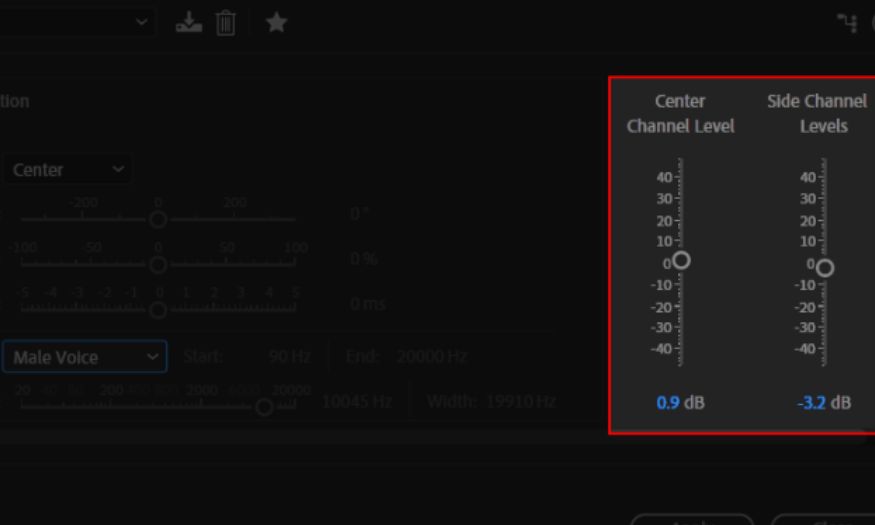
On the right side of the Center Channel Extractor window, change Center Channel Level to reduce the volume of components in the middle of the mix, while adjusting Side Channel Levels to preserve or increase stereo audio in order to maintain width and background music. Balancing these two parameters is a key step in how to separate beats using Adobe Audition CS6 because it determines the level of vocal removal and the level of beat preservation.
After adjusting until the beat sounds clear and the vocal has been reduced as much as possible, apply the effect and then use supporting tools such as EQ or Noise Reduction if there is still noise. Finally, export the file in WAV or MP3 format with high-quality settings to save the complete beat version.
5. Conclusion
Separating beats using Adobe Audition CS6 is not only a simple audio editing skill, but also a stepping stone that helps you confidently create and elevate your music products. With the detailed steps in this article, you can completely create unique, professional, and highly personal tracks. Be patient in practicing and explore more features of Adobe Audition CS6 to improve your editing skills, thereby turning your passion for music into impressive products that touch listeners’ hearts.





















VIP Products








Best Selling Products
Freepik Premium Account
59 USD
Adobe Premiere Pro Account
99 USD
Windows 10 & 11 Pro Key
36 USD
Genuine Adobe Illustrator account
99 USD
Adobe Photoshop Copyright - Full App
120 USD
Plugin Retouch4me
69 USD
Copyright Adobe Lightroom Account
59 USD
Genuine Cheap Canva Pro
39 USD
Autodesk All App Account Copyright
120 USD
Capcut Pro 1 Year
39 USD
Upgrade Genuine Office 365
49 USD
MidJourney Account
29 USD
Upgrade Duolingo Super
29 USD
Upgrade genuine Capture One account
120 USD
ChatGPT Plus Account (GPT-4)
16 USD